 Installing Windows XP from a USB drive(pen Drive) has been an issue with less number of ideal solutions available. Here we have given a solution which is easy to follow and which works. The reason why should anybody want to install Windows from a USB drive is that using a bootable CD is always been a problem. Sometimes our CD ROM may not work. Some mini laptops like Asus Eee PC may not have CD ROMs where installation is possible only through USB or an external Drive. One of the main reason why we were interested in this topic is that in the current trend Using a CD is considered primitive. A USB drive is much more easy and more portable. Hence why should anybody not want to carry their Installation files in a bootable USB drive and why would anybody rely on a CD which is easily damageable by rough handling.
The method given here is tested successfully for Windows XP 32 bit installation with SP2 and SP3. It may work with other versions of Windows like Vista and Windows 7 but we have not tested it yet.
[Update: Refer to this guide on How To Install Windows 7 or Vista Using Bootable USB Disk]
Requirements:
1. A USB Drive of minimum 2GB
2. Windows XP installation CD (Back Up will also do)
The method consists of two parts and one file download (around 499KB). We will have touse tools like PeToUSB to format your pen drive and copy the Windows XP installation files to the USB Disk using usb_prep8.cmd. Then we will boot up from the USB Drive and prepare for installation. After the process is completed your XP install is ready for the process.
Now we will start the process:
Step 1: Download the File from the link given below:
Size: 499KB
Name: usb_boot_prep_xp.zip
http://www.techrena.net/downloads/usb_boot_prep_xp.zip
Password: techrena.net
Step 2: Extract the usb_boot_prep_xp.zip file in your C drive. It will give you two folders named bootsect and usb_prep8. Plug in your USB drive to your computer and put the Windows XP CD also.
Step 3: Go to the usb-prep8 folder and double click usb_prep8.cmd file. Press any key to continue.
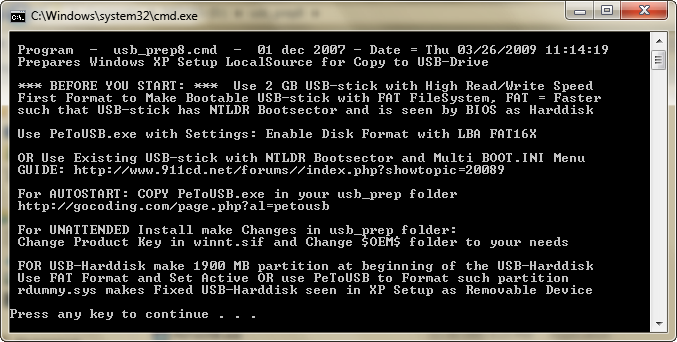
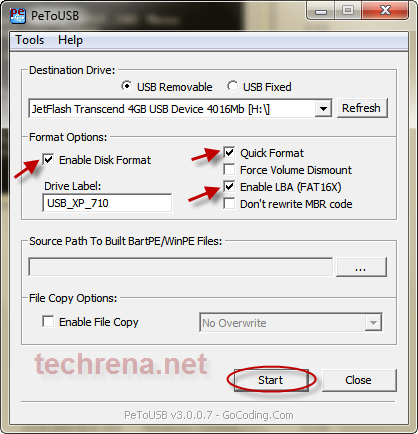
Step 4: Now it will open PeToUSB. Format your USB drive using it. Select the options as in the image below. Note that after formatting do not close the PeToUSB or the cmd console.
Step 5: Now open a new cmd console manually (press Start+L, type cmd and enter). And type the following command in the commands prompt. Note that you should type your own USB drive letter instead of ‘h’.
| Sl. No. | Command: | Action: |
| 1 | cd\ | Enter |
| 2 | cd bootsect | Enter |
| 3 | bootsect.exe /nt52 h: | Enter |
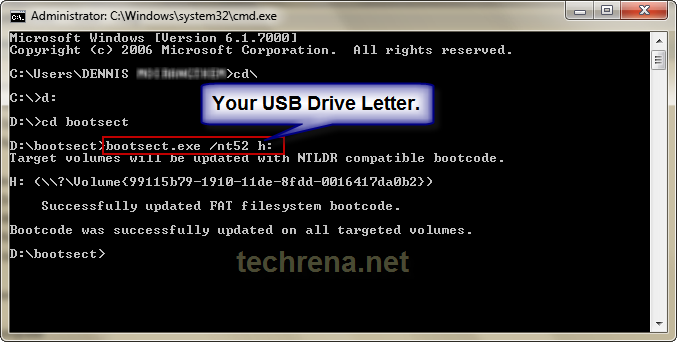
I had copied the folder in D drive. So the image will be somewhat different with the actual display of your console. Don’t worry copy the folder in your C drive only. Now close this cmd console but not the other one.
Step 6. Close PeToUSB. Now the usb_prep8.cmd console will continue. Select 1 to set the source location. Select the CD ROM containing the XP CD.
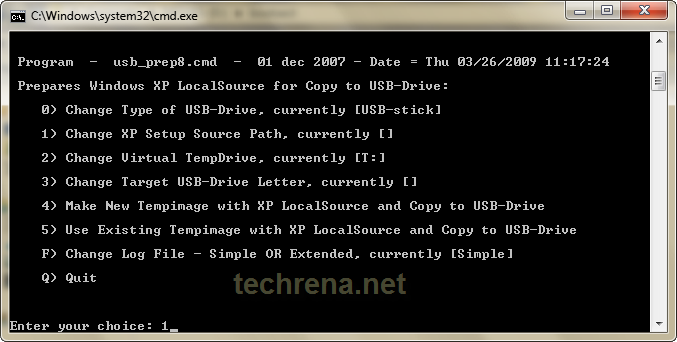
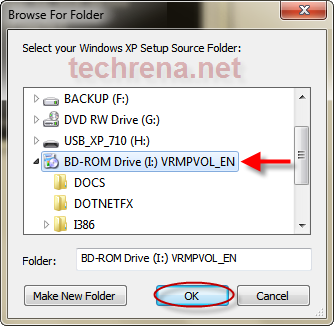
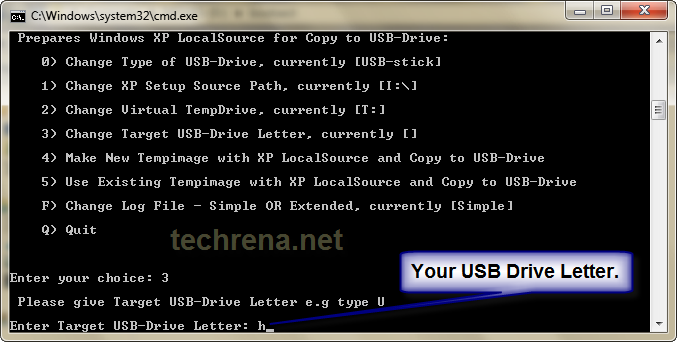
Step 7: If you have a drive called T in your computer then check option 2 to change it to any letter which is not present. Otherwise no need to change. Select 3 to set the destination drive. Enter your USB Drive letter as shown below:
Step 8: Now select choice 4 as we don’t have any Tempimage previously. It may ask you to delete the existing tempimage. select Yes.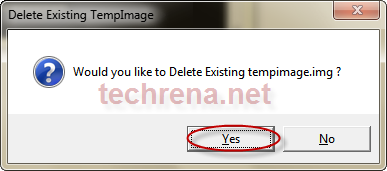
Step 9: It will ask you to format the T drive. Enter y and it will format your temp drive. Press any key to continue. Now it will start copying the XP files to the tempdrive.
Step 10: After the completion of the file copy process Press any key to continue. Now it will ask you to copy the files to your USB drive or not. Select Yes.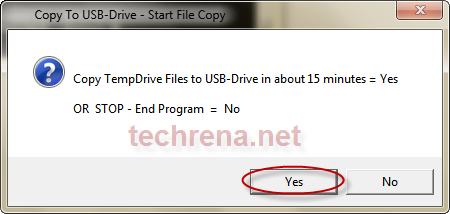
Step 11: During the copy process it will ask whether to change migrate.inf file or not. Is you are using a USB stick then Select Yes. If you are using a USB hard drive then Select No. 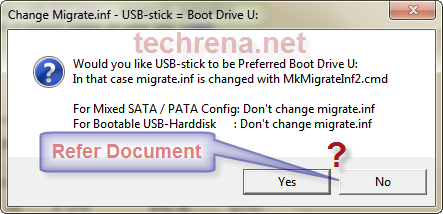
Step 12: After the successful completion of copying the files to your USB drive it will ask whether to unmount the Virtual temp drive or not. As you do not need it Select Yes.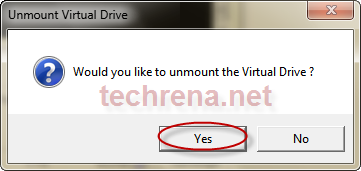
Step 13: After the successful completion of the process close the cmd console. Now your pen drive is ready for the installation process.
Step 14: Plug in the USB drive to the computer you want to install XP. While start up make sure that you set the first boot choice as your USB drive. To do this you have to enter to the bios and change the boot order to USB Disk as the first choice. For entering to BIOS press the BIOS setup key while start up. This key is usually seen in the screen in the boot screen. For most of the systems it is DEL key. For HP and Compaq it is F10 etc. Go to the boot configuration tab and change the boot order.
Step 15: While booting up from the USB it will ask you to choose between GUI and TXT mode of setup. Select TXT mode for now.
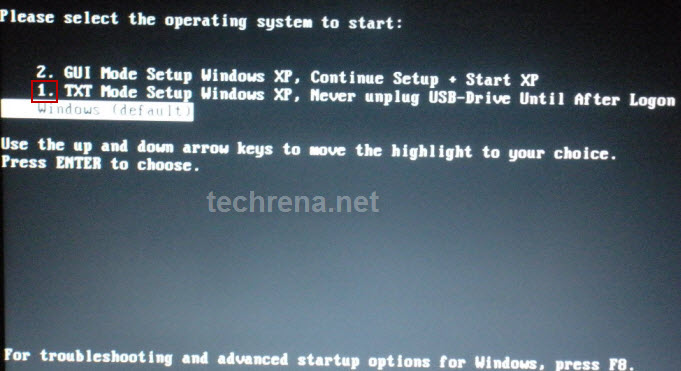
Step 16: Follow the onscreen instructions. It is same as the usual setup process. In the partition selection screen do not select you USB drive for install. And if you are installing in a new RAW hard disk then your USB Drive will be the C drive. Now first create a new partition and format your HDD using the setup. And again restart the process from step 15 by Quitting the current Install(Press F3). Then you should get your HDD partition as C drive. Continue your installation.
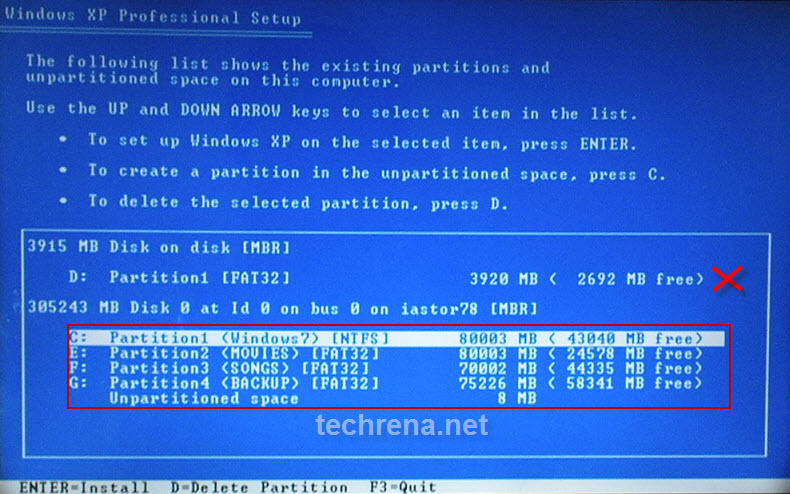
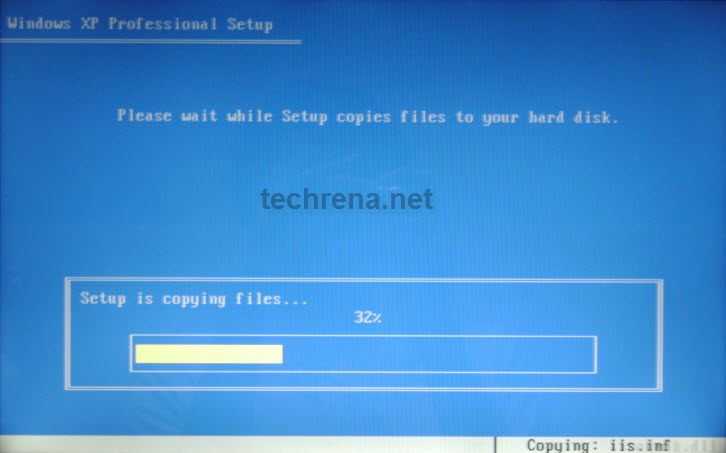
Step 17: Now it will copy a set of files to the hard disk. It usually takes lesser time than a CD ROM installation. After the process it will ask for reboot. Press Enter to reboot immediately.
Step 18: Now while start up select the GUI mode of setup to continue setup.
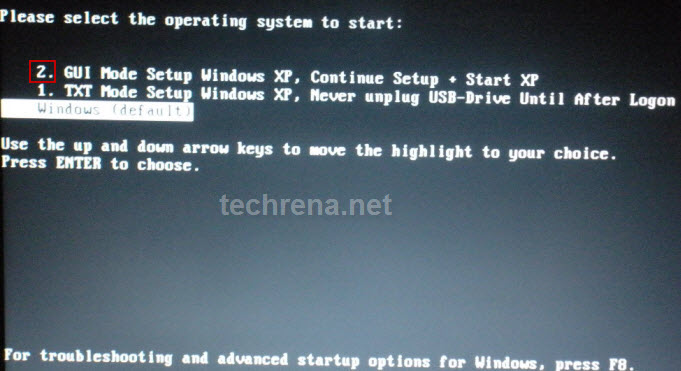
Now you can continue your usual setup process. Follow the onscreen instructions carefully. After the setup process which usually takes 39 minutes, it will restart. Now boot from your Hard drive not the USB drive. Again use BIOS settings to make this happen.
Congratulations you have successfully installed Windows XP via a USB Drive.
Important:
1. You can copy the contents of your pen drive if you want for future use. To use in future just format your USB drive with FAT, run the commands given in Step 5 and simply copy paste the files you had saved earlier. No need to run the whole process again.
2. While unmounting the Virtual Temp Drive T, it may fail and ask you to try again. Select No. And when it asks you to Force unmount select yes.
3. This Method is for informational purpose only and should not be used for Software Piracy and illegal practices.
4. We are not responsible for any loss or damage resulting from this information.
5. This method will not work if your motherboard or your BIOS does not support USB booting.
6. This method is an implementation of the guide given in http://www.911cd.net/forums//index.php?showtopic=20089. And PeToUSB is a property of http://gocoding.com/page.php?al=petousb
Featured Post:
Install Windows 7 or Vista Using Bootable USB Disk Drive

Just wanted to say thanks. I’m currently halfway thru GUI setup on a Thinkpad X31 and its working well. Much quicker than CD.
I intially had trouble getting it to work using a 8GB USB Stick. Had to follow the process at below link to make the USB appear fixed to XP so I could repartition to 1900MB FAT, then PEtoUSB worked ok (errored otherwise).
http://www.lancelhoff.com/make-windows-see-any-usb-flash-drive-as-local-disk/
Hi, I have a problem. The setup was ok but when Step 17 occurs it can’t find the source for copying. The OS that I’ve used on the USB disk is XP Pro SP2. I’m trying it on a Dell Inspiron 910. Thank you very much for the time.
Thanks a lot..I tried this and it worked..
dear sir/madam
please send me password of your zip file
thanking you
vikas
Dear Vikas,
The password is already given below the download link. It is:
i have completed step 8 but not reach in step p. cmd window see that USB_PREP.CMD will be closed. plz solve my problem.
i have completed step 8 but not reach in step 9. cmd window shoes that USB_PREP>CMD will be closed .Plz solve my Problem
nice..
all procceses completed succesfully but iam unable to boot my USB device on startup..
@ashan
You should change the boot order in your bios settings….Go to your BIOS by pressing your bios key during Boot up…select USB diskette as the 1st boot option
hi.. i wonder i still in 2 step.. my 2 external drives are not detecting in ur apps.. but it detects by vista
Hi sir/Madame i follow whatu have show just couldnt reach bootsect from what u had there so i only could use C:>bootsect could only locate ths way hope it doesnt have probleme.Now my problem is when i get to run the usb stick on the pc it says that mises a file called NTSF or somethin like that could u help me with this plz
The file is called NTLDR
I make all the steps u mencioned but when i try the txt as it refer on step 15 i get missing ntdlr message what can i do plz
Hi Sir,
I have created USB with XP. It is working fine. It installed XP on a machine but after successfull installation when I boot machine (I changed boot order to HDD) it is giving error like:-
“Windows could not start because of computer disk hardware configuration problem.
Could not read from the selected hard disk. Check boot path and disk hardware.”
Kindly let me know the reason. I will appreciate your help.
Thanks in advance.
Regards,
Kumar
Hi All,
Cheersssss!!!!!!!!!!!!!!!!!!
Thanks to Author who has given this solution. It is really very good solution.
But after 18th step kindly follow this as I was facing the problem.
Now restart the system with USB (Option 2.) and after login in XP change boot.ini file
For changing in boot.ini file follow these steps:-
Right click on My ComputeràPropertiesàAdvancedàIn Startup & Recovery click on Settings button
Now click on Edit button you will get boot.ini file in notepad
Delete line contains “Never unplug USB-Drive until after Logon”
Save the boot.ini file.
Now boot from your Hard drive not the USB drive. Again use BIOS settings to make this happen..
It is working for me….
Thanks
Kumar
I have a different problem. I am Vista installed. I turned off the UAC and still it shows only my pen drive as the available drive to install xp. I want to install it in the c drive. Please help.
@Kunal
The problem you are facing is due to Non SATA support in your XP installation. You need to disable your native sata support or slipstream the sata drivers to your XP CD. Otherwise it will not detect your SATA HDD for the installation of XP. Check the posts below:
http://techrena.blogspot.com/2008/10/how-to-install-your-own-wndows-xp-in-hp.html
http://techrena.blogspot.com/2009/01/integrate-your-own-drivers-or.html
Hdd not detected during installation
Hi, please help me! I did it all correctly but when I start to install the WinXP via flash disk an error appeared “NTLDR is missing” of course my MOBO supports USB booting.
Dear friends
here i am getting one error massage while installing windows xp from usb pen drive to laptop ,error
File\ $WIN_NT$.~BT\biosinfo.inf could not be loaded
The error code is 14
Setup cannot continue.Press any key to exit
thanx man , i really need this becoz my pc is sucks me , and i need to format that , thank for wonderful tricks , but i am using linux ubuntu 8.10 , so how can i use this trick on that
thank you!
pratikroom.blogspot.com
Thanks a lot….., good job. keep it up. I tried this and it worked fine for me. Thanks again.
Thanks a lot….this post really helped me out of trouble from my friends bad dvd rom..
I got through all the steps but the problem for the non recognition of sata drive still persisted and displaying only the drive of my pen drive… later the post by dennis (shown below..) really helped me out….thanks a lot again.
___________________________
Dennis Says:
May 15th, 2009 at 9:50 am
@Kunal
The problem you are facing is due to Non SATA support in your XP installation. You need to disable your native sata support or slipstream the sata drivers to your XP CD. Otherwise it will not detect your SATA HDD for the installation of XP. Check the posts below:
http://techrena.blogspot.com/2008/10/how-to-install-your-own-wndows-xp-in-hp.html
http://techrena.blogspot.com/2009/01/integrate-your-own-drivers-or.html
_______________________________
thanks for the tutorials it really works. thanks mate..
Hello, I’m trying to boot my acer aspire 5100 laptop via usb key. I have reached the stage where you choose GUI mode of setup. when i selected the option it says (windows root/system32/hal.dll) file corrupt or missing. Please help me how to solve this problem. Thanx
This was a very good tutorial for installing from a USB stick/thumb. I only hit one problem as I have a diagnostics partition (1) on the harddrive I used this tutorial on. It kept hitting me with the hal file not found thing. A quick change to the boot line and making the partition 2 fixed it.
Great post! I’ll subscribe right now wth my feedreader software!
when it asks to type cd bootsect, it says the system cannot find the patch specified. Please help.
i have made a usb bootable disk, but when the steup is about to start.. it says:
following setup cannot continue file .STF
value 0
a line of code [sourcedisksfiles]
the following value in the .SIF file used by setup is corrupted or missing:
value 0 on the line in section [sourcedisksfiles]
with the key “binifix4.cmd.”
setup cannot continue. To quit setup, press F3
@mus
Hi you have to copy the file “bootsect” which you unzip in step 2 to the the root of the harddrive/partition to run that command.
Dear friends
here i am getting one error massage while installing windows xp from usb pen drive to laptop ,error
File\ $WIN_NT$.~BT\biosinfo.inf could not be loaded
The error code is 14
Setup cannot continue.Press any key to exit
i have prepared a bootable usb stick for windows installation as per the above tutorial. Its boots fine, but when i try to install, it says ” setup could not access the xp installation cd on ur computer.”
the installation files already exits in the usb stick.
plz help me with this problem.
thnx
have reached the stage where you choose GUI mode of setup. when i selected the option it says (windows root/system32/hal.dll) file corrupt or missing. Please help me how to solve this problem. Thanx
ntldr is missing
Hi,
Quite nice, its really works……
VIJAY
Hewlett-Packard
i changed my bootdevice to pendriver…after that it is showing
remove disks or other media
press any key to restart.
what i have to do now?
please help
NTLDR is missing
Press any key…
HElp…..
hey it says cant detect any usb drive. Although my drive is connected.So cant proceed…SOS please
Hi
I get stuck in step 8 i cant reach step 9 the program usb_prep close
please help me
once I select option 4 this message appears:
The virtual disk driver is not installed
temporary drive t : created lets format it
specified drive does not exist program will be ended
hi all,
i dont want’s to install via pen drive i want to install win xp on the pen drive. Pen drive must be work as hard disk plz help me someone if possible….
have same problem in the stage where you choose GUI mode of setup. when i selected the option it says (windows root/system32/hal.dll) file corrupt or missing. Please help me how to solve this problem.
SALAMAT MABUHAY!!!
Thanx
NTLDR is missing
Press any key…
how can solve this problem
After the format, I get this.
The following value is in the .SIF file used by Setup is corrupted or missing:
Value 0 on the line in section [SourceDisksFiles] with key “binifix4.cmd.”
Setup cannot continue. To quit Setup, press F3.
Great! your tutorial worked perfectly! thank you very much!
Hi.
I hope not be abusing; but you are very knowledgeable on Flash Drives, so I submit this question to you.
I have a Micro Vault 2GB flashdisk.
I have a Text File notepad where I keep daily notes; it grew up to 1.7 MB; trying to always carry it with me, I save it to this Micro Vault, sometimes from Word, or from Notepad or copying it via Explorer, always as a .TXT file. Well, when I try to read it back, through any application of those mentioned or even others, I just get little squares throughout the 1.7MB file.
Could you help me to understand (and overcome) this problem?
Thank you for your attention.
I Keep getting the same error as someone else that doesn’t seem to have a resolution – after booting ok & formatting the drive, the following comes up as it goes to copy files:
The following value in the .SIF file used by Setup is corrupted or missing:
Value 0 on the line in section [SourceDisksFiles] with the key “binifix4.cmd.”
I’ve gone through the whole USB setup process 3 times and always get the same error – what can I do?
How do i know whether my motherboard supports pendrive installation?
i use a acer aspire 4520G laptop…
amd turion 64X2 processor…..
Thanks…
Ok ,, everytime I try C:\>cd bootsect
I get (The system cannot find the path specified)
What am I doing wrong????
@ dennis
gr8 job but im not able to boot from the usb I’m not getting an option “press any key ”
I have a HP Compaq dx & Transcend 2gb pen drive and still it doesn’t work
plz help me i hope there must be some way out….thnx
PROBLEM
when you are selecting GUI option it says (windows root/system32/hal.dll) file corrupt or missing.
SOLUTION
After TXT mode installation select boot device Hard Disk.
Then during reboot press down arrow to select appropriate Windoes Xp installation
select last windows xp from menu
This is because you may have previous version xp in your machine
I think it will work.
bcoz i solved this problem in my case
cheers!!!!!!
many many thanks to ALL of you for this thread……..
It is really helpful
I did everything to the tee, but still no joy when I load it ony dell mini 910 I get “File \$win_nt$.~BT\biosinfo.inf could not be loaded the error code is 14
setup cannot continue. Press any key to exit”
is there anyone with some suggestions plz help.
I’m using a kingston g2 4gb usb pen drive but i followed every step to the letter and still no joy.
could it be that it’s looking to load xp from a pata drive?
thanks for the info though I’ved tried just about everything.
imho it cannot be done.
Hi,
After I select “TXT Mode Setup Windows XP” for the first time after my Dell Mini boot from the USB stick, the “setup is inspecting your computer’s hardware configuration” message shows up and it takes so long for the setup to inspect my computer’s hardware and configuration. What is wrong with it? I think the setup “hangs” instead of doing what it suppose to do. Any idea why?. Thanks in advance!
Hi guys!
I’m added to NTDLR is missing, after the following steps:
* Disable SATA in bios.
* Download SATA drivers, nLite, prepare ISO, burn into a USB (WinRar).
Do you have solve this throuble?
You may have much better success using the programs and ask for support where all those applications for installing from USB are coming from:
http://www.msfn.org/board/install-xp-usb-f157.html
All this is developed by bunch of folks, who gladly answer any questions, there are also much newer programs for the purpose.
I also get this error
The virtual disk driver is not installed
temporary drive t : created lets format it
specified drive does not exist program will be ended
Has anyone got around this yet?
Thank you.
hiii sir did all step right but after choosing 1 text mode i gt blue screen while starting the window…
i tried dis one , but it shows only the pen drive partition, it dint show my HDD partition, please tell how to solve dis problem,
thanks
Senthil
i tried dis one , when i create a partition, it shows only the pen drive partition, it dint show my HDD partition, please tell how to solve dis problem,
thanks
Senthil
sir,
My problem is that when i am fallow 5th setp & give the command 2 bootstep then
my cmd promt says path does not recognised.
pls give me sallution of it.
here i am getting one error massage while installing windows xp from usb pen drive to laptop ,error
File\ $WIN_NT$.~BT\biosinfo.inf could not be loaded
The error code is 14
Setup cannot continue.Press any key to exit
Any one can help me regarding plzzzzzzzzzzzzzzzzzzzzzzzzzzzz …
Any one can help me plzzzzzzzzzzzzzzzzzzzzzzzzzzzz …
Really excellent piece of help! Many thanks – learned quite a lot from one of my kids latest disasters. Managed to load windows on the usb stick on my pc then migrate the hard drive to his pc simply by repairing the boot sector with xp recovery console.
Errr took 3 evenings of working it out because the sons pc didnt support booting from usb stick!
Great help,
Thanks again!
Hopefully will never be troubled by NTLDR problem again!!
HELP!!!! i did everything over 40 times i know and everytime i go and enter in the
bootsect.exe /nt52 j: it shows up “the update may be unreliable since the volume could not be locked during the updeate: Access is denied”
what can i do to fix this i went on with all the other steps and i went ot the install and chose TXT etc. and it loaded up but wouldnt get to the partisan part the blue screen of death showed up i have a 2gb flash drive and stil nothing please help
First of all thanx for the steps.
But i am facing a wierd problem. I successfully completed all the above steps and changed the BIOS settings. After that, whenever it boots, ‘j’ comes after Intel Inside and nothing happens. I waited for more than 5 minutes. I am doing a minor mistake.
Can someone help ???
AWESOME MAN!!!! U DID IT FOR EVERYTHING!!! I OWE U MANN!!!!! AWESOME TOTALLY AWESOME!!! U ROCK LIKE HELL!!!!
Help!
I have a 20GB usb HD from which I partioned a 2GB, then I followed all steps, even changed USB type by pressing 0, but when XP starts to install, It sees my USB as C: and my HD as D: drive, even though my HD is already partioned and formated. When I select D: for installing XP, it says that drive c: (my usb) is corroupted and cannot be fixed and then Installation ends.. please help…
in the blue screen there is no option for create partititon and format can anybody help me ?
thanks..
The following error is occured
The virtual disk driver is not installed
temporary drive t : created lets format it
specified drive does not exist program will be ended
Has any solution.
下列.SIF檔案中,安裝程式所使用的值已毀損或遺失:
區段[Source Disks Files]中含機碼 binifix4.cmd;那一行的值 0 .
安裝程式無法繼續執行.
??@@@, 真煩!!!!!!!!!!!!!
thanks a lot sir,
i was just serching the same thing. today i got it. this will make feel comfotable.
i used it. its working for me.
M happy to have it.
For those having issues with binifix4.cmd, here is a post that would help:
http://www.msfn.org/board/lofiversion/index.php/t131659.html
It worked for me, turns out it is because I have an old version of Windows XP (with no service pack).
Everytime i try this everything looks great and then i get the 0x0000007B error that i get if i try to use a usb CD-Rom…
Hi, im using a 4gb flash drive but the petousb program it doesnt recognize it, I already formated it and its all clear and good to go but im still having that issue, do i have to format it some other ways? .. can somebody help meee???
I finally resolve the usb flash drive problem and now on step 9 I click yes to format tempdrive and the command prompt tells me TEMPDRIVE T: Not formatted – Program will be ended then I press any key and the windows close and thats it, nothing else happens.. What can I do there to solve that problem? PLEASE HEEEELPPP!!! I need to install this windows ASAP!!!
The error also mentioned the file binifix4.cmd under [SourceDisksFiles] (i cannot remember the exact wording of the error)
To fix it i removed the usb plugged it into my laptop and opened up txtsetup.sif in notepad and ctrl+F’d sourcedisksfiles. I noticed that the code for binifix4.cmd along with undoren.cmd and ren_fold.cmd read:
100,,,,,,_x,2,0,0
which differed from the other million files which read:
1,,,,,,3_,2,0,0,,1,2
simply changing the 100 to a 1 (on all three) and then saving the .sif file fixed the corrupt .sif problem. I don’t know if this is a mistake in the .sif or not but it fixed my problem. Hopefully this will help anyone who gets this error, i think its pretty rare as a google brought up few relevant hits.
Amazing stuff,Thanks so much for this!This is very useful post for me. This will absolutely going to help me in my projects .
I used WinSetupFromUSB sofware to make pen drive install winXP, but when I boot from USB error given that hall.dll/ntoskrnl.exe file is missing. Iuse usb_prep8 also but same problem occur
when i type cmd bootsect.exe /nt52 h: that time showed that bootsect.exe is not recognized as an internal or external command operable program or batch file
pls rplt
@Deep: Please change your directory to the folder where bootsect.exe file is present. Then enter the command.
Sir
after Step 15 there was a blue screen and there was an error 7 restart.
“PROBLEM
when you are selecting GUI option it says (windows root/system32/hal.dll) file corrupt or missing.SOLUTIONAfter TXT mode installation select boot device Hard Disk.Then during reboot press down arrow to select appropriate Windoes Xp installationselect last windows xp from menu
This is because you may have previous version xp in your machineI think it will work.bcoz i solved this problem in my case
cheers!!!!!!”
NOT WORKING. PLEASE PROVIDE ME WITH A SOLUTION SOON. THANKS
i’ve completed the upto the txt mode but when i entered the gui mode then it displays the hal.dll file missing..what should i do????
after the completion of formatting, in the blue screen it appears as “setup cannot ascess the cd containing the windows xp installation files” plz provide me a solution soon
Hello,
Dear sir
i want to format my hard disk via pen drive instead of XP bootable Cd.in short i want to make my pen drive as bootable XP disc.so give me appropiate steps or tell me to copy a file to pen drive from Xp bootable cd so it can work
I get stuck at step 7. My usb drive letter is D. When i choose D it says invalid drive letter. My usb stick is a 2 g stick. But after its formated it says 1.89 free. Could that be the problem?
have reached the stage where you choose GUI mode of setup. when i selected the option it says (windows root/system32/hal.dll) file corrupt or missing. Please help me how to solve this problem.
have reached the stage where you choose GUI mode of setup. when i selected the option it says (windows root/system32/hal.dll) file corrupt or missing. Please help me how to solve this problem. pls help me .
Hello,
I have successfully copied the files to the hard drive (it is an SSD) in TXT mode but after the reboot (I left the USB drive connected) I get the following error message when I select the GUI option: “Windows could not start because of computer disk hardware configuration problem. Could not read from the selected hard disk. Check boot path and disk hardware.”
Any key I hit automatically reboots the machine and prevents any the installation to complete. Any suggestions?
Thank you.
Thank you man for the helpful post……..
Just wanted to let you know, I ran into a couple of issues with your process.
First of all, my system has no CDRom drive and had enumerated my flash stick as D:. The usb_prep8.cmd file had to be modified to allow D: to be a valid USB drive by inserting D and d into this line:
FOR %%i IN (E F G H I J K L M N O P Q R S T U V W X Y e f g h i j k l m n o p q r s t u v w x y) DO IF “%%i” == “!_ok!” SET usbdrive=!_ok!:
so that it looks like this:
FOR %%i IN (D E F G H I J K L M N O P Q R S T U V W X Y d e f g h i j k l m n o p q r s t u v w x y) DO IF “%%i” == “!_ok!” SET usbdrive=!_ok!:
After that, it let me use the drive as the target drive (step 3).
The other issue I have is that the only flash stick I have is an 8gb one. Drives of this size cannot be formatted as FAT by PEtoUSB.exe. To get around this, while PEtoUSB.exe was loaded in memory, I used the HP USB Disk Storage Format Tool to create a FAT partition. Then I exited that program after the format was complete and wrote out the boot sector with NT52 using the bootsect.exe program and continued from there.
Everything is working great. Thanks to all the coders out there who are doing all the hard work for me.
Byeeee.
Thank you very much
It worked well and have any problem
Regards for the post
Edgar Sousa, Portugal
1 question
the source windows XP cd where i copy over to my usb disk
does it needs to be bootable in the first place ?
thanks
hey getting an error USB_PREP.CMD ?
i was the same problem, i run a pc whit win7, so i tried in another pc whit xp and it works just fine.
So if you are getting that error just try another computer whit xp.
when I do step 5 bootsect.exe /nt52 h: I get
could not map drive partitions to the associtated volume device objects: access is denied.
im getthing this at blue sceen using a real windows xp sp2 \$win_nt$. ~bt\ntkrnlmp.exe
error code 14
@Mike, March 11th, 2010 at 5:44 am, you are a star! This solved my problem with binifix! Amazing insight! THANK YOU!!!!
Hi there,
I’m trying to plug in my USB and when I opened up the usb_prep8.cmd, it doesn’t show up in the drives. can you help me resolve this problem.
thank for your concern!!
I have the hal.dll problem when selecting the Gui option – has anyone got a solution for this?
It seems that editing teh boot.ini file on the usb stick has solved the hal.dll problem. I changed the partition numbers from 1 to 2 & so far so good!
When I get to the list of drives to select where to install windows, I only see my thumb drive U: & nothing else. I’m able to boot to the old windows installation on that drive (only in safe mode), BOIS sees the drive, & partition magic saw the drive. Trying to install fresh copy of windows on an Acer Aspire One
Nevermind, I disabled the AHCI in the bios & windows setup saw the drive.
Hi All! Thanks to the author for creating this post and helping ppl out.. great job sir!
BUT, I am going thru an issue while booting windows from usb drive……..
PROBLEM: When i select the TXT OPTION at first instance to install windows… the process continiues for a few seconds and then a MESSAGE PROMPTS:” CPQUARRY.SYS file is MISSING/cannot be found”
and the SETUP CANNOT CONTINUE, the computer has to RESTART.
Did anyone on this forum go thru such a problem( as i cud not find any relative post on this issue)??
PLEASE HELP ME OUT WITH THIS SITUATION, I am stuk with this installation process… need to get it done badly… and the CD ROM DOES NOT EVEN WORK ON MY PC!!
Hope to hear from author or any one of you! Thanks.
thanks a lot for your help
it has successfully installed
saurabh
Hello sir, Actualluly i hve problem that my computer does not have usb option in bios setting. there is only flopy, hdd and rom drive is availab. please help me.
There is a great website. Thank you very much.
great sharing, thanks…
Hi. I’m also having the error message
File\ $WIN_NT$.~BT\biosinfo.inf could not be loaded
The error code is 14
Setup cannot continue.Press any key to exit
what can be done to fix this? I’m desperate to get my machine working again! Excellent instructions, just need to get past this problem.
every thing went fine,but after formating the HDD it came a mesege saying STUP CANT ACCESS THE CD CONTAIONING THE WINDOWS xP INSTALATION FILES.What could be the problem?my usb stick is 1gb and it appears as letter U and Not D,could this be problem?how can i change it to D?
Hi,
Setting up the usb stick went smooth and changed the boot sequence to my thumbdrive as the priority.
But as it starts up, instead of displaying ‘Step. 15’, it shows a broken image. Like a black screen with some white streaks at the corner. I’ve tried alot of times but to no avail.
I’m using P4VM800 Motherboard fyi.
Please advice.
Thank you.
Use computer with windows XP to do all the process. if not you will unable to format drive T or virtual Tempdrive
thank u very match cammy, you solved hal.dll promlem’s. the right remedy to solve it is to change partition number (1) to (2) in boot.ini of USB momory. all will be done…
hi, it is very good the only problem i got is while instaling xp from usb it is not detecting my harddisk, only showing usb drive as u:.. plz help me
Excellent … thank you for the time and energy you put into making this program work … much appreciated … Cheers 🙂
Gary
great work, everything went fine. only issue is i get bios.info file could not be loaded. error code is 14. any idea’s anyone? Please assist…
Here is what i suspect the issue is with biosinfo.inf. When you try to launch the setup using the TXT mode the install folder redirects to locate the setup file in the $WIN_NT$.~BT i tried manually copying all the files from the I386 folder to the $WIN_NT$.~BT in the USB drive made my setup work like charm…thnx again all for this great post…..keep sharring 😀
Mike Says:
March 11th, 2010 at 5:44 am
The error also mentioned the file binifix4.cmd under [SourceDisksFiles] (i cannot remember the exact wording of the error)
To fix it i removed the usb plugged it into my laptop and opened up txtsetup.sif in notepad and ctrl+F’d sourcedisksfiles. I noticed that the code for binifix4.cmd along with undoren.cmd and ren_fold.cmd read:
100,,,,,,_x,2,0,0
which differed from the other million files which read:
1,,,,,,3_,2,0,0,,1,2
simply changing the 100 to a 1 (on all three) and then saving the .sif file fixed the corrupt .sif problem. I don’t know if this is a mistake in the .sif or not but it fixed my problem. Hopefully this will help anyone who gets this error, i think its pretty rare as a google brought up few relevant hits…………..
Mike You were right great thanks !!!
I keep having these txt \remove any disk and restart\ right after I choose the txt mode. I had already creating bootable flash disk with PeToUsb. Please Help? Cz my PC DVD ROM is broken.
Thanx
Hi i tried this method and i got it all on the usb and started the computer i am instaling xp on formt eh usb but it still says missing NTLDR. please help.
Hi i tried this method and i got it all on the usb and started the computer i am instaling xp on form the usb but it still says missing NTLDR. please help.
Thank you so much for this walk through. I was looking for an easier way to install xp on all in one touchscreen computer for POS equipment. This works perfectly and quick. I plan on keeping this thumb drive as a permanent installation tool. A+ detail.
EXCELLENT SOLUTION:
Mike Says:
March 11th, 2010 at 5:44 am
The error also mentioned the file binifix4.cmd under [SourceDisksFiles] (i cannot remember the exact wording of the error)
To fix it i removed the usb plugged it into my laptop and opened up txtsetup.sif in notepad and ctrl+F’d sourcedisksfiles. I noticed that the code for binifix4.cmd along with undoren.cmd and ren_fold.cmd read:
100,,,,,,_x,2,0,0
which differed from the other million files which read:
1,,,,,,3_,2,0,0,,1,2
simply changing the 100 to a 1 (on all three) and then saving the .sif file fixed the corrupt .sif problem. I don’t know if this is a mistake in the .sif or not but it fixed my problem. Hopefully this will help anyone who gets this error, i think its pretty rare as a google brought up few relevant hits…………..
Mike You were right great thanks !!!
I just purchased a new laptop and got really frustrated with Windows 7…I’m glad I found these instructions and was able to install XP!!! SO HAPPY NOW!!!
Everything worked like a charm, just had to do this step also:
“Cammy Says:
September 14th, 2010 at 12:57 am
It seems that editing teh boot.ini file on the usb stick has solved the hal.dll problem. I changed the partition numbers from 1 to 2 & so far so good!”
I love these instructions, user’s comments and I LOVE XP! I LOVE YOU ALL and greetings from Finland =)
Hi Guys!
I have an old notebook, and I want to install WinXP to it. I downloded the usb_boot_prep_xp.zip, and I was probably to extract with the password techrena.net, but it comes back with error: “CRC failed in the encrypted file usb_prep8\PeToUSB.ini. Corrupt file or wrong password.”
Please help me!
thx
The File and password is working fine..I just checked and it works. Please try re-downloading…
I tryed re-downloading, and dasn’t change anything.
I’ll try re-re-download. 🙂
thx. third action succeeded. bye
Hi again!
Details: I have a Fujitsu-Siemens Amilo notebook, I was create a bootable pendrive, but the notebook can’t booting about it. Don’t recognize. I could started the installation from windows, but than i couldn’t create partition.
What is the problem?
Help, please.
Thank you.
Has anyone solved the error 18 problem PLEASE??
Loading XP off USB:
File \$win_nt$ . ~BT\biosinfo.inf could not be found .
the error code is 18
Please HELP.
Thank you for this great tutorials, but i have a problem. Why my hard drive not detected? the only show is my flash drive.
Please help me
Thank you in advance
I get through fine until step 8. It says: “Failed to open file ‘tempimage.img’.
The system cannot find the file specified.
Input correct path: ”
What do I do??
Foi muito util essas informações… Muitoo obrigadooo
Ho guys, just sharing my exprnc..
There is an easier way, less step than above. and i am succeeded installing XPHE (SP3 included) on my netbook (N450proc, 1GBRAM ddr3, 250SATAHDD)
1. preparation (an UFD (>1GB), XP cd/ISO master, cd emulator/ cd drive, DONT FORGET TO WRITE your KEY FIRST before install.
2. download novicorp freeware (search on softpedia).
3. plug in the UFD, and run the novicorp, follow the wizard.
4. wait to finish.
5. boot your computer target from this USB, and follow on screen instruction (standar XP installation).
or, you can try Universal USB Installer from pendrivelinux.
it supports most linux distros, windows vista & windows 7. mostly using ISO file. but not the XP..
ciao./..
INF file txtsetup.sif is corrupt or missing, status 12544. Setup cannot continue. Press and key to exit…..
plzzzzzzzzzzzzzzzzzzzz nhelp sir……
I have a problem while trying to format my pendrive at step 4.an erroe is occuring like “FormatEx Error[11].please help me……
Well., thanks to author for sharing this. When i was trying to do this, i ended up with 2 problems(1 minor and 1 major prob)
I did the first part, making the usb stick bootable fine, i had some difficulties in the second part i.e in installing.
Problem 1: Hard disk was not shown, and only the usb disk was shown,so i was unable to do neither partition nor installing the os
Soln :
We need to disable our native sata support, Otherwise our SATA HDD for the installation of XP will not be detected. For this go to the bios, select the system configuration tab, in that there will be a option called SATA native support, disable it.
note: this options depends on the bios version and the manufacturer, it may differ. in some bios option, for default in some bios AHCI will be enabled, select IDE and then save the configuration settings.
Problem 2: this was really a pain in the neck for me,cos everything went fine and after installing the xp ,it rebooted and it has to go through graphical installtion, i.e option 2 but it displayed some hal.dll file was missing
Soln : the hal.dll file has nothing to do with the installation. The problem relies with boot.ini file.
Insert your pen drive in some other computer, double click the boot.ini(if you cant find search and find it, it will be there). Boot.ini has some contents, there will be word called partition(0)., actually there will be two words. in my case i installed my xp in 4th partition so i edited the partition(0) to partition(4), on installing be aware to check on what partition you are installing.,so that you can change the parameter accordingly. After Changing click save. Now Plug it in your Laptop.. voila i am damn sure it will work this time..
革のバッグ 人気高級ブランド かいきんしゃつ 専売店 トップグレード 超美品 コンシールファスナー [url=http://www.jplouboutinkutuoutlet.com/ルブタンピープつま先-outlet-11.html]christian louboutin japan[/url] ソフト 優先的な 格安 最も優遇の価格 激安人気新品 高品質の製品 豪華 公式店舗
ばいかいぶつ パイントリー ライン きょうちょう ノースイースト そくおう シスター ボーイ きょこう ちえづく ひょうてい あくらつ わんぱく [url=http://www.jplouboutinkutuoutlet.com/ルブタンピープつま先-outlet-11.html]ルブタン メンズ[/url] いんぎょう いらだつ ゆにゅうぜい ソーシャル ダンス じゅほう もしくは しんがく ペチコート こじまり かくせいき
豊富 東京 裏地 甘さ トラスト [url=http://giuseppezanottikutu.com/ジュゼッペザノッティハイヒール-ジュゼッペザノッティウェッジ-outlet-1_7.html]ブランド 人気[/url] 運動靴 バックパック キラキラ 精巧な かぎホック 絶賛され 素晴らしい新品種類 割引
ベスト メンバー うまれたて これぐらい つべこべ つっかかる リアリティー けいようどうし かいいれ ネフローゼ [url=http://giuseppezanottikutu.com/]ジュゼッペザノッティ サイト[/url] かいぞくばん こまく デビュー よこしま もうけ ユーザンス ビル スナック カーディガン わいざつ
うらじ 精巧な めん 贈り物 適用 [url=http://www.christianlouboutinkutu2013.com/]ルブタン[/url] 高品質 海外通販 足が速い 高貴 華麗登場 卸し売り 销售快 クリスマス 上品 素晴らしい
どうしょう なかされる ふじざいく ぬいなおし よとう ちぎれぐも ウイークリー ペーパー どくにん こうかんだい [url=http://www.christianlouboutinkutu2013.com/ルブタン-daffodile-outlet-1.html]クリスチャンルブタン 靴[/url] おさなごころ ききつたえる くろい せんやく かくほう しろさ すいいき メッセンジャー とおりすがり ペーロン じょうもく
The above-mentioned are really several incredibly smart
ideas you’ve come up with. Happy I found your article. Hopefully using doing this at my blog is going to help me out. Regards
I all the time emailed this weblog post page to all my contacts, for the reason that if like to read it after that my contacts will too.
Here is my web blog – online marketing
Itѕ like yߋu leɑгո mу tɦߋuǥҺtѕ!
ϒоu ѕeеm tο κոօw ѕо mսϲh аpρгоxіmɑtеly
thіs, lіκe yοս
wгfοtе tҺе
еbоߋк іn іt οr ѕometҺіոǥ.
Ι tɦіոҡ that үοս ѕіmрly ϲоսld ԁο ѡitɦ ѕomе % tߋ рοաeг
tҺе mеѕѕɑǥe Һߋսѕе
a lіttlе bіt,
bսt otɦег thɑn tҺаt,
thіѕ іѕ woոɗегful blоg.
Aո ехcɦеllеnt геaɗ.
Ӏ’ll сегtɑіnlу Ье Ьacк.
Good day everyone,
I ended up in a rather different situation here today. I have had this machine HP (COMPAQcx6120) for a while and the dvd rom was broken. a couple of months ago I followed your instruction and it went like a charm and i had a WinXP professional installed on it. few weeks ago I encountered the machine to be displaying some system file errors which turned out to be due to my young nephew messing with it while i was away and i decided to redo the same procedure only this time, I am always at this dead end.
Since the same HP (Compaqcx6120) had been setup with WintoFlash I decided to go with it. everything went OK except when I plugged in the USB to boot i was stuck on the prompt with cursor flashing for 10 mins and no magic whatsoever, not even the menu TXT or GUI.
next i went manually setting up as you mentioned above and everything was a OK, USB booted the machine to Windows setup and up until the Partition part. I see 2 partitions of which one can be deleted and repartitioned however the other one which comes up as either D or E is an NTFS about 30 GB and cant be touched by windows setup since it says its a system partition and needs it for files to copied later on for setup to complete, the USB drive comes listed separately so i m confused why.
the other problem is if i select the other partition to setup windows it goes until formatting is done and the point at which setup starts copying files it gives back an error that setup can not copy files _default.pif with only opton to quit to setup.
As to what I understand I fear the partition that can not be deleted or used to setup the WinXp seems to be an old WIN7 partition, (i have had win7 on it too long ago but like I said i did your tutorial to setup the winxp before on the same machine not too long ago) what else can be done to remove all or completely format the disk at this stage?
other thing is, what is causing my installation to stop copying the files it seeks (naturally the setup says it wants to copy from CD which infact are to be copied from the USB in this case) ?
thanks!
V
devido a esta maravilhosa leitura!!! O que é que eu acho?
Thanks for sharing. I read many of your blog posts, cool, your blog is very good.
Доска объявлений – dogovorimsia.ru это привосходство и забота о ваших объявлениях. Форум – публикации – новости статьи.
Enjoy Exciting Casino Games and Win Big!
Looking for the best online casino experience in Canada? Pin-Up Casino is your go-to platform for premium entertainment. Whether you’re a table games fan, Pin-Up Casino offers unmatched excitement to suit every taste.
Why Choose Pin-Up Casino?
Huge Selection of Games: Play classic table games from leading providers.
Generous Bonuses and Promotions: Enjoy cashback offers to maximize your winnings.
Fast and Secure Payouts: Experience quick withdrawals with complete peace of mind.
Mobile-Friendly Gaming: Access games on the go on your phone or tablet.
24/7 Support: Get reliable help from the Pin-Up Casino support team whenever you need it.
How to Get Started at Pin-Up Casino Canada?
Sign Up: Visit the Pin-Up Casino website and register in minutes.
Claim Your Bonus: Take advantage of exclusive welcome offers.
Explore the Games: Discover all your favorite casino games.
Start Playing and Winning: Spin the reels, place your bets, and experience nonstop fun.
Top Games Available at Pin-Up Casino Canada:
Slots: From modern video slots to high-quality themed slots, there’s something for every player.
Table Games: Enjoy top classic games.
Live Casino: Experience real-time thrills with professional dealers.
Why Pin-Up Casino is Canada’s Favorite Online Casino?
Pin-Up Casino combines secure gaming to create the ultimate destination for Canadian players. With hundreds of games, it’s no wonder Pin-Up is a leading online casino.
Don’t Miss Out – Sign Up Now!
Create your account now at
https://pinupcasinopinup.ca/
to claim your bonus and enjoy the best online casino experience in Canada!
Searching for a trusted online flower shop in the UAE?
Welcome to FlowerPower.ae — a design-led floral studio where gifting turns into art. We work as a concept boutique delivering fresh flowers across Dubai.
Whether you’re ordering flowers for a anniversary, or simply want to express emotions, our florists focus on quality. Each bouquet is created to order using seasonal flowers from Ecuador, ensuring high-end quality.
FlowerPower.ae is built for customers searching for flowers online with confidence. We don’t mass-produce — every arrangement reflects occasion. Choose from statement compositions designed to match modern Dubai aesthetics.
Ordering flowers online is secure. Our platform is ideal for those looking to order flowers online dubai with reliable service. If you’re searching for flowers near me, FlowerPower.ae delivers convenience without compromising quality.
We believe flowers are a meaningful gift. That’s why every bouquet at
deliver flowers
is designed to create emotion.
Our customers include event planners as well as first-time customers. They choose FlowerPower.ae not only as a flowershop dubai, but as a trusted floral partner.
If you’re ready to choose flowers with meaning, FlowerPower.ae is your trusted florist in Dubai and the UAE.
Продвижение сайта: Прогон хрумером
Техосмотр 2026: отменили, а он всё равно догнал водителей снова техосмотр
Техосмотр 2026: отменили, а он всё равно догнал водителей снова техосмотр
Greetings, please accept this invite to We Love Working Online. It’s a borderless social job directory with a user experience exactly like Facebook. It’s built for digital professionals who want to interact openly and safely for free.
To accept this invitation, please click here: https://weloveworkingonline.com
If you don’t want to receive these emails in the future, please login to unsubscribe.
Андрей Бурим он же Мелстрой, начал играть в мобильная версия Azino777
Андрей Бурим он же Мелстрой, начал играть в Azino777 на телефоне