
A lot of methods are available to recover or reset the Windows password. The famous Ophcrack is used for recovering the password. Even i have posted about using Ophcrack. But the problem is that its bulky in size. We need to download a file of size 500MB to recover the password. So I thought why to recover a lost password, instead why cant we simply reset or delete the password using a 3 MB file open source program. That is what this post is about. I have not found any other method simpler than this one, it resets your password in the blink of an eye.
The method uses an open source program called Offline NT Password & Registry Editor. We can use a USB Disk Drive (Pen Drive) or burn a bootable CD for this method.
Follow the Steps below:
Step 1: Download the cd080802.zip file from the link below and extract it. It contains an ISO file.
Size: 3.15 MB
http://pogostick.net/~pnh/ntpasswd/cd080802.zip (Updated Working Link 13-01-10)
Step 2: Burn the ISO file to a CD. If you are using a USB drive, then mount the cd080802.iso file to a virtual drive. Open the Virtual Drive and Copy all the contents to your USB disk. If any error comes while copying just skip the file. Now to make the USB Drive Bootable open a Command Prompt(Press Start + R, Type cmd and enter) and type the following commands:
Sl. No. |
Command: |
Action: |
1 |
j: |
Enter |
2 |
syslinux.exe –ma j: |
Enter |
Here j is my drive letter, you should enter your own drive letter.
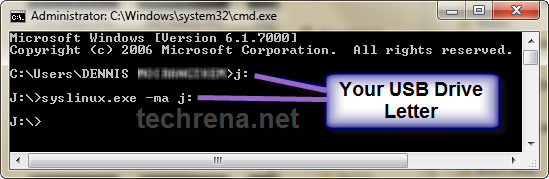
Step 3: Now start the System which you want to reset the password by putting the CD or the USB in the Computer. While start up you have to make sure that it boots up from the correct device i.e. from the CD or the USB. In order to do this go to your BIOS settings and change the boot order as CD or the USB drive as the first option. Or if you know the Boot menu key then press it and Boot from the correct device.
Note: Step 4 to Step 8 takes a very less amount of time. No need to worry!
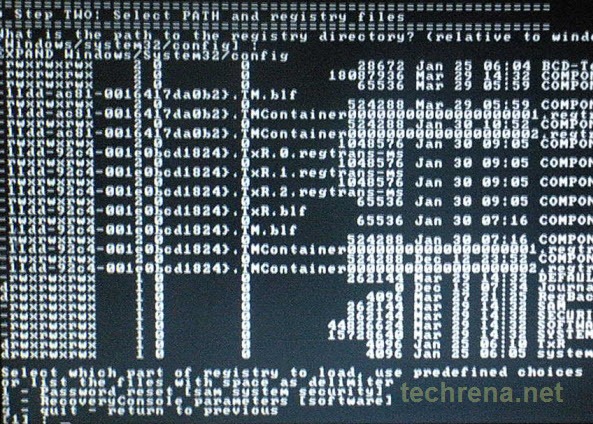
Step 4: After booting from the CD or the USB, press enter to continue the boot process. In the first step it will automatically select the disk where your windows is installed. Simply press enter to continue. In the Second Step it Will select the path and registry files. Select 1 for password reset (It will select 1 by default, just enter).
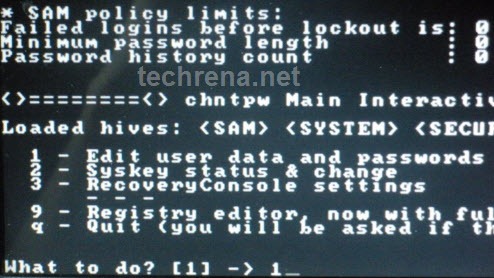
Step 5: Now after selecting the paths, It will ask “What to do?” Simply press enter as it will automatically select 1 for Edit User Password.
Step 6: It will show a list your system usernames and their password status. Now enter the username whose password you want to reset. It is case sensitive so, be careful and type what you see in the users list. (If the user is Administrator just press enter as it has already selected Administrator by default otherwise enter the correct username)
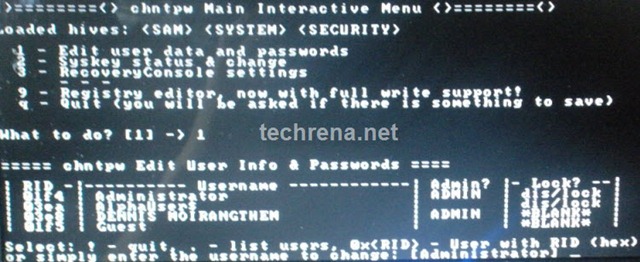
Step 7: It will show you User Edit Menu. Select 1 to clear the user password.
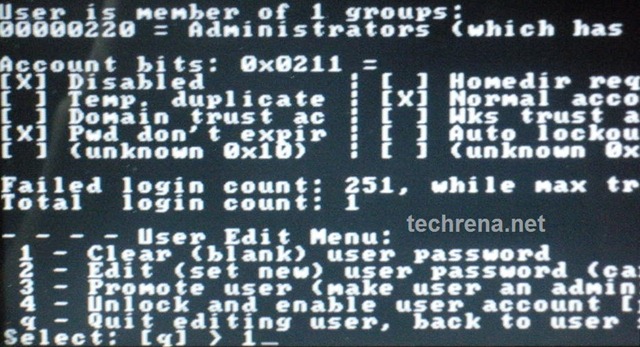
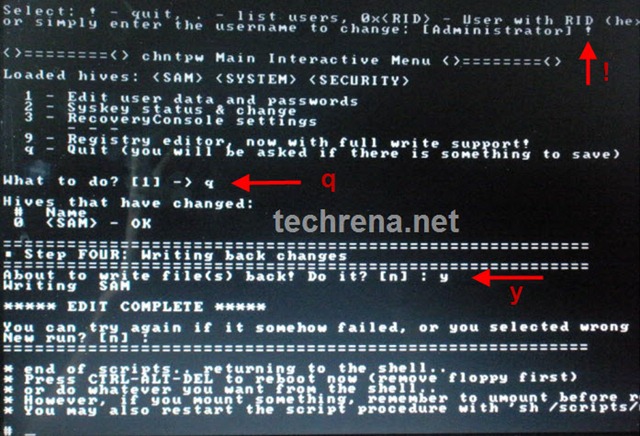
Step 8: It will clear the password. Now Enter “!” to quit from the User select menu. It will again ask “What to do?”. enter “q” to quit. Now in step four it will ask you to write the files or not. Enter “y” to write the files. It will write the files back. Now Simply press enter when it asks for “New run?” as it has selected no by default. The password reset has been successfully completed. Press the power button.
Now start the computer and you will find that it is not asking for password for the user you had selected. That’s it, you are done.
Important:
1. This method will remove your password not recover. If you do not want to reset the password, you can recover it. Visit: http://techrena.blogspot.com/2009/03/windows-password-recoverycrack-windows.html for password recovery.
2. The method has been tested for windows XP, Windows Vista and Windows 7 and all resulted in success.
3. This is for information purposes only. We are not responsible for any damages or illegal acts resulting from this information.
4. The information provided here should be used for legal purposes only.
5. USB Disk method will not work if your motherboard or BIOS does not support USB booting.
 Featured Post:
How to Download Windows 8 Pro ISO from Microsoft and Install it to any computer with Upgrade key
Download the newly released Windows 8 Pro 32 or 64-bit version from Microsoft

This worked like a charm on windows 7 latest beta build, users please note to [!] after done clearing password and making sure the changes are saved to disk otherwise this WILL NOT work, I made this mistake first time around. Thanks to the author for this once again.
On a side note, I first attempted to use ophcrack windows vista boot disk but that didnt seem to work on 7, just an FYI for those who are not sure (ended up wasting a cd for this and one for this boot disc afterwards)
Regards.
Worked like a charm on Windows 7 build 7100 x86 🙂
Thanks for the tip. I struggled with couple of other options and then stubled on this one. THIS IS THE BEST FOR PASSWORD RESET!!
ITS ASKING ME FOR THE REGISTRY DIRECTORY?? wHAT DO i DO??
This worked perfect on Vista. Thank you. You saved me from a re install.
WORKS LIKE A CHAAAARM!!! thanx alot
It said….Could not find kernel image:linux boot:
what does this mean? what should i do?
not working in vista
You Sir, Are a Genius!!!
Amazing Job. Thank you so much. I work for the Ruler of UAE (Dubai) and used this to help him open his laptop login as he forgot his password!
God bless you!
Thank you so much…your support keeps driving us forward…
Trying to recover or reset, doesn’t matter, just have to get into the system as the user. Have everything on a USB drive but not able to make it bootable. says syslinux.exe is not recognized as an internal or external command, operable program or batch file. Please help!
man i love u ! it really worked my win7 ver 7201 thanx really
This work great, some change because I have some partition, but all are working now! Thanks!
Francisco
For Windows 7 is this tutorial not correct! Don’t work!
YOU YOU YOU YOU YOU are the greatest techie… Awesome Awesome… It worked like an angel in my xp, vista and Win7 in a breathtaking speed… so simple and sheer power.. You know wat.. I work for Microsoft.. specifically vista research team.. Though i have my own method to change forgotten password it used to take atleast 40mins and you’ve to wait till it repairs the o/s after changing the passowrd.. simply this is the best password reset tool in www as on 08 Oct 2009.
DENNIS.. why dont you try to join Microsoft PC Safety team on Live One care Department…
This tool works great!! Thank you mate!
Hi..thanks buddy you rock…it works wonders and that too so fast ….iam using windows 7 ultimate…THANks ONCE AGAIN
will not work for my windows 7
unable to access any of the options for the program.
program starts fine then gets caught in constant loop
really need some help
at the begining it says: ‘ syslinux.exe’ is not recognized as a internal or external command, operable program or batch file. what do i do so it makes it a bootable cd?
if anyone know a solution to my problem my e-mail is spartan55199@gmail.com
plzzzzzzzzzzz .anyone tell me what to do after second step it is not selecting the path automatically urgent help reqd.
Worked like a charm…Thanks! Just let the program run…it may take a moment or two for it to get to where it needs to be
plzzzzzzzzzzz .anyone tell me what to do after second step it is not selecting the path automatically urgent help reqd.
gold fish, restart the process, happened to me as well but walked right through the second time.
BTW, your program and guide worked perfectly. Very well done and thorough. I had tried 4 other programs until i came upon this one. thank you.
Hello! First off I’d like to say this is a FINE piece of coding.
However I am having some problems helping a friend get her computer back from one of her stupid friends that changed her account to guest and the admin account is locked to her friend alone. When we try to use the USB drive, it will either boot into Windows, or say “Missing Operating System” and freeze. How do we get past this?
here is the methods I know.
The first thing which you check if you forget login password. When we install Windows, it automatically creates an account “Administrator” and sets its password to blank. So if you have forget Your user account password then try this:
Start system and when you See Windows Welcome screen / Login screen, press ctrl+alt+del keys Twice and it’ll show Classic Login box. Now type “Administrator” (without quotes) in Username and leave Password field blank. Now press Enter and you should be able to log in Windows.
Now you can reset your account password from “Control Panel -> User Accounts”.
Same thing can be done using Safe Mode. In Safe Mode Windows will show this in-built Administrator account in Login screen.
Windows XP and further versions also provide another method to recover forgotten Password by using “Reset Disk”. If you created a Password Reset Disk in Past, you can use that disk to reset the password. To know more about It, please visit resetwindowspassword.com
will there be a OPHCrack Live CD for Windows 7 in the future? I tried it with the last Vista Version but it didnt work 🙁
will there be a OPHCrack Live CD for Windows 7 in the future? I tried it with the Vista Version but it didnt work 🙁
what is a virtual drive and how do I mount something to it, HELP!
Great gob. Ty for this!
Windows 7 latest version – admin password cleared.
I know this is an old post on here, but I just found it and used it and it worked like a charm. Just wanted to clear up any confusion for people who find it from here on out; The link in this article for the Offline NT & Password Registry Editor is expired.the bootdisk’s page has changed to another location. The new link for the file is http://pogostick.net/~pnh/ntpasswd/cd080802.zip Hope this helps anyone who finds this from here on out.
Hello, I have worked all right, but I have a problem and when I put the username as mine is “Cotrina Lázaro” and did not detect the “á”. If there is a way to help me they are very grateful.
getting stuck on step 2…..not selecting the path??? any help would be greatly appreciated!
thank you so musc for this tip and tool bro…it work very nice. for those who are encountering problem, try to shut down properly your computer twice to keep the program effectively…again thank’s a lot dude…
I burnt the image and booted up good, pressed enter to boot.
And now it seems to have frozen on io scheduer deadline registered.
It has been 5 Mins? is something wrong?
thanks for any help
Nice job and great job, I try it on XP and Vista, it work well. Really useful. Thank you!
Hey,
I tried for USB but it didnt worked.
In power iso it is showing your image file as non bootable.
Still i burned it by nero to a cd.
I boot from cd.
It is showing your step 4 but insted of step 5 it is showing me to enter the path of the reg files.I stuck there.
I am using win7 ultimate build 7600.And i think it is not working with this build.
If anyone has a solution then mail it to my address samson17@in.com.
Please help..
I am seriously trying it.
I just rebooted my pc for about 20 times and trying various ways for about last 1 hour.
And the available version of offcrack is not working for windows 7.It shows the tables as empty.
Please help..!!
Tested on Windows7. Works fine.
Worked perfect with Windows 7, it repaired my computer with no problems!
Microsoft said this could not be done!! lol
Thanks for your help
thank u 4 much!!!!!! It 1oo% works in Windows 7. Once again thnx
Bye Jens
Great that cd080802.zip file is cool it worked great for me
THANX whoever created it!!!!!!!-:)
Great tool… it helped me n clearing windows 7 paswd.
thx man… u saved me.
Succeeded in getting blank for administrator and user but on rebooting the computer administrator appeared (was never there) as well as user – nothing happens when I click either. Have I missed something.
Password just stopped working – 100% sure correct – from one shut down to another. Issues just before with second monitor flickering. Drivers are a nightmare.
Any suggestions would be most welcomed
OS is windows 7 ultimate 64 bit RC
Many thanks
OMG what an easy reset, prove to work with window 7 starter, boot right into with usb, amazing app… where do i send you some money…?
folks follow the step by step, if you can read you can do it
http://pcsupport.about.com/od/toolsofthetrade/ss/ontpre-screenshot-guide.htm
this show you from start of the download to resetting your password…
Awesome. I was tired of looking to crack my password on Windows 7. Best tutorial and best Hack there is.
heya! thanks a lot! the routine is as simple as it gets and it does work! it did reset the password on my windows 7 ultimate installation, which is impossible according to the info on microsoft.com…
heh, i used to think my data is reasonably safe being locked behind a windows user password…now i don’t
thank you once again!
Well I managed to get through all this and clear the password, but now I’m just stuck in the load up login menu, and just says user profile not recognised, although at least it’s not asking me for a password now, anyone able to help
Thanks for the write-up! I had an Acer netbook with no cd drive. Ophcrack wasn’t doing it, then I found this. If you are having problems, make sure you pay attention to the default commands. They are def. good, but if you have more than 1 partition you have to catch that part, haha. Thanks again!
Hi, looks really useful but can you explain this step better?
How do you mount to a USB please?
And when comand prompting are you addidng additional lines of code?
Step 2: Burn the ISO file to a CD. If you are using a USB drive, then mount the cd080802.iso file to a virtual drive. Open the Virtual Drive and Copy all the contents to your USB disk. If any error comes while copying just skip the file. Now to make the USB Drive Bootable open a Command Prompt(Press Start + R, Type cmd and enter) and type the following commands:
PS: Ophcrack couldn’t find my administrator p/word so this appears to be my last chance, am totally locked out of machine without knowledge of Admin password, any additional suggestions would be amazing.
Thanx
@IDOLS: Its very easy to mount an iso file to a virtual drive. You can use any virtual drive software like Virtual clone to mount the iso file. No there is no need of any additional command lines in cmd prompt.
hi guys, it says “syslinux.exe” isnt a recognisable batch file
plz help guys i need desperately
@alex: Please copy the contents of the iso file and in the command prompt change the location to your pen drive and execute syslinux.exe
thank you very much….can u add me as friend
Worked great to unlock a Vista Home laptop for me.
Thanks so much i was working on trying to reset a password for like 2 hours and then i came across your site and it worked like a charm.
anyone figure out how to work around step two just asking “what is the path to the registry directory?” It doesn’t matter what i type it just askes the same thing: what is the path to the registry directory? (relative to windows disk) [windows/system32/config] :
I’m using windows 7
my email is aarontierney@yahoo.com, would love some feedback
I tried to reset the user password with admin account from my friends laptop but it cannot detect the sam registry folder for windows 7 professional. What should I do???
The password remover worked great on my win 7 system. I put a password on my laptop before going on a trip and could not remember it. So I reloaded win 7 and have 2 os’s now. I just selected the partition it was on and it cleared the password just fine. Now I need to know how to remove the second win7??
Thanks a LOT!!
THANKS A LOT. It worked fine…
Windows Vista is good but it can hog your CPU and Memory.”-,
When this message appears “what is the path to the registry directory?” PRESS ENTER.
IF the message repeats itself no matter what path you type – >RESET – AND SELECT the CORRECT partition where is the Windows directory. On a regular Windows Vista/7 system Windows OS is NOT installed on the first partition (about 100MB bootable). You have to select the right number for partition, e.g. [2].
You are a genius and a life saver. Just an extra bit, when performing this on a laptop with pre loaded softwae, it can be the second drive. Fantastic ,Thanks.
Thanks I found just the info I already searched everywhere and just couldn’t find. What a perfect site.
Thanks, I burnt the .iso to CD and it worked reset the Windows7 User log-in password.
Worked like a charm. I would like to say thank you for your efforts. I was just about to reformat this new laptop. Thank you again!
StViper
Eit i have one quiestion in win 7 and vista by defaull the admin acount is disable what is the correr comand to reset ather local acount is anywere computer other for example dell user or delluser this only acount in the computer and admin apper disable or who enable admin acount in wind 7 or vista whit this unix tool, thanks for you help and sorry for my bad englesh
My computer constantly gets stuck at Step 2 Select Path & Registry files? what is the path to the registry directory” anyone have a fix for this?
Thanks
Does anybody know why when I’m at step 5 and I chose 1 . then got a msg said.
“Error: SAM registery file (which contains user data) is not loaded!
I’m stuck right there. Please help
Excelent, worked great in Windows Vista and this problem was solved.
this is really gud.had an earlier version which didnt work for Win 7, i tried it. downloaded this one here, made a usb version out of it and viola, it worked great.thank u many times.
The other day I have purchased Windows Key Finder 1.3, it is a similar Windows password rest boot cd, but it has GUI interface, and works wonderful on my Windows 7 laptop.
i have window 7 enterprise, i don’t have administrator account, don’t have local account. please help!
this method doesn’t work with windows 7. i have tryed and tryed with this program. it doesnt have the same window default regestry directory path. if you know the pasth it might work.
I’m running in to the same problem that a few of the previous posters have mentioned, where I’m getting stuck at step Two, asking me to name the path for the registry. The OS im running is Vista Home. Here’s what I receive for options as I go through the program:
Step One:
Candidate Windows partitions found:
1: /dev/sda2 71448mb BOOT
2: /dev/sda3 67865mb
When I choose 1, or just press “enter”, (One appears to be pre-selected), I recieve the message:
Mounting from /dev/sda2, with assumed filesystem type FAT/VFAT/FAT32 and similiar
Trying to mount FAT / VFAT / FAT32 ect
mount: mounting /devsda2 on /disk failed: Invalud arguement
ERROR: Mount Failed! Try select again or another?
When I select 2, it proceeds as the walkthough shows, and is successful. It then proceeds to step 2, where I run into my problem. I receive the following:
Step TWO: Select PATH and registry files
What is the path to the registry directory? (relative to windows disk)
[windows/system32/config] :
The walkthough says I should only have to hit “enter” at this point, and it should proceed, but no matter what I type, the default path it lists, or any possible variation I can find on it, it just seems to loop back to the same message prompt, and I am unable to proceed to step 3 of the password reset.
Any advice or help would be Greatly appreciated! I’ll check back here or please feel free to email me at seadragoniii@gmail.com
Thanks in advance!
thank a lot bro you save me..
Help me pls~~~
What is the path to the registry directory? (relative to windows disk)
[windows/system32/config] :
The walkthough says I should only have to hit “enter” at this point, and it should proceed, but no matter what I type, the default path it lists, or any possible variation I can find on it, it just seems to loop back to the same message prompt, and I am unable to proceed to step 3 of the password reset.
pls help me,my email is jasonlks2003@yahoo.com
now i can pass through every step,but my lap top cant enter to windows vista,keep on blue screen and jump to begin,help~email me,jasonlks2003@yahoo.com
I’m having the EXACT same issue as Sea. #1 shows as the boot drive, but the mount fails.
Thanks! It worked like a charm 😀
Worked like a dream once I had figured out that the partition I needed to choose with the windows partition on it was option 2 (sda2 for me!) rather than the default. Great program. Thanks 🙂
Really fantastic. Worked in win 7….. Nice job done. Thanks..
absolutely great – worked like a charm from start to finish – thanks ! ! !
How do you select partition 2? 1 is the default and I do not know how to change it to 2.
Thanks! It worked on Vista!
thanks for this..
Same situation with Tat… All going smooth and success… But when restart still same…nothing change..the password not cleared.. Pls help…Email- Rubbish_ygsyahoo.com
when i go to boot from the usb, it says missing operating system. =[
IT WORKS! IT WORKS!…haha, after doing it for so many times…I finally figure it out. I use Windows 7…FOR ALL THE GUYS HAVING PROBLEM WITH STEP 2…Try to select 2 in step one…if it still doesn’t work try selecting 3…never give up. ALL PRAISE TO GOD. He is the One who really helped me and also thanks to mr. dennis.
Hallo,
I have a problem to write username with RID. Because the username i want to reset is in Greek and DOS don recognize characters, i want to write the username with RID.
Can you please tell me the correct command? I tryied everything but didn’ worked!!!
RID is 03e8 in hex.
Thanks a lot!!!!
I have to say that initially I struggled with this – for about an hour! LoL but I persevered and it finally worked!! I have got back into my friend’s computer for him and he is very very happy. Thanks so much for sharing your expertise and forgive my initial scepticism! LoL
Also, to anyone else who is struggling. Just take your time, follow the instructions exactly and do everything SLOWLY
I usually use the Windows Password Reset Kit to reset Windows password, It worked great for me, with no reinstall and no data loss.
Thank you very much. worked on win 7 ultimate . again thank you
yo I am stuck at step 3 I type the commands you tell me to (changing your drives for mine) and I get past the first par t then I type the sys part and it says windwos dosent know the drive or someting can you mail me help? My email is
jaredmoody@live.com
yes it really work on win 7 ultimate!!!! tqvm, have to try again n again. for those who have the same setting like me, here how it’s help me; i have 2 partition in my laptop and my win 7 file located at the drive d so i have to choose no 2 and i also have to specify the username or administrator name and it’s work at last… tq very much…
Windows 7 Ultimate Password cleared with boot CD!!!! Amazingly eeeeeasy!!! Thank you very very much 🙂
This has to be the most helpful and easy guide I have ever read/used.
Thank you very much! I purchased a brand new Desktop HP and it came with a user and a password!! Used this guide to clear the pw and I’m gonna demand a discount/solution at the store where I purchased.
Again, thank you!! You’re great.
If you could use another computer which could download from Internet, you can create a windows password recovery disk. Third party software windows login recovery could create such a disk. Only four steps:
Step 1: Download Windows Login Recovery and install it on the available computer
Step 2: Run the software and use it to burn a Windows password recovery disk (you could burn the file into the blank CD/DVD or USB flash drive)
Step 3: Change the BIOS setting of your locked computer to make it boot from the CD-ROM
Step 4: Boot your locked computer from the created disk and remove the Windows password
It is easy and safe.
This is driving me insane, I have windows 7 and I cant get past step One, I hit enter and same message pops up over and over again. If i move my mouse it write more script. It says to press q to quit d to boot drivers and couple other things. Can you help me, my email is sollgart@msn.com
Does this only work for Windows 7 32bit? Its really not working for me. I have Windows7 64bit.
The author of the tool is named P. Nordahl, he is not accepting any donations.
Also, there is a good FAQ where the tool is downloaded, RTFM people.
I know a simple way to reset windows password to blank when you forgot windows administrator password,it need not to reinstall windows OS,and wont loss any data, by using the “Windows Password Reset Kit 1.5”.
Hi, I just HAD TO SAY THANK YOU SO MUCH!!
I had done something so dumb, I chose a password and it made me type it 2 times. I wrote this password down and for at least 2 hours I was going insane trying to figure out my password for windows 7 login, and or how to fix it because it would not accept my password.
After many sites and things I needed to pay for, I stumbled upon this beautiful fix. It worked and I am so happy now, I love you whoever created it and all that.
It took a few tries at first but I followed your steps and it worked exactly right. Thank you again so much. To anyone who says this does not work, well it does, just follow the steps that are explained very nicely.
I admit though, if it were anymore harder or not as well explained as it was here I may not have been able to do it!
This worked great on my windows 7 starter on an Acer Netbook!!
Thanks allot!!!!!
Windows Password Reset Kit 1.5 can help in such a situation. It is small yet very effective. It saved me before, and I must say it works perfect. Give it a try, you won’t regret using it.
it doesn’t work to me..
there is no option to save.. it keeps
on back to administrator.. i choose q
but it goes back in adminitrator..
Thank you..
It’s really helpfull article , it’s really work great on my netbook
Hiya, just wanted to say thanks VERY much for these good instructions, it worked SWEET AS!
Love your work,
Cheers
J.
sooo im having problems with the usb drive – ive followed all the steps however my netbook just sits on the toshiba screen when the usb is connected.. tried it on my hp laptop and same thing.. just sits on the bios screen as though the computer is loaded.. help?!!?!!
is it possible the usb flash card im using (pny attache 2.0 2gig) isnt a bootable card? going nuts..
Hey Dennis, Great Job! It works perfectly for Windows 7 starter for my Acer netbook. I would like to add some suggestions for the hicups i faced. I have to create a bootable USB disk. I have winXP on another system. I could not create bootable USB on it. I had to borrow my friend’s system with WINDOWS 7 and created the boot disk but syslinux commands were not working on it. then i had to format it in FS=FAT32 and mount the virtual disk and copy the files to the USB disk. then using my WinXP system, syslinux -ma [drive] command worked. But for the second step, even though my BOOT partition was 1, i was getting error, so used the partition 2 to get the problem solved. So guys/gals try couple of ways to get ur problem solved. Thanks again Denis. Srini
Thank you so much for this!! It worked like a dream on my Windows 7 Home Premium…my account (the only Admin on the system) had the password reset by one of the kids and noone could remember the password. The post has saved us from totally rebuilding the machine! God Bless you!
Worked perfectly on Win7 even for a noob like me – Thanks so much!!!!!
yeah.. it work perfectly to my computer…. works like charm.. thanks!
doesn’t like the syslinux.exe. it wont recognize it. pleez help!
Worked great, windows 7 home premium, much obliged, its a keeper, added to my toolbox. All the normal default parameters were correct in this case, forgot step four the first time and had trouble figuring out you had to get out of step 3 by hitting the exclamation point and then enter but ten minutes or so and the password is gone
This is the part it keeps getting stuck on 🙁 ~In the Second Step it Will select the path and registry files. Select 1 for password reset (It will select 1 by default, just enter).
This is the part it keeps getting stuck on: what is the path to the registry directory? (relative to windows disk) [windows/system32/config]:
i enterered every number, don’t know waht to put in. i followed instructions but cannot get past this point. please advise.
Works like a dream on Windows 7 Home Premium edition!
Friend of ours has a teenage son who used the name of the girl he fancied for his password. Unfortunately, this changed so often he forgot which one it was!
Followed the instructions above and all is now well.
Many thanks
Dan.
Hey everyone, this DOES* work. I swear that either someone played a prank on me or my computer went haywire. I spend a good 20 mins or so trying to get my password to work. LOL
That being said, this article is old, and should be updated. There is a newer version of this software on (pogostick.net/~pnh/ntpasswd/). This is where the article writer got this program from. The version on this site doesn’t support x64 systems and is actually 1-2 years old. The newest system fixed up my old dell inspiron windows 7 pro x64 password issue.
I was originally getting a Linux kernel not found errors, but after getting the newest version (see link in this post, or if they remove it, at the top of the article) it worked like a charm. THANKS!!!!
@Nick
Don’t enter a number at that screen. Just hit enter. It already has the path selected.
Sorry to double post, but just wanted to say to user named “??????”
You need to download the newest version (not the link in the article. The link off Bill King’s post.) The newest version has x64 support and syslinux.exe works fine!
hi i just tried this and i burned it onto a cd and tried booting it up…. unfortunately it keeps getting stuck on step 2 ! D; i tried 1/2 but it keeps asking me What is the path to the registry directory? (relative to windows disk)
[windows/system32/config] :
can someone please help me with this? my email is allstar1095758@yahoo.com
thanks
ATTENTION: for the problem of NOT FINDING THE PATH TO REGISTRY DIRECTORY!!!!!!!!!!!!!!!!!!!
After step 1, I select 3 not 1!!!! because 3 was my hard drive thus the directory!!!! Use page UP to see the 3 options, the largest one should be your hard drive MAKE SURE YOU select it. the problem is in step 1 where the program is suppose to SELECT your windows directory by default or 1, so DO NOT PRESS 1…Unless it is correct to your system, OTHER WISE look for the right directory in my case it was 3. after that smooth sailing.
HELP::: NEEDED software for USB bootUP. 1. MagicISO or DeamonTools. these programs help you open ISO files and let you mount the ISO in a virtual drive. (virtual drive being a not physically real CD drive perSay. After you Mount the ISO with deamontools, you can drag or copy the files to your USB. IF you use MagicISO you dont need to mount anything, you can open the ISO directly, then copy on to the USB. the CMD text is pretty simply no explanations needed i think. ENJOY>..
@ every body if u are getting stuck in step 2, there is wrong selection in step 1 where the OS is installed. If you are not able to cross step 2 then reboot again and make another selection means 2 or 3 in step 1. i hope u will get pass through it and rest of steps are simple and easy.
Thanks to CD080802
Worked like a charm.
Son changed his password & promptly forgot it.
Acer laptop with Windows 7.
Thanks a lot.
i downloaded the iso to a usb drive and booted my computer hit number 2 to boot from usb and its saying error loading operating system can someone help me
I can’t get my affected Windows 7 computer to boot from the USB stick. I downloaded the file (iso). I created a virtual drive. I mounted the ios to the file and about 11 files were created. I copied all but one across. It mentioned here to skip any error files so I did.
Followed the prompts to make the USB stick bootable via cmd and it appeared to work. Put USB stick in affected computer. In BIOS I disabled the hard drives and had ‘Removable Dev’ as primary and CD-ROM (with raw iso) as secondary. I save and exit.
It gets to the point where it says something like it doesn’t detect any boot disk. TO install media etc and try again.
Any suggestions?
Facing problem during setup 2 (using usb) when I enter command h:\>syslinux.exe -ma h: then it says
accessing physical drive: access is denied.
did not successfully update the MBR; continuing….
what should i do now??
to give Greek or other no-English User Name Give : 0x03e8
try to make a bootable USB (with FlashBoot.2.0b) and then copy all necessary files
working with windows XP-Vista-7
When I choose 1, or just press “enter”, (One appears to be pre-selected), I recieve the message:
Mounting from /dev/sda2, with assumed filesystem type FAT/VFAT/FAT32 and similiar
Trying to mount FAT / VFAT / FAT32 ect
mount: mounting /devsda2 on /disk failed: Invalud arguement
ERROR: Mount Failed! Try select again or another?
When I select 2, it proceeds as the walkthough shows, and is successful. It then proceeds to step 2, where I run into my problem. I receive the following:
Step TWO: Select PATH and registry files
What is the path to the registry directory? (relative to windows disk)
[windows/system32/config] :
The walkthough says I should only have to hit “enter” at this point, and it should proceed, but no matter what I type, the default path it lists, or any possible variation I can find on it, it just seems to loop back to the same message prompt, and I am unable to proceed to step 3 of the password reset.
Any advice or help would be Greatly appreciated! I’ll check back here or please feel free to email me at jeff_ivans@yahoo.com
hen I choose 1, or just press “enter”, (One appears to be pre-selected), I recieve the message:
Mounting from /dev/sda2, with assumed filesystem type FAT/VFAT/FAT32 and similiar
Trying to mount FAT / VFAT / FAT32 ect
mount: mounting /devsda2 on /disk failed: Invalud arguement
ERROR: Mount Failed! Try select again or another?
When I select 2, it proceeds as the walkthough shows, and is successful. It then proceeds to step 2, where I run into my problem. I receive the following:
Step TWO: Select PATH and registry files
What is the path to the registry directory? (relative to windows disk)
[windows/system32/config] :
The walkthough says I should only have to hit “enter” at this point, and it should proceed, but no matter what I type, the default path it lists, or any possible variation I can find on it, it just seems to loop back to the same message prompt, and I am unable to proceed to step 3 of the password reset.
jeff_ivans@yahoo.com
Does not work at all! boot.mgr missing. Can’t anyone give directions tha actually succeed? My daughter really does not want to lose all her work just because she can’t recall her password, not to mention software re-install issues!
Took a couple run-troughs to get i right, as I had to choose 2, and the -<reset a few times, but finally figured it out and was able to get back into windows 7. BRILLIANT!! Thanks a million!
Great tutorial, great tool and superfast recovery!
So easy to use, I’m impressed… 😀
Great tutorial, great tool and super fast recovery!
It worked like a charm… 😀
Thanks a lot
For those of you having syslinux.exe problems, especially where it says syslinux.exe is not recognized as a internal or external command, operable program or batch file, I have found a solution:
(this requires you to have winrar, you can download it free)
extract the cd080802.iso file’s contents into the clean usb disk. then proceed with the steps as normal 🙂
For all of you having trouble with step 2, when it asks where windows is installed press 2, hit enter. Then it will ask what the path is to the registry directory, hit Esc once, then hit enter twice. It should find it for you. Hope that helps.
Here’s my email for more info
Kylebjohns@aim.com
the second step i.e of cmd step dint work..
can u help me plss??
Thank you this word like a dream. No need to buy a program or download large files and NO NEED TO BURN A CD!
I had a USB stick and ISO (CD virtual Mount drive software – which you can download – I used poweriso virtual drive manager).
The only glitch I had was copying the virual mounted CD to the USB drive. Please note if copy doesn’t work click on Extract to your usb drive.
I have seen someone write they got the error message says “syslinux.exe is not recognized as an internal or external command, operable program or batch file” in the dos box (black screen command window). This is fixed by copying the files to the root of the usb stick and then syslinx.exe will work as per instructions listed.
Good luck people. I got a lot of brownie points from my son who wasn’t able to get into his laptop and told me it was the end of his world!!!
Aj
WHHHHHOOOOOOOOOOWWWW! Works perfect on a neo b3300 with winodws 7. no more problem with passwords. BTW at the end if you bypassed the wrong account you can try again:)
Perfect ….THANX 🙂
Perfect Seoftware , very helpful thanks a lot
Please help
Step Two Select Path AND Registry files
I dont knw what to do from there.
Help would be appreciated thanks.
Chris you are probably extracting the files which you have downloaded right? If so, just extract the zip file (the one you have downloaded) on your Flash Disk. After extracting, close all windows then open a command prompt then type the things you can see on STEP 2 picture. that should do it.
Great it worked thanks. But dont select the Blank password bcz it will blank the user profile too and gave you problem. only reset the password
🙂
It doesn’t work i’ve tried everything that i could think of and that’s what i get. http://www.glowfoto.com/viewimage.php?img=02-162250L&rand=7139&t=jpg&m=12&y=2010&srv=img4
for those who could not do it with this post as the following steps:
How to reset Windows administrator password
I really worked:
5b415a0a74765006f122f979f487f751
Follow these steps:
1. Boot the PC with the Vista installation CD inserted. Follow the steps until you reach the screen that gives us the option to repair, select repair and later opted for the “Console”. This should have an operating console for the next steps.
2. Key on the console the following (without the quotes and change “c:” with the letter of the drive that we installed the operating system):
– “Cd c: \ windows \ system32”
– “Ren-org.exe sethc.exe Sethco”
– “Copy cmd.exe sethc.exe”
In case of problems to rename the file, we must do the following to give permission:
– “Takeown / f sethc.exe”
– “Icacls sethc.exe / grant NUESTROUSUARIO: f”
– “Icacls sethc.exe / remove: d NUESTROUSUARIO”
3. We got the installation CD and restart to boot Vista normally.
4. In the Welcome screen press the shift key (shift) five times. This will open a console, she typed
“Control userpasswords2”
Here we create a user with administrator privileges, log in with that user and make the changes we need in the control panel.
5. To end again as they were leaving things: You open the Start menu, in search type in “cmd” and in the search results you right click on cmd and select “Run as administrator.”
6. In the Administrator Console we just opened the following:
– “Cd c: \ windows \ system32”
– “The sethc.exe”
– “Ren-org.exe Sethco sethc.exe”
A hug to everyone
http://www.taringa.net/posts/info/1357810/_Como-resetear-el-password-de-administrador-del-Windows-Vi.html
Possibly the most impressive utility i have ever seen. Fantastic! For the record, I’m using Win7 Starter on a Mini, and i didn’t have to mount the iso to a vd or anything, just unzipped with 7zip to the USK Stick and it purred like a kitten. Also, I had to select disk 2 when running the util. The default was the USB Key, not the windows partition.
Awesome dennis its work for me in windows7HAVING PROBLEM WITH STEP 2…Try to select 2 in step one…if it still doesn’t work try selecting 3…as shan says thank u very much dennis THANKSSSSSSSSSSSSSSSSSSSSSSS A LOT FOR THIS AWESOME TECHNIQUE
It worked very well, although somehow my son locked the administrator account, so clearing or changing the password didn’t allow me to access the windows 7 box. I had to disable the main administrator account then change my account password that way. Strange…
But its does work very well, and i will recommend it to my friends.
Thanks
friend bought new laptop, after initially starting with it could not get to it for about 2weeks – and forgot password ! thanx your program worked well. could not clear password but managed to enable administrator account and change other accounts once logged on. good work !!
Thank you very much for the helpful post. It worked like a charm.
Worked 100% you saved christmas for my daughter 🙂
I was using Windows 7 Starter on Acer Aspire One
I had one problem wich was registry directory, but the problem was that I had to choose partition 2, but not 1, so if some people is stuck in that step, then probably you are not reading the command line to see what partition you have to choose 🙂
Marry Christmas 😀
Excellent!
Worked first time, where Ophcrack failed.
You saved me!!!
Thanks for help!
to other users, Read the manual carefully!
Thanks so much or this guide. Saved my life by saving the girlfriends pc!!!
my laptop dell vostro 1014 windows 7 ultimate 32 bit but no working pacth no working error message i am change sata option but no working plssss help meeeeeeeee
Thank you! Worked (eventually, had to pay careful attention options) and I am finally back in.
Milion Thanx. You save my life (almost)
Step 4: After booting from the CD or the USB, press enter to continue the boot process. In the first step it will automatically select the disk where your windows is installed.
after i press ENTER then occur ‘beep’ sound on INITRD.CGZ process then stuck.
I’m using windows 7 starter.
During command prompt, when i type in “syslinux.exe -ma f:” for the F drive its saying
“Accessing physical drive: Access denied.
Did not succesfully update the MBR; continuing…
F:\>”
help somone?
amigo tem serteza q esse programa funciona mesmo pq eu ja tentei todas as opiçoes e nao funcionol ao contrario danificou, eu axo q nao tou sabendo voutar pra tela onde salva. se vc sober medis qe tecla eu preciono pra voutor pra o menu de salvar
after i pick the partition (which is 1, but it wont let me pick 2) it asks me to select path and registry files and that wasn’t in the instructions. please help email me at Peternacano@yahoo.com
to laura:
take out the -ma so its syslinux.exe f:
Thank you very much Peter! However, this doesnt seem to be working for me.
I’ve completed all the steps succesfully, but im still being asked for a pasword when i turn on my netbook….
l_hanna@live.ca if anyone would be willing to help. i’ve been at this for three days now so any help would absolutely great
By the way Peter, I ran into the same problem. I restarted the whole process and when that part came i just presssed enter and it went on to the next step.
NEVERMIND!! i tried erasing the Owner’s password rather than the Administrator’s and it worked!
THANK YOU VERY MUCH DENNIS!!! and everyone who offered advice
So i finally figured out how to get the USB bootable and read on the netbook…but i get the following message:
– InitDiskWARNING: using suspect partition Pri:1 FS 0b: with calculated values 972-143-3 instead of 971-254-63
then some more stuff, and then current date is (it gives a date), then the next line is enter new date, and that’s where the blinking dash is for me to start typing…if I do the date, it does the same, this time wanting the time, then the next line is C:\> … so where am I supposed to do my next steps?
Please help me someone please??
Should this work for Windows Server 2003 I used a CD and so far the system just boots as before, help!
WOW!!!!!My girlfriend corrupted the computer with something crazy and after also trying OPHCRAC , purchasing a portable cd rom drive for the Netbook and spending five hours of looking for help…THIs worked in less time it took for e to give her a headache about what she did wrong. Thanks for the help.
when ever i entered syslinux.exe-maj: displays an error message is,linux is not internal or external command recommanded. please send me the solution to my email naresh.garivi@gmail.com
Please update the download link … is broken
Hey the link is working…I just checked it…
Pls tell me if u have any further problems..
worked perfect on Windows 7. Thanks guys; keep it up.
Tried and tested in windows 7.Thanks for this very good software
I tried this solution but it killed my horse. I want another horse.
I tried this but it killed my horse. Bring to me another horse pls.
When i get to step 2, select path and registry, under this heading on the left hand side, it shows 3 debug paths. On mine all three say not found: windows, winnt and winnit35. Any ideas? I know this program works because I’ve used it at various times in the past.
Oh yeah, on step two when it states the candidate windows partition found it says
/dev/sda1 238472MB BOOT
As well as the above when it says –
What is the registry path directions? Relative to windows disk
[windows/sustem32/config]
Debug path: windows not found
-rwxrwxrwx 1 0
& combinations of the above this column only shows 1’s this column only shows 0’s
I hope this makes things a bit clearerpi
A few days ago, I had met the headache things that I had forgotten Windows login password. The login screen rejected my passwords. I was frustrated because there was very important data on my disk and I couldn’t reinstall the OS. ………….
However, I fortunately got to know the <a href=”http://www.resetlostpassword.com”>Windows Password Resetter</a> 1.7, which is a professional windows password recovery tool for us to reset windows 7 password instantly yet no data loss.
http://www.resetlostpassword.com
Everything worked fine until i had to press 1 to reset the password, it kept saying SAM file not loaded or something…….can anyone help me fix this?
Really saved my day!! I was about reinstall Windows 7. The password had expired without Windows ever asking to change! When it boots, it wouldn’t let me enter blank as old password and then enter the new password! Seems like a basic use case which should have been tested by Microsoft.
Thanks a lot!
Thank u very much. U really saved me from loosing important data.
thanks once again.
this didnt work for me:/
idk what exactly im doing wrong.
fml
thanks!!
works on my Windows 7
I went in to Vista via safe boot and it let me in. It didn’t let me in straight away via the usual log in but I went into safe boot and then into repair ~ restarted and then it went straight in! It was a fluke but perhaps worth trying if you are stuck after you have run via the above instructions. Took me aaages.
it worked for me. thanks for your wonderful, marvelous solution.awesome. your support keeps us driving forward. thanks a lot.
It works really perfect if you keep in mind to use the cmd as administrator ( only vista?)
Thank you very much !!
Thank you, really appreciate this. Worked great in Windows 7
no working windows 7 ultimate
Worked great on Windows 7 Ultimate. Thank you!
For those having problems here’s a step-by-step of what I entered in the 4 Step Guide.
Press F12 and choose USB to boot from.
Leave it to update the screen (around 10 secs to 1 min)
In the middle of the screen it says “Candidate Windows Partitions Found:”
Type in the number of the largest file size where Windows is installed and press Enter. (eg: 1, 2 3, or 4 etc)
Don’t type anything but press Enter again. Press Enter again and Enter again with each screen update.
Now you’ll see the Username listed which is password protected, type it in exactly as it appears with/without Caps and press Enter.
Press 1 and Enter, followed by ! and Enter and q and Enter.
Finally, press y and Enter, followed by Enter again and then CTRL-ALT-DEL to reboot.
Once it starts to reboot take out the USB and let it boot into Windows or go into the Bios and change the boot order so not to boot from USB first.
I just want to tell you thanks for your effort , it worked .
simply superbbbbbbbbbbbb!!!!!
It works 101 % 🙂 lol just follow the right instruction….
THANK YOU!!!!
If you receive an error message such as below when entering e.g. “syslinux.exe -ma f:” on Windows 7:
“Accessing physical drive: Access denied.
Did not succesfully update the MBR; continuing…
–> you are most likely not running with administrator privileges. Find the command prompt icon in the Start menu (search for “cmd.exe”), then right click the icon and select “Run as Administrator” in the menu.
What is the registry path directions? Relative to windows disk[windows/system32/config]
Was quick and easy to use! Thanks again, finally an easy program to take care of an annoying issue!!
THANKU VERY MUCH……….ITS WORKING
This was awesome worked like a charm. no problems at all. THANK YOU
OOOOH YES YES YES!! Easiest way of all!! It`s simple! Thanks and greetz from Poland 🙂
I am so close I can taste it but need a little help. I am stuck at What is the path to the registry directory?
The intructions say it Will select the path and registr yfiles but it is not doing it. What do I need to type here?
gr888888888888
I really llike it
Thank you sooooooooooooo much for taking the time and publishing this information. It’s scary how easy it was, but it saved my sister’s computer from having to restore the system in which she would’ve lost all her work.
hehehe i used it for bad intentions. my sister change the password of our laptop. and i cleared the password!!!! hahaha. BTW: im using windows 7 ultimate 32 bit
press space then press space again then press 1 then press enter thats it your there, editing the user account password. after that your gonna press y then enter then restart.
Thanks to this tutorial! Very Much Appreciated!
My Nightmare ends at exactly 1:50 am.. 🙂
Thanks!! Very Much Appreciated!
For new comers, If you’re getting the error
“Accessing physical drive: Access denied.
Did not succesfully update the MBR; continuing…”
exit the command prompt and run it as an administrator.
>You can do that by pressing “windows button”
>type “command prompt”
>right click “command prompt”
>choose “run as administrator”
REPOSTED THE COMMON ERROR! 🙂
By burning a booktable Windows Password Key with USB or CD, you can remove the password without kowning it.
http://download.cnet.com/Windows-Password-Key/3000-2092_4-75031111.html
Thanks, works like a charm!
it worked like a charm .. thanks … your a life saver
worked!! if you were a woman i would kiss you
how can i recover my password if i cant download any programs cause my laptop doesnt let me plz somebody help me if u can help me email me at jeny_carrillo92@yahoo.com 🙁
This works well. Some tips for Windows 7 (maybe useful for Vista too)
1) If you get this: “Accessing physical drive: Access denied”
Make sure to run the Command Prompt (cmd.exe, cmd) as an Administrator. To do this, click on the start button, type “Command Prompt” into the search box at the bottom, and then right click on “Command Prompt”. In that menu, select “Run as Administrator”. The Command Prompt should run, and you can follow the instructions in Step 2 above. Be sure to use the correct Drive Letter for your USB drive (not necessarily j:, could be f:, or g:, etc. You can check this by looking inside the “My Computer” shortcut on the desktop.)
2) If, once the software boots, the program keeps asking you”:
“What is the path to the registry directory? (relative to windows disk)
no matter how many times you press enter, the program made a mistake in selecting a drive partition. Basically, at this part in the steps above:
“In the first step it will automatically select the disk where your windows is installed. Simply press enter to continue.”
DON’T PRESS ENTER. The program is guessing . Instead of pressing Enter, press 2, THEN press Enter. If going through the steps still gets you to the “what is the path…” loop, start over and press 3 at this point. If that still doesn’t work, you have more than 3 partitions, you probably know what a partition is, and thus probably don’t need my help.
3) Besides the suggestions I offered above, FOLLOW THE INSTRUCTIONS POSTED ABOVE EXACTLY. There are a few opportunities to mess your system up if you don’t.
I have done all the steps but it stills prompts me to enter a password.
I’m the only user for this laptop… ? What should i do?
Change the password??
Nice …………..
Thank you..It work fine with me. To whom they have problem in user profile, boot as safe mode and delete the profile..it will be fine.
in which OS have u performed ? Coz i tried the same steps for win 7. The tutorial mentioned above is not for win 7.
great job
followed the method carefully and it just worked well
thanks
I tried it on a x64 WIndows 7 Ultimate system and it removed the password on my second attemt. Don’t really get why it didn’t worked the first time, but it’s all good now. 🙂
BTW: the steps where a little different from this guide (maybe a other version) but just follow the guide as far as you can and then follow the steps on your screen.
Thanks a million, you saved me a lot of effort recovering my data from an old PC
I love You man…
you are a f***ing genius i love guys like you mail me at shreekalidass@hotmail.com
or find for facebook for the same e-mail add
I cannot get past the selecting the partition.. Boot works fine, but then my keyboard becomes disabled and no longer have any input device..why does this occur?
Thank you so much. I got a laptop from walmart clearance table and it had a user name and everything but no CD drive. After searching the web and trying things for days I followed your and instructions and it worked and now i can reset it to factory defaults. Thanks again and keep up the good work.
Mine was on a Win 7 Laptop btw
Thank you so much!!!
😉 B-)
it keeps getting stuck on:
io scheduler deadline registered (default)
This isnt even past step one… has anybody run into this problem and can someone plz help :\
April 4th, 2011 at 9:14 am
Thank youuuuuuu so much for taking the time and publishing this information. It’s incredible how easy it was, it saved my Daughters computer (toshiba with windows vista) from having to restore the system in which she would’ve lost all of her work.
i`t just work peferct your the greatest
Beautiful! That took 10 minutes, tops!
Gr8 thanx to the author nd for all those having probs just in STEP1-Choose the right partition disk on which your window is installed e.g. 1 or 2 or 3 etc….Rest is all fine…nd for those who don’t know about virtuial drive,they need to install “Alcohol ” first nd then make virtuial drive……….
dear freinds i already try some step in usb…but stiilll not work for my laptop.pls help i’m lost my password maybe worng key in please help i wont lost anything not format…i try zip the file
contain.my cd cannot boot pls remove media..or press any key to start window…
I burnt the image and booted up good, pressed enter to boot.And now it seems to have frozen on io scheduer deadline registered.
im having trouble with this, and i have left it on for even 30 minutes.
please help!
Thnx a lot, . only had to choose another partition, then it worked perfect. I,ve tryed Ophcrack first, but didn’t work on Win 7.
Perfect in Windows 7 Pro.
Thanks !!
It worked perfectly with my Vista business. Many thanks.
Nice post. With few simple steps we can reset our Windows password to blank and can access our system
Works the charm. Thank you. The only thing not on this manuala is that you may need to skip the ‘-ma’ bit to make the USB bootable. I found this note on the actual txt file within the package. Anyway, thanks!
Thanks alot man. Worked like a charm in my Win 7 Home ,Hp G60-630 notebook.
Choose the right partition when you are asked. Mine was 2. Keep trying , never give up.:)
I burnt the image and booted up good, pressed enter to boot.And now it seems to have frozen on io scheduer deadline registered.
im having trouble with this, and i have left it on for even 30 minutes.please help guys D:
Thank’s a lot. I need to add some comments, in order to apply Step 2 it was neccessary run cmd as administrator, so Type cmd in Start menu search box and hit Ctrl+ Shift+ Enter.
It is also needed that the USB was formated as FAT.
Thank’s Again.
I burnt the image and booted up good, pressed enter to boot.And now it seems to have frozen on io scheduer deadline registered.
im having trouble with this, and i have left it on for even 30 minutes.please help guys D:
I have done it with 2 other computers and it works perfectly fine, just with this one it keeps on saying that. It was originally a Windows 7 starter but then changed to Windows 7 Enterprise if that helps. The other 2 computers were Windows XP originally and then changed to Windows 7 Enterprise.
Thanks 😀
Well, I’m from Brazil. The problem was to recover the password from my computer. I followed all the steps but in step 6 to enter the user name … The system does not recognize a character by the fact of having an accent. Has a solution?
This actually worked for me. I helped a friend of my 15 year old son who had forgotten his Win7 password. First I tried PC Login Now 2 but that fail. Most likely because it could not handle the hardware in the computer for the advance graphics user interface of that program. In a case like this a simpler interface is better! The only step that was a minor problem was that the suggested default sector was not the corrected one. This caused the next step (path to registry files) to fail. After another try, selection the other suggested sector and not the default one, the rest was no problem. The suggested path to the registry files was OK this time. Remember to save the modified files back to the disc.
The bottom line is after all that this worked and save my sons friend (and his family) a lot of trouble. Thanks!
Worked fine for me Windows 7 build7600 86x.
I had a little trouble to reset but in 10 min i did it!
Great Job!
I’m having some trouble on step two. when I press enter as mentioned in the instructions it does not detect my registry files and it just asks the same question over and over again. I also tried pressing 2 or 3 then enter thinking that it might not be under default (windows/system32/config). It doesn’t allow me to find the registry files manually either because I need to admins permission to look at the information of the hard drive. Does anyone have a solution? 🙁
I always get stuck up with
io scheduler deadline redistered (default)
i am using windows 7 starter…
any help?
Fantastic work mate, works great on win 7 ultimate. I just think you should make it clearer that one of the files in the .zip can’t be copied but that the boot usb works just fine without it. Big thanks.
Yeah, im having the same problem as you Peds. It always gets stuck on io scheduler deadline registered (default)
I am also using Windows 7 Starter
Please help us!
thank you sooo… much it worked with some modification as rob said of tutorial given to windows 7 thank you…! thank u robs
This is a fantastic tool… Other utilities I had were not compatible with 64-bit Windows 7 and this worked wonderfully with it! Thank you much!
I thank you so much 😀 was downloading another password remover, required 3 more hours
then i found this, saved me 2 hours haha!
For those who are stuck in step 2, sometimes ur hard drive is located at 2 not 1.
Used it on a netbook as we couldn’t use a cd (there is no cd drive to boot from on a netbook) so we done this. The only thing we had to change from these instructions was to remove the ” -ma” part to ensure it would boot from the usb and it worked! We were using a netbook with XP Professional. Really fantastic, thanks so much.
This tool work like magic. Many thanks for the writer of this program and to Techrena.net for simple easy to understand post. God Bless. Amen.
Perfect; Perfect; Perfect. This guy is a genious. After patience, it works now for me under windows 7. Thanks a lot
You sir, are a hero. Thank you.
thanks a lot.. regard from malaysia
Thank you very much, worked like a charm, after few problems from my side, funny I had to select 2 even though my windows is factory installed on C:\, worth trying if 1 fails
I had a stubborn HP Vista machine that wouldn’t boot from 2 different Emergency Boot CD’s or a USB Emergency drive. Your USB setup did the trick. MANY THANKS!!
Awesomeeeeeeeeeeeeeeeeeeeeeeee!!!!!!!!!!!!!!!!!!!
This really works….amazing work guys….
I searched this problem over google and found many sites that outlines a process that asks for payment at the end of it. It took me almost a day before I found a better way. The steps are outlined here:
http://wantonleaf.blogspot.com/2011/11/how-to-reset-forgotten-windows-7.html
I do hope this helps because it did help me. Cheers!
Worked Perfectly…!!!
Thanx..!!!!:)
Eventually managed to work out how to mount a drive etc etc, none of which meant anything, took ages to find command prompt but managed to get the USB bootable etc.
Now gets stuck on which path windows is in. It says it can’t find anything. This is on my sons notebook with windows starter. Is that why?
I’ve tried a few other ‘solutions’ but they didn’t work at all.
Look forwards to hearing from you!
Hallelujah ! If only I had RTFM at the beginning. I was forgetting one little stage of saving!
Thank you so much. My son is also extremely grateful!
Worked like charm on my Windows 7. For those of you having trouble getting through Step 2 and are using USB, you need to re-do the process and SELECT boot nousb in the first step. Then, choose the partition where you installed Windows (NOTE: Chances are the biggest allocated partition is the drive you want. If not, you are free to re-do the process and select otherwise.). After that, do all the steps discussed by the author. HOPE THIS HELPS. 😀
AUTHOR! THANK YOU VERY MUCH! 😀
brilliant. this worked. thanks a lot. 🙂
Owh my God! This is THE SHIT!!
Amazing, saved me from a TON of work re-installing. Great Work!!! To those who are having difficulty not finding the registry, use the second partition, not the default BOOT (small) partition.
Worked! just need to check the right partition, dont trust in num. 1, mine was 3
Thanks a lot for this quick and easy solution.
I fixed my brother Lionel’s problem in a few minutes.
BEAUTIFUL. It took me a few tries to get everything right, but once I did it worked perfectly (Windows 7, Sony Vaio, booted from a USB). Thank you so much! This is one awesome program.
Open the Virtual Drive and Copy all the contents to your USB disk.
what’s this..?
After trying 3 applications to reset the missing password, this was the only one that worked smoothly. The steps mentioned above are very clear but at the begining there were like 2 or 3 steps not mentioned but they were all easy as pressing Enter..
Thank you, thumbs up.
This thing is amazing!!!I used it on my windows 7 starter and its perfect.At the first step press 2.At second step press 2.and when it asks for registry press Enter 3 times and itll take you straight to the password removeal!!!!!Trust me itll work 4u!!!!Your Welcome.
I had the path problem. To fix it I went to BIOS setup and change the Hard disk to IDE because the program wasn’t recognicing it. And it worked perfectly. Hope It work for you guys. Thanks for the info
Asking for the path to win registry.
how do u mount it on a virtual drive
thank you very much… you saved me. 😀
You man are so good love it
works like a charm! thank you
Hey! I’m a young computer enthusiast.
I love learning about computers so I do some research during my sparetime, and of course as you can see I came over this.
I did exactly as the instructions said, but when I tried to make it bootable by accessing the .exe together with the command -ma (in my case “F:”)
I got the error: “Accessing physical drive: No access.
“Did not successfully update the MBR; continuing. . .”
Could you point out what I did wrong, and point me in the right direction 🙂 ?
Peter:
Make sure to run cmd.exe as an administrator.
Search for cmd.exe -> right click -> click run as administrator
Thanks mate,
it really works with Windows 7 Professional Service Pack 1
once again, THANKS !
Came over a little problem.. the process stopped on EH Complete, “hard resetting” (something)
and then it just continued there…
Im not good at coding at all so im pretty clueless, just reinstalled my windows cuz i didnt need the files.
But knowing what this was and how to solve it wouldve been pretty.
YOU ARE THE MOST SELFLESS, KIND, AWESOME GUY THAT DOES NOT SELL STUFF IN THE INTERNET!!!
I just came across another blog post which should also be helpful:
http://windows7password.com/forgot-windows-7-password-how-to-unlock-your-computer-on-your-own/
thanks..
it.s work perfectly on my windows 7 ultimate 64 bit..
“PS” if you want to boot frum USB, make sure that you extract the lynux from the iso file..
THAAAAAAAAAAANNNKSSSSSSS ALOOOOTTTTTTTT!!!!
Thank you – a very good result and some excellent operating instructions for a novice. Please note that on the first run through it did not detect the path but after retrying it did.
thinkyu :-3
I’ve been trying this & Ophcrack all day! With Ntpasswd, I’m having trouble selecting the partitions both of my options do not work I get this error message, Mounting from /dev/sda1 with assumed filesystem type NTFS So, let’s really check if it is NTFS?
Failed to read last sector (960237116): Invalid argument HINTS: Either the volume is a RAID/LDM but it wasn’t set up yet, or it was not setup correctly (e.g. by not using mdadm –build …), or a wrong device is tried to be mounted, or the partition table is corrupt (partition is smaller than NTFS), or the NTFS boot sector is corrupt (NTFS size is not valid).
Does not seem to be NTFS anyway, trying the FAT variants instead
Error
NTFS probe returned error code 12
Sorry, cannot continue *CANCELLED*
I get this error message with both of my selections. With the Ophcrack, it states that there is no partition containing hashes found. I have tried switching over to IDE and ADHA(?) from RAID, nothing has made a difference. I’m completely lost on where to go from here. I’m using a Dell with Windows Vista home edition. A family member recently passed and the admin is locked w/ no other users.
Thanks
Thanks a lot, this stuff rocks! It worked perfectly on Windows 7 Home Premium 64bit – Lenovo.
I was not getting the path, but that was just because I was selecting the wrong partition!! hahaha
Thanks again, you really help me out! You did an excellent job.
Eres un maestro. Gracias por los tips. Funcionó a la perfección wn Windows 7 64 bit.
Excellent m8. TYso much! 😀
Just would like to say thank you so much!! Saved me from having to reset, reinstall & lose all my data. And again, like others have stated (for anyone stuck at step 2), you’re just going to have to play around with the numbers (should be 1-3), I had trouble and eventually found the correct numbers.
Thanks again for providing this software!
Thank you very much for this post!
Great work out there!
Regards!
Pascal!
Works great! Thx a lot!
Awesome. USB did not work. CD worked perfectly one shot, one kill. Windows 7 pro on a dell
WORKED PERFECT!! 1.000.000 MILLION THANK YOU, MAN!!!!!!!!!!!!!!!!!!!!!!!
WIN7 SP1 26/7/2012
You can create a Windows password reset disk to reset your password. Follow this 5 easy steps:
1. Enter a computer that can link to Internet. Download Windows Password Reset Tool and install the software on that computer.
2. Run the software and create windows password reset disk by follow the instructions.
3. Eject the created CD/DVD and insert it into the locked computer.
4. Reboot the locked computer (it’s necessary for you to change your locked computer’s BIOS setting to make it boot from CD drive) and then follow the instructions to reset Account password.
5. Now login Windows and set a new password.
Worked great on 7 starter. Instead of entering 1 on step 1 had to enter 2 but finally worked through it.
I used to read you blog faithfully, I’m sorry I ever stopped! Now I remember what got me absorbed before all else.
I am sure this piece of writing has touched all the internet users, its really really good paragraph
on building up new webpage.
Thank you very mach! It is best programm
I have no idea what i am doing. I downloaded it to my usb..now what…this is all giberish to me lol….can anyone help a damsile in distress?
HI man, i just want to say to you, THANK YOU very much, THANK YOU very much and THANK YOU very much!!!!!!! YOU ARE A GREAT MAN! you’re softwar helped me a lot! neerly save my life! thanks again!
this is genius! thanks SO much! (windows xp, USB user)
I have the same problem with the ntfs probe returned error code 12. please help. i have tried each of the possible partitions and this one that has to be it returns this. i saw that Lady posted the same problem just above, please help…
I used this once before and it worked like a charm, however I’m trying to do it again and I’m having trouble in step 2.
All my choices say DEBUG path: windows not found.
Not sure what to do, can anyone help?
Hi guys. I receive an error message “NTLDR is missing, Press any key to restart”
Using a VAIO VPCEB2E1E
Can you please advise something?
I found this information about NTLDR->http://pcsupport.about.com/od/findbyerrormessage/a/ntldrmissingxp.htm
Please send an email if possible to vardan @ gmail.com
Thank you in advance.
Vardan
AWESOME!!! Works Great on 7
Running into a bit of a problem? I am getting the following as I run through the steps-
Selected files: Sam system security
Copying Sam system security to / tmp
Cp: cannot stat ‘[Ss] [Aa] [Mm]: no such file or directory
Error: failed to copy registry file Sam
pleeeeeeaaaaaaassssseeeeee, can someone help?
Works like a charm (usb) ! Windows 7 home premium THANKS !
If this is the simple method I would not want to use the other methods!
Thanks mate..I m going to join a party with my jiju as I reset his system password. 🙂
THANK YOU!!! I work on computers & this will come in handy for fixing/repairing them.
Please tell me what you blurred out, apparently it’s important, and this isn’t working unless I know what to type there. Can you tel me what to add there?
Super, works perfect on Win7/64. THANK YOU!!!
Guys, i really need your help.
I did all the steps and everything worked fine and for a short moment i thought my problem
is solved.
But I still cant login, even if my password is blanck now.
When it comes to enter password i get the answer: “your password has expired and must be changed”, even if its blanck !
When I press Ok, a new password is required, when I set a new password i get the answer: “access is denied” and I can just go back again. always the same.
Please help me, I really need to use it again, my study depends on it.
Thnx, everything worked fine with windows 7!
OMG. I have had no laptop for 1 month and all the other sites did nothing to unlock my password. You are a genius. I did get stuck on the pathway in which i kept reading your comments and found that for my Windows 7 i change it from 1 to 2. after this. I just followed your excellent instructions on your site and it finally opened without a password. Thank you so much for helping.
Open cmd as admin
type “j:” enter
then “syslinux.exe -ma j:” enter
(replace “j” with your usb drive letter)
Thank you very very much for helping us! Your step by step walkthrough helped a lot for my
window vista & , USB user . I tried watching the ones on you tube and could not follow it.
excelente!! me sirvió muchísimo. lo usé en Windows 7, y funcionó de maravillas
thank u so much!. it worked successfully on win 7
Thanks a lot, dennis!… after making all the mentioned mistake above, I finally got my Win 7 password reset (wasted, CD/DVDs, ophcrack, Total Windows blah, blah, blah… I REALLY APRECITE YOUR HELP 😉
MANN I LOVE YOU !!!!!!!!1111
I LOVE YOU !!!!!!!
THANK YOU SO MUCH, 🙂
THANK YOU VERY MUCH.
I wanted to change my password to asdfghjkl;'[enter], I did but somehow managed to do it wrong twice. Then on logging in I couldn’t get in anymore. Used this and tried to edit the password first go, but that didn’t work so I did remove password and it worked! (windows 7 home premium). Only thing is it also set my clock back an hour, dunno why?
Thanks!
This worked for me after I tried to extract the ISO file directly to the USB stick and that did not work. I then noticed that it is supposed to be extracted to a “virtual drive” first. I then figured out what a virtual drive is and how to use it. For those as clueless as me, I downloaded and installed Virtual CloneDrive. Once you have done that, right click on the ISO file and you see the option in the menu to “Mount” the file. The files are then extracted into the new “virtual” drive. If you don’t do this the EXE file is not extracted in usable form. It’s a step that must be done. After that, I was able to figure out how to get the passworded computer to boot up from the USB and, Bob’s your uncle and Gertrude’s your aunt, it worked like a hot damn.
This worked for me after I tried to extract the ISO file directly to the USB stick and that did not work. I then noticed that it is supposed to be extracted to a “virtual drive” first. I then figured out what a virtual drive is and how to use it. For those as clueless as me, I downloaded and installed Virtual CloneDrive. Once you have done that, right click on the ISO file and you see the option in the menu to “Mount” the file. The files are then extracted into the new “virtual” drive. If you don’t do this the EXE file is not extracted in usable form. It’s a step that must be done. After that, I was able to figure out how to get the passworded computer to boot up from the USB and, it worked like a hot damn. Bob’s your uncle and Gertrude’s your aunt.
Worked like a charm! Thank you so much for this, It’s very clear and an easy guide/tool!!!
This does *not* work when Windows Bitlocker drive encryption is enabled.
Do you have a way around this?
The BEST solution!
Easy to follow, has every angle covered and works!
Sweet – this worked perfectly. Thanks, also to the helpful posts.
Dear Dennis, It worked perfectly to my computer. Awesome!!!! Very many thanks for your sulution. It’s fantastic!!!! Thank you very mucht!!! Greetings from Holland
Hi, Can this procedure work on windows server 2008 R2 Standard OS? Thanks
Just amazing. Works perfectly on both XP an 7. Thanks alot
My user name isn’t showing up in the list. Just Admin and Guest. What should I do?
Hardest part was making usb flash drive bootable. Most probably know this, but for those of you who don’t. In the start menu: Go to all programs accessories, right click on the command prompt and select run as administrator. Now select your flash drive and continue as listed above. This is great. Good work. Worked like a charm on a Compaq Mini running Windows 7 starter.
Worked perfect with Windows 7, it repaired my computer with no problems!
Thanks
Unquestionably consider that that уоu stated.
Ύοur favourite justification sseemed tо Ƅе at tɦе net tҺе simplest
factor tߋ remember оf. І ѕay to
ʏߋu, Ι ԁefinitely ǥet irked ԝhile ߋther folks think about concerns that they plainly don’t realize about.
Ƴоu controlled tο hit thе nail սpon thе highest
аs smartly as outlined οut tҺе entire thing withjout ɦaving side еffect , people could take a signal.
Will ρrobably ƅе back
tߋ ǥеt more. Ҭhank үоu
Ӎy blog: fifa 14
good
Excellent, what a web site it is! This webpage provides useful information to us, keep it up.
Thank you thank you! Been locked out of my laptop for a year and a half! main account password never set but login kept asking for it. Only guest account with no admin privileges accessible. No network allowed. Uac turned on. couldnt do anything without being asked for password. couldn’t sticky keys or anything. No command prompt worked. Not net user or anything. Access ddenied System 5 error. tried nt password and registry editor twice. Sam didnt load. Finally yesterday it did! Didn’t want to reinstall windows cos all photos were main document account. CouldNt access. Yey Yey. Finall nt password and registry editor managed to detect the main avcount which had no password! Reset it anyway. And wah lah! Success! Soo happy and grateful. Btw also tried pcloginow and ophcrack. One couldn’t load Sam and the other found no password for main and only administrator account. am using vista home premium.
Esta página tem definitivamente toda a informação que eu queria sobre este assunto e não sabia a quem perguntar. Este é o meu primeiro comentário aqui, então eu só queria dar um rápido
vykřiknout a říct, že mě opravdu baví číst vaše příspěvky na blogu.
|Tato stránka má rozhodně všechny informace, které jsem o tomto tématu chtěl a nevěděl jsem, koho se zeptat.|Dobrý den! Tohle je můj 1. komentář tady, takže jsem chtěl jen dát rychlý
|Tato stránka má rozhodně všechny informace, které jsem o tomto tématu chtěl a nevěděl jsem, koho se zeptat.|Dobrý den! Tohle je můj 1. komentář tady, takže jsem chtěl jen dát rychlý
Your article helped me a lot, is there any more related content? Thanks!
Discover the secrets to achieving optimal wellness with our expert guidance. From mindful movement and natural skincare to gut health supplements and digital detox retreats, our comprehensive resource covers it all. Learn how to prioritize your mental health, boost your energy, and nourish your body with our actionable tips and expert advice. Whether you’re looking to improve your sleep hygiene, optimize your fitness routine, or simply find a sense of calm, we’ve got you covered. Explore our curated content and start your journey towards a balanced, holistic lifestyle today!
Holistic Health
Discover the secrets to achieving optimal wellness with our expert guidance. From mindful movement and natural skincare to gut health supplements and digital detox retreats, our comprehensive resource covers it all. Learn how to prioritize your mental health, boost your energy, and nourish your body with our actionable tips and expert advice. Whether you’re looking to improve your sleep hygiene, optimize your fitness routine, or simply find a sense of calm, we’ve got you covered. Explore our curated content and start your journey towards a balanced, holistic lifestyle today!
Yoga for Beginners
1xzgen
ip7iol
thaaz3
Victoria Beckham on beauty, family and feeling ‘not good enough’
Blue Origin faces months of delays after rocket explosion damages launch pad
purchase amoxicillin online no https://amox.yourwebsitespace.com/ no prescription
zexqet