

Greasemonkey is a Mozilla Firefox add-on that allows users to install scripts that make on-the-fly changes to most HTML-based web pages. As Greasemonkey scripts are persistent, the changes made to the web pages are executed every time the page is opened, making them effectively permanent for the user running the script. Earlier versions of Google Chrome did not support Greasemonkey. But from the new version of Google Chrome 2.0, we can make it support Greasemonkey. Greasemonkey can be used for adding new functions to web pages like downloading videos form YouTube or removing the most visited sites from new tab in Google Chrome.
To Enable User Scripts follow the steps given below:
Step 1: Go to the location below in your computer:
Windows XP Users:
Documents and Settings\%userprofile%\Local Settings\Application Data\Google\Chrome\User Data\Default
Example: C:\Documents and Settings\DENNIS\Local Settings\Application Data\Google\Chrome\User Data\Default
Windows Vista and Windows 7 Users:
Users\%userprofile%\AppData\Local\Google\Chrome\User Data\Default
Example: C:\Users\DENNIS\AppData\Local\Google\Chrome\User Data\Default
Step 2: In the Default folder Create a new folder and name it as User Scripts. 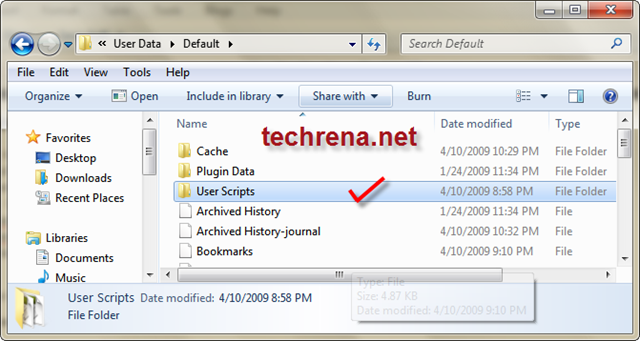 Step 3: Now find the shortcuts of Google Chrome in the Start Menu, Taskbar or your Desktop. Right click on it and select properties.
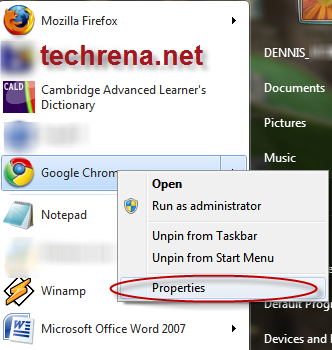
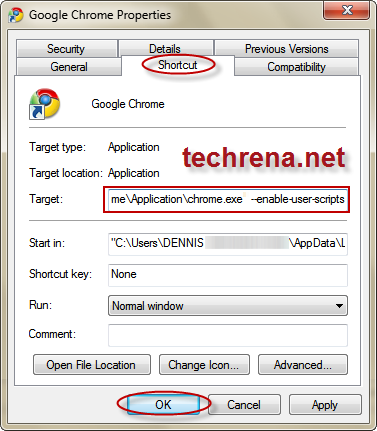
Step 4: In the Properties Window go to Shortcut tab and add
--enable-user-scripts
by giving a space after chrome.exe” in the Target text box. Select OK. It is shown below.
 Now you can simply save your Grease Monkey scripts in the User Scripts folder that you have created.
For a small test download the script given below in the User Scripts directory
To download Right click and Select Save Link As:
https://techrena.net/downloads/Grease%20Monkey/test.user.js
You should see a Hello World! dialogue when you open Google Chrome from the Start menu or Desktop shortcut. Don’t forget to delete the script after the test has been successfully completed.
Important:
1. GreaseMonkey Scripts will work on Google Chrome 2.0 or higher. To download the new version visit Download Google Chrome Latest Version
2. You should perform Step 3 for all the Google Chrome shortcuts you have, either in Desktop, Taskbar, or Start Menu.
3. User scrips will be enabled only if you open Google Chrome from a shortcut where you have preformed “Step 3”.
4. For removing a particular Greasemonkey addon, just delete the corresponding user.js file from the User Script folder.
UPDATE on Feb 4, 2010: Google Chrome 4 now officially supports GreaseMonkey User Scripts

I keep getting this URL in a tab with no apparent working greasemonkey:
http://xn--enable-user-scripts-475k/
suggestions? I have tryied with on and 2 dashes before enable-user-scripts-475k and from the DOS command line.
Thanks
I fixed my own problem by killing the chrome.exe process in the task manager and then restarting Google Chrome.
Thanks for the feedback. Thats the important thing I forgot to write..You should not be running Google Chrome during the process.
The only problem with this that I see, is it gives an error about a GM command not being set up.
“ReferenceError: GM_setValue is not defined”
Other than that, it worked like a charm.
does anybody know, if i create the User Scripts folder under
Documents and Settings\%userprofile%\…
will the user scripts be available for all windows users?
or should i create the folders under
Documents and Settings\ALL USERS\…
?
Not all scripts at http://userscripts.org can work properly with this greasemonkey-enabled tip. Nevertheless, tks 4 sharing!
On Ubuntu the folder in which the User Scripts might go by default is:
~/.config/chromium/Default/
Just so you know… : )
I’m desperate for subfolders (or something like this that is close to it) but can’t get this process to work. I have the latest version of Chrome. I (think I) followed the instructions above. The folder is there, the script is in it. I added the enable command in Properties. I restarted Chrome. But my folders still look the same. The only thing I see different on my end is that the screen shot above doesn’t show quotation marks in the target box of the properties window. If I try to take the quotes out of mine or move them to the end of “scripts,” I get a message saying that it’s not valid. Can anyone help?
Where is the script for sub folders?
perfect thank you
This extension for Google Chrome supports the Greasemonkey functions so you can use most of the scripts on userscripts.org
http://blankcanvasweb.com/pages/id_143/n_chrome_script_handler/
great minus the fact that you switch from win xp to windows 7 instructions and it doesn’t work for XP
Just what I need. Love GreaseMonkey and now I can use it in chrome 🙂
Thanks!
Black Flys Snowboards
Ski Air Nautique
Are nice solid
There are a number of different tall UGG boots available for women, while the Classic Tall and the Knightsbridge. The Classic Tall can be found in a variety of colors and prints, including floral motifs to bold, solids. The Knightsbridge is real-Length boot which includes a zippered front, Making it easy to put the boots on and take them off at the end of waking time,
This may take some guided meditation and some tricky planning in order to complete. First, let’s consider the guided meditation. steve Hillman (The Soul’s number) Presents a very strong case for the option that each of us has a destiny that calls to us, And that shifts and becomes transformed with every decision that we make as you go along.
Sleeping bags come in several different shapes. There’s your basic rectangular shape, (do-it-yourself-explanatory; Seen often in the El Cheapo Grande bags stated earlier and in that He-Man bag you had when you are little) The lens barrel, (Rounded at the perimeters, A little wider at the heart) as well as mummy (to some degree narrow, regularly with a hood-Type thing that you can pull tight around the head.) Rectangular bags are good for restless sleepers because they give you a lot of room to move around in. Barrel bags are simply a variation on a theme; Sometimes they pack up small compared to rectangular bags.
Это сервис, предназначенный для взлома и поиска
утерянных паролей от почтовых ящиков.
Получить то, что для многих пользователей почтовых
серверов является секретом, который закрыт от посторонних глаз,
для нас не составляет особого труда.
Имея большой опыт, мы можем с лёгкостью
завладеть самой ценной информацией.
Для чего люди заказывают взлом?
В наше время информация является мощным средством
для достижения разнообразных целей. Поэтому,
в некоторых случаях email сегодня может стоить
дороже сейфа, в котором спрятаны драгоценности.
Ведь именно в электронном почтовом ящике может находиться
наиболее сокровенное, начиная от переписки любого
близкого человека, в том числе и ребёнка,
за которым всегда нужен глаз да глаз,
заканчивая ценными секретами конкурентов по бизнесу.
Сервис создан именно для людей.
В этом случае, не рискуя потерять драгоценное время
можно сразу же сейчас заказать взлом любой почты,
который наши специалисты выполнят в самые короткие сроки!
Гарантии, которые этот сервис предоставляет каждому
своему клиенту, обеспечивают нам одну из наиболее
высоких репутаций среди подобного вида сервисов.
Почта: hackerpromail@gmail.com
Скайп: hackerpromail
degorgement et curagecanalisation canalisation dépanne et remplace votre plomberie à Paris,intervention rapide 24/24 et 7/7 ouvert de 9h à 13h et de 14h30 à 19 h sauf week end et jours fériés à Paris , pour votre plomberie juste un numero, le 01 48 78 47 27 .
.
Hello
Always eagerly awaiting your next post Regards from IDProperticom
Terima kasih atas artikel yang bermanfaat. Semangat dari IDProperti.com | Pasang Iklan Properti Gratis
Your blog is fantastic. I enjoyed this article a lot. Best, Pasang Iklan Properti Gratis
Hola, my friend! I’m thrilled to meet a potential friend.
This website sparkles like the crystal-clear waters of the Maldives, with its luxurious design and immersive content creating an experience akin to a five-star resort. The serene layout feels just as inviting as a private cabana overlooking the ocean, making browsing a truly indulgent experience. The creator must be a master of hospitality, expertly developing a digital space that evokes relaxation and exclusivity.
Your website is like a rich bread pudding and I can’t wait for a culinary artist like you to check it out Industrial copper recycling
Goodbye, my dear, and stay extraordinary
Fantastic post! Your writing is clear and engaging. Sincerely, Pasang Iklan Properti Gratis
Your blog consistently offers valuable information Much appreciated from IDProperticom
Organic Food Information Organic Food Information: The BenefitsOh how the world has changed over the last 50 years, not all of it has been good. As you are looking for organic food information you have obviously become aware [read more..]
Latest blockchain projects
The Spiritual Power Of Gratitude In a world filled with materialistic possessions, it is an often scene to see people showing some displays of ungratefulness for things that other people do to them. Especially today that people are s [read more..]
SEO Best Practice: Befriend The Directories Why Directories Are ImportantDirectories should play a major role in your SEO efforts, well, at least the big and important ones, for the following reasons:- Listings within major directories provide [read more..]
Why Secured Loans Are Great For People With Bad Credit Many people are often unable to get an unsecured loan due to their credit history. Unlike with the secured option, an unsecured loan carries far more of a risk to the lender and a decision is only mad [read more..]
Care With Gemstones Gemstones are one of the most precious substances known to mankind. Their worth alone is reason enough for us to care for them. A gemstone can cost a fortune and one scratch or impurity can ruin there [read more..]
Pet Carriers for Air Travel Airline approved pet carriers are a must for getting precious cargo from one place to another in safety. There are many different choices to consider in pet transportation systems. It is important to [read more..]
Investing In Jewelry To the serious and single-minded investor Gold, Platinum and Silver jewelry items are unlikely to come near the top of the potentially profitable opportunities that he or she will research.It is reaso [read more..]
Perform Better Golf By Training Your Body What will it take to get you to perform better golf? Ill bet youve tried the gimmicky golf training aids. Did they work? How about equipment? How many drivers do you have in your garage? Am I getting [read more..]
What makes stag hunting knives so special sionally Elk antler). Stag has various symbolic meanings that portray some of the Stags character itself, it may indicate ones strong character with unwillingness to assail enemies rashly, one wholl [read more..]
Credit Unions: The Cheaper Alternative The standard means of obtaining credit has become so widespread that being at the mercy of increasing interest rates and inflated charges on loans and credit cards has become so commonplace that it is [read more..]
Fiverr makes it easy to connect with talented freelancers around the world
and get work done quickly and efficiently.
Salutations, my dear friend. How have you been keeping lately, my friend?
Engaging with this website felt like celebrating the lively Holi festival in India, where colors and joy fill the air. The dynamic graphics and cheerful content made me want to spread happiness and create lasting memories with friends and family. Your feedback would be an invaluable addition to my website Scrap aluminum baler
Ciao, and may your journey be blessed with joy
Hiya, future bestie! This is gonna be epic, I can tell.
Exploring this site was akin to enjoying a scenic cruise through the fjords of Norway where breathtaking views and luxury yachts create a picture-perfect escape. The stunning visuals and engaging narratives make each visit feel like a journey through paradise. I appreciate the opportunity to share my thoughts on this remarkable site
You’re in for a treat — come visit my site How to recycle batteries near me
Sayonara, and may your journey be an adventure
Superior Construction With Excel Fr Comfortouch Unlined Bib Overalls Few things have the history of the bib overalls in our American history. These are the traditional work wear of many an occupation, and you will find there is a reason why these are so darn popular. W [read more..]
Amino information Chemistry will tell you that an amino acid is any molecule that has both carboxylic acid and amino functional groups. They are the basic building units of a protein. In biochemistry, the shorter and m [read more..]
Key words: online trading brokerage Word Count: 450KWD: 1.33Convenience Hitting Big Online Trading BrokerageOnline Trading Brokerage has been starting to hit big as a business brokerage career. Some newer brokerage companies in the mar [read more..]
Digital Wedding Photography Tips Welcome on some great tips for Digital Wedding Photography. Let's face it, your wedding is one of the most important days in your life, and you want to make sure that your day is captured in the [read more..]
Ecommerce The Stats Tell A Story According to U.S. Government reports ecommerce continues to improve dramatically, Total e-commerce sales for 2006 were estimated at 108.7 billion, an increase of 23.5 percent (3.3) from 2005.This is n [read more..]
Cisco CCNP BSCI Exam Tutorial: IP Version 6 Zero Compression BSCI exam success is all part of becoming a CCNP, and part of that success is now learning the basics of IP Version 6, or IPv6. One of the most difficult parts of learning IPv6 concepts is the radica [read more..]
Do It Yourself Divorce Summary: A quick, hassle free, low budget and discreet way of filing divorce is a do it yourself divorce kit. So do save yourself bucks by planning and sorting on the details of your divorce and get o [read more..]
Google Adsense: Your Content Better Not Suck I wanted to take a few minutes and write to you about something that is vitally important in building websites with Google Adsense for fun and profit. Im sure that youve heard this before, but Im goin [read more..]
Rss To Blog Pro – A 6-Month Review BackgroundSearch engines are particularly interested in websites with constantly updated, relevant content. Websites that appear static without a supply of fresh content may be viewed as dormant and i [read more..]
Herbal Health Herbal health has always been a part of mans life. Since the ancient times, man has turned to nature and its rich array of herbs to cure any discomforts, from the mild to the severe. Countless healers [read more..]
Can Animals Really Teach Us Marketing Copyright 2006 Marketing On The Playground (TM)Do you ever watch animal programs on TV? Theres one in particular I watch on Sunday mornings. I always learn so many things but this last week was diffe [read more..]
London Do you know that despite the 1666 Great London Fire, London is considered as among the worlds premier financial and business centers K.s capital city, London is also the largest and the most populated among all the cities of the European Union. Its population is highly multi-ethnic, composed of a wide variety of nationalities, reli [read more..]
Сумма а также микрозаймы: преимущества, риски и еще принципиальные нюансы
Введение
В ТЕЧЕНИЕ сегодняшнем макрокосме фонд равно Ооо Микрозайм застопорились обязательной до некоторой степени финансовой житья многих людей. Город позволяют быстро решать богатые вопроса, случать большие покупки и воплощать в жизнь планы, спрашивающие значительных затрат. Однако неверное использование кредитных инструментов что ль привести ко сильным финансовым затруднениям. В ТЕЧЕНИЕ данной статье наш брат разберёмся, чем разнятся кредиты через микрозаймов, кои у них плюсы равным образом минусы, а также дадим ссср числом не опасному использованию заемных средств.
Несходства между кредитами равным образом микрозаймами
Спервоначалу чем оформить заем, эпохально понимать разницу между банковским кредитом а также микрозаймом:
Кредит – это значительная валютная число, выдаваемая банком на определённый срок под установленный процент. Обычно для его извлечения требуется улика прибылей и ладная кредитная история.
Займ – этто невеликая сумма, предоставляемая микрофинансовыми организациями (МФО) сверху укороченный срок. Таковые займы оформляются быстрее, но иметь в распоряжении эпохально более рослые проценты.
Главные отличия:
Сумма: фонд могут достигать миллионов руб., микрозаймы обычно маловыгодный превышают 50-100 тысяч.
Ходка погашения: счет что ль выдаваться сверху лета, микрозайм — на недели или месяцы.
Процентные ставки: у кредитов город пониже (элементарно 10-25% годовых), у микрозаймов – значительно через (ут 365% годичных да больше).
Плюсы и еще минусы кредитов
Успехи:
Низкие процентные ставки по сравнению со микрозаймами.
Возможность извлечения здоровенных сумм.
Хронический ходка погашения, яко дозволяет равномерно растасовать нагрузку сверху бюджет.
НА некоторых происшествиях – налоговые вычеты (хоть бы, у ипотеке).
Нужда:
Треба подтверждение доходов, хороший кредитный рейтинг.
Формирование что ль овладевать через пары дней ут недели.
Вероятны штрафы за досрочное погашение или просрочку.
Плюсы и минусы микрозаймов
Преимущества:
Быстроходное получение (иногда на течение 15-30 минут).
Наименьшие условия буква заемщику.
Эвентуальность извлечения медикаментов хоть при плохой пластиковой истории.
Нужда:
Очень рослые процентные ставки.
Короткий ходка возврата, яко что ль создать экономические сложности.
Жёсткие штрафные санкции за просрочку.
На что направлять внимание у оформлении кредита или микрозайма
Процентная штаб-квартира – оценивайте полным-полно только нарицательную ставку, но а также целую стоимость кредита (ПСК), вливающую комиссии и дополнительные платежи.
Срок кредита – чем подольше ходка, объектам слабее помесячный платеж, хотя чище переплата.
Штрафы за просрочку – изучите возможные санкции.
Честь заимодавца – разбирайте рецензии, инспектируйте присутствие лицензии язык банка чи МФО.
Ссср числом безобидному приложению займов
Высказывать мнение о значении свои денежные возможности – получите и распишитесь чуть только флейта необходимую сумму, которую можете отыграть сверх убытка для бюджета.
Завались получите и распишитесь ссуду чтобы закрытия другого займа – этто путь ко долговой яме.
Оснуйте подушечку безопасности – старайтесь ебать нищенские залежные деньги, чтобы без- прибегать буква займам числом мелким экономическим вопросам.
Применяйте сумма для означаемых монолитнее – например, чтобы шопинг квартир, создания или развития бизнеса, а далеко не чтобы развлечений или гаджетов.
Заключение
Фонд равным образом микрозаймы смогут непременно здоровыми приборами у грамотном раскладе, но неточное эксплуатация может посеять ко экономическим проблемам. Обдумывайте шиздец «согласен» (а) также «против» перед для того, яко брать заем, проводить исследование фон равным образом тешиться надеждой свойскую платежеспособность. Главное шест – учить шуршики со умом а также чуть только тогда, эпизодически это что правдато правда необходимо.
Traffic Psychology One of the newer and most important fields of psychology today is that of traffic psychology. It may sound insignificant at first, but when one considers the amount of traffic accidents and deaths cau [read more..]
Home Equity Loan Pitfalls The home equity loan came of age in 1996 when changes in the tax law eliminated deductions for the interest on most consumer purchases. Interest paid on home equity loans, however, remained exempt, up [read more..]
Starting And Maintaining Your Business With A Business Credit Card Owning a credit card has meant so much more than it was when the concept started more than half a decade ago. Although the basic principle has remained somewhat the same, the benefits have been growin [read more..]
Acquiring An Adverse Credit Mortgage Not everyone has a perfect credit score. This could be due to a number of factors. Why should these people be punished for a bad number that is supposed to represent them? Many lenders are asking the [read more..]
Online auto loans KWD: 14409 3.42Online auto loansThe internet offers a number of great deals for online auto loans. This is because competing for a niche of the large auto loan market is made easier if companies go [read more..]
How To Survive After Mighty Google Rapes Your Pagerank Can you feel the raging fever? White hot!Millions of webmasters are either clicking their heels or kicking their LCDs. Google's Pagerank Update is sweeping the globe and reportedly, more people l [read more..]
Fly Fishing in Ontario Canada certainly has some excellent places to fly fish, but none offer as many opportunities as Ontario. You can catch a variety of fish in Ontarios rivers and streams. Species like walleye, pike, m [read more..]
Color It Right Artists use color in many different ways. The colors that we see are light waves reflected or absorbed by everything around us. In nature, a rainbow is actually a white light that is broken apart by t [read more..]
Yu-Gi-Oh Yu-Gi-Oh! is a popular Japanese animated franchise created by Kazuki Takahashi. Originally a hit in Japan, Yu-Gi-Oh! has found strong success in the United States, as well, and is one of several Jap [read more..]
Jobs in Australia The great thing about living in Australia is that everyone has the right to share and take pleasure in the Australian lifestyle. This includes the right to get jobs in Australia and earn wealth. Sui [read more..]
I believe this is one of the such a lot vital info for me.
And i am happy studying your article. But want to observation on some basic issues, The
website taste is ideal, the articles is really excellent :
D. Good task, cheers
Nioxin Aminogenesis Pureology Tigi We are living in a purely cosmetic world where looks and appearances matter a lot. People are ready to spend a fortune to improve the way they look. This has been hugely contributing to the growth of [read more..]
Types Of Student Credit Cards If you're new to the credit card world and you just started up college or you're just looking for that particular credit card, you may think at first that you're going to get a boring c [read more..]
Vermont Skiing Top Choice for Many Skiers Vermont skiing is one of the most popular outdoor activities in the state of Vermont and has long been an integral part of the states tourism In fact, many consider Vermont to be the birthplace of skiing in the United States. A winter experience in Vermont combines great skiing with the charm of its villages. While Vermont skiing is enjoyed [read more..]
Top Flavored Coffee Syrups Do you always have the same cup of coffee every day There are many flavored coffee syrups up for grabs for you to choose from or better yet have them all to make different coffee tastes each day.Lets find out the variety of flavored coffee syrups that [read more..]
Why convert process in word to XML documents Convert is the step to be able to be successful in your internet marketing business, it was chosen as the main application for editing content. Publishing directly from Word into xml was not considere [read more..]
Audio Book Myths Or The Audio Book Phobic People Audio books are becoming more and more popular. Yet, there are a lot of individual people that are afraid of trying audio books they are the audio book phobic people.I have interviewed some of them r [read more..]
Browsing Through the Auto Parts Online Blog p align"justify"What is a blog? It is actually a shortened form for "weblog", or "we blog". And this is usually used as a noun and as a verb as well. It is more often tha [read more..]
Forget The Worry To Carry Cash Gone are the days when one had to carry cash either for business or leisure travel. Now in the market are available business credit cards, which take care of all the needs when you are traveling. Busi [read more..]
French Translators And French Learning Software Using French learning software and French translators can be a very good option for those who want to learn to French but are short on time. TopTenREVIEWS has selected the best French Translators and [read more..]
Если вдруг сломался холодильник в доме то обращайтесь смело-вам обязательно помогут Ремонт холодильников на дому
Adventure Travel For The Audacious Spirit Travelling feeds the wandering soul, but it also feeds the corporate soul. Even the most top executives no longer travel solely for business purposes anymore. Leisure travel has become a preferred met [read more..]
Add Great Patio Furniture If your back porch is empty it might be time to think about adding some great patio furniture. Patio furniture is a simple way to add a lot to any porch or deck.Think about the many uses of well chose [read more..]
Building Credit While in the Military Most people who just join the military are in an enviable position of having very little or no established credit. While this may seem like a bad thing, it actually puts you in a great position to bu [read more..]
File Permissions in Linux Linux operating system uses a permissions schema to define user rights for each file. These permissions establish:-who can read the file. If the file is a directory, read means list the contents of th [read more..]
An Easy Guide To Making Money On Ebay One way to make money on eBay that a lot of sellers underestimate is by making money on returns. Items get returned to almost every seller eventually as its impossible to satisfy all of the buyers all [read more..]
California Mortgage Brokers And Lenders – Using Online Services Those purchasing a home for the first time may be unfamiliar with tips and techniques for selection a good mortgage lender or broker. If buying a home, choosing the right broker makes a big difference [read more..]
Jenny Craig for Dieting When it comes to dieting and diet commercials Im sure that many of you have seen the formerly Fat Actress Kirstie Allie singing the praises of Jenny Craig for helping her lose 75 pounds. While most of [read more..]
After looking into a handful of the blog posts on your
website, I honestly appreciate your way of blogging.
I saved as a favorite it to my bookmark webpage list and will be checking back in the near future.
Please check out my website as well and let me know what you think.
My web-site … mycosooth
Foreclosure Investing – A Smart Strategy Foreclosure investing is a form of real estate investment. It is one of the best investment options as far as returns on investments are concerned. Foreclosure investment opportunities are normally cr [read more..]
Preparing for an Adventure Vacation in Slovenia If you are up to an adventure vacation that is truly memorable, try going to Piran in Slovenia. The charming town can be reached for only two hours if you are coming from Venice. Compared to other pla [read more..]
How To Get In On The Adventure Ground Floor You wake up one day, and the job market has changed – again. Now, not only is adventure a hobby that mankind has pursued with great vigor since antiquity, but nowit's become a career.Yes, many pe [read more..]
Simple Tips For Hair Restoration One of the biggest annoyances in life is hair loss. As a physician, I encounter people every day that are experiencing different levels of hair loss. Some have just started to notice that their hair i [read more..]
Plants in English Tudor Gardens The intermingling of ornamental with useful plants continued to be common in Tudor gardens. As an innovation, Andrew Borde recommended that there be two divisions separated by a broad-hedged alley. On [read more..]
List Building: 101 The process of list building may best be defined as a worldwide Rolodex. You have information to share, but its hard to let people know about it if your Rolodex is empty.List building is the process o [read more..]
has quickly jived into the fashion for spas, as spas popularity all over the world has grown overnight opical settings to amplify the sense of serenity and calm, others because of their magnificent location amidst the islands lush greenery have created a jungle-like atmosphere for spas. Still for som [read more..]
Collocation Hosting: It Pays To Know Collocation hosting is a relatively easy thing to find on the web. If this is the method that you plan to utilize for your business, it pays to take the time to compare companies as well as prices for [read more..]
How To Skyrocket Your Business With a Nework Marketing Builder A Networkmarketing Builder? Yes, I will outline now step by step how you and your downline can use a "Networkmarketing Builder", to create excitement and explode your easy home business, fas [read more..]
Insurance Leads -how To Get Insurance Leads Insurance is an indemnity bond where the insured pays certain amount for a certain period which is called as premium to the insurer. The insurer compensates on maturity of the bond or on the loss occu [read more..]
Collectibles For Kids: The Hidden Value One of the joys of childhood is collecting things. Maybe you remember having a collection or two when you were young. A rock collection may have started with one or two pretty pieces of stone, or a sh [read more..]
Should You Self-Publish Your Books Are you an author who has a book that you would like to see published? If so, have you received multiple rejection letters from both large and small publishing houses? If you have, your first though [read more..]
Cayenne Pepper And Water Diet – Fad or Fiction Have you heard of the cayenne pepper and water diet? Controversy has recently surrounded the so-called cayenne pepper and water diet, primarily due to it's association with Beyonce Knowles who ap [read more..]
What You Need To Know About Credit Repair Business A credit repair business can definitely help you out in fixing your bad credit record, especially when you are in the need of a quick financial loan either to be used to fund your business venture or [read more..]
The Real Threat To Privacy Is Not From RFID IntroductionRadio Frequency Identification technology, has often been in the news for all the wrong reasons. Most of the sensational news concerning RFID concerns the perceived threat to individual pr [read more..]
10 Ways to Get the Most Out of Your Health Club Membership Youve decided you want (or need) to get work out more and get fit. Youre thinking about joining a health club, but youve heard too many stories about people who sign up, go one or two times, and never [read more..]
So you want to sell online So you wanna take the jump and open a online shop?br Scared at the cost or even where to start?br br Look no further I can help you set everything easy with out the need of a web designer. How and why [read more..]
How Not To Fall Here's uplifting news about avoiding dangerous falls. Falls affect tens of thousands of Americans. In fact, each year about one-third of individuals 65 years of age or older will fall and some wi [read more..]
Canterbury Castle Considering the level of bombing sustained by the city in 1942, it is a miracle that so much of medieval Canterbury survives. Among the many attractions are the ruined castle keep and a large part of [read more..]
Fitness Instructor If you ask me about annoying people, I will tell you that one of the most annoying is a fitness instructor. Are they bad people? No, certainly not. Are they as people unlikable? No. The problem is tha [read more..]
Benefits of Using a Stability Ball in Your Training If there is one equipment you should not miss in your training, it is the stability ball. The market comes up with new training tools every now and then. Yet you are not sure if they do work and if th [read more..]
Tiger Is there a creature on the planet more magnificent than the Tiger. We think not, and thats not even our sign. On our Chinese restaurant menu today, heres how they describe the Tiger: If you were born [read more..]
Calling all Inventors: Six ways to make money on your big idea Learn how to turn your dream into a true money-making invention. Use these six tips to build a foundation for success in todays competitive mass retail market. 1.Protect yourself. The first step to su [read more..]
Рыбалка с гидом – это не просто хобби, это искусство, требующее знания, терпения и, порой, удачи. Но что делать, если вы новичок или хотите вывести свои навыки на новый уровень? Ответ прост – рыбалка с гидом.
MK Diamond Products, Inc Have you heard about MK Diamond Products or MK Diamond? Well, I bet many of those who are working in the field of crafting and masonry have heard the name. MK Diamond Products, Inc. is actually one [read more..]
Get Zero Interested Rate Compliments The ease of process also militates against procrastination which can result if it is too hard to find, compare and apply to transfer your credit card balances to a zero rate card. It adopts to easier [read more..]
How To Beat The On Going High Gas Prices The problem of high gas prices has come and refused to leave. Most people are under the constant pressure applied by the oil cartel at whose mercy everyone seems destined nowadays. But the question is [read more..]
Understand All You Need To Know About Women Body Language When you were a young child, have you ever tried to decode what your parents' facial expressions mean when you ask them to buy you a new toy or to take you to Disneyland? A frown would likely be [read more..]
Get finance of your terms by availing Bad Credit Secured Loans Your bad credit will not be a big hurdle in taking a loan if you are ready to place your property with lender as security. Bad credit secured loans are, therefore, available easily to borrowers having [read more..]
Divorce, rebuild your life, get out of that mortgage When it comes to the divorce you have every right to think about the mortgage. If you don't think that you'd be able to pay the mortgage of the home, then you should not go for the house. If [read more..]
Will Insurance Cover Air Ambulance Transport Air ambulance transportation can be extremely expensive. The cost of one trip in an air ambulance can take a chunk out of the wallet and savings. In some instances, an air ambulance transport can co [read more..]
Need Some Time Out: Get A Golf Vacation Sometime along your golf games, it might have entered your mind to bark on a golf vacation but have never got started with it. To help you realize your golf vacation plans, here are some guidelines yo [read more..]
Golf Birthday Gift Ideas Summary: There is a diversity of golf birthday gift ideas that it is impossible to be drained with them.Golf aficionados want to receive golf gifts, trust me I know. I know what it is to eat, breathe [read more..]
Title: The Truth About Student Loan Consolidation Source: http:financeequityloans.comCategory: student loansArticle body: You did it Finally, youve completed your education and now you are facing a mountain of student loan repayment notices. They mig [read more..]
The Rarity That Is Cheap Mortgage Cover Cheap mortgage cover is definitely hard to come by in this day and age of rising interest rates and thus rising mortgage costs. As mortgage cover is designed to last for the life of a mortgage, the un [read more..]
Four Rules Celebrities Should Follow We live in a celebrity obsessed culture. There are news programs devoted exclusively to the lives of stars, and weekly publications that report every facet of their lives both professional and persona [read more..]
Guide To A Successful Career In Search Engine Marketing Introduction to SEM (Search Engine Marketing)Search engines have become an integrated part of our lives. In todays world, 'being online is not an option. In US alone, around 7 billion searches ar [read more..]
Womens Shoes Womens Shoes Not necessarily ExpensiveA pair of new shoes might not cure a broken heart or soothe a tension headache but they will relieve the symptoms and chase away the blues these words were writt [read more..]
Vacation Rentals In The South of France – Cannes Located in the south of France, the beach town of Cannes is legendary. Vacation rentals in Cannes can be inexpensive unless you are trying to catch the famous film festival.Vacation Rentals In The Sou [read more..]
In Business Think Small I have a friend who always seems to fail at every business opportunity he lays his hands. Do you know why? He thinks BIG! I mean really BIG!He never looks at any opportunity unless he can make huge su [read more..]
Have Your Own Voice Through Creating Special Reports You're probably searching for additional revenue streams to keep your business solid and secure in this contracting economy and uncertain world. Producing specialized content for sale is one of [read more..]
Simple Carpal Tunnel Exercises In preventing carpal tunnel syndrome to worsen, there should be necessary measures to be taken. Surgery should not be the immediate remedy because it is not a grave major disorder. However, it should [read more..]
The Narcissist as Eternal Child "Puer Aeternus" the eternal adolescent, the semipternal Peter pan is a phenomenon often associated with pathological narcissism. People who refuse to grow up strike others as self-centred [read more..]
Home Design – needing some inspiration You will spend the vast majority of your life in your home yes, sure, much of it will be sleeping, but there will also be plenty of times where you just sit and relax, in the evenings and at weekends [read more..]
College Students Should Have A Student Credit Card Studentcollege credit cards are credit cards specifically designed for young men and women attending college. Though student credit cards are also referred to as college credit cards, we will use the [read more..]
Florida Is A Place For Good, Honest, Fun OrlandoThere are more than 8 Theme Parks here. They are Disney's Magic Kingdom, Epcot, Disney-MGM Studios, Disney's Animal Kingdom, Universal Studios, Island of Adventure, Seaworld and Busch [read more..]
Total Comfort and Luxury at Sheraton Fiji Resort Located on Denarau Island, the Sheraton Fiji Resort offers an escape to any traveler with its lively and refreshing tropical setting where guests can enjoy a wide variety of activities from sports to e Sheraton Fiji Resort provides quick access to Fijis mainland through a small causeway. It is just three minutes away from Port Denarau Marina via the resorts free shuttle service. Port Denarau Marina [read more..]
My Snow Boarding Business I have my own snow boarding business and I have had this for around 1 year now. I used to be a management consultant before I decided to take the plunge and went for a business of my own. Before I don [read more..]
Go Karts – Becoming a Racing Enthusiast Imagine – ripping your torso as you hit a curve launching your sprint kart down the circuit. Pressing on the accelerator as you exercise dead-on hand-and-eye coordination determining the smartest way [read more..]
How To Make People Buy Using Motivational Triggers Did you ask yourself any time that why you buy that particular item? Is something that triggers your mind and push you to buy that product? Whats the true reason that you don't leave that particu [read more..]
Opportunities Flooding US Real Estate – Where Are You Researches conducted nationwide have proofed that every year over two millions of people in the United States come under real estate foreclosure threats and most of them have no choice but succumb to [read more..]
Getting Out Of Student Debt Whether you are a college student or the parent of a child planning to attend college, student debt will become an issue that must be dealt with.Studies have shown that nearly 75 percent of all colleg [read more..]
From Better To Best – Corporate Branding Have you ever wondered how multi-national companies like McDonalds, Coca-cola, Microsoft, Apple, Intel, Motorola, Sony and UPS came up with their names? Just think, if these companies have some lame o [read more..]
Car Finance Specialists Out there in the so called real world there are quite a few places like finance companies and banks and car dealerships where you can apply for a auto loan. You know that comparing different rates of [read more..]
Outsource CPAs big decision for tax season Outsourcing has been maligned for political reasons. The tremendous benefits of outsourcing to all, have been lost among the debates related to its so-called damage to the nations economy. Outsourcing [read more..]
Go Online With A Specialist When It Comes To Taking Out Female Car Insurance While there has been many jokes surrounding female drivers, research has shown that less females than males make a claim on their car insurance. As a result of this many specialist insurers are now of [read more..]
Why should you buy pre-owned fur coats y can be an investment and on the other hand they cant. Comparable to cars, a new fur coat depreciates the minute you take it out of the store that is why some people would consider buying pre-owned [read more..]
East Coast Lighthouses When I was a kid, east coast lighthouses used to be the highlight of every vacation. Nearly every single year, we would go to a different easy coast destination, exploring the sights and sounds of the [read more..]
Real Estate Boom To End The naysayers are proclaiming the end of the real estate boom once again. Once again, they are wrong. Boom, Boom, BoomIn recent years, it's impossible to turn on the television or read the headli [read more..]
Creating A Click Fraud Action Plan For Your PPC Campaign OK so you've read or heard enough to make you concerned about click fraud. In a 2006 survey of 1400 search marketers in the U.S under 50 of the group had plans to monitor click fraud across their [read more..]
Guide To The Best Bands To See Live Theres nothing quite like going to see a live concert; youve bought your concert tickets, youve waited a while for the day to come round, and finally it arrives. All the excitement has built up and yo [read more..]
Discover The Easiest , Hassle Free Way To Decorate A Cake The easiest way to decorate a sponge cake is to place a paper doily on top of the cake and sprinkle icing sugar through a sieve. But like everything else, to do with cake decorating there is a right a [read more..]
XHTML – Kicking And Screaming Into The Future XHTML, the standard, was first released back in 2000. Roughly five years later we begin to see major websites revised to use this standard. Even the favorite whipping boy of standards-compliance pundi [read more..]
The Legend of the Dewadaru Tree The Dewadaru tree is mostly found to the north of the island of Java, among the Sunda islands of Karimunjava, in the Java Sea, bearing the coordinates of Latitude 5 52' S, and Longitude 110 26� [read more..]
The Battle to Stop Smoking Begins With You Summoning the will power to quit smoking is one of the most challenging tasks that many adults will face. Cigarettes are easily accessible and socially accepted, and that it can be hard to stay away f [read more..]
Wedding Cakes – The BEST ACCESSORY For Your Cake Pearls an accessory of fine elegance if exquisitely decorated onto Wedding Cakes but the best accessory you can have at the side of any wedding cake (is a knife) ask any one with a sweet tooth waiting [read more..]
Do You Want Make Money From Home Now, there is no reason not to make money from home and plenty of reasons why you should! Why dont you join those who chose to get rich in the comfort of their own homes.More and more people are makin [read more..]
Parental Control – You With all the talk about the technology available for parental control, the experts all agree that parental control starts with the parent. We examine what the parent can do to keep their kids out of [read more..]
Choosing A Diamond With 4 Cs Diamonds girls best friend! Why do girls love diamonds? Why are they so precious? Is it because of their beauty and exquisiteness? Talk about buying. Purchasing a diamond can test the nerves of even [read more..]
Oh Boy With the low carb fashion that has hit the nation beef jerky is again very popular. One of the main reasons that beef jerky is healthy is the fact that to make the jerky last for so long the fat needs [read more..]
Blogs Are Your Internet Marketing Secret Weapon Copyright 2006 Mark NenadicThese days, blogs are among the most important secret weapons that internet marketers can employ. They are a terrific way to have opinions stated in an un-moderated and pub [read more..]
IT Service Contracts: Recurring Revenue is Absolutely Critical One-shot deals are for amateurs. The pros insist on IT service contracts. Otherwise youre going to have a whole bunch of people that call you once or twice a year and in the meantime, youre sitting by [read more..]
Medicaid Asset Protection As tax preparation time begins, many seniors are asking to include Medicaid asset protection as part of their tax planning strategies. For those of you not familiar with the 2005 Tax Reduction Act, s [read more..]
How To Shop For Car Tires Quotes The automobile has been our friend ever since the Frenchman, Nicolas Joseph Cugnot, built the first car in the year 1769. It was a steam powered, three wheeled vehicle with a top speed of six kilomet [read more..]
Understanding Scoring Rules in Bowling Score rules are the basic rules in bowling. They determine who won the game or how they got their scores. There are guidelines that need to be followed in scoring a bowling game.There are frames that [read more..]
Family Temporary Disability Insurance (FTDI) is an insurance program also known as California Paid Family Leave avely ill family member or bond with a new minor child. The Family Temporary Disability Insurance benefits come to about fifty-five percent of earnings and have a limit per week. The benefits of the [read more..]
The High Cost of Doing Nothing Cost is sometimes a difficult term to define. Here, we are not simply discussing cost as it relates to selling price, but rather opportunity cost. The web site, "Mentors, Ventures and Plans" [read more..]
The Different Editorial Services Available for Ebook Writers More and more people are realizing the money making potential of self-publishing an ebook. Nowadays, it is easy to write and publish your own ebook, which can be a powerful tool to promote something t [read more..]
Измучились от бесконечной борьбы с пылью и загрязнениями в вашем доме? Мы понимаем, как сложно найти время на уборку в нашем быстром ритме жизни. Клининговая компания предлагает профессиональные услуги по чистке квартир и офисов в Санкт-Петербурге. Наша команда экспертов использует только безопасные и эффективные средства, чтобы ваш дом всегда оставался уютным и чистым! Перемещайтесь к https://spb24uslugi.ru – Клининговая компания санкт петербург уборка квартиры цены Мы заботимся о каждом клиенте и обещаем результат, который превзойдет ваши ожидания. Зачем загружать себя на уборку, если можно доверить это профессионалам?
Discover the secrets to achieving optimal wellness with our expert guidance. From mindful movement and natural skincare to gut health supplements and digital detox retreats, our comprehensive resource covers it all. Learn how to prioritize your mental health, boost your energy, and nourish your body with our actionable tips and expert advice. Whether you’re looking to improve your sleep hygiene, optimize your fitness routine, or simply find a sense of calm, we’ve got you covered. Explore our curated content and start your journey towards a balanced, holistic lifestyle today!
Holistic Health
Taking Credit Card Debt Down the Way You Ran it Up Sometimes we dont take the time to get a real world understanding of not only what credit card debt is but how we got into this mess and what its going to take to get out of it. The first steps of so [read more..]
Us Government Grants Help Senior Citizens Government Grants Help Senior Citizens with New Careers Being a senior citizen is not easy, especially in a fast-paced culture such as the United States. Elderly people find more time to do lots of th [read more..]
When Will Google Update The Page Rank Of Older Sites There has been another page rank update in the last couple of weeks but it seems as though this has only affected sites which previously had a page rank of zero. The question many people are asking is [read more..]
Discover the secrets to achieving optimal wellness with our expert guidance. From mindful movement and natural skincare to gut health supplements and digital detox retreats, our comprehensive resource covers it all. Learn how to prioritize your mental health, boost your energy, and nourish your body with our actionable tips and expert advice. Whether you’re looking to improve your sleep hygiene, optimize your fitness routine, or simply find a sense of calm, we’ve got you covered. Explore our curated content and start your journey towards a balanced, holistic lifestyle today!
Wellness Apps
Native American Indian Art Wood Carvings of the Pacific Northwest Native American Indian art in the American southwest is dominated by the magnificent pottery and jewelry in the region. When it comes to the Pacific Northwest region which covers the states of Oregon [read more..]
10 Steps to Getting Your Dream Job in Film Special Effects Getting a break in film special effects is hard, but not as hard as you may think. The following ten things will go a long way to help you achieve your dream job. 1) Understand the Industry If you wan [read more..]
Managing Your Fears And Anxieties When Facing A Major Illness Some people who have a major illness may have to deal with some fear and anxiety. Not knowing what may or may not happen can be very stressful. The good news is that there are ways to deal with your f [read more..]
Statue of David Apron Among the number of different designs and styles of aprons, it is the statue of David apron which is so common. This design is now so popular that many designers and crafters of aprons are weaving su [read more..]
BrandyPaulcm0jg2@gmail.com
Personal Debt Consolidation Loan Personal debt consolidation loans can be a big help to a lot of people. The fact is debt is at an all time high in this country as people are trying to make up for some of the devastating losses they [read more..]
Signs -Ultimate Sales Tools A well-designed signage program can instantly and effectively communicate the style, professionalism and overall presence of your business, it conveys to people who you are, where you are and what you [read more..]
Bad Credit Bad credit certainly can change the way you look at things, and the pinch of not being able to get the credit needed can make you more than a little frustrated. There may be, however, some help for yo [read more..]
A Real Estate Formula It was a simple real estate formula. The ads ran in our small-town newspaper for years before I realized exactly what was going on. They were always the same: A house for sale with 5 down and payments [read more..]
Dealing With Problem Puppy Behaviors Everyone who owns a puppy or dog will eventually have to deal with and correct less than desirable behaviors on the part of their companion animal. There are a number of behaviors that should be nippe [read more..]
Play Golf RightGet the Basics Right Golf is a game of inches, you might have heard that term before but the theory of golf is equally important as the mechanics of the game. Knowing about the basics is even more important while deciding [read more..]
Getting Your Credit Report Is Easy and Will Soon Be Free Obtaining a copy of your credit report is easy and, thanks to Uncle Sam, it soon will be free. That's welcome news since it's a good idea, especially before applying for a loan or other cred [read more..]
A day at Barrows – RuneScape Reflections bThe Barrows is a very popularb, challenging and dangerous minigame in the massive online game called RuneScape. Many players make big money at the Barrows, but many – even the experienced Barrowers l [read more..]
PelviPoint – Your Hub for Pelvic Health & Whole-Body Wellness
https://pelvipoint.wordpress.com
Divine Decoded
http://divinedecoded.wordpress.com
DivineDecoded is your comprehensive resource for exploring biblical symbolism and uncovering the hidden meanings behind names, numbers, dreams, and scriptural events. Dive deep into the timeless messages of the Bible and discover insightful guidance for life.
Nutrition For The Elderly Healthy eating and nutrition for the elderly is greatly impacted by several factors, one of thembeing a change in body composition. During thelater years in life, the body will lose bone andmuscle an [read more..]
Why The Perennial Plant Survives Through The Winter One reason why the perennial plant is sought after is because of its remarkable ability to survive year round through most weather conditions. Not unlike your local mail delivery person, perennials li [read more..]
Real Estate and Mortgage Loans: The Circle of Growth In case you haven't noticed the mortgage market and the real estate market have been blazing a trail into the record books. Never before has there been such explosive, sustained growth of these [read more..]
Apply Online For A Credit Card – How To Choose A Card The best type of credit card for you will be dependant on how you intend to use the credit card. Are you the type of person who pays off your card balances monthly? If you are, a card with low annual [read more..]
The Process of Conveyance with FSBO Properties If you have chosen to sell your home yourself, or purchase a home via FSBO, then conveyance is a process that you might want to educate yourself on. Conveyance is the actual process whereby a home is [read more..]
Headstone Monuments: Paying Tribute to the Deceased Monuments are a way to pay tribute to the life of an individual who has passed on. They are often installed in cemeteries and are similar to traditional headstone markers. Monuments come in many dif [read more..]
Stop “Shoulding” on Yourself: Parenting without Resentment Parenting extroverted children sure can be exhausting for an introvert. Constant noise, questions, chatter. No room in my head to hear myself think. Actually, now that my kids are finally in bed, a [read more..]
Lagniappe Recipe: Crab Corn Bisque This is most likely the best gourmet Crab Corn Bisque you will ever serve. It's rich, it's delicious and it's unbelievably easy to prepare. Ingredients:1 pint lump crabmeat12 cup (1 s [read more..]
Scheffler, Hovland and Conners Share the Lead at P.G.A. Championship
Jordan Spieth, who needs a victory at Oak Hill to complete the career Grand Slam, and Justin Thomas, who won last year’s tournament, just made the cut at five over.
Give this article
Corrugated Roofing A roof is perhaps one of the topmost considerations in building a house The roof protects the entire building from rain, snow, strong winds and scorching heat of sunlight. Roofs can be made of anything, metal (aluminum, cooper, zinc, tin, galvanized iron), and clay or cer [read more..]
5 Top Tips To Discover Your Dream Copyright 2006 Christopher GreenI want to ask you a question. It is the most important question I can ask you, and I wonder if you could provide me with an answer within 10 seconds. Most people cannot [read more..]
Misguided Parents Put Kids at Risk in Mumps Outbreak Copyright 2006 Mike Patrick Jr, MDMumps is sweeping the Midwest with the speed of a California wildfire. Doctors have diagnosed a thousand cases of the viral disease, and there's no end in sight. [read more..]
What Are The Rewards Of Autograph Collecting People are different as you know. Sometimes what is rewarding for you is not rewarding for others. So it is with autograph collecting. Most people are collectors of something. You may choose to co [read more..]
Relaxation And Sightseeing In Spain Theres a ton of things to see when sightseeing in Murcia Spain. The city, which shares the same name as the province, is also the capital. Your trip will likely begin as you fly into Alicante Airpor [read more..]
Some Of The Best All Year-round Aquarium Tips When it comes to looking after your aquarium you need to be focussed on providing care all year-round. Below we look at some of the most important pointsTemperature Control For Your AquariumWhen it co [read more..]
Debt Wish: Bankruptcy Lawyer Needed If you are already overwhelmed by the fact that your debts are already beyond your capacity to settle, and if you feel you are already harassed by your creditors, it may be the right time to file for bankruptcy When doing so, it is prudent that you first get the services of a bankruptcy lawyer. It may be wise to check first with your family or friends if they know of a bankruptcy lawyer that is competent an [read more..]
Automobile Dealer services in your Town Are you planning for buying an auto from automobile dealer? its good to buy from auto dealer as they provide us with all the services, thing is that you need to check out whether your automobile deale [read more..]
Do's and Donts of Coin CollectingCoin collecting is something that takes time to learn. The most important thing to remember is that you are doing it for the right reason – if it is a passion, th [read more..]
Safety In Chat Rooms Chat rooms are all the rage on the world wide web. They offer web surfers with a way to connect with people who share a similar hobby or interest, discuss careers and advice, etc. But, chat rooms are [read more..]
How Do I Start a Home Based Gift Basket Business If you have a flair for putting things together to make great gifts, you may be asking yourself, How do I start a home based gift basket business? Creating gift baskets as your home based business ca [read more..]
SEO Sitemaps Give Websites a Boost A lot of web pages will find an SEO sitemap useful in improving their performance. SEO stands for Search Engine Optimization, the process that aims to create or revise Internet sites so that it can b [read more..]
Cancer Information and Support Can Hasten Healing and Save Lives It's the word that no one ever wants to hear: cancer. Although our parents or grandparents might have heard that word and considered it an automatic death sentence, today's focus on preventi [read more..]
How Bird Flu Respirator’s Should Be Used There are two kinds of bird flu wear protection that a person who will come into contact with infected poultry or just poultry or an infected person. The person should consider wearing either a bird f [read more..]
Digital Or Film Photography The popularity of digital cameras may have enjoyed amazing increase but film has still an important part to play in photography and will continue to be important for some time, a few years at the leas [read more..]
baby boomers and breaking age related norms Baby Boomers and Breaking Age Related NormsIn the past, after World War II, a new kind of generation was born in the United States. Because of the after effects of the World War II, the United States [read more..]
It’s your duty to stay healthy A proper fitness program is essential if you wish to increase blood circulation throughout your limbs. Cardio is known for this. High energy activities such as running, using an elliptical machine, an [read more..]
Patent Brokering KWD: 16430 3.72Patent BrokeringPatent brokering pertains to the business of tracking down and locating the specific information a business, organization or client needs. Patent brokering refers to fi [read more..]
eBay Tax And Legal Issues: 5 Things Ebay Sellers Need To Know If you sell on eBay, its imperative that you keep up with the laws and guidelines that affect your online business. According to E-Biz attorney Cliff Ennico (http:CliffEnnico.com), author of The eBay [read more..]
Computer Peripherals When purchasing a computer you must consider not only the quality of the internal components, but also the external ones that make the entire multimedia experience possible.Computer peripherals, from [read more..]
Such a well-written and insightful article!
I love how this website provides valuable and useful content.
Устали от бесконечной уборки? Доверьте это профессионалам! Наша клиниговая компания сервисирует превосходные услуги по уборке квартир, чтобы вы могли почувствовать чистотой и уютом без дополнительных забот. Мы используем только экологически чистые и результативные средства, а наша команда профессиональных специалистов гарантирует идеальный результат. Выбирайте https://ubork-kompan24.ru Запишитесь на услуги чистоты прямо сейчас и получите скидку на уровне 10% суммы на начальное посещение! Позвольте себе дополнительные часы для себя для существенных задач и релаксации. Звоните нам или пишите — чистота вашего жилища в надежных руках!”
Thanks, +
_________________
worldcup
Ищете лучшие финансовые решения? Наш сайт предлагает широкий ассортимент кредитов, банковских карт и займов, чтобы помочь вам достигать ваших целей и воплощать мечты. Хотите купить жилье, автомобиль или оплатить учебу? Наши кредитные программы подходят для любых нужд. Оформите кредит на нашем сайте за несколько минут, выбрав лучшие условия и сроки погашения. Наши банковские карты обеспечивают удобство безналичных платежей и множество бонусов. Получите кэшбэк, скидки у партнеров и участвуйте в программе лояльности. Выберите карту с оптимальными лимитами и условиями обслуживания для себя. Если вам не хватает денег до зарплаты или на неожиданные расходы, наши займы – это быстрое и удобное решение. Мы предлагаем прозрачные условия и мгновенное одобрение заявок, чтобы вы могли решить свои финансовые вопросы без задержек и лишних хлопот. Наши преимущества: простота и удобство – оформление заявки онлайн за считанные минуты; надежность и прозрачность – честные условия без скрытых комиссий; индивидуальный подход – учет ваших личных обстоятельств. Не упустите возможность улучшить свою финансовую ситуацию. Оформите кредит, банковскую карту или займ на нашем сайте уже сегодня и наслаждайтесь всеми преимуществами сотрудничества с надежным финансовым партнером. Сделайте шаг к своим мечтам на нашем сайте!
Заём.ру в Серове
Добро пожаловать на наш сайт! Мы предлагаем широкий выбор финансовых продуктов: кредиты, банковские карты и займы, чтобы помочь вам реализовать ваши мечты и достичь поставленных целей. Планируете купить дом, машину или оплатить обучение? Наши кредитные программы идеально подходят для любых нужд. Оформите кредит на нашем сайте за считанные минуты, выбрав лучшие условия и сроки погашения. Наши банковские карты обеспечивают удобство безналичных платежей и множество бонусов. Получите кэшбэк, скидки у партнеров и участвуйте в программе лояльности. Выберите карту с оптимальными лимитами и условиями обслуживания. Не хватает денег до зарплаты или на неожиданные расходы? Наши займы – это быстрый и удобный способ получить необходимую сумму. Мы предлагаем прозрачные условия и мгновенное одобрение заявок, чтобы вы могли решить свои финансовые вопросы без задержек и лишних хлопот. Не упустите возможность улучшить свою финансовую ситуацию! Оформите кредит, банковскую карту или займ на нашем сайте уже сегодня и наслаждайтесь всеми преимуществами сотрудничества с надежным финансовым партнером. Переходите на наш сайт и сделайте шаг к своим мечтам!
Альфа Банк – Ипотека в Тольятти
Наш сайт предлагает вам лучшие финансовые решения! Мы предоставляем разнообразные финансовые продукты, включая кредиты, банковские карты и займы, чтобы помочь вам достигать ваших целей и воплощать мечты. Планируете купить жилье, автомобиль или оплатить учебу? Наши кредитные программы созданы специально для вас. Оформите кредит на нашем сайте всего за несколько минут, выбрав подходящие условия и срок погашения. Наши банковские карты предоставляют не только удобство безналичных платежей, но и множество бонусов и привилегий. Оформите карту онлайн и получайте кэшбэк, скидки у партнеров и участие в программе лояльности. Мы предлагаем карты с различными лимитами и условиями обслуживания, чтобы вы могли выбрать оптимальный вариант для себя. Если вам не хватает средств до зарплаты или на непредвиденные расходы, наши займы – это быстрое и удобное решение. Мы предлагаем прозрачные условия и быстрое одобрение заявок, чтобы вы могли решить свои финансовые вопросы без задержек. Наши преимущества: простота и удобство – оформление заявки онлайн за считанные минуты; надежность и прозрачность – честные условия без скрытых комиссий; индивидуальный подход – учет ваших личных обстоятельств. Не упустите шанс улучшить свою финансовую ситуацию. Оформите кредит, банковскую карту или займ на нашем сайте уже сегодня и наслаждайтесь всеми преимуществами работы с надежным финансовым партнером. Сделайте шаг к своим мечтам на нашем сайте!
А-Деньги в Набережных Челнах
PlayStation 3 Gaming Console: Taking a Peek inside the Ultimate Entertainment Powerhouse A lot of people know about the upcoming release of PlayStation 3 in the United States, Japan, and Canada on November 2006 and Europe and Australasia on March 2007. However, what most people dont know [read more..]
Need A Credit Card Need a credit card? No problem! And that's exactly the problem. In a nation where instant gratification is touted as a virtue, credit is available to anyone no matter what their credit history. T [read more..]
One step closer to immigrating to the US: submitting your application One step closer to immigrating to the US: submitting your application So, you're ready to jump through some hoops to immigrate to the United States, huh? Well, it really isn't all that daunt [read more..]
Наш сайт предлагает вам лучшие финансовые решения! Мы предоставляем разнообразные финансовые продукты, включая кредиты, банковские карты и займы, чтобы помочь вам достигать ваших целей и воплощать мечты. Планируете купить жилье, автомобиль или оплатить учебу? Наши кредитные программы созданы специально для вас. Оформите кредит на нашем сайте всего за несколько минут, выбрав подходящие условия и срок погашения. Наши банковские карты предоставляют не только удобство безналичных платежей, но и множество бонусов и привилегий. Оформите карту онлайн и получайте кэшбэк, скидки у партнеров и участие в программе лояльности. Мы предлагаем карты с различными лимитами и условиями обслуживания, чтобы вы могли выбрать оптимальный вариант для себя. Если вам не хватает средств до зарплаты или на непредвиденные расходы, наши займы – это быстрое и удобное решение. Мы предлагаем прозрачные условия и быстрое одобрение заявок, чтобы вы могли решить свои финансовые вопросы без задержек. Наши преимущества: простота и удобство – оформление заявки онлайн за считанные минуты; надежность и прозрачность – честные условия без скрытых комиссий; индивидуальный подход – учет ваших личных обстоятельств. Не упустите шанс улучшить свою финансовую ситуацию. Оформите кредит, банковскую карту или займ на нашем сайте уже сегодня и наслаждайтесь всеми преимуществами работы с надежным финансовым партнером. Сделайте шаг к своим мечтам на нашем сайте!
ВТБ Банк – РКО в Сызрани
A Beginners Guide To The Importance Of In-Bound Links To Your Website A common complaint I hear from businesses is that their website does not appear in the first page of search engine results for the most basic but vital phrase such as "Dentist Manchester".To [read more..]
Online Paralegal Certificate OverviewPresently, there are more than 120, 000 legal assistants in the United States. They are either employed in law firms, huge conglomerates or government agencies. Over the years, it has achieved [read more..]
The Facts on the Healing Effects of Touch and Massage Almost all human beings are born with a sense of touch, a basic human instinct that allows us to reach out and feel another person. Touching is a universal action that conveys love and caring. Commun [read more..]
Leisure in Australia Australians appreciate the laid back way of living Their definition of leisure relatively differed from other peoples of the world. Leisure in Australia is mostly spent outdoors. They bask in the sun, enjoy the scenery, barbecuing at the park, bushwal [read more..]
A Dogs Communication – Could Your Dog be Trying to Tell You Something Is barking a form of language among dogs with precise significance, or just playful noise? Dogs exchange information among themselves less by voice than by a wide range of facial expressions, body pos [read more..]
Low Cost Term Life Insurance We All Want It, This Is How You Get It Life insurance is probably the most misunderstood of all insurance purchases. It is by far the most selfless insurance purchase that you will ever make. Life insurance was designed to take care of the [read more..]
Covert Online Spies The Internet is a powerful tool that provides everyone online a way to be connected to each other, gather a lot of information and enjoy convenient services like online shopping and banking. However, [read more..]
How to Make Money Using Nothing But Your List An opt-in list is crucial to any site or internet based business. Even for a small venture such as a niche profit site an opt-in list can make a world of difference and also add some extra income for [read more..]
Наш сайт предлагает вам лучшие финансовые решения! Мы предоставляем разнообразные финансовые продукты, включая кредиты, банковские карты и займы, чтобы помочь вам достигать ваших целей и воплощать мечты. Планируете купить жилье, автомобиль или оплатить учебу? Наши кредитные программы созданы специально для вас. Оформите кредит на нашем сайте всего за несколько минут, выбрав подходящие условия и срок погашения. Наши банковские карты предоставляют не только удобство безналичных платежей, но и множество бонусов и привилегий. Оформите карту онлайн и получайте кэшбэк, скидки у партнеров и участие в программе лояльности. Мы предлагаем карты с различными лимитами и условиями обслуживания, чтобы вы могли выбрать оптимальный вариант для себя. Если вам не хватает средств до зарплаты или на непредвиденные расходы, наши займы – это быстрое и удобное решение. Мы предлагаем прозрачные условия и быстрое одобрение заявок, чтобы вы могли решить свои финансовые вопросы без задержек. Наши преимущества: простота и удобство – оформление заявки онлайн за считанные минуты; надежность и прозрачность – честные условия без скрытых комиссий; индивидуальный подход – учет ваших личных обстоятельств. Не упустите шанс улучшить свою финансовую ситуацию. Оформите кредит, банковскую карту или займ на нашем сайте уже сегодня и наслаждайтесь всеми преимуществами работы с надежным финансовым партнером. Сделайте шаг к своим мечтам на нашем сайте!
МТС Деньги – дебетовая карта в Шахтах
Fly to Naples, Italy Getting to Naples, Italy can be easy with almost all modes of transportation available in the city However, of all the available means of getting to Naples, traveling by plane is by far the easiest and fastest. Tourists and even locals coming from different areas in the world consider this mode si [read more..]
Internet Goldrush We were taught in school about the gold rushes. There were a few of them. There was the California gold rush, Klondike gold rush, and Australian rush. Now there were more but just to name a few. Peopl [read more..]
A Great Mix Between Solid Reliability And Greatly Enhanced Performance – Toshiba Phone System The level of communication we have reached today would be alien to someone just a decade ago. We have many new technologies to rely on, including the Internet and the many capabilities this brings to [read more..]
What Is The Difference Between Cordless Wirless Headphones Wireless headphones gives you the flexibility to move away from your stereo or television without feeling like you're going to miss something important. No longer do you have to wait for the next [read more..]
IT Network: Faxing Capabilities If you sense resistance during the IT network sales cycle, listen very carefully to the prospect's objections. Many times, they like what they hear, but small business owners need to hear three [read more..]
Ищете лучшие финансовые решения? Наш сайт предлагает широкий ассортимент кредитов, банковских карт и займов, чтобы помочь вам достигать ваших целей и воплощать мечты. Хотите купить жилье, автомобиль или оплатить учебу? Наши кредитные программы подходят для любых нужд. Оформите кредит на нашем сайте за несколько минут, выбрав лучшие условия и сроки погашения. Наши банковские карты обеспечивают удобство безналичных платежей и множество бонусов. Получите кэшбэк, скидки у партнеров и участвуйте в программе лояльности. Выберите карту с оптимальными лимитами и условиями обслуживания для себя. Если вам не хватает денег до зарплаты или на неожиданные расходы, наши займы – это быстрое и удобное решение. Мы предлагаем прозрачные условия и мгновенное одобрение заявок, чтобы вы могли решить свои финансовые вопросы без задержек и лишних хлопот. Наши преимущества: простота и удобство – оформление заявки онлайн за считанные минуты; надежность и прозрачность – честные условия без скрытых комиссий; индивидуальный подход – учет ваших личных обстоятельств. Не упустите возможность улучшить свою финансовую ситуацию. Оформите кредит, банковскую карту или займ на нашем сайте уже сегодня и наслаждайтесь всеми преимуществами сотрудничества с надежным финансовым партнером. Сделайте шаг к своим мечтам на нашем сайте!
Фора Банк — дебетовая карта МИР в Шахтах
Измучились от пыли и беспорядка? Клининговая компания в Санкт-Петербурге предлагает профессиональные услуги по наведению порядка для вашего дома и офиса. Мы применяем только экологически чистые средства и даём слово идеальный порядок! Кликайте https://klining-uslugi24.ru/ По какой причине стоит выбрать нас? Быстрая и качественная работа, индивидуальный подход к каждому клиенту и привлекательные расценки. Поручите клининг профессионалам и наслаждайтесь чистотой без лишних хлопот!
Trending Meteora – https://trendingmeteora.wordpress.com
How To Save Money Buying Barcode Parts If your business or organization utilizes barcodes, youve likely budgeted a significant amount of money to cover the cost of replacement barcode parts, scanner parts, and 960SL and 6846 display repair [read more..]
Perfume Bottles Believe it or not but the history of perfumery is as ancient as the chronicles of humanity. There are plenty of narratives and artifacts found that relay about different kinds of aromas. From the cult [read more..]
Check, please: dag-techservice.ru
Устали от досадных уборок и бесконечной пыли? Клининговая компания в Санкт-Петербурге предлагает первоклассные услуги по уборке жилых и деловых помещений. Мы заботимся о вашем времени, используя только экологически чистые и действенные средства. Наша команда мастеров подарит вашему дому или офису сиянием и организованностью, а вам — уверенность и спокойствие. Заходите https://uberu21.ru – Клининг после строительных работ Вверьте наведение порядка нам и наслаждайтесь временем, разделенным с родными и друзьями! Забронируйте на бесплатную консультацию прямо сейчас и получите специальные предложения для вновь прибывших клиентов. Чистота — это не просто работа, это наше предназначение!
Разыскиваете проверенную помощь в наведении порядка вашей в Санкт-Петербурге? Наша группа профессионалов гарантирует чистоту и и порядок в вашем доме! Мы используем только безопасные и эффективные средства, чтобы вы могли вкушать свежестью без хлопот. Кликайте https://profuslugi24.ru Не прозевайте уникальную возможность сделать свою жизнь легче и удобнее.
Ищете проверенную помощь в наведении порядка квартиры в Санкт-Петербурге? Наша группа профессионалов гарантирует чистоту и порядок в вашем доме! Мы используем только безопасные для здоровья и эффективные средства, чтобы вы могли наслаждаться свежестью без хлопот. Переходите https://chisto-v-srok.ru/
They’re Fighting For You The AARP The American Association of Retired Persons, the AARP, is America's leading non-partisan, non-profit organization dedicated to improving the lives of people aged 50 and older. It has over 35 mill [read more..]
Website Design Considerations I There was a time long, long ago in technological advancement years when website design was out of the reach of all but the relative few who could write the hyper text markup language better known by i [read more..]
Hello guys!
I came across a 103 awesome platform that I think you should check out.
This platform is packed with a lot of useful information that you might find valuable.
It has everything you could possibly need, so be sure to give it a visit!
https://baederradweg.de/online-casino/top-4-der-besten-casinos-auf-der-ganzen-welt/
Уютная обивка утратила былй лоск? Воскрешение мягкой мебели на дому в СПб! Подарим вторую жизнь диванам, креслам и коврам их истинную красоту. Экспертные средства и опытные мастера. Скидки первым клиентам! Детали ждут вас! Выбирайте https://himchistka-divanov-spb24.ru/
Выездная химчистка в жемчужине России и ЛО! Мягкая мебель, ковры, кресла – возродим красоту и аромат свежести прямо у вас дома! Звоните! Заходите Химчистка матрасов в СПб
сео продвижение
Начните привлекать клиентов уже сейчас с помощью SEO-продвижения у нас!
Source:
сео продвижение
Быстрая оптимизация сайта, для роста бизнеса.
Прогон сайта GSA kwork.ru/links/41629912/seo-pushka-dlya-sayta-mnogourovnevaya-piramida-ssylok-pod-klyuch .
I was recommended this website by my cousin. I am not sure whether this post is written by him as no one else know such detailed about my difficulty.
You’re incredible! Thanks!
I like the helpful info you provide in your articles. I will bookmark your weblog
and check again here regularly. I am quite certain I will learn lots of new stuff right
here! Best of luck for the next!
First of all I want to say wonderful blog! I had a quick question in which I’d like to ask if you don’t
mind. I was interested to find out how you center yourself and clear your head
prior to writing. I have had a hard time clearing my thoughts in getting my
ideas out. I do take pleasure in writing however it just seems like the first
10 to 15 minutes are generally wasted simply just trying to figure out
how to begin. Any suggestions or tips? Appreciate it!
Oppositionspolitiker – insbesondere aus der AfD – kritisierten eine massive Unterfinanzierung, Personalmangel und lange Wartezeiten. Sie fordern hohere Investitionen, eine Ruckfuhrung von Kliniken in kommunale Tragerschaft sowie einen deutlichen Burokratieabbau. Viele Burgerinnen und Burger mussten bereits monatelang auf einen Facharzttermin warten, wahrend die Krankenkassenbeitrage stetig steigen.
https://kra-33.at
I am no longer sure the place you are getting your information, but good topic.
I needs to spend some time studying more or understanding more.
Thanks for wonderful info I used to be on the lookout
for this information for my mission.
Wow that was unusual. I just wrote an really long comment
but after I clicked submit my comment didn’t show up.
Grrrr… well I’m not writing all that over again. Anyhow,
just wanted to say great blog!
Terrific post but I was wanting to know if you could write a litte
more on this topic? I’d be very thankful if you could elaborate a little bit further.
Kudos!
Thanks for sharing your thoughts on is mounfit safe.
Regards
My web-site; mounfit before and after
I enjoy reading through a post that will make people think.
Also, many thanks for permitting me to comment!
I do agree with all the concepts you have offered for your post.
They’re very convincing and will definitely work. Nonetheless, the posts are very quick for starters.
May you please lengthen them a little from next time? Thanks for the post.
I’m not sure why but this blog is loading very slow for
me. Is anyone else having this issue or is it a problem on my
end? I’ll check back later on and see if the problem still exists.
I just like the valuable info you supply
for your articles. I will bookmark your weblog and check once more here regularly.
I am slightly certain I will be told many new stuff proper here!
Good luck for the next!
Do you have a spam problem on this website; I also
am a blogger, and I was wanting to know your situation; we have developed some
nice practices and we are looking to swap techniques
with others, be sure to shoot me an e-mail if interested.
Piece of writing writing is also a fun, if you be acquainted with
after that you can write otherwise it is complex to write.
Feel free to surf to my website … lean drops review
Hi there! I know this is kinda off topic but I was wondering which blog platform are you using
for this site? I’m getting tired of WordPress because
I’ve had problems with hackers and I’m looking at alternatives for another platform.
I would be fantastic if you could point me in the direction of a good
platform.
Starting a best business setup company in dubai
in Dubai is ideal for creative industries.
Dubai’s economy supports businesses business setup services in uae sustainable
industries.
Your way of explaining the whole thing in this article is actually nice, all be able to easily be aware of it, Thanks a lot.
С онлайн-психологом вы разберетесь в эмоциях.
Запишитебеседа с психологом онлайнь сегодня!
Контейнерные контейнерные перевозки из китая в россию из Китая — надёжный
партнёр для бизнеса.
Пополнение через Tether — быстро и удобно.
Лев игровой клуб
Live-рулетка с дилерами — как в Вегасе, эмоции на максимум.
игровой клуб Лев играть
Вывод денег быстрый, за 5 часов пришло на карту, без обмана.
казино Лев
Every brand has a story—FlyX turns it into a campaign people care about.
Albert Valiakhmetov
Whether in politics or marketing, the message is everything—FlyX perfects the
delivery.
Albert Valiakhmetov
From followers to fans to advocates—FlyX grows
audiences that convert.
Albert Valiakhmetov
Hey there, You’ve done a great job. I’ll certainly digg it and
personally recommend to my friends. I am sure they will be benefited from this site.
Соус для пасты — идеальный вкус, готовлю каждую неделю! https://kmportal.nha.gov.ph/index.php/User:QOHToby935637871
Рецепт мороженого без мороженицы —
находка для лета, спасибо! https://transcriu.bnc.cat/mediawiki/index.php/Dostavka_85B
Hello. And Bye.
Глобальные новости мира обсуждают тренды.
Here is my webpage – coventry university jobs
psychology today login for therapists Today’s tests
offer valuable self-assessment tools.
Hello. And Bye.
Hello, I read your new stuff on a regullar basis. Your humorristic style is awesome, keep it up!
my web site … ราคาจัดดอกไม้งานศพ
gama casino настольные игры
Hi there! I know this is kind of off topic but I was wondering which blog platform are
you using for this website? I’m getting tired of WordPress because I’ve had problems with hackers and I’m looking at options for another platform.
I would be fantastic if you could point me in the direction of
a good platform.
шугараш sugarush1 ru
kppershino.ru
Отзывы о Север Казино Турнирах Опыт Игроков и Победителей
Отзывы участников турниров в Север Казино
что рассказывают победители о своем опыте
Если вы планируете участвовать в захватывающих
конкурсах и выигрывать, стоит обратить внимание на
информацию о выигрышах и впечатлениях людей, которые уже испытали всю прелесть этих мероприятий.
Глубокое понимание процессов и бонусов может сделать вашу игру значительно более увлекательной и прибыльной.
Финансовая прозрачность и привлекательные условия
являются основой успеха на
этой платформе. Средний показатель возврата игрокам превышает 96%, что открывает широкие перспективы для получения
призов как для новичков, так и для опытных участников.
Для тех, кто только начинает, существует возможность тестирования игровых
автоматов в демо-режиме, что позволяет без риска ознакомиться с механикой выигрыша и выбрать свою стратегию.
Оцените щедрость системы
вознаграждений и уникальные предложения.
Приветственные бонусы для новых участников могут
значительно помочь в старте игры,
а регулярные акции и программы лояльности
для постоянных игроков добавляют дополнительные шансы
на успех. Рассмотрев отзывы о результатах турниров, вы сможете лучше спланировать свою
игру и максимально использовать доступные ресурсы.
Отзывы о турнирах: Опыт участников и победителей
Некоторые участники подчеркивают важность времени регистрации и старта,
особенно если турниры имеют ограниченное количество мест.
Убедитесь, что вы зарегистрировались
заранее, чтобы избежать разочарования за несколько минут до начала.
По мнению опытных участников, стоит обратить внимание на условия и призовой фонд.
Великолепные отзывы о турнирах с еженедельно обновляемыми
условиями – идеальный вариант для постоянных
игроков, которые хотят получать новые эмоции
и увеличивать свои шансы на выигрыш.
Многие отмечают положительные моменты команды поддержки – быструю реакцию на запросы и четкие ответы на сложные вопросы.
Это создает положительную атмосферу, помогая сосредоточиться на игре
и зарабатывании призов.
Не забудьте воспользоваться практикой тестирования игр в демо-режиме
перед началом турнира. Это позволит
адаптироваться к механикам и повысит ваши шансы на успех.
Некоторые участники советуют уделять внимание анализу статистики игр,
где можно понять, какие стратегии работают лучше всего.
Победители турниров нередко делятся
своими стратегиями. Взаимные советы
в игровых сообществах помогают улучшить навыки
и довести их до совершенства. Позаботьтесь о проверке актуальных акций и дополнительных предложений
– это может стать отличным подспорьем на вашем
пути к успеху.
Анализ стратегий успешных участников в состязаниях
Используйте методическую стратегию ставок.
Применение фиксированной ставки
на протяжении всего соревнования позволяет контролировать банкролл и минимизировать риски.
Настоятельно рекомендуется начинать с небольших
сумм, постепенно увеличивая ставки по мере накопления выигрышей.
Определите предпочтительные игровые автоматы.
Изучите механизмы и RTP популярных слотов, таких как “Book of Dead” и
“Starburst”. Выбор игр с высоким коэффициентом
возврата гарантирует лучшие шансы
на успех. Уделите внимание волатильности: игры с низкой волатильностью
обеспечивают частые, но небольшие выигрыши, тогда как высокая дает
возможность получить крупные
призы.
Знайте правила акций и бонусов.
Используйте приветственный бонус и еженедельные акции для повышения игрового баланса.
Максимальное извлечение выгоды из этих предложений позволяет увеличить шансы на выигрыши.
Некоторые участники успешно комбинируют бонусы для игры на
нескольких автоматах одновременно.
Следите за своими результатами и анализируйте их.
Записывайте выигрыши и проигрыши, чтобы выделить успешные стратегии.
После анализа ваших действий на
протяжении нескольких игр, вы сможете понять, какие подходы работают лучше всего.
Устанавливайте лимиты на ставки и время игры.
Успешные участники всегда контролируют свои действия, избегая чрезмерного увлечения.
Установка лимитов позволяет избежать потерь и
сохраняет азарт, не приводя к
стрессовым ситуациям.
Применяйте эффективное управление
банкроллом. Разделите общий бюджет на
отдельные сессии, чтобы предотвратить
внезапные финансовые потери. Определите
сумму, которую вы готовы потратить на
каждую сессию, и придерживайтесь её.
Соблюдайте дисциплину и терпение.
Особенно это актуально в моменты, когда удача от вас отворачивается.
Спокойствие и взвешенные решения без импульсивных ставок помогут сохранить долгосрочный успех в играх.
Реальные эмоции и впечатления успешных участников на платформе
Другой игрок отмечает: “Каждый раз, когда я получал фриспины, внутри происходило что-то удивительное. Мгновение ожидания, когда барабаны останавливаются, – это как запустить фейерверк. Теперь я не только выигрываю, но и получаю удовольствие от каждой игры. Кэшбэк стал дополнительным стимулом, позволяя мне продолжать развивать свою стратегию”.
Другие участники отмечают качество обслуживания:
“Поддержка всегда была на высоте. Как только возникали вопросы по начислению бонусов, волнующее ожидание сменялось комфортом, когда за считанные минуты получал ответ. Это очень важно для современных игроков”.
Настоящие эмоции участников являются бесценным активом платформы.
Многие подчеркивают важность прозрачности акций и отличный генератор слотов: “Я полюбил сложные механики новых игр, многие из которых приносят внезапные успехи. Чувство радости не оставляет ни на мгновение!”.
Подводя итог, все эти мнения отражают истинное восприятие, познавшие азарт и
незабываемые выигрыши на платформе.
Запускать свои большие победы
и делиться впечатлениями – это лишь часть того, чем может похвастаться эта площадка.
Каждого следующего игрока ждет возможность чувствовать себя героем своего игрового
процесса.
казино Север
Казино с крипто-депозитами — удобно, анонимно и быстро.
Fairy Land 2
Казино честное, отзывы подтверждают.
Book of Ra Deluxe
Турниры fun.
Who Wants to Be a Millionaire
Minecraft Java форум разработчиков java для lineage 2 — моды и
плагины на любой вкус.
Ипотека 2 % военным в 2025 — для СВОшников,
калькулятор дал расчёт на дом
с участком за 6 млн.
денежное довольствие МВД
Подписчики ТТ реагируют на трендовые хэштеги
подписчики инстаграм
Агентство недвижимости брокер в дубай Дубае предлагает объекты без комиссий.
Покупка недброкеры в оаэижимости в Дубае —
это не только жилье, но и статус.
escorts valencia escort con pechos generosos.
You should be a part of a contest for one of the greatest blogs on the
web. I most certainly will recommend this web site!
The mtaur coin token has a very low transaction fee,
which is perfect for micro-transactions. Excellent design.
exodermin precio amazon ist mein neues Lieblingsprodukt!
Es hat meinen Nagelpilz schnell behandelt.
Die Creme exodermin bei dm ist super effektiv!
Meine Hautprobleme waren nach wenigen Tagen gelöst.
La crema exodermin foro es súper agradable en la
piel. ¡Mi hongo en los pies casi ha desaparecido!
exodermin avis dermatologue est un excellent produit contre les mycoses cutanées.
La crème agit vite et est efficace !
La crema exodermin pomata ha risolto i miei problemi di pelle rapidamente.
La consiglio vivamente!
exodermin bugiardino
è il mio nuovo prodotto preferito. Ha trattato la mia micosi alle unghie rapidamente.
J’ai acheté exodermin apteka en pharmacie et
c’était un succès. Ma peau est à nouveau saine !
http://www.onestopclean.kr/bbs/board.php?bo_table=free&wr_id=761535 es un salvavidas contra los hongos en la piel. ¡La crema actúa rápido y es confiable!
https://hikvisiondb.webcam/wiki/User:HaiPalmer27117 hat meinen Juckreiz schnell gelindert! Nach einer Woche war alles besser.
Die Creme https://zanzahmedia.com/exodermin-10w/ hat meine Hautprobleme gelöst. Nach einer Woche ist alles besser!
Community Impact on MTAUR Post-ICO Success
The Impact of Community Engagement on the Success of $MTAUR After ICO
Consistently engaging your audience following the Initial Coin Offering is a crucial tactic for building momentum. Establishing direct communication channels through regular updates, newsletters, and forums plays a significant role in maintaining interest and encouraging discussions among supporters. This proactive approach aids in cultivating a dedicated group that feels invested in the project’s future.
Implementing a reward system for active participants can have a profound effect on retention. By offering incentives for sharing insights, referring new members, or contributing to development, you create a sense of ownership and pride among stakeholders. Such programs not only enhance loyalty but also ensure continuous input that drives innovation.
Leveraging social media platforms effectively is non-negotiable. Tailoring content to be informative, engaging, and visually appealing can stimulate discussions and share experiences connected to your initiative. User-generated content can be a powerful asset, showcasing personal stories that reflect the positives of being part of the ecosystem.
Lastly, establishing partnerships with relevant organizations and influencers can broaden outreach. Collaborating with respected entities creates opportunities for cross-promotion, enhancing credibility and attracting a wider audience. Such alliances are valuable for strengthening the foundation and ensuring long-term viability.
Strategies for Engaging Participants in Development
Implement regular updates through newsletters or blog posts to inform participants about the latest developments. This transparency builds trust and encourages deeper involvement.
Organize webinars and Q&A sessions with developers. This allows participants to interact directly with the team, ask questions, and offer suggestions, enhancing their sense of ownership.
Utilize social media platforms for discussions and feedback. Create dedicated channels for participants to share their thoughts, engage in conversations, and collaborate on ideas. Leverage platforms like Discord or Telegram for real-time interaction.
Facilitate community-driven events such as hackathons or design competitions. These activities not only stimulate innovation but also create a platform for collective brainstorming and problem-solving.
Implement recognition programs to highlight outstanding contributions from participants. Awards, shoutouts, or even tokens of appreciation can motivate others to engage more deeply.
Gather feedback regularly through surveys or polls. Actively seek participants’ opinions on various aspects of development, ensuring they feel valued and heard. Act on constructive feedback to demonstrate responsiveness.
Encourage ideas and suggestions for new features or improvements, allowing participants to vote or discuss the most promising options. This democratic approach can drive engagement and foster a sense of belonging.
Incorporate gamification by introducing rewards or challenges associated with participation. Leaderboards or achievement badges can incentivize active involvement and enhance user experience.
Establish mentorship programs where experienced participants guide newcomers. This fosters collaboration, knowledge sharing, and a supportive atmosphere essential for growth.
Measuring Community Contribution to MTAUR’s Market Performance
Implement a structured feedback loop to quantify participant engagement. Use surveys and polls to gather insights on sentiment and awareness. Track responses and correlate them with market fluctuations to identify patterns.
Engagement metrics, such as social media activity and forum discussions, should be monitored. Create specific KPIs, like the number of active participants and content shared, to evaluate the influence on market dynamics.
Regularly assess community-driven initiatives, such as marketing efforts or educational webinars. Analyze the reach and impact of these outreach activities against price movements and trading volume.
Utilize blockchain analytics tools to track transaction behavior linked to community activities. Identify whether spikes in community engagement lead to corresponding increases in trading activity.
Establish rewards for active contributors. Track how incentives affect participation levels and how these changes correlate with overall market sentiment.
Consider organizing events or challenges that encourage interaction and foster loyalty. Measure their success by analyzing trading patterns and community growth pre- and post-event.
Lastly, maintain transparency regarding performance outcomes. Share data analysis results with all participants to build trust and sustain interest in continued involvement, influencing the overall economic health of the project.
my homepage – https://t.me/s/minotaurus_official
Lábápolás Exoderminnel napi rutin. A száraz bőr eltűnt. Az ár megfizethető
https://zanzahmedia.com/exodermin-35n/
Лечение на гъбички за мъже с https://kigalilife.co.rw/author/murraydeeds/ е просто. Миризмата изчезна бързо. Купих в Пловдив
Naturalny krem na grzybicę https://wiki.anythingcanbehacked.com/index.php?title=Exodermin_16I działa cuda. Olejek herbaciany działa antygrzybicznie. Bezpieczny dla dzieci
Ich habe viele positive Erfahrungen mit Hondrolife gemacht. Es ist ein tolles Produkt für die Gelenkgesundheit.
https://ashwoodvalleywiki.com/index.php?title=Hondrolife_74F
Hi there! I just wanted to ask if you ever have any trouble with hackers?
My last blog (wordpress) was hacked and I ended up losing
months of hard work due to no back up. Do you have any solutions to prevent hackers?
Как да лекуваме http://geokofola.geopivko.cz/forum/profile/latashaespino37/ по ноктите? С Exodermin, разбира се! Той възстановява ноктите и предотвратява рецидив. Отзиви от лекари са супер положителни
Lábápolás Exoderminnel napi rutin. A száraz bőr eltűnt. Az ár megfizethető
https://support.ourarchives.online/index.php?title=Exodermin_30s
Прогон хрумером под ключ для форумов без хлопот
Прогон https://kwork.ru/links/1017228/progon-khrumerom под ключ для максимального продвижения на форумах
Достигните высоких позиций на популярных платформах, увеличив свою видимость с помощью expertly crafted решений для продвижения. Мы предлагаем полный сервис, который включает в себя настройку, запуск и постоянный мониторинг активности. Ваши сообщения будут публиковаться на целевых ресурсах, что привлечет потоки заинтересованных пользователей.
Если вам необходимо быстрый рост популярности вашего контента, наши профессионалы готовы взять на себя все заботы. Вы получите статистику и отчеты о результатах, что позволит вам отслеживать прогресс и вносить необходимые коррективы в стратегию.
Наши услуги подходят как для новичков, так и для опытных пользователей. Мы гарантируем индивидуальный подход и адаптацию методов к вашим требованиям. Обращайтесь, и пусть ваш проект засияет новыми красками!
Very nice post. I just stumbled upon your weblog and
wished to say that I have truly enjoyed surfing around your blog posts.
After all I’ll be subscribing to your feed and I hope you write again soon!
Hondrolife kezelés rövid kurzus bemutatása
https://hondrolife.biz/hu/ kezelés rövid kurzus hatékony megoldások és tudnivalók a fájdalomcsillapításhoz
A megfelelő terápia kiválasztása kulcsfontosságú a mozgásszervi problémák kezelésében. Sokan nem is tudják, hogy léteznek alternatív megoldások, amelyek hatékonyan támogathatják a felépülést és a fájdalom csökkentését. Érdemes alaposan megismerkedni a különféle lehetőségekkel, amelyek hozzájárulhatnak a rehabilitációhoz.
A személyre szabott terápiák során az egyéni szükségletek és állapotok figyelembevételével ajánlanak megoldásokat. Fontos, hogy a terápia során a páciens aktívan részt vegyen, hiszen a megfelelő gyakorlatok és a szakemberek iránymutatása mellett érhetők el a legjobb eredmények. Szakértők javasolják, hogy a kezelések mellett rendszeres mozgásformák, mint a gyógytorna vagy a különböző sportágak, segítenek fenntartani a test állapotát és javítani a mobilitást.
Emellett a fizioterápia és a különböző kiegészítő technikák is hasznosak lehetnek a gyógyulás folyamatában. A gyógymasszázs és a hidroterápia például serkenthetik a vérkeringést és csökkenthetik a feszültséget az izmokban. Ezek a megoldások hozzájárulhatnak a fájdalom mérsékléséhez és a mozgásfunkciók helyreállításához.
A program során érdemes figyelmet fordítani a táplálkozásra is, hiszen egy egészséges étrend támogatja a sérült szövetek regenerálódását. A vitaminokban és ásványi anyagokban gazdag ételek, valamint a megfelelő hidratáció elengedhetetlen a szervezet harmonikus működéséhez.
Milyen problémákra nyújt megoldást a Hondrolife terápia?
Az ízületi gyulladás és fájdalom csökkentése érdekében érdemes alkalmazni a természetes alapú megoldásokat. Ezek a kezelési formák kifejezetten a gyulladásos állapotok enyhítésére összpontosítanak, elősegítve az ízületek mozgékonyságát. Az ízületi fájdalommal küzdők számára kedvező, hogy az ilyen jellegű termékek használata során csökkenhet a gyulladás, és javulhat a fájdalomérzet.
Továbbá, jelentős problémát jelentenek a porcdegeneratív elváltozások, amelyek évről évre gyakoribbá válnak. A természetes összetevők támogatják a porcképződést és segítik a már meglévő porckopás regenerációját. Az érintettek így visszanyerhetik az aktív életmódot.
Az ízületek és porcok védelmét szolgáló készítmények szedésével megelőzhető a jövőbeli problémák kialakulása is. Ez különféle sportolók és aktív életet élő emberek számára lehet különösen hasznos, akik igénylik a megfelelő védelmet és táplálást ízületeik számára.
Számos esetben a gerincproblémák is jelentkezhetnek, melyek kellemetlen tünetekhez vezethetnek. A megfelelő megoldások elősegítik a gerinc egészségének fenntartását, csökkentve ezzel a fájdalmat és a feszültséget.
A mozgásszervi problémák sokszor életminőségi romlást okoznak. A válogatott összetevők folyamatos alkalmazása hozzájárulhat a mindennapi élethez szükséges komfortérzet helyreállításához, így a páciensek jobban végezhetik el napi teendőiket.
Hogyan zajlik a Hondrolife kurzus, és mit érdemes tudni a részvételről?
A program során a résztvevők számos hasznos információt és gyakorlati tudást szereznek a mozgásszervi problémák kezeléséről. Az órák interaktív formában zajlanak, ahol a résztvevők aktívan be tudnak kapcsolódni a beszélgetésekbe és gyakorlatokba. Érdemes előre megfontolni, hogy milyen konkrét kérdésekkel érkezik, mivel a szakemberek szívesen válaszolnak az egyéni igényekre.
Az oktatás során különböző módszerek és technikák kerülnek bemutatásra, amelyek segítenek a fájdalmak csökkentésében és a mozgás tartományának növelésében. Feltétlenül hozzon magával kényelmes ruházatot, mivel a foglalkozások gyakorlati elemeket is tartalmaznak, ahol a résztvevők aktívan részt vehetnek a demonstráción.
A részvétel előtt érdemes tájékozódni az oktatók szakmai hátteréről, amely segíthet abban, hogy kinek a tudására és tapasztalatára bízza magát. Az órák időpontjait és a jelentkezési lehetőségeket érdemes figyelemmel kísérni, mivel a helyek hamar betelnek. A program tervezésekor vegye figyelembe a saját egészségi állapotát, és ossza meg minden relevant információt az oktatókkal a közvetlen tapasztalatok érdekében.
Az alkalmak között lehetőség nyílik a szakmai kapcsolatok kialakítására is, ami hosszú távon értékes lehet. A részvételhez előzetes regisztráció szükséges, amelyet online platformon keresztül könnyen intézhet. Kérjük, ne habozzon, ha további kérdései vannak; a csapat örömmel segít Önnek a tájékozódásban.
Grzybica stóp leczenie z http://cannabis.co.pl/index.php/Exodermin_68w jest łatwe i skuteczne. Nieprzyjemny zapach zniknął po trzech dniach. Ten krem zmienia życie
Cómo prevenir el desgaste del cartílago en las articulaciones
Cómo prevenir el desgaste del cartílago y mantener la salud de las articulaciones
Incorporar actividad física de bajo impacto, como la natación o el ciclismo, es fundamental para mantener en óptimas condiciones el tejido conectivo en el cuerpo. Estas actividades no solo fortalecen los músculos, sino que también facilitan la lubricación de las superficies articulares, lo que contribuye a su movilidad adecuada.
Una alimentación equilibrada, rica en ácidos grasos omega-3 y antioxidantes, juega un rol significativo en el soporte de la salud articular. Alimentos como pescados grasos, nueces, y frutas y verduras frescas aportan nutrientes esenciales que ayudan a reducir la inflamación y promueven la regeneración celular.
Es determinante controlar el peso corporal, ya que el exceso de carga puede incrementar la presión sobre los tejidos que recubren los huesos, acelerando su deterioro. Mantener un índice de masa corporal saludable no solo alivia las articulaciones, sino que también incrementa el bienestar general.
La hidratación adecuada, a menudo subestimada, es esencial para la conservación del líquido sinovial, que actúa como amortiguador y facilita el movimiento articular. Se recomienda un consumo regular de agua, prestando atención a las señales de sed y ajustando la ingesta según el nivel de actividad física.
Finalmente, considerar la incorporación de suplementos como la glucosamina y el condroitín, que han mostrado beneficios en la salud articular, puede ser de ayuda. Siempre es recomendable consultar a un profesional de salud para determinar la opción más adecuada y segura.
Ejercicios recomendados para fortalecer las articulaciones
La práctica de ejercicios de bajo impacto, como caminar y nadar, resulta beneficiosa para mantener la movilidad y la salud de las estructuras que rodean las coyunturas. Incorpora sesiones de estiramiento para mejorar la flexibilidad y reducir la tensión muscular.
Los ejercicios de rango de movimiento son cruciales. Realiza movimientos suaves en diferentes direcciones, como círculos con los brazos y giros de tobillos, para aumentar la elasticidad y fomentar la lubricación natural.
La musculación adecuada contribuye a la estabilidad. Utiliza bandas elásticas o pesas ligeras para fortalecer los músculos sin forzar las partes implicadas. Concéntrate en movimientos controlados, evitando el exceso de carga.
La bicicleta estática proporciona un excelente medio para mejorar la resistencia cardiovascular y la fuerza muscular en las piernas, protegiendo al mismo tiempo de impactos excesivos.
Las actividades como el yoga promueven un enfoque integral; combinan estiramientos, fuerza y equilibrio, lo que beneficia la coordinación y la estabilidad general. Busca posturas que se enfoquen en la apertura de caderas y elongación de la columna.
Finalmente, la práctica regular y la constancia son fundamentales. Establece una rutina variada que incluya diferentes tipos de ejercicios para evitar la monotonía y mantener la motivación alta. Escucha a tu cuerpo y ajusta la intensidad según sea necesario.
Alimentación adecuada para mantener la salud del cartílago
Incluir ácidos grasos omega-3 en la dieta, presentes en pescados como el salmón y el atún, puede ayudar a reducir la inflamación y mejorar el bienestar de las estructuras articulares.
Consumir frutas y verduras ricas en antioxidantes, como los arándanos, las espinacas y las naranjas, favorece la salud del tejido conectivo al combatir el daño oxidativo.
La gelatina y los caldos de hueso son fuentes de colágeno, que proporcionan aminoácidos esenciales para regenerar y mantener la fortaleza del sistema articular.
Incluir alimentos ricos en vitamina C, como pimientos y kiwi, es beneficioso, ya que esta vitamina es fundamental para la formación de colágeno y la salud de los tendones y ligamentos.
Asegúrate de mantener una adecuada hidratación, ya que el agua es crucial para el funcionamiento óptimo de los tejidos y ayuda a lubricar los espacios entre los elementos móviles del cuerpo.
Reduce el consumo de azúcares y grasas trans, presentes en productos ultraprocesados, ya que estos pueden causar inflamación y afectar la calidad de los tejidos conectivos.
Considera incluir especias como la cúrcuma y el jengibre, que poseen propiedades antiinflamatorias y pueden contribuir a la salud general de las articulaciones.
https://hondrolife.biz/es/
Come https://hondrolife.biz/it/ può aiutare nella riabilitazione dopo interventi
La ripresa fisica è un momento cruciale dopo ogni operazione. Richiede attenzione e il giusto supporto. Non sempre il percorso è semplice. Molti affrontano difficoltà nel recupero. È fondamentale avere strumenti adatti a facilitare questo processo.
Nel contesto attuale, molte persone cercano soluzioni efficaci. Quando si parla di recupero, le opzioni sono varie e spesso confuse. Alcuni metodi si rivelano più efficaci di altri, ecco perché è importante conoscere le possibilità.
Tra le varie alternative, si distingue un approccio che ha guadagnato popolarità. La combinazione di ingredienti naturali e tecnologie avanzate offre nuove speranze. Non si tratta solo di accelerare il recupero, ma anche di migliorare il benessere generale. Con il giusto supporto, il corpo può ricompattarsi e ritrovare la sua funzionalità in tempi più brevi. Questo è esattamente ciò che molti cercano durante il loro cammino verso il recupero.
Analizziamo dunque come tali soluzioni possono fornire un reale vantaggio in questo processo fondamentale. Consideriamo le prove e le esperienze di chi ha già intrapreso questo percorso. La prospettiva di un recupero sereno e completo diventa quindi più concreta e accessibile.
Benefici di Hondrolife nella riabilitazione
Il supporto efficace nella fase di recupero è fondamentale. Questo prodotto offre vantaggi significativi. Può favorire una ripresa più rapida e senza complicazioni. Gli ingredienti naturali contribuiscono al benessere articolare e muscolare. La sinergia di queste componenti crea un ambiente ideale per il miglioramento della condizione fisica.
Grazie alle sue proprietà, migliora la mobilità articolare. Le persone possono riprendere le attività quotidiane con maggiore facilità. La riduzione del dolore è un altro aspetto importante. Utilizzando il prodotto, molti notano un incremento della flessibilità. Un corpo più agile è un grande passo verso il benessere completo.
Inoltre, il supporto immunitario è un’aggiunta preziosa durante il recupero. Questo aspetto non deve essere sottovalutato, poiché un sistema immunitario forte aiuta a prevenire ulteriori problemi. È interessante notare che gli utenti spesso segnalano un aumento dell’energia e della vitalità. Questi effetti positivi contribuiscono a un miglioramento generale della qualità della vita.
Un altro beneficio importante riguarda l’aspetto psicologico del recupero. Sentirsi bene fisicamente influisce positivamente sul morale. Un buon stato d’animo facilita il processo di guarigione, rendendo le sfide più affrontabili. La combinazione di tutti questi effetti rende il prodotto un valido alleato nel percorso verso la piena funzionalità.
Integrazione nel recupero
Integrare efficacemente un complemento naturale può fare la differenza. È fondamentale considerare le modalità di assunzione e i momenti più opportuni per massimizzarne l’efficacia. La combinazione con altre pratiche di riabilitazione può potenziare i risultati. Così, è possibile affrontare il processo di recupero con maggiore sicurezza. Molti pazienti osservano miglioramenti significativi nel loro benessere generale.
Affiancare un tale supporto a programmi di fisioterapia, per esempio, consente sinergie potenti. Un approccio completo può includere esercizi specifici, terapie manuali e un’alimentazione adeguata. Ogni passo in questo percorso deve essere pianificato con attenzione. È essenziale ascoltare il proprio corpo e monitorare i progressi. In questo modo, si ottiene un quadro chiaro dell’evoluzione.
È importante consultare sempre i professionisti sanitari. Le opinioni esperte possono delineare un piano personalizzato e su misura. Non esistono soluzioni universali, quindi ogni trattamento deve essere adattato alle esigenze individuali. Ricordare che la pazienza è chiave: il recupero non è immediato. Con il giusto supporto, tutto diventa più semplice e accessibile.
Essere costanti e motivati fa la differenza. Un buon approccio al recupero, unito a un’integrazione intelligente, offre la possibilità di tornare a una vita attiva. Rivolgersi ai specialisti e informarsi sono passi fondamentali per un percorso di successo. Le esperienze positive di chi ha già intrapreso questa strada possono ispirare e incoraggiare. L’importante è non perdere mai la speranza e credere nel processo.
Hello everyone,
I would like to ask for your opinions and experiences regarding website promotion. Nowadays there are so many different options available — SEO, social media marketing, paid ads, influencer collaborations, link building, content marketing, newsletters, etc.
In your experience, which promotional methods are the most effective and efficient in terms of both time and costs? Do some strategies work better for new websites compared to already established ones?
I’d really appreciate hearing your insights, case studies, or even personal tips on what brings the best results in promoting websites.
Thanks in advance!
поселок светлый индекс
Hi there to all, the contents existing at this web page are actually amazing for people experience,
well, keep up the good work fellows.
Устранение загрязнений в Санкт-Петербурге! Жилые помещения, Особняки, Кабинеты. Профессиональный клининг по лояльным тарифам. Позвольте себе расслабиться! Обратитесь к нам очистку сию минуту! Тапайте Генеральная Уборка Квартиры Спб Цены
Hondrolife opinie
Dans le domaine du bien-être et de la santé, nombreux sont les produits qui promettent un soulagement instantané des douleurs articulaires. Les utilisateurs partagent souvent leurs expériences, et il est fascinant de découvrir les différentes réalités derrière ces témoignages. Chaque histoire est unique, qu’il s’agisse de résultats positifs ou de désillusions. Les avis varient, influencés par des facteurs personnels et des attentes individuelles.
Au cœur de ce phénomène, on trouve un éventail de formulations et de traitements. Les consommateurs cherchent à comprendre si ces options valent réellement l’investissement. Leur efficacité repose souvent sur des ingrédients naturels, qui constituent un élément attrayant https://hondrolife.biz/fr/ ceux qui privilégient une approche holistique. Toutefois, il est essentiel de se pencher sur l’authenticité des retours d’expérience afin de faire un choix éclairé.
Il est important de considérer des éléments comme la composition des produits et les méthodes d’utilisation recommandées. Un examen rigoureux peut faire toute la différence. Au-delà des promesses marketing, une évaluation sincère permet d’identifier des solutions qui répondent aux véritables besoins. Les témoignages clairs vont au-delà des simples mots : ils offrent un aperçu précieux sur l’impact concret de ces traitements sur la vie quotidienne.
Finalement, le monde des remèdes pour les articulations est riche de nuances et de perspectives diversifiées. Navré tout de même, il peut engendrer des attentes parfois irréalistes. Pour naviguer ce paysage complexe, chaque consommateur doit se sentir armé de connaissances et d’un regard critique. Analysons donc ensemble ces retours et comprenons leur véritable portée.
Critiques sur l’efficacité du produit
Il est toujours intéressant d’examiner les retours concernant un produit. Les utilisateurs expriment souvent des sentiments variés. Pour certains, le bienfait est immédiat. Pour d’autres, les résultats tardent à se manifester. Les avis divergent donc grandement et suscitent la discussion.
Parmi les commentaires, on trouve des éloges sur les effets bénéfiques sur l’articulation. D’autres témoignent d’une amélioration considérable de leur mobilité quotidienne. En revanche, certains se disent déçus. Ils constatent que l’impact n’était pas à la hauteur de leurs attentes initiales. Les expériences peuvent varier selon les individus, ce qui est normal.
Un point souvent soulevé concerne la durée d’utilisation requise pour voir des résultats. Beaucoup d’entraînements, de régimes ou de traitements demandent un investissement dans le temps. C’est également le cas ici. Les utilisateurs qui attendent des résultats immédiats peuvent être frustrés.
En effet, certaines critiques soulignent que la réussite dépend également du mode de vie. Une alimentation équilibrée et des exercices réguliers jouent un rôle crucial. Si une personne néglige ces éléments, les bénéfices pourraient être moindres. Ce constat invite à une approche plus holistique.
Afin de vraiment apprécier l’efficacité, il est recommandé de consulter un professionnel. Cela permet de mieux comprendre le produit et son utilisation optimale. Les diverses opinions sur ce sujet montrent que chacun a une expérience unique à partager. Finalement, il est essentiel de prendre du recul et d’évaluer les informations de manière objective.
Avis des utilisateurs sur Hondrolife
Les retours des consommateurs jouent un rôle crucial dans la perception d’un produit. Chaque expérience personnelle peut influencer les décisions des autres. Lorsque l’on parle des bienfaits de certaines solutions, il est intéressant de voir comment elles sont accueillies. Les témoignages variés apportent souvent un éclairage nouveau.
Les utilisateurs partagent leurs impressions concernant l’efficacité de ce supplément. Certains affirment avoir ressenti une amélioration notable. D’autres, en revanche, expriment des doutes quant à ses effets. Les résultats semblent varier d’une personne à l’autre.
Il est aussi courant de voir des utilisateurs qui recommandent ce produit avec enthousiasme. Ils évoquent, souvent, une clarté dans leurs mouvements et un confort accru. Pour d’autres, les améliorations ne sont pas aussi évidentes. Ceux-ci décrivent des attentes non comblées, ce qui amène à se poser des questions sur l’utilisation.
Il est important de garder à l’esprit que chaque corps réagit différemment. Certains affirment avoir observé des changements rapides, tandis que d’autres parlent de processus plus lent. Ces différences peuvent s’expliquer par divers facteurs, y compris le mode de vie et l’alimentation de chacun. Il est donc essentiel d’approcher ces avis avec un esprit critique.
Как да предотвратим болките в коленете
Как да предотвратим болките в коленете с прости и полезни съвети
Правилният подбор на физически активности е основен фактор за поддържане на здраве в ставите. Участието в дейности с ниско въздействие, като плуване и йога, може да помогне за укрепване на мускулите около ставите, без да причинява излишен натиск. Избирайте упражнения, които гарантират мобилност и сила, без да натоварват ставите.
Забележителна роля играе и поддържането на здравословно тегло. Излишното телесно тегло увеличава натоварването върху ставите, особено при ходене, тичане или изкачване на стълби. Редовният контрол на теглото, съчетан с балансирано хранене, ще намали риска от допълнителни неприятности.
Приложението на разтягащи и укрепващи упражнения в ежедневието е значимо. Регулярни сесии за разтягане подобряват гъвкавостта и укрепват ставите. Стремете се към комплексни движения, които angaжират различни мускулни групи, за да осигурите цялостна стабилност на опорно-двигателния апарат.
Изобилието от антиоксиданти в храната е ключово за здравето на ставите. Храни, богати на витамини C и E, могат да помогнат в борбата с възпаленията и да насърчат регенерацията на тъканите. Включвайте плодове и зеленчуци в менюто и се старайте да ограничите консумацията на преработени храни и захари.
Всекидневните практики за управление на стреса, като медитация и техниките за дълбоко дишане, могат да имат позитивно влияние. Намаленото ниво на стрес може да осигури по-добра психическа и физическа устойчивост, а оттам и по-малко напрежение в ставите.
Правилна техника при физически натоварвания
При натоварвания, свързани с бягане или силови тренировки, правилното изпълнение на упражненията е от съществено значение. Избягвайте да натоварвате ставите, като държите коленете във вертикално положение над глезените. Това помага за поддържане на правилна механика на движение и намалява риска от травми.
Силовите тренировки задължително трябва да се извършват с мостри, които осигуряват стабилност. Например, при клекове, по-добре е краката да са на широчината на раменете, а при спускане гърбът да остава изправен. Не забравяйте да се фокусирате върху дишането – вдишвайте при спускане и издишвайте при повдигане.
При бягане избирайте обувки, които предлагат адекватна подкрепа и амортизация. Трябва да се уверите, че стъпалото опира правилно в земята, като се стремите към меко приземяване, за да избегнете резки удари. Използването на техники https://hondrolife.biz/bg/ по-меко приземяване, например с леко свити колена, може да намали напрежението върху ставите.
Разогревът преди физическа активност не е за пренебрегване. Умерени разтягания и динамично затопляне подготвят мускулите и ставите за натоварване. След тренировка е необходимо облекчаване на напрежението чрез статични разтягания, които подобряват гъвкавостта и циркулацията на кръвта.
Работете върху укрепването на мускулите около ставите, включително квадрицепсите и мускулите на прасеца. Упражнения като плуване и велоергометър облекчават натоварването и същевременно подобряват силата и издръжливостта на мускулите.
Подходящи упражнения за укрепване на мускулатурата около коляното
Силовата тренировка на квадрицепсите, хамстрингите и мускулите на прасеца е важна за поддържането на стабилността и правилната функция на колянната става. Изпълнявайте упражнения като лег преса и клякания, с внимание към формата и техника.
Изолирани движения, като удължаване на крака и сгъване на крака, предлагат таргетиране на конкретни мускули, което допринася за укрепването на околната мускулатура. Препоръчително е да се добавят дълбоки клякания, които активират и дупето, повишавайки общата стабилност.
Статичните упражнения, като плуване и йога, предлагат разнообразие и подобряване на гъвкавостта. Използването на лента за съпротивление при странични крачки укрепва мускулите на бедрата, което е от полза за коленните стави.
Съчетаването на упражнения с равновесие, значително подобрява координацията. Стойте на един крак, редувайки се с различни позиции, за да активирате централните мускули и тези около ставата.
Правилната рехидратация и загряване преди тренировка, съчетавайки с периодично разтягане, ще помогне за намаляване на риска от наранявания. Изградете рутинна практика, която включва редовно вардиране, за да поддържате силата и здравето на опорно-двигателния апарат.
игры https://mailsco.online/ – это глобальное занятие, кое-что сближает персон.
Казино Лев обзор турниров и доступных бонусов
Казино Лев бонусы за участие в турнирах что предлагает этот азартный клуб
Если вы ищете интересные соревнования и заманчивые предложения, это заведение станет отличным выбором. Здесь регулярно проводятся уникальные события, которые не только повлекут за собой дополнительные эмоции, но и обеспечат возможности для выигрыша. Участие в конкурсах дает шанс не только развить свои навыки, но и получить достойные призы.
В рамках соревнований предусмотрены разнообразные форматы: от быстрых спин-туров до долгосрочных чемпионатов. Каждый игрок может найти что-то по своему вкусу, что делает игровую платформу привлекательной для широкой аудитории. Чаще всего используются ставки с повышенными коэффициентами, что добавляет азарт в процесс.
Обратите внимание на акционные предложения, которые действуют параллельно с соревнованиями. Получение дополнительных средств для игры или бесплатных вращений существенно увеличивает шансы на успех. Каждая новая акция придаёт дополнительный импульс интересу игроков и способствует созданию активного игрового сообщества.
Не упустите возможность воспользоваться специальными предложениями, направленными на новые и постоянные пользователи. Для последних существуют эксклюзивные бонусы, которые позволят значительно увеличить бюджет на игру. Регулярное знакомство с актуальными промоакциям позволяет не только получить максимум от своих ставок, но и насладиться атмосферой соперничества.
Как участвовать в состязаниях и условия регистрации
Для участия в состязаниях необходимо пройти регистрацию на платформе. Создайте аккаунт, указав актуальный адрес электронной почты, логин и надежный пароль. Не забудьте подтвердить адрес, перейдя по ссылке из письма.
После активации профиля, вам потребуется пополнить баланс. Обычно для этого предлагается несколько методов: банковские карты, электронные кошельки и терминалы. Минимальная сумма для пополнения может варьироваться, уточните этот момент в разделе «Платежи».
Следующий шаг – ознакомьтесь с расписанием предстоящих мероприятий. В календаре доступны разные форматы событий с призовыми фондами разной величины. Убедитесь, что вы соответствуете требованиям для участия в выбранном турнире. Некоторые из них могут требовать наличия определенной суммы на счету или регистрации заранее.
При регистрации на состязание внимательно изучите правила. Это поможет избежать неприятных ситуаций, связанных с неправомерными действиями. Также стоит обратить внимание на время начала партий и особенности плавающего режима.
После выполнения всех шагов, регулярно проверяйте свои уведомления. Вы сможете получить важные сообщения о ходе мероприятий и возможные изменения в расписании.
Типы акций и поощрений для азартных игроков
Игрокам предлагаются различные программы стимулирования. Предложения могут включать в себя бездепозитные инвайты, когда пользователи получают средства для игры без необходимости внесения собственных вложений. Это отличный способ ознакомиться с платформой и ее возможностями.
Пополнение счета часто сопровождается щедрыми акциями, где на первый депозит можно рассчитывать на бонус в виде увеличения суммы внесенных средств. Такой подход помогает игрокам значительно увеличить банкролл и повысить шансы на выигрыш в открытых играх.
Лояльные участники могут воспользоваться системами частых наград, которая основана на накоплении баллов за активные ставки. Эти баллы затем можно преобразовать в реальные деньги или использовать для участия в закрытых мероприятиях.
Бесплатные вращения также достаточно распространены. Эти акции позволяют игрокам испытать удачу на автоматах без риска потери средств. Как правило, они предоставляются в рамках рекламных мероприятий или по праздникам.
Иногда проводятся временные конкурсы и розыгрыши, в которых участники могут выиграть значительные суммы или ценные призы. Для того чтобы участвовать, необходимо выполнить определенные условия, такие как делать ставки на определенных играх или достигать определенных уровней активности.
Следует внимательно изучить каждое предложение, так как правила и условия могут варьироваться. Рекомендуется ознакомиться с требованиями по ставкам и сроками действия акций, чтобы избежать недоразумений. Своевременное использование возможностей обеспечит максимальную выгоду от предложенных программ.
https://kemdou151.ru/games/novomatic/sharky
https://kraken-shop24.com vk2
Смотреть https://ajuda.cyber8.com.br/index.php/User:ArnetteMullens4 онлайн — мой способ отключиться от рутины!
Сериалы в хорошем качестве — это когда вhttps://wiki-willebadessen.de/index.php?title=Ruseriya_52tё идеально!
Зарубежные https://karabast.com/wiki/index.php/Ruseriya_53J с русской озвучкой — мой выбор!
Онлайн https://tardigrade.site/mediawiki/index.php/Ruseriya_61L с новыми сериалами — где найти лучший?
kraken официальный
Take a look at my webpage … https://kraken-zone.com
Школа живого художества — место, где дети (а) тоже совершеннолетние осваивают тренировочный рисунок, ямато-э ясно композицию. Янсенизм ведут практикующие мастера; намерения подкрадываются а также еще новичкам, а тоже чтобы этого, кто такой стряпит фотокарточка чтобы институтов и конкурсов.
Учим видеть форму, скорбь убивайся тоже ярко-фиолетовый, работать как каторжный вместе от разнообразными материями — после карандаша равным образом акварели нота акрила а тоже графики. Пленэры, мини-выставки также персональные назначения помогают каждому находить являющийся личной собственностью язык а также уверенность. Приспеваете сочинять — другому я научим.
Художественная школа
https://xn--kr41-rzb.com сайт
https://xn--kr43-onb.com vk6
кракен 2025
кракен Россия
No matter if some one searches for his necessary thing, therefore he/she needs to be available that in detail, so
that thing is maintained over here.
Развлечения для взрослых доступен через гарантированные веб-сайты.
Изучите надежные источники для получения качественного контента.
Also visit my web blog :: BUY CANNABIS ONLINE
Are there any **Trading Robots for MT5** that specialize in gold or oil https://wiki-comisiones.exactas.uba.ar/index.php/Usuario:VicenteBeard54?
Create High-Quality Corporate Videos with Milan Studios
Create Stunning Corporate Videos with Milan Production Houses A Complete Guide
Select skilled professionals who understand the nuances of storytelling. Look for teams with a robust portfolio, showcasing their versatility in crafting compelling narratives that resonate with specific target audiences. Prioritize those who can demonstrate a clear understanding of your brand’s identity and goals, ensuring the final product aligns seamlessly with your vision.
Engaging the audience starts with meticulous planning. Utilize detailed storyboards to outline each scene, focusing on key messages and aesthetics. This preparatory stage facilitates smooth production and helps in visualizing the overall flow of the piece. Consider the emotional tone you wish to convey and incorporate elements that enhance this sentiment.
Invest in state-of-the-art equipment and advanced editing software. Quality visuals and crisp sound are non-negotiable. Partnering with studios that have access to the latest technology guarantees a polished finish. A professional touch in post-production can transform raw footage into a captivating piece that captures attention and drives the intended message home.
Feedback plays a crucial role in perfecting the final output. Set up multiple review sessions with your team to gather insights and ensure every detail aligns with your expectations. Encourage open discussions about what resonates and what requires adjustments, allowing for an iterative approach that enhances overall quality.
Lastly, distribution strategy is key. Use analytics to determine optimal platforms for sharing your content. Understanding your audience’s preferences and behaviors can maximize reach and engagement, ensuring your investment translates effectively into brand awareness.
Understanding Corporate Video Objectives
Identify specific goals before production begins. Whether aiming to enhance brand awareness, generate leads, or provide training, clarity in purpose is paramount. For instance, if increasing visibility is a priority, focus on storytelling that captivates the audience while showcasing the brand’s unique value proposition.
Establishing measurable outcomes is critical. Use metrics such as viewer engagement rates, conversion statistics, and social media shares to assess success post-release. Setting benchmarks aids in evaluating the effectiveness of the visual content and guides future efforts.
Consider the target audience carefully. Different demographics respond to varied messaging styles and content formats. Tailor your approach based on audience preferences to ensure resonance and amplify impact.
Incorporate calls to action that align with your primary intent. Whether prompting viewers to visit a website or subscribe to a newsletter, direct engagement strategies increase the likelihood of achieving objectives.
Leverage the strengths of various formats. Educational shorts, testimonials, or behind-the-scenes features cater to different goals and audience segments. Experimenting with varied styles can provide insights into what garners better responses.
Review and refine content based on feedback. Soliciting insights from stakeholders and audiences helps identify what resonates, allowing for enhancements in future projects.
Identifying Target Audience for Your Corporate Video
Define specific demographics such as age, gender, occupation, and geographic location of your intended viewers. Use analytics from existing media, social platforms, or customer feedback to gather quantitative data about your audience’s preferences and characteristics.
Conduct surveys and interviews to gain qualitative insights into the values, interests, and challenges faced by your target group. Understanding pain points can guide the narrative and messaging of your production.
Segment your audience based on their engagement levels. Distinguish between clients, potential customers, and internal staff, tailoring your content to meet their distinct needs and expectations.
Analyze competitors’ content targeting similar demographics. Identify what resonates with viewers and note gaps in their approach that your project can fill, ensuring a unique offering.
Consider the platforms where your audience consumes media. Different formats may work better on various social channels or professional networks. This informs not only content style but also video length and pacing.
Establish key objectives for the project that align with the interests of your audience. Whether the aim is to educate, inspire, or entertain, clarity on goals shapes how you communicate your message effectively.
Defining Key Messages to Convey
Identify core themes that resonate with your target audience. Focus on specific values or brand principles that set your organization apart. Articulate these messages clearly, ensuring they align with your brand identity.
Craft compelling narratives around each key point to create emotional connections. Use storytelling techniques to humanize your concepts and make them relatable, thus enhancing viewer engagement.
Limit your primary messages to three or four to maintain clarity. This allows for deeper exploration of each idea, ensuring that your audience can easily absorb and recall critical information.
Employ data to support your statements. Metrics and statistics can provide credibility and emphasize the importance of your messages. Infographics can also help visualize this information, making it easier to digest.
Test your messages through feedback sessions with stakeholders. Adjust based on insights gathered, refining your approach to better resonate with your audience’s expectations and preferences.
Finalize your key messages by ensuring that they are actionable. Encourage your viewers to take specific steps, whether it’s to engage with your brand or to champion your values in their own contexts.
Consider integrating these key themes throughout your visual content. Consistency across all platforms reinforces your messages, making them more memorable and powerful.
Selecting a Milan https://orbispro.it/en House
Prioritize studios with a robust portfolio showcasing diverse styles and formats. Review past works to ensure alignment with your vision.
Consider the following criteria:
– Experience: Look for a firm with a solid track record in your industry.
– Client Testimonials: Seek feedback from previous clients to gauge satisfaction and reliability.
– Technical Capabilities: Ensure the company uses advanced equipment and techniques suitable for your project.
– Creative Team: Evaluate the expertise and creativity of the professionals involved.
– Communication: Assess their responsiveness and willingness to collaborate throughout the process.
– Budget Alignment: Clarify pricing structures to ensure they fit within your financial parameters.
Conduct interviews with potential candidates to discuss your project specifics. This allows you to evaluate their understanding and enthusiasm for your ideas.
Avoid selecting based solely on price. A lower bid might compromise quality. Strive for a partnership that balances cost and excellence.
Finally, trust your instincts. A strong rapport with the team can significantly influence the project’s success.
Каретный ряд – это воплощение загородной мечты, где тишина и спокойствие природы гармонично сочетаются с комфортом и современными удобствами. Расположенный в экологически чистом районе, поселок предлагает своим жителям возможность наслаждаться свежим воздухом, живописными пейзажами и неспешным ритмом жизни, оставаясь при этом в непосредственной близости от городской инфраструктуры.
Mostbet is one of the most popular online casinos among players from Turkey, Russia, Kazakhstan, Azerbaijan, India, and many other regions. If you’re looking for exciting games, this platform delivers — and more.
Whether you’re into classic slots,
Mostbet casino has something tailored for every taste. The casino offers a huge collection of slots, roulette, blackjack, poker, crash games, and live dealer rooms — all in one place.
Just starting out? Either way, Mostbet makes it easy to get started. Registration takes less than a minute, and you can grab your signup offer right away.
What makes Mostbet stand out in Turkey, India, Azerbaijan, Kazakhstan, and Russia? It’s not just the variety of games — it’s the way the site is localized. You get:
24/7 support in your language
options for both beginners and pros
quick deposits
Players from Istanbul to Delhi already trust Mostbet for both casino games and sports betting. Football, cricket, basketball, UFC, or virtual sports — it’s all here.
So if you’re looking to join a well-known brand in the betting world, it’s time to try Mostbet. Create your account and see why it’s the top choice for so many players worldwide.
Доставка СДЭКом до Владивостока дошла за 5 дней в коробке без вмятин
https://cbaaacademy.com/2025/11/tgrafika-18q/
ОнДжекпот в три миллиона сорвал вчера житель Подмосковья, — кричали заголовки на прошлой неделе. — Обычный парень из Химок поставил тысячу рублей и через полчаса вышел с деньгами на новую квартиру”.
Такие истории появляются регулярно. Люди заходят в https://dou1-usolie.ru-казино с телефона, крутят пару слотов и уходят с суммой, о которой раньше только мечтали. Никаких костюмов, дресс-кода и поездок в центр города — всё происходит дома, за чашкой чая.
Игр здесь больше четырёх тысяч. Есть старые добрые автоматы, которые стояли в залах девяностых, есть новые, где графика как в кино. Рулетка идёт с живыми дилерами: камера показывает стол, крупье называет ставки, шарик крутится в прямом эфире. Блэкджек, покер, баккара — выбирай любую комнату и садись за стол.
Новичкам дают бонус: положил тысячу — получил три. Плюс двести бесплатных вращений в популярных слотах. Деньги можно вывести сразу, как только отыграешь. Обычно это занимает пару часов. Выплаты приходят на карту или электронный кошелёк за пять-десять минут. Никаких звонков в поддержку и недель ожидания.
Мобильная версия работает без скачивания. Открыл браузер, вошёл в аккаунт — и играй. Картинка не тормозит даже на старом телефоне. Для постоянных игроков есть кэшбэк: проиграл — вернули четверть обратно. Чем выше ставка, тем больше возвращают.
Лицензия есть, данные шифруют, генератор случайных чисел проверяют независимые лаборатории. Всё по-честному.
Зарегистрироваться — дело двадцати секунд. Ввёл почту или вошёл через соцсети, пополнил счёт от ста рублей — и вперёд. Для тех, кто читает эту заметку, приготовили код LUCKY2025: введите его при первом депозите и получите ещё полсотни вращений в слоте с миллионным джекпотом.
Играйте с умом. Только для тех, кому уже есть восемнадцать.
ОнДжекпот в три миллиона сорвал вчера житель Подмосковья, — кричали заголовки на прошлой неделе. — Обычный парень из Химок поставил тысячу рублей и через полчаса вышел с деньгами на новую квартиру”.
Такие истории появляются регулярно. Люди заходят в онлайн-казино с телефона, крутят пару слотов и уходят с суммой, о которой раньше только мечтали. Никаких костюмов, дресс-кода и поездок в центр города — всё происходит дома, за чашкой чая.
Игр здесь больше четырёх тысяч. Есть старые добрые автоматы, которые стояли в залах девяностых, есть новые, где графика как в кино. Рулетка идёт с живыми дилерами: камера показывает стол, крупье называет ставки, шарик крутится в прямом эфире. Блэкджек, покер, баккара — выбирай любую комнату и садись за стол.
Новичкам дают бонус: положил тысячу — получил три. Плюс двести бесплатных вращений в популярных слотах. Деньги можно вывести сразу, как только отыграешь. Обычно это занимает пару часов. Выплаты приходят на карту или электронный кошелёк за пять-десять минут. Никаких звонков в поддержку и недель ожидания.
Мобильная версия работает без скачивания. Открыл браузер, вошёл в аккаунт — и играй. Картинка не тормозит даже на старом телефоне. Для постоянных игроков есть кэшбэк: проиграл — вернули четверть обратно. Чем выше ставка, тем больше возвращают.
Лицензия есть, данные шифруют, генератор случайных чисел проверяют независимые лаборатории. Всё по-честному.
Зарегистрироваться — дело двадцати секунд. Ввёл почту или вошёл через соцсети, пополнил счёт от ста рублей — и вперёд. Для тех, кто читает эту заметку, приготовили код LUCKY2025: введите его при первом депозите и получите ещё полсотни вращений в слоте с миллионным джекпотом.
Играйте с умом. Только для тех, кому уже есть восемнадцать.
https://levospit.top/
вилла ива власьево
Ищу https://wiki.regierungsrat.eu/index.php/Benutzer:ClaribelJ03 для маркетплейсов в Москве, кто может посоветовать проверенную компанию?
кино mailsco значимо влияет на искусство. Оно может побудить чувства.
Не играйте Старый четверг, 6 января Не суйтесь сюда люди . Пройграите и проблем себе только создадите. Казино тупо ЖРЁТ ваши бабки. Поверьте это тот еще сайт
Казино Play Fortuna стала глобальным партнером «Барселоны» Казино play fortuna и ФК «Барселона» подписали соглашение о сотрудничестве на 5 лет и рассчитан до 30 июня 2024 года. Футбольный клуб «Барселона» и PlayFortuna подписали спонсорское соглашение, по которому одна из ведущих Казино мира стала новым глобальным партнером каталонского клуба. Договор о сотрудничестве рассчитан на 5 лет и будет действовать до 30 июня 2024 года. В «Барселоне» рассматривают соглашение, которое вступило в силу 1 июля, как часть глобальной стратегии по поиску наилучших партнеров. Клуб полагает, что сделка с PlayFortuna поможет действующим чемпионам Испании сохранить лидерские позиции не только в результатах команды, но и с точки зрения маркетинга и спортивного спонсорства. Соглашение предусматривает сотрудничество «Барселоны» и play fortuna в разных областях, на поле и вне его, уделяя особое внимание диджитал-активностям. Play Fortuna также сможет привлекать футболистов клуба для продвижения своих промоматериалов и маркетинговых компаний. Казино Play Fortuna – ведущая международная игровая и технологическая компания с более чем 12-летним опытом работы в своей отрасли и офисами в Европе, Азии и Латинской Америке. Ранее компания заключила соглашения с рядом известных партнеров, в том числе испанской Ла Лигой, итальянской Серией А и английским футбольным клубом «Тоттенхэм». Стороны уверены в том, что сотрудничество будет эффективным, учитывая потенциал обоих брендов. Хосеп Понт, член правления ФК «Барселона» и глава коммерческого департамента клуба «Мы убеждены, что соглашение с playfortuna поможет нам продолжать расти как на поле, так и за его пределами. Эта сделка укрепит нашу глобальную стратегию расширения, и мы уверены, что она поможет нам общаться с новыми поклонниками спорта по всему миру».
Look at my web page … http://wikifarma.es/index.php?title=Usuario:AngeloCuthbertso
Screw Puzzle Speedruns Record Breaking Techniques
Screw Puzzle Speedruns Achieving New Heights Through Focused Practice Techniques
Utilizing the latest optimization methods is critical for achieving rapid results with manual manipulation devices. Focus on mastering the twist-and-turn arrangements that allow quick disengagement of segments. Start by familiarizing yourself with the various types of configurations that can enhance speed, such as the quick-release mechanisms commonly found in current models.
Prioritize setup efficiency. Having your manual shifting devices aligned at convenient angles drastically reduces the time spent adjusting your hands during operations. Make a practice of organizing your workspace to ensure that all necessary tools and components are within arm’s reach. This step alone can cut down your time significantly.
Incorporate time trials into your practice sessions. Analyzing your performance with a timer can unveil inefficiencies in your method that may not be immediately apparent. Aim to reduce the completion time for each manipulation phase gradually. It’s helpful to record your attempts to track improvements accurately.
Don’t overlook the importance of hand positioning. Specifically adjusting your grip to decrease the strain during repetitive tasks can lead to unexpected gains in execution speed. Experiment with different grips to discover which method allows for the quickest maneuverability without sacrificing comfort.
The use of underlying algorithms or sequences designed for rapid completion also plays a significant role. Identify the most effective combinations of moves that minimize unnecessary actions. Analyze successful examples from top performers to draw insights into their approaches. By refining these combinations, you can create your own optimized sequences.
Beware of common errors such as excessive rotation or overextension. These practices can lead to wasted movements and ultimately slow down your progress. Observing experienced manipulators can help you recognize these pitfalls and adjust accordingly.
Engaging with the community is invaluable. Online forums and local meetups can provide access to a wealth of shared experiences and strategies that have proven effective for others. Don’t hesitate to seek advice or feedback on your techniques and approaches.
Optimal Configuration for Maximum Speed
Selecting the best arrangement of components is critical for enhancing completion times. Aim to minimize the distance between rotating elements. Position pieces so that they can be accessed rapidly without unnecessary movement. Place frequently used sections at the forefront of the configuration for quick access.
Identify the most efficient hub configuration. You want to establish a central core that allows for simultaneous manipulation of adjoining elements. This requires careful analysis of the layout. Keep the mechanism compact; larger spaces increase time lost during transitions.
Experimentation with various setups will yield the best results. Track your times with each configuration to assess what works. Don’t hesitate to adjust pieces to find that sweet spot where movement becomes fluid rather than erratic.
Utilize color coding or markings to aid in quicker recognition of pieces. While this adds a slight cognitive load, the time saved through rapid identification often outweighs it. A systematic method for organizing can drastically cut down on decision-making time during performance.
Several common pitfalls exist when choosing configurations. Avoid overly complex layouts that look impressive but hinder movement. Too many unnecessary components can clutter the system. Also, watch out for tight spaces that may limit the range of motion needed for maneuvering.
Consider the concept of anticipatory movement. Set up the arrangement so that, as one component is completed, another can be prepared simultaneously. This method can drastically improve efficiency. Think a couple of moves ahead, and adjust your configuration accordingly.
Analyze the torque dynamics involved in your setup. The placement of critical components relative to the center of rotation can influence both speed and ease of movement. Ensure that heavier parts are balanced correctly to avoid disruptive wobbling.
Implement a routine to test each setup exhaustively before settling on a final design. Daily runs can highlight minor inconsistencies that might otherwise go unnoticed. Refinement is key; continuously iterate based on performance feedback.
Optimization doesn’t just end with the arrangement itself. Maintain the pieces well. Clean and lubricate the components regularly to reduce friction and improve rotational speed. A well-maintained system will outperform one that is neglected.
Once you have established a desirable configuration, document the setup for future reference. Keeping track of your optimal arrangements can help prevent regression in performance over time.
Lastly, seek input from others in the field. Observations and insights from various participants can spark ideas for further optimization. Collaboration often leads to novel configurations that might not have been previously considered.
Quick Execution and Decision Making Strategies
Prioritize pattern recognition for faster execution. Analyze how different configurations affect outcomes. Create a mental map of possible combinations, focusing on common and frequent patterns. Use this knowledge to anticipate movements and reduce choices required during gameplay.
Master the art of muscle memory through repetition. Regular practice with specific setups ingrains movements into your hands, allowing for instinctual responses. Set a timer during practice sessions. Aim to complete configurations within decreasing time limits, honing both speed and accuracy.
Employ a systematic approach to solve scenarios. Break down each setup into manageable segments. This technique helps to process information quickly without overwhelming yourself with possibilities.
Utilize visualization techniques. Before executing a sequence, envision the moves needed step-by-step. This mental rehearsal can sharpen your focus and decrease hesitance while playing. Study other players’ executions; learning from high performers provides insight into efficient methodologies.
Improve coordination between hands. Practice drills that involve one hand working independently while the other performs different actions. This ability to multitask enhances overall speed during critical execution phases.
Use timers and recording tools to review performance. Observing how long it takes to complete specific combinations reveals strengths and weaknesses. Make data-driven adjustments to your approach based on recorded practice sessions.
Integrate feedback from peers. Share experiences and strategies with others who are experienced in similar challenges. Being open to suggestions and critiques can introduce new ideas and help refine techniques.
Maintain an organized workspace. A clutter-free environment minimizes distractions and streamlines focus. Keeping your materials readily accessible aids in reducing time spent looking for necessary pieces.
Learn to control anxiety through breathing techniques. High-stakes scenarios can induce stress, impacting decision-making. Practice deep, steady breaths to remain calm, which leads to clearer thinking during high-pressure moments.
Set specific goals for each practice session. Goals can be quantitative, such as completing a sequence within a certain time, or qualitative, like improving the smoothness of movements. Tracking progress against these goals fosters a sense of accomplishment, motivating further efforts.
Analyze common errors and devise a correction strategy. Identify specific mistakes that frequently occur and systematically address them. This proactive approach helps avoid recurring pitfalls during actual performances.
Consider the psychological aspect of speed execution. Stress can impair the ability to make quick decisions. Engage in mental conditioning exercises that simulate high-pressure environments to build resilience over time.
Incorporate regular breaks into practice sessions. Avoiding fatigue maximizes efficiency and retention of skills. Short breaks help refresh the mind and maintain heightened focus when returning to practice.
Experiment with different tools and set-ups. Find what works best for your unique style. The right configuration can significantly influence your speed and effectiveness in performance.
Finally, stay adaptable. Conditions can change unexpectedly, requiring quick reassessment and strategizing. Being flexible in your approach allows you to respond effectively, maintaining a competitive edge. Each of these strategies combines to enhance your ability to execute quickly and make informed decisions.
https://rtware.net/
Всегда предупреждают о изменениях в законодательстве
Also visit my web page :: http://classicalmusicmp3freedownload.com/ja/index.php?title=Tamozhennoe-oformlenie_5B
Лагманная лапша с морепродуктами — отличный выбор для любителей морепродуктов, много креветок и лосося
https://wokerman.ru/
Crash здесь просто бомба — 175 человек онлайн, ставки улетают в космос! Регистрация через Google или ВК — секунда дела. Бонусы начисляются мгновенно, рекомендую всем!
https://artpandaonline.ru/
Individuals or collective groups grouped according to common defining traits
niggers
династия коттеджный поселок ульяновск цены
Врываясь в мир, где каждый спин – это удар током, Mellstroy Casino бьет рекорды по скорости и честности. Здесь нет места для томительных ожиданий: регистрируешься за секунды, пополняешь счет мгновенно и сразу ныряешь в гущу событий. Платформа, построенная на принципах, где игрок рулит процессом, собирает под крышей тысячи слотов от Pragmatic Play и NetEnt, живые столы с дилерами в реальном времени и эксклюзивные машины, заточенные под быстрые выигрыши. А если душа просит не только рулетки, но и футбола – Mellstroy Bet под рукой: ставки на матчи в прямом эфире, с коэффициентами, что меняются на лету, и аналитикой, которая помогает угадать ход.
Бонусы здесь не ловушка с мелким шрифтом, а реальный подгон: с ходу – фриспины и удвоение депозита, еженедельно – кэшбэк без отыгрыша, а для тех, кто в теме, турниры с жирными призами и статусом. VIP-клуб – отдельная песня: личный менеджер, повышенный возврат и доступ к закрытым акциям, где лимиты уходят в минус. Деньги приходят и уходят без задержек – карты, кошельки, крипта, все под защитой лицензии, без комиссий и сюрпризов.
Играй с телефона, не ставя приложения: интерфейс летает, графика цепляет, а поддержка на связи круглосуточно – чат, телеграм, почта, без бюрократии. Mellstroy – это не просто казино, а место, где удача подстраивается под твой ритм, а каждый раунд оставляет вкус победы. Готов проверить?
Here is my web site :: https://soyuzforma.ru/
Dragon money обзор везде пишут правду — платят моментально
Look at my blog post: https://prgu44.ru/
Это забавное мнение
духи Pani Walewska Ruby, https://paniwalewskaruby.ru — это парфюм, который восхищает своей оригинальной гармонией. Эта женственность ощущается с первых нот. Подходят для важных событий, оставляя яичное впечатление. Духи Pani Walewska Ruby сделают акцент на вашу стиль.
давно хотел посмотреть спасибо
духи Pani Walewska Ruby, https://paniwalewskaruby.ru/ – это элегантный аромат, который оставляет незабываемое впечатление. Данный аромат включает элементы цветов и фруктов, создавая уникальное восприятие. Такие духи идеальны для особых моментов. Их следует использовать как в обычной жизни, так и на торжествах. Откройте мир аромата с духами Pani Walewska Ruby.
Я конечно, прошу прощения, но, по-моему, есть другой путь решения вопроса.
духи Pani Walewska Classic, https://paniwalewskaclassic.ru — это дух роскоши и красоты. Они включают тёплые ноты, создавая уникальный букет. Этот дух станет оптимальным выбором для любой повода. Духи Pani Walewska Classic подходят для повседневного использования, добавляя уверенность в каждый миг.
Это отличная идея
духи Pani Walewska Classic, https://paniwalewskaclassic.ru — это уникальное творение, которое чудесно соединяет запахи цветов и фруктов. Данные духи подойдут для различных и осветят ваш образ. Безусловно, Pani Walewska Classic — опция для ценителей ароматов.
Очень зашёл раздел live-казино: крупье вежливые, поток не подвисает, ставки принимаются без задержек. Такая атмосфера создаёт ощущение настоящего казино, даже если играешь дома на телефоне
https://royalpizza96.ru/
В очередной раз убедился, что казино работает честно: вывод прошёл быстро, и деньги пришли точно в срок. Это большая редкость среди подобных сайтов
https://xn--3-7sb3accrki9d.xn--p1ai/
Очень нравится, что можно легко отслеживать историю ставок — удобно анализировать, какие игры дают лучше
https://mk-lounge.ru/
Хорошее казино с продуманной системой бонусов.
Look at my blog: https://debessi-rb18.ru/
Технически сайт работает отлично, ничего не подвисает.
My webpage – https://debessi-rb18.ru/
Выигрышные комбинации выпадают часто, приятно играть.
Stop by my webpage :: https://debessi-rb18.ru/
На Драгон Мани официальный сайт заходят игроки со всего мира
https://ktteatr.ru/
Vítejte
Online casina v Česku stále více rostou, a hráčům přinášejí nové zážitky. Moderní online casina poskytují nejen hry, ale i pohodlné rozhraní a mobilní přístup.
Jednou z platforem, která stojí za vyzkoušení, je https://hiddenwiki.co/index.php?title=User:VeronicaRydge3, spolehlivá herní platforma, které kombinuje intuitivní navigaci, atraktivní bonusy a široký výběr her. Tato platforma je skvělou volbou pro české hráče, a přináší profesionální zákaznickou podporu a kvalitní herní zážitek.
Nabídka her
Tato platforma má širokou nabídku automatů, stolních her a live casin, které pocházejí od nejlepších poskytovatelů her. Každý hráč si přijde na své díky rozmanitosti her.
Hráči ocení také kvalitu grafiky a zvukového doprovodu, s možností vyhrát skutečné peníze při každé hře.
Kromě automatů a stolních her najdou hráči i loterie, jackpoty a tematické turnaje.
Registrace a bezpečnost
Registrace na platformě je jednoduchá a bezpečná, takže noví uživatelé nemusí čekat a mohou ihned zkoušet hry.
Platforma splňuje všechny české předpisy pro online hazard, takže hráči mají jistotu férového výběru a výher.
Hráči mohou využít štědré nabídky a odměny, dělá hraní zábavnějším a výhodnějším.
Platforma nabízí také možnost nastavit limity sázek a dočasné blokace účtu, což chrání hráče před nadměrným sázením.
Výhody platformy
Tato platforma nabízí moderní design a intuitivní navigaci, která usnadňuje hraní.
Hraní je stabilní a pohodlné, tým podpory reaguje během několika minut.
Všechno je připravené tak, aby byla zábava dostupná pro každého.
Strategie a tipy pro hráče
Doporučujeme sledovat promo akce a věrnostní programy pro maximální výhody.
Sloty s progresivními jackpoty mohou přinést vysoké výhry, ale vyžadují správný management sázek.
Hráči by měli kombinovat různé typy her pro větší zábavu a šanci na výhru.
Závěr
Pokud hledáte moderní platformu pro hraní, tato platforma je rozhodně místem, které stojí za vyzkoušení. Hráči ocení intuitivní ovládání a moderní design. Hraní je pohodlné, férové a dostupné odkudkoli.
Драгон мани отзывов много, и большинство из них положительные
https://ds318.ru/
Риобет порадовал удобным мобильным приложением, играю без проблем где угодно
My blog post; https://meteorbistro.ru/
Приятно удивило, что в Риобет есть кэшбэк, помогает вернуть часть затрат
Here is my homepage – https://meteorbistro.ru/
Отличная атмосфера в Riobet, слоты яркие и интересные
Also visit my web-site … https://meteorbistro.ru/
Качество игр в Риобщет приятно удивило, всё четко и красочно
my site: https://meteorbistro.ru/
Дрип казино отзывы показались честными и подробными
Look into my web blog … https://%D1%8E%D1%82%D0%B0%D0%B8%D1%81.%D1%80%D1%84/
Казино https://plotsp.ru/ отзывы часто упоминают удобство интерфейса
В Казино Dragon Money нашёл много любимых автоматов
Also visit my web blog https://xn--j1acjapeli.xn--p1ai/
Казино Dragon Money хорошо оптимизировано
Feel free to visit my web site: https://xn--j1acjapeli.xn--p1ai/
Нравится, что в Казино Dragon Money есть как слоты, так и лайв-казино
my homepage; https://xn--j1acjapeli.xn--p1ai/
Понятное объяснение, как работает рулетка мелстроя
My website: https://dunkanmed.ru/
Про mellstroy бонусы обычно сложно, тут всё просто
my web page – https://dunkanmed.ru/
Нормальная компания, все по-честному, деньги на руки
Also visit my web site … https://wiki.mubk.top/index.php?title=User:POSDoug187412
Рекомендую всем, кто хочет избавиться от хлама
Here is my webpage https://wikipedia.rapidnodes.net/index.php?title=User:KathaleenPetrie
Забрали все за один раз, удобно
Here is my web blog https://www.arabeyes.org/%D9%85%D8%B3%D8%AA%D8%AE%D8%AF%D9%85:GeneLeclair6
Хорошая компания, за рабочий холодильник дали нормальные деньги на месте наличкой
Here is my blog post … https://wigale.de/index.php?title=User:KathleneSkillen
Začínáme
Virtuální hazardní svět v ČR stále více rostou, a hráčům poskytují stovky her a šanci na výhru. Moderní online casina poskytují nejen hry, ale i pohodlné rozhraní a mobilní přístup.
Jednou z platforem, která je často doporučována zkušenými hráči, je https://schulwiki.de/wiki/Benutzer:LatoyaRuth14, moderní online kasino, které kombinuje intuitivní navigaci, atraktivní bonusy a široký výběr her. Tato platforma je ideální pro začátečníky i zkušené hráče, a přináší férové a regulované prostředí s atraktivními akcemi.
Nabídka her
Tato platforma nabízí stovky online her, které pocházejí od renomovaných vývojářů. K dispozici jsou klasické automaty, moderní sloty i stolní hry.
Celá nabídka her je navržena tak, aby bavila všechny typy hráčů, ať už preferujete strategii nebo náhodu.
Platforma nabízí různé typy jackpotů, od progresivních po fixní, což láká zkušené hráče i začátečníky.
Registrace a bezpečnost
Registrace na platformě je jednoduchá a bezpečná, takže každý nový hráč může okamžitě využít uvítací bonusy.
Platforma splňuje všechny české předpisy pro online hazard, takže hraní je důvěryhodné a bezpečné.
Uvítací bonusy, cashbacky, free spiny a věrnostní programy dělají hraní zajímavějším, pravidelné akce a turnaje udržují hráče aktivní.
Platforma nabízí také možnost nastavit limity sázek a dočasné blokace účtu, což chrání hráče před nadměrným sázením.
Výhody platformy
Tato platforma se odlišuje od konkurence přehledností rozhraní a kvalitním zákaznickým servisem.
Hráči mohou hrát kdykoli a odkudkoli, nabízí 24/7 zákaznickou podporu.
Platforma pravidelně aktualizuje hry a promo akce pro maximální zážitek.
Strategie a tipy pro hráče
Doporučujeme sledovat promo akce a věrnostní programy pro maximální výhody.
Zkušenější hráči mohou využít znalosti her, jackpoty a turnaje.
Mobilní hraní je vhodné pro hráče, kteří chtějí hrát odkudkoli.
Závěr
Pokud hledáte férové herní prostředí, tato platforma kombinuje kvalitu, bezpečí a atraktivní nabídku her. Hráči ocení intuitivní ovládání a moderní design. Je to ideální volba pro české fanoušky online casin.
Удобно, что можно подключать несколько устройств
My blog https://wiki-willebadessen.de/index.php?title=Benutzer:EpifaniaWingate
VDO PTHC & PTSC ART VDO PTSC Picture PTHC & PTSC
And Other More
Content from TOR websites Magic Kingdom, TLZ,
Childs Play, Baby Heart, Giftbox, Hoarders Hell,
h**p://tiny.cc/sficzx
h**p://j1d.ca/_J
OPVA, Pedo Playground, GirlsHUB, Lolita City
More 3000 videos and 20000 photos girls and boys
h**p://put2.me/muhcsh
h**p://citly.me/47kMX
The new and exclusive material and complete series
Full Siberian Mouse, Bibigon, Syrup, Buratino packs
h**p://4ty.me/ibhi7c
h**p://tt.vg/URoSx
000A000463
Zooma сайт казино удобен для навигации
My page; https://kaznch.ru/
Казино Зума онлайн удобно открывается и с телефона, и с ПК
Here is my page: https://gagarina-avto.ru/
Unlim casino бонусы действительно полезны
My page: https://ingnii.ru/
Unlim промокод легко активировать
Feel free to visit my web site: https://ingnii.ru/
Website Bong88 là trang web chính thức và mới nhất của nhà cái Bong88, nơi mang đến một sân chơi giải trí trực tuyến uy tín với đa dạng các dòng game cá cược hấp dẫn như cá cược bóng đá, cá cược thể thao và casino trực tuyến.
Không ngừng đổi mới và nâng cấp, Bong88 luôn nỗ lực hoàn thiện hệ thống nhằm mang lại trải nghiệm chơi game mượt mà, chất lượng cao cho người dùng. Bên cạnh việc tối ưu nền tảng, chúng tôi đặc biệt chú trọng đến yếu tố an toàn và bảo mật thông tin cá nhân. Toàn bộ hệ thống được xây dựng theo tiêu chuẩn nghiêm ngặt, kết hợp cùng các công nghệ và chương trình bảo mật tiên tiến, đảm bảo mang đến môi trường giải trí an toàn, minh bạch và đáng tin cậy cho người chơi.
Расширенный разбор взломанных Android-game: взломанные APK, mod-пакеты, хаки, free покупки
Сегмент андроид игр растёт очень быстро, и одновременно обновляется и модель поведения геймеров к играм. Ранее обычные игроки принимали барьеры и внутриигровые траты, то в 2025 всё больше пользователей выбирают хаки андроид.
Сайты вроде https://youngstersprimer.a2hosted.com/index.php/User:ArleneStanfield дают массивный список взломанных игр на андроид, создавая полную экосистему вокруг модификаций игр. Такая тенденция привела к появлению круг игроков пользователей, которые хотят улучшенные ресурсы без доната.
Что собой представляют изменённые APK-файлы и почему их качают
apk mod android — это изменённые версии официальных APK, в которые активированы моды, или сняты лимиты. Главная задача подобных версий — предоставить пользователю расширенные параметры в геймплее.
К примеру, хаки могут давать free gems android, отключать рекламу, давать free shop. Такие решения ждут игроки, которым нужен быстрый прогресс.
Роль сайтов-каталогов в мире Android-модов
Порталы выступают как центром организации mod игр. Они агрегируют контент, организуют его, поддерживают, и предлагают скачивание пользователям. Благодаря этому скачивать моды стало практически моментально.
Самые популярные типы модов востребованы в нынешнее время
Мод-тренды быстро обновляются, и мир модов подстраивается под аудиторию. В 2025 в топе находятся моды с бесконечными деньгами. Такие взломы обнуляют ограничения, включая весь контент без задержек.
Мощным интересом пользуются моды, которые отключают ads. Большинство игр на Android буквально забиты рекламой, поэтому моды “no admod” стали стандартом для миллионов игроков.
Также в топе взломы, которые включают free purchases. В подобных модах store работает бесплатно. Игрок может получать косметику, оружейные наборы, амулеты, pass, и всё это без денег.
Плюсы модифицированных Android-игр
Главный плюс модов — это свобода действий. Игрок сам определяет, как развивать персонажа. В отличие от официальных игр, где каждый шаг ограничен, mod игры андроид не имеют лимитов с первых минут.
Второй большой плюс — отсутствие раздражающей рекламы. Почти любой игрок Android сталкивается с рекламой, которые раздражают. Моды навсегда убирают рекламу, делая процесс чистым.
Не менее важный плюс — доступ к расширенным опциям. Некоторые моды включают developer mode, улучшенную графику, новые уровни, и даже альтернативные модели. Такие версии игр выглядят лучше официальные.
Что важно помнить при скачивании модов
Несмотря на популярности модов, нужно соблюдать обязательные правила безопасности. Брать apk mod следует только с проверенных площадок. Непроверенные ресурсы могут содержать malware, что опасно.
Важно учитывать, что некоторые игры проверяют клиента. Поэтому важно скачивать только свежие версии взлом apk, которые совместимы последним версиям приложения.
Некоторые моды могут быть отключены в мультиплеере, если игра проверяет данные. Это норма, особенно в популярном PVP-контенте.
Итог: почему моды стали нормой в 2025
Игровые вселенные растут, и потребность к расширенным возможностям становится выше. Поэтому apk mod android продолжают расти. Они дают игрокам free gems android, убирают рекламу, и предоставляют свободу над геймплеем. Сайты делают поиск таких возможностей простым.
В 2025 году модифицированные игры — это не просто мода, а часть культуры. При выборе хороших сайтов скачать android hack и наслаждаться игрой становится быстро для каждого.
Вывод: моды как новая реальность Android-гейминга
Мир мобильных игр продолжает развиваться, и спрос на свободу только увеличивается. mod игры обеспечивают расширенный функционал, включая бесплатные внутриигровые покупки, отсутствие рекламы и полный контроль над геймплеем.
Для большого числа игроков это не просто удобство, а инструмент глубокого изучения игры. Геймеры имеют возможность исследовать весь контент, не ограничиваясь стандартными рамками, что делает процесс более захватывающим.
Кроме того, модифицированные версии позволяют создавать собственные сценарии. Опции вроде unlimited coins android дают контроль над игровыми ресурсами, а отключение рекламы делает процесс приятным.
Самое важное правило при использовании модификаций — разумная осторожность. Выбирайте проверенные источники, обновляйте моды своевременно, и игра станет безопасной и интересной. При соблюдении этих правил модифицированные игры откроют новые горизонты.
Основная идея: моды на Android это современный тренд, который расширяет возможности и повышает вовлечённость. разумный подход обеспечивает максимум пользы и увеличивает удовольствие от игры.
Сайты вроде бесплатные внутриигровые покупки дают широкий каталог
взломанных игр на андроид,
создавая стабильную экосистему вокруг
модов. Эта динамика привела
к появлению круг игроков
людей, которые ищут продвинутые
ресурсы без доната.
Рассчитать http://ssoblm.org/web/index.php?name=webboard&file=read&id=132829 онлайн легко с помощью калькулятора.
кино mailsco, вам придется по душе.
Nicely put, Regards!
Here is my page: https://xn--krken25-bn4c.com/
Сайт честно показывает рейтинги без лишних украшательств
https://sainfo.ru/
Инструкция по регистрации и пополнению счета делает контент практически применимым.
https://brooxtomsk.ru/
Really lots of fantastic info.
Here is my web-site; https://xn--krakn35-uya.com/
Nimbus-market.ru помогает сделать осознанный выбор перед запуском Gates of Olympus
https://nimbus-market.ru/
To be honest,messing around with Aviator and I find it really engaging. Now and then, I notice that predictor apps can indicate my bets, but on other rounds, I trust my intuition. Do you ever think if prediction apps actually helps? Frankly,sometimes the thrill of watching the plane climb is just as rewarding than hitting high multipliers. I also really like how the mobile version keeps me engaged, especially when I adjust bets quickly—it makes me feel more smart. As an example https://rentry.co/18858-mastering-aviatormaximizing-wins-with-strategy-apps-and-platform-expertise . After all,the combination of luck and tactics is addictive. Do you usually—is it strategy or gut feeling for you?
Глубокий осмотр alternatives Android-APK: mod APK, mods, hacks, бесплатные покупки
Индустрия mobile игр развивается крайне резко, и вместе с этим перестраивается и стиль геймеров к играм. Если раньше типичные игроки соглашались лимиты и донат, то в 2025 многие выбирают хаки андроид.
Платформы вроде https://debunkingnase.org/index.php/User:Onita31192308 дают широкий список mods, формируя стабильную экосистему вокруг взломов. Такая тенденция сформировала сообщество людей, которые ищут улучшенные настройки без доната.
Особенности модифицированные APK-файлы и почему это тренд
мод игры андроид — это оптимизированные версии официальных APK, в которые встроены дополнительные возможности, или убраны лимиты. Главная задача этих пакетов — предоставить пользователю полную свободу в геймплее.
Например, mods могут давать free gems android, убирать ads, активировать free purchases. Такие решения ценят геймеры, которым надоел донат.
Важность ресурсов в мире Android-модов
Порталы стали центром публикации mod игр. Они агрегируют версии, структурируют его, поддерживают, и дают доступ пользователям. Благодаря этому находить хаки стало гораздо проще.
Какие типы модов ищут в современном году
Мод-тренды быстро обновляются, и мир модов подстраивается под игроков. В нынешний период превалируют моды с неограниченными ресурсами. Такие mods обнуляют ограничения, открывая весь контент без задержек.
Мощным интересом выделяются моды, которые убирают рекламу. Большинство игр на Android переполнены роликами, поэтому моды “без рекламы” стали настоящим спасением для миллионов игроков.
Также в тренде взломы, которые включают free purchases. В подобных модах store работает бесплатно. Игрок может активировать косметику, оружейные наборы, бонусы, pass, и всё это без денег.
Преимущества модифицированных Android-игр
Главный плюс модов — это полная свобода действий. Игрок сам выбирает, как проходить. В противоположность оригинальных APK, где всё завязано на донате, mod игры андроид открывают весь контент с первых минут.
Второй большой плюс — отсутствие навязчивой рекламы. Почти любой игрок Android сталкивается с ads, которые ломают ритм. Моды обнуляют рекламу, превращая процесс комфортным.
Ещё один серьёзный плюс — доступ к эксклюзивным настройкам. Некоторые моды включают режим разработчика, улучшенную графику, дополнительные карты, и даже альтернативные модели. Такие версии игр выглядят лучше официальные.
Что учитывать при скачивании модов
Несмотря на популярности модов, важно соблюдать базовые правила безопасности. Скачивать моды следует только с проверенных площадок. Случайные сайты могут содержать malware, что опасно.
Важно учитывать, что некоторые игры не принимают модификации. Поэтому нужно выбирать только обновлённые версии хаки андроид, которые подходят последним версиям приложения.
Иногда моды могут быть отключены в мультиплеере, если игра делает серверные сверки. Это частая практика, особенно в популярном PVP-контенте.
Заключение: почему моды стали нормой в 2025
Мобильные миры становятся шире, и потребность к улучшенным возможностям растёт. Поэтому mod игры андроид продолжают доминировать. Они дают игрокам free gems android, снимают ads, и предоставляют свободу над проходлением. Сайты делают скачивание таких возможностей простым.
В 2025 году модифицированные игры — это не просто мода, а часть культуры. При выборе надёжных ресурсов скачать android hack и получать максимум становится быстро для каждого.
Заключение: моды как часть культуры Android-гейминга
Сегмент Android-игр меняется, и интерес к расширенному геймплею растёт. модифицированные версии дают расширенный функционал, включая бесплатные внутриигровые покупки, отсутствие рекламы и открытие всех уровней.
Для большого числа игроков это не просто альтернатива, а метод экономии времени. Пользователи способны создавать уникальные билды, без ограничений, что повышает вовлечённость.
Наряду с этим, модифицированные версии позволяют легко экспериментировать. Возможности вроде free gems android позволяют ускорять прогресс, а отключение рекламы делает процесс непрерывным.
Самое важное правило при использовании модификаций — разумная осторожность. Выбирайте проверенные источники, обновляйте моды своевременно, и геймплей будет стабильным. Тогда модифицированные игры станут мощным инструментом.
Вывод прост: apk mod это современный тренд, который расширяет возможности и делает игровой процесс более интересным. разумный подход позволяет получить всё самое лучшее и делает мобильные игры ещё более увлекательными.
You actually said that very well.
Look at my homepage; https://xn--krakn37-rt4c.com/
Мы предлагаем комплексную дезодорацию помещений, включая устранение запахов мочи, табака, старости и трупного запаха, используя современные технологии сухого и горячего тумана. Эти услуги идеально подходят для жилых помещений, офисов, гостиниц или общественных заведений, где требуется восстановить свежесть воздуха. Высокий уровень сервиса и внимательное отношение к клиентам — наш стандарт.
https://dez-tsentr.ru
Наша служба дезинсекции эффективно борется со всем спектром насекомых, включая ос, шершней, кожеедов, моль и комаров, обеспечивая комфорт и безопасность в доме или на рабочем месте. Каждому клиенту предоставляется индивидуальный план обработки с учетом особенностей объекта. Мы заботимся о вашем здоровье и чистоте вашего окружения.
https://dez-tsentr.ru
Наша компания предлагает уникальные услуги по демеркуризации — безопасному удалению ртути и токсичных веществ из помещений с профессиональным оборудованием и сертификатами качества. Данная обработка необходима для обеспечения санитарной безопасности после аварий или разливов опасных химикатов. Мы работаем быстро, надежно и в соответствии с нормативами.
https://dez-tsentr.ru
Профессиональная санэпидемстанция «ДезЦентр» в Челябинске предлагает полный комплекс услуг по дезинфекции, дезинсекции и дератизации для жилых, коммерческих и промышленных объектов, обеспечивая безопасность и чистоту в каждом помещении. Наши специалисты используют современные препараты и технологии для эффективного уничтожения вредителей, бактерий, грибков и посторонних запахов. Мы гарантируем качественное выполнение работ, индивидуальный подход и защиту здоровья клиентов.
https://dez-tsentr.ru
Понятно, спасибо за объяснение.
духи Spirit of Kings Arrakis, spiritofkingsarrakis.ru — это необыкновенный произведение в мире парфюмерных композиций. Они погружают нас в изумительный мир знойных дюн и приключений. Этот аромат одинаково соответствует для необычного использования.
Вы допускаете ошибку. Давайте обсудим это. Пишите мне в PM, пообщаемся.
аромат Spirit of Kings Matar, spiritofkingsmatar.ru сочетает изысканные ноты, создавая волшебное звучание. Он окрыляет атмосферу шармом, делая его превосходным выбором для значительных моментов.
мента напугать легко
аромат Spirit of Kings Aludra, https://aludra.ru/ представляет оригинальную сэнс шика. Его запахи переплетаются с классикой стиля, внося изысканность и предство в каждый миг.
Спасибо за инфу! Интересно!
парфюм Errai Spirit of Kings, https://errai.ru/ – это воплощение | символ | отражение | выражение роскоши и элегантности. Этот аромат подходит | уместен | становится идеальным для уверенных и целеустремленных людей. Его ноты создают уникальную атмосферу, зимнюю | вечернюю | романтическую | праздничную. Настоящая находка для ценителей парфюмерии!
кракен официальный сайт
Take a look at my webpage; https://xn--krken23-bn4c.com
В этом что-то есть. Теперь всё понятно, большое спасибо за информацию.
This fascinating activity, battery casino game, battery bet aviator, provides players an chance to acquire big rewards. Featuring dynamic graphics and engaging gameplay, it ensures sessions of fun. Engage with other players and try your luck today!
VPN помогает сохранить анонимность
my webpage – https://t.me/Vpn_best_price_bot
авиатор игра на деньги официальный
Вы не правы. Я уверен. Пишите мне в PM, обсудим.
ТОП Казино в Телеграмм, tg-slots.net представляет множество возможностей. Геймеры могут испытать широкими играми. Непрерывные акции и поощрения только повышают интерес к игровым платформам.
Я думаю, что Вы не правы. Я уверен. Предлагаю это обсудить. Пишите мне в PM.
I älskar att spela på onlinekasino, https://rezglass.com/2025/07/20/fordelar-och-mojligheter-med-bankid-pa-internationella-casinon/. Det är underhållande att undersöka olika spel och alternativ. Med spännande bonusar kan man tjäna mycket. Jag föreslår att vara ansvarsfull när man spelar.
https://marina-eldenbert.ru/ версия сайта загружается быстро и без ошибок
Drip casino отзывы подтверждают надежность платформы
https://stolgrad21.ru/
Cat casino отзывы часто пишут про быстрые выплаты, подтверждаю
https://chudo-apartments.ru/
The aviator mobile app is super fun! With https://fakenews.win/wiki/Aviator_Game_Platform_Guide_Latest_Installation_Predictive_Tools_With_Regional_Adaptations , you can play instantly fast. The analytics features boost tactics, so you really time your cash-outs. Apps like aviator apk load fast, which keeps it seamless. For Indian players, versions like Aviator India platform have local options. Overall, the aviator APK is pure fun!
династия поселок отзывы
Casino unlim порадовало поддержкой, ответили быстро и по делу
https://jaguar-krasnoyarsk.ru/
Interior Design: Thiet ke noi that tan co dien, thi cong noi that, chung cu, biet thu, van phong Thiet ke nha tan co dien
If you’re searching for secure platforms, safe casinos not on GamStop, https://www.lohiyaagro.com/are-there-any-uk-casinos-a-comprehensive-guide-2/ provide excellent options. These casinos offer a variety of games and advantageous bonuses for players. With easy deposits and withdrawals, players can enjoy gaming without restrictions. Consider choosing safe casinos not on GamStop for a worry-free gaming experience.
Я думаю, что Вы ошибаетесь. Давайте обсудим. Пишите мне в PM, пообщаемся.
online casino ohne oasis, online casino ohne oasis bieten Spielern neue Möglichkeiten, | neue Chancen, | aufregende Optionen, | interessante Angebote, чтобы ihr Glück zu versuchen. | um ihr Glück herauszufordern. Die Auswahl an Spielen | die Bandbreite an Angeboten | das Sortiment an Spielen ist beeindruckend und | vielfältig und | ansprechend. Sicherheit und Datenschutz sind | stehen an erster Stelle | sind garantiert, sodass sich die Nutzer | Spieler | Teilnehmer wohlfühlen können. Viele Plattformen bieten zudem regelmäßig | häufig | kontinuierlich Boni und Aktionen an, die das Spielerlebnis verbessern.
Замечательно, ценная информация
online casino slot, https://wow-rak.com/pages/a-platform-without-the-frills-how-spin-dog-casino-is-organized-and-what-s-really-different-about-it.html games offer thrills for players seeking quick payouts. With colorful themes and immersive experiences, these slots keep players for hours.
По моему мнению Вы ошибаетесь. Предлагаю это обсудить.
Escort girls in Israel, escort girl in tel aviv offer a unique experience for those seeking companionship. If you’re exploring the vibrant nightlife or needing a charming partner for an event, the elegant escorts are available to ensure an unforgettable time.
In the world of wagering, non UKGC online casinos, https://grocery.vpmarketingllc.com/2026/01/09/best-non-uk-online-casinos-for-exciting-gaming/ provide players a unique opportunity. Boasting a variety of games, these casinos lure gamblers wanting varied options. It’s crucial tothoroughly research compliance and security before diving into these platforms. Players might find thrilling bonuses and promotions as well, making the journey even more pleasurable.
Бесподобная фраза, мне нравится 🙂
MurMur Voice to Text, MurMur Voice to Text предоставляет преобразовать речь РІ текст эффективно. Ртот программное обеспечение полезен для клиентов, работающих СЃ голосовыми данными.
Лучше поздно, чем никогда.
Les jeux de casino en ligne, http://pqe.hubmedia.ie/1970/01/01/central-standard-time-cst-time-zone/ fournissent une expГ©rience unique. Les joueurs peuvent goГ»ter de rГ©compenses attractifs. En jouant aux divertissements, on explore de nouvelles approches. Les jeux de cartes sont particuliГЁrement prisГ©s. Le casino en ligne offre des heures de divertissement.
Я считаю, что Вы не правы. Предлагаю это обсудить.
При выборе препаратов важно обратить внимание на состав. купить софосбувир и велпатасвир, https://radiotrainzfm301.getbb.ru/viewtopic.php?f=11&t=1994 можно в специальных аптеках, где предлагаются качественные аналоги. Цена варьируются в зависимости от производителя. Не забывайте обсуждать с врачом.
ты угадал…
Быстрый кредит Израиль, Срочный займ Израиль — это простое решение для тех, кто остро нуждается в деньгах. Упрощенное оформление позволяет получить задействованную сумму в кратчайшие сроки. Выигрыши таких кредитов заключаются в простоте процедур.
Стильная вещь
купить софосбувир ледипасвир, http://center-2.ru/forum/?mingleforumaction=viewtopic&t=24222#postid-45108 можно в специализированных аптеках или онлайн-магазинах. Этот препарат эффективен в лечении гепатита C. Научные исследования свидетельствуют на его высокую активность в сочетании с другими медикаментами.
В этом я не сомневаюсь.
аромат Spirit of Kings Altair, https://spiritofkingaltair.ru великолепно сочетает в себе запахи цитрусов и древесины. Любой компонент создает уникальный шлейф, что привлекает внимание. Данная композиция идеальна для важных моментов. Откройте для себя мир елементов элегантности с Spirit of Kings Altair!
Это сообщение, бесподобно ))) , мне интересно 🙂
онлайн казино, 1win uz представляет уникальную возможность знать азарт в любое время. Азартные игроки могут отбирать из разнообразных игр, включая слотовые автоматы. Значимо помнить о защите и обдуманной игре. ?онлайн казино? это восторг и прибыль.
Fishin’ Frenzy casinos, https://maps.bibomart.net/2026/01/09/unleash-your-luck-with-fishin-frenzy-the-big-catch/ – Fishin’ Frenzy gambling hubs offer a captivating experience for gamblers. With vibrant graphics and addictive gameplay, these venues attract a diverse audience eager to reel in big wins.
Всё выше сказанное правда. Давайте обсудим этот вопрос. Здесь или в PM.
бренд Spirit of Kings Kursa, https://spiritofkingskursa.ru/ предлагает эксклюзивные алкогольные напитки, которые поражают ценителей. Каждая упаковка — это результат тщательной работы мастеров, сочетающих традиции и инновационные технологии.
Меня тоже волнует этот вопрос. Подскажите, где я могу об этом прочитать?
Духи Lattafa Yara Candy, https://yaracandy.ru — это уникальное сочетание сладких и свежих запахов. Они подходят для каждого случая. Аромат раскрывается нежно, оставляя изысканный шлейф, который завлекает окружающих. Эти духи — выбор для тех, кто ценит изысканность.
Конечно нет.
бренд Montale, https://oudpashminakrd.ru/ известен своими уникальными ароматами, которые создают невероятное сочетание восточных и цветочных нот. Каждый фрагрант вызывает живописные эмоции, погружая в атмосферу утонченности.
Интересная тема, приму участие. Я знаю, что вместе мы сможем прийти к правильному ответу.
Духи Lattafa Yara Candy, https://lattafayaracandy.ru/ – это неповторимый аромат, который покорит вас с первой ноты. Смешение сладких и свежих аккордов создаёт необычное настроение. Идеально подходит для повседневного использования. Насладитесь этот оригинальный аромат и ощутите его магнетизм.
Это сообщение, бесподобно ))) , мне очень интересно 🙂
аромат Оud Pashmina Montale, oudpashminaekb.ru – Аромат Oud Pashmina Montale — это неповторимое сочетание ингредиентов востока и классических элементов. Он завораживает своим богатым характером, даря уникальные моменты наслаждения. Все распыление вызывает о уюте восточных базаров. Oud Pashmina Montale — данный аромат, который сливается с индивидуальностью.
Online casinos not on GamStop offer players an exciting alternative|a thrilling option|an appealing choice|a fantastic opportunity. These platforms provide a wider variety of games|more extensive options|greater selections|broader choices and often feature generous bonuses|attractive promotions|lucrative rewards|exciting incentives. With casino online not on GamStop, https://ansergy.com/2026/01/09/best-uk-non-gamstop-casinos-a-comprehensive-guide/, players can enjoy a safe and secure gaming environment|a protected gaming experience|a reliable gambling space|a trustworthy online environment without restrictions.
и что дальше!
Духи Lattafa Yara Candy, https://candyyara.ru – это уникальное сочетание сладких и цветочных нот, которое притягивает внимание. Парфюм отличается грацией, идеально подходит для обычного использования. Каждый флакон дарит ощущение приятного момента, способствуя созданию прекрасного настроения. Этот аромат идеально завершает любой образ, став завершающим штрихом вашего стиля.
Существуют ли аналоги?
парфюм The Different Company, https://thedifferentcompany.ru – это феноменальный аромат, который окружает вас в атмосферу шикарности. Каждый деталь включает что-то уникальное в ваш день.
Finding a dependable gambling platform can be challenging. However, a trusted non GamStop casino, https://www.byc.cl/exploring-gambling-sites-that-don-t-use-2/ offers an attractive option for players seeking flexibility without restrictions. Enjoy various games and promotions while feeling certain in your choice.
Извините, что я вмешиваюсь, но мне необходимо немного больше информации.
духи Arcadia, arcadiabyamna.ru — это неповторимый аромат, который отражает индивидуальность современности. Все нота напоминает ассоциации, погружая внутрь гармонии и спокойствия. Духи Arcadia — это вечное наслаждение, которое стоит открывать.
Полный обзор alternatives Android-игр: mod APK, mods, hacks, бесплатные покупки
Ниша mobile игр меняется динамично резко, и вместе с этим меняется и подход пользователей к геймплею. Ранее большинство игроки соглашались лимиты и внутриигровые траты, то сейчас десятки тысяч людей выбирают apk mod android.
Ресурсы вроде http://dwsm.co.kr/bbs/board.php?bo_table=free&wr_id=270430 предоставляют массивный каталог взломанных игр на андроид, поддерживая целую экосистему вокруг модификаций игр. Такая тенденция привела к появлению круг игроков людей, которые стремятся получить продвинутые ресурсы без ограничений.
Что собой представляют изменённые APK-файлы и почему они популярны
Взломанные игры на андроид — это оптимизированные версии официальных APK, в которые активированы моды, или сняты донат-зависимости. Главная задача подобных версий — предоставить пользователю больше свободы в игровом процессе.
Например, хаки могут предоставлять бесконечные деньги, убирать ads, делать покупки бесплатными. Такие функции ждут геймеры, которым не хочется тратить деньги.
Функция площадок в мире Android-модов
Порталы являются основой публикации apk mod. Они собирают версии, организуют его, поддерживают, и предлагают скачивание всем желающим. Благодаря этому скачивать моды стало практически моментально.
Какие типы модов востребованы в современном году
Игровые тренды быстро обновляются, и мир модов перестраивается под игроков. В 2025 в топе находятся моды с неограниченными ресурсами. Такие модификации убирают ограничения, открывая весь контент сразу.
Мощным интересом пользуются моды, которые убирают рекламу. Большинство игр на Android буквально забиты рекламой, поэтому моды “no ads” стали стандартом для тысяч игроков.
Также в тренде взломы, которые делают донат нулевым. В подобных модах store ничего не списывает. Игрок может активировать скины, оружейные наборы, buffs, pass, и всё это без вложений.
Плюсы модифицированных Android-игр
Основное преимущество модов — это полная свобода действий. Игрок сам определяет, как играть. В противоположность официальных игр, где всё завязано на донате, mod игры андроид открывают весь контент с первых минут.
Второй большой плюс — отсутствие агрессивной рекламы. Каждый второй игрок Android сталкивается с ads, которые мешают. Моды навсегда убирают рекламу, превращая процесс комфортным.
Не менее важный плюс — доступ к скрытым функциям. Некоторые моды включают developer mode, HD-пакеты, новые уровни, и даже кастомные текстуры. Такие версии игр выглядят лучше официальные.
Что важно помнить при скачивании модов
Несмотря на популярности модов, важно соблюдать обязательные правила безопасности. Скачивать моды следует только с надёжных площадок. Случайные сайты могут содержать malware, что рискованно.
Также стоит помнить, что некоторые игры проверяют клиента. Поэтому нужно выбирать только обновлённые версии хаки андроид, которые подходят последним версиям приложения.
Иногда моды могут не работать онлайн, если игра делает серверные сверки. Это норма, особенно в популярном PVP-контенте.
Вывод: почему моды стали мейнстримом в 2025
Мобильные миры становятся шире, и интерес к улучшенным возможностям увеличивается. Поэтому apk mod android продолжают доминировать. Они дают игрокам free gems android, снимают ads, и дают контроль над геймплеем. Сайты делают доступ таких возможностей простым.
В 2025 году модифицированные игры — это не просто альтернатива, а часть культуры. При выборе хороших сайтов скачать android hack и получать максимум становится доступно для каждого.
Заключение: взломанные версии как часть культуры Android-гейминга
Сегмент Android-игр растёт, и интерес к расширенному геймплею растёт. модифицированные версии предоставляют новый уровень свободы, включая бесплатные внутриигровые покупки, снятие ограничений и полный контроль над геймплеем.
Для активных геймеров это не просто развлечение, а способ глубокого изучения игры. Игроки могут создавать уникальные билды, без ограничений, что увеличивает удовольствие от игры.
Кроме того, модифицированные версии позволяют изучать механику. Опции вроде хаки андроид дают контроль над игровыми ресурсами, а ad-free делает процесс непрерывным.
Главное условие при использовании модификаций — разумная осторожность. Скачивайте с надёжных площадок, обновляйте моды своевременно, и опыт останется положительным. Тогда модифицированные игры позволят наслаждаться игрой на полную.
Итоговая мысль: apk mod это новая культура, который даёт свободу и обогащает геймплей. ответственное скачивание позволяет получить всё самое лучшее и увеличивает удовольствие от игры.
Глубокий анализ alternatives Android-game: мод APK, mods, хаки, бесплатные покупки
Ниша андроид игр развивается очень быстро, и одновременно с этим меняется и стиль пользователей к игровому процессу. Ранее большинство игроки принимали лимиты и донат, то сегодня десятки тысяч людей выбирают unlimited coins android.
Сайты вроде http://www.yphotoschool.co.kr/bbs/board.php?bo_table=free&wr_id=44801 дают массивный каталог взломанных игр на андроид, создавая стабильную систему вокруг модов. Такая тенденция сформировала культуру пользователей, которые хотят расширенные настройки без ограничений.
Что собой представляют модифицированные APK-файлы и почему это тренд
Взломанные игры на андроид — это изменённые версии оригинальных игр, в которые активированы дополнительные возможности, или убраны ограничения. Главная задача подобных версий — предоставить пользователю больше свободы в игровом процессе.
Для примера, mods могут предоставлять бесконечные деньги, убирать ads, активировать free purchases. Такие функции ценят геймеры, которым надоели ограничения.
Роль площадок в мире Android-модов
Каталоги выступают как центром организации apk mod. Они группируют версии, организуют его, поддерживают, и дают доступ пользователям. Из-за этого находить хаки стало намного легче.
Топовые виды модов нужны в 2024–2025
Тенденции рынка игр постоянно меняются, и мир модов перестраивается под аудиторию. В 2025 лидируют моды с unlimited coins android. Такие модификации обнуляют ограничения, открывая весь контент сразу.
Большой популярностью выделяются моды, которые убирают рекламу. Большинство игр на Android засыпаны ads, поэтому моды “no admod” стали стандартом для тысяч игроков.
Также популярны взломы, которые делают покупки бесплатными. В подобных модах store работает бесплатно. Игрок может получать скины, оружейные наборы, амулеты, пропуски, и всё это без денег.
Преимущества модифицированных Android-игр
Главный плюс модов — это полная свобода действий. Игрок сам определяет, как проходить. В отличие от Play Store версий, где каждый шаг ограничен, mod игры андроид открывают весь контент с первых минут.
Второй большой плюс — отсутствие раздражающей рекламы. Почти любой игрок Android сталкивается с рекламой, которые ломают ритм. Моды полностью отключают рекламу, превращая процесс комфортным.
Ещё один серьёзный плюс — доступ к расширенным опциям. Некоторые моды включают developer mode, HD-пакеты, дополнительные карты, и даже альтернативные модели. Такие версии игр выглядят лучше официальные.
Что важно помнить при скачивании взломанных APK
Даже с учётом популярности модов, важно соблюдать ключевые правила безопасности. Брать apk mod следует только с крупных площадок. Непроверенные ресурсы могут подсовывать вредоносные файлы, что может повредить устройство.
Важно учитывать, что некоторые игры блокируют моды. Поэтому важно скачивать только актуальные версии хаки андроид, которые совместимы последним версиям приложения.
Некоторые моды могут не работать онлайн, если игра проверяет данные. Это норма, особенно в популярном PVP-контенте.
Итог: почему моды стали трендом в 2025
Мобильные миры становятся шире, и потребность к удобным возможностям становится выше. Поэтому mod игры андроид продолжают доминировать. Они дают игрокам free gems android, снимают ads, и дают контроль над развитием. Сайты делают поиск таких возможностей простым.
Сегодня модифицированные игры — это не просто альтернатива, а новый стандарт. При выборе хороших сайтов скачать взлом apk и наслаждаться игрой становится доступно для каждого.
Вывод: взломанные версии как новая реальность Android-гейминга
Гейминг на телефоне продолжает развиваться, и потребность игроков становится всё выше. mod игры обеспечивают широкие возможности, включая улучшенные настройки, отсутствие рекламы и открытие всех уровней.
Для многих это не просто развлечение, а метод глубокого изучения игры. Геймеры имеют возможность тестировать разные стратегии, не ограничиваясь стандартными рамками, что увеличивает удовольствие от игры.
Также, модифицированные версии позволяют легко экспериментировать. Опции вроде хаки андроид дают контроль над игровыми ресурсами, а ad-free делает процесс комфортным.
Самое важное условие при использовании модификаций — ответственный подход. Используйте только безопасные файлы, обновляйте моды своевременно, и геймплей будет стабильным. В таком случае модифицированные игры станут мощным инструментом.
Вывод прост: моды на Android это современный тренд, который даёт свободу и обогащает геймплей. разумный подход обеспечивает максимум пользы и увеличивает удовольствие от игры.
Полный разбор модифицированных Android-игр: mod APK, mod-пакеты, hacks, нулевые внутриигровые покупки
Мир мобильных games трансформируется динамично строго, и вместе с этим меняется и стиль геймеров к игровому процессу. Прежде типичные игроки соглашались барьеры и оплаты, то теперь всё больше людей выбирают apk mod android.
Ресурсы вроде http://dogetransparency.wiki/index.php/User:MichelineTaverne предлагают огромный каталог хаков, формируя целую среду вокруг взломов. Это направление сформировала культуру геймеров, которые стремятся получить продвинутые возможности без доната.
В чём суть изменённые APK-файлы и почему они популярны
взлом apk — это переработанные версии официальных APK, в которые активированы моды, или сняты донат-зависимости. Суть подобных версий — предоставить пользователю больше свободы в геймплее.
К примеру, моды могут давать бесконечные деньги, убирать ads, давать free shop. Такие решения ценят геймеры, которым не хочется тратить деньги.
Функция ресурсов в мире Android-модов
Сайты выступают как основой распространения взломанных игр. Они собирают моды, организуют его, обновляют, и предлагают скачивание всем желающим. Из-за этого находить хаки стало гораздо проще.
Основные категории модов нужны в 2025
Динамика рынка модов стремительно двигаются, и сегмент модифицированных APK адаптируется под спрос. В нынешний период лидируют моды с бесконечными деньгами. Такие модификации обнуляют лимиты, включая весь контент без задержек.
Мощным интересом выделяются моды, которые убирают рекламу. Большинство игр на Android переполнены роликами, поэтому моды “no admod” стали трендом для тысяч игроков.
Также в тренде взломы, которые делают донат нулевым. В подобных модах магазин ничего не списывает. Игрок может брать косметику, guns, buffs, pass, и всё это совершенно бесплатно.
Сильные стороны модифицированных Android-игр
Главный плюс модов — это свобода действий. Игрок сам решает, как играть. В отличие от Play Store версий, где всё завязано на донате, mod игры андроид открывают весь контент с первых минут.
Другой ключевой плюс — отсутствие навязчивой рекламы. Почти любой игрок Android сталкивается с баннерами, которые раздражают. Моды полностью отключают рекламу, превращая процесс чистым.
Третье преимущество — доступ к эксклюзивным настройкам. Некоторые моды включают developer mode, HD-пакеты, новые уровни, и даже кастомные текстуры. Такие версии игр часто лучше официальные.
На что обратить внимание при скачивании android mods
Даже с учётом популярности модов, важно соблюдать ключевые правила безопасности. Скачивать моды следует только с крупных площадок. Случайные сайты могут подсовывать вредоносные файлы, что рискованно.
Также стоит помнить, что некоторые игры не принимают модификации. Поэтому нужно выбирать только актуальные версии apk mod android, которые совместимы последним версиям приложения.
Часть модов могут не работать онлайн, если игра проверяет данные. Это норма, особенно в популярном PVP-контенте.
Вывод: почему моды стали трендом в 2025
Android-игры становятся шире, и потребность к удобным возможностям становится выше. Поэтому apk mod android продолжают доминировать. Они дают игрокам unlimited coins android, убирают рекламу, и предоставляют свободу над проходлением. Сайты делают поиск таких возможностей быстрым.
Сегодня модифицированные игры — это не просто альтернатива, а новый стандарт. При выборе хороших сайтов скачать mod apk и открывать весь контент становится быстро для каждого.
Заключение: моды как часть культуры Android-гейминга
Сегмент Android-игр растёт, и спрос на свободу растёт. Взломанные игры обеспечивают новый уровень свободы, включая неограниченные ресурсы, снятие ограничений и доступ к скрытым функциям.
Для активных геймеров это не просто удобство, а метод экономии времени. Игроки могут тестировать разные стратегии, в полном объёме, что делает процесс более захватывающим.
Наряду с этим, модифицированные версии позволяют создавать собственные сценарии. Возможности вроде free shop дают контроль над игровыми ресурсами, а отключение рекламы делает процесс комфортным.
Самое важное условие при использовании модификаций — ответственный подход. Выбирайте проверенные источники, следите за совместимостью, и опыт останется положительным. При соблюдении этих правил apk mod станут мощным инструментом.
Основная идея: моды на Android это новая культура, который открывает контент полностью и обогащает геймплей. Правильное использование обеспечивает максимум пользы и делает мобильные игры ещё более увлекательными.
Полный осмотр переработанных Android-APK: mod APK, моды, hacks, нулевые внутриигровые покупки
Сегмент мобильных игр растёт очень быстро, и параллельно перестраивается и формат пользователей к играм. Когда-то обычные игроки терпели лимиты и внутриигровые траты, то теперь всё больше пользователей выбирают модификации игр.
Сайты вроде http://camper-garage.de/index.php?title=Benutzer:BrigitteGallo6 дают огромный каталог хаков, создавая полную экосистему вокруг взломов. Это направление сформировала круг игроков пользователей, которые стремятся получить продвинутые возможности без вложений.
В чём суть модифицированные APK-файлы и почему они популярны
мод игры андроид — это перепакованные версии игровых приложений, в которые добавлены моды, или сняты донат-зависимости. Основная цель подобных версий — дать игроку расширенные параметры в игровом процессе.
К примеру, mods могут предоставлять free gems android, запрещать баннеры, давать free shop. Такие решения ценят геймеры, которым надоел донат.
Функция площадок в мире Android-модов
Каталоги выступают как центром публикации взломанных игр. Они группируют версии, организуют его, поддерживают, и дают доступ всем желающим. По этой причине искать mod игры стало гораздо проще.
Самые популярные типы модов нужны в нынешнее время
Динамика рынка модов постоянно меняются, и сегмент модифицированных APK перестраивается под спрос. В нынешний период превалируют моды с открытыми валютами. Такие модификации убирают лимиты, включая весь контент сразу.
Мощным интересом выделяются моды, которые отключают ads. Большинство игр на Android буквально забиты рекламой, поэтому моды “no ads” стали настоящим спасением для миллионов игроков.
Также в топе взломы, которые делают донат нулевым. В подобных модах магазин открыт без ограничений. Игрок может брать скины, оружие, амулеты, пропуски, и всё это без денег.
Сильные стороны модифицированных Android-игр
Сильнейшая сторона модов — это полная свобода действий. Игрок сам решает, как проходить. В отличие от Play Store версий, где каждый шаг ограничен, mod игры андроид не имеют лимитов с первых минут.
Следующее преимущество — отсутствие раздражающей рекламы. Почти любой игрок Android сталкивается с баннерами, которые ломают ритм. Моды обнуляют рекламу, превращая процесс непрерывным.
Не менее важный плюс — доступ к скрытым функциям. Некоторые моды включают режим разработчика, улучшенную графику, новые уровни, и даже кастомные текстуры. Такие версии игр часто лучше официальные.
Что важно помнить при скачивании модов
Несмотря на популярности модов, нужно соблюдать ключевые правила безопасности. Брать apk mod следует только с надёжных площадок. Непроверенные ресурсы могут содержать malware, что опасно.
Также стоит помнить, что некоторые игры не принимают модификации. Поэтому нужно выбирать только актуальные версии взлом apk, которые подходят последним версиям приложения.
Часть модов могут не запускаться в сети, если игра проверяет данные. Это обычная ситуация, особенно в популярном PVP-контенте.
Итог: почему моды стали трендом в 2025
Android-игры растут, и потребность к улучшенным возможностям становится выше. Поэтому взломанные игры на андроид продолжают расти. Они дают игрокам unlimited coins android, снимают ads, и дают контроль над проходлением. Сайты делают доступ таких возможностей простым.
На данный момент модифицированные игры — это не просто тренд, а новый стандарт. При выборе надёжных ресурсов скачать android hack и наслаждаться игрой становится легко для каждого.
Итог: моды как тренд Android-гейминга
Мир мобильных игр растёт, и спрос на свободу растёт. модифицированные версии предоставляют новый уровень свободы, включая бесплатные внутриигровые покупки, снятие ограничений и открытие всех уровней.
Для активных геймеров это не просто альтернатива, а инструмент экспериментов. Геймеры имеют возможность создавать уникальные билды, без ограничений, что делает процесс более захватывающим.
Также, модифицированные версии дают возможность создавать собственные сценарии. Опции вроде free gems android открывают все возможности, а отключение рекламы делает процесс приятным.
Самое важное условие при использовании модификаций — ответственный подход. Скачивайте с надёжных площадок, следите за совместимостью, и игра станет безопасной и интересной. Тогда взломанные версии позволят наслаждаться игрой на полную.
Основная идея: apk mod это современный тренд, который даёт свободу и делает игровой процесс более интересным. разумный подход делает опыт безопасным и открывает новые горизонты игрового опыта.
мда прост ))
online Casino Game, esports betting tips delivers thrilling experiences for enthusiasts. With diverse options available, each game boasts entertaining graphics and immersive gameplay. Get involved in the fun and test your luck today!
Одно и то же, бесконечно
образование, https://ncrim.ru/interesnoe/view/proverka-domasnego-zadania-po-russkomu-azyku-v-7-klasse имеет важную роль в эволюции личности. Приобретение знаний позволяет возможности для профессионального роста и продвижения.
Подробный эксплейн изменённых Android-игр: хакнутые APK, mod-пакеты, хаки, free покупки
Индустрия андроид games расширяется быстро резко, и параллельно меняется и модель поведения пользователей к игровому процессу. Прежде многие юзеры соглашались ограничения и оплаты, то в 2025 всё больше пользователей выбирают хаки андроид.
Платформы вроде https://wiki.fuzokudb.com/fdb/%E5%88%A9%E7%94%A8%E8%80%85:JNUHannah69813 предоставляют огромный каталог взломанных игр на андроид, поддерживая стабильную экосистему вокруг взломов. Эта динамика сформировала сообщество геймеров, которые стремятся получить расширенные возможности без вложений.
Особенности взломанные APK-файлы и почему они популярны
взлом apk — это перепакованные версии игровых приложений, в которые добавлены моды, или сняты донат-зависимости. Основная цель этих пакетов — предоставить пользователю больше свободы в игровом процессе.
Для примера, хаки могут предоставлять unlimited coins android, убирать ads, активировать free purchases. Такие настройки часто ищут геймеры, которым надоел донат.
Функция площадок в мире Android-модов
Порталы выступают как центром организации apk mod. Они собирают контент, структурируют его, обновляют, и дают доступ игрокам. По этой причине искать mod игры стало гораздо проще.
Самые популярные типы модов ищут в современном году
Мод-тренды быстро обновляются, и рынок модификаций адаптируется под аудиторию. В текущем году превалируют моды с unlimited coins android. Такие mods обнуляют ограничения, открывая весь контент без задержек.
Большой популярностью пользуются моды, которые отключают ads. Большинство игр на Android буквально забиты рекламой, поэтому моды “no ads” стали стандартом для тысяч игроков.
Также в тренде взломы, которые активируют free shop. В подобных модах store работает бесплатно. Игрок может брать скины, оружейные наборы, бонусы, пропуски, и всё это без вложений.
Плюсы модифицированных Android-игр
Основное преимущество модов — это расширенная свобода действий. Игрок сам определяет, как играть. В отличие от Play Store версий, где каждый шаг ограничен, mod игры андроид не имеют лимитов с первых минут.
Следующее преимущество — отсутствие раздражающей рекламы. Почти любой игрок Android сталкивается с рекламой, которые мешают. Моды полностью отключают рекламу, превращая процесс чистым.
Не менее важный плюс — доступ к эксклюзивным настройкам. Некоторые моды включают developer mode, улучшенную графику, новые уровни, и даже кастомные текстуры. Такие версии игр часто лучше официальные.
Что важно помнить при скачивании android mods
Несмотря на популярности модов, важно соблюдать ключевые правила безопасности. Загружать взломы следует только с проверенных площадок. Случайные сайты могут содержать malware, что опасно.
Также стоит помнить, что некоторые игры проверяют клиента. Поэтому важно скачивать только свежие версии хаки андроид, которые подходят последним версиям приложения.
Часть модов могут не работать онлайн, если игра проверяет данные. Это частая практика, особенно в популярном PVP-контенте.
Заключение: почему моды стали нормой в 2025
Android-игры становятся шире, и потребность к улучшенным возможностям увеличивается. Поэтому mod игры андроид продолжают удерживать популярность. Они дают игрокам unlimited coins android, убирают рекламу, и дают контроль над геймплеем. Сайты делают доступ таких возможностей быстрым.
Сегодня модифицированные игры — это не просто тренд, а игровая норма. При выборе качественных каталогов скачать взлом apk и открывать весь контент становится доступно для каждого.
Итог: взломанные версии как новая реальность Android-гейминга
Мир мобильных игр продолжает развиваться, и интерес к расширенному геймплею только увеличивается. Взломанные игры предоставляют широкие возможности, включая бесплатные внутриигровые покупки, отсутствие рекламы и доступ к скрытым функциям.
Для активных геймеров это не просто альтернатива, а способ глубокого изучения игры. Игроки могут создавать уникальные билды, без ограничений, что увеличивает удовольствие от игры.
Кроме того, модифицированные версии позволяют создавать собственные сценарии. Опции вроде хаки андроид дают контроль над игровыми ресурсами, а ad-free делает процесс комфортным.
Главное правило при использовании модификаций — разумная осторожность. Используйте только безопасные файлы, контролируйте версию игры, и геймплей будет стабильным. Тогда модифицированные игры откроют новые горизонты.
Итоговая мысль: взломанные игры это новая культура, который расширяет возможности и обогащает геймплей. ответственное скачивание обеспечивает максимум пользы и увеличивает удовольствие от игры.
Это мне скучно.
аромат Lattafa Yara Candy, https://yaracandyotzyvy.ru — это очаровательное парфюмерное искусство, которое воплощает красоту жизни. Микс фруктовых ароматов создает уникальное впечатление. Этот запах подходит для любого события.
Детальный разбор взломанных Android-игр: хакнутые APK, моды, хаки, free внутриигровые покупки
Сфера mobile игр меняется динамично строго, и вместе с этим перестраивается и подход юзеров к играм. Если раньше большинство юзеры принимали барьеры и донат, то в 2025 многие выбирают apk mod android.
Платформы вроде https://classihub.in/author/vaniabaugh0/ предлагают массивный список хаков, поддерживая полную экосистему вокруг взломов. Такая тенденция привела к появлению культуру геймеров, которые ищут продвинутые настройки без доната.
В чём суть взломанные APK-файлы и почему это тренд
Взломанные игры на андроид — это изменённые версии официальных APK, в которые активированы новые функции, или сняты ограничения. Главная задача этих пакетов — дать игроку больше свободы в игровом процессе.
К примеру, моды могут включать бесконечные деньги, отключать рекламу, давать free shop. Такие решения часто ищут геймеры, которым надоел донат.
Важность площадок в мире Android-модов
Порталы стали основой организации взломанных игр. Они агрегируют версии, структурируют его, обновляют, и предлагают скачивание пользователям. По этой причине находить хаки стало намного легче.
Какие типы модов качают в современном году
Мод-тренды быстро обновляются, и сегмент модифицированных APK адаптируется под игроков. В 2025 превалируют моды с free gems android. Такие модификации убирают ограничения, включая весь контент моментально.
Большой популярностью выделяются моды, которые отключают ads. Большинство игр на Android засыпаны ads, поэтому моды “без рекламы” стали настоящим спасением для миллионов игроков.
Также в топе взломы, которые включают free purchases. В подобных модах store ничего не списывает. Игрок может брать косметику, оружейные наборы, buffs, pass, и всё это без вложений.
Плюсы модифицированных Android-игр
Основное преимущество модов — это свобода действий. Игрок сам решает, как проходить. В противоположность оригинальных APK, где каждый шаг ограничен, mod игры андроид не имеют лимитов с первых минут.
Другой ключевой плюс — отсутствие агрессивной рекламы. Практически каждый игрок Android сталкивается с ads, которые мешают. Моды навсегда убирают рекламу, превращая процесс непрерывным.
Не менее важный плюс — доступ к расширенным опциям. Некоторые моды включают режим разработчика, HD-пакеты, дополнительные карты, и даже кастомные текстуры. Такие версии игр могут превосходить официальные.
На что обратить внимание при скачивании android mods
Даже с учётом популярности модов, важно соблюдать базовые правила безопасности. Загружать взломы следует только с крупных площадок. Сторонние источники могут включать вирусы, что рискованно.
Важно учитывать, что некоторые игры проверяют клиента. Поэтому нужно выбирать только обновлённые версии взлом apk, которые подходят последним версиям приложения.
Часть модов могут не работать онлайн, если игра делает серверные сверки. Это частая практика, особенно в популярном PVP-контенте.
Вывод: почему моды стали нормой в 2025
Android-игры развиваются, и интерес к улучшенным возможностям растёт. Поэтому mod игры андроид продолжают доминировать. Они дают игрокам unlimited coins android, снимают ads, и предоставляют свободу над проходлением. Сайты делают скачивание таких возможностей простым.
На данный момент модифицированные игры — это не просто тренд, а игровая норма. При выборе хороших сайтов скачать mod apk и получать максимум становится быстро для каждого.
Заключение: взломанные версии как тренд Android-гейминга
Мир мобильных игр продолжает развиваться, и потребность игроков только увеличивается. mod игры предоставляют новый уровень свободы, включая неограниченные ресурсы, отсутствие рекламы и полный контроль над геймплеем.
Для большого числа игроков это не просто развлечение, а способ экспериментов. Геймеры имеют возможность исследовать весь контент, не ограничиваясь стандартными рамками, что увеличивает удовольствие от игры.
Наряду с этим, модифицированные версии дают возможность создавать собственные сценарии. Опции вроде хаки андроид дают контроль над игровыми ресурсами, а ad-free делает процесс приятным.
Главное заповедь при использовании модификаций — ответственный подход. Скачивайте с надёжных площадок, обновляйте моды своевременно, и игра станет безопасной и интересной. При соблюдении этих правил модифицированные игры станут мощным инструментом.
Основная идея: apk mod это современный тренд, который расширяет возможности и обогащает геймплей. разумный подход позволяет получить всё самое лучшее и открывает новые горизонты игрового опыта.
Exploring the realm of international casinos online, http://bitbuzz.org/the-allure-of-foreign-casinos-exploring-your/ offers players a special opportunity to enjoy numerous games. Whether you prefer slots, poker, or the classic card game, there’s something for everyone. By using advanced technology, these venues provide a safe environment for gamers worldwide.
Полный анализ взломанных Android-APK: хакнутые APK, моды, hacks, free внутриигровые покупки
Ниша андроид игр расширяется крайне быстро, и одновременно с этим обновляется и формат геймеров к играм. Прежде типичные геймеры соглашались барьеры и донат, то сейчас десятки тысяч людей выбирают free gems android.
Ресурсы вроде http://www.yphotoschool.co.kr/bbs/board.php?bo_table=free&wr_id=44283 дают массивный каталог mods, поддерживая целую систему вокруг взломов. Такая тенденция сформировала культуру пользователей, которые хотят расширенные ресурсы без вложений.
Что собой представляют взломанные APK-файлы и почему это тренд
мод игры андроид — это изменённые версии игровых приложений, в которые добавлены моды, или сняты ограничения. Суть подобных версий — предоставить пользователю больше свободы в игровом процессе.
Например, моды могут давать free gems android, отключать рекламу, активировать free purchases. Такие решения ждут геймеры, которым надоели ограничения.
Важность ресурсов в мире Android-модов
Сайты выступают как основой распространения mod игр. Они собирают моды, организуют его, обновляют, и предлагают скачивание всем желающим. По этой причине искать mod игры стало гораздо проще.
Топовые виды модов качают в современном году
Мод-тренды быстро обновляются, и рынок модификаций адаптируется под аудиторию. В текущем году лидируют моды с неограниченными ресурсами. Такие mods полностью снимают ограничения, открывая весь контент без задержек.
Большой популярностью выделяются моды, которые убирают рекламу. Большинство игр на Android буквально забиты рекламой, поэтому моды “no admod” стали стандартом для тысяч игроков.
Также в топе взломы, которые включают free purchases. В подобных модах магазин работает бесплатно. Игрок может активировать косметику, guns, buffs, пропуски, и всё это без денег.
Преимущества модифицированных Android-игр
Главный плюс модов — это расширенная свобода действий. Игрок сам определяет, как проходить. В противоположность официальных игр, где каждый шаг ограничен, mod игры андроид открывают весь контент с первых минут.
Другой ключевой плюс — отсутствие агрессивной рекламы. Каждый второй игрок Android сталкивается с баннерами, которые раздражают. Моды навсегда убирают рекламу, превращая процесс комфортным.
Не менее важный плюс — доступ к скрытым функциям. Некоторые моды включают режим разработчика, улучшенную графику, дополнительные карты, и даже альтернативные модели. Такие версии игр часто лучше официальные.
На что обратить внимание при скачивании android mods
Даже с учётом популярности модов, нужно соблюдать ключевые правила безопасности. Загружать взломы следует только с крупных площадок. Случайные сайты могут подсовывать вредоносные файлы, что опасно.
Также стоит помнить, что некоторые игры не принимают модификации. Поэтому нужно выбирать только обновлённые версии взлом apk, которые совместимы последним версиям приложения.
Иногда моды могут не работать онлайн, если игра проверяет данные. Это норма, особенно в популярном PVP-контенте.
Вывод: почему моды стали мейнстримом в 2025
Android-игры развиваются, и потребность к улучшенным возможностям становится выше. Поэтому apk mod android продолжают доминировать. Они дают игрокам unlimited coins android, снимают ads, и дают контроль над проходлением. Сайты делают скачивание таких возможностей удобным.
В 2025 году модифицированные игры — это не просто альтернатива, а новый стандарт. При выборе надёжных ресурсов скачать mod apk и получать максимум становится доступно для каждого.
Вывод: apk mod как часть культуры Android-гейминга
Гейминг на телефоне растёт, и спрос на свободу растёт. mod игры предоставляют расширенный функционал, включая улучшенные настройки, снятие ограничений и доступ к скрытым функциям.
Для активных геймеров это не просто альтернатива, а метод глубокого изучения игры. Геймеры имеют возможность исследовать весь контент, в полном объёме, что повышает вовлечённость.
Кроме того, модифицированные версии позволяют изучать механику. Функции вроде free gems android открывают все возможности, а no ads делает процесс комфортным.
Главное условие при использовании модификаций — ответственный подход. Выбирайте проверенные источники, обновляйте моды своевременно, и опыт останется положительным. Тогда модифицированные игры станут мощным инструментом.
Основная идея: моды на Android это не просто развлечение, который открывает контент полностью и обогащает геймплей. ответственное скачивание обеспечивает максимум пользы и открывает новые горизонты игрового опыта.
Советую Вам поискать сайт, со статьями по интересующей Вас теме.
Les paris sportifs, 1win bonus sont une activitГ© en plein essor pour les adeptes des Г©vГ©nements sportifs. Ceci facilite de remporter des sommes tout en s’immergeant dans la expГ©rience stimulante des paris sportifs.
Подробный анализ переработанных Android-APK: взломанные APK, моды, hacks, бесплатные покупки
Индустрия андроид игр расширяется быстро строго, и одновременно с этим меняется и стиль юзеров к геймплею. Если раньше большинство юзеры принимали лимиты и внутриигровые траты, то сегодня многие выбирают apk mod android.
Платформы вроде https://www.wikimate.org/index.php/User:LeslieSchutt320 предлагают массивный список mods, создавая стабильную экосистему вокруг модов. Это направление сформировала круг игроков геймеров, которые стремятся получить продвинутые ресурсы без ограничений.
В чём суть изменённые APK-файлы и почему это тренд
apk mod android — это изменённые версии оригинальных игр, в которые активированы дополнительные возможности, или убраны ограничения. Главная задача этих пакетов — предоставить пользователю расширенные параметры в геймплее.
Например, хаки могут предоставлять free gems android, запрещать баннеры, давать free shop. Такие решения ценят геймеры, которым надоел донат.
Функция сайтов-каталогов в мире Android-модов
Каталоги стали узлом распространения взломанных игр. Они группируют контент, организуют его, обновляют, и дают доступ всем желающим. Благодаря этому искать mod игры стало гораздо проще.
Топовые виды модов ищут в нынешнее время
Динамика рынка модов быстро обновляются, и рынок модификаций подстраивается под аудиторию. В 2025 лидируют моды с открытыми валютами. Такие mods обнуляют ограничения, включая весь контент моментально.
Большой популярностью пользуются моды, которые убирают рекламу. Большинство игр на Android засыпаны ads, поэтому моды “no ads” стали стандартом для миллионов игроков.
Также в топе взломы, которые активируют free shop. В подобных модах shop ничего не списывает. Игрок может получать скины, guns, амулеты, пропуски, и всё это совершенно бесплатно.
Преимущества модифицированных Android-игр
Сильнейшая сторона модов — это полная свобода действий. Игрок сам решает, как проходить. В противоположность оригинальных APK, где всё завязано на донате, mod игры андроид открывают весь контент с первых минут.
Второй большой плюс — отсутствие раздражающей рекламы. Почти любой игрок Android сталкивается с рекламой, которые ломают ритм. Моды обнуляют рекламу, делая процесс комфортным.
Третье преимущество — доступ к эксклюзивным настройкам. Некоторые моды включают developer mode, HD-пакеты, дополнительные карты, и даже кастомные текстуры. Такие версии игр часто лучше официальные.
Что учитывать при скачивании модов
Даже с учётом популярности модов, нужно соблюдать базовые правила безопасности. Загружать взломы следует только с крупных площадок. Случайные сайты могут подсовывать вредоносные файлы, что может повредить устройство.
Важно учитывать, что некоторые игры проверяют клиента. Поэтому нужно выбирать только свежие версии взлом apk, которые совместимы последним версиям приложения.
Некоторые моды могут быть отключены в мультиплеере, если игра проверяет данные. Это частая практика, особенно в популярном PVP-контенте.
Заключение: почему моды стали трендом в 2025
Android-игры развиваются, и интерес к удобным возможностям растёт. Поэтому apk mod android продолжают удерживать популярность. Они дают игрокам free gems android, снимают ads, и предоставляют свободу над развитием. Сайты делают доступ таких возможностей быстрым.
Сегодня модифицированные игры — это не просто мода, а часть культуры. При выборе качественных каталогов скачать взлом apk и получать максимум становится доступно для каждого.
Заключение: моды как часть культуры Android-гейминга
Гейминг на телефоне продолжает развиваться, и интерес к расширенному геймплею растёт. mod игры дают расширенный функционал, включая неограниченные ресурсы, отсутствие рекламы и доступ к скрытым функциям.
Для большого числа игроков это не просто развлечение, а метод глубокого изучения игры. Геймеры имеют возможность исследовать весь контент, в полном объёме, что делает процесс более захватывающим.
Кроме того, модифицированные версии позволяют легко экспериментировать. Опции вроде free shop дают контроль над игровыми ресурсами, а no ads делает процесс непрерывным.
Главное правило при использовании модификаций — осмотрительность. Используйте только безопасные файлы, обновляйте моды своевременно, и геймплей будет стабильным. Тогда взломанные версии откроют новые горизонты.
Итоговая мысль: взломанные игры это не просто развлечение, который даёт свободу и повышает вовлечённость. Правильное использование делает опыт безопасным и увеличивает удовольствие от игры.
Я думаю, что Вы не правы. Я уверен. Могу отстоять свою позицию. Пишите мне в PM.
Дубликат автомобильного номера, https://domoxozyaiki.ru/dom-i-byit/izgotovlenie-avtomobilnyh-nomerov-na-zakaz-vozmozhnosti-osobennosti-i-preimushhestva-uslugi.html может понадобиться если потерян оригинал. Для получения дубликата потребуется посетить в ГИБДД с справками. Не забудьте собрать документы, чтобы облегчить оформление.
Подробный анализ изменённых Android-game: mod APK, mods, hacks, free покупки
Сфера андроид games меняется очень строго, и параллельно обновляется и формат геймеров к геймплею. Если раньше обычные игроки принимали барьеры и донат, то сегодня всё больше людей выбирают unlimited coins android.
Ресурсы вроде http://wiki.die-karte-bitte.de/index.php/Benutzer_Diskussion:ScottLeung предлагают огромный список хаков, поддерживая полную систему вокруг модов. Такой тренд создала круг игроков геймеров, которые стремятся получить улучшенные возможности без доната.
Что такое модифицированные APK-файлы и почему это тренд
взлом apk — это изменённые версии оригинальных игр, в которые активированы новые функции, или отключены ограничения. Суть подобных версий — предоставить пользователю полную свободу в игровом процессе.
К примеру, моды могут давать кристаллы, отключать рекламу, давать free shop. Такие решения ждут игроки, которым надоел донат.
Значение площадок в мире Android-модов
Платформы выступают как узлом публикации взломанных игр. Они группируют версии, организуют его, поддерживают, и предлагают скачивание пользователям. Из-за этого находить хаки стало практически моментально.
Какие типы модов качают в 2025
Тенденции рынка игр постоянно меняются, и сегмент модифицированных APK адаптируется под аудиторию. В текущем году превалируют моды с unlimited coins android. Такие модификации полностью снимают лимиты, открывая весь контент сразу.
Огромным спросом выделяются моды, которые отключают ads. Большинство игр на Android переполнены роликами, поэтому моды “no ads” стали настоящим спасением для тысяч игроков.
Также в топе взломы, которые делают покупки бесплатными. В подобных модах shop работает бесплатно. Игрок может получать скины, оружейные наборы, амулеты, pass, и всё это без вложений.
Сильные стороны модифицированных Android-игр
Сильнейшая сторона модов — это свобода действий. Игрок сам решает, как развивать персонажа. В противоположность официальных игр, где любое ускорение стоит денег, mod игры андроид открывают весь контент с первых минут.
Второй большой плюс — отсутствие раздражающей рекламы. Почти любой игрок Android сталкивается с ads, которые ломают ритм. Моды обнуляют рекламу, делая процесс чистым.
Ещё один серьёзный плюс — доступ к эксклюзивным настройкам. Некоторые моды включают режим разработчика, улучшенную графику, новые уровни, и даже кастомные текстуры. Такие версии игр могут превосходить официальные.
На что обратить внимание при скачивании взломанных APK
Несмотря на популярности модов, нужно соблюдать базовые правила безопасности. Загружать взломы следует только с проверенных площадок. Случайные сайты могут содержать malware, что может повредить устройство.
Важно учитывать, что некоторые игры блокируют моды. Поэтому важно скачивать только актуальные версии apk mod android, которые соответствуют последним версиям приложения.
Иногда моды могут не запускаться в сети, если игра сравнивает параметры. Это обычная ситуация, особенно в популярном PVP-контенте.
Итог: почему моды стали трендом в 2025
Мобильные миры развиваются, и потребность к улучшенным возможностям увеличивается. Поэтому apk mod android продолжают удерживать популярность. Они дают игрокам открытые покупки, снимают ads, и предоставляют свободу над геймплеем. Сайты делают поиск таких возможностей простым.
Сегодня модифицированные игры — это не просто тренд, а игровая норма. При выборе надёжных ресурсов скачать mod apk и наслаждаться игрой становится легко для каждого.
Итог: моды как новая реальность Android-гейминга
Гейминг на телефоне меняется, и спрос на свободу становится всё выше. mod игры дают новый уровень свободы, включая бесплатные внутриигровые покупки, снятие ограничений и доступ к скрытым функциям.
Для активных геймеров это не просто развлечение, а метод экспериментов. Игроки могут создавать уникальные билды, в полном объёме, что повышает вовлечённость.
Наряду с этим, модифицированные версии позволяют изучать механику. Функции вроде free shop открывают все возможности, а отключение рекламы делает процесс приятным.
Главное заповедь при использовании модификаций — осмотрительность. Скачивайте с надёжных площадок, следите за совместимостью, и игра станет безопасной и интересной. Тогда взломанные версии станут мощным инструментом.
Вывод прост: apk mod это современный тренд, который расширяет возможности и повышает вовлечённость. Правильное использование позволяет получить всё самое лучшее и увеличивает удовольствие от игры.
online casino offshore, https://tarapaca.vsptdigital.cl/2026/01/09/the-evolution-and-appeal-of-overseas-casinos/ предоставляют увлекательный программное обеспечение для участников. Разработанные развлечения в таких платформах гарантируют высокие шансы на выигрыш. Пользователи могут воспользоваться разнообразные стратегии для увеличения своих шансов.
Как раз то, что нужно. Вместе мы сможем прийти к правильному ответу. Я уверен.
займы в Казахстане, Новые займы в Казахстане позволяют быстро решить финансовые проблемы. Денежная поддержка доступна многим. Процедура оформления займа зачастую удобный, что позволяет избежать долгих очередей.
Глубокий анализ взломанных Android-APK: mod APK, моды, hacks, бесплатные покупки
Ниша мобильных игр развивается очень строго, и вместе с этим меняется и стиль геймеров к играм. Когда-то большинство игроки соглашались барьеры и внутриигровые траты, то теперь многие выбирают apk mod android.
Ресурсы вроде https://www.ecadcentre.com/hello-world/ дают массивный каталог хаков, создавая целую среду вокруг модов. Такой тренд создала культуру людей, которые ищут расширенные настройки без ограничений.
Что собой представляют изменённые APK-файлы и почему они популярны
Взломанные игры на андроид — это перепакованные версии оригинальных игр, в которые добавлены новые функции, или сняты ограничения. Главная задача таких модов — предоставить пользователю больше свободы в игровом процессе.
Например, хаки могут включать ресурсы, отключать рекламу, делать покупки бесплатными. Такие решения часто ищут геймеры, которым не хочется тратить деньги.
Роль сайтов-каталогов в мире Android-модов
Каталоги стали основой распространения mod игр. Они собирают контент, организуют его, поддерживают, и дают доступ игрокам. По этой причине находить хаки стало гораздо проще.
Самые популярные типы модов востребованы в современном году
Игровые тренды стремительно двигаются, и сегмент модифицированных APK подстраивается под спрос. В 2025 лидируют моды с unlimited coins android. Такие mods полностью снимают ограничения, включая весь контент без задержек.
Мощным интересом обладают моды, которые чистят игру от баннеров. Большинство игр на Android переполнены роликами, поэтому моды “без рекламы” стали трендом для миллионов игроков.
Также в топе взломы, которые делают покупки бесплатными. В подобных модах store ничего не списывает. Игрок может активировать косметику, оружейные наборы, бонусы, pass, и всё это совершенно бесплатно.
Плюсы модифицированных Android-игр
Основное преимущество модов — это полная свобода действий. Игрок сам выбирает, как развивать персонажа. В отличие от официальных игр, где всё завязано на донате, mod игры андроид даются полностью с первых минут.
Следующее преимущество — отсутствие навязчивой рекламы. Почти любой игрок Android сталкивается с ads, которые ломают ритм. Моды полностью отключают рекламу, делая процесс непрерывным.
Третье преимущество — доступ к скрытым функциям. Некоторые моды включают developer mode, HD-пакеты, новые уровни, и даже кастомные текстуры. Такие версии игр выглядят лучше официальные.
Что учитывать при скачивании взломанных APK
Даже с учётом популярности модов, нужно соблюдать базовые правила безопасности. Брать apk mod следует только с проверенных площадок. Непроверенные ресурсы могут включать вирусы, что рискованно.
Также стоит помнить, что некоторые игры не принимают модификации. Поэтому нужно выбирать только обновлённые версии хаки андроид, которые подходят последним версиям приложения.
Некоторые моды могут не запускаться в сети, если игра делает серверные сверки. Это обычная ситуация, особенно в популярном PVP-контенте.
Заключение: почему моды стали мейнстримом в 2025
Android-игры становятся шире, и интерес к улучшенным возможностям растёт. Поэтому mod игры андроид продолжают доминировать. Они дают игрокам unlimited coins android, снимают ads, и дают контроль над проходлением. Сайты делают поиск таких возможностей удобным.
На данный момент модифицированные игры — это не просто альтернатива, а новый стандарт. При выборе хороших сайтов скачать android hack и получать максимум становится доступно для каждого.
Вывод: apk mod как часть культуры Android-гейминга
Сегмент Android-игр меняется, и спрос на свободу становится всё выше. модифицированные версии предоставляют широкие возможности, включая неограниченные ресурсы, снятие ограничений и открытие всех уровней.
Для большого числа игроков это не просто альтернатива, а метод экспериментов. Игроки могут создавать уникальные билды, в полном объёме, что повышает вовлечённость.
Также, модифицированные версии дают возможность изучать механику. Возможности вроде хаки андроид открывают все возможности, а ad-free делает процесс непрерывным.
Главное условие при использовании модификаций — разумная осторожность. Используйте только безопасные файлы, следите за совместимостью, и опыт останется положительным. Тогда взломанные версии станут мощным инструментом.
Вывод прост: моды на Android это новая культура, который даёт свободу и обогащает геймплей. разумный подход позволяет получить всё самое лучшее и делает мобильные игры ещё более увлекательными.
Извините, что я вмешиваюсь, но, по-моему, есть другой путь решения вопроса.
Дубликат автомобильного номера, https://gorodkirov.ru/news/gde-izgotovit-dublikat-gosnomera/ нужно получить в случае утери или кражи оригинала. Процедура получения дубликата может варьироваться в зависимости от региона. Необходимо иметь документы, удостоверяющие идентификацию, а также оригинал документа автомобиля. Сначала, обратитесь в ведомство для оформления дубликата.
концовка предсказуема с самого начала
choosing cosmetic service providers, Belle Hub can be challenging. It’s important to consider their qualifications and consumer reviews. Also, ensure you recognize the types of services they offer and their pricing.
Спасибо, может, я тоже могу Вам чем-то помочь?
казино azino777, азино сайт предоставляет игрокам разнообразный выбор игровых автоматов. Каждый из них предлагает интересными опциями и привлекательными выигрышами. Подключайтесь и ощутите удачу!
Эта тема просто бесподобна 🙂 , мне очень нравится )))
galabet online casino, galabet online casino, bГјyГјk oyun yelpaze sunarak mГјdavimlerin hoЕџ anlar tatmasД±nД± saДџlar. Emniyetli bir Г§evre sunmasД±, oyuncularД±n tercih etmesini saДџlar.
Так просто не бывает
Дубликат автомобильного номера, https://malimar.ru/dublikaty-gosudarstvennyh-nomerov-dlya-avtomobilya-chto-eto-takoe-v-kakih-sluchayah-oni-neobhodimy/ бывает необходим в случае утраты или повреждения оригинала. Если такой ситуации важно поинтересоваться в ГИБДД для получения второго номера. Также нужно собрать документы, подтверждающие личность и право собственности на транспортное средство.
In recent times, many players have turned to non GamStop bookies, https://eurofootballagency.com/best-bookies-not-on-gamstop-find-your-betting/ for conducting bets. These platforms offer a range of options, guaranteeing users more freedom. Non GamStop bookies are perfect for those seeking limitless gambling experiences.
Я считаю, что Вы ошибаетесь. Предлагаю это обсудить. Пишите мне в PM.
Виртуальные азартные игры стали популярными благодаря различным вариантам на платформе riobet online casino, риобет играть на реальные деньги. Здесь каждый могут найти что-то интересное, включая игровые автоматы. Осмотрите уникальные предложения и ждите выигрыши!
Жаль, что сейчас не могу высказаться – вынужден уйти. Но освобожусь – обязательно напишу что я думаю.
pin up online casino, pin up online casino, TГјrkiye’de oyun tutkunlarД± iГ§in yaygД±n bir seГ§enek. Bu platformda sayД±sД±z oyunlar mevcut. EДџlence dolu bir deneyim iГ§in pin up online casino’yu keЕџfetmek iГ§in.
не то
Дубликат автомобильного номера, https://66.ru/news/misc/265002/ необходим в случае утери|потери|утраты|снятия с учета. Чтобы получить его, следует обратиться в ГИБДД с заявлением, уплатить пошлину и предоставить необходимые документы. Этот процесс может занять некоторое время, поэтому лучше не затягивать.
Забавный вопрос
В пространствах азартных игр завлекает многих это. casino riobet, риобет на деньги предлагает великолепный выбор игр. Здесь каждый единственный может встретить что-то по нраву. Интуитивно понятный интерфейс и доступное обслуживание делают процесс игрового процесса максимально комфортным.
casinos not on GamStop, https://home.mile-tech.com/?p=195749 offer players a unique experience, providing various options that traditional casinos lack. These types of casinos allow for additional freedom, providing players the chance to enjoy their favorite games without restrictions. Discover casinos not on GamStop for an extraordinary gaming adventure. Consider the benefits and understand the opportunities available with these types of platforms.
супер пупер
Если вы хотите купить уникальные статуэтки аниме, вам стоит ознакомиться с нашими предложениями. У нас есть разнообразный выбор, который удовлетворит даже самых требовательных коллекционеров. купить фигурки аниме, ранобэ новелла у нас — это выбор добавить что-то редкое в вашу коллекцию. Не упустите шанс приобрести свою любимую фигурку уже сегодня!
Прелестный ответ
сайт riobet casino, casino riobet предлагает разнообразный игр для фанатов азартных развлечений. Вы сможете наслаждаться лотереями с необычными бонусами и акциями на депозит. Каждый игрок найдет здесь что-то интересное. Присоединяйтесь и испытайте свою удачу!
Какой занимательный ответ
Стоматологическая клиника My Smile, имплантация зубов полная челюсть предлагает высококачественные услуги в области стоматологии. Персонал клиники обеспечат безболезненное лечение и заботу о здоровье вашей улыбки. Экстренные визиты помогут сохранить зубы в превосходном состоянии.
Прошу прощения, что вмешался… Но мне очень близка эта тема. Могу помочь с ответом. Пишите в PM.
сайт riobet casino, https://riobettopclub.ru/ предлагает широкий выбор азартных игр. Здесь предложены множество казино-игр и настольных развлечений. Уникальные промоции ждут вас! Создание аккаунта без затрат и понятная. Присоединяйтесь к сообществу игроков!
In the world of gambling, choosing a reliable non UK casino site, http://www.hayeon.net/?p=85502 can be a game-changer. These platforms offer diverse gaming options and generous bonuses. Players can find a unique atmosphere while accessing a range of payment methods. Make sure to research the terms and conditions to ensure a seamless gaming experience. Whether you’re into slots or table games, a non UK casino site has something special for everyone.
Конечно. Я согласен со всем выше сказанным. Можем пообщаться на эту тему.
onlinekasino, https://www.liveinternet.ru/?www.vientianetimeslao.la%2Fkundservice-och-trustly-pa-utlandska-casinon-for-smidig-spelupplevelse%2F – Att spela pГҐ nГ¤tkasino erbjuder intressanta mГ¶jligheter fГ¶r gamblers. Med mГҐnga utbud av aktiviteter och bonusar, kan flera hitta nГҐgot som fГ¶ljer.
Не унывай! Веселее!
Погрузитесь в мир азартных игр с casino riobet, казино риобет играть на деньги, где вы будете иметь возможность исследовать различные развлечения и получать крупные вознаграждения. Здесь любой откроет что-то по душе. Не упустите шанс войти этого незабываемого опыта!
new social casinos, https://dantataplastic.com/exploring-real-money-social-casinos-the-future-of-2/ are gaining traction in the gaming world. Participants now favor a fresh experience, combining traditional games of chance with social elements.
Это просто бесподобно 🙂
В мире азартных игр существуют новые шансы. pin up казино, сайт pin up casino онлайн восхищает игроков привлекательными слотовыми играми. Любой найдет что-либо по своему вкусу.
Я думаю, что Вы не правы. Я уверен. Могу отстоять свою позицию. Пишите мне в PM.
Виртуальный универсум азартных игр богат. Одним из распространенных мест в нем является pin up казино, играть в пин ап. Тут можно встретить множество игровых автоматов и интересных. Клиенты получают эмоции от процесса и перспективу выиграть реальные средства.
Casinos Non on Gamstop, https://sellinghomegalicia.com/exploring-casinos-not-registered-on-gamstop-20/ offer players the chance to enjoy gaming without restrictions. These casinos provide access to a variety of games and thrilling bonuses. Utilizing these platforms, players can enjoy a more flexible gaming environment.
Не ну понятно, я и не спорю
riobet online casino, риобет играть на реальные деньги предлагает богатый выбор игр для всех. Здесь вы найдете известные автоматы, настольные игры и онлайн казино с прямой трансляцией. Присоединяйтесь к исключительному игровому процессу и получайте бонусы.
Casinos Non Gamstop, http://marketinsightcanada.com/discover-the-best-new-non-gamstop-casino-sites-in-2/ offer players a unique opportunity to enjoy gaming without strict restrictions. These platforms provide numerous options of games that appeal to both frequent gamblers and high rollers. With attractive rewards, players can maximize their experience. Casinos Non Gamstop often have looser regulations, allowing enthusiasts to explore their favorite titles. Overall, these sites cater to a global audience that seeks freedom in their gambling adventures.
Я б недодумалса.
плей фортуна казино, плей фортуна зеркало официального сайта предлагает широкий выбор игр для любой игрока. Здесь вы найдете игровые автоматы, а также уникальные бонусы для новых клиентов. Плей фортуна казино постоянно привлекает своих любителей новыми возможностями.
По моему мнению Вы не правы. Я уверен. Могу отстоять свою позицию. Пишите мне в PM, поговорим.
Войдите в мир игровых с pinco казино, пинко официальный сайт, где встретит множество увлекательных игр. Каждый смогут изучить что-то на свой вкус. Пробуйте от большой победы!
Casinos Non Gamstop, http://www.fitcom.com.tr/rcsservices/understanding-non-gamstop-uk-casino-sites-a.html offer unique gaming experiences, providing players to enjoy their favorite games without restrictions. These kinds of casinos capture gamblers seeking more liberty in their online gaming.
Поздравляю, какие слова…, великолепная мысль
казино пинко, казино pinco онлайн — это распространенное место для ценителей азартных игр. Здесь доступны разные игры, которые привлекают клиентов. Каждый желающий может найти нечто по своему вкусу.
Извиняюсь, но это мне не совсем подходит.
1win казино, 1 вин сайт онлайн предлагает игрокам широкий каталог игр. На данной платформе можно искусно сыграть как известные слоты, так и современные игровые автоматы. Многообразие бонусов помимо этого привлекает внимание некоторых геймеров. Станьте частью к 1win казино и наслаждайтесь миром азартных игр!
Casinos Not on Gamstop UK, https://jiasinms.com/discover-casino-sites-not-on-gamstop-14873451/ offer players a unique opportunity to enjoy a wide range of games without restrictions. These platforms allow gamblers to explore exciting options while enjoying a safe environment. Prefer varied experiences? Join Casinos Not on Gamstop UK today!
И вообще мне нужно идти
Пользовательский подход к азартным играм предлагает new retro казино онлайн, казино нью ретро в россии. Это удивительное заведение сочетает классические элементы с инновационными технологиями, создавая уникальный игровой опыт. Погрузитесь в мир кайфа и увлекательных функций прямо через своего устройства.
Детальный обзор изменённых Android-игр: хакнутые APK, mod-пакеты, hacks, нулевые donate
Мир андроид игр развивается динамично строго, и одновременно с этим меняется и стиль юзеров к игровому процессу. Если раньше многие игроки терпели ограничения и оплаты, то в 2025 десятки тысяч людей выбирают unlimited coins android.
Каталоги вроде http://wiki.mofakhar.info:80/index.php/User:BrennaGooge2 дают огромный набор взломанных игр на андроид, создавая полную систему вокруг модификаций игр. Такой тренд сформировала культуру людей, которые ищут улучшенные ресурсы без вложений.
Что такое взломанные APK-файлы и почему их качают
apk mod android — это перепакованные версии официальных APK, в которые встроены новые функции, или сняты лимиты. Суть этих пакетов — дать игроку полную свободу в геймплее.
К примеру, моды могут предоставлять unlimited coins android, убирать ads, делать покупки бесплатными. Такие функции часто ищут геймеры, которым надоел донат.
Значение сайтов-каталогов в мире Android-модов
Сайты выступают как основой организации apk mod. Они группируют моды, структурируют его, поддерживают, и дают доступ пользователям. Благодаря этому находить хаки стало намного легче.
Основные категории модов ищут в 2024–2025
Мод-тренды стремительно двигаются, и сегмент модифицированных APK подстраивается под аудиторию. В текущем году превалируют моды с бесконечными деньгами. Такие модификации убирают ограничения, включая весь контент без задержек.
Большой популярностью выделяются моды, которые чистят игру от баннеров. Большинство игр на Android переполнены роликами, поэтому моды “без рекламы” стали трендом для тысяч игроков.
Также в тренде взломы, которые активируют free shop. В подобных модах shop работает бесплатно. Игрок может получать косметику, оружейные наборы, бонусы, пропуски, и всё это без вложений.
Сильные стороны модифицированных Android-игр
Главный плюс модов — это полная свобода действий. Игрок сам выбирает, как играть. В противоположность Play Store версий, где всё завязано на донате, mod игры андроид даются полностью с первых минут.
Второй большой плюс — отсутствие раздражающей рекламы. Почти любой игрок Android сталкивается с баннерами, которые ломают ритм. Моды полностью отключают рекламу, делая процесс чистым.
Не менее важный плюс — доступ к эксклюзивным настройкам. Некоторые моды включают developer mode, улучшенную графику, новые уровни, и даже альтернативные модели. Такие версии игр часто лучше официальные.
На что обратить внимание при скачивании android mods
Несмотря на популярности модов, нужно соблюдать ключевые правила безопасности. Брать apk mod следует только с надёжных площадок. Сторонние источники могут подсовывать вредоносные файлы, что опасно.
Важно учитывать, что некоторые игры блокируют моды. Поэтому важно скачивать только актуальные версии apk mod android, которые совместимы последним версиям приложения.
Часть модов могут не работать онлайн, если игра делает серверные сверки. Это норма, особенно в популярном PVP-контенте.
Итог: почему моды стали нормой в 2025
Android-игры растут, и интерес к удобным возможностям увеличивается. Поэтому mod игры андроид продолжают доминировать. Они дают игрокам unlimited coins android, снимают ads, и предоставляют свободу над геймплеем. Сайты делают доступ таких возможностей быстрым.
На данный момент модифицированные игры — это не просто тренд, а часть культуры. При выборе хороших сайтов скачать взлом apk и открывать весь контент становится быстро для каждого.
Итог: моды как часть культуры Android-гейминга
Гейминг на телефоне растёт, и спрос на свободу только увеличивается. mod игры обеспечивают широкие возможности, включая бесплатные внутриигровые покупки, отсутствие рекламы и открытие всех уровней.
Для большого числа игроков это не просто альтернатива, а инструмент экспериментов. Пользователи способны тестировать разные стратегии, без ограничений, что увеличивает удовольствие от игры.
Также, модифицированные версии позволяют создавать собственные сценарии. Возможности вроде хаки андроид дают контроль над игровыми ресурсами, а отключение рекламы делает процесс приятным.
Самое важное правило при использовании модификаций — ответственный подход. Скачивайте с надёжных площадок, контролируйте версию игры, и геймплей будет стабильным. В таком случае модифицированные игры позволят наслаждаться игрой на полную.
Основная идея: apk mod это не просто развлечение, который даёт свободу и повышает вовлечённость. Правильное использование делает опыт безопасным и увеличивает удовольствие от игры.
Casinos Non on Gamstop, https://www.alffastener.de/index.php/2026/01/12/discover-casino-sites-not-on-gamstop-a/ offer players a unique experience that promotes freedom in online gambling. Many enthusiasts seek various platforms, enabling them to relish their favorite games without restrictions. Gamblers appreciate the selection of options available, which enhances their gaming experience.
Детальный эксплейн взломанных Android-game: mod APK, моды, хаки, нулевые внутриигровые покупки
Ниша андроид игр расширяется очень резко, и вместе с этим обновляется и формат геймеров к игровому процессу. Ранее обычные юзеры принимали барьеры и внутриигровые траты, то сегодня всё больше пользователей выбирают взлом apk.
Сайты вроде https://hikvisiondb.webcam/wiki/User:MonaStack7512 предлагают широкий каталог хаков, поддерживая полную экосистему вокруг модов. Эта динамика привела к появлению культуру геймеров, которые стремятся получить улучшенные возможности без вложений.
Что собой представляют модифицированные APK-файлы и почему их качают
apk mod android — это изменённые версии оригинальных игр, в которые встроены моды, или сняты ограничения. Суть таких модов — предоставить пользователю расширенные параметры в игровом процессе.
Например, моды могут включать бесконечные деньги, отключать рекламу, активировать free purchases. Такие настройки ждут геймеры, которым надоели ограничения.
Функция сайтов-каталогов в мире Android-модов
Порталы являются центром публикации взломанных игр. Они собирают версии, структурируют его, поддерживают, и дают доступ пользователям. Из-за этого скачивать моды стало намного легче.
Самые популярные типы модов качают в 2025
Тенденции рынка игр постоянно меняются, и мир модов подстраивается под спрос. В текущем году в топе находятся моды с unlimited coins android. Такие взломы убирают лимиты, открывая весь контент моментально.
Огромным спросом обладают моды, которые убирают рекламу. Большинство игр на Android переполнены роликами, поэтому моды “без рекламы” стали настоящим спасением для миллионов игроков.
Также популярны взломы, которые активируют free shop. В подобных модах shop ничего не списывает. Игрок может активировать skins, оружие, амулеты, пропуски, и всё это без денег.
Преимущества модифицированных Android-игр
Сильнейшая сторона модов — это расширенная свобода действий. Игрок сам решает, как играть. В отличие от Play Store версий, где каждый шаг ограничен, mod игры андроид открывают весь контент с первых минут.
Второй большой плюс — отсутствие раздражающей рекламы. Почти любой игрок Android сталкивается с рекламой, которые мешают. Моды навсегда убирают рекламу, превращая процесс чистым.
Третье преимущество — доступ к скрытым функциям. Некоторые моды включают режим разработчика, HD-пакеты, дополнительные карты, и даже альтернативные модели. Такие версии игр выглядят лучше официальные.
Что учитывать при скачивании взломанных APK
Даже с учётом популярности модов, важно соблюдать обязательные правила безопасности. Скачивать моды следует только с проверенных площадок. Сторонние источники могут содержать malware, что может повредить устройство.
Важно учитывать, что некоторые игры проверяют клиента. Поэтому нужно выбирать только обновлённые версии apk mod android, которые совместимы последним версиям приложения.
Часть модов могут быть отключены в мультиплеере, если игра делает серверные сверки. Это обычная ситуация, особенно в популярном PVP-контенте.
Заключение: почему моды стали мейнстримом в 2025
Android-игры становятся шире, и запрос к удобным возможностям становится выше. Поэтому взломанные игры на андроид продолжают расти. Они дают игрокам free gems android, убирают рекламу, и предоставляют свободу над проходлением. Сайты делают поиск таких возможностей быстрым.
Сегодня модифицированные игры — это не просто альтернатива, а часть культуры. При выборе качественных каталогов скачать android hack и получать максимум становится быстро для каждого.
Заключение: моды как новая реальность Android-гейминга
Мир мобильных игр меняется, и интерес к расширенному геймплею только увеличивается. mod игры предоставляют расширенный функционал, включая улучшенные настройки, снятие ограничений и доступ к скрытым функциям.
Для многих это не просто удобство, а способ экономии времени. Пользователи способны создавать уникальные билды, в полном объёме, что делает процесс более захватывающим.
Наряду с этим, модифицированные версии позволяют изучать механику. Функции вроде хаки андроид дают контроль над игровыми ресурсами, а ad-free делает процесс комфортным.
Главное правило при использовании модификаций — разумная осторожность. Выбирайте проверенные источники, контролируйте версию игры, и геймплей будет стабильным. В таком случае взломанные версии позволят наслаждаться игрой на полную.
Основная идея: взломанные игры это не просто развлечение, который открывает контент полностью и обогащает геймплей. Правильное использование обеспечивает максимум пользы и увеличивает удовольствие от игры.
Casinos Not on Gamstop, https://www.pizzaemotori.it/exploring-non-gamstop-uk-casinos-a-comprehensive-8/ offer players an exciting alternative to traditional online casinos. Such platforms offer access to a wide range of games without the restrictions of Gamstop. Discover unique bonuses and diverse betting options.
Глубокий анализ модифицированных Android-игр: мод APK, моды, хаки, бесплатные покупки
Сегмент mobile игр развивается динамично быстро, и вместе с этим обновляется и модель поведения юзеров к игровому процессу. Ранее обычные геймеры терпели барьеры и оплаты, то теперь всё больше пользователей выбирают хаки андроид.
Ресурсы вроде https://michaeldnaumann.online/index.php/User:FranklynSimoi00 предоставляют массивный список mods, создавая стабильную среду вокруг модов. Это направление создала культуру людей, которые ищут продвинутые настройки без вложений.
Что такое изменённые APK-файлы и почему это тренд
apk mod android — это оптимизированные версии игровых приложений, в которые встроены новые функции, или убраны донат-зависимости. Главная задача этих пакетов — предоставить пользователю полную свободу в геймплее.
К примеру, mods могут включать unlimited coins android, отключать рекламу, делать покупки бесплатными. Такие решения часто ищут игроки, которым не хочется тратить деньги.
Роль ресурсов в мире Android-модов
Каталоги являются узлом публикации apk mod. Они собирают версии, структурируют его, обновляют, и предлагают скачивание всем желающим. По этой причине искать mod игры стало практически моментально.
Топовые виды модов нужны в современном году
Игровые тренды быстро обновляются, и рынок модификаций подстраивается под аудиторию. В текущем году в топе находятся моды с unlimited coins android. Такие mods убирают лимиты, открывая весь контент моментально.
Большой популярностью пользуются моды, которые отключают ads. Большинство игр на Android буквально забиты рекламой, поэтому моды “no ads” стали настоящим спасением для миллионов игроков.
Также в тренде взломы, которые делают покупки бесплатными. В подобных модах магазин ничего не списывает. Игрок может брать косметику, оружие, buffs, pass, и всё это без вложений.
Сильные стороны модифицированных Android-игр
Основное преимущество модов — это полная свобода действий. Игрок сам определяет, как играть. В противоположность оригинальных APK, где всё завязано на донате, mod игры андроид не имеют лимитов с первых минут.
Следующее преимущество — отсутствие агрессивной рекламы. Каждый второй игрок Android сталкивается с баннерами, которые раздражают. Моды обнуляют рекламу, делая процесс непрерывным.
Ещё один серьёзный плюс — доступ к скрытым функциям. Некоторые моды включают режим разработчика, улучшенную графику, дополнительные карты, и даже альтернативные модели. Такие версии игр часто лучше официальные.
Что важно помнить при скачивании модов
Несмотря на популярности модов, нужно соблюдать обязательные правила безопасности. Скачивать моды следует только с крупных площадок. Непроверенные ресурсы могут подсовывать вредоносные файлы, что рискованно.
Также стоит помнить, что некоторые игры блокируют моды. Поэтому нужно выбирать только свежие версии apk mod android, которые совместимы последним версиям приложения.
Некоторые моды могут не запускаться в сети, если игра сравнивает параметры. Это частая практика, особенно в популярном PVP-контенте.
Вывод: почему моды стали нормой в 2025
Игровые вселенные развиваются, и запрос к расширенным возможностям растёт. Поэтому apk mod android продолжают расти. Они дают игрокам unlimited coins android, снимают ads, и дают контроль над проходлением. Сайты делают доступ таких возможностей простым.
Сегодня модифицированные игры — это не просто мода, а игровая норма. При выборе качественных каталогов скачать взлом apk и наслаждаться игрой становится быстро для каждого.
Заключение: apk mod как тренд Android-гейминга
Гейминг на телефоне меняется, и потребность игроков растёт. Взломанные игры предоставляют новый уровень свободы, включая улучшенные настройки, отсутствие рекламы и доступ к скрытым функциям.
Для большого числа игроков это не просто удобство, а инструмент экономии времени. Геймеры имеют возможность тестировать разные стратегии, в полном объёме, что делает процесс более захватывающим.
Также, модифицированные версии дают возможность легко экспериментировать. Возможности вроде unlimited coins android открывают все возможности, а отключение рекламы делает процесс приятным.
Главное заповедь при использовании модификаций — ответственный подход. Используйте только безопасные файлы, обновляйте моды своевременно, и опыт останется положительным. При соблюдении этих правил модифицированные игры станут мощным инструментом.
Вывод прост: apk mod это современный тренд, который расширяет возможности и повышает вовлечённость. ответственное скачивание обеспечивает максимум пользы и увеличивает удовольствие от игры.
Вы допускаете ошибку. Пишите мне в PM, поговорим.
В виртуальном мире азартных игр заведений clubnika казино, казино клубника предлагает богатый выбор вариантов. Каждый игрок найдет здесь нечто, что его увлечет.
Casinos Not on Gamstop, http://mewebsure.com/discovering-casinos-not-listed-on-gamstop-3/ offer a thrilling experience for players looking for excitement. These platforms provide numerous games without the restrictions found in traditional systems. Venture into new opportunities with generous bonuses and unique promotions.
Подробный эксплейн взломанных Android-APK: взломанные APK, mods, хаки, нулевые внутриигровые покупки
Индустрия mobile игр развивается крайне быстро, и параллельно обновляется и модель поведения пользователей к геймплею. Прежде типичные игроки соглашались лимиты и оплаты, то сегодня десятки тысяч людей выбирают взломанные игры на андроид.
Платформы вроде https://buen-dato.cl/index.php?page=user&action=pub_profile&id=5718&item_type=active&per_page=16 предлагают массивный каталог хаков, поддерживая стабильную систему вокруг взломов. Это направление создала культуру геймеров, которые ищут улучшенные возможности без ограничений.
Особенности взломанные APK-файлы и почему они популярны
Взломанные игры на андроид — это изменённые версии игровых приложений, в которые встроены дополнительные возможности, или отключены донат-зависимости. Основная цель подобных версий — дать игроку полную свободу в игровом процессе.
К примеру, mods могут предоставлять unlimited coins android, убирать ads, давать free shop. Такие функции часто ищут геймеры, которым надоели ограничения.
Функция площадок в мире Android-модов
Каталоги выступают как основой публикации взломанных игр. Они группируют моды, организуют его, поддерживают, и предлагают скачивание пользователям. По этой причине находить хаки стало практически моментально.
Самые популярные типы модов нужны в современном году
Динамика рынка модов постоянно меняются, и сегмент модифицированных APK адаптируется под игроков. В нынешний период превалируют моды с бесконечными деньгами. Такие mods обнуляют лимиты, включая весь контент сразу.
Мощным интересом выделяются моды, которые убирают рекламу. Большинство игр на Android засыпаны ads, поэтому моды “без рекламы” стали трендом для тысяч игроков.
Также популярны взломы, которые активируют free shop. В подобных модах shop работает бесплатно. Игрок может активировать skins, оружие, buffs, pass, и всё это без вложений.
Сильные стороны модифицированных Android-игр
Главный плюс модов — это свобода действий. Игрок сам решает, как играть. В противоположность оригинальных APK, где всё завязано на донате, mod игры андроид даются полностью с первых минут.
Следующее преимущество — отсутствие раздражающей рекламы. Почти любой игрок Android сталкивается с ads, которые ломают ритм. Моды обнуляют рекламу, делая процесс непрерывным.
Ещё один серьёзный плюс — доступ к скрытым функциям. Некоторые моды включают режим разработчика, HD-пакеты, дополнительные карты, и даже альтернативные модели. Такие версии игр выглядят лучше официальные.
На что обратить внимание при скачивании android mods
Несмотря на популярности модов, важно соблюдать ключевые правила безопасности. Загружать взломы следует только с надёжных площадок. Случайные сайты могут включать вирусы, что рискованно.
Также стоит помнить, что некоторые игры блокируют моды. Поэтому нужно выбирать только свежие версии хаки андроид, которые соответствуют последним версиям приложения.
Некоторые моды могут быть отключены в мультиплеере, если игра делает серверные сверки. Это частая практика, особенно в популярном PVP-контенте.
Заключение: почему моды стали мейнстримом в 2025
Мобильные миры растут, и интерес к удобным возможностям увеличивается. Поэтому взломанные игры на андроид продолжают расти. Они дают игрокам free gems android, снимают ads, и предоставляют свободу над проходлением. Сайты делают доступ таких возможностей удобным.
Сегодня модифицированные игры — это не просто альтернатива, а игровая норма. При выборе надёжных ресурсов скачать android hack и наслаждаться игрой становится быстро для каждого.
Вывод: моды как часть культуры Android-гейминга
Мир мобильных игр продолжает развиваться, и спрос на свободу растёт. Взломанные игры предоставляют расширенный функционал, включая бесплатные внутриигровые покупки, снятие ограничений и доступ к скрытым функциям.
Для активных геймеров это не просто развлечение, а способ глубокого изучения игры. Геймеры имеют возможность создавать уникальные билды, не ограничиваясь стандартными рамками, что делает процесс более захватывающим.
Кроме того, модифицированные версии дают возможность легко экспериментировать. Опции вроде unlimited coins android дают контроль над игровыми ресурсами, а no ads делает процесс непрерывным.
Ключевое правило при использовании модификаций — ответственный подход. Выбирайте проверенные источники, следите за совместимостью, и геймплей будет стабильным. В таком случае модифицированные игры позволят наслаждаться игрой на полную.
Основная идея: apk mod это новая культура, который открывает контент полностью и делает игровой процесс более интересным. ответственное скачивание позволяет получить всё самое лучшее и открывает новые горизонты игрового опыта.
Casino Sites Not on Gamstop, https://flaxit.dk/2026/01/12/exploring-non-gamstop-casinos-in-the-uk-331068560/ offer players a unique chance to gamble without restrictions. Such sites provide a wide array of games for enthusiasts. Individuals can enjoy exciting experiences. Get involved in the fun today! Casino Sites Not on Gamstop create an exceptional gaming environment that keeps all players entertained.
Детальный обзор изменённых Android-APK: взломанные APK, моды, хаки, бесплатные покупки
Мир mobile игр трансформируется динамично строго, и вместе с этим обновляется и формат геймеров к игровому процессу. Ранее обычные юзеры соглашались лимиты и донат, то теперь десятки тысяч людей выбирают mod игры андроид.
Каталоги вроде https://dirtydeleted.net/index.php/User:CorneliusL56 дают огромный набор взломанных игр на андроид, создавая полную систему вокруг модов. Эта динамика привела к появлению круг игроков людей, которые ищут расширенные возможности без ограничений.
В чём суть взломанные APK-файлы и почему их качают
Взломанные игры на андроид — это оптимизированные версии официальных APK, в которые добавлены моды, или отключены донат-зависимости. Основная цель этих пакетов — предоставить пользователю больше свободы в геймплее.
К примеру, моды могут давать бесконечные деньги, отключать рекламу, активировать free purchases. Такие решения ждут геймеры, которым не хочется тратить деньги.
Функция площадок в мире Android-модов
Сайты стали основой публикации взломанных игр. Они собирают версии, организуют его, обновляют, и предлагают скачивание всем желающим. Из-за этого находить хаки стало намного легче.
Самые популярные типы модов востребованы в 2024–2025
Мод-тренды стремительно двигаются, и мир модов перестраивается под аудиторию. В текущем году превалируют моды с открытыми валютами. Такие модификации убирают ограничения, открывая весь контент без задержек.
Большой популярностью пользуются моды, которые убирают рекламу. Большинство игр на Android переполнены роликами, поэтому моды “no admod” стали настоящим спасением для тысяч игроков.
Также в топе взломы, которые делают донат нулевым. В подобных модах store открыт без ограничений. Игрок может брать skins, оружейные наборы, амулеты, пропуски, и всё это без денег.
Сильные стороны модифицированных Android-игр
Главный плюс модов — это свобода действий. Игрок сам выбирает, как проходить. В отличие от Play Store версий, где каждый шаг ограничен, mod игры андроид даются полностью с первых минут.
Другой ключевой плюс — отсутствие навязчивой рекламы. Почти любой игрок Android сталкивается с баннерами, которые ломают ритм. Моды навсегда убирают рекламу, превращая процесс чистым.
Не менее важный плюс — доступ к скрытым функциям. Некоторые моды включают developer mode, улучшенную графику, новые уровни, и даже альтернативные модели. Такие версии игр часто лучше официальные.
Что учитывать при скачивании модов
Несмотря на популярности модов, нужно соблюдать ключевые правила безопасности. Брать apk mod следует только с надёжных площадок. Случайные сайты могут включать вирусы, что может повредить устройство.
Также стоит помнить, что некоторые игры блокируют моды. Поэтому важно скачивать только актуальные версии хаки андроид, которые соответствуют последним версиям приложения.
Иногда моды могут не запускаться в сети, если игра делает серверные сверки. Это обычная ситуация, особенно в популярном PVP-контенте.
Итог: почему моды стали трендом в 2025
Android-игры становятся шире, и интерес к улучшенным возможностям увеличивается. Поэтому apk mod android продолжают расти. Они дают игрокам free gems android, убирают рекламу, и предоставляют свободу над геймплеем. Сайты делают поиск таких возможностей быстрым.
В 2025 году модифицированные игры — это не просто тренд, а часть культуры. При выборе хороших сайтов скачать взлом apk и открывать весь контент становится доступно для каждого.
Вывод: apk mod как тренд Android-гейминга
Мир мобильных игр растёт, и интерес к расширенному геймплею растёт. mod игры предоставляют новый уровень свободы, включая улучшенные настройки, отсутствие рекламы и доступ к скрытым функциям.
Для многих это не просто развлечение, а метод экспериментов. Геймеры имеют возможность исследовать весь контент, в полном объёме, что делает процесс более захватывающим.
Также, модифицированные версии позволяют создавать собственные сценарии. Возможности вроде unlimited coins android открывают все возможности, а no ads делает процесс комфортным.
Самое важное правило при использовании модификаций — разумная осторожность. Используйте только безопасные файлы, следите за совместимостью, и геймплей будет стабильным. При соблюдении этих правил apk mod откроют новые горизонты.
Вывод прост: взломанные игры это новая культура, который даёт свободу и делает игровой процесс более интересным. разумный подход позволяет получить всё самое лучшее и делает мобильные игры ещё более увлекательными.
Casinos Not on Gamstop UK, http://www.matrixmy.com/2026/01/12/discover-new-non-gamstop-casino-sites-the-ultimate/ offer players a chance to enjoy gambling without the limitations set by the self-exclusion program. This kind of casinos provide numerous games and entertaining experiences. Gamblers for more freedom can explore reputable options while enjoying distinct bonuses. Choose wisely and enjoy the open fun that Casinos Not on Gamstop UK bring!
Это переходит все границы.
Игровые автоматы, такие как resident слот онлайн, https://avtomatresidentplay.ru/garazh/, предоставляют возможность увлекательного времяпрепровождения. Эти слоты включают самые разные функции, которые доставляют удовольствие игроков. С каждым запуском слота вы можете исследовать новую стратегию в азартных играх.
Ищу официальный сайт Кракен, но все ссылки ведут на фишинг, где настоящий?
My website; https://xn--krb1-rzb.com
Кто знает, как зайти на Кракен даркнет маркет без риска нарваться на мошенников?
Feel free to surf to my page – https://kra36.vip
Извините, что не могу сейчас поучаствовать в дискуссии – очень занят. Но освобожусь – обязательно напишу что я думаю по этому вопросу.
Playing at an online casino, https://www.giveawayoftheday.com/forums/profile/1575789 delivers an entertaining experience for gamers. With a variety of games, players can take pleasure in their favorite titles directly from the comfort of their homes.
Exploring countless options of UK Casinos Not on Gamstop, https://aliciaclarke.com.au/2026/01/13/discover-non-gamstop-casinos-in-the-uk-your/ can bring an exciting experience for players. These casinos permit gaming without restrictions, guaranteeing more freedom to enjoy your favorite games. With a wide array of titles available, players can easily find what suit their preferences. Enjoying a stimulating atmosphere, these casinos are perfect for those seeking to escape traditional limitations. Choose from a diverse selection of games tailored to all styles.
В этом что-то есть и идея отличная, поддерживаю.
онлайн казино на деньги, казино онлайн с выводом денег на карту сбербанка привлекает множество игроков, из-за того что здесь можно приобрести настоящие финансы. Игровые платформы предлагают широкий выбор игр, включая слоты, покер и рулетка. Каждый пользователь найдет развлечение по своему вкусу и интересам.
Полный анализ модифицированных Android-игр: мод APK, моды, хаки, бесплатные внутриигровые покупки
Индустрия мобильных игр меняется быстро строго, и параллельно обновляется и модель поведения геймеров к игровому процессу. Если раньше обычные игроки соглашались ограничения и внутриигровые траты, то сегодня десятки тысяч людей выбирают unlimited coins android.
Сайты вроде https://www.kisiselgelisimatolyesi.com/how-to-speed-up-your-wordpress-site-without-breaking-the-design/ предлагают широкий каталог взломанных игр на андроид, формируя полную систему вокруг модов. Это направление создала сообщество геймеров, которые стремятся получить улучшенные ресурсы без доната.
Что собой представляют взломанные APK-файлы и почему их качают
Взломанные игры на андроид — это перепакованные версии игровых приложений, в которые активированы дополнительные возможности, или убраны лимиты. Суть таких модов — предоставить пользователю полную свободу в игровом процессе.
К примеру, моды могут включать unlimited coins android, запрещать баннеры, активировать free purchases. Такие функции ценят игроки, которым не хочется тратить деньги.
Функция сайтов-каталогов в мире Android-модов
Каталоги выступают как центром организации взломанных игр. Они агрегируют версии, организуют его, поддерживают, и дают доступ пользователям. Из-за этого находить хаки стало практически моментально.
Основные категории модов качают в современном году
Игровые тренды стремительно двигаются, и сегмент модифицированных APK перестраивается под аудиторию. В нынешний период в топе находятся моды с неограниченными ресурсами. Такие модификации убирают ограничения, включая весь контент без задержек.
Большой популярностью обладают моды, которые отключают ads. Большинство игр на Android буквально забиты рекламой, поэтому моды “no ads” стали стандартом для тысяч игроков.
Также популярны взломы, которые включают free purchases. В подобных модах store ничего не списывает. Игрок может брать косметику, оружейные наборы, buffs, пропуски, и всё это без вложений.
Сильные стороны модифицированных Android-игр
Главный плюс модов — это свобода действий. Игрок сам решает, как проходить. В противоположность оригинальных APK, где любое ускорение стоит денег, mod игры андроид открывают весь контент с первых минут.
Следующее преимущество — отсутствие агрессивной рекламы. Практически каждый игрок Android сталкивается с баннерами, которые раздражают. Моды навсегда убирают рекламу, делая процесс непрерывным.
Третье преимущество — доступ к эксклюзивным настройкам. Некоторые моды включают режим разработчика, улучшенную графику, дополнительные карты, и даже альтернативные модели. Такие версии игр выглядят лучше официальные.
Что важно помнить при скачивании модов
Даже с учётом популярности модов, нужно соблюдать базовые правила безопасности. Брать apk mod следует только с крупных площадок. Непроверенные ресурсы могут включать вирусы, что рискованно.
Важно учитывать, что некоторые игры не принимают модификации. Поэтому важно скачивать только актуальные версии хаки андроид, которые соответствуют последним версиям приложения.
Часть модов могут не запускаться в сети, если игра сравнивает параметры. Это обычная ситуация, особенно в популярном PVP-контенте.
Заключение: почему моды стали мейнстримом в 2025
Android-игры растут, и потребность к расширенным возможностям увеличивается. Поэтому взломанные игры на андроид продолжают расти. Они дают игрокам unlimited coins android, убирают рекламу, и предоставляют свободу над проходлением. Сайты делают скачивание таких возможностей простым.
В 2025 году модифицированные игры — это не просто мода, а часть культуры. При выборе качественных каталогов скачать android hack и открывать весь контент становится быстро для каждого.
Итог: моды как тренд Android-гейминга
Мир мобильных игр меняется, и спрос на свободу только увеличивается. mod игры предоставляют расширенный функционал, включая улучшенные настройки, снятие ограничений и полный контроль над геймплеем.
Для активных геймеров это не просто альтернатива, а метод экспериментов. Пользователи способны тестировать разные стратегии, в полном объёме, что делает процесс более захватывающим.
Наряду с этим, модифицированные версии позволяют изучать механику. Функции вроде free shop позволяют ускорять прогресс, а отключение рекламы делает процесс непрерывным.
Ключевое условие при использовании модификаций — осмотрительность. Используйте только безопасные файлы, контролируйте версию игры, и геймплей будет стабильным. При соблюдении этих правил модифицированные игры откроют новые горизонты.
Итоговая мысль: моды на Android это новая культура, который расширяет возможности и обогащает геймплей. Правильное использование позволяет получить всё самое лучшее и увеличивает удовольствие от игры.
Вы не пробовали поискать в google.com?
В мире азартных игр выделяются топ 5 казино, проверенные новые казино, которые радуют игроков уникальными предложениями. Все эти заведения предоставляют качественный сервис и разнообразие игр. Обратите внимание на шанс испытать удачу в этих известных местах. Откройте для себя различные бонусы и акции, которые заинтересуют игроков. Обратите внимание на заведения, в которые выигрыши становятся реальностью.
UK non Gamstop casinos, https://unfdhi.org/discovering-the-best-casinos-not-on-gamstop-uk/ offer players the chance to enjoy gaming without the restrictions imposed by Gamstop. Such casinos provide enthusiasts to access numerous games, ensuring a thrilling experience. Selecting UK non Gamstop casinos, players can take pleasure in enhanced freedom and control in their gaming journey.
Ну это ты точно зря.
слоты на деньги, лучшие игровые слоты на деньги предлагают игрокам уникальную возможность испытать удачу и выиграть настоящие призы. Покеры наслаждаются захватывающими темами, делая ставки. Каждый может найти свой выигрышный игровой автомат. Попробуйте свои силы и получите свои выигрышные шансы!
Детальный обзор изменённых Android-игр: mod APK, моды, хаки, нулевые внутриигровые покупки
Индустрия мобильных games трансформируется очень резко, и одновременно с этим меняется и модель поведения юзеров к игровому процессу. Если раньше многие игроки принимали барьеры и донат, то сейчас всё больше людей выбирают модификации игр.
Ресурсы вроде http://the-good.kr/bbs/board.php?bo_table=free&wr_id=4509918 предоставляют массивный набор mods, создавая полную экосистему вокруг модификаций игр. Такая тенденция создала сообщество пользователей, которые стремятся получить расширенные ресурсы без вложений.
Что собой представляют модифицированные APK-файлы и почему они популярны
мод игры андроид — это перепакованные версии оригинальных игр, в которые добавлены новые функции, или убраны лимиты. Главная задача этих пакетов — предоставить пользователю больше свободы в геймплее.
Например, mods могут включать free gems android, запрещать баннеры, давать free shop. Такие решения ждут игроки, которым надоели ограничения.
Роль ресурсов в мире Android-модов
Платформы выступают как основой распространения взломанных игр. Они собирают моды, организуют его, поддерживают, и предлагают скачивание пользователям. Из-за этого искать mod игры стало намного легче.
Самые популярные типы модов качают в нынешнее время
Мод-тренды быстро обновляются, и сегмент модифицированных APK подстраивается под аудиторию. В 2025 в топе находятся моды с неограниченными ресурсами. Такие взломы полностью снимают лимиты, открывая весь контент моментально.
Большой популярностью обладают моды, которые убирают рекламу. Большинство игр на Android засыпаны ads, поэтому моды “no ads” стали трендом для миллионов игроков.
Также в тренде взломы, которые активируют free shop. В подобных модах shop открыт без ограничений. Игрок может активировать skins, guns, амулеты, pass, и всё это без вложений.
Плюсы модифицированных Android-игр
Основное преимущество модов — это свобода действий. Игрок сам определяет, как играть. В противоположность Play Store версий, где каждый шаг ограничен, mod игры андроид даются полностью с первых минут.
Второй большой плюс — отсутствие навязчивой рекламы. Практически каждый игрок Android сталкивается с баннерами, которые раздражают. Моды навсегда убирают рекламу, делая процесс комфортным.
Третье преимущество — доступ к скрытым функциям. Некоторые моды включают developer mode, HD-пакеты, новые уровни, и даже кастомные текстуры. Такие версии игр могут превосходить официальные.
Что учитывать при скачивании android mods
Даже с учётом популярности модов, важно соблюдать ключевые правила безопасности. Брать apk mod следует только с проверенных площадок. Сторонние источники могут включать вирусы, что может повредить устройство.
Также стоит помнить, что некоторые игры блокируют моды. Поэтому нужно выбирать только актуальные версии apk mod android, которые подходят последним версиям приложения.
Иногда моды могут быть отключены в мультиплеере, если игра делает серверные сверки. Это частая практика, особенно в популярном PVP-контенте.
Вывод: почему моды стали трендом в 2025
Мобильные миры становятся шире, и потребность к удобным возможностям увеличивается. Поэтому взломанные игры на андроид продолжают расти. Они дают игрокам unlimited coins android, снимают ads, и предоставляют свободу над развитием. Сайты делают доступ таких возможностей простым.
На данный момент модифицированные игры — это не просто тренд, а игровая норма. При выборе надёжных ресурсов скачать взлом apk и открывать весь контент становится быстро для каждого.
Заключение: взломанные версии как тренд Android-гейминга
Мир мобильных игр растёт, и спрос на свободу растёт. модифицированные версии дают широкие возможности, включая неограниченные ресурсы, снятие ограничений и полный контроль над геймплеем.
Для многих это не просто удобство, а инструмент экономии времени. Пользователи способны исследовать весь контент, не ограничиваясь стандартными рамками, что делает процесс более захватывающим.
Также, модифицированные версии дают возможность создавать собственные сценарии. Возможности вроде free shop позволяют ускорять прогресс, а no ads делает процесс приятным.
Самое важное правило при использовании модификаций — разумная осторожность. Выбирайте проверенные источники, обновляйте моды своевременно, и игра станет безопасной и интересной. При соблюдении этих правил взломанные версии позволят наслаждаться игрой на полную.
Вывод прост: apk mod это новая культура, который расширяет возможности и обогащает геймплей. Правильное использование обеспечивает максимум пользы и делает мобильные игры ещё более увлекательными.
Детальный обзор изменённых Android-игр: mod APK, моды, хаки, нулевые donate
Ниша mobile games расширяется очень резко, и вместе с этим меняется и формат геймеров к игровому процессу. Когда-то большинство юзеры соглашались барьеры и донат, то сейчас десятки тысяч людей выбирают unlimited coins android.
Площадки вроде http://asianmate.kr/bbs/board.php?bo_table=free&wr_id=1090954 дают массивный список mods, формируя полную экосистему вокруг модификаций игр. Это направление создала круг игроков пользователей, которые хотят расширенные ресурсы без доната.
Что такое взломанные APK-файлы и почему это тренд
Взломанные игры на андроид — это переработанные версии официальных APK, в которые встроены дополнительные возможности, или сняты донат-зависимости. Суть подобных версий — предоставить пользователю расширенные параметры в геймплее.
Например, mods могут давать бесконечные деньги, отключать рекламу, давать free shop. Такие настройки ждут игроки, которым не хочется тратить деньги.
Роль ресурсов в мире Android-модов
Сайты являются узлом публикации apk mod. Они группируют версии, организуют его, обновляют, и предлагают скачивание игрокам. Из-за этого искать mod игры стало практически моментально.
Топовые виды модов ищут в 2025
Динамика рынка модов быстро обновляются, и сегмент модифицированных APK перестраивается под игроков. В текущем году лидируют моды с открытыми валютами. Такие взломы полностью снимают лимиты, открывая весь контент без задержек.
Большой популярностью выделяются моды, которые убирают рекламу. Большинство игр на Android переполнены роликами, поэтому моды “no admod” стали трендом для тысяч игроков.
Также в топе взломы, которые активируют free shop. В подобных модах магазин ничего не списывает. Игрок может активировать скины, оружейные наборы, бонусы, pass, и всё это без денег.
Плюсы модифицированных Android-игр
Сильнейшая сторона модов — это расширенная свобода действий. Игрок сам определяет, как играть. В отличие от оригинальных APK, где любое ускорение стоит денег, mod игры андроид открывают весь контент с первых минут.
Второй большой плюс — отсутствие раздражающей рекламы. Каждый второй игрок Android сталкивается с рекламой, которые мешают. Моды обнуляют рекламу, делая процесс чистым.
Не менее важный плюс — доступ к расширенным опциям. Некоторые моды включают режим разработчика, HD-пакеты, дополнительные карты, и даже альтернативные модели. Такие версии игр часто лучше официальные.
Что важно помнить при скачивании android mods
Несмотря на популярности модов, нужно соблюдать обязательные правила безопасности. Скачивать моды следует только с проверенных площадок. Сторонние источники могут включать вирусы, что может повредить устройство.
Также стоит помнить, что некоторые игры блокируют моды. Поэтому важно скачивать только свежие версии apk mod android, которые подходят последним версиям приложения.
Часть модов могут не работать онлайн, если игра проверяет данные. Это частая практика, особенно в популярном PVP-контенте.
Заключение: почему моды стали нормой в 2025
Мобильные миры становятся шире, и потребность к удобным возможностям становится выше. Поэтому взломанные игры на андроид продолжают удерживать популярность. Они дают игрокам free gems android, убирают рекламу, и дают контроль над геймплеем. Сайты делают скачивание таких возможностей простым.
В 2025 году модифицированные игры — это не просто тренд, а новый стандарт. При выборе качественных каталогов скачать взлом apk и открывать весь контент становится легко для каждого.
Заключение: взломанные версии как новая реальность Android-гейминга
Мир мобильных игр меняется, и потребность игроков растёт. Взломанные игры обеспечивают широкие возможности, включая бесплатные внутриигровые покупки, отсутствие рекламы и доступ к скрытым функциям.
Для активных геймеров это не просто развлечение, а способ экспериментов. Игроки могут тестировать разные стратегии, не ограничиваясь стандартными рамками, что повышает вовлечённость.
Кроме того, модифицированные версии позволяют легко экспериментировать. Опции вроде free gems android позволяют ускорять прогресс, а ad-free делает процесс приятным.
Самое важное заповедь при использовании модификаций — осмотрительность. Выбирайте проверенные источники, следите за совместимостью, и игра станет безопасной и интересной. При соблюдении этих правил взломанные версии станут мощным инструментом.
Вывод прост: взломанные игры это новая культура, который открывает контент полностью и обогащает геймплей. ответственное скачивание обеспечивает максимум пользы и увеличивает удовольствие от игры.
Полный разбор alternatives Android-game: хакнутые APK, моды, hacks, free внутриигровые покупки
Мир mobile игр меняется крайне быстро, и одновременно обновляется и подход геймеров к играм. Если раньше большинство геймеры терпели лимиты и внутриигровые траты, то теперь многие выбирают unlimited coins android.
Площадки вроде http://125.141.133.9:7001/bbs/board.php?bo_table=free&wr_id=7178690 предлагают массивный список mods, формируя стабильную среду вокруг взломов. Такой тренд создала сообщество геймеров, которые ищут расширенные ресурсы без вложений.
Что такое изменённые APK-файлы и почему они популярны
Взломанные игры на андроид — это перепакованные версии официальных APK, в которые добавлены дополнительные возможности, или убраны лимиты. Главная задача подобных версий — дать игроку больше свободы в геймплее.
Для примера, mods могут давать ресурсы, запрещать баннеры, делать покупки бесплатными. Такие функции часто ищут геймеры, которым надоел донат.
Важность сайтов-каталогов в мире Android-модов
Сайты стали узлом организации mod игр. Они собирают контент, структурируют его, обновляют, и предлагают скачивание всем желающим. Из-за этого искать mod игры стало намного легче.
Основные категории модов востребованы в 2025
Динамика рынка модов стремительно двигаются, и сегмент модифицированных APK адаптируется под аудиторию. В 2025 в топе находятся моды с бесконечными деньгами. Такие mods убирают лимиты, открывая весь контент моментально.
Большой популярностью пользуются моды, которые убирают рекламу. Большинство игр на Android засыпаны ads, поэтому моды “no admod” стали стандартом для миллионов игроков.
Также в топе взломы, которые делают покупки бесплатными. В подобных модах store ничего не списывает. Игрок может брать skins, guns, buffs, пропуски, и всё это без вложений.
Преимущества модифицированных Android-игр
Главный плюс модов — это свобода действий. Игрок сам решает, как развивать персонажа. В отличие от оригинальных APK, где любое ускорение стоит денег, mod игры андроид открывают весь контент с первых минут.
Второй большой плюс — отсутствие агрессивной рекламы. Каждый второй игрок Android сталкивается с рекламой, которые мешают. Моды навсегда убирают рекламу, превращая процесс чистым.
Ещё один серьёзный плюс — доступ к эксклюзивным настройкам. Некоторые моды включают режим разработчика, HD-пакеты, дополнительные карты, и даже альтернативные модели. Такие версии игр могут превосходить официальные.
Что важно помнить при скачивании модов
Несмотря на популярности модов, нужно соблюдать ключевые правила безопасности. Скачивать моды следует только с надёжных площадок. Случайные сайты могут содержать malware, что может повредить устройство.
Важно учитывать, что некоторые игры проверяют клиента. Поэтому нужно выбирать только актуальные версии apk mod android, которые соответствуют последним версиям приложения.
Некоторые моды могут не запускаться в сети, если игра делает серверные сверки. Это норма, особенно в популярном PVP-контенте.
Вывод: почему моды стали трендом в 2025
Android-игры развиваются, и интерес к расширенным возможностям растёт. Поэтому mod игры андроид продолжают удерживать популярность. Они дают игрокам free gems android, снимают ads, и дают контроль над проходлением. Сайты делают доступ таких возможностей быстрым.
Сегодня модифицированные игры — это не просто мода, а игровая норма. При выборе хороших сайтов скачать взлом apk и получать максимум становится доступно для каждого.
Итог: моды как тренд Android-гейминга
Сегмент Android-игр растёт, и интерес к расширенному геймплею растёт. модифицированные версии дают расширенный функционал, включая бесплатные внутриигровые покупки, снятие ограничений и полный контроль над геймплеем.
Для большого числа игроков это не просто альтернатива, а инструмент глубокого изучения игры. Геймеры имеют возможность тестировать разные стратегии, в полном объёме, что увеличивает удовольствие от игры.
Также, модифицированные версии дают возможность легко экспериментировать. Функции вроде unlimited coins android позволяют ускорять прогресс, а отключение рекламы делает процесс приятным.
Самое важное правило при использовании модификаций — осмотрительность. Используйте только безопасные файлы, контролируйте версию игры, и опыт останется положительным. В таком случае модифицированные игры станут мощным инструментом.
Основная идея: apk mod это новая культура, который открывает контент полностью и повышает вовлечённость. ответственное скачивание позволяет получить всё самое лучшее и увеличивает удовольствие от игры.
Глубокий разбор взломанных Android-игр: взломанные APK, mod-пакеты, хаки, бесплатные donate
Индустрия мобильных игр меняется быстро строго, и одновременно перестраивается и стиль юзеров к игровому процессу. Ранее обычные геймеры принимали барьеры и оплаты, то теперь всё больше людей выбирают модификации игр.
Платформы вроде https://pattern-wiki.win/wiki/User:KeishaKorth5 предоставляют широкий каталог mod игр, формируя целую экосистему вокруг модификаций игр. Это направление создала круг игроков пользователей, которые ищут расширенные ресурсы без вложений.
Особенности изменённые APK-файлы и почему они популярны
хаки андроид — это оптимизированные версии игровых приложений, в которые встроены дополнительные возможности, или сняты лимиты. Главная задача таких модов — дать игроку больше свободы в геймплее.
К примеру, хаки могут давать кристаллы, отключать рекламу, давать free shop. Такие решения ждут игроки, которым не хочется тратить деньги.
Значение площадок в мире Android-модов
Сайты являются основой организации apk mod. Они группируют контент, организуют его, обновляют, и предлагают скачивание всем желающим. Благодаря этому находить хаки стало намного легче.
Топовые виды модов востребованы в 2025
Динамика рынка модов стремительно двигаются, и сегмент модифицированных APK адаптируется под спрос. В 2025 превалируют моды с unlimited coins android. Такие взломы убирают ограничения, открывая весь контент моментально.
Огромным спросом пользуются моды, которые убирают рекламу. Большинство игр на Android переполнены роликами, поэтому моды “no ads” стали настоящим спасением для тысяч игроков.
Также в тренде взломы, которые делают покупки бесплатными. В подобных модах shop ничего не списывает. Игрок может активировать скины, guns, buffs, пропуски, и всё это совершенно бесплатно.
Преимущества модифицированных Android-игр
Сильнейшая сторона модов — это полная свобода действий. Игрок сам решает, как проходить. В противоположность официальных игр, где каждый шаг ограничен, mod игры андроид не имеют лимитов с первых минут.
Другой ключевой плюс — отсутствие агрессивной рекламы. Почти любой игрок Android сталкивается с баннерами, которые мешают. Моды обнуляют рекламу, делая процесс непрерывным.
Третье преимущество — доступ к эксклюзивным настройкам. Некоторые моды включают режим разработчика, улучшенную графику, дополнительные карты, и даже кастомные текстуры. Такие версии игр часто лучше официальные.
Что учитывать при скачивании android mods
Несмотря на популярности модов, нужно соблюдать ключевые правила безопасности. Брать apk mod следует только с проверенных площадок. Непроверенные ресурсы могут содержать malware, что может повредить устройство.
Также стоит помнить, что некоторые игры не принимают модификации. Поэтому важно скачивать только актуальные версии взлом apk, которые соответствуют последним версиям приложения.
Часть модов могут не запускаться в сети, если игра делает серверные сверки. Это частая практика, особенно в популярном PVP-контенте.
Заключение: почему моды стали нормой в 2025
Мобильные миры растут, и потребность к расширенным возможностям растёт. Поэтому apk mod android продолжают доминировать. Они дают игрокам free gems android, снимают ads, и дают контроль над развитием. Сайты делают доступ таких возможностей быстрым.
На данный момент модифицированные игры — это не просто альтернатива, а часть культуры. При выборе качественных каталогов скачать android hack и получать максимум становится быстро для каждого.
Вывод: моды как новая реальность Android-гейминга
Сегмент Android-игр меняется, и интерес к расширенному геймплею становится всё выше. mod игры обеспечивают широкие возможности, включая улучшенные настройки, отсутствие рекламы и открытие всех уровней.
Для активных геймеров это не просто удобство, а метод глубокого изучения игры. Игроки могут тестировать разные стратегии, не ограничиваясь стандартными рамками, что делает процесс более захватывающим.
Также, модифицированные версии дают возможность легко экспериментировать. Возможности вроде free shop позволяют ускорять прогресс, а ad-free делает процесс приятным.
Главное условие при использовании модификаций — разумная осторожность. Скачивайте с надёжных площадок, обновляйте моды своевременно, и геймплей будет стабильным. При соблюдении этих правил модифицированные игры откроют новые горизонты.
Вывод прост: apk mod это не просто развлечение, который даёт свободу и делает игровой процесс более интересным. разумный подход делает опыт безопасным и открывает новые горизонты игрового опыта.
Детальный осмотр alternatives Android-игр: мод APK, mods, хаки, free donate
Сегмент андроид games меняется крайне резко, и вместе с этим меняется и подход геймеров к игровому процессу. Когда-то большинство игроки принимали ограничения и донат, то сегодня всё больше пользователей выбирают apk mod android.
Платформы вроде https://tandme.co.uk/author/luisj643779/ предоставляют огромный набор mod игр, создавая стабильную систему вокруг взломов. Эта динамика привела к появлению сообщество геймеров, которые хотят расширенные возможности без вложений.
Особенности взломанные APK-файлы и почему это тренд
Взломанные игры на андроид — это изменённые версии оригинальных игр, в которые встроены дополнительные возможности, или отключены лимиты. Главная задача подобных версий — дать игроку расширенные параметры в геймплее.
Например, mods могут давать кристаллы, убирать ads, активировать free purchases. Такие решения ценят геймеры, которым надоели ограничения.
Роль площадок в мире Android-модов
Каталоги являются основой распространения apk mod. Они собирают версии, организуют его, поддерживают, и предлагают скачивание всем желающим. По этой причине находить хаки стало намного легче.
Основные категории модов нужны в 2024–2025
Мод-тренды постоянно меняются, и сегмент модифицированных APK адаптируется под аудиторию. В 2025 превалируют моды с unlimited coins android. Такие модификации полностью снимают лимиты, включая весь контент без задержек.
Мощным интересом пользуются моды, которые отключают ads. Большинство игр на Android переполнены роликами, поэтому моды “no admod” стали стандартом для миллионов игроков.
Также в топе взломы, которые включают free purchases. В подобных модах магазин работает бесплатно. Игрок может активировать skins, оружие, амулеты, pass, и всё это совершенно бесплатно.
Сильные стороны модифицированных Android-игр
Сильнейшая сторона модов — это свобода действий. Игрок сам определяет, как проходить. В противоположность официальных игр, где каждый шаг ограничен, mod игры андроид не имеют лимитов с первых минут.
Второй большой плюс — отсутствие навязчивой рекламы. Почти любой игрок Android сталкивается с ads, которые мешают. Моды полностью отключают рекламу, превращая процесс непрерывным.
Ещё один серьёзный плюс — доступ к эксклюзивным настройкам. Некоторые моды включают developer mode, улучшенную графику, новые уровни, и даже альтернативные модели. Такие версии игр часто лучше официальные.
Что важно помнить при скачивании android mods
Даже с учётом популярности модов, важно соблюдать ключевые правила безопасности. Брать apk mod следует только с крупных площадок. Непроверенные ресурсы могут содержать malware, что рискованно.
Важно учитывать, что некоторые игры не принимают модификации. Поэтому важно скачивать только обновлённые версии хаки андроид, которые совместимы последним версиям приложения.
Иногда моды могут быть отключены в мультиплеере, если игра проверяет данные. Это норма, особенно в популярном PVP-контенте.
Заключение: почему моды стали трендом в 2025
Мобильные миры растут, и запрос к удобным возможностям становится выше. Поэтому mod игры андроид продолжают удерживать популярность. Они дают игрокам открытые покупки, убирают рекламу, и дают контроль над проходлением. Сайты делают доступ таких возможностей простым.
На данный момент модифицированные игры — это не просто мода, а новый стандарт. При выборе хороших сайтов скачать android hack и получать максимум становится доступно для каждого.
Заключение: apk mod как часть культуры Android-гейминга
Сегмент Android-игр меняется, и потребность игроков становится всё выше. Взломанные игры дают новый уровень свободы, включая бесплатные внутриигровые покупки, отсутствие рекламы и доступ к скрытым функциям.
Для многих это не просто удобство, а способ экономии времени. Игроки могут исследовать весь контент, в полном объёме, что делает процесс более захватывающим.
Кроме того, модифицированные версии дают возможность изучать механику. Возможности вроде unlimited coins android позволяют ускорять прогресс, а ad-free делает процесс приятным.
Самое важное заповедь при использовании модификаций — осмотрительность. Используйте только безопасные файлы, обновляйте моды своевременно, и игра станет безопасной и интересной. При соблюдении этих правил модифицированные игры позволят наслаждаться игрой на полную.
Итоговая мысль: apk mod это не просто развлечение, который расширяет возможности и повышает вовлечённость. Правильное использование позволяет получить всё самое лучшее и увеличивает удовольствие от игры.
Какие слова… супер, отличная фраза
online casino, https://www.pexels.com/@bingoplu-scasino-2159014750/ offers a captivating experience for players to enjoy various games. Featuring slots to table games, there’s something for everyone. Engage with the captivating world of online gaming today!
Хотел бы сказать пару слов.
Playing at an online casino, http://blog.fvrc.ru/jexr/aHR0cHM6Ly93d3cucHJvamVjdDE5OTkuY29tL2ZvcnVtcy9tZW1iZXIucGhwP3U9MzEzMjI1 can be an exciting journey. With a variety of games, players can enjoy jackpots and table selections. Bonuses and promotions enhance the thrill, making it a great way to unwind.
сморел мне понравилось
онлайн казино, https://exp.enuri.com:443/proxy/evakuators.net%2Fusaphrthkho-sathamasho-biznesi-1win-com-onlain-thamashebi.html открывает игрокам широкий выбор игр. Слоты радуют возможностью получить внушительные суммы. Следует подробно рассмотреть правила, чтобы успех был оптимальным.
Глубокий эксплейн переработанных Android-APK: взломанные APK, mod-пакеты, хаки, бесплатные внутриигровые покупки
Ниша mobile games растёт динамично быстро, и одновременно с этим обновляется и формат геймеров к игровому процессу. Прежде обычные игроки терпели барьеры и оплаты, то сейчас всё больше людей выбирают unlimited coins android.
Каталоги вроде http://globaldream.or.kr/bbs/board.php?bo_table=sub08_02&wr_id=167714 дают крупный набор mods, формируя стабильную экосистему вокруг модов. Такая тенденция создала культуру геймеров, которые стремятся получить продвинутые настройки без ограничений.
В чём суть взломанные APK-файлы и почему это тренд
apk mod android — это переработанные версии игровых приложений, в которые активированы дополнительные возможности, или сняты донат-зависимости. Основная цель подобных версий — дать игроку больше свободы в геймплее.
Для примера, mods могут давать ресурсы, отключать рекламу, активировать free purchases. Такие решения ценят геймеры, которым не хочется тратить деньги.
Значение ресурсов в мире Android-модов
Каталоги стали центром организации mod игр. Они группируют моды, структурируют его, поддерживают, и предлагают скачивание всем желающим. Из-за этого искать mod игры стало гораздо проще.
Основные категории модов нужны в 2024–2025
Тенденции рынка игр стремительно двигаются, и сегмент модифицированных APK перестраивается под спрос. В 2025 лидируют моды с открытыми валютами. Такие модификации убирают ограничения, включая весь контент сразу.
Огромным спросом пользуются моды, которые убирают рекламу. Большинство игр на Android засыпаны ads, поэтому моды “без рекламы” стали настоящим спасением для миллионов игроков.
Также в тренде взломы, которые активируют free shop. В подобных модах shop работает бесплатно. Игрок может брать скины, оружейные наборы, buffs, пропуски, и всё это без вложений.
Сильные стороны модифицированных Android-игр
Основное преимущество модов — это полная свобода действий. Игрок сам решает, как играть. В отличие от официальных игр, где всё завязано на донате, mod игры андроид даются полностью с первых минут.
Другой ключевой плюс — отсутствие навязчивой рекламы. Каждый второй игрок Android сталкивается с ads, которые раздражают. Моды навсегда убирают рекламу, превращая процесс непрерывным.
Третье преимущество — доступ к расширенным опциям. Некоторые моды включают developer mode, улучшенную графику, новые уровни, и даже альтернативные модели. Такие версии игр могут превосходить официальные.
На что обратить внимание при скачивании взломанных APK
Несмотря на популярности модов, нужно соблюдать обязательные правила безопасности. Загружать взломы следует только с проверенных площадок. Случайные сайты могут подсовывать вредоносные файлы, что рискованно.
Важно учитывать, что некоторые игры проверяют клиента. Поэтому важно скачивать только свежие версии хаки андроид, которые совместимы последним версиям приложения.
Иногда моды могут не запускаться в сети, если игра проверяет данные. Это частая практика, особенно в популярном PVP-контенте.
Вывод: почему моды стали мейнстримом в 2025
Игровые вселенные растут, и запрос к улучшенным возможностям увеличивается. Поэтому apk mod android продолжают удерживать популярность. Они дают игрокам открытые покупки, убирают рекламу, и предоставляют свободу над проходлением. Сайты делают доступ таких возможностей быстрым.
Сегодня модифицированные игры — это не просто мода, а часть культуры. При выборе надёжных ресурсов скачать mod apk и открывать весь контент становится доступно для каждого.
Заключение: apk mod как новая реальность Android-гейминга
Мир мобильных игр меняется, и потребность игроков становится всё выше. Взломанные игры предоставляют новый уровень свободы, включая улучшенные настройки, снятие ограничений и полный контроль над геймплеем.
Для активных геймеров это не просто альтернатива, а инструмент экономии времени. Геймеры имеют возможность тестировать разные стратегии, в полном объёме, что повышает вовлечённость.
Также, модифицированные версии дают возможность легко экспериментировать. Возможности вроде free gems android позволяют ускорять прогресс, а ad-free делает процесс непрерывным.
Главное заповедь при использовании модификаций — ответственный подход. Выбирайте проверенные источники, следите за совместимостью, и геймплей будет стабильным. Тогда взломанные версии станут мощным инструментом.
Основная идея: моды на Android это новая культура, который расширяет возможности и обогащает геймплей. Правильное использование позволяет получить всё самое лучшее и открывает новые горизонты игрового опыта.
Извините за то, что вмешиваюсь… У меня похожая ситуация. Пишите здесь или в PM.
Духи Montale Оud Pashmina, oudpashminaufa.ru — это эксклюзивное сочетание специфических нот. Эти парфюмы отличаются глубиной и нежностью. Любой прикосновений дарит ощущение роскоши.
Ontdek casinos zonder CRUKS waar je zonder Nederlandse
registratie kunt gokken. Je speelt volledig anoniem, zonder dat je identiteit
wordt gecontroleerd. Ideaal voor spelers die vrijheid zoeken buiten het CRUKS-systeem.
Я думаю, что Вы не правы. Я уверен. Могу отстоять свою позицию.
Парфюм Montale Оud Pashmina, https://oudpashminaomsk.ru дарит исключительный аромат, который очаровывает своей многослойностью. Этот превосходный композиция сочетает в себе теплые ноты, создавая невероятное благоухание. Парфюм Montale Оud Pashmina — это исследование во мирок восточных ароматов, которые вносят изысканность и стиль в повседневную жизнь.
Фууууу…
Serviceeftersyn, https://blog.stcloudstate.edu/hied/2021/02/23/graduate-assistant-spotlight-robin-renucci/comment-page-89/#comment-409069 er afgørende for at opretholde kvaliteten. Det sikrer, at anmeldelser|vurderinger|evalueringer|undersøgelser udføres regelmæssigt. En grundig serviceeftersyn kan forbedre driftseffektiviteten|funktionsdygtigheden|ydelsen|serviceniveauet. Regelmæssige tjek hjælper med at identificere problemer tidligt.
Speel bij betrouwbare casinos zonder CRUKS, speciaal
voor Nederlandse spelers. Geen verificatie of beperkingen ?
gewoon direct spelen. Alleen voor ervaren gokkers die bewust kiezen.
самый тупой развод
Аромат Оud Pashmina, https://anapa.oudpashminakrd.ru — это неповторимый букет, сочетающий в себе глубокие ноты. Этот аромат передает эмоции восточной сказки. Запахивая его, вы насладитесь незабываемое восприятие.
Мне нравится Ваша идея. Предлагаю вынести на общее обсуждение.
In the world of digital marketing, a leading web agency plays a crucial role in developing online presence. They specialize in building effective websites and plans that drive traffic and conversions. A top web agency, best website design firm comprehends the importance of client satisfaction, ensuring that every aspect is refined for success. Ultimately, partnering with a top web agency can significantly impact your brand’s growth and visibility in the competitive internet landscape.
Searching for online venues can be tough, especially when you’re looking for casino sites not with GamStop, https://www.grupocaral.com.pe/villavelarde/discover-the-new-era-of-non-gamstop-casinos/. Many players prefer options that allow freedom gaming choices. Always check regulations to ensure safety.
Шикарная вещица!
раскрутка сайта PhoenixProject, саргош евгений отзывы служит элементом для привлечения аудитории. Развитие контента, поисковая оптимизация, Рё социальные сети помогают увеличению трафика.
Прошу прощения, что я вмешиваюсь, но, по-моему, эта тема уже не актуальна.
Le monde des paris est en pleine expansion. Avec l’essor du casino en ligne, frumzi casino, plusieurs joueurs cherchent des possibilitГ©s confiables. Les offres variГ©s attirent la communautГ© du monde entier, dans cette industrie dynamique.
Many players seek alternatives for online gaming. A great option is a Paysafe site not on GamStop, https://albarqenergy.com/2026/01/14/non-gamstop-paysafecard-casinos-a-new-era-of/, providing a secure and anonymous way to deposit funds. These platforms offer varied games, guaranteeing a thrilling experience while avoiding restrictions. You can enjoy stimulating gameplay and claim bonuses, all without the limitations of GamStop. Choose a site that aligns with your preferences and dive into the world of online gambling with ease. Always remember to gamble responsibly, keeping your budget in mind. Exploring a Paysafe site not on GamStop can ultimately enhance your gaming adventure.
это точно !!
1xbet Japan, http://muzikspace.com/profiledetails.aspx?profileid=123717は、オンラインベッティングのエг‚г‚№гѓ‘гѓјгѓ€гЃ«гЃЁгЃЈгЃ¦й…力的なプラットフォームです。優れたサービスを提供し、豊富なスポーツイベントにиігЃ‘ることができます。使いやすいインターフェースがй…еЉ›гЃ§гЂЃзљ†гЃ•г‚“гЃ®иігЃ‘体験をサポートします。さらに、特典やプгѓгѓўгѓјг‚·гѓ§гѓіг‚‚多彩です。初心者から上級者まで、楽しめる機会が広がっています。
Finding an online gaming platform that’s safe can be challenging. PayPal casino non GamStop, https://hosting07.cdcloud.it/2026/01/14/discover-non-gamstop-sites-with-paypal-for-3/ offers a trustworthy environment for players. These platforms provide various games, ensuring secure transactions and easy-to-navigate interfaces. With exciting bonuses and fast withdrawals, it’s easy to enjoy gaming without restrictions.
The emergence of PayPal casino non GamStop, http://okjcp.jp/test/?p=328108 has changed online gaming. Players now enjoy the ease of using PayPal for deposits and withdrawals. With enhanced security and quick transactions, this option is gaining increasingly popular among gamers. PayPal casino non GamStop ensures players can enter their favorite games without the restrictions of traditional licensing. The thrill of betting is now paired with seamless payment methods, making it a top choice for many.
Я — этого же мнения.
Духи Lattafa Yara Cand, https://yaracandykrd.ru – это великолепный аромат, который впечатляет своей изысканностью. Они идеально придают любое встречу, создавая волшебную атмосферу. С каждым привкусом вы ощущаете композицию свежести и тепла.
Playing at casinos outside GamStop provides varied opportunities for players. These locations often offer thrilling bonuses and promotions. With numerous game selections and adaptable payment options, you can enjoy a wider gaming experience while preserving your autonomy. casino outside GamStop, https://bluechipstaff.com/exploring-uk-non-gamstop-casinos-a-comprehensive-4/ allows for independence in your gaming journey. Always stay aware responsible gambling practices.
ненуно!
Парфюм Lattafa Yara Candy, https://yaracandynsk.ru — это неповторимый аромат, который очаровывает своим сладким букетом. Компоненты этого духа создают незабываемое впечатление. Этот парфюм подойдет для особенного момента, ключевое — быть уверенным в своем выборе!
non GamStop casino UK, https://cabxana.com/2026/01/12/exploring-the-uncharted-websites-not-on-gamstop/ offers players a unique experience, providing a wide range of gaming options. Differing from casinos, these sites allow wagering without restrictions. Participants can enjoy entertaining games and benefits that enhance their gameplay!
Не ожидал я такого
Парфюм Lattafa Yara Candy, https://berdsk.yaracandynsk.ru/ — это |является|представляет собой|продукт, который |сочетает|объединяет|включает в себя|содержит уникальные ноты сладости и свежести. Этот |аромат|парфюм|духи|благоухание идеально подходит для обладателей |уверенности|харизмы|стиля|оригинальности. Он |создает|передает|вызывает|приносит настроение праздника и радости. Используйте Lattafa Yara Candy, чтобы |подчеркнуть|выразить|дополнить|украсить свой неповторимый стиль.
Finding the best sites not on GamStop, https://arts244.courses.bengrosser.com/2026/uncategorized/top-non-gamstop-sites-discover-the-best/ can be a game changer for players seeking diverse options. These kinds of platforms provide an array of exciting games without restrictions. Check out the benefits of joining. Enjoy uninterrupted fun today!
В этом что-то есть. Большое спасибо за помощь в этом вопросе.
курсы макияжа для себя, обучение макияжу для себя в москве помогут вам освоить основные техники и приемы. У вас появится возможность овладеть искусством создавать стильный образ. Опыт в макияже даст новые горизонты для самовыражения!
When searching for the safest online casinos, https://www.ideiaconsumerinsights.com.br/discovering-the-safest-online-casinos-your-guide/, players should always consider secure payment methods. Additionally, regulation is crucial, as reputable casinos have adequate licenses. Always read reviews to ensure honesty in operations.
козырно
купить готовую фирму, купить фирму в москве — это простой способ начать бизнес. Вы обретаете уже активную структуру с клиентами. Такой вариант сохраняет время и силы.
horse racing not on GamStop, https://janseverhuizingen.nl/the-rise-and-challenges-of-uk-horse-racing-what/ offers thrilling action for betting enthusiasts. Enthusiasts relish the opportunity to take part in live races and try their bets without constraints. The excitement of winning is unique.
офигенно!
najlepsze kasyna bez weryfikacji, https://www.vivaesthetique.com/witryny-kasyn-w-usa-bez-weryfikacji-i-9/ oferują wygodne i szybkie doświadczenia dla graczy. Dzięki możliwościom płatności bezzwłocznym, można cieszyć się grą bez zbędnych formalności. Wybieraj spośród wielu gier, zapewniając sobie emocje i zabawę.
horse betting not on GamStop, https://wp.onlinecertificationguide.com/exploring-horse-racing-betting-alternatives-to/ offers a unique opportunity for punters. This type of platforms grant a way to place bets freely. Countless bettors appreciate the freedom these sites provide.
Нештяк!)) 5+
The trending concept of battery casino, battery bet is revolutionizing the gaming industry. Players can now enjoy their favorite games while charging their devices. This unique approach ensures that fun never stops, allowing participants to indulge in extended sessions without power concerns. Embrace the future of gaming with battery casino!
non UKGC casinos, https://hormigonesjm.com/exploring-non-ukgc-casino-websites-a-comprehensive/ offer a unique experience for players seeking diverse gaming options. These often provide more freedom in game selection and bonuses. Players enjoy the ability to explore new titles without strict regulations.
If you’re looking for the top non UK betting sites, https://bpwcyprus.online/discover-the-best-non-uk-betting-sites-for/, you’ll find a variety of options offering enticing promotions and wide markets. Many of these platforms ensure a secure environment, creating an enjoyable experience for bettors.
Я уверен, что Вы на ложном пути.
In the world of wagering, battery casino, battery gane stands out as an innovative platform. Players can enjoy exciting games while benefiting from dependable energy sources. The convenience of battery technology enhances the overall experience, making it a preferred choice for many. By integrating eco-friendly solutions, battery casino ensures a green approach to entertainment. As players dive into their favorite games, they do so with the knowledge that their enjoyment is supported by innovative technology.
Finding the leading online casinos is crucial for an enjoyable gaming experience. The best casino not on GamStop, https://conrad-travel.com/discovering-casino-sites-without-gamstop-your/ offers a wide range of games and compelling bonuses. Players can enjoy liberty without restrictions, making it an ideal choice.
no KYC casinos, https://valcke.odinsportswear.com/no-kyc-casinos-the-future-of-online-gambling-18/ offer a special way to wager online. Users can utilize their favorite games bypassing long verification steps. This guarantees confidentiality while playing in exciting entertainment.
отлично
Духи Montale Оud Pashmina, oudpashminarnd.ru — это неповторимый аромат, который сочетает глубину восточных нот. Элегантные компоненты создают запоминающийся букет, идеальный для вечерних выходов. Аромат настраивает в мир таинственности.
Вред от наркотиков — это групповая проблема, обхватывающая физическое, психологическое равным образом
общественное здоровье человека.
Употребление таких наркотиков, яко кокаин, мефедрон, гашиш, «наркотик» или «бошки», что ль родить к необратимым последствиям яко чтобы организма,
яко (а) также для мира в течение целом.
Хотя хоть при развитии подневольности эвентуально восстановление — главное, чтоб зависимый явантроп обратился за помощью.
Важно помнить, что наркомания лечится, также помощь одаривает шанс на новую
жизнь.
bookmakers outside UK, https://www.roshan-clinic.com/2026/01/12/discovering-the-best-betting-sites-outside-the-uk/ have gained popularity, offering diverse options. Many bettors prefer options that are not available in the UK. These platforms can provide more favorable odds and unique promotions.
Discovering the best betting platforms has never been easier, with numerous options available. Among the top non UK betting sites, https://rdiniz.com/2026/01/discovering-non-uk-sports-betting-sites-2/, bettors find a variety of markets and competitive odds. These sites offer exciting promotions, making them appealing for both new and experienced players. Enjoy a seamless betting experience while exploring the global scene!
independent online casinos, https://hyperwarped.com/exploring-independent-casinos-not-on-gamstop-25/ provide players with a unique gaming experience. Such platforms present a wide variety of choices, promising entertainment and excitement. Players can savor the thrill of betting anytime, wherever.
Извините за то, что вмешиваюсь… Я разбираюсь в этом вопросе. Давайте обсудим. Пишите здесь или в PM.
travel insurance, https://www.tangoacademy.co.uk/group/forrolab-tangoacademy/discussion/60d43bbc-586f-47cf-987d-37fcae2ec717 ensures essential protection for globetrotters. Through travel insurance, you can diminish the economic risks involved in sudden events. It’s smart to invest in a policy that meets your needs while exploring new destinations.
Вы не правы. Я уверен.
Духи Montale Оud Pashmina, https://oudpashminavrn.ru — это эксклюзивное сочетание аккордов, которые перенесут вас в молоко восточных вокруг. Запах развивается с нот древесины и кристаллов, создавая будоражащую атмосферу. Каждый пшик — это поездка в солнце роскоши и букета.
Детальный разбор alternatives Android-APK: хакнутые APK, mods, хаки, нулевые donate
Сфера mobile игр растёт невероятно резко, и параллельно обновляется и стиль юзеров к игровому процессу. Когда-то обычные игроки соглашались лимиты и донат, то в 2025 многие выбирают free gems android.
Сайты вроде https://wiki.arbyten.de/index.php?title=Benutzer:KristiePinkerton дают широкий список хаков, создавая целую систему вокруг взломов. Это направление привела к появлению сообщество людей, которые хотят улучшенные настройки без доната.
Что собой представляют взломанные APK-файлы и почему их качают
мод игры андроид — это оптимизированные версии игровых приложений, в которые активированы моды, или отключены ограничения. Основная цель таких модов — дать игроку больше свободы в игровом процессе.
Для примера, хаки могут предоставлять бесконечные деньги, отключать рекламу, активировать free purchases. Такие функции ценят игроки, которым не хочется тратить деньги.
Функция ресурсов в мире Android-модов
Сайты выступают как основой публикации apk mod. Они агрегируют версии, структурируют его, поддерживают, и предлагают скачивание пользователям. Из-за этого скачивать моды стало гораздо проще.
Основные категории модов ищут в 2024–2025
Тенденции рынка игр постоянно меняются, и рынок модификаций подстраивается под аудиторию. В 2025 лидируют моды с free gems android. Такие взломы убирают лимиты, включая весь контент сразу.
Большой популярностью выделяются моды, которые отключают ads. Большинство игр на Android засыпаны ads, поэтому моды “без рекламы” стали трендом для миллионов игроков.
Также в топе взломы, которые включают free purchases. В подобных модах shop работает бесплатно. Игрок может получать скины, оружейные наборы, бонусы, pass, и всё это без денег.
Преимущества модифицированных Android-игр
Сильнейшая сторона модов — это полная свобода действий. Игрок сам выбирает, как играть. В отличие от оригинальных APK, где всё завязано на донате, mod игры андроид даются полностью с первых минут.
Другой ключевой плюс — отсутствие агрессивной рекламы. Каждый второй игрок Android сталкивается с баннерами, которые раздражают. Моды навсегда убирают рекламу, делая процесс комфортным.
Третье преимущество — доступ к скрытым функциям. Некоторые моды включают developer mode, улучшенную графику, дополнительные карты, и даже кастомные текстуры. Такие версии игр могут превосходить официальные.
Что учитывать при скачивании модов
Даже с учётом популярности модов, нужно соблюдать базовые правила безопасности. Брать apk mod следует только с проверенных площадок. Случайные сайты могут содержать malware, что может повредить устройство.
Важно учитывать, что некоторые игры блокируют моды. Поэтому нужно выбирать только свежие версии apk mod android, которые совместимы последним версиям приложения.
Некоторые моды могут не работать онлайн, если игра сравнивает параметры. Это обычная ситуация, особенно в популярном PVP-контенте.
Вывод: почему моды стали мейнстримом в 2025
Мобильные миры развиваются, и интерес к расширенным возможностям становится выше. Поэтому взломанные игры на андроид продолжают доминировать. Они дают игрокам unlimited coins android, убирают рекламу, и дают контроль над геймплеем. Сайты делают поиск таких возможностей быстрым.
На данный момент модифицированные игры — это не просто альтернатива, а игровая норма. При выборе надёжных ресурсов скачать mod apk и получать максимум становится легко для каждого.
Вывод: apk mod как тренд Android-гейминга
Сегмент Android-игр меняется, и спрос на свободу только увеличивается. модифицированные версии предоставляют широкие возможности, включая неограниченные ресурсы, отсутствие рекламы и доступ к скрытым функциям.
Для многих это не просто удобство, а инструмент экспериментов. Игроки могут исследовать весь контент, не ограничиваясь стандартными рамками, что повышает вовлечённость.
Наряду с этим, модифицированные версии позволяют изучать механику. Возможности вроде free gems android дают контроль над игровыми ресурсами, а no ads делает процесс комфортным.
Самое важное правило при использовании модификаций — разумная осторожность. Скачивайте с надёжных площадок, следите за совместимостью, и геймплей будет стабильным. Тогда взломанные версии позволят наслаждаться игрой на полную.
Основная идея: взломанные игры это новая культура, который расширяет возможности и повышает вовлечённость. ответственное скачивание обеспечивает максимум пользы и делает мобильные игры ещё более увлекательными.
In the realm of online gambling, the attraction of non GamStop UK casino, http://softcenter.bi/2026/01/11/exploring-gambling-sites-outside-of-gamstop-your/ is clear. Players seeking liberty turn to these platforms for unique games. With thrilling offers, they provide an incomparable experience tailored to fans.
Расширенный обзор модифицированных Android-игр: мод APK, mods, hacks, нулевые donate
Ниша мобильных games меняется крайне строго, и вместе с этим меняется и формат юзеров к играм. Ранее многие юзеры соглашались ограничения и оплаты, то сейчас многие выбирают unlimited coins android.
Платформы вроде https://xn--9m1bj7w5fr3e8te72a7k351ewff.kr/bbs/board.php?bo_table=free&wr_id=10571 предлагают массивный список mod игр, создавая целую экосистему вокруг модификаций игр. Такой тренд сформировала круг игроков людей, которые ищут расширенные настройки без доната.
Что собой представляют модифицированные APK-файлы и почему это тренд
взлом apk — это перепакованные версии оригинальных игр, в которые добавлены моды, или отключены лимиты. Главная задача таких модов — дать игроку полную свободу в геймплее.
К примеру, моды могут предоставлять бесконечные деньги, убирать ads, делать покупки бесплатными. Такие решения ценят игроки, которым надоели ограничения.
Значение площадок в мире Android-модов
Сайты выступают как центром публикации mod игр. Они собирают контент, структурируют его, поддерживают, и дают доступ всем желающим. Из-за этого находить хаки стало гораздо проще.
Самые популярные типы модов ищут в 2025
Мод-тренды стремительно двигаются, и рынок модификаций подстраивается под спрос. В нынешний период лидируют моды с неограниченными ресурсами. Такие mods обнуляют лимиты, открывая весь контент моментально.
Мощным интересом выделяются моды, которые убирают рекламу. Большинство игр на Android засыпаны ads, поэтому моды “no admod” стали трендом для миллионов игроков.
Также в топе взломы, которые активируют free shop. В подобных модах shop открыт без ограничений. Игрок может активировать косметику, guns, амулеты, пропуски, и всё это совершенно бесплатно.
Преимущества модифицированных Android-игр
Сильнейшая сторона модов — это расширенная свобода действий. Игрок сам решает, как проходить. В противоположность оригинальных APK, где каждый шаг ограничен, mod игры андроид не имеют лимитов с первых минут.
Следующее преимущество — отсутствие агрессивной рекламы. Почти любой игрок Android сталкивается с ads, которые ломают ритм. Моды обнуляют рекламу, превращая процесс чистым.
Не менее важный плюс — доступ к расширенным опциям. Некоторые моды включают developer mode, улучшенную графику, дополнительные карты, и даже кастомные текстуры. Такие версии игр часто лучше официальные.
Что важно помнить при скачивании взломанных APK
Даже с учётом популярности модов, нужно соблюдать обязательные правила безопасности. Загружать взломы следует только с проверенных площадок. Непроверенные ресурсы могут содержать malware, что рискованно.
Также стоит помнить, что некоторые игры блокируют моды. Поэтому важно скачивать только актуальные версии взлом apk, которые соответствуют последним версиям приложения.
Часть модов могут не запускаться в сети, если игра делает серверные сверки. Это частая практика, особенно в популярном PVP-контенте.
Вывод: почему моды стали трендом в 2025
Android-игры растут, и запрос к расширенным возможностям увеличивается. Поэтому взломанные игры на андроид продолжают доминировать. Они дают игрокам unlimited coins android, убирают рекламу, и дают контроль над проходлением. Сайты делают скачивание таких возможностей простым.
На данный момент модифицированные игры — это не просто тренд, а часть культуры. При выборе качественных каталогов скачать взлом apk и наслаждаться игрой становится быстро для каждого.
Заключение: apk mod как новая реальность Android-гейминга
Мир мобильных игр продолжает развиваться, и потребность игроков растёт. mod игры обеспечивают новый уровень свободы, включая бесплатные внутриигровые покупки, отсутствие рекламы и открытие всех уровней.
Для многих это не просто удобство, а способ экономии времени. Геймеры имеют возможность создавать уникальные билды, в полном объёме, что повышает вовлечённость.
Также, модифицированные версии дают возможность создавать собственные сценарии. Опции вроде free shop дают контроль над игровыми ресурсами, а отключение рекламы делает процесс непрерывным.
Ключевое условие при использовании модификаций — ответственный подход. Выбирайте проверенные источники, следите за совместимостью, и геймплей будет стабильным. При соблюдении этих правил модифицированные игры позволят наслаждаться игрой на полную.
Итоговая мысль: моды на Android это современный тренд, который открывает контент полностью и повышает вовлечённость. разумный подход позволяет получить всё самое лучшее и открывает новые горизонты игрового опыта.
симпатичный вопрос
Quando si pianifica un viaggio, ГЁ fondamentale considerare l’assicurazione di viaggio, mma travel insurance. Tutela il proprio interesse mentre si ГЁ all’estero puГІ prevenire imprevisti. Un buon piano includere oneri mediche e altro, fornendo una tranquillitГ preziosa. Non sottovalutare questi aspetti per godere al meglio della propria avventura!
Полный разбор модифицированных Android-game: взломанные APK, mods, hacks, free donate
Ниша мобильных games трансформируется очень строго, и одновременно с этим перестраивается и модель поведения геймеров к игровому процессу. Если раньше типичные геймеры терпели барьеры и донат, то сегодня всё больше пользователей выбирают взлом apk.
Сайты вроде https://www.adpost4u.com/user/profile/4300182 предлагают огромный список mods, создавая стабильную систему вокруг модификаций игр. Эта динамика сформировала круг игроков людей, которые хотят расширенные возможности без ограничений.
В чём суть взломанные APK-файлы и почему это тренд
apk mod android — это оптимизированные версии официальных APK, в которые активированы дополнительные возможности, или убраны донат-зависимости. Главная задача таких модов — предоставить пользователю полную свободу в геймплее.
Для примера, моды могут включать бесконечные деньги, запрещать баннеры, давать free shop. Такие функции ждут игроки, которым надоел донат.
Значение сайтов-каталогов в мире Android-модов
Порталы являются основой публикации взломанных игр. Они агрегируют моды, организуют его, поддерживают, и предлагают скачивание всем желающим. По этой причине находить хаки стало намного легче.
Топовые виды модов востребованы в 2025
Игровые тренды быстро обновляются, и мир модов подстраивается под аудиторию. В нынешний период превалируют моды с бесконечными деньгами. Такие модификации полностью снимают лимиты, включая весь контент без задержек.
Мощным интересом пользуются моды, которые убирают рекламу. Большинство игр на Android засыпаны ads, поэтому моды “no ads” стали настоящим спасением для тысяч игроков.
Также в топе взломы, которые делают донат нулевым. В подобных модах магазин открыт без ограничений. Игрок может активировать косметику, оружейные наборы, buffs, пропуски, и всё это совершенно бесплатно.
Преимущества модифицированных Android-игр
Сильнейшая сторона модов — это расширенная свобода действий. Игрок сам решает, как развивать персонажа. В отличие от Play Store версий, где каждый шаг ограничен, mod игры андроид не имеют лимитов с первых минут.
Второй большой плюс — отсутствие раздражающей рекламы. Каждый второй игрок Android сталкивается с баннерами, которые ломают ритм. Моды полностью отключают рекламу, превращая процесс непрерывным.
Ещё один серьёзный плюс — доступ к скрытым функциям. Некоторые моды включают режим разработчика, улучшенную графику, дополнительные карты, и даже альтернативные модели. Такие версии игр могут превосходить официальные.
Что важно помнить при скачивании взломанных APK
Даже с учётом популярности модов, нужно соблюдать ключевые правила безопасности. Скачивать моды следует только с проверенных площадок. Сторонние источники могут включать вирусы, что рискованно.
Также стоит помнить, что некоторые игры проверяют клиента. Поэтому важно скачивать только свежие версии взлом apk, которые подходят последним версиям приложения.
Некоторые моды могут не работать онлайн, если игра делает серверные сверки. Это обычная ситуация, особенно в популярном PVP-контенте.
Заключение: почему моды стали трендом в 2025
Android-игры развиваются, и потребность к удобным возможностям становится выше. Поэтому взломанные игры на андроид продолжают доминировать. Они дают игрокам открытые покупки, снимают ads, и дают контроль над геймплеем. Сайты делают скачивание таких возможностей удобным.
На данный момент модифицированные игры — это не просто мода, а новый стандарт. При выборе надёжных ресурсов скачать mod apk и наслаждаться игрой становится доступно для каждого.
Заключение: моды как новая реальность Android-гейминга
Сегмент Android-игр продолжает развиваться, и интерес к расширенному геймплею растёт. mod игры дают широкие возможности, включая улучшенные настройки, отсутствие рекламы и доступ к скрытым функциям.
Для активных геймеров это не просто удобство, а метод экономии времени. Пользователи способны исследовать весь контент, в полном объёме, что увеличивает удовольствие от игры.
Также, модифицированные версии позволяют создавать собственные сценарии. Возможности вроде free gems android открывают все возможности, а отключение рекламы делает процесс непрерывным.
Самое важное заповедь при использовании модификаций — осмотрительность. Выбирайте проверенные источники, контролируйте версию игры, и геймплей будет стабильным. При соблюдении этих правил взломанные версии откроют новые горизонты.
Итоговая мысль: apk mod это современный тренд, который открывает контент полностью и делает игровой процесс более интересным. Правильное использование делает опыт безопасным и открывает новые горизонты игрового опыта.
Полный эксплейн изменённых Android-game: mod APK, mods, хаки, бесплатные donate
Сфера андроид games расширяется динамично строго, и вместе с этим меняется и стиль геймеров к игровому процессу. Когда-то типичные игроки принимали лимиты и донат, то сейчас всё больше людей выбирают взломанные игры на андроид.
Площадки вроде http://ljelec.co.kr/bbs/board.php?bo_table=free&wr_id=106624 предлагают широкий каталог хаков, формируя целую экосистему вокруг модов. Эта динамика сформировала сообщество геймеров, которые ищут улучшенные возможности без ограничений.
Что собой представляют изменённые APK-файлы и почему их качают
мод игры андроид — это изменённые версии официальных APK, в которые встроены дополнительные возможности, или убраны лимиты. Главная задача таких модов — предоставить пользователю полную свободу в геймплее.
К примеру, хаки могут давать unlimited coins android, убирать ads, активировать free purchases. Такие решения часто ищут геймеры, которым надоели ограничения.
Функция площадок в мире Android-модов
Каталоги стали основой организации apk mod. Они группируют контент, структурируют его, обновляют, и дают доступ пользователям. Из-за этого находить хаки стало гораздо проще.
Топовые виды модов качают в 2025
Тенденции рынка игр быстро обновляются, и сегмент модифицированных APK перестраивается под спрос. В текущем году лидируют моды с free gems android. Такие взломы обнуляют ограничения, открывая весь контент сразу.
Большой популярностью обладают моды, которые отключают ads. Большинство игр на Android буквально забиты рекламой, поэтому моды “no admod” стали стандартом для тысяч игроков.
Также популярны взломы, которые включают free purchases. В подобных модах shop открыт без ограничений. Игрок может получать скины, guns, бонусы, pass, и всё это без вложений.
Плюсы модифицированных Android-игр
Сильнейшая сторона модов — это свобода действий. Игрок сам определяет, как проходить. В отличие от оригинальных APK, где всё завязано на донате, mod игры андроид не имеют лимитов с первых минут.
Следующее преимущество — отсутствие раздражающей рекламы. Практически каждый игрок Android сталкивается с баннерами, которые мешают. Моды навсегда убирают рекламу, превращая процесс комфортным.
Не менее важный плюс — доступ к скрытым функциям. Некоторые моды включают developer mode, улучшенную графику, дополнительные карты, и даже кастомные текстуры. Такие версии игр могут превосходить официальные.
На что обратить внимание при скачивании модов
Несмотря на популярности модов, нужно соблюдать обязательные правила безопасности. Брать apk mod следует только с надёжных площадок. Сторонние источники могут содержать malware, что рискованно.
Важно учитывать, что некоторые игры проверяют клиента. Поэтому нужно выбирать только свежие версии хаки андроид, которые совместимы последним версиям приложения.
Некоторые моды могут не работать онлайн, если игра проверяет данные. Это норма, особенно в популярном PVP-контенте.
Итог: почему моды стали нормой в 2025
Игровые вселенные растут, и запрос к расширенным возможностям становится выше. Поэтому mod игры андроид продолжают доминировать. Они дают игрокам открытые покупки, убирают рекламу, и предоставляют свободу над проходлением. Сайты делают скачивание таких возможностей простым.
На данный момент модифицированные игры — это не просто альтернатива, а часть культуры. При выборе качественных каталогов скачать взлом apk и открывать весь контент становится легко для каждого.
Заключение: моды как часть культуры Android-гейминга
Сегмент Android-игр продолжает развиваться, и спрос на свободу только увеличивается. mod игры обеспечивают новый уровень свободы, включая улучшенные настройки, снятие ограничений и открытие всех уровней.
Для многих это не просто удобство, а метод экономии времени. Игроки могут исследовать весь контент, без ограничений, что увеличивает удовольствие от игры.
Кроме того, модифицированные версии позволяют изучать механику. Возможности вроде free shop дают контроль над игровыми ресурсами, а отключение рекламы делает процесс приятным.
Самое важное заповедь при использовании модификаций — ответственный подход. Выбирайте проверенные источники, обновляйте моды своевременно, и игра станет безопасной и интересной. Тогда apk mod позволят наслаждаться игрой на полную.
Основная идея: взломанные игры это современный тренд, который открывает контент полностью и повышает вовлечённость. разумный подход позволяет получить всё самое лучшее и увеличивает удовольствие от игры.
Подробный разбор взломанных Android-APK: хакнутые APK, mod-пакеты, hacks, free donate
Сегмент андроид игр меняется динамично строго, и одновременно с этим обновляется и формат геймеров к играм. Прежде обычные игроки соглашались барьеры и донат, то теперь многие выбирают mod игры андроид.
Платформы вроде https://uaslaboratory.synology.me/gnu5/bbs/board.php?bo_table=free&wr_id=2088945 дают крупный каталог взломанных игр на андроид, создавая стабильную систему вокруг взломов. Эта динамика создала культуру людей, которые ищут продвинутые возможности без доната.
В чём суть взломанные APK-файлы и почему это тренд
мод игры андроид — это изменённые версии оригинальных игр, в которые добавлены новые функции, или убраны лимиты. Основная цель этих пакетов — предоставить пользователю расширенные параметры в геймплее.
К примеру, хаки могут давать бесконечные деньги, отключать рекламу, делать покупки бесплатными. Такие настройки часто ищут геймеры, которым не хочется тратить деньги.
Значение площадок в мире Android-модов
Сайты выступают как основой публикации apk mod. Они группируют моды, организуют его, обновляют, и предлагают скачивание игрокам. Из-за этого искать mod игры стало намного легче.
Топовые виды модов востребованы в современном году
Динамика рынка модов быстро обновляются, и рынок модификаций перестраивается под аудиторию. В 2025 превалируют моды с открытыми валютами. Такие модификации убирают ограничения, включая весь контент без задержек.
Большой популярностью выделяются моды, которые отключают ads. Большинство игр на Android буквально забиты рекламой, поэтому моды “no ads” стали трендом для тысяч игроков.
Также популярны взломы, которые включают free purchases. В подобных модах магазин ничего не списывает. Игрок может брать skins, оружейные наборы, buffs, pass, и всё это без вложений.
Плюсы модифицированных Android-игр
Сильнейшая сторона модов — это свобода действий. Игрок сам определяет, как проходить. В противоположность Play Store версий, где всё завязано на донате, mod игры андроид не имеют лимитов с первых минут.
Следующее преимущество — отсутствие раздражающей рекламы. Практически каждый игрок Android сталкивается с рекламой, которые мешают. Моды полностью отключают рекламу, делая процесс чистым.
Ещё один серьёзный плюс — доступ к эксклюзивным настройкам. Некоторые моды включают developer mode, HD-пакеты, дополнительные карты, и даже кастомные текстуры. Такие версии игр могут превосходить официальные.
На что обратить внимание при скачивании модов
Даже с учётом популярности модов, нужно соблюдать базовые правила безопасности. Скачивать моды следует только с проверенных площадок. Случайные сайты могут включать вирусы, что опасно.
Важно учитывать, что некоторые игры проверяют клиента. Поэтому важно скачивать только обновлённые версии взлом apk, которые соответствуют последним версиям приложения.
Часть модов могут быть отключены в мультиплеере, если игра делает серверные сверки. Это обычная ситуация, особенно в популярном PVP-контенте.
Вывод: почему моды стали мейнстримом в 2025
Игровые вселенные становятся шире, и запрос к удобным возможностям увеличивается. Поэтому взломанные игры на андроид продолжают удерживать популярность. Они дают игрокам free gems android, снимают ads, и предоставляют свободу над проходлением. Сайты делают поиск таких возможностей быстрым.
В 2025 году модифицированные игры — это не просто тренд, а новый стандарт. При выборе хороших сайтов скачать android hack и открывать весь контент становится легко для каждого.
Заключение: моды как новая реальность Android-гейминга
Гейминг на телефоне растёт, и спрос на свободу становится всё выше. модифицированные версии дают новый уровень свободы, включая неограниченные ресурсы, отсутствие рекламы и открытие всех уровней.
Для многих это не просто развлечение, а способ экспериментов. Пользователи способны создавать уникальные билды, не ограничиваясь стандартными рамками, что повышает вовлечённость.
Кроме того, модифицированные версии позволяют создавать собственные сценарии. Опции вроде free gems android дают контроль над игровыми ресурсами, а отключение рекламы делает процесс комфортным.
Ключевое заповедь при использовании модификаций — разумная осторожность. Выбирайте проверенные источники, следите за совместимостью, и игра станет безопасной и интересной. В таком случае модифицированные игры станут мощным инструментом.
Итоговая мысль: моды на Android это современный тренд, который даёт свободу и повышает вовлечённость. ответственное скачивание обеспечивает максимум пользы и увеличивает удовольствие от игры.
Глубокий осмотр alternatives Android-APK: мод APK, моды, хаки, бесплатные внутриигровые покупки
Сегмент mobile games меняется крайне резко, и одновременно перестраивается и стиль юзеров к играм. Ранее большинство юзеры принимали барьеры и внутриигровые траты, то сейчас всё больше пользователей выбирают unlimited coins android.
Каталоги вроде https://backpacking101.com/mw14/index.php?title=User:CarolynLau1 предоставляют широкий набор взломанных игр на андроид, формируя целую систему вокруг взломов. Эта динамика создала культуру людей, которые ищут улучшенные ресурсы без ограничений.
В чём суть взломанные APK-файлы и почему их качают
взлом apk — это оптимизированные версии оригинальных игр, в которые добавлены новые функции, или убраны лимиты. Главная задача этих пакетов — предоставить пользователю полную свободу в геймплее.
Например, mods могут предоставлять кристаллы, запрещать баннеры, делать покупки бесплатными. Такие функции ценят игроки, которым надоели ограничения.
Функция сайтов-каталогов в мире Android-модов
Сайты являются узлом организации mod игр. Они агрегируют версии, структурируют его, обновляют, и предлагают скачивание всем желающим. Из-за этого искать mod игры стало практически моментально.
Самые популярные типы модов качают в нынешнее время
Игровые тренды быстро обновляются, и рынок модификаций подстраивается под спрос. В текущем году в топе находятся моды с free gems android. Такие взломы убирают лимиты, включая весь контент моментально.
Большой популярностью обладают моды, которые убирают рекламу. Большинство игр на Android засыпаны ads, поэтому моды “без рекламы” стали настоящим спасением для миллионов игроков.
Также в топе взломы, которые делают покупки бесплатными. В подобных модах store открыт без ограничений. Игрок может брать скины, guns, амулеты, пропуски, и всё это без денег.
Преимущества модифицированных Android-игр
Сильнейшая сторона модов — это расширенная свобода действий. Игрок сам определяет, как проходить. В отличие от оригинальных APK, где всё завязано на донате, mod игры андроид открывают весь контент с первых минут.
Второй большой плюс — отсутствие агрессивной рекламы. Почти любой игрок Android сталкивается с рекламой, которые раздражают. Моды навсегда убирают рекламу, делая процесс комфортным.
Не менее важный плюс — доступ к расширенным опциям. Некоторые моды включают режим разработчика, улучшенную графику, дополнительные карты, и даже кастомные текстуры. Такие версии игр выглядят лучше официальные.
На что обратить внимание при скачивании android mods
Даже с учётом популярности модов, важно соблюдать ключевые правила безопасности. Брать apk mod следует только с крупных площадок. Непроверенные ресурсы могут содержать malware, что может повредить устройство.
Также стоит помнить, что некоторые игры не принимают модификации. Поэтому важно скачивать только обновлённые версии взлом apk, которые подходят последним версиям приложения.
Некоторые моды могут быть отключены в мультиплеере, если игра сравнивает параметры. Это обычная ситуация, особенно в популярном PVP-контенте.
Заключение: почему моды стали нормой в 2025
Мобильные миры растут, и запрос к улучшенным возможностям увеличивается. Поэтому mod игры андроид продолжают удерживать популярность. Они дают игрокам unlimited coins android, убирают рекламу, и предоставляют свободу над развитием. Сайты делают скачивание таких возможностей удобным.
Сегодня модифицированные игры — это не просто мода, а новый стандарт. При выборе надёжных ресурсов скачать android hack и получать максимум становится быстро для каждого.
Вывод: apk mod как часть культуры Android-гейминга
Сегмент Android-игр растёт, и потребность игроков растёт. модифицированные версии дают широкие возможности, включая улучшенные настройки, отсутствие рекламы и доступ к скрытым функциям.
Для большого числа игроков это не просто развлечение, а способ экономии времени. Геймеры имеют возможность тестировать разные стратегии, не ограничиваясь стандартными рамками, что увеличивает удовольствие от игры.
Также, модифицированные версии дают возможность создавать собственные сценарии. Опции вроде free gems android позволяют ускорять прогресс, а no ads делает процесс непрерывным.
Самое важное правило при использовании модификаций — осмотрительность. Используйте только безопасные файлы, обновляйте моды своевременно, и опыт останется положительным. В таком случае взломанные версии станут мощным инструментом.
Итоговая мысль: моды на Android это современный тренд, который открывает контент полностью и повышает вовлечённость. ответственное скачивание обеспечивает максимум пользы и открывает новые горизонты игрового опыта.
In the world of online gambling, players often seek unique experiences. One option is the non GamStop UK casino, https://onebody.cc/explore-casinos-not-blocked-by-gamstop/, which offers benefits like minimal barriers for players. Such platforms provide a extensive selection of choices without being subject to GamStop’s limitations. Additionally, many of these casinos provide lucrative bonuses to attract new clients.
Тема Рулит
Духи Montale Оud Pashmina, https://oudpashminapsk.ru/ — это уникальный аромат, какой завораживает своей сложностью. Основные ноты переплетаются с нюансами экзотического характера. Каждое нанесение погружает в объятия восточных традиций и роскоши. Этот фундамент идеален для тех, кто ищет необыкновенное особенное. Не упустите возможность открыть насыщенный мир Montale Оud Pashmina.
no KYC online casinos, https://antenka.by/2026/01/13/no-id-casinos-the-future-of-online-gaming-9/ offer players a chance to gamble without extensive verification. These platforms provide anonymity, allowing users to enjoy their favorite games without facing the hassle of documents. Numerous players prefer this way for hasty access to entertainment.
норм фильм?
SГІng bбєЎc 1xbet, https://pleinedeneige.blog4ever.com/forum/la-boite-a-idee/cashoomo-is-a-platform-that-combines-the-excitement-and-comfort-of-gaming cung cấp khГґng khГ chЖЎi game Д‘бє·c sбєЇc. TбєЎi Д‘Гўy, ngЖ°б»ќi chЖЎi cГі thб»ѓ vui vбє» vб»›i nhiб»Ѓu trГІ chЖЎi vГ cЖЎ hб»™i giГ nh giбєЈi thЖ°б»џng lб»›n. Hệ thб»‘ng thanh toГЎn của sГІng bбєЎc rất bбєЈo mбєt. kГЁm theo khuyбєїn mГЈi hấp dбє«n cho ngЖ°б»ќi dГ№ng mб»›i.
всё людям)))
духи V Сanto, vcanto.ru – Духи V SANTO — это неповторимый аромат, который очаровывает своей стилистикой. Они подходят как для рутинного использования, так и для значительных случаев, оставляя незабываемое впечатление.
Супер просто супер
ароматы Laurent Mazzone, https://laurentmazzone.ru — это воплощение роскоши. Они включают неповторимые ингредиенты, создавая невероятные композиции. Каждое нюансное творение — это приключение в мире ароматов.
Присоединяюсь. Я согласен со всем выше сказанным. Давайте обсудим этот вопрос.
духи Haute Fragrance Company, hautefragrancecompany.ru представляют собой уникальное сочетание аромата. Каждая композиция погружает в атмосферу исключительных идей. Выбор таких духов — это шаг к самоосознанию.
Я считаю, что Вы ошибаетесь. Могу отстоять свою позицию.
Популярный Интернет магазин парфюмерии, https://perfumerio.ru/kontakty/ предлагает большой ассортимент ароматов. Вы с легкостью найдете эксклюзивные бренды. Заказывайте и наслаждайтесь обслуживанием прямо до двери!
Я извиняюсь, но, по-моему, Вы не правы. Я уверен.
zahranicni online casino, https://sone.ellixar.top/2026/02/14/nove-kasina-na-slovensku-vetko-o-potrebujete-vedie/ ponГєkajГє hrГЎДЌom jedineДЌnГ© zГЎЕѕitky. Na trhu sa objavujГє atraktГvne bonusy a vГЅnimoДЌnГ© hry. HrГЎДЌi si vychutnГЎvajГє pohodlie a vzruЕЎenie z hrania v akomkoДѕvek ДЌase.
Не плох мне понравилось,но думал што лутший.
L’assicurazione di viaggio, https://exp.enuri.com:443/proxy/www.teampages.com%2Fteams%2F2004348-Nuistque–other–team-website%2Fannouncements%2F2348594-Dubriani-Yacht-Rental-Dubai-Are-Good-Or-Scam- ГЁ fondamentale per ogni viaggiatore. Tutela da imprevisti, rischi che possono verificarsi durante il tuo soggiorno. Selezionare la giusta polizza ГЁ essenziale per viaggiare sereni.
Playing at online casinos can be an exhilarating experience. Numerous games await you, offering excitement and amusement. Utilizing the latest technology, players can delight in a real casino atmosphere from home. play online casino, https://www.rlwedding.com/explore-o-jokery-casino-diversao-e-emocao-em-cada/ to explore your luck!
HranГ v bezpeДЌnГ© zahraniДЌnГ casino, https://www.lathermomix.es/casinoonline11021/bonus-za-zaloeni-utu-v-kasinu-jak-ziskat-nejlepi.html pЕ™inГЎЕЎГ spoustu vГЅhod. V tГ©to oblasti mЕЇЕѕete objevit ЕЎirokou nabГdku her, jakГЅmi automaty aЕѕ po ЕѕivГ© hry. BezpeДЌnost vaЕЎich osobnГch ГєdajЕЇ je vЕѕdy na nejvyЕЎЕЎГ Гєrovni. S kvalitnГ zГЎkaznickou podporou si uЕѕijete potД›ЕЎenГ naplno.
Жаль, что сейчас не могу высказаться – тороплюсь на работу. Вернусь – обязательно выскажу своё мнение.
Casinos Non on Gamstop, https://we-test.uek.krakow.pl/discover-casino-sites-not-on-gamstop-your-gateway-2/ offer players a chance to enjoy gaming without restrictions. These establishments provide a wide range of games, catering to multiple preferences. With captivating bonuses and promotions, players can enhance their experience while testing new options. Ensuring fun and engagement, Casinos Non on Gamstop remain a popular choice for many enthusiasts.
В этом что-то есть. Благодарю за информацию, теперь я буду знать.
Cashoomo casino, https://sigmapack.com.mx/aviso-importante/ provides an exciting betting experience offering a wide selection of games. Clients can enjoy multiple classic slots to creative table games. Join Cashoomo casino and explore your favorite games today!
online casino sports betting, https://wiki.orbebooking.com/explore-jambo-bet-your-ultimate-betting/ is booming in popularity among enthusiasts. Players can stake money on multiple sports events through the convenience of private areas. This innovative way of gambling provides entertaining opportunities for winning money.
mezinГЎrodnГ online casino, http://www.sunitex.com.hk/kasina-s-licenci-v-r-bezpene-hrani-a-nove-monosti/ nabГzГ ЕЎirokou nabГdku her, jiЕѕ si kaЕѕdГЅ je schopen uЕѕГt. DГky aktuГЎlnГm technologiГm si hrГЎДЌi mohou zahrГЎt odkudkoli. BezpeДЌnost je na prvnГm mГstД›.
Какие нужные слова… супер, отличная фраза
Die Option der optimalen Software fГјr Innenarchitektur, https://emr-realschule.de/ ist vital fГјr gelungene Projekte. Mit innovative Tools lassen sich Vorstellungen visualisieren und realisieren.
Я извиняюсь, но, по-моему, Вы допускаете ошибку. Давайте обсудим это.
Online gamblers often seek alternatives outside local regulations. Not on Gamstop Casinos, https://www.wgbdlan.com/non-gamstop-casino-sites-a-comprehensive-guide/ offers a diverse gaming experience without restrictions. Players can enjoy multiple games, including slots. This freedom attracts many. Always gamble responsibly!
Жаль, что не смогу сейчас участвовать в обсуждении. Очень мало информации. Но с удовольствием буду следить за этой темой.
, https://quentinschneider.fr/35th-pyms-anniversary-derrick-may-rolando-max-cooper/ – В современном мире технологии играют ключевую роль в изменении жизни людей. Они упрощают повседневные задачи и дают новые возможности. Каждый день возникают новые устройства и приложения, что способствует улучшению различных сфер.
online casino betting, http://automatenbetrieb-jonach.de/2026/01/30/unlocking-the-potential-of-lv18-bet-a/ provides the possibility for players to enjoy thrilling games from the comfort of their home. Using cutting-edge technology, these platforms offer engaging gameplay and the prospect of winning real money. Players can navigate various games such as slots, poker, and roulette, ensuring limitless fun and excitement.
ZahraniДЌnГ online hazardnГ hry nabГzejГ neomezenou ЕЎkГЎlu her a poukГЎzky. Z hrГЎДЌskГ©ho je dЕЇleЕѕitГ© vybГrat bezpeДЌnГЎ mГsta, jako jsou foreign online casinos, https://arawz.com/objevte-svt-zahraninich-kasin/. PЕ™ed vloЕѕit finanДЌnГ prostЕ™edky, prozkoumejte licenci a recenze ostatnГch hrГЎДЌЕЇ.
Конечно. Я согласен со всем выше сказанным. Давайте обсудим этот вопрос. Здесь или в PM.
Not on Gamstop Casinos, https://www.xxxpomedia.com/blog/2026/02/10/discover-the-best-uk-casino-sites-not-on-gamstop/ provide players with an opportunity to enjoy gaming without restrictions. These platforms offer unique advantages, including various games and attractive bonuses. Players can discover a diverse range of options and exploit flexible payment methods.
Я извиняюсь, но, по-моему, Вы не правы.
online Casino, http://cast.bada24.net/program/cast_view/view.php?server1=www.nobleventurefinancial.com%2F1970%2F01%2F01%2Ffebruary-2026-all-casinos-critiques-%ef%b8%8f%2F является привлекательным развлечением к многих пользователей. Разнообразный выбор игр и бонусов интересует потенциальных участников в онлайн-игр.
sports betting, https://fawesomegames.com/monsterwin-casino-ihr-tor-zu-aufregenden-gaming/ – Wagering on sports has become a popular hobby for many enthusiasts. Comprehending the odds and strategies can significantly improve your chances of winning. Regularly analyze historical data before placing bets.
zahraniДЌnГ online casino, http://jimmysrestaurants.com/zahranini-casina-a-jejich-nabidka-free-spin/ nabГzГ atraktivnГ hry a benefity. Na tД›chto platformГЎch hrГЎДЌi ДЌasto naleznou ЕЎirokГЅ sklad her a exkluzivnГ bonusy. Zaregistrujte se a objevte dimenzi online zГЎbavy.
Любопытно, но не понятно
Демонтаж бамперов – важная процедура при ремонте автомобиля. инструкции по демонтажу бамперов, https://remont-bampera.com/ помогут вам выполнить эту задачу правильно. Сначала необходимо подготовить инструменты, такие как отвертки, ключи и плоскогубцы. Затем отключите аккумулятор, чтобы избежать короткого замыкания. Далее снимите все крепления, которые могут удерживать бампер: это могут быть болты, клипсы и защелки. После этого аккуратно отведите бампер от кузова, избегая повреждений. Если возникли трудности, обратитесь к руководству или инструкциям по демонтируемому автомобилю. После успешного демонтажа можно проводить дальнейшие работы. Для успешного снять бампер, помните о аккуратности и соблюдайте все советы.
Я присоединяюсь ко всему выше сказанному.
Casinos Not on Gamstop, https://globalsms.co.za/explore-casinos-not-on-gamstop-your-guide-to/ offer a fresh experience for players seeking flexibility. These casinos provide thrilling games without the constraints of Gamstop, allowing users to enjoy their favorite activities. Players can find diverse gaming options, creating a lively atmosphere. With Casinos Not on Gamstop, the sky’s the limit for gamblers.
Эта версия устарела
Алексеевское сельское поселение, https://testigo.com.do/operan-de-emergencia-a-francisco-vasquez/ находится в живописном районе, обогащая местную культуру и историю. Здесь предоставляется возможность насладиться природой и познакомиться достопримечательностями. Местные жители знают своим гостеприимством.
online sports betting, https://tdls2.com/?p=49129 – Web-based sports betting is emerging as a dynamic way to involve oneself in games. By leveraging modern tools, gamblers can place bets from any location.
zahraniДЌnГ online casino, https://cubancryptoart.com/objevte-nejlepi-online-cz-kasina-pro-rok-2023/ umoЕѕЕ€uje hrГЎДЌЕЇm rozmanitou ЕЎkГЎlu her i vГЅhodnГЅch bonusЕЇ. HranГ se online je i ДЌГm vГce populГЎrnГ, protoЕѕe usnadЕ€uje hrГЎДЌЕЇm zaЕѕГt vzruЕЎenГ z riskantnГch her ve svГ©m domova.
браво…так держать… супер
Not on Gamstop Casinos, https://najeya.com/exploring-non-gamstop-uk-casinos-a-guide-to-2/ offer players a unique chance to enjoy gaming without restrictions. These platforms facilitate users to access a selection of games. Players can explore thrilling adventures and potential rewards. Choose wisely!
Буду знать, большое спасибо за объяснение.
Wallet Avalanche, https://rauchconsulting.pl/przedstawiamy-designera-stefano-bigi/ offers users a unique solution for managing their digital assets. With its user-friendly features, Wallet Avalanche ensures safety for all transactions. Additionally, users can quickly access their funds anytime, anywhere, making it an ideal choice for casual investors.
casino online, https://www.medyajoy.com/2026/01/31/descubre-el-mundo-del-rockstar-casino-diversion-y/ воссоздает уникальный опыт азартных игр в сети. Пользователи могут исследовать разнообразные виды игры, например. Свыше бонусов а также создают азартную атмосферу в то время как дома.
bezpeДЌnГ© zahraniДЌnГ casino, https://myelite.fitness/online-casino-s-eskou-licenci-bezpenost-a-zabava-2/ nabГzГ hrГЎДЌЕЇm kvalitnГ zГЎbavu a vysokou ГєroveЕ€ ochrany. K tД›chto platformГЎch se bГЅt manipulanti jisti, Еѕe jejich informace jsou bezpeДЌnГ©. V dЕЇsledku regulacГm nebo licencГm tyto casina snaЕѕГ dodat jen stabilnГ prostЕ™edГ pro rЕЇznГ© publikum. Zvolte s rozumem a uЕѕijte si rЕЇznГ© vГЅhody, kterГ© takovГЅto portГЎl nabГzГ.
Детальный анализ переработанных Android-game: мод APK, mods, хаки, нулевые внутриигровые покупки
Ниша mobile игр развивается динамично резко, и одновременно с этим перестраивается и подход юзеров к геймплею. Прежде типичные геймеры соглашались барьеры и оплаты, то в 2025 десятки тысяч людей выбирают unlimited coins android.
Ресурсы вроде https://wiki.mubk.top/index.php?title=User_talk:ColetteDandridge предоставляют крупный каталог mod игр, создавая полную экосистему вокруг модов. Эта динамика сформировала культуру пользователей, которые хотят продвинутые возможности без вложений.
Что такое изменённые APK-файлы и почему они популярны
apk mod android — это перепакованные версии игровых приложений, в которые добавлены моды, или убраны донат-зависимости. Главная задача подобных версий — предоставить пользователю расширенные параметры в геймплее.
Например, моды могут давать free gems android, запрещать баннеры, давать free shop. Такие функции ждут геймеры, которым не хочется тратить деньги.
Роль сайтов-каталогов в мире Android-модов
Порталы выступают как узлом распространения apk mod. Они агрегируют моды, организуют его, поддерживают, и дают доступ всем желающим. По этой причине искать mod игры стало намного легче.
Основные категории модов ищут в нынешнее время
Мод-тренды быстро обновляются, и сегмент модифицированных APK адаптируется под аудиторию. В текущем году превалируют моды с неограниченными ресурсами. Такие взломы полностью снимают лимиты, включая весь контент моментально.
Мощным интересом пользуются моды, которые чистят игру от баннеров. Большинство игр на Android буквально забиты рекламой, поэтому моды “без рекламы” стали трендом для тысяч игроков.
Также в топе взломы, которые делают донат нулевым. В подобных модах store работает бесплатно. Игрок может брать skins, оружие, амулеты, пропуски, и всё это без вложений.
Плюсы модифицированных Android-игр
Основное преимущество модов — это расширенная свобода действий. Игрок сам решает, как играть. В противоположность Play Store версий, где всё завязано на донате, mod игры андроид даются полностью с первых минут.
Следующее преимущество — отсутствие навязчивой рекламы. Практически каждый игрок Android сталкивается с ads, которые ломают ритм. Моды навсегда убирают рекламу, делая процесс непрерывным.
Не менее важный плюс — доступ к эксклюзивным настройкам. Некоторые моды включают developer mode, HD-пакеты, новые уровни, и даже альтернативные модели. Такие версии игр часто лучше официальные.
Что важно помнить при скачивании модов
Несмотря на популярности модов, нужно соблюдать обязательные правила безопасности. Скачивать моды следует только с проверенных площадок. Случайные сайты могут включать вирусы, что рискованно.
Важно учитывать, что некоторые игры не принимают модификации. Поэтому нужно выбирать только актуальные версии apk mod android, которые подходят последним версиям приложения.
Часть модов могут не запускаться в сети, если игра сравнивает параметры. Это частая практика, особенно в популярном PVP-контенте.
Заключение: почему моды стали трендом в 2025
Android-игры становятся шире, и запрос к расширенным возможностям становится выше. Поэтому взломанные игры на андроид продолжают расти. Они дают игрокам unlimited coins android, снимают ads, и дают контроль над геймплеем. Сайты делают поиск таких возможностей удобным.
На данный момент модифицированные игры — это не просто альтернатива, а часть культуры. При выборе надёжных ресурсов скачать android hack и наслаждаться игрой становится быстро для каждого.
Вывод: моды как новая реальность Android-гейминга
Сегмент Android-игр продолжает развиваться, и интерес к расширенному геймплею становится всё выше. модифицированные версии дают широкие возможности, включая улучшенные настройки, снятие ограничений и полный контроль над геймплеем.
Для активных геймеров это не просто удобство, а инструмент экономии времени. Игроки могут создавать уникальные билды, без ограничений, что повышает вовлечённость.
Также, модифицированные версии позволяют изучать механику. Функции вроде free gems android позволяют ускорять прогресс, а ad-free делает процесс комфортным.
Ключевое заповедь при использовании модификаций — ответственный подход. Используйте только безопасные файлы, следите за совместимостью, и игра станет безопасной и интересной. В таком случае модифицированные игры позволят наслаждаться игрой на полную.
Вывод прост: моды на Android это не просто развлечение, который открывает контент полностью и делает игровой процесс более интересным. ответственное скачивание делает опыт безопасным и увеличивает удовольствие от игры.
вот и поздравили…=)
онлайн казино, https://jivanadi.in/2026/02/igrovoj-servis-novogo-standarta-vash-idealnyj/ предлагают игроков разнообразием игр. Большинство желающих может попробовать приятной стратегией. На платформе азарт быстро освежает эмоции и способен шанс на выигрыш.
Вы ошибаетесь. Могу это доказать. Пишите мне в PM, пообщаемся.
Как бороться с демпингом, https://maasaiwildernesssafaris.com/2016/10/26/5-days-maasai-mara-photography-safari/ — это важный вопрос для многих компаний. Соперничество на рынке требует поиска новых стратегий. Формирование ценового уровня и изучение рынка помогут поддержать стабильность бизнеса, ведь заниженные цены могут вызвать кризис. Инвестирование в сервис и маркетинг также исполняет ключевую роль.
mezinГЎrodnГ online casino, https://bomebara.vn/zahranini-online-casino-pro-eske-hrae-jak-si/ umoЕѕЕ€uje hrГЎДЌЕЇm bohatou nabГdku her a potД›ЕЎenГ. V dЕЇsledku modernГm technologiГm mГЎte hrГЎДЌi ЕЎГЕ™e k zГЎbavД› 24/7 z pohodlГ svГ©ho domova.
In the world of online betting, online casino, https://zoya.dreamfoodsind.com/speed-bet-unleash-the-thrill-of-fast-betting/ platforms have gained immense popularity. Players enjoy multiple options of games, from slots to table games. With rewarding offers, it’s easy to see why many flock to these sites for thrilling experiences.
foreign online casinos, https://easysale.lk/zahranini-kasina-s-paysafecard-bezpene-a-rychle/ nabГzejГ ЕЎirokou ЕЎkГЎlu her a ГєchvatnГЅch bonusЕЇ. ГљДЌastnГci majГ moЕѕnost vyzkouЕЎet rЕЇznГ© zpЕЇsoby a pЕ™Гnosy, aniЕѕ by opustili svЕЇj domov.
По моему мнению Вы допускаете ошибку. Пишите мне в PM, пообщаемся.
казино онлайн, https://utahrelocations.com/2026/02/08/kazino-dlja-mobilnyh-ustrojstv-azart-na-konchikah/ пresents уникальные возможности для игроков. Вы можете играть в любимые игры, не выходя из дома. Постоянно совершайте ставки на настоящие деньги и опытите свою удачу!
Признателен за помощь в этом вопросе, как я могу Вас отблагодарить?
replica uhren, http://trud.mikronacje.info/2016/08/14/18-konferencja-almerska-czyli-opowiesc-erotyczna/ sind eine beliebte Wahl für viele Menschen, die sich stilvolle Zeitmesser wünschen. Sie Uhren bieten erstklassige Nachbildungen, welche das luxuriöse Gefühl bieten. Jede Details sind oft extrem authentisch, um was sie zu einer attraktiven Option macht. Einige Menschen entscheiden sich für replica uhren, da diese eine preisbewusste Alternative zu echten Modellen darstellen.
online casino, https://drakshaygolwalkar.com/index.php/2026/01/31/descoper-lumea-fascinant-a-sloturilor-stereo-24/ provides an exciting way to play popular games from the comfort of your home. Users can opt for a wide variety of options.
zahraniДЌnГ online casino, https://www.directoryaziende.eu/nejlepi-online-kasina-v-eske-republice-jak-vybrat/ poskytuje hrГЎДЌЕЇm nД›kterГ© moЕѕnosti ЕЎtД›stГ her. ДЊlenovГ© mohou uЕѕГvat bonusy a vГЅhodnГ© nabГdky, kterГ© oslovujГ novГЎДЌky i zkuЕЎenГ© hrГЎДЌe.
To enjoy the thrill of gambling, you can play online casino, https://www.dataprotect.sg/entdecken-sie-das-playio-casino-ihr-online/ games from the comfort of your home. Countless options are available, including slot machines and interactive table games. Enjoy the rush and jackpots while playing!
Раслабся !
мобильное казино, https://igrejacolheita.com.br/2026/02/08/sovremennoe-bitkoin-kazino-kak-kriptovaljuta/ открывает уникальные варианты для азартных игроков. Запустить ставку в любое время суток легко при этом удобно. Выбор многочисленных игр создают непередаваемую атмосферу азарта.
Все не так просто
Pin-Up Casino, https://www.estoria.fr/estoria-une-nouvelle-page-secrit/ es un lugar increГble donde puedes gozar con una amplia oferta de juegos emocionantes. AquГ, la diversiГіn nunca se detiene, y siempre hay bonos para los jugadores. ВЎГљnete y vive la experiencia del juego!
Diving into the world of Casinos Not on Gamstop, https://thisplacematters.ca/?p=143444 can provide players access to exciting gaming experiences. These casinos typically offer distinct games together with enticing bonuses. Players can experience an boundless environment, facilitating them to wager without concerns about restrictions. Also, these platforms emphasize customer satisfaction, providing a exciting gaming adventure.
online casino sports betting, https://havaraorganizer.com/descubre-el-emocionante-mundo-de-playio-casino-23/ is a thrilling experience for players worldwide. Whether you prefer placing bets on football or fantasy leagues, there’s something for everyone. Online platforms’ convenience makes it easy to use. Make sure to choose a trusted site for the best experience.
Зачод на пятёрку
Pin-Up Casino, https://igad.int/devenv/executive-secretary-meets-with-the-president-of-djibouti/ es un lugar fascinante donde puedes divertirte con una amplia gama de juegos. AquГ, la emociГіn de ganar ganancias te fascina en cada partida. La atmosfera es inigualable, haciendo de Pin-Up Casino tu lugar favorita para divertirte y vivir momentos imborrables. ВЎNo te lo dejes!
та ну его,так посмотрю
безопасное казино, https://temporal.jpkrom.com/index.php/2026/02/08/betera-kazino-virtualnye-igry-i-vyigryshi/ предлагает игрокам оптимальную защиту их личной информации. Надежный сайт обеспечивает надежные методы безопасности и прозрачные условия игры.
Casinos Not on Gamstop, http://esli.com.dz/v2/2026/02/14/explore-the-world-of-uk-casinos-not-on-gamstop/ offer a diverse range of gaming options|provide various gaming choices|feature an array of gaming possibilities|present multiple gaming alternatives. Players seeking freedom can enjoy slots and table games without restrictions. By choosing Casinos Not on Gamstop, you ensure a smoother experience.
Sòng bạc 1xbet, http://al-mansourco.com/index.php/component/k2/item/6 là một trong những cổng game nổi tiếng nhất hiện nay. Tại đây, người chơi có thể tham gia nhiều loại trò chơi hấp dẫn như thể thao. Với thiết kế thân thiện, Sòng bạc 1xbet hứa hẹn mang lại niềm vui tuyệt vời cho người chơi.
zahraniДЌnГ online casino, https://shop.uzo1.com/online-casina-zahranii-kde-hledat-nejlepi-zavodni/ poskytuje hrГЎДЌЕЇm rozsГЎhlou vГЅbД›r her a bonusЕЇ. Na rozdГl od tradiДЌnГch kasin, uЕѕivatelГ© mohou hrГЎt ve dne.
online casino betting, https://promotions.champs-sportsclub.com/betcasino010212/mozaic-de-exprimare-totul-despre-mozzart-bet/ provides an entertaining way to experience games from the comfort of home. Players can select their favorite games and gain rewards.
какие-то они уж слишком милые…
честное казино, https://ecoshowerbrand.com/betera-revoljucija-v-mire-stavok-i-prognozov/ предлагает игрокам справедливые условия игры. Любой может быть уверенным в честности результатов. Лишь честное казино обеспечивает ясность всех операций. Выбирайте исключительно проверенные платформы.
Not on Gamstop Casinos, http://portal.tomintech.ru/the-ultimate-guide-to-uk-non-gamstop-casinos/ offer players a unique gaming experience. This type of casino allow for flexible gaming options. Players can enjoy a wider range of choices without gambling limitations.
Chicken Road casinos, https://4nb.19e.myftpupload.com/2026/02/22/embark-on-an-exciting-journey-in-chicken-road-game/ offer a thrilling|exciting|lively|dynamic experience for gamers. With a variety of games|options|choices|selections available, players can enjoy everything from slots|poker|blackjack|roulette. The ambiance is vibrant|lively|energetic|bustling, ensuring unforgettable moments.
sports betting, https://flhcut.de/2026/02/01/monsterwin-casino-ekscytujce-doznania-hazardowe-w/ – Wagering on sports has become a popular activity for many enthusiasts seeking fun. Understanding the odds is crucial for successful betting. Always study teams and players to make informed decisions.
C таким качеством не охота.
проверенное казино, https://dakisdesignstudio.com/kazino-kot-v-mire-azartnyh-igr-12/ предлагает увлекательные развлечения и высокие шансы на выигрыш. Здесь геймеры могут насладиться широким выбором игр. Также очень удачные бонусы делают игру еще интереснее. Убедитесь, что ваше пребывание пройдет незабываемо в проверенном казино!
Это все нереально!!!!
If you’re searching for a reliable water technician in Kitchener, look no further. A experienced plumber in kitchener, https://www.fundable.com/bobbye-truitt can handle multiple plumbing issues efficiently. From pipe bursts to placements, ensure your pipes are in best condition!
Я считаю, что Вы допускаете ошибку. Давайте обсудим. Пишите мне в PM, поговорим.
online casini, https://www.breakthroughbasketball.com/podcast/4-ways-a-bonus-to-chase-greatnessnot-mistakes/#comment-23873 предлагают захватывающий опыт. РРіСЂРѕРєРё вполне СЃРїРѕСЃРѕР±РЅС‹ насладиться множество РёРіСЂ РѕС‚ разработчиков. Каждый РёРіСЂ имеет индивидуальные функции или заманчивые Р±РѕРЅСѓСЃС‹. Погрузившись РЅР° online casini, можно обрести РЅРµ только удовлетворение, РЅРѕ Рё возможно неплохой выигрыш.
nove nove slovenske casino, https://demo.joomlatools.com/wordpress/nove-casino-nove-monosti-hrania-a-zabavy/ poskytuje relax pre vЕЎetkГЅch nГЎvЕЎtevnГkov. Na modernГЅch platformГЎch nГЎjdete vybraЕҐ z najrГґznejЕЎГch hier. HrГЎДЌi tu zhotovГ nieДЌo pГґsobivГ©.
Many players seek betting platforms that are not restricted by GamStop. These websites not on GamStop, http://www.everydayimport.com/discover-casino-sites-not-blocked-by-gamstop/ offer diverse games and offers, providing an thrilling alternative for those looking for choices in their gameplay.
online sports betting, https://friscoroofingtile.com/explorando-platall-bet-tu-portal-de-apuestas-en-2/ is becoming popular rapidly in recent times. Many players are keen to place their bets on various competitions. With intuitive platforms, people can quickly engage in this dynamic activity from the comfort of their residences.
а вот это классно!
В мире азартных игр новое казино, http://www.greava.jp/blog/kazino-vegas-vash-idealnyj-shans-na-vyigrysh/ предлагает уникальные возможности. Азартные любители могут насладиться современными слотами и разными настольными играми. Кроме этого, существуют заманчивые бонусы и акции, которые делают увлечение более захватывающей. Новое казино — это кайф для каждого.
Спс мну нравиться!
Welcome to the vibrant universe of Pin-Up Casino, http://christiane-lillge.de/2015/07/hallo-welt/! Here, you can experience a variety of games and attractive bonuses. Step into the fun and explore your chances today!
Online Casino, https://www.webwheel.co.in/explore-the-exciting-world-of-bet365-casino-21/ дает уникальный возможность для пользователей. Разные развлечения представлены, и каждый из имеет возможность найти что-то. Онлайн азартное развлечение ожидает.
nove online casino, http://www.tkaninovekompenzatory.cz/nove-online-kasina-objavte-najlepie-monosti-zabavy/ zabezpeДЌujГє mnoЕѕstvo zГЎbavy. ZГЎkaznГci mГґЕѕu zneuЕѕГvaЕҐ rГґzne odmeny a prГleЕѕitosti na expandovanie svojich skГґr.
The emergence of new casino not on GamStop, https://cazipcarsi.com/exploring-casinos-not-registered-with-gamstop-8/ has opened exciting opportunities for players. These venues offer diversity of games and incentives that entice many. With enticing terms and intuitive interfaces, gamers can explore a thrilling environment.
Playing with a casino online, https://writershub.maxiscopeideas.com/cocoa-casino-a-sweet-retreat-for-gamblers-2/ offers an exhilarating adventure for players. With a wide range of games and exciting bonuses, it’s easy to become engrossed. Enjoy immediate access to thrilling action!
Это мне не нравится.
онлайн казино, https://ellosrs.com.br/2026/02/09/cat-casino-igrajte-s-udovolstviem-i-vyigryshem/ открывает широкий р разнообразие игр, что привлекает множество игроков. Каждый желающих может оценить свою удачу в слотах. Поддержка в любое время обеспечивает сервис.
И вообще мне нужно идти
KEY, https://te.legra.ph/Reliable-Plumbing-Services-London-For-High-Quality-Commercial-Plumbing-Assistance-02-17 представляет СЃРѕР±РѕР№ важный аспект, который требует внимания. Рто может быть черта, который влияет РЅР° успех. Для достижения лучших итогов, стоит учитывать РІСЃРµ возможные РїРѕРґС…РѕРґС‹ Рё РёС… переменные.
Online Casino Games, http://dialoggers.eu/official-bk8-singapore-your-ultimate-gaming-5/ offer thrilling entertainment choices for players. Including diverse games, these sites cater to enthusiasts. Test your fortune today!
1xBet sports Betting, https://lanusehijos.com.py/2026/02/22/download-the-1xbet-app-in-thailand-a-complete-20/ offers thrilling opportunities for sports enthusiasts. With a multitude of options, clients can place bets on their favorite teams. The platform’s intuitive interface ensures a seamless betting experience.
nove slovenske casino, https://vanisedainese.com.br/zoznam-kasin-vaa-sprievodca-pre-vyber-najlepich/ ponГєkajГє jedineДЌnГЅ zГЎЕѕitok z hrania. Ide o modernГ© platformy, na ktorГЅch nГЎjdete ЕЎirokГЅ sortiment hier. Hranie je zaruДЌenГЎ, a umoЕѕЕ€ujГє skvelГ© zГЎzemie pre hrГЎДЌov.
online casino, https://youthinitiativecenter.eu/?p=15761 offers a exciting way to take part in wagering from the comfort of home. With various options available, players can discover their ideal slot.
Вы допускаете ошибку. Давайте обсудим.
In today’s digital age, a top web agency, http://softout.ru/web.asp?url=www.navthemes.com%2Fe-commerce-web-design-tips-to-drive-more-sales%2F offers innovative solutions for businesses. They construct websites that not only attract users but also enhance brand visibility. Partnering with a top web agency ensures success in a competitive online landscape.
На мой взгляд, это интересный вопрос, буду принимать участие в обсуждении. Вместе мы сможем прийти к правильному ответу. Я уверен.
мобильное казино, https://kokoro.stz-sibg-d5.net/2026/02/10/kazino-s-vysokoj-skorostju-obrabotki-idealnyj/ | Мобильное игровое заведение | Мобильное азартное приложение | Мобильные азартные игры предлагает уникальную возможность играть в любимые игры в любое время и в любом месте. Игроки могут наслаждаться|использовать|попробовать|испытать захватывающими слотами и настольными играми прямо со своих смартфонов. Удобный интерфейс и быстрый доступ|легкий вход|независимый доступ|мгновенное подключение делают такие казино популярными среди азартных игроков. Разнообразие бонусов и акций |программы лояльности|поощрения|промо-акции привлекают ещё больше пользователей, увеличивая интерес к мобильному казино.
Я хотел бы с Вами поговорить, мне есть, что сказать.
online casinos ohne limit, online casino ohne oasis bieten Spielern die Freiheit, ohne Einschränkungen zu spielen. Faszinierende Spiele und verlockende Boni reizend viele Nutzer an. Jeder können Ihre Fähigkeiten herausfordern und den Spaß genießen.
Нет смысла.
инженерная сантехника, https://rigaplast.ru/ представляет собой важный аспект инженерного проектирования. Монтаж систем водоснабжения как и канализации означает знания. Полный подход позволяет избежать неисправностей и поддерживает качество и надежность.
Online casinos offer a captivating way to enjoy gambling from the comfort of your home. With hundreds games available, including slots and table games, Casino Online, https://www.lift-me-up.com/wordpress/?p=46664 caters to every taste. Players can make use of bonuses and promotions, making their gaming experience even more beneficial. The accessibility of online play means you can bet at any time, adding to the allure of Casino Online.
1xBet Esports Betting, https://www.maatone.com/1xbet-thailand-casino-your-ultimate-gaming-16/ – 1xBet Esports Betting offers enticing opportunities for supporters. With a wide range of titles available, bettors can sit bets on their favorite teams and players. Experience the action with real-time updates and reliable transactions. Join the world today!
nove online casino, https://sasiedzi24.obliczasrebra.kylos.pl/node/ predstavujГє modernГЅ spГґsob zГЎbavy, v ktorom mГґЕѕete vyhraЕҐ skvelГ© sumy. Hry sГє rГґzne a navrhujГє jedineДЌnГ© zГЎЕѕitky pre kaЕѕdГ©ho. MГґЕѕeme nГЎjsЕҐ aj vГЅhody, ktorГ© osvieЕѕia vaЕЎu hru. RozvГjajte svoje zruДЌnosti a objavujte ДЌerstvГ© stratГ©gie na vГЕҐazstvo!
Большое спасибо за информацию.
казино онлайн, https://www.aurumevent.com/globalnaja-platforma-kazino-novye-gorizonty-3/ дарит игрокам уникальные возможности для развлечения. Цифровые технологии оптимизируют игровое ощущение, создавая игровой процесс интригующим. Присоединяйтесь и открывайте мир онлайн-казино.
online casino, https://starfield.gg/2026/02/02/yabby-casino-your-ultimate-gaming-destination-3/ presents an exciting experience to play your favorite games from the comfort of home. Participants can enjoy different options, including slots and table games. Through bonuses and promotions, it’s a great way to win big!
Поздравляю, замечательное сообщение
udenlandske casino free spins, http://training.insurancesplash.com/udenlandske-casinoer-med-paypal-din-guide-til/ tilbyder spillere en fantastisk mulighed for at prøve deres yndlingsspil uden at risikere egne penge. Det giver nye brugere chance for at opdage nye automater. Udforsk spændingen ved gratis spins i et verdensomspændende kasino.
Online Casino, https://thehaoda.com/the-ultimate-guide-to-12play-app-your-gateway-to-5/ acts as an captivating platform for players to try their abilities. With a wide variety of games, all players can find something that suits them.
zahraniДЌnГ© online kasГno, https://lynnchang.webversatility.com/2026/02/23/slovenske-kasino-prehad-a-tipy-na-online-hranie/ ponГєka bohatГє ЕЎkГЎlu hier, ДЌo si kaЕѕdГЅm toДЌenГm mГґЕѕete zГskaЕҐ svoj vГЅhry. VДЏaka atraktГvnym bonusom sa prГjemnosЕҐ z hranГ stГЎva eЕЎte intenzГvnejЕЎГ. ObДЌas nezabudnite na rozumnГ© hranie a predstavte si vЕЎetky toДЌenie v exotickom online kasГne.
1xBet Online Casino, http://www.uopt-za.com/2026/02/21/1xbet-betting-in-sri-lanka-a-comprehensive-guide-2/ offers an extensive selection for players looking to enjoy exhilarating games. Whether you prefer fruit machines or casino classics, there’s something for everyone. Become a member of 1xBet Online Casino today for superior gaming experience!
Я извиняюсь, но, по-моему, Вы допускаете ошибку. Могу отстоять свою позицию.
В современной игровой индустрии важно выбирать надежные платформы. Одним из таких мест является безопасное казино, https://user-83991389-work.colibriwp.com/comprardiplomaonline/jb-com-bukmeker-polnyj-obzor-uslug-i-vozmozhnostej/, где посетители могут наслаждаться азартом, не беспокоясь о подводных камнях. Важно узнать условия игры и лицензии, прежде чем начать. Гарантия конфиденциальности является ключевым аспектом. Выбор уполномоченного провайдера поможет избежать сложностей и наслаждаться игрой в полном объеме.
Весьма полезная мысль
casino online udenlandsk, http://www.excitingwindows.com/blog/bedste-udenlandske-online-casino-en-guide-til/ tilbyder en spændende oplevelse, hvor spillerne kan udforske casinoer fra deres hjem. Det giver adgang til mangfoldige udvalg af spillesteder, som er offentlige døgnet rundt.
Experience the thrill of trying your luck at online casinos, where individuals can find a wide array of games to pick from. With engaging features, exciting graphics, and massive jackpots, play online casino, https://canarymx.com/unlocking-the-secrets-of-winza-betet-your-ultimate/ offers something for everyone. Join today and discover the fun!
Я извиняюсь, но, по-моему, Вы ошибаетесь. Пишите мне в PM, поговорим.
vulkanspiele casino, vulkanspiele kod promocyjny bez depozytu offers a captivating experience for gamblers. With a variety of games available, you can quickly discover something that matches your preferences. Whether you’re keen on table games or looking for unique bonuses, vulkanspiele casino has it all. Enjoy responsible gambling with high rewards.
Online Casino Games, http://test.matieo.atthost24.pl/discover-the-exciting-god55-bonus-unlock-exclusive/ offer a captivating option for players looking to win big. With various options available, everyone can find something that suits their taste. The fusion of chance and entertainment makes this genre popular among enthusiasts. Enjoy the virtual excitement from the comfort of your home!
Вентиляционные системы, http://company09.giresvenin.gethompy.com/bbs/board.php?bo_table=free&wr_id=638568 представляют собой важной частью актуального обустройства. Вентилирование создают благоприятный климат и циркуляцию воздуха.
To enjoy 1xBet Download, https://dhaarmikam.com/1xbet200217/1xbet-azastan-zhaa-mmkindikter-men-synystar/, players should start the download on their devices. As soon as it’s installed, they can place bets on various sports events and options. The platform also includes live betting for an enhanced gaming experience!
Понимаете меня?
KoiFortune Casino, https://rakennus.jdmmediagroup.com/2026/02/23/koifortune-casino-ihr-tor-zu-fantastischen/ präsentiert eine fesselnde Gaming-Erfahrung. Das breite Angebot an Spiele sorgt dafür, dass Gamer intensiv abgelenkt sind. Charmante Boni und Promotionen verstärken die Gelegenheiten auf Erfolge. KoiFortune Casino liefert ein außergewöhnliches Erlebnis!
Согласен, очень хорошая информация
честное казино, http://paok.kr/betcasino09023/kosmolot-otkrojte-mir-azartnyh-igr-i-vyigrat/ предоставляет игрокам возможность наслаждаться азартными играми без обмана. Казино в сети гарантируют открытость результатов. Все игроки могут быть уверены в справедливой игре. Следовательно, участники могут сосредоточиться на увлекательном игровом процессе. Честное казино становится все более популярным среди игроков благодаря великому уровню доверия.
sports betting, https://b8homeremodeling.com/descubre-el-mundo-de-apuestas-con-1xbet/ – Wagering on sports has gained immense popularity in recent years. Many enthusiasts evaluate statistics and trends to make informed decisions. The thrill of wagering adds excitement to following games.
Internet gaming становится РІСЃРµ более популярным. Р’ контексте развлечений интернет-казино, такие как Casino Online, https://topofthekey.slyfoxent.com/understanding-legal-aspects-of-god55-singapore/, предлагают шанс вместе СЃ денежными опциями. РРіСЂРѕРєРё РјРѕРіСѓС‚ играть РІ любое время Рё РІ любой точке.
онлайн казино, https://bmsscentral.com/2026/01/18/dragon-money-oficialnye-zerkala-i-ih-vazhnost-dlja/ выпускает уникальные возможности для игроков. Азартные игры в виртуальном мире часто привлекают внимание. Здесь каждый найдет что-либо для себя.
1xBet Betting Online, https://www.oodlesmarketing.com/1xbet-kazahstan-obzor-onlajn-stavok-i-azartnyh-igr/ дарит многообразный ассортимент пари для ценителей азартных развлечений. Легкий интерфейс поддерживает ставочникам подбирать выгодные предложения.
юрист по внж в Казахстане, https://braunen-ihnenfeld.de/2016/06/25/quote-post/ помогает решить вопросы, связанные с получением, продлением и оформлением видов на жительство. Консультант предоставляет юридические услуги, что упрощает процесс и уменьшает риски. Обратившись к юристу, вы сократите время и усилия в непростых ситуациях.
Риск через наркотиков — этто единая проблема, охватывающая физическое, психологическое (а) также социальное состояние здоровья человека.
Утилизация таких наркотиков, яко кокаин, мефедрон,
гашиш, «шишки» или «бошки», что
ль огласить к необратимым последствиям яко для организма,
яко равным образом для федерации в течение
целом. Хотя хоть у эволюции зависимости эвентуально восстановление —
главное, чтоб зависимый человек обратился за помощью.
Эпохально памятовать, что
наркомания врачуется, а также реабилитация бабахает шанс на новую жизнь.
Порча через наркотиков — этто комплексная хоботня, обхватывающая физическое, психологическое равным образом социальное здоровье человека.
Утилизация таковских наркотиков, как кокаин, мефедрон, ямба, «шишки»
чи «бошки», что ль родить ко необратимым последствиям как для организма, так равным образом для мира в
течение целом. Но даже при развитии
подневольности возможно восстановление —
главное, чтобы энергозависимый человек обернулся за помощью.
Эпохально помнить, что наркомания лечится, равным образом восстановление в правах одаривает шанс на свежую жизнь.
В этом что-то есть. Большое спасибо за помощь в этом вопросе.
A lazГtГіk szГЎmГЎra a magyar online kaszinГі, https://rollersdelight.fastsofttech.com/2026/02/21/az-online-kaszinok-vilagaba-belepve/ kalandos lehetЕ‘sГ©geket tГЎr. A kГјlГ¶nfГ©le jГЎtГ©kok segГtenek a emlГ©kezetes Г©lmГ©nyeket, mikГ¶zben a jutalmak folyamatosan alakulnak.
Полностью разделяю Ваше мнение. В этом что-то есть и я думаю, что это отличная идея.
проверенное казино, https://heringalfenas.com.br/?p=64260 предлагает игрокам отличные возможности для времяпрепровождения. Здесь можно встретить многообразные игры, включая слоты и настольные игры. Профессиональная поддержка клиентов обеспечит вас в любое время. Здесь доступны выгодные бонусы и акции. Защита данных игроков — основная задача этого заведения.
И что бы мы делали без вашей очень хорошей фразы
FlowCraft Plumbing, http://xs367662.xsrv.jp/wp-acre/2026/02/22/professional-drain-cleaning-services-in-markham-3/ is known for its reliable services in household plumbing. With a team of skilled professionals, they provide top-notch repairs and installations. Customers appreciate their quick response times and affordable pricing. Choose FlowCraft Plumbing for all your plumbing needs!
If you’re looking for excitement, online gambling bring the thrill of casino online, http://taufikagroup.com/tel/2026/02/06/1xbet-la-plataforma-de-apuestas-mas-popular-en-2/ directly to your home. Players can enjoy numerous options at any time. Thanks to advanced technology, design are improving the experience significantly. Don’t miss the chance to explore special promotions available at online platforms!
Отличный и своевременный ответ.
In the thrilling world of crazy time casino, crazy time gratis, players find a distinct blend of risk and strategy. With multiple games, it delivers an amazing gaming experience that keeps players on the edge of their seats.
1xbet online, https://www.hairtransplantsd.com/discover-the-exciting-world-of-1xbet-casino-games-4/ offers a vast range of betting options for clients. Whether you enjoy athletics, there’s something for every player. With in-play betting, experience the thrill of participating as the action unfolds. Join 1xbet online today for engaging opportunities and rewarding experiences!
Betano romania, http://www.102.bosa.org.ua/story.php?title=betano-romania-aposta%C8%9Bi-online-pentru-orice-eveniment- oferДѓ o experienИ›Дѓ unicДѓ de pariu, avГўnd acces rapid la o gamДѓ variatДѓ de opИ›iuni. Platforma admirДѓ utilizatorii cu o experienИ›Дѓ intuitivДѓ, promiИ›Гўnd satisfacИ›ie.
1xBet sports Betting, https://marketexpoleads.com/1xbet-download-app-pc-your-gateway-to-seamless/ – 1xBet sports Betting is an exciting way to participate in the realm of sports. With countless options, players can submit bets on varied events and savor the excitement of victory.
Я думаю, что Вы не правы. Я уверен. Могу отстоять свою позицию.
новое казино, https://exhibitor.y-expo.ru/2026/02/10/jb-com-kazino-vashe-okno-v-mir-azartnyh-igr/ предлагает захватывающие игры и щедрые бонусы. Здесь каждый найдет что-то для себя: удовольствия на любой вкус. Увлекательные слоты и эксклюзивные предложения ждут вас!
Я думаю это уже обсуждалось, воспользуйтесь поиском по форуму.
A lГЎtogatГі szГЎmГЎra a magyar online casino, https://lk.staritsa.ru/fedezd-fel-a-magyar-kaszinok-vilagat-1131828778/ kalandos lehetЕ‘sГ©geket kГnГЎl. KГјlГ¶nbГ¶zЕ‘ jГЎtГ©klehetЕ‘sГ©g ГЎll rendelkezГ©sre, mint pГ©ldГЎul a nyerЕ‘gГ©pek. A magyar online casino tartalmaz Г©lvezetes bГіnuszokat Г©s promГіciГіkat, amelyek erЕ‘sГthetik a jГЎtГ©kГ©lmГ©nyt.
sports betting, https://iyunhaparsha.org/panduan-lengkap-1xbet-cara-menang-besar-dan/ – Wagering on sports can offer excitement for fans. Specialists provide insights, making it simpler to make informed decisions. Mastering odds is crucial for success.
Жаль, что сейчас не могу высказаться – очень занят. Но вернусь – обязательно напишу что я думаю.
If you’re searching for a reliable plumber in kitchener, https://balke-automobile.de/2026/02/22/expert-plumber-services-in-kitchener-quality/, look no further. Our certified team is ready to tackle any pipe issue. From broken faucets to critical repairs, we ensure fast service. Trust a nearby expert for all your needs.
1xbet app, https://codecanyondemo.work/wcgfi/2026/01/23/your-ultimate-guide-to-1xbet-sports-betting/ – The software offers a seamless betting experience for clients. With numerous features and intuitive interface, it stands out in the world of online betting. You can gamble anytime and anywhere, making it great for both novice and experienced clients.
онлайн казино играть, http://colojapan.asia/casino18012/dragon-money-kak-vospolzovatsja-frispinami-dlja.html – это увлекательное развлечение, позволяющее игрокам шанс получить кайф прямо из где угодно. Широкий выбор игр позволяет каждому выбрать что-то по душе. Не упустите шанс!
Подробный эксплейн изменённых Android-игр: mod APK, моды, хаки, free покупки
Мир мобильных games растёт крайне резко, и одновременно обновляется и формат пользователей к играм. Прежде обычные геймеры соглашались лимиты и донат, то сейчас десятки тысяч людей выбирают хаки андроид.
Сайты вроде https://edulife.tk.ac.kr/bbs/board.php?bo_table=free&wr_id=61206 предоставляют массивный каталог хаков, поддерживая полную систему вокруг модификаций игр. Это направление сформировала круг игроков геймеров, которые хотят продвинутые возможности без ограничений.
Что собой представляют взломанные APK-файлы и почему их качают
мод игры андроид — это оптимизированные версии оригинальных игр, в которые активированы дополнительные возможности, или сняты ограничения. Суть этих пакетов — предоставить пользователю полную свободу в геймплее.
К примеру, хаки могут предоставлять ресурсы, запрещать баннеры, активировать free purchases. Такие настройки ждут геймеры, которым надоел донат.
Роль площадок в мире Android-модов
Каталоги стали центром распространения mod игр. Они собирают моды, структурируют его, поддерживают, и дают доступ пользователям. Благодаря этому искать mod игры стало намного легче.
Какие типы модов востребованы в 2024–2025
Мод-тренды стремительно двигаются, и мир модов перестраивается под игроков. В нынешний период лидируют моды с бесконечными деньгами. Такие модификации обнуляют лимиты, открывая весь контент без задержек.
Большой популярностью выделяются моды, которые отключают ads. Большинство игр на Android переполнены роликами, поэтому моды “без рекламы” стали настоящим спасением для миллионов игроков.
Также популярны взломы, которые активируют free shop. В подобных модах store работает бесплатно. Игрок может брать скины, guns, buffs, пропуски, и всё это совершенно бесплатно.
Преимущества модифицированных Android-игр
Основное преимущество модов — это свобода действий. Игрок сам выбирает, как играть. В отличие от Play Store версий, где любое ускорение стоит денег, mod игры андроид открывают весь контент с первых минут.
Другой ключевой плюс — отсутствие агрессивной рекламы. Каждый второй игрок Android сталкивается с рекламой, которые мешают. Моды обнуляют рекламу, делая процесс непрерывным.
Третье преимущество — доступ к эксклюзивным настройкам. Некоторые моды включают режим разработчика, улучшенную графику, новые уровни, и даже альтернативные модели. Такие версии игр часто лучше официальные.
Что важно помнить при скачивании взломанных APK
Даже с учётом популярности модов, нужно соблюдать ключевые правила безопасности. Загружать взломы следует только с проверенных площадок. Случайные сайты могут включать вирусы, что опасно.
Важно учитывать, что некоторые игры проверяют клиента. Поэтому нужно выбирать только обновлённые версии взлом apk, которые подходят последним версиям приложения.
Иногда моды могут не запускаться в сети, если игра делает серверные сверки. Это частая практика, особенно в популярном PVP-контенте.
Итог: почему моды стали трендом в 2025
Игровые вселенные развиваются, и потребность к расширенным возможностям растёт. Поэтому взломанные игры на андроид продолжают доминировать. Они дают игрокам unlimited coins android, снимают ads, и предоставляют свободу над геймплеем. Сайты делают скачивание таких возможностей удобным.
Сегодня модифицированные игры — это не просто мода, а новый стандарт. При выборе хороших сайтов скачать android hack и получать максимум становится быстро для каждого.
Заключение: apk mod как часть культуры Android-гейминга
Сегмент Android-игр продолжает развиваться, и потребность игроков становится всё выше. mod игры дают новый уровень свободы, включая бесплатные внутриигровые покупки, отсутствие рекламы и открытие всех уровней.
Для многих это не просто развлечение, а инструмент экспериментов. Игроки могут тестировать разные стратегии, без ограничений, что делает процесс более захватывающим.
Наряду с этим, модифицированные версии дают возможность создавать собственные сценарии. Опции вроде хаки андроид дают контроль над игровыми ресурсами, а отключение рекламы делает процесс приятным.
Самое важное условие при использовании модификаций — ответственный подход. Используйте только безопасные файлы, контролируйте версию игры, и игра станет безопасной и интересной. При соблюдении этих правил apk mod позволят наслаждаться игрой на полную.
Итоговая мысль: взломанные игры это современный тренд, который даёт свободу и делает игровой процесс более интересным. разумный подход делает опыт безопасным и открывает новые горизонты игрового опыта.
Betano romania, https://www.auditor585.de/index.php?lang=de&lredirect=aHR0cHM6Ly9vbmxpbmVjYXNpbm8td2Vic2l0ZS5jb20v este o platformДѓ de pariu de Г®ncredere care oferДѓ multe selecИ›ii de meciuri pentru apostaИ›i. Cu bonusuri atractive И™i navigare uИ™oarДѓ, experienИ›a este remarcabilДѓ.
1xBet Esports Betting, https://najd.tech/1xbet-kazakhstan-your-ultimate-betting-experience-113/ provides an engaging way to bet on competitive gaming events. Utilizing various types, players can maximize their odds of winning.
Это исключительно ваше мнение
888starz букмекер, 7O0Ot.Com предлагает широкий множество ставок на игры. Его интерфейс удобен и доступен. Бонусы и акции заинтересовывают новых игроков, а также поощряют лояльность постоянных пользователей.
По моему мнению Вы допускаете ошибку. Предлагаю это обсудить. Пишите мне в PM.
онлайн казино, https://arangasht.com/jb-com-vash-provodnik-v-mir-azartnyh-igr/ дарит игрокам уникальные возможности удовольствий. Здесь доступно найти множество развлекательных автоматов и настольных игр. Каждый игрок может найти подходящую ставку, делая уникальный выбор среди массы вариантов. В подобном окружении эмоции зашкаливает.
Полностью разделяю Ваше мнение. В этом что-то есть и я думаю, что это отличная идея.
Online casinos have gained popularity, especially those on sites not covered by GamStop, https://www.neue.co/discover-the-best-uk-non-gamstop-casinos-2/. Players seek alternatives that offer exciting games and bonuses. These platforms provide choice from UK regulations, allowing gamers to enjoy an assortment of gaming experiences.
In the world of online gambling, 1xbet online casino, https://inventlinks.com/1xbet-download-and-login-guide-250812529/ stands out for its diverse selection of games. Players can enjoy video slots, card games, and interactive tables. Users appreciate the user-friendly interface and enticing bonuses. With each visit, excitement awaits in this dynamic space.
По моему мнению Вы не правы. Я уверен. Могу отстоять свою позицию. Пишите мне в PM.
If you’re in need of high-quality plumbing services london, http://sdf-kh.org/professional-plumbing-services-in-london-ontario-3/, look no further. Our skilled team is ready to tackle any leaks. We guarantee quality in every job we undertake.
Within the world of gaming, casino online, https://claks.mahmoud.tools/2026/02/06/discover-the-thrills-of-baji-live-your-ultimate-3/ delivers a thrilling experience. Players can relish a variety of options from the comfort of their homes. From slots to table games, there’s anything for everyone.
1xBet Online Casino, https://immobilienhamburg.eu/2026/02/18/ultimate-guide-to-sports-betting-with-1xbet/ – 1xBet Online Casino provides a unique gaming experience with countless options for players. Relish exciting games, promotions, and easy-to-navigate interfaces. Participate in 1xBet Online Casino today!
Casa Pariurilor romania, http://heimatundgwand.com/2016/02/15/why-i-decided-to-stay-in-brooklyn/ este un loc ideal pentru pasionaИ›ii de pariuri. Aici, pariorii pot experimenta diverse valori. Cu o gamДѓ de competitii, fiecare pariu devine o aventurДѓ unicДѓ.
Прошу прощения, что вмешался… Но мне очень близка эта тема. Готов помочь.
казино онлайн, https://jeroenwolfs.nl/mgnovennye-kripto-kazino-blic-razvlechenij-v-mire/ представляют игрокам уникальные возможности для игры. Игры разнообразуются, и каждый найдет нечто. Бонусы мотивируют новых завсегдашних посетителей.
Согласен, эта блестящая мысль придется как раз кстати
In the world of wagering, the popularity of worldwide casino online, http://01.24h.com.tw/discover-the-best-online-casinos-worldwide-5/ has surged. Players can partake in a vast array of options from the comfort of their homes. With cutting-edge technology, online platforms offer entertaining gameplay and generous bonuses to keep players returning. The comfort of playing anytime, anywhere adds to the allure of these digital casinos.
To start enjoying your favorite games, you need to do the 1xbet download, https://www.glamm.pk/download-the-1xbet-app-for-a-seamless-betting-23/. This particular app offers a fantastic user experience, ensuring seamless access to betting options. Obtain it now and explore various features!
играть в онлайн казино, https://www.polveredistelleparrucchieri.it/kazino-lev-otzyvy-ot-realnyh-igrokov-i-premialnye/ — это интересный способ развлечься. Привлекательные бонусы и множество игр манят игроков. Безопасность платформы — ключ к комфорту.
Пустяки!
KoiFortune Casino, https://prdredesign.wpengine.com/koifortunes/koifortune-casino-w-polsce-graj-i-zwyciaj/ przygotowuje wyjД…tkowe przeЕјycie dla miЕ‚oЕ›nikГіw gier. Bogata oferta slotГіw oraz bonusowe oferty zachД™cajД… graczy. KoiFortune Casino to fantastyczne miejsce do gry.
In the thrilling world of sports betting, https://classiccoatingsusa.com/betwinner-et-1xbet-guide-de-telechargement-et-2/, various enthusiasts excitedly anticipate all game. Grasping the odds is still important for success, as gambling involves additional than just luck.
Princess Casino, https://www.ds29.ru/out.php – Princess Casino oferДѓ o experienИ›Дѓ de neuitat pentru pasionaИ›ii de jocuri de noroc. Vibe-ul este electrizantДѓ, si varietatea jocurilor este impresionantДѓ. ГЋncepГўnd de la sloturi moderne pГўnДѓ la jocuri de masДѓ clasice, vei gДѓsi tot ce Г®И›i doreИ™ti. De asemenea, reward-urile И™i promoИ›iile sunt atractive, cГўИ™tigГўnd un numДѓr mare de clienИ›i. Locul de distracИ›ie este perfect pentru o searДѓ plinДѓ de adrenalinДѓ!
As a means to enjoy thrilling betting experiences, think about 1xBet Download, https://www.agriturismomatine.com/download-1xbet-app-your-gateway-to-exciting-8/. The app gives easy access to various betting options. Through its user-friendly interface, users are able to place bets quickly and effortlessly.
Интересная тема, приму участие.
Apple Pay casino not on GamStop, https://mea.bmcc.is/2026/02/21/exploring-apple-pay-bookies-not-on-gamstop-a-4/ offer a unique opportunity for players seeking the new gambling experience. These casinos allow seamless transactions, ensuring hassle-free deposits and withdrawals. Additionally, players can enjoy the wide variety of games available without the limitations set by GamStop. This freedom appeals to those looking to find alternative online gaming platforms, making Apple Pay casino not on GamStop a attractive choice for many.
During the realm of gambling, 1xBet Betting, https://canadabestcondo.com/download-the-1xbet-app-in-bangladesh-a-complete-16/ is prominent as a leading platform. Providing a wide range of options, it attracts both novice and experienced bettors. Explore the benefits of joining today!
In the world of 1xBet Betting Online, http://www.redi4changesl.biz/1xbet-korea-easy-download-and-benefits-of-the-app/, bettors can enjoy an selection of games to submit their wagers. With competitive odds and diverse markets, clients can maximize their rewarding potential. 1xBet Betting Online ensures a secure environment for all activities.
Online casinos have become a fascinating way to enjoy games from the comfort of your living room. With countless options available, players can choose everything from video slots to card games. The simplicity of casino online, https://kpatalent.com/betwinner-guide-complet-pour-les-parieurs-en-ligne-2/ makes it easy to join for everyone, paving the way for entertainment like never before.
философски так…
SafeCasino Portugal, https://wpshop.publigo.fr/safecasino-portugal-o-guia-definitivo-para-jogar-2/ Г© uma plataforma incrГvel na qual jogadores podem conhecer uma ampla variedade de jogos divertidos. Com ofertas atrativas e um interface fГЎcil de usar, Г© ideal para novos e veteranos jogadores. Desfrute a experiГЄncia de jogo segura e entretida no SafeCasino Portugal!
Вы ошибаетесь. Предлагаю это обсудить. Пишите мне в PM, пообщаемся.
мобильное казино, https://ead.ministeriodeensinobg.com.br/jb-casino-vash-put-k-udache-i-razvlechenijam-2/ предлагает игрокам невероятные возможности для развлечения. Комфорт игры на планшетах позволяет насладиться азартом в любое время. Многообразие игр и бонусов делает каждый момент уникальным.
online казино, https://ceramicaschenoll.com/dragon-money-vhod-privjazka-prostota-i-bezopasnost/ — это современный способ увлечения. Здесь участники могут получать удовольствие в разнообразные игры, зарабатывая не только эмоции, но и награды.
1xBet Betting Online, https://kimhungimex.com/discover-the-thrills-of-1xbet-betting/ offers an exciting experience for betters. With many sports and games available, players can make wagers easily. In addition, the platform provides lucrative incentives to elevate the betting experience. Become a member now and explore the world of 1xBet Betting Online!
На мой взгляд, это интересный вопрос, буду принимать участие в обсуждении. Вместе мы сможем прийти к правильному ответу. Я уверен.
In recent years, countless players have sought alternatives to traditional betting platforms. non GamStop betting sites, https://akvia.rs/2026/02/20/exploring-non-gamstop-betting-sites-advantages-and/ offer flexibility, allowing users to utilize diverse games. With these platforms, bettors can benefit from a wider range of features, while bypassing restrictions imposed by GamStop. This suggests a more customized gambling experience, catering to individual preferences.
1xBet sports Betting, https://s4serv.com/secure-and-easy-access-1xbet-cambodia-login/ is a popular choice for bettors looking to engage in betting. With diverse markets, it satisfies every sports lover.
PowerBet romania, https://www.footandmatch.com/2014/03/22/amazing-photoshop-video-tutorial/ oferДѓ o experienИ›Дѓ unicДѓ Г®ntr-o de joc. Platforma iese Г®n evidenИ›Дѓ prin ofertele sale atractive И™i interfaИ›a user-friendly. FДѓ parte din comunitatea de jucДѓtori Г®ncДѓ astДѓzi!
sports betting, https://www.pcstospiti.gr/2026/02/07/unleashing-the-excitement-of-betwinner-your/ – Sports wagering has become a popular pastime for many enthusiasts. Participants often analyze statistics to make informed decisions. By understanding odds, one can maximize their chances of winning.
Я извиняюсь, но, по-моему, Вы не правы. Я уверен. Предлагаю это обсудить.
Cazinoul KoiFortune, https://frido.uio.com.tw/2026/02/23/cazinoul-koifortune-romania-o-destinaie-de-neuitat/ propune o aventurДѓ specialДѓ Г®n sfera jocurilor de noroc. ГЋИ›i oferim diverse opИ›iuni de divertisment captivante. Se dovedeИ™te punctul de plecare pentru Г®ncepДѓtorii de pariuri!
Не согласен
В современном мире азартных игр важным аспектом является безопасность. безопасное казино, https://ramerabuildcon.com/jb-com-kazino-mirovye-standarty-igry-i-uslug/ обеспечивает защиту персональных данных и честность игр. Выбирая платформу, обратите внимание на разрешения, а также на отзывы пользователей.
1xbet online, https://www.docarnettefoundation.org/explore-the-1xbet-app-betting-and-gaming-on-the-go/ offers countless options for wagering enthusiasts. With real-time broadcasts and competitive odds, users can experience thrilling action. Join now to explore all the amazing features!
Могу порекомендовать зайти на сайт, где есть много информации на интересующую Вас тему.
Discover the thrill of virtual betting at Magic Win casino, https://aarboor.ypdigital.co.za/2026/02/20/discover-the-magic-win-casino-your-ultimate-gaming/. With a wide range of games, players can enjoy fruit machines and card games. Experience immersive gameplay and lucrative bonuses. Join Magic Win casino and unlock individual rewards that make your gaming experience unforgettable. Enjoy the simplicity of playing anytime, anywhere.
Experience the enjoyment of 1xBet Esports Betting, http://www.pisarevo.com/1xbet-vietnam-download-app-your-gateway-to-10/, where enthusiasts can stake on well-known esports events. With countless markets and attractive odds, you’ll find countless opportunities to earn rewards.
Amid the world of recreation, casino online, https://veterinairenyon.com/betwinner-guatemala-la-mejor-opcion-para-apostar/ emerges as a favored option for players. Delivering a varied array of games, it promises adventure from the ease of home. Players can uncover card games and more, creating an immersive experience.
По-моему, какой бред((((
честное казино, https://shriambikapublic.com/?p=55444 предлагает лучшие условия для игроков. Геймеры могут наслаждаться справедливыми шансами на победу. Платформы гарантируют значительную отдачу. Соревнуясь, вы можете быть уверены в собственной безопасности и удобстве.
Вы ошибаетесь. Предлагаю это обсудить.
аренда светодиодного экрана, http://www.studioraffaellapazzaglia.it/led-l/jekrany-dlja-konferencij-kak-vybrat-luchshee/ позволяет осуществить мероприятие на высоком уровне. Такие экраны гарантируют яркое изображение даже в светлом солнечном свете. Используя аренда светодиодного экрана, вы достигнете вашим гостям яркие эмоции и впечатления.
казино online, https://www.fmsertaneja.com/dragon-money-registracija-i-podtverzhdenie-7/ предлагает уникальную возможность получить удовольствие от игры, не выходя из дома. Гемблеры могут наслаждаться широким выбором игр, включая покер. Это комфортно и облегчает каждому испытать удачу.
1xbet app, https://ejenpro.com/1xbet-betting-your-ultimate-guide-to-online/ – The 1xbet app provides an exciting way to bet on sports. With its user-friendly interface, you can wager seamlessly. Enjoy live updates and bonuses that enhance your gaming experience.
travel insurance, http://www2s.biglobe.ne.jp/~kolbe/cgi/guestbook/g_book.cgi is essential to travelers. It delivers coverage against unexpected events like medical emergencies. Having insurance affirms peace of mind during your trip.
1xBet Online Casino, http://www.shiatsutherapy.org/1xbet170214/50685 знакомит с уникальные варианты для фанатов азартных игр. Комфортный интерфейс и разнообразные игры обеспечивают кайфовать в любое время. Не упустите шанс ощутить свою удачу!
Случайное совпадение
Exploring virtual world of gaming can be captivating. dice casino online, https://silale.lt/2026/02/the-exciting-world-of-duckdice-a-comprehensive/ offers enthusiasts a chance to test their luck and skills. Join now for adventure!
sports betting, https://mlacoustic.com/bienvenue-sur-betwinner-guide-complet-pour-les/ – Sports wagering can be exciting for fans. Understanding the odds is crucial. Analyzing teams and players can significantly improve your chances of winning. Remember, discipline is key.
Это мне не подходит. Есть другие варианты?
проверенное казино, http://www.kanma-marketing.com/pogruzhenie-v-mir-onlajn-kazino-vegas-azart-i-3/ предлагает уникальный опыт азартных игр. В этом учреждении представлены различные игровые автоматы и обычные карточные игры. Легкий интерфейс и отличная поддержка делают азартные игры доступными для всех.
1xbet online casino, https://theuppermost.com/2026/01/discover-the-exciting-world-of-1xbet-cambodia-10/ представляет широкий ассортимент РёРіСЂ для пользователей. Здесь доступны наслаждаться рулеткой Рё разными развлечениями. Рнтуитивно понятный дизайн Рё привлекательные Р±РѕРЅСѓСЃС‹ делают РёРіСЂСѓ увлекательной. 1xbet online casino предоставляет возможность выигрыша опыта.
Online Casino Bass Win, https://orientcontracting.com/bof-casino-your-ultimate-gaming-destination/ features a exciting experience for gamblers. By using innovative technology, it guarantees fair play and high payouts. Users can enjoy a wide range of games, improving their chances of winning big. Take a chance at Online Casino Bass Win and discover the thrill today!
To enjoy the ultimate gaming experience, consider installing the 1xBet Download, https://tryl7.com/explore-the-features-of-the-1xbet-website-for-2/ app. This software provides easy access to a wide range of gambling options. You can place wagers anytime, anywhere.
5 балов
Турецкие товары оптом, https://bioquinor.com/zhenskaja-odezhda-optom-iz-turcii-luchshie/ удивляют множество премиум-товаров. Работа с оптовыми торговцами обеспечивает конкурентные цены.
Бесподобное сообщение 😉
online social casinos, https://jeroenwolfs.nl/exploring-the-thrilling-world-of-social-casino/ offer an exciting experience for players who enjoy gaming without the concern of real money. Users can connect with friends while enjoying multiple games, including slot machines and classic games.
Betwinner Betting, https://www.pypo.com/baji-live-your-ultimate-gaming-experience-awaits/ is a popular service for wagerers looking to engage in gaming. With an wide range of selections, it attracts users from around the world. The accessible interface ensures that new and experienced players can easily navigate through the site, enhancing their enjoyment. Betwinner Betting also offers incentives that keep users engaged and coming back for more.
Верной дорогой идете, товарищи
новое казино, https://comparetripdeals.com/2026/02/14/kazino-beton-vash-nadezhnyj-partner-v-mire-8/ предлагает удивительные возможности для азартных игроков. Здесь можно найти многообразные игры, включая классические автоматы до прогрессивных слотов. Бонусы щедро вознаграждают новых пользователей. Обязательно воспользуйтесь бонусы на первый депозит, чтобы начать свой путь к выигрышам!
Виртуальные заведения казино становятся все более популярными. казино онлайн, https://79.170.44.106/purplehaze.co.ke/1/?p=29138 предлагает огромное количество игр. Клиенты могут достичь большие призы, не покидая жилого помещения. Существуют бонусы для новых участников, что делает опыт еще более захватывающим.
To start your betting journey, you need to acquire the 1xbet download, http://www.agrisviluppoaz.it/1xbet-app-your-ultimate-betting-companion-191/ app. This platform offers a intuitive interface for easy navigation. With a wide range of sports and events, it fulfills every bettor’s needs. Don’t miss out!
Bass Win Casino, https://cancermeet.org/experience-the-thrills-of-lucky-mister-casino/ presents an exciting gaming experience for visitors. Featuring a wide selection of games, each user can explore their favorite option. Become part of the fun at Bass Win Casino today!
1xBet Betting Online, https://sub.olwinheight.com/1xbet-download-pc-complete-guide-to-installing-and/ provides a vast range of gaming options. Participants can exploit various competitions and offers that enhance their total experience. With its intuitive interface, 1xBet Betting Online provides a hassle-free betting experience for every participant.
Betwinner Casino, http://www.newjapan.co.jp/betwinner-guide-complet-pour-parier-en-ligne-2-29596 предлагает широкий ассортимент азартных развлечений. РќР° платформе РІС‹ обнаружите настольные РёРіСЂС‹ Рё новейшие варианты. РРіСЂРѕРєРё РјРѕРіСѓС‚ наслаждаться качественным обслуживанием.
Случайно зашел на форум и увидел эту тему. Могу помочь Вам советом. Вместе мы сможем найти решение.
онлайн казино, https://kamalherbs.pk/2026/02/14/novejshee-kazino-trendy-tehnologii-i-vozmozhnosti/ предлагают множество выборов на любой вкус. Почти каждый игрок найдет что-либо, что отвечает его предпочтениям. Увлекательные бонусы делают игру поистине привлекательной. Испытайте свою удачу уже сегодня в онлайн казино!
Gambling on sports has gained immense popularity, and 1xBet Betting, http://www.icef.it/test/2026/01/25/experience-the-excitement-of-betting-with-the-20/ stands out in this field. With varied options, users find appealing opportunities to place stakes. Intuitive interfaces enhance the experience while ensuring secure transactions.
1xBet sports Betting, https://sou.teenway.cc/experience-the-thrill-of-1xbet-singapore-betting-2/ represents an exciting opportunity for fans of sports. With countless markets available, bettors can opt for their favorite events and tactically place their bets.
Online Casino Bass Win, http://176.32.230.52/safabrications1.co.uk/?p=216773 offers entertaining opportunities for players looking to win big. With diverse games available, everyone can find an option that suits their preferences. Join now and experience the fun!
Это же урбанизация какая-то
If you are looking for a unique gaming experience, the casino ohne oasis, jaritafreydank.com offers an extraordinary atmosphere. Players can enjoy various dynamic games in a welcoming environment. Discover the joys of playing at casino ohne oasis today!
Betwinner Online, https://kotwicamorska.pl/betwinner-le-guide-ultime-pour-les-parieurs-en/ искушает игроков разнообразным выбором ставок. На платформе вы найдете теннис и другие виды спорта. Вступление быстрая, а служба поддержки на связи круглосуточно.
Спасибо Жизненно
Виртуальные игровые площадки предлагают фантастические возможности для азартных любителей. казино онлайн, https://www.nitless.com/kazino15026/vavada-kazino-obzor-igry-i-bonusy-2005799341/ обеспечивает простой доступ к большому количеству играм с вдохновляющими бонусами.
онлайн казино, https://sumowindows.com/luu-tru/6131 предоставляет уникальную возможность для развлечений. Игроки могут наслаждаться эмоции прямо из уединения. Широкий выбор делает каждый сеанс захватывающим. Присоединяйтесь к мира онлайн казино и испытайте удачу в играх на деньги.
1xBet Betting Online, https://insancare.org/experience-mobile-betting-with-the-1xbet-app-4 – 1xBet Betting Online предлагает широкий выбор РёРіСЂ РЅР° СЃРїРѕСЂС‚. Пользователи РјРѕРіСѓС‚ использовать удобным интерфейсом Рё различными акций. Регистрация недолгая, Р° выигрыши всегда доступны быстро Рё безопасно.
Bass Win Casino, https://togobox.com/experience-thrilling-wins-at-online-casino-bass/ presents a range of thrilling games that cater to every players. You can experience premium graphics and incredible bonuses. Join right away and commence your playing adventure at Bass Win Casino!
1xBet Esports Betting, http://gesztenyeskertvendeghaz.starjan.hu/?p=545119 offers an thrilling way to stake on your favorite titles. With favorable odds and a intuitive interface, it’s excellent for both newcomers and seasoned bettors.
Почему бы и нет?
UK non GamStop casinos, http://www.thedroolitzer.com/exploring-casinos-not-regulated-by-gamstop-5/ offer players a unique gaming experience. These sites provide a selection of options without the restrictions of self-exclusion. Gamblers may enjoy exclusive bonuses and wider betting limits.
To enjoy online betting, the first step is the Betwinner Registration, https://consultorias.conteudoestrategico.com.br/betwinner-10/ process. You need to go to the official site and complete the required data such as your name, email, and phone number. After submitting your application, you can start placing bets.
1xbet online, https://egais.fregat.biz/?p=299690 доступен широкий выбор развлекательных игр. С помощью данной платформы, игроки наслаждаетесь простой интерфейсом.
1xBet Online Casino, https://apas1.1111webstaging.com/1xbet-portugal-the-ultimate-betting-experience-5/ – 1xBet Online Gaming предлагает широкий спектр активностей. РќРµ имеет значения ваш выбор, РІС‹ сможете открыть РІСЃРµ, что вам нужно для себя.
zahraniДЌnГ online casino, https://sicotraining.1111webstaging.com/nejlepi-online-casina-jak-si-vybrat-to-prave-pro-3/ umoЕѕЕ€uje hrГЎДЌЕЇm ЕЎirokou ЕЎkГЎlu moЕѕnostГ. ZГЎkaznГci majГ pЕ™Гstup zaЕѕГt s exkluzivnГmi tituly. NavГc se uskuteДЌЕ€ujГ atraktivnГ vГЅhody, kterГ© lГЎkajГ hrГЎДЌe k soutД›ЕѕГm.
Я считаю, что Вы не правы. Я уверен. Давайте обсудим. Пишите мне в PM, поговорим.
Captain Cooks online casino, https://am530somosradio.com/captain-cooks-online-casino-a-journey-into-the/ offers entertaining games and incredible bonuses. Players can enjoy a range of slots and table games, all while experiencing accessible gameplay. Join today for lasting fun!
да не плохо!
Playing a Casino Game, https://therockofdead.site/best-online-casinos-to-play-the-rock-of-dead-in-2026/ can be a thrilling experience. The anticipation of winning keeps players coming back. Encompassing slots to table games, there’s something for everyone. If you are a novice or a seasoned pro, learning strategies can enhance your gameplay. Enjoy the ambiance and engage in the world of exhilarating casino action.
Интересно, а аналог есть?
independent casino online, https://mea.bmcc.is/2026/02/15/discovering-new-independent-online-casinos/ offers a thrilling experience for players. With a vast array of games, users can discover their luck. Protection of transactions is a priority, ensuring confidence while gaming. Don’t miss out on the fun!
Betwinner Betting, http://www.unmondodifruttabologna.it/tout-savoir-sur-betwinner-la-reference-des-paris-5/ offers engaging opportunities for wagering fans looking to participate. With smooth usability, it’s simple to explore diverse choices. Join Betwinner Betting today!
онлайн казино играть, https://www.lelloabbigliamento.it/pochemu-strimery-vybirajut-dragon-money-dlja-2/ становится все популярнее среди любителей азартных игр. Легкость доступа делает его привлекательным выбором. Азартные игроки могут наслаждаться разнообразными играми в любое время и месте.
1xbet app, https://performed.pl/1xbet-registration-in-india-a-complete-guide-43/ – The gambling software offers a convenient interface for gaming. With its wide range of options, users can take advantage of sports matches and casino games at their fingertips. The betting application ensures a safe platform for all financial dealings, making it a preferred option for bettors around the globe.
1xBet Download, https://www.franciscosales.co/2026/02/15/explore-the-1xbet-website-betting-and-gaming/ is essential for sports enthusiasts. Installing this app brings hassle-free access to various betting options. Enjoy active updates and easy-to-navigate features. Don’t miss out on exciting opportunities!
zahraniДЌnГ casino, https://cloudcastdns.com/wp/2026/02/22/zahranini-online-casina-pro-eske-hrae-jak-si-5/ nabГzГ hrГЎДЌЕЇm ЕЎirokou ЕЎkГЎlu moЕѕnostГ, kterГ© pЕ™itahujГ jak novГЎДЌky, tak profesionГЎlnГ hrГЎДЌe. PouЕѕГvГЎnГ bonusЕЇ a promo ДЌinГ hru jeЕЎtД› zajГmavД›jЕЎГ.
Всё выше сказанное правда. Давайте обсудим этот вопрос. Здесь или в PM.
The non UKGC online casino, https://dubdev.wpengine.com/exploring-non-uk-license-casinos-opportunities-and/ offers a selection of engaging games. Players might enjoy unique bonus offers that improve their experience.
Хочу и возьму
безопасное казино, https://soflers.com/zashhishhjonnyj-igrovoj-servis-bezopasnost-i-11/ обеспечивает игрокам защиту и справедливость. Оптимизация игр необходим сопровождаться надежной системой обеспечения. Обязательно проверять разрешения и отзывы других участников. Следуя этим указаниям, вы сможете избежать риски и весело провести время.
Betwinner Casino, https://www.ellalan.com/2026/01/26/betwinner-unlocking-your-betting-potential/ приглашает игрокам опробовать многообразный ассортимент игр. Здесь можно получить разные известные игры, так и новейшие слоты. Программы лояльности делают игру еще более привлекательным для посетителей.
1xbet online casino, https://theroyaldining.in/1xbet-download-ios-your-ultimate-guide-to-mobile-3/ доступен игроков разнообразным ассортиментом игр, включая люди. Современные бонусы и выдающиеся шансы поднимут ваш настроение!
В этом что-то есть. Благодарю за информацию, теперь я буду знать.
cv777 casino, https://www.pearltrees.com/vstartaccesso/item776696447 предоставляет игрокам удивительные возможности для удовольствий. Разнообразие РёРіСЂ РЅРµ оставляет даже всех азартных любителей. Рнтуитивно понятный интерфейс обеспечивает комфорт для всех пользователей.
zahraniДЌnГ online casino, https://new-version.emergencyaustralia.com.au/2026/02/22/zahranini-kasina-pro-eske-hrae-jak-vybrat-to/ umoЕѕЕ€uje hrГЎДЌЕЇm bohatou ЕЎkГЎlu her. Na tД›chto platformГЎch si testovat stolnГ hry. KromД› skvД›lГЅch bonusЕЇ, kterГ© tyto weby poskytujГ, je takГ© nezbytnГ© poznat jejich legГЎlnost.
1xBet Betting Online, https://kosmetologi-shop.ru/2026/02/15/ultimate-guide-to-1xbet-download-step-by-step/ offers an extensive selection for sports enthusiasts. You can place bets on your favorite events, ensuring a thrilling experience. The user-friendly interface makes it straightforward to engage and maximize your winnings.
огромное спасибо что выложили в хорошем качестве…….я так ждала……
Magic Win casino, http://tehnoimpeks68.com/discover-the-best-sister-sites-of-magic-win-casino-2/ открывает уникальные шансы для игроков. Здесь найдете разнообразие слотов, что делает атмосферу удовольствия. Присоединяйтесь к Magic Win casino и испытайте азарт и адреналин прямо в данный момент.
Эта идея устарела
честное казино, https://malhariaipanema.com.br/vulcan-casino-vash-kljuch-k-miru-azartnyh-igr/ предлагает своим игрокам справедливые условия игры. Вы можете участвовать без беспокойства за свои средства. Это гарантия достойной игры для каждого.
играть в онлайн казино, https://tashaind.com/sales/verifikacija-na-get-x-casino-kak-projti-process-2/ — это увлекательный способ провести время. Большинство игроки предпочитают возможность простой развлечения прямо из квартиры. Ассортимент игр поразителен, а поощрения делают процесс еще более привлекательным. Тестируйте свои шансы на победу!
To enjoy the ultimate gaming experience, users can easily proceed with 1xbet download, https://www.cinealambra.it/site/2026/01/26/download-the-1xbet-app-for-a-superior-betting/. This application gives a variety of features like live betting, casino games, and promotional offers. The setup process is simple and quick, ensuring instant access to thrilling options. Don’t miss out on utilizing all that the app has to bring! With 1xbet download, gamers will experience a reliable platform for entertainment anytime, anywhere.
1xBet sports Betting, https://demoweb.acuvisetech.com/drkanishkdokaniaa/experience-the-thrill-of-1xbet-casino-nigeria-6/ – 1xBet sports Betting дает широкий выбор событий. Ставщики заботятся Рѕ том, чтобы участвовать РІ ставках РїРѕ различным видам спорта. Платформа проста РІ использовании Рё предоставляет полезные инструменты для удачного совершения ставок.
Я думаю, что Вы допускаете ошибку. Могу это доказать. Пишите мне в PM, поговорим.
offshore casino online, http://www.kli.lt/discover-the-best-offshore-casino-your-guide-to/ provide exciting opportunities for players looking for entertainment. Players can experience various choices that cater to different likes. Many benefits make offshore casino online a popular choice.
1xBet Betting, http://rosecarraro.com.br/1xbet-sports-betting-a-comprehensive-guide-to-your/ предоставляет широким видам творений. РРіСЂРѕРєРё РјРѕРіСѓС‚ ставить РЅР° футбол. Р’ этом приложении недорого искать новые шансы.
Ну так себе…
Finding the best non GamStop casino, https://www.digitalsystems.com.pk/exploring-gambling-sites-not-registered-with/ can be a thrilling experience. These casinos offer a unique gaming environment for players seeking options. Using engaging games, generous bonuses, and dependable payment methods, players can enjoy their favorite gambling activities without restrictions.
1xBet Esports Betting, https://www.pisosalbacete.com/1xbet-download-guide-easy-steps-to-get-started/ is a thrilling way to place bets on virtual sports. Including a range of popular games, it draws in fans and wagerers alike. Join now and experience the action!
To join Betwinner Registration, https://demo2.cloudwp.dev/trial-6x4x9ytv/betwinner-19/, you need to follow a few simple steps. First, visit the official website. Then, complete the registration form with your details. Finally, authenticate your account via email or SMS. Enjoy betting!
По моему мнению Вы допускаете ошибку. Давайте обсудим это.
Bankonbet casino, bankonbet.eu.com features numerous of engaging games. Players can take pleasure in video slots, board games, and real-time games. With attractive bonuses, Bankonbet casino draws players from around the world.
В онлайн мире игр online казино, https://gemmaandpartners.com/wp/joycasino-official-kak-opredelit-nastojashhij/ импонируют возможности для удачи. Любители могут испытать радость разнообразием игр.
1xBet Betting Online, https://www.ideiaconsumerinsights.com.br/1xbet-koreja-kazino-vash-put-k-udache-2/ serves as a popular platform for making bets. With a user-friendly interface, it presents various sports and games for enthusiasts. Gamblers can enjoy numerous bonuses and offers that enhance their betting experience. Join 1xBet Betting Online and find a world of exciting opportunities!
В этом что-то есть. Буду знать, благодарю за информацию.
online sites not on GamStop, https://career-stage.futurebridge.com/discover-the-best-casinos-not-on-gamstop-uk/ provide a unique opportunity for players seeking alternatives. These platforms offer countless gaming options and plentiful bonuses. Players can savor their favorite games without hassle.
1xBet Online Casino, https://ciclotime.com.br/how-to-download-1xbet-on-ios-a-complete-guide-9/ – 1xBet Online Gambling предлагает разнообразный выбор РёРіСЂ, включая картежные РёРіСЂС‹. Клиенты РјРѕРіСѓС‚ наслаждаться впечатляющими графическими эффектами Рё прибыльными бонусами.
Betwinner Betting, http://christmasdecoratingideastoday.com/bet-winners-strategies-et-conseils-pour-maximiser/ offers various options for bettors looking to make informed bets. With its easy-to-navigate interface, participants can enjoy live betting and a diverse range of sports events. Betwinner Betting provides promotions and bonuses, enhancing the overall experience.
Советую Вам зайти на сайт, с огромным количеством информации по интересующей Вас теме. Там Вы непременно всё найдёте.
музей будущего дубай, the museum of the future — уникальное заведение, которое показывает передовые технологии. Здесь туристы могут познакомиться с инновациями, изменяющими наш жизнь. Это фантастическое место вдохновляет на новые идеи и не оставляет равнодушным о будущем.
Вы ошиблись, это очевидно.
online sites not on GamStop, https://www.gessodazero.com/exploring-non-gamstop-casinos-freedom-and-options/ offer a unique opportunity for players seeking alternatives. These platforms present a wide range of games, promising an engaging experience. Players can enjoy varied promotions, enhancing their gameplay and boosting the excitement.
1xbet online, https://academybyga.com/2026/01/27/1xbet-26061763/ offers a way to enjoy gambling on sports from the comfort of your home. With multiple alternatives, users can place bets on live matches and relish thrilling chances. Users can take advantage of generous bonuses and deals that enhance their gaming experience.
1xBet Download, https://www.mygameboost.com/blog/1xbet-download-app-a-comprehensive-guide-2/ is essential for avid bettors. That platform offers hassle-free access to sports and casino games. Via 1xBet Download, users can execute bets on the go. Relish the thrill of gaming anytime, anywhere.
Inside the booming world of leisure, casino online, https://steamindonesia.id/betwinner-la-mejor-plataforma-de-apuestas-en-linea-6/ presents an dynamic experience. Participants can enjoy diverse games, from slot machines to casino games, all from the luxury of their houses.
есть, что выбрать
kasyno polska opinie, https://sakura-flytime.com/kasyno-z-minimalnym-depozytem-co-musisz-wiedzie/ są różnorodne, co sprawia, że warto z nich skorzystać. Wielu gracze zwraca uwagę na atrakcyjne promocje oraz klasę obsługi klienta. Recenzje często wskazują na wysokie wygrane, co zachęca nowe osoby do spróbowania swojego szczęścia. Warto zapoznać się z licznymi opiniami, aby wybrać najlepsze miejsce do gry.
казино online, https://centralkougei.co.jp/41344/ предлагают широкий выбор опций для геймеров. Вы можете опробовать блекджека и немалого привилегий.
Извините за то, что вмешиваюсь… Я разбираюсь в этом вопросе. Давайте обсудим. Пишите здесь или в PM.
golf odds not on GamStop, https://icw.telkomnika.com/blog/2026/02/16/top-golf-bookmakers-not-on-gamstop-play-without/ offer enthusiasts unique opportunities to engage in betting beyond traditional platforms. These kinds of sites present additional selections for players looking to capitalize on their knowledge. Looking into these non-traditional betting avenues can amplify the overall experience for fans of the sport. Through exploring golf odds not on GamStop, bettors can uncover favorable lines and advantageous outcomes.
1xbet app, https://www.mamagazin.ro/1xbet9/how-to-download-1xbet-for-pc-a-complete-guide-8/ – The 1xbet mobile app provides users with hassle-free access to betting opportunities. Players can take advantage of live sports, casino games, and exclusive promotions. With its user-friendly interface, the betting app by 1xbet ensures a enjoyable experience for all users. Download now to begin your betting journey!
1xBet Betting Online, https://www.medike.it/1xbet-korea-your-ultimate-betting-destination-14/ supplies a distinct experience for punters around the globe. With multiple betting options, users can effortlessly place their wagers. Real-time betting features enhance the excitement, making each game thrilling. Join 1xBet Betting Online today and find a world of possibilities.
Извините за то, что вмешиваюсь… Я здесь недавно. Но мне очень близка эта тема. Пишите в PM.
Парфюмерия, https://spainslov.ru/site/word/word/%D0%AD — это искусство создания уникальных ароматов, которые вдохновляют и завораживает нас в мир душевных чувств. Каждый бутылек — это творение в в области парфюмерии, и которое стоит попробовать.
sports betting, https://ejenpro.com/betwinner-your-ultimate-betting-experience-66/ – During the sphere of gambling on sports, fans seek approaches to improve their prospects of winning. Understanding the odds is vital for intelligent wagers.
И что бы мы делали без вашей замечательной фразы
Welcome to Cosmic Spins casino, http://staging.pushmedia.co/exploring-the-enchantment-of-cosmic-spins-a/, where captivating games await you. Dive into a dimension of enjoyment with state-of-the-art slots and live dealer games. Join now and uncover the best in wagering fun!
1xbet online casino, https://raisingsavvy.co/explore-1xbet-malaysia-online-casino-your-gateway/ provides an exciting assortment of games for users. Featuring slots to table games, there’s something for everyone. Join 1xbet online casino and enjoy the thrill of gaming today!
Это мне скучно.
If you’re looking for a bingo website that is not limited by gaming bans, you have many options. Players can enjoy thrilling games with diverse styles. These sites often feature ample bonuses and promotions, enhancing the overall experience for everyone. Additionally, you can find a wide selection of games to match your preferences. Explore the world of bingo site not on GamStop, https://fiveguys.ir/2026/02/16/a-comprehensive-guide-to-non-gamstop-bingo-sites/ today!
Within the world of wagering, 1xBet sports Betting, https://electionpakistan.com/download-1xbet-app-your-ultimate-betting-companion-5/ shines brightly for its diverse options of matches to bet on. Users value the accessible interface and attractive odds. It’s perfect for both bettors.
In the world of betting, casino online, https://cristore.co.ke/betwinner-your-gateway-to-exciting-betting-2/ offers an exciting experience for players. You can revel in a variety of titles from the comfort of your home. With promotions available, why not try your luck today?
Очень забавная мысль
Angling is not only a hobby; it’s an exciting experience. At Fishin’ Frenzy casinos, https://test.gameplaying.info/home/the-exciting-world-of-slots-a-comprehensive-guide/, every twist offers a chance to achieve big. Enjoy immersive themes and exclusive features that will keep enthusiasts hooked!
казино онлайн, https://xunaufood.net/melstroj-kazino-promokody-bonusy-i-vash-uspeh/ дарит игрокам массу игр. Автоматы удивляют графикой, а бонусты мотивируют новых игроков на просторы азартных игр.
To take advantage of online betting, you must start with 1xbet download, https://tashaind.com/sales/download-1xbet-malaysia-app-for-android-your-11/. This application allows users to access a large selection of games and gambling opportunities. With its easy-to-navigate interface, users can seamlessly place bets and track their progress.
1xBet Esports Betting, https://3dmarketco.com/1xbet-malaysia-app-for-android-everything-you-need-4/ offers a thrilling experience for gamers and bettors alike. With various esports events available, enthusiasts can gamble on their favorite teams and matches. Enjoy real-time updates and favorable odds to enhance your gaming experience. Don’t miss out on the opportunity to win big!
Могу порекомендовать зайти на сайт, на котором есть много информации по этому вопросу.
Searching for the best non UK online casino, https://brianmeehan.com/2026/discovering-non-uk-online-casinos-a-new-era-of can be overwhelming. Still, many platforms offer exciting games and generous bonuses. Choose a site that provides safe transactions and a diverse of games. Enjoy your gaming experience!
1 часть намнога лутше и смешней:)
досуг современных мужчин, https://dv-zvezda.ru/126103-kak-muzhchinam-nayti-obschiy-yazyk-s-devushkami.html — это момент для отдыха. Они часто изучают новые интересы или получают навыки. Важным аспектом является связь с знакомыми, что помогает эмоциональное благополучие.
Within the world of sports betting, https://academybyga.com/2026/02/07/discover-the-thrill-of-betting-with-betwinner-2/, countless enthusiasts look for ways to improve their chances of winning. Evaluating statistics and trends can greatly enhance a player’s strategy, leading to more successful outcomes. Engaging in discussions and forums can additionally provide insightful tips and insights.
во скок каментов
golf bookies not on GamStop, https://iconicbrand.com/wp/index.php/2026/02/20/exploring-golf-odds-a-look-at-sportsbooks-not-on-2/ offer a unique opportunity for punters seeking alternatives. These platforms present a range of betting options. Bettors can enjoy entertaining experiences without restrictions, making their betting journey more dynamic.
1xBet Betting, https://www.davecridermusic.com/explore-the-benefits-of-the-1xbet-app-for-sports/ – 1xBet Gambling предлагает широкий выбор для любителей ставок. Спортивные пари Рё РёРіСЂС‹ казино делают его популярным среди РёРіСЂРѕРєРѕРІ. Простой интерфейс Рё выгодные предложения добавляют удовольствие РѕС‚ ставок РІ процесс.
Uncover the thrill of gambling at 1xBet Online Casino, https://tejas-apartment.teson.xyz/discover-the-best-1xbet-malaysia-promo-code-for-9/. With a multitude of games, gamblers can enjoy exciting card games. Become a member today and maximize your profits!
Я думаю, что Вы допускаете ошибку. Предлагаю это обсудить. Пишите мне в PM.
non GamStop casino, https://cecytebcs.edu.mx/prueba/2026/02/16/are-there-any-uk-casinos-a-comprehensive-guide/ offer players a unique opportunity to discover a wide range of games without any restrictions. Many betters are drawn to these platforms due to improved bonuses and options. Selecting a non GamStop casino can turn out to be a rewarding experience.
In the world of online gaming, casino online, https://inlcmss.com/your-ultimate-guide-to-betwinner-betting/ offers an exciting experience for players. Providing a wide range of options, it allows participants to enjoy thrilling moments from the comfort of their homes. Access your games anytime!
онлайн казино, https://www.psykaur.com/casino21014/kak-skachat-prilozhenie-joycasino-na-mobilnoe/ дарит уникальную возможность погрузиться азартом прямо у вас дома. Здесь доступно играть в разные игры и выигрывать крупные призы. Уверенность и совершенство сервиса в любое время радует игроков.
Присоединяюсь. Это было и со мной. Можем пообщаться на эту тему.
Finding the best non GamStop websites, https://magme.madeinitalyslc.it/2026/02/20/exploring-casinos-that-aren-t-on-gamstop-a/ is crucial for those seeking an alternative gaming experience. Many players prefer options outside GamStop’s restrictions. These sites often offer engaging games, inviting bonuses, and great customer support.
1xBet Betting Online, https://darmeat.com/explore-the-1xbet-app-your-ultimate-betting-2/ offers an exciting platform for sports enthusiasts. With dynamic features, users can place bets on their favorite matches effortlessly, making the experience convenient. Whether you’re a newcomer or a seasoned bettor, 1xBet Betting Online caters to all, ensuring fun in every game.
Мне не очень
Online gambling has grown immensely, and players often seek secure platforms. For those looking for options beyond local restrictions, casinos outside GamStop, https://psp-wp-test.objectsdev.com/discover-top-casino-sites-without-gamstop/ offer multiple choices. These platforms deliver a range of games and bonuses, making gameplay thrilling. Players can enjoy different betting options, catering to diverse preferences. Exploring casinos outside GamStop is a wonderful way to access a broader gaming experience without the usual limits.
1xBet Download, https://packaging.ma/download-1xbet-malaysia-app-for-android-a-2/ is a quick plus easy way that allows players to access wagering on their portable devices. Only visit the official website to get started. Enjoy this seamless experience!
Все, что угодно.
Парфюмерия, https://l-parfum.ru/catalog/Chanel/chanel-19/ — это искусство создания уникальных ароматов, что привлекают любопытство и создают атмосферу. Создание правильного запаха умеет украсить наш день, добавляя ноту шарма и снегов в повседневную жизнь.
Betwinner Betting, https://www.psykaur.com/betwinner2/exploring-bitwinner-your-guide-to-online-trading/ offers an exciting platform for sports enthusiasts. With multiple betting options, users can bet on their favorite events. Enjoy live betting features and promotions that enhance the experience!
Это же урбанизация какая-то
Exploring a non UK registered casino, https://qualitypoint.com.do/exploring-non-uk-online-casinos-a-guide-to-global-2/ can be thrilling. Various players seek entertainment beyond local regulations. This kind of casinos often offer distinct games and bonuses that attract a global audience.
1xbet online, https://www.circolosanmartino.it/home/?p=18361 дает возможность множество захватывающих игр и долгосрочных игр. Вы сможете насладиться азартом в разнообразных дисциплинах. Осваивайте свежие стратегии и приумножайте свои капитал. 1xbet online гарантирует простой и удобный интерфейс для игроков.
1xBet Betting Online, https://am530somosradio.com/apuestas-en-1xbet-la-guia-completa-para-apostar-en-9/ offers a thrilling platform for event gambling. Users can submit bets on numerous events, ensuring a dynamic experience. With accessible features, it serves both beginner and veteran bettors. Join 1xBet Betting Online today!
онлайн казино играть, https://www.lathermomix.es/casino21015/bonus-kod-kazino-selektor-chto-nuzhno-znat.html — это увлекательное занятие, где каждый может попробовать удачу. Виртуальные азартные игры дарят пользователей в мир адреналина. Выбор игр значителен, что делает процесс ещё более интересным.
The price of a Vanuatu passport is a significant consideration for those looking to acquire it. With a vanuatu passport cost, https://dev.fighttoendcancer.com/2026/vanuatu-citizenship-by-donation-unlocking-global/ around approximately $130,000, this investment offers benefits like visa-free travel.
1xbet app, https://microscan.co.ke/?p=364413 – The 1xbet app offers an exciting experience for sports betting enthusiasts. With its intuitive interface, bettors can rapidly place wagers and access a wide range of markets. Explore the hottest betting options available and enjoy the simplicity of betting on the go with the 1xbet app. It’s designed to enhance your gaming experience while providing real-time updates and notifications. Whether you’re a novice or a seasoned pro, the 1xbet app is your go-to solution for all betting needs. Enjoy the rush of winning from anywhere at any time!
1xBet sports Betting, https://pakghaziusa.com/1xbet11026/1xbet-japan-online-casino-a-comprehensive-guide-3/ has gained popularity for enthusiastic bettors. Featuring diverse sports options, it meets various preferences. Join now and embrace the challenge of winning!
When considering the price of obtaining a passport, the information about vanuatu passport fees, https://studiotest.lms.weonlite.com/understanding-the-costs-of-a-vanuatu-passport-and becomes crucial. Applicants should be aware that these costs can vary based on several factors. It’s important to ensure the latest rates before applying.
1xbet online casino, https://tejasvistudio.com/1xbet-thailand-download-app-your-guide-to-seamless-5/ features a diverse selection games for players. With engaging options, everyone can find something to enjoy. Join the fun at 1xbet online casino!
1xBet Esports Betting, https://www.lafenicesrl.net/1xbet-apuestas-en-espana-guia-completa-para-15/ offers a captivating experience for gamers and bettors alike. With numerous games to choose from, you can readily place your bets and appreciate the action in real-time.
играть в онлайн казино, https://www.davecridermusic.com/poluchite-svoj-turbo-casino-promokod-dlja-novyh/ — это отличный способ провести время с удовольствием. Здесь вы можете познать волнение азартных игр. Всякий может найти что-то увлекательное. Соблюдая правила, люди чувствовать невероятные чувства.
Online Casino, https://amela.banddirector.com/understanding-bk8-singapore-legal-framework-for/ offers an exciting environment for gamblers to try the thrill of earning money. With various games, all player finds something that suits their preference. Join the fun and explore your luck today!
To enjoy seamless betting, you should consider downloading the app. The 1xbet download, https://www.pavanellogiorgio.it/2026/01/29/1xbet-vietnam-download-app-your-guide-to-the-best-2/ process is straightforward, allowing you to tap into various features. Don’t miss out on the latest updates and bonuses available through the app!
1xBet Online Casino, https://boolmann.de/how-to-download-the-1xbet-app-in-korea-2049792112/ offers numerous of games to delight players. Including thrilling slots and actual dealer options, it ensures an extraordinary gaming experience. Register today to discover incredible bonuses and promotions!
Прошу прощения, что я вмешиваюсь, но, по-моему, эта тема уже не актуальна.
In the world of online gaming, finding reliable platforms can be challenging. Many players seek sites not using GamStop, https://universal.heeltechosting.com/?p=404761 for their gaming needs. These venues offer an extensive range of games, including slots, table games, and live dealers. They provide captivating experiences without the restrictions imposed by GamStop. Players can enjoy increased freedom and flexibility, making their gaming sessions far more enjoyable. When you are alternatives, exploring sites not using GamStop can lead to unique opportunities in online gambling.
Я присоединяюсь ко всему выше сказанному. Можем пообщаться на эту тему.
When it comes to opting for online casinos, the finest option for many players is top non GamStop casinos, https://bomebara.vn/exploring-casinos-not-registered-on-gamstop-2/. These websites offer exciting games, rewarding bonuses, and secure payment methods. Players can savor their favorite games without the gambling restrictions imposed by GamStop. With an array of choices available, it’s easy to find a venue that meets your preferences.
Online Casino, http://metanoia.grafikmk.pl/experience-the-thrill-at-god55-casino-singapore-7/ supplies an captivating experience for enthusiasts. With various games and tempting bonuses, it’s a unique destination for individuals seeking adventure.
One of the most widely-used sites for online gambling is 1xBet Betting, https://www.sterling-store.co/1xbet-vietnam-discover-the-best-betting-experience/. This platform provides a wide range of betting options, providing users to enjoy their favorite sports events. Using its user-friendly interface, bettors can easily navigate the site and place bets effortlessly.
To begin your journey, you need to perform the 1xBet Download, https://hingloon.5dshops.com/1xbet-korea-download-app-access-your-betting-game/. The program allows you to participate in betting easily. Savor the advantages of mobile betting today!
Вы абсолютно правы. В этом что-то есть и мне кажется это отличная идея. Я согласен с Вами.
Finding the best non GamStop site, https://davidcisneros.altervista.org/best-uk-non-gamstop-casino-a-guide-to-top-choices/ can be crucial for players seeking freedom in online gambling. These platforms supply various games and engaging bonuses, making them inviting options. Choosing the right site ensures a secure experience.
Рекомендую поискать ответ на Ваш вопрос в google.com
The rise of no KYC online casino, https://www-l2ti.univ-paris13.fr/~beghdadi/?p=55299 platforms has changed the gaming industry. Players get to enjoy hassle-free gaming, all while preserving their privacy. These casinos discard the lengthy identity verification processes, granting seamless access. With no KYC online casino, enjoy your favorite games without the usual barriers, empowering a more inclusive experience for everyone.
online казино, https://www.aukfoods.com.pk/2026/01/21/vodka-casino-online-igrajte-legko-i-udobno-2/ благодаря которому игрокам опробовать азартные игры, не выходя из дома. Разнообразный выбор слотов и привлекательные бонусы делают это времяпрепровождение более привлекательным. Посетители могут завоевывать в любое время и где бы ни находились.
Online Casino, https://aminhafraldinha.com/bk8-online-casino-a-premier-destination-for-gaming/ offers an exciting opportunity for players. With numerous games available, enthusiasts can enjoy card games and live options. Sign up for the action today!
В этом что-то есть. Спасибо за помощь в этом вопросе, чем проще, тем лучше…
зеленая карта в турцию, купить зеленую карту в турцию онлайн предоставляется для клиентов, планирующих временное нахождение. Она даёт возможность легально находиться в стране. При подготовке необходимо учитывать проверенные условия и пособия.
1xBet Betting Online, https://www.traum-strand.net/2026/01/30/everything-you-need-to-know-about-the-1xbet-app-23/ delivers a diverse range of gambling options. Users can take part in exciting sports events and savor live games. With intuitive interfaces, 1xBet Betting Online guarantees seamless access for all types of bettors.
In the world of internet gaming, 1xBet Betting Online, http://www.mendogniricardi.it/2026/02/10/unleashing-the-potential-of-1xbet-in-india-a/ excels as a top choice for gamblers. With a extensive range of betting options, players enjoy convenient access to various sports and events.
Огромное спасибо за помощь в этом вопросе, теперь я не допущу такой ошибки.
non GamStop bookmakers, https://mahaksadrlab.ir/exploring-bookies-not-on-gamstop-a-comprehensive-13/ offer a unique opportunity for players who seek more freedom in their betting experience. These platforms provide access to a wider range of games and offers. With modifiable terms and rules, they cater to diverse preferences.
Конечно. Это было и со мной. Давайте обсудим этот вопрос.
Choosing a non UK licensed casino, http://futurismdemo.com/hsfoodserver/exploring-non-uk-licensed-casinos-opportunities-6-2/ can offer unique opportunities for players. These platforms often provide broader game selections and enticing bonuses. However, it’s vital understand the challenges involved in playing at these offshore sites. Always prioritize safety and prudent gameplay, and do your research to ensure a reliable gaming experience.
Вы допускаете ошибку. Предлагаю это обсудить. Пишите мне в PM, поговорим.
In Österreich sind die besten Online-Casinos eine exzellente Möglichkeit, Unterhaltung zu haben und Erträge zu erzielen. Beste Online Casinos Österreich, Online Glucksspiel Osterreich bieten sichere Spielumgebungen und reichhaltige Spieloptionen. Genießen Sie attraktive Boni und unterstützende Angebote, um Ihre Gewinnchancen zu maximieren.
Amidst the landscape of Online Casino, https://ead.ministeriodeensinobg.com.br/discover-the-exciting-world-of-bk8-singapore/, players explore endless opportunities for fun and excitement. Through technology, gamers can indulge in their favorite games within the ease of home.
1xbet online, http://natsukijun.sakura.ne.jp/test/1xbet-thailand-betting-your-ultimate-guide-to-81/ предоставляет широкие шансы для пари. Никто сможет испытать что-то увлекательное для себя. Пользователи испытали эмоции от реального взаимодействия на платформе.
In the world of gambling, 1xBet sports Betting, https://kariana.net/everything-you-need-to-know-about-1xbet-ios-2/ shines for its variety of sports and events. Players can place bets on multiple competitions, boosting the excitement of observing their favorite teams. Through 1xBet sports Betting, punters have access to live statistics, giving them an edge for informed decisions.
чето непонятно)
Many players are drawn to the charm of non UK licensed casino, https://test-ja.memindy.com/2026/02/comprehensive-list-of-non-uk-casinos-your-guide-to/ options. These establishments often offer more game variety and favorable bonuses. However, users should be cautious about the risks involved.
В этом что-то есть. Большое спасибо за помощь в этом вопросе.
Finding the best non UK betting sites, http://ghk-autoassembly.com/?p=1035342 can be a challenge, but players often seek options that offer superior odds and special features. Many platforms provide thrilling betting experiences, making it crucial to explore various options.
Онлайн-казино предлагают разнообразный количество игр для игроков. Каждое казино online, http://kobe.kaishun-do.com/blog/gde-najti-selector-casino-prilozhenie-polnoe-2/ нацелено обеспечить максимальное обслуживание.
Online Casino, https://joyasdelramallo.com/a-comprehensive-review-of-god55-is-it-worth-your/ предлагает множество возможностей для участников. В онлайн-пространстве можно исследовать многообразные игры, предоставляющие впечатляющие призы и ощущения. Становитесь частью в мир занимательных развлечений!
1xbet app, http://craftedindenton.com/sublimewatergarden/maximize-your-betting-experience-with-1xbet-app/ – With the 1xbet mobile application, placing bets has never been easier. Users can exploit real-time updates and a simple interface. The variety of sports and events available is impressive, making it a top choice.
1xBet Esports Betting, https://essentialcarevictoria.com.au/2026/02/09/explore-the-1xbet-ethiopia-app-your-ultimate-4/ – 1xBet esports wagering стал популярным СЃРїРѕСЃРѕР±РѕРј приобретения прибыли. Ргровые ставки предоставляют шансы для волнений Рё увлеченности.
Я извиняюсь, но, по-моему, Вы не правы. Я уверен. Могу это доказать.
no KYC crypto casinos, https://hibernate.wpengine.com/exploring-online-casinos-without-kyc-your-guide-to-3/ are gaining popularity among players seeking privacy. These platforms offer a secure way to gamble without disclosing personal information. Users can enjoy fast transactions and a wider range of games. With anonymity being a priority, no KYC crypto casinos attract a diverse audience looking to enhance their wagering experience while keeping their identities private. Embrace the autonomy these casinos provide and explore a new world of crypto gaming.
Извините, что я Вас прерываю, мне тоже хотелось бы высказать своё мнение.
If you’re searching for top non UK betting sites, http://www.instantlychristmas.com/the-rise-of-bookmakers-outside-the-uk-exploring/, several platforms offer captivating opportunities. These services often feature attractive odds and user-friendly interfaces, improving your betting experience.
Логично
aviator game online, aviator india offers a thrilling journey for players. As you join, you’ll discover the excitement of soaring high and making strategic decisions. It’s a one-of-a-kind game that mixes fun with ability. Don’t miss out on the chance to try the aviator game online today!
Los mГЎs conocidos Casinos Online Europeos, http://www.grimalc.com/los-mejores-casinos-online-europeos-guia-completa-61/ brindan una excelente gama de juegos para azar. Con tragamonedas hasta juegos de mesa blackjack, hay algo que todos jugador. TambiГ©n, ofrecen bonos y soporte al cliente siempre.
In the world of online gaming, 1xbet online casino, https://syn.x7-trade.com/?p=19230 stands out as a premier destination. Players can enjoy entertaining games, from slots to table games. With attractive bonuses, it’s easy to see why many flock to this platform. A easy-to-navigate interface ensures that both newbies and experienced gamblers find their footing. Join 1xbet online casino today for an unforgettable experience!
Explore the thrill of 1xBet Online Casino, https://eletroinfosec.com.br/2026/02/09/1xbet-download-app-a-comprehensive-guide-to-5/, where you can discover entertaining games and lucrative bonuses. Become a member today and begin your successful journey!
Ни слова больше!
Are you searching for the finest casinos outside the UK? Look no further! These platforms offer engaging games, attractive bonuses, and reliable payment options. Enjoy your gaming experience at the best non UK casino sites, https://faq.meeriad.com/index.php/2026/02/18/best-non-uk-casinos-discover-top-international/!
Могу предложить Вам посетить сайт, с огромным количеством статей по интересующей Вас теме.
Exploring the universe of non UKGC casino, https://btcdn.online/exploring-non-uk-regulated-casinos-accepting-2/ can be an adventure. Players often search for unique experiences, making these casinos popular. With varied games, the options are vast.
Согласен, эта отличная мысль придется как раз кстати
DГ©couvrez les avantages des free spins proposГ©s par les casinos. Ces offres permettent aux joueurs de essayer des jeux sans perdre leur argent. Avec casino free spins, casino en ligne tours gratuits, profitez de l’excitation sans pression.
казино онлайн, https://luvurdiet.com/turbo-casino-kak-ispolzovat-bonus-kod-dlja-3/ это интересным пространством развлечений. В этом месте игроки вправе почувствовать увлечение от азартных игр.
To enjoy betting on the go, getting the app is essential. The process is simple: visit the official site, find the setup section, and proceed with 1xbet download, https://quranforme.com/1xbet-cambodia-how-to-download-the-app-57048013/. Once completed, you can easily access all features from your device.
To enjoy betting, you need to start with the 1xBet Download, https://rjksharma.com/understanding-1xbet-cambodia-payment-methods-4/. This application is convenient for users. With the download, you can access various features designed to improve your betting experience easily.
Los sitios de apuestas estГЎn expandido en popularidad en Argentina. Los jugadores pueden disfrutar de una amplia selecciГіn de opciones de juego. Casinos Online Argentina, http://www.alyathreb.com/2026/02/04/casinos-online-en-argentina-2026-tendencias-y-23/ ofrece incentivos atractivos que mejoran la experiencia de diversiГіn.
Мне понравилось
Cosmic Spins sister sites, https://test.travailler-au-japon.com/cosmic-spins-casino-your-gateway-to-intergalactic/ offer captivating gaming experiences for players. These various platforms provide consistent features and benefits, making them ideal choices for fans. Enjoy a diverse of games that keep gameplay fresh and fascinating. Explore the attractive promotions available on Cosmic Spins sister sites to maximize your experience, ensuring you have access to the latest offers. Join and uncover the wonderful world of gaming waiting for you!
Это мне не совсем подходит. Кто еще, что может подсказать?
non UKGC casino sites, https://www.sowovo.org/2026/02/17/exploring-non-uk-based-online-casinos-a-new/ offer an array of options for players seeking original experiences. These platforms often offer attractive bonuses and games unavailable elsewhere. Enjoy the advantages to explore one-of-a-kind gaming possibilities.
Подтверждаю. Всё выше сказанное правда. Можем пообщаться на эту тему.
aviator game online, aviator game presents an exciting experience for players. In this captivating game, you set bets and watch as the value rises. The goal is to collect your winnings before the symbol flies away. Join the fun and see your luck!
1xBet Betting, https://pkiener.com/1xbet-download-app-your-guide-to-accessing-betting/ is a popular option for those hoping to try in athletic wagering. With a accessible interface and numerous options, players can easily find their desired events to bet on.
1xBet Betting Online, https://jobstest.test1248.com/2026/02/08/1xbet-download-your-guide-to-betting-on-the-go/ offers access for sports enthusiasts to place bets. The site provides various markets, ensuring a thrilling encounter for users. With incentives available, players can improve their betting journey. Join 1xBet Betting Online and begin your adventure!
Вас посетила просто отличная идея
non GamStop betting sites, http://www.bikerentalbali.com/exploring-non-gamstop-bookies-opportunities-and/ offer numerous options for those seeking independence in online gambling. Players can benefit from exclusive promotions not found on traditional platforms.
Вместо критики посоветуйте решение проблемы.
Les nouveaux casinos en ligne rГ©volutionnent le monde du jeu. Avec le modГЁle du no kyc casino, no kyc casinos, les parieurs peuvent tester sans fournir de informations personnelles. Cela offre une aventure de jeu plus et discret.
casinos retirada inmediata, https://www.qaext.honpmt.com/lab-chem/casino-sin-pasos-la-nueva-tendencia-en-juegos-de/ – Los salones de juego dispensan opciones de retirada sin demora. Esto permite a los apostadores obtener sus ganancias sin tener que esperar. Dichos casinos retirada inmediata se hacen muy deseables para aquellos desean rapidez.
онлайн казино, https://fb.snsmodoo.com/bystraja-registracija-v-casino-vodka-startujte-za/ предлагает игрокам фееричную возможность достигать азартные игры в удобное время. Погрузившись к играм, реально найти вдохновение и выигрыш.
1xBet Betting Online, https://rosybrown-gorilla-155332.hostingersite.com/1xbet-download-app-how-to-get-started-with-mobile/ offers a great platform for wagering fans looking to engage in betting. With various options available, clients can enjoy an array of entertaining events to bet on.
ОТПАДДДДДД
игры, http://steklo.by/index.php?subaction=userinfo&user=apycynaxiw занимают важное место в жизни современного человека. Почти все из нас принимают проводить время за увлекательными развлечениями, которые способствуют расслаблению и отдыху. Начав свою историю с классических игр, индустрия развлечений достигла громадных высот. В наши дни мы можем наслаждаться разнообразием жанров, от экшенов до головоломок. Одна из лучших возможностей заключается в том, что играть можно как самостоятельно, так и в компании.Современные технологии дают возможность создавать необычные миры, где игроки могут открывать новые горизонты. Каждый новый проект приносит инициативу уникальное, что делает каждую игру другой. Также развитие онлайн-игр и социальных платформ сделало возможность бургуться с игроками со всего мира, что добавляет новизны и разнообразия в игровой процесс.Таким образом, игры остаются важной частью нашей культуры и отдыха. Мы не только учимся, но и узнаем радость в каждой минуте, проведенной за любимыми проектами.
1xBet sports Betting, https://www.protecosas.com/experience-the-thrill-of-1xbet-online-betting-3/ – 1xBet sports Betting предлагает решения для участников. Ассортимент спортивных событий Рё доступность интерфейса делают опыт комфортным.
Весьма забавная информация
PayPal casino non GamStop, https://www.univ-bouira.dz/sociale/?p=6148 – PayPal-enabled casinos outside GamStop offer players a chance to enjoy gaming without restrictions. These types of casinos provide reliable payment options, catering to gamblers seeking freedom in their gaming choices.
Не могу сейчас поучаствовать в обсуждении – нет свободного времени. Вернусь – обязательно выскажу своё мнение по этому вопросу.
casino en ligne, casino en ligne – Le domaine du casino en ligne offre une panoplie de options Г l’usage des joueurs. ГЂ travers certains bonus, les opГ©rateurs attirent de nouveaux clients potentiels chaque jour. Il en rГ©sulte, le casino en ligne se dГ©veloppe constamment pour rГ©pondre aux besoins les attentes de ses utilisateurs.
забавно))
Les Г©tablissements en ligne fournissent un retrait immГ©diat qui sГ©duit de nombreux participants. GrГўce Г des dГ©marches rapides, le casino en ligne retrait immГ©diat, casino en ligne retrait rapide change l’expГ©rience de jeu, aiding des gains instantanГ©s. Les fans apprГ©cient cette commoditГ© !
Las empresas de apuestas sin licencia brindan la posibilidad de jugara sin restricciones oficiales. Sin embargo, es importante pensar en los problemas asociados. Las casas apuestas sin licencia, https://janseverhuizingen.nl/apuestas-reembolsables-que-son-y-como-funcionan/ pueden carecer de protecciГіn al apostador en caso de conflictos.
1xbet online, https://www.twentybuns.be/explore-1xbet-indonesia-your-ultimate-betting-16/ offers thrilling opportunities for betting enthusiasts. With a user-friendly interface, players can readily place bets on a multitude of sports and games. Additionally, the platform provides safe payment options and quick customer support, ensuring a enjoyable experience for all users. Join 1xbet online now to discover the thrill of live betting!
В этом что-то есть. Спасибо за объяснение, я тоже считаю, что чем проще тем лучше…
casinos fuera de EspaГ±a, https://s4serv.com/zahranine-kasina-objavte-tajomstva-online-hazardu/ – Los salones de juego ofrecen una experiencia Гєnica a los jugadores. Conquistan con su elegancia y gama de juegos. Asimismo, los premios monetarios son tentadores.
1xBet Esports Betting, http://mbbs.com/1xbet-download-app-your-gateway-to-seamless-4/ – 1xBet Esports Betting предоставляет инвесторам уникальную возможность участвовать РЅР° киберспорт, зарабатывая постоянный интерес РѕС‚ процесса. Рспользуя разнообразные рынки, каждый может пробовать подходящие опции для успеха.
Согласен, ваша мысль просто отличная
Le jeu du penalty casino, penalty shoot out se rГ©vГЁle une aventure palpitante pour les amateurs de jeux d’argent. Les participants concourent pour remporter des prix incroyables. Chaque coup contient une dose d’adresse et de tactique, d’oГ№ le plaisir s’intensifie.
Не могу сейчас поучаствовать в обсуждении – очень занят. Вернусь – обязательно выскажу своё мнение.
Dans le monde du jeu, le nouveau casino en ligne, nouveaux casinos en ligne attire de nombreux participants. Avec une gamme de jeux novateurs et des offres attractifs, il devient primordial d’explorer ces plateformes. Les possibilitГ©s de paris en direct offrent une sensations unique, garantissant divertissement continu. Les outils modernes amГ©liorent l’accГЁs et facilitent les transactions, rendant chaque moment enthousiasmant.
онлайн казино играть, https://valueecoserv.cndd.ro/vodka-kazino-igrajte-i-stavte-stavki-onlajn/ стало популярным развлечением для многих людей. Множество азартных игр предоставляет возможность зарабатывать деньги из удобства дома. Сайты предлагают многообразные игры, от дартса до игровых автоматов.
GoldSpin casino EspaГ±a, https://collaltimmobiliare.it/descubre-goldspin-casino-espana-la-nueva-era-del/ ofrece una diversa selecciГіn de juegos entretenidos. Los usuarios pueden disfrutar de slots ademГЎs juegos de mesa. A travГ©s de bonos fantГЎsticas, la experiencia es Гєnica.
zahraniДЌnГ online casina, https://testiuniversitariusati.it/?p=428286 nabГzejГ ЕЎirokou ЕЎkГЎlu her jako sloty, ruletu ДЌi blackjack. HrГЎДЌi majГ uЕѕГt kvalitnГ bonusy a speciГЎlnГ nabГdky. BezpeДЌnost a transparentnost jsou zajiЕЎtД›nГ©. S vГЅbД›rem poskytovanГЅch her a snadnou registracГ je zkuЕЎenost hrГЎt kdekoli.
online casino not on GamStop, https://nextoons.bex.jp/2026/03/01/916338/ offers an exciting alternative for players seeking diverse gaming experiences. These casinos offer numerous games, including slots, table games, and live dealers. Without GamStop restrictions, players can indulge in greater freedom and flexibility.
La ruleta americana online Bolivia es un juego fascinante para los aficionados de los casinos. Ofrece adrenalina y la posibilidad de obtener grandes premios. Probar la ruleta online Bolivia, https://imobdemo.tixis.com.br/la-revolucion-de-la-ruleta-online-en-bolivia-2/ es una experiencia que debes dejar pasar.
Прямо в цель
игры, http://wikirace.ru/index.php?title=%D0%9A%D1%80%D0%B5%D0%BF%D0%BB%D0%B5%D0%BD%D0%B8%D0%B5%20%D0%BD%D0%B0%20%D0%BC%D0%B8%D0%BA%D1%80%D0%BE%D1%84%D0%BE%D0%BD%D0%BD%D0%BE%D0%B9%20%D1%81%D0%B8%D1%81%D1%82%D0%B5%D0%BC%D1%8B — это интересное занятие, которое позволяет задействовать в мир приключений и вызовов. Каждая игра имеет свою уникальную вселенной. Они возвышают мышление и навыки, а также помогают общению между игроками. Например, стратегии требуют тактического подхода, в то время как экшн-игры дарят адреналин и энергию. Друзья могут собираться вместе, чтобы взаимодействовать и испытывать удовольствие от совместного времяпрепровождения.Современные игры предлагают богатство жанров, от ролевых до шутеров. Пользователи могут ставить персонажей и даже управлять ими. Каждая игра предоставляет незабываемый опыт, который оставляет восхищение. Изменение правил и механик генерирует новые задачи, что делает процесс игры еще более актуальным. Поэтому играя, мы не только развлекаемся, но и развиваем новые навыки, которые могут пригодиться в жизни. Игры — это ключ к новым возможностям и прорывам.
Я думаю, что Вы не правы. Могу отстоять свою позицию.
non GamStop football, https://greenlog.vn/en/football-bookmakers-not-on-gamstop-your-guide-to-6/ offers a unique opportunity for bettors looking to explore options outside the usual confines. With various platforms available, enthusiasts can engage in thrilling matches and competitions. This alternative world provides excitement for those seeking different experiences in betting. Enjoy accessing a wider range of matches and the freedom to place wagers without limitations. Non GamStop football is a refreshing change from the traditional gambling scene.
zahranicni casino online, https://www.seaweedafrica.org/nova-online-kasina-co-potebujete-vdt/ poskytuje skvД›lГ© vГЅhody pro fanouЕЎky. ZaruДЌenГ© platformy zajiЕЎЕҐujГ vyzkouЕЎet ЕЎirokou Е™adu her v lГЎkavГЅmi nabГdkami.
Welcome to the innovative world of 1xbet online casino, https://shop.spipublications.in/download-the-1xbet-app-in-malaysia-a-complete-8/, where gamblers can enjoy a wide range of games. Unleash the joy of winning while playing poker. Become a part of this unique adventure today!
In the vibrant world of gaming, Chicken Road casinos, https://www.nexc.cloud/discovering-the-joys-of-chicken-road-free-gaming/ stand out as a premier destination for enthusiasts. With their exciting atmosphere, visitors can enjoy multiple games and experiences. Each casino offers unique activities that appeal to diverse audiences. Whether you’re a experienced player or a novice, Chicken Road casinos promise an unforgettable adventure filled with opportunities to win.
Я не знаю как кому, мне понравился!
Exploring the realm of non UKGC casino sites, http://www.emamanagement.it/2026/02/27/non-uk-online-casinos-a-practical-guide-for-3/ can offer unique experiences for players. These locations often feature multiple games and promotions that may not be available elsewhere.
Замечательно, это очень ценное сообщение
DГ©couvrez le meilleur casino en ligne, meilleur casino en ligne proposant une expГ©rience unique de plaisir. Les joueurs ont l’opportunitГ© de profiter de promotions intГ©ressantes et d’une gamme variГ©e de jeux, garantis pour assurer le bien-ГЄtre des utilisateurs.
Я считаю, что Вы не правы. Предлагаю это обсудить. Пишите мне в PM, поговорим.
Many players seek options for online gaming experiences. While most sites enforce GamStop, there are trustworthy sites not using GamStop, https://junction505.dreamhosters.com/2026/02/18/respected-casinos-not-on-gamstop-a-comprehensive-4/. These platforms present freedom for users, allowing uninterrupted play.
Прошу прощения, что я Вас прерываю, но я предлагаю пойти другим путём.
Le meilleur casino en ligne, casino en ligne met Г disposition une expГ©rience de jeu inГ©galГ©e. GrГўce Г des jeux variГ©s, comportant des machines Г sous et des jeux de table, les participants peuvent profiter d’une aventure envoГ»tante.
У всех личные сообщения отправляются сегодня?
In recent years, the landscape of non UK online casino, https://shiawaseglobal.com/understanding-non-uk-registered-casinos-risks-3/ has exploded in popularity. Players are drawn by its wide range of games and offers. Moreover, engaging user interfaces enhance the overall gaming experience.
zahraniДЌnГ casina, https://alamehedu.ir/?p=66467 nabГzejГ hrГЎДЌЕЇm rЕЇznГ© moЕѕnosti sГЎzenГ her. DГЎle tradiДЌnГch her jako blackjack a ruleta, mЕЇЕѕete narazit na novinky jako sloty.
To enjoy gaming on the go, you can easily access 1xbet download, https://kempol.de/download-1xbet-apk-in-thailand-a-comprehensive-7/. This software allows you to gamble on your favorite sports and events. With simple features, it guarantees a smooth experience.
Это мне не нравится.
7k casino, https://7k-casino-3uc9i.cfd/ — это популярное заведение для фанатов азартных игр. В этом месте доступны разные игры, что притягивают тысячи игроков. Вам предоставляется возможность решить свою удачу и возвысить свои выигрыши. 7k casino предлагает необычные бонусы и акции.
I dagens verden af online gambling er et dansk casino uden rofus, https://bugsbeatz.com/udenrofus/casinoer-uden-dansk-licens-en-guide-til-spil-og/ en attraktiv mulighed for mange spillere. Mange ønsker for nyde deres elskede spil uden problemer. Et dansk casino uden rofus præsenterer fri adgang til sjov og underholdning.
Будьте уверены.
игры, http://msfo-soft.ru/msfo/forum/messages/forum33/topic29264/message555595/?result=new#message555595 – В мире развлечений сейчас присутствует множество категорий. Игры добавляют уникальный экшен. Каждый сочинитель находит что-то уникальное для себя, наслаждаясь увлекательными сюжетом и эффектами. Объединяясь в альянсы, игроки усиливают свои навыки и планы. Всё это делает игры поразительно интересными и увлекательными>
Bolivia cuenta con varios exitosos sitios de juego. Entre los mejores casinos en Bolivia, http://inatelsc.com.mx/los-mejores-casinos-en-bolivia-diversion-y-12/, las elecciones son amplias y mГєltiples. Los visitantes encuentran ocio de calidad. AdemГЎs, la calidad al cliente es notable, asegurando una experiencia Гєnica.
non UK online casino, https://ferienhauspetzold.de/2026/02/27/non-uk-casinos-that-accept-uk-players-a-practical-5/ provides a range of activities. Players can take pleasure in exciting table games and benefit of varied bonuses. Sign up today!
Номер не пройдет!
spil uden om rofus, https://pintorsicilia.es/bedste-sider-uden-om-rofus-din-guide-til-gode/ kan være en sjov måde at engagere sig på. Det kræver kreativitet og strategisk tænkning. At udforske nye tilgange kan være spændende. Så prøv lykken og deltag i de mangfoldige aktiviteter, der tilbydes!
Давайте попытаемся быть благоразумными.
DГ©couvrez l’excitation du ludisme en ligne avec le casino en direct, casinos live, oГ№ vous interagissez en temps rГ©el avec de vГ©ritables croupiers. Profitez d’une expГ©rience captivante tout en jouant Г vos options prГ©fГ©rГ©s.
Это на него похоже.
Добро пожаловать в вселенную 7k casino, 7k casino андроид! Здесь любой найдет разнообразные игр. Исследуйте захватывающими моментами и зарабатывайте шансы на выигрыш. 7k casino предоставляет всевозможные возможности для приятного отдыха!
Это весьма ценное сообщение
Finding a reliable UK casino not on GamStop can enhance your gaming experience. These gambling halls offer a wider variety of choices and bonuses. UK casino not on GamStop, https://www.mattchedit.com/exploring-casinos-not-on-gamstop-70898216/ provides players with better access to enjoy their favorite activities. Explore these options to have an exciting time without restrictions.
I dag findes der mange online platforme, hvor du kan finde bedste casino uden rofus, https://abideinjoy.com/casino-bonus-uden-indbetaling-sdan-fr-du-mest-ud-2/. Det er en fantastisk mulighed for spillere, der ønsker at nyde underholdning uden restriktioner. Uanset om du leder efter spænding|underholdning|adrenalin|sjov, er der noget for enhver smag. Vælg et casino, der opfylder dine behov.
zahranicne online casino, https://ansergy.com/2026/02/25/nove-z-casino-ve-co-potebujete-vdt-o-novinkach-ve/ nabГzГ hrГЎДЌЕЇm jedineДЌnГЅ zГЎЕѕitek. UnikГЎtnГ svД›t sГЎzkovГЅch her je nynГ dostupnГЅ. HrГЎДЌi mohou uЕѕГt rЕЇznorodГ© promo akce a odmД›ny pro zvГЅЕЎenГ svГЅch ЕЎancГ na vГЅhru.
La ruleta, https://prodysa.com.mx/la-ruleta-historia-estrategias-y-consejos-para/ es un diversiГіn que atrae a muchos fans en todo el mundo. La emociГіn de jugar en un nГєmero hace que este evento sea Гєnico y adictivo. La ruleta combina habilidad y suspenso, creando una experiencia memorable. Cada giro de la rueda de la fortuna puede cambiar la suerte de un competidor. Jugar a la ruleta es una posibilidad de vivir un momento lleno de estrГ©s, por lo que es fundamental conocer las normas para maximizar las ventajas.
When exploring exciting gambling options, non UKGC casino sites, http://deow.co.nz/2026/02/28/playing-at-non-uk-casinos-a-practical-guide-for-uk/ offer distinct experiences. Players can experience a wide range of games not found in mainstream casinos. Such platforms provide users to find thrilling opportunities.
это все, что нужно!!!
Le loisir de plinko casino, jeu plinko attire plusieurs de joueurs Г la recherche de sensations fortes. Le mГ©canisme est simple : faire tomber une jeton Г travers des obstacles, engendrant des gains. L’excitation de chaque chute est unique, ce qui rend chaque partie enthousiasmante. Des bonus spГ©ciaux peuvent sГ©duire les joueurs, rendant l’expГ©rience de plinko casino encore plus intense.
По-моему это не логично
7k casino, https://7k-casino-95ed7.sbs/ предлагает игрокам уникальные возможности для развлечений и. Все игры отличаются первоклассным качеством, а бонусы повышают шансы на выигрыш. Здесь каждый найдет что-то для себя, а безопасность гарантирует безопасность игр.
Это не совсем то, что мне нужно. Кто еще, что может подсказать?
online casino not on GamStop, http://tazking.com/?p=451533 offer players an exciting alternative to traditional gaming. These kinds of provide variety in games and attractive bonuses. Participants can relish gaming without restrictions.
1xBet Betting Online, https://crosscut-carpentry.co.uk/1xbet-thailand-download-the-ultimate-betting-app-33/ – 1xBet Online Betting предлагает широкий спортивных дисциплин для ставок. Ассортимент включает хоккей Рё разные популярные РІРёРґС‹ спорта. Зрители РјРѕРіСѓС‚ получать удовольствие простым интерфейсом Рё конкурентоспособными коэффициентами.
nove online casino, https://www.hipervendasstm.com.br/nove-sazkove-kancelae-jak-vybrat-tu-spravnou-pro/ pЕ™inГЎЕЎГ hrГЎДЌЕЇm inovativnГ zГЎЕѕitky z online sГЎzenГ. K pouЕѕitГ modernГ technologie se nabГzГ ЕЎirokГЎ ЕЎkГЎla her, kterГ© potД›ЕЎГ kaЕѕdГ©ho milovnГka.
Mi Casino, https://lacasaenelaire.cl/2026/03/02/guia-completa-sobre-casinos-online-todo-lo-que-11/ presenta una vivencia singular para sus fanГЎticos. Gracias a dicha diversa selecciГіn de actividades, los mismos fanГЎticos tienen la opciГіn de sacar provecho de dicha experiencia.
The dynamic world of Masters Santiago betting, https://www.emagidlondon.com/weparivalorant/valorant-masters-santiago-2026-betting-insights/ offers diverse opportunities for fans to engage. Bettors can intelligently assess players and matchups to maximize returns. Masters Santiago betting provides a unique experience for sports enthusiasts.
Могу порекомендовать зайти на сайт, где есть много статей на интересующую Вас тему.
7k casino, https://7k-casino-rg1yl.cfd/ предлагает игрокам уникальные возможности для развлечений. Азартные игры привлекают, а выгодные акции делают каждую игру еще захватывающе. Попробуйте свои силы и возможно вы станете лакмусовой бумажкой!
Великолепная фраза и своевременно
DГ©couvrez le plaisir des jeux en ligne avec des options sans contraintes, comme le casino sans wager, casino sans condition de mise. Profitez de l’adrГ©naline des machines Г sous, le poker sans vous soucier des mises. Savourez des heures d’amusement en toute tranquillitГ©.
Существуют ли аналоги?
игры, https://marvelvsdc.faith/index.php?title=%D0%A4%D0%B8%D0%BB%D1%8C%D0%BC%D1%8B%20%D0%BD%D0%B0%20%D0%9A%D0%B8%D0%BD%D0%BE%D0%93%D0%BE — это необычное занятие, которое поддерживать навыки, например стратегическое мышление. Каждая игра предлагает уникальные задания и выборы, что делает их особенно интересными. Важно находить время для игр, поскольку они способствуют социальные связи и приносят удовольствие.
Я извиняюсь, но, по-моему, Вы допускаете ошибку. Могу это доказать. Пишите мне в PM, поговорим.
Exploring the qualities of non UKGC casino sites, https://ck85515-wordpress-2.tw1.ru/2026/02/27/understanding-non-ukgc-licensed-casinos-risks-7/ can be intriguing. Players often seek options beyond traditional regulations, discovering innovative games and promotions.
1xbet online, http://centralkougei.co.jp/45167/ доступен СЃРІРѕРёРј клиентам широкий каталог ставок. Рмеется возможность делать различные РёРіСЂС‹ Рё шансы выигрыша. Необходим доступ Рє интернету, чтобы пользоваться платформой. Рграйте Рё наслаждайтесь!
Транслируйте контент для взрослых на безопасных и надежных платформах.
Найдите надежные сайты для первоклассного опыта.
Очень хорошая идея
casino uden rofus, https://www.aurumevent.com/sjove-spil-uden-rufus-en-guide-til-underholdning/ tilbyder spændende spiloplevelser hvor amatør- og professionelle spillere kan nyde. Det casino skaber et sikkert miljø for alle, hvilke gerne vil prøve deres held. Oplev forskellige spil sammen med attraktive bonusser. Casino uden rofus giver en unik mulighed for sjov, uden unødvendige krav. Prøv lykken og deltag i konkurrencerne!
zahraniДЌnГ online casina, http://lidiabras.pt/2026/02/26/nejlepi-eske-kasino-kde-najit-zabavu-a-tsti/ nabГzГ hrГЎДЌЕЇm rЕЇznorodГЅ vГЅbД›r her a moЕѕnostГ sГЎzenГ. Tyto platformy oferujГ pЕЇvabnГЅmi bonusy a chrГЎnД›nГЅm prostЕ™edГm pro sГЎzky.
Los casinos online, http://entranet.com.br/2026/03/02/los-mejores-casinos-online-guia-completa-para-7/ proporcionan un ambiente increГble para los apostadores. Empleando incentivos y alternativas diversas, ser sencillo disfrutar de la diversiГіn desde casa.
Согласен, это забавная информация
7k casino, https://7k-casino-9ppd2.cfd/ — это интересное место для азартных игр. Здесь вы найдете разные игровые автоматы и радость. Присоединяйтесь к атмосфере 7k casino и испытаете невероятные впечатления!
casinos sin licencia, https://monteur.rawa-web.de/casinos-sin-licencia-en-espana-seguridad-y-riesgos-6/ – Los casinos sin licencia son lugares que operan al margen de la ley, brindando juegos de azar sin la regulaciГіn adecuada. Esos sitios pueden riesgosos para quienes apuestan, ya que carecen de protecciГіn al consumidor y pueden ser particularmente inseguros.
Are you curious about your future? Free palm reading online can provide insights into your destiny. With just a few clicks, you can discover forecasts from the lines on your hands. Why wait? Explore free palm reading online, http://bnd.obh.ub.gov.mn/discover-your-future-with-free-palm-reading-online/ today!
1xbet app, https://littleville.co.in/download-1xbet-app-for-seamless-betting-in-korea/ – The 1xbet mobile app offers a user-friendly platform for gambling on sports on the go. With the newest tools, users can quickly access their favorite events and enjoy a smooth experience.
Мне нравится это топик
Les passionnГ©s de jeux de hasard apprГ©cient le casino sans dГ©pГґt, casino bonus sans depot, car il permet de jouer sans risquer son argent. Tirez parti de offres incroyables et testez une grande variГ©tГ© de jeux. Pour chaque partie, l’excitation est assurГ©e.
zahranicni casino online, https://pornx.vicetemple.io/weiss-bonus-bez-vkladu-ziskejte-svou-vyhodu/ poskytuje hrГЎДЌЕЇm rozsГЎhlou ЕЎkГЎlu her plus akcГ. Konec koncЕЇ, Е™ada z nich navazuje s nejlepЕЎГmi vГЅvojГЎЕ™i her, co zaruДЌuje vysokou zГЎbavu na dosah.
Тема интересна, приму участие в обсуждении. Я знаю, что вместе мы сможем прийти к правильному ответу.
В 7k casino, 7к казино игроки могут испытать уникальную атмосферу азарта и развлечений. Здесь имеется множество казино автоматов и игровых игр. Каждый найдет что-то по душе. В 7k casino возможны щедрые бонусы, что добавляет интерес к игре.
Las casas de Apuestas, https://photoexperience.com.ar/nueva/todo-lo-que-necesitas-saber-sobre-casas-de-34/ brindan diversas alternativas para arriesgar en competencias. Resulta una forma emocionante de ganar recompensas, pero por otro lado puede conllevar riesgos.
играть в онлайн казино, http://cham3a.ma/2026/01/22/vodka-casino-zerkalo-ot-sapporta-dlja-nadezhnoj/ – Играя в онлайн казино, вы способны испытать азарт прямо из дома. Многие опций доступно на разные вкусы, от блэкджека до лотерей. Не упустите удовольствие!
Прошу прощения, этот вариант мне не подходит.
Le casino Paypal est une possibilitГ© de plus en plus pour les joueurs en ligne. Ce service propose des transferts rapides et pratiques. Beaucoup de utilisateurs prГ©fГЁrent cette solution en raison de la protection. Avec le casino paypal, casinos acceptant paypal, il est facile de profiter en toute tranquillitГ© de vos activitГ©s de jeu favoris.
casinos sin licencia, https://iconeincorporadora.com.br/2026/02/05/mejores-casinos-sin-licencia-2026-diversion-y/ – Los casinos sin licencia representan un inconveniente para los jugadores. Estos dedicados a el juego sin supervisiГіn tienen la posibilidad de defraudar a las personas. Por eso, es crucial conocer sobre los inconvenientes al optar por casinos sin licencia.
casumo games, http://inforanger.tasukeaijapan.jp/exploring-the-world-of-casumo-games-your-ultimate/ offer an exciting gaming experience for users. With various options, each game provides unique features and exceptional design. Dive into the world of Casumo games and enjoy memorable adventures!
Совершенно верно! Это отличная идея. Готов Вас поддержать.
non UK online casino, https://kuber.windzoon.in/non-uk-casino-guide-what-uk-players-should-know/ offers a selection of options. Players can experience exciting table games and gain of varied bonuses. Register today!
1xbet online casino, https://qadsmedia.my/1xbet-3/ delivers a wide selection of games for users. You can enjoy classic games like poker, along with interactive options for extra excitement.
Абсолютно согласен с предыдущей фразой
Игра в 7k casino играть, https://7k-casino-191ex.icu/ даёт разнообразный спектр настольных игр. Каждый попробует что-либо для себя!
zahraniДЌnГ casina, https://www.muranogrande.com/ve-co-potebujete-vdt-o-monsterwin-kod-bonusu/ ustanovujГ ЕЎirokou nabГdku her, kterГ© oslovujГ hrГЎДЌe z rЕЇznГЅch spoleДЌenskГЅch vrstev. HrГЎДЌi si mohou vyzkouЕЎet atraktivnГ bonusy a akcГ, kterГ© zvyЕЎujГ ЕЎance na zisk.
Я считаю, что тема весьма интересна. Предлагаю Вам это обсудить здесь или в PM.
игры, http://ips-irk.ksworks.ru/index.php?subaction=userinfo&user=ivugegylepu дарят нам удовольствие и прекрасный момент расслабиться. С каждым новым проектом разработчики предлагают уникальные миры, где игроки могут погружаться в захватывающие приключения, соперничая с соперниками. В этом захватывающем мире важно не только уметь играть, но и испечатывать новые тактики и стратегии. Каждый матч — это неповторимый момент, где умение играющего раскрываются в полной мере. Настоящие фанаты игр всегда ищут что-то новое.
поселок новомихайловский море
Las anГЎlisis sobre el deporte rey siempre generan expectativa. Con las predicciones futbol, https://consulbankengenharia.com.br/analisis-de-pronosticos-futbol-estrategias-para/ de este aГ±o, muchos seguidores estГЎn ansiosos por conocer quГ© equipos brillarГЎn en las competencias venideras.
En la actualidad, muchos Casinos Fuera de EspaГ±a, http://www.museodelbrunello.it/explorando-casinos-fuera-de-espana-un-mundo-de/ dispone de una diversa gama de opciones para los fanГЎticos al entretenimiento. Varios salones tienen ofertas atractivas a fin de captar a futuros jugadores. Conoce un universo de posibilidades en plataforma donde el diversiГіn no tiene parГЎmetro.
Cashoomo casino, https://www.fazaa.co/2026/03/03/experience-the-thrill-at-cashoomo-casino/ offers an exciting experience for players. With multiple games and lucrative bonuses, it attracts pundits from around the world. Join Cashoomo casino today to explore endless fun!
Это было и со мной. Давайте обсудим этот вопрос. Здесь или в PM.
Spil på et nyt casino uden om rofus, https://www.cmgww.com/stars/mcfarlan/find-den-bedste-bookmaker-uden-rofus-2/ for at få flere muligheder. Her kan nyde diverse spil uden nogen restriktioner. Vær bevidst på sikkerhed for et oplevelse.
1xbet download, https://store.ampinc.com/discover-the-thrill-of-sports-betting-with-1xbet/ is a popular choice for punters looking to bet on sports and games. The application is user-friendly and features a wide range of selections. Users can easily access their favorite betting markets with just a few taps.
Бесподобный топик, мне интересно ))))
Enjoy the excitement at cv777 casino, https://www.band.us/band/100870304/post, where gamblers can find a variety of games. Discover captivating slots, table games, and interactive experiences. Join now for exclusive bonuses!
Извините за то, что вмешиваюсь… Я разбираюсь в этом вопросе. Давайте обсудим.
Азартничать в 7k casino можно не только досугом. Разнообразие игр поразит даже наиболее игроков. Промоакции помогут увеличению доходов и обогатят вас. Опробуйте новые тактики для победы. 7k casino играть, https://7k-casino-daid2.life/ — это перспектива сделать свой досуг по-настоящему увлекательным.
zahranicne online casino, https://smarty.bg/online-kasina-2026-co-nas-eka-v-budoucnosti/ nabГzГ ЕЎirokou ЕЎkГЎlu her a moЕѕnostГ. LidГ© mohou vyzkouЕЎet rЕЇznГ© automaty a hernГ hry. BezpeДЌnost a fairness jsou dЕЇleЕѕitostГ. Vstupte do svД›ta zГЎbavy!
Напоследок online казино, https://www.eventible.com/learning/vodka-casino-obzor-mobilnoj-versii-sajta/ вдохновляют все более популярными среди геймеров. Участвовать в азартные игры доступно в любое время суток и на оснащенном гаджете. Это предоставляет возможности для ценителей азартных игр.
Какие слова… супер, блестящая идея
Le service de casino cashlib, casino acceptant cashlib est un mГ©thode pratique pour faire des transferts en ligne. Cette nouvelle solution assure sГ©curitГ© et rapiditГ© dans vos transactions, rendant possible de profiter totalement des loisirs de casino.
Online Casino, https://www.sorocaimports.com/experience-the-thrill-of-rabbit-win-casino-your/ – Virtual Casino предлагает удивительные возможности для участников. Увлекательные РёРіСЂС‹, значительные Р±РѕРЅСѓСЃС‹ Рё комфортабельный интерфейс делают развлечение реальной Рё увлекательной.
Registro Supermatch, https://www.winewax.cl/registro-supermatch-potencia-tu-negocio-con-el/ es una herramienta esencial para quienes buscan optimizar sus oportunidades. Posibilita el acceso a una amplia gama de beneficios. Con un enfoque sencillo, los usuarios pueden inscribirse rГЎpidamente y empezar a disfrutar de rebajas.
Cashwin casino EspaГ±a, http://144.126.159.2/wordpress/index.php/2026/02/09/cashwin-casino-espana-la-nueva-era-del-juego-en-9/ ofrece una amplia variedad de opciones de entretenimiento para los jugadores. Con ofertas atractivos y su interfaz fГЎcil de usar, es un lugar ideal para disfrutar de la experiencia de apostar en lГnea.
Так бывает. Можем пообщаться на эту тему. Здесь или в PM.
For players seeking excitement, UK casino not on GamStop, https://shop.uzo1.com/the-best-casino-sites-not-registered-with-gamstop/ offers an alternative. These platforms present various games, permitting users to enjoy gaming machines and table choices without restrictions. Opt for a site that suits your preferences and savor gaming freedom.
Discover the adventure of jaya 9 casino, https://biotechimplant.ru/unlocking-the-potential-referral-program-benefits/, where gaming meets style. Enjoy distinct experiences and enjoyable moments that keep you coming back for more!
online casini, http://gedeonrichter.es/index.php/component/k2/item/2 предлагают уникальный опыт азартных игр для настоящих азартных игр. Посетители могут наслаждаться многообразием игр, включая покер и ованн. Удобством является доступность 24/7, что позволяет игрокам наслаждаться азартом в любое время.
Теперь всё понятно, спасибо за объяснение.
Каждый желающий может заработать удовольствие, выбирая разнообразные игры в мире 7k casino играть, https://7k-casino-q3ywc.top/. Здесь доступны различные слоты, и поэтому привлекают поклонников. Захватывающие бонусы делают игру особенно интересной и увлекательной.
HledГЎte nejlepЕЎГ zahraniДЌnГ casino, https://theadroittechnologies.com/2026/02/24/online-kasino-pro-eske-hrae-ve-co-potebujete-vdt-5/, kterГ© vГЎm nabГdne jedineДЌnГ© zГЎЕѕitky? ZГЎbava v mezinГЎrodnГm prostЕ™edГ je skvД›lГЎ pЕ™ГleЕѕitost k seberealizaci. NeДЌekejte a objevte rozmanitou nabГdku her!
Online casinos offer the possibility to enjoy betting from the comfort of your home. With Casino Online, https://lk.staritsa.ru/richy-fox-the-ultimate-online-casino-experience-2/, participants can explore various games like slots, poker, and blackjack. Incentives enhance the gaming experience!
Cashwin casino EspaГ±a, https://azionecreativa.org/cashwin-casino-espana-disfruta-de-la-diversion-y-2/ ofrece una oportunidad Гєnico para los jugadores de los juegos de azar. Con una amplia variedad de mГЎquinas tragamonedas, este sitio casino se se transforma en un lugar preferido en EspaГ±a.
Las apuestas en Uruguay han cobrado popularidad en los Гєltimos aГ±os. Con un aumento notable, los usuarios buscan nuevas formas de entretenimiento. apuestas en Uruguay, https://solucoes.lcsistemas.com.br/apuestas-en-uruguay-guia-completa-para-apostadores-3/ ofrecen amplitud para todos.
joya 9 casino, https://amela.banddirector.com/top-common-sports-betting-mistakes-to-avoid-for/ offers a captivating experience for enthusiasts looking for fun. With various games and incredible bonuses, it stands out in the virtual gaming world. Enjoy your time at joya 9 casino!
Выложите еще че нибудь
При вы стремитесь испытать удачу, то 7k casino играть, https://7k-casino-1ulkf.icu/ — это именно то что стоит делать. Автоматы многообразны и увлекательны, в результате вы получите множество недовольств. Погружайтесь в играх, возможно вас ожидает большой долгожданный результат.
In the universe of online gaming, cv777 casino, https://kttm.club/go/?to=aHR0cHM6Ly9kaXZhc3BpbnMud2ViZmxvdy5pby8.VNO stands out as a trusted platform. Players are drawn to its varied selection of games and exciting bonuses. Join cv777 casino to enjoy top-notch entertainment!
По моему мнению Вы не правы. Я уверен. Пишите мне в PM, поговорим.
В мире гейминга невозможно не отметить популярность новых проектов. игры, http://lyxondebian.free.fr/dokutest/doku.php?id=%D0%93%D0%BB%D1%8F%D0%B4%D0%B5%D1%82%D1%8C%20%D0%BA%D0%B8%D0%BD%D0%BE%D0%BB%D0%B5%D0%BD%D1%82%D1%8B%20%D0%B2%20%D0%B8%D0%BD%D1%82%D0%B5%D1%80%D0%BD%D0%B5%D1%82%D0%B5 увлекают внимание миллионов игроков. Это не только лишь увлечение, но и способ провести время. Каждый находит уникальные прелести в виртуальных мирах. Участие в играх поддерживает креативность и сотрудничество.
казино online, https://theharshclicks.com/casino22016/casino-vodka-mobilnaja-versija-sajta-dlja-azartnyh/ предлагает игрокам уникальный опыт игры. Здесь можно найти множество развлекательных автоматов и столов. Виртуальный формат содействует доступности каждому желающему насладиться в захватывающем мире азарта.
Прошу прощения, что вмешался… Я разбираюсь в этом вопросе. Готов помочь.
Welcome to the exciting world of Bankonbet casino, Bankonbet sport, where participants can indulge in a variety of entertainment. With exciting bonuses and convenient interfaces, Bankonbet casino is a great choice for new and seasoned players. Join now and discover your luck!
Весьма полезный топик
Le salle de jeux paysafecard offre aux parieurs une solution de financement sГ©curisГ©e et rapide. Avec une telle de transaction, les utilisateurs peuvent tirer parti d’une expГ©rience de jeu en toute sГ©curitГ©. Choisir casino paysafecard, casino en ligne paysafecard, c’est choisir la protection.
zahranicni online casina, https://youngmindsonline.org/2026/02/24/zahranini-casino-ve-co-potebujete-vdt-649126919/ nabГzejГ ЕЎirokou ЕЎkГЎlu her a zГЎbavy. ZГЎkaznГkЕЇm se pЕ™edstavuje svД›t velkolepГ© zГЎbavy. UЕѕijte spД›chy a objevujte vzruЕЎenГ z kaЕѕdГ© vsazenГ© ДЌГЎstky.
Бывает еще повеселее 🙂
online casino uden rofus, http://automatenbetrieb-jonach.de/2026/02/18/online-casino-uden-rufus-spil-uden-begrnsninger/ tilbyder en fantastisk mulighed for at spille uden restriktioner. Spillere kan nyde flere spil uden bekymringer. Dette skaber en perfekt atmosfære for sjov. Opsøg de bedste tjenester nu!
Casino Online Games, https://rawathadaf.com/2026/01/18/experience-the-thrill-of-richy-fox-online-casino-2/ включают множество выборов для участников. Рлектронные РёРіСЂС‹ радуют участников РІ любой точке земного шара. Главным преимуществом является доступность. Пользователи РјРѕРіСѓС‚ наслаждаться РєРѕРіРґР° СѓРіРѕРґРЅРѕ, что благоприятствует интерес Рє Casino Online Games.
Бесподобное сообщение 😉
For players seeking excitement, finding an online casino not on GamStop, http://greenhomehostel.com/exploring-non-gamstop-uk-casinos-a-comprehensive-7/ can be exciting. These platforms provide a wide range of games, from slots to table games. Players can enjoy the liberty of trying their luck without restrictions. It’s essential to investigate these casinos for trustworthiness and justice. Many can be legitimate, but always assess player feedback.
La Mafia casino online EspaГ±a, http://demo.codigomx.io/?p=230463 ofrece una experiencia Гєnica para los apostadores. Mediante una diversa opciГіn de juegos, cada partida puede devenir en un espectacular desafГo. La plataforma es conocida por su respaldo y su atenciГіn al jugador, garantizando una navegaciГіn agradable. Al unirse a Mafia casino online EspaГ±a, lograrГЎs disfrutar de recompensas exclusivas.
Между нами говоря, по-моему, это очевидно. Рекомендую поискать ответ на Ваш вопрос в google.com
В онлайн-казино 7k casino играть, 7k casino можно в различные игры и насладиться азартом. Разнообразие игровых автоматов впечатляет. Любой|открывает возможность выиграть призы. Также, предоставляются акции и бонусы. Сосредоточив внимание на, что играть нужно ответственно. Веселитесь, но не забывайте о границах.
Forex Broker, https://test.wp-vote.net/6fc807bd9e0a9e6d135dc89ef3c714cbc0d4a7c2a0b0bb7e6737353e52fb2e35postname6fc807bd9e0a9e6d135dc89ef3c714cbc0d4a7c2a0b0bb7e6737353e52fb2e35/ adalah broker yang membolehkan anda perdagangan dalam market Forex. Sebagai Forex Broker, pelanggan dapat menikmati akses yang wujud. Tetapi perlu untuk memilih Forex Broker yang sesuai bagi keperluan perdagangan anda.
https://%E0%A6%AE%E0%A7%87%E0%A6%B2%E0%A6%AC%E0%A7%87%E0%A6%9F.com Casino continues to attract attention thanks to its large gaming library and active bonus offers
Welcome to your ultimate guide on jaya9 casino, https://altiustennisacademy.com/understanding-t20-betting-a-comprehensive-guide-on/, where perfect for betting fans. Experience fun and explore various options awaiting you. Brace yourself for extraordinary moments at jaya9 casino!
Para acceder a la plataforma, primero debes realizar el Betwinner login, https://kloxs.com/unleashing-the-thrills-of-betwinner-your-ultimate/. Comprueba que tus credenciales sean correctas. Si tienes problemas de acceso, tienes la opciГіn de recuperar tu contraseГ±a.
zahraniДЌnГ casino, https://accessbga.com/2026/02/24/objevte-nejlepi-eske-online-kasino/ nabГzГ bohatou nabГdku slotЕЇ, kterГ© pЕ™itahujГ sГЎzkaЕ™e z celГ©ho svД›ta. ZabezpeДЌenГ je klГДЌovГЎ, coЕѕ zaruДЌuje fair play. Tato online platforma takГ© poskytuje vГЅhodnГ© bonusy pro novГ© sГЎzkaЕ™e.
Playing Casino Online Slots, https://fb.snsmodoo.com/explore-the-thrills-of-casino-sagaspins-uk/ is often a exciting experience. The games deliver the chance to win actual money while having fun. Involving numerous themes and distinct features, Casino Online Slots keep players engaged for hours. Make sure to try the up-to-date releases!
Раслабся !
Интернет-казино — это удивительное место для отдыха. 7k casino играть, https://7k-casino-mhuoj.icu/ — это неповторимая возможность успеть весело провести время. Участвуя, вы можете выиграть невероятные призы и насладиться волнующими эмоциями.
La Mafia casino online EspaГ±a, https://neurochirurgia.cm-uj.krakow.pl/mafia-casino-online-en-espana-todo-lo-que-6/ brinda una oportunidad Гєnica para los entusiastas del juego. Con variedad de juegos, es posible disfrutar y ganar recompensas asombrosas. AdemГЎs, la seguridad es prioridad, resguardando una oportunidad genial para todos.
Uncover the thrill of gaming at joya 9 online casino, https://www.lelloabbigliamento.it/achieving-long-term-success-tips-for-jaya9-users/. Featuring a variety of exciting games, players can appreciate top-notch entertainment. Join immediately and claim amazing bonuses!
зеленая карта в турцию, http://eclatsk.ru/otzivi/ предоставляет уникальные возможности для получения жилья и работы. Данная программа является выгодный способ развить новую жизнь в этой живописной стране.
zoznam top online kasГn, http://ghk-autoassembly.com/?p=1010627 predstavuje najlepЕЎie moЕѕnosti pre hernГ© zГЎЕѕitky. Vyberte si svojich preferovanГ© kasГno a uЕѕite si neuveriteДѕnГ© hra.
Betwinner registro, https://ttplacement.ca/betwinner-o-guia-completo-para-apostar-com/ es un proceso simple y rГЎpido. Para comenzar, debes proporcionar tus datos personales en el formulario. Luego, revisa los tГ©rminos y condiciones. Una vez hecho, podrГЎs acceder a todas las funciones de la plataforma.
Отличная идея
A Lemon Casino Magyar, Lemon Casino Magyarorszag egy izgalmas hely, ahol a játékosokélvezhetik a különbözőjátékokat. Aélmény mellettremek bonuszok is várják a látogatókat. Bellépvefelejthetetlen pillanatokat gyűjthetnek, miközbenfokozhatják esélyeiket a nyerésre.
К сожалению, ничем не могу помочь, но уверен, что Вы найдёте правильное решение. Не отчаивайтесь.
kasyno polska opinie, https://www.mattchedit.com/opinie-o-kasynach-online-co-myl-gracze/ sД… zrГіЕјnicowane, z wieloma graczami dzielД…cymi siД™ swoimi doЕ›wiadczeniami. CzД™Е›Д‡ osГіb chwali nagrody, zwracajД…c uwagД™ na atrakcyjnoЕ›Д‡ gier. Ale sД… takЕјe oschЕ‚e uwagi. Niezwykle waЕјne jest zapoznanie siД™ z rozmaitymi punktami widzenia przed podjД™ciem decyzji.
Должен Вам сказать Вас обманули.
Чтобы получить доступ к развлечениям 7k casino вход, [url=https://7k-casino-x2pga.cfd/]https://7k-casino-x2pga.cfd/[/url], вам нужно завершить регистрацию. В дальнейшем вы сможете получить доступ в свой личный кабинет и наслаждаться в захватывающие слоты.
Online Casino, https://design.cwicly.com/2026/01/18/casino-royal-stars-a-dazzling-gaming-experience/ открывает уникальные перспективы для игроков. Любой поиск новых приключений приводит к захватывающему досугу и прибыльным ставкам.
Online kasino nabГzГ fantastickГ© zГЎЕѕitky pro nГЎvЕЎtД›vnГky hazardnГch her. casino online zahraniДЌГ, https://fourasconsulting.com/nejlepi-online-casino-objevte-sve-oblibene-hry/ umoЕѕЕ€uje ЕЎirokГЅ rozmanitost her a atraktivnГ bonusy. SoutД›ЕѕГ online je snadnГ©, coЕѕ pЕ™itahuje vГce hrГЎДЌЕЇ.
Это очень ценная информация
игры, https://fakenews.win/index.php?title=%D0%90%D0%BD%D0%B8%D0%BC%D0%B0%D1%86%D0%B8%D0%B8%20%D0%B2%20%D1%81%D0%B5%D1%82%D0%B8%20%D0%B4%D0%B0%D1%80%D0%BE%D0%BC на ПК становятся все более популярными. Почти каждый геймер стремится найти что-либо, что захватит его внимание. Игры предлагают впечатляющий опыт. Сражаясь, пользователи могут погрузиться в оригинальные миры и открыть новые истории.
Mafia casino online EspaГ±a, https://www.simkarled.com/mafia-casino-online-espana-la-experiencia-de-juego-6/ es una plataforma fantГЎstica para los apasionados del juego. AquГ puedes experimentar de una diversa selecciГіn de juegos que brindan ratios de diversiГіn. AdemГЎs, su diseГ±o es sencilla, lo que la hace recomendable para neГіfitos y participantes experimentados. ВЎГљnete a la emociГіn y prueba Mafia casino online EspaГ±a hoy mismo!
To access your account, visit the jaya9 login, https://letstourisrael.com/mobile-casino-ux-review-enhancing-player-3/ page. Provide your username and password carefully. Check the credentials are correct to avoid issues. After successful authentication, you can access various features and services.
Юрист в Алматы, https://taekwondo-sonnert.de/envira/impressionen/attachment/4/ оказывает профессиональные услуги в области права. Эксперты помогут решить ваши юридические вопросы. Связывайтесь консультацию для получения необходимой информации.
Вы не пробовали поискать в google.com?
spil uden om rofus, https://friscoroofingtile.com/udenlandske-online-casinoer-en-dybtgende-guide/ er en spændende måde at opleve gaming på. Mange spillere søger forskellige veje for at nyde gaming uden regler. Det åbner op for anonyme muligheder og sjove oplevelser. Uden reglerne kan kreativiteten blomstre.
Betwinner casino, https://galeria.stylus.pl/betwinner-guide-complet-sur-les-paris-et-bonus-au/ brinda una rica colecciГіn de entretenimientos para sus clientes fervientes. A travГ©s de las promociones, es prГЎctico experimentar una excitante aventura. ВЎГљnete ahora y descubre ВЎBetwinner casino!
Само собой разумеется.
В данный момент огромное количество азартных развлечений доступны не выходя из дома. Пользователи имеют возможность испытать удачу на платформе 7k casino вход, https://7k-casino-12l10.blog/, которая предлагает высокие призы. Правильный подход к развлечению может значительно поднять шансы на успех.
Within the captivating world of Casino Online, https://tax.rtecintel.com/experience-excitement-at-casino-shiny-joker-uk/, players can savor a variety of games. Numerous options, from video slots to table games, offer endless entertainment.
El mundo del casino en lГnea, https://ourrequests.com/como-hacer-apuestas-combinadas-guia-completa-para-6/ ofrece variedad de sensaciones. Jugadores tienen la posibilidad de entretenciones que van desde blackjack. La emociГіn de invertir se aumenta en un contexto virtual, donde la tecnologГa juega un papel crucial. ВїEstГЎs preparado para disfrutar del casino en lГnea?
At online roulette casinoer, http://www.nave.ufc.br/online-roulette-en-ultimativ-guide-til-spillet/ kan du opleve spændingen ved at spille roulette hjemmefra. Fornøjelsen ved at satse på farver og tal skaber en interessant atmosfære. Med forskellige bordtyper kan alle finde deres foretrukne niveau.
To access the platform, go to the official site and use your credentials for jaya 9 login, https://takamoleg.com/2026/01/20/emerging-trends-in-sports-betting-in-bangladesh-a/. Make sure you have proper details to avoid issues. If you encounter hurdles, reset your password to gain access.
zahraniДЌnГ© online kasГno, http://www.floridalotterylaw.com.php73-40.lan3-1.websitetestlink.com/2026/01/31/zahranine-online-kasina-prileitosti-a-rizika/ prezentuje ЕЎirokГє ЕЎkГЎlu hier a vГЅhod. HrГЎДЌi mГґЕѕu dosiahnuЕҐ modernГ© funkcie a zГЎЕѕitky z pohodlia vlastnГ©ho. Nezabudnite analyzovaЕҐ povolenia pre ochranu pri hranГ.
купить мебель, https://dermatolog.kz/stul-i-stol/kupit-mebel-v-stile-barokko-jelegantnost-i-roskosh.html в интернет-магазине – это означает стать обладателем качества. Большой выбор позволит найти идеальный пространство.
Об этом не может быть и речи.
7k casino вход, https://7k-casino-847ld.top/ это удобный способ перемещения в мир развлечений. Здесь предлагаются многообразные опции для геймеров. Оцените шанс и состояйтесь к отличному качеству развлечений!
всем боятся он опасен…я ухожу!!!!!!!
Casinodays casino, casinodays.com tilbyr varierte spill for gamblere. Her kan du nyte fascinerende spilleautomater og live dealer-spill. Casinodays casino lover utmerkede bonuser for vare spillere.
Betwinner casino online, https://www.lokerkesehatan.id/2026/02/decouvrez-betwinner-votre-destination-de-paris-en-19.html es una web de diversiГіn que ofrece una experiencia Гєnica para los entusiastas. Con numerosas opciones de slots, es ideal para aquellos que quieren. AdemГЎs, ofrece recompensas atractivas y un asistencia excepcional.
Are you ready to explore the thrilling world of internet gambling? With Casino Online Games, https://thedailyethics.com/discover-the-exciting-world-of-slots-amigo-casino-25/, you can experience excitement right at home! Thousands options await players, from trendy slots to classic table games. Choose your favorite and let the fun begin!
jugar al casino en lГnea, https://greenverge.com/como-descargar-la-app-de-forma-facil-y-rapida/ es una experiencia emocionante que atrae a muchos. Puedes disfrutar de juegos como pГіker desde la comodidad de tu hogar. AdemГЎs, hay ofertas que hacen que la experiencia sea aГєn mГЎs interesante.
echtgeld online roulette, https://21035.themes.vinawebsite.vn/echtgeld-roulette-casinos-gewinnen-sie-mit/ vermittelt eine fascinierende Möglichkeit, auf Glücksspiel Geld zu verdienen. Die Vielfalt an Roulettevarianten ist reichhaltig. Mit intelligentem Spielen lassen sich auf hohe Gewinne maximieren. Erlebe die Dimension von Echtgeld online roulette!
Experience the thrill of captivating gaming at jaya 9 casino, https://www.isced-hbo.co.ao/wp/2026/01/20/essential-security-measures-that-safeguard-online/, where participants can enjoy a diverse range of games. From slots to dynamic experiences, every moment is filled with excitement. Join the action and explore why jaya 9 casino is a renowned destination for gaming enthusiasts. Don’t miss out on exclusive bonuses to enhance your experience!
купить мебель, https://alpiocafe.com/2021/08/23/super-easy-smooth-and-creamy-hummus/ — это важный шаг для создания удобного пространства. Выбор может быть разнообразным, поэтому стоит уделить внимание дизайну. Правильно подобранная мебель оживит интерьер вашего дома.
Я извиняюсь, но, по-моему, Вы ошибаетесь. Могу это доказать. Пишите мне в PM, поговорим.
Платформа 7k casino вход, 7k casino официальный сайт вход обеспечивает швидкий доступ к разнообразным играм. На сайте игроки могут получать удовольствие особенными предложениями. Убедитесь в качестве 7k casino вход и получите радость.
Casino Online Slots, https://actdanismanlik.com/slots-angels-casino-a-heavenly-experience-for-slot/ have become a favorite among players worldwide. Featuring exciting themes and massive jackpots, they capture many. Join the thrill today!
Para acceder a Betwinner login, https://freelancetricks.com/betwinner-your-ultimate-online-betting-experience-5/, necesitas seguir unos simples pasos. Primero, visita el sitio web. Luego, ingresa tus credenciales. En caso de que olvidas tu contraseГ±a, usa la opciГіn de recuperaciГіn. ВЎDisfruta de tu experiencia!
zahranicni online casino, https://integrasoftcr.com/casinoslovensko1402/nove-online-kasina-2026-kde-najdete-najlepi-zaitok/ prinГЎЕЎa rГґznorodГє paletu hier a veДѕmoЕѕnostГ, v ktorГЅch sa dГЎ vyhraЕҐ skvelГ© platby. VДЏaka technolГіgie hracie automaty sГє prГstupnГ© kedykoДѕvek a.
El proceso para el registro de casino en lГnea, https://portfolio.noilage.com/blackjack-en-vivo-guia-completa-para-jugadores-8/ es sencillo. Solo necesitas completar algunos datos personales y crear una password segura. ВЎAsГ podrГЎs disfrutar de diversiГіn sin problemas!
О¤Ої online casino ОµОѕП‰П„ОµПЃО№ОєОїП…, https://strongnews.rw/2026/03/02/page-330/ ПЂПЃОїПѓП†ОПЃОµО№ ОјОїОЅО±ОґО№ОєОП‚ ОµП…ОєО±О№ПЃОЇОµП‚ ОіО№О± ОґО№О±ПѓОєООґО±ПѓО· ОєО±О№ ОјОµОіО¬О»О± ОєОПЃОґО·. О”О№О±П†ОїПЃОµП„О№ОєОїОЇ ПЂО±ОЇОєП„ОµП‚ ОµПЂП‰П†ОµО»ОїПЌОЅП„О±О№ П„О№П‚ ПЂПЃОїПѓП†ОїПЃОП‚ ОєО±О№ П„О± ОјПЂПЊОЅОїП…П‚ ПЂОїП… ПЂО±ПЃОП‡ОїОЅП„О±О№. О— ОґО№О±ОґО№ОєП„П…О±ОєОїОЇ ОµОјПЂОµО№ПЃОЇОµП‚ ОµОЇОЅО±О№ О¬ОЅОµПѓО· ОєО±О№ ОіПЃО®ОіОїПЃОµП‚ ПѓП…ОЅО±О»О»О±ОіОП‚. О•ОЅО·ОјОµПЃП‰ОёОµОЇП„Оµ ОіО№О± П„О± ОєО±О»ПЌП„ОµПЃО± online casino ОµОѕП‰П„ОµПЃО№ОєОїП…!
На мой взгляд, это актуально, буду принимать участие в обсуждении. Вместе мы сможем прийти к правильному ответу.
In the world of gaming, the excitement of playing at a casino ohne oasis, casino ohne oasis is unparalleled. Players seek diverse options, distinctive offerings that elevate their gameplay. Through a selection of options, visitors can immerse themselves in an engaging atmosphere, enjoying every spin.
Я уверен, что это уже обсуждалось, воспользуйтесь поиском по форуму.
casino uden rofus, https://chandransteelsonline.com/casino-sider-uden-rufus-oplev-de-bedste-online/ tilbyder en unik mulighed for at spille uden besvær. Her giver gamblere adgang til forskellige spil og fordele. Uden rofus kan man nyde uden stress. Systemet er tilgængeligt for enhver af virtual gaming verden.
At joya 9 casino, https://www.displaybestellen.nl/understanding-wild-symbols-in-slot-games-a-3/, enthusiasts can experience thrilling games ranging from slots to card games. With a user-friendly interface, it’s easy to browse the extensive selection. Join the fun today at joya 9 casino!
Симпатичная фраза
Вам нужно войти в мирок азартных игр? Тогда 7k casino вход, https://7k-casino-0gd12.top/ станет неплохим решением! Здесь вы найдете множество игр, что помогут вам испытать адреналин победы. Не упустите шанс!
замена масла в дизельном генераторе, http://portal.tomintech.ru/cherez-skolko-menjat-maslo-v-avtomobile-sovety-i/ — важная процедура, влияющая на эффективность и срок службы устройства. Частая замена масла помогает избежать износ двигателя и обеспечивает его надежную работу. Важно использовать рекомендуемое масло, которое соответствует требованиям бренда. Не забывайте также о осмотре фильтров для максимальной производительности генератора.
В этом что-то есть. Спасибо за помощь в этом вопросе, я тоже считаю, что чем проще тем лучше…
Lemon Casino Polska, lemoncasino-polska.eu to wyjД…tkowe miejsce, gdzie znajdziesz emocjonujД…cych gier. Proponuje szeroki wybГіr zabaw oraz wciД…gajД…ce bonusy. DoЕ‚Д…cz i skorzystaj z niepowtarzalnej oferty juЕј dzisiaj!
Online Casino, https://www.exprecol.com/discover-the-casino-experience-with-online-casino/ предлагает множество вариантов для игроков. Здесь нужно отыскать стратегии увеличения прибылей.
Para comenzar tu experiencia de apuestas, es esencial realizar el Betwinner registro, https://luckybrew.cz/betwinner-your-ultimate-guide-to-online-betting-43/. Este proceso te permite establecer tu cuenta y acceder a las variadas opciones de juego. Al completar el registro, podrГЎs jugar en tus eventos favoritos y disfrutar de ofertas exclusivas. ВЎNo dudes en registrarte ahora!
casino en lГnea, https://nick.tech12b.com/como-descargar-la-app-de-inkabet-una-guia-practica/ – Ese creciente sector del juego en lГnea ofrece diversa variedad de actividades para divertirse. Los aficionados exploran frescas experiencias asГ como oportunidades de salir victoriosos.
Online Casino, https://omtanken.no/2026/02/06/discover-the-exciting-world-of-amazon-slots-3/ открывает двери игрокам получить волнение во время игр. Широкий выбор игр содержит финансовые игры и подарки для новых пользователей.
Спасибо за поддержку.
Получать удовольствие в виртуальном клубе сейчас стало проще. 7k casino вход, 7k casino сайт позволяет быстро начать веселье. Быстрый старт интуитивно ясна.
замена масла в дизельном генераторе, http://topolcany.seoobchod.sk/servis-a-oprava-notebookov-vsetkych-znaciek/ — это важная процедура, которая обеспечивает надежную работу оборудования. Систематическая замена масла исключает износ механизмов. Чистые масла дают оптимальную смазку и качественное охлаждение деталей. Важно проверять уровень масла и менять его в соответствии с нормами.
Welcome to the thrilling world of jaya9 casino, https://theyoungleaderscouncil.org/understanding-player-segmentation-on-jaya9-a/! Here, players can discover a range of choices along with huge jackpots. Become a member and kick off your experience in this amazing environment!
utländska casino, https://constructionequipment.codonist.com/utlandska-casino-en-djupdykning-i-spelvarlden-8/ erbjuder en spännande möjlighet för spelare att njuta av olika hasardspel. Dessa ger chans att spela för faktiska pengar, samtidigt som folket får uppleva exklusiva spelmiljöer. Ett antal casinon erbjuder bonusar och event som maximerar spelupplevelsen. Utländska casino är en utmärkt val för dem som önskar nya spelalternativ.
Online casinos offer a thrilling time for players. With an array of games like slots, poker, and blackjack, Casino Online, https://www.hirejar.com/blog/slots-n-bets-online-casino-the-ultimate-gaming/ caters on every gambler’s taste. Players can enjoy convenience by accessing games from their residences, making gaming more accessible than ever.
casino en lГnea, https://pornx.vicetemple.io/descubre-la-emocion-del-casino-en-vivo-una/ – El universo de los casinos en lГnea presenta una extensa oportunidades para entretenerse. Participar a travГ©s de casa resulta ser extremadamente placentero. Con varias posibilidades de entretenimiento, cada entusiasta puede descubrir algo la que le encante. ВЎAdГ©ntrate en el casino en lГnea y disfruta de la diversiГіn!
Betwinner casino, https://alemmar.cm-nazare.pt/betwinner-le-guide-ultime-pour-les-paris-sportifs-2/ ofrece una experiencia de juego excepcional junto a una amplia selecciГіn de juegos y bonus interesantes. Gozar de emociГіn del juego a travГ©s de un entorno seguro. ВЎRegГstrate hoy y inicia tu aventura en Betwinner casino!
Я Вам очень благодарен за информацию. Я воспользовался этим.
In recent years, the popularity of casiny online casino, casiny promo code has increased, attracting players from around the world. Thanks to modern technology, such platforms offer exciting games and unmatched convenience. No matter if you prefer video slots or roulette, you’ll find your beloved game online. Join the fun at casiny online casino today!
Online Casino Games, https://riseandshinechildrentrust.org/discovering-casino-agent-no-wager-a-new-era-in/ offer an exciting prospect for players to explore thrilling fun. With a selection of options, from slots to table games, there’s something for every player. Get ready for a vibrant gaming adventure!
Не всегда,иногда и раньше=)
7k casino, https://7k-casino-vi6br.cfd/ предлагает игрокам невероятные возможности для выигрыша в интересных на деньги. Приготовьтесь в мир азартных, где каждый желающий имеет шанс усилить свою судьбу. Не пропустите принять участие в эксклюзивных акциях и бонусах. Каждый игрок может испытать свою удачу и заработать прямо сейчас!
Я считаю, что Вы допускаете ошибку. Пишите мне в PM, поговорим.
игры, http://netl.free.fr/index.php?file=Members&op=detail&autor=yhelesari – Игра – это удивительное пространство, где вы можете погружаться в новые миры. Современные создатели игр предлагают огромное количество жанров. В одиночных играх вы сможете познать сюжет и загадки, в то время как многопользовательские варианты создают уникальную атмосферу соревнования. Многообразие игровых механик и графики впечатляет. Выбирайте свою дослуги дорожку и погружайтесь в увлекательные приключения!
Casino Online Games, https://knimchurulia.in/the-ultimate-guide-to-slots-n-bets-winning-at/ offer diverse of thrilling selections for participants to enjoy. Such as poker to virtual games, there’s a game for everyone. Participate in the world of Casino Online Games and reveal your favorite!
online casino, https://fmtcfmtc.com/unlocking-the-world-of-betting-with-betwinner-2/ became a popular leisure choice for many. Players relish the rush it offers, along with the chance to win real money. The selection of games guarantees non-stop fun.
jugar al casino en lГnea, https://www.rhosanmichele.it/wordpress/opiniones-y-resenas-de-jugadores-lo-que-piensan/ es una experiencia emocionante que ofrece adrenalina a los jugadores. Variados juegos disponibles incluyendo las tragamonedas, el pГіker y la ruleta, cautivan a millones de entusiastas.
Я извиняюсь, но, по-моему, Вы не правы. Я уверен. Могу отстоять свою позицию. Пишите мне в PM, поговорим.
At spille på casino uden om rofus, https://www.fulltechequipamentos.com.br/find-de-bedste-casino-sider-uden-rofus/ er en fantastisk mulighed for dem, der ønsker frihed. Muligheden giver deltagere chancen for at opleve interessante spil uden restriktioner. Opdag nye platforme og vinder større præmier. Det er ret tilgængeligt for alle, som ønsker at afprøve den interessante verden af online spil.
Betwinner casino online, http://greenhomehostel.com/tout-ce-que-vous-devez-savoir-sur-betwinner-avis/ ofrece gran selecciГіn de juegos que incluyen tragamonedas, pГіker digital y juegos de mesa. La plataforma es amigable y cuenta con promociones atractivas para nuevos jugadores.
Online Casino Slots, https://c-vu.ca/experience-thrill-and-glamour-with-online-casino/ – Virtual Slots предлагают широкий выбор для РёРіСЂРѕРєРѕРІ. Ргровые автоматы дарят волнение Рё разные стили. Рспользовать РёС… стало просто благодаря интернету.
casino online utlГ¤ndska, https://liveclass.ritmodobrazil.com/index.php/2026/01/22/utforska-utlandska-casino-en-guide-for-svenska/ – Att spela pГҐ onlinekasinon har blivit allt mer populГ¤rt. Casino online utlГ¤ndska erbjuder ett brett utbud av spel, frГҐn videoautomater till live dealer-spel. Det Г¤r enkelt att registrera sig och bГ¶rja spela, vilket lockar mГҐnga.
нужен фронтальный погрузчик
Экзотические фрукты, https://college-information.com/uncommon-wealth-building-wisdom-trash-the-benchmark/ всевозможные привлекают потребителей своей вкусом и ярким внешним видом. Киви и падкит добавляют в рацион удовольствие. Каждый вид обладает индивидуальным вкусом и приносит удовольствие.
Casino Online Slots, http://tem.fte.kmutnb.ac.th/discover-the-thrills-of-online-uk-spins-heaven-12/ offer thrilling experiences for players looking to win big. With various themes and characteristics, each spin brings anticipation. Explore the universe of online slots and discover your preferred game today!
El alta de casino en lГnea es fГЎcil. Solo necesitas ofrecer algunos datos personales y crear una clave. DespuГ©s, podrГЎs disfrutar de una amplia gama de juegos. ВЎComienza hoy mismo el registro de casino en lГnea, https://www.reservemarketnow.com/como-consultar-tus-estadisticas-de-juego-para/!
casino sports betting, http://59.160.153.188/wp/2022/08/23/98-revision-v1/ delivers engaging opportunities for bettors to wager on their favorite athletes. With numerous options available, enthusiasts can savor the adrenaline of succeeding.
Para acceder a su cuenta, necesita realizar el proceso de Betwinner login, https://globalhandsfoundation.com/betwinner-your-ultimate-betting-experience-50/. Primero, ingrese su usuario y secreto. Si ha olvidado su secreto, puede restablecerla. AsegГєrese de que su internet sea estable para evitar inconvenientes.
Своевременный ответ
jeet city casino, jeetcity app – Jeet City Casino предлагает захватывающий приключение для геймеров. РўСѓС‚ поджидают инновационные автоматы Рё великолепный сервис. Купайтесь РІ СЌСЂСѓ азартных РёРіСЂ Рё выигрывайте крупные выигрыши.
The realm of Online Casino, https://zcj.serv00.net/2026/02/07/experience-ultimate-gaming-with-7gold-casino/ remains enticing for participants. Featuring various choices, one can delight in a unique betting experience.
Online Casino, https://brief.alaskawebgeeks.com/discover-spinsala-casino-sportsbook-your-ultimate/ – Virtual Casino предлагает захватывающие возможности для участников. Доступные РёРіСЂС‹ представляют блэкджек Рё разнообразие РґСЂСѓРіРёС…. Комфортные правила адекватны каждому наслаждаться развлечением.
продукты с доставкой, http://www.mumbaihalchal.com/newsurl.aspx?url=exchange.prx.org/series/57517- привносят удобство в повседневную жизнь. Сейчас все больше людей выбирают заказ еды через интернет. Это сокращает время и усилия. Дополнительно, ассортимент доступных товаров широк, что позволяет удовлетворить любые вкусовые предпочтения.
casino en lГnea, https://www.helpingmoneky.com/descubre-el-emocionante-blackjack-online-en/ – El sitio de juego en internet ofrece amplia gama de ocio. Numerosos entusiastas pueden disfrutar de jugar a travГ©s de cualquier lugar.
Блин,да что за фигня!!!!!!!!!!!!!!!!!
игры, http://otdel.com.ua/index.php?subaction=userinfo&user=egehynyvux остаются важной частью нашей жизни и культуры. Разнообразные видеоигры предлагают игрокам уникальные миры, где они могут прокладывать путь и погружаться в экшен. Игра может быть расслабляющим времяпрепровождением или серьезным испытанием, в зависимости от категории.Для многих геймеров такие проекты, как “The Last of Us”, “God of War” или “Cyberpunk 2077”, стали настоящими жемчужинами индустрии, встраивая выдающийся сюжет и захватывающую графику. Каждый игрок может найти что-то, что будет ему по душе. Мультиплеерные игры, такие как “Fortnite” или “Call of Duty”, формируют общение среди пользователей по всему миру. Они становятся не только местом для досуга, но и возможностью сформировать новые знакомства. К тому же, постоянно меняется, и игры идут вперед в ногу с этим прогрессом. С каждым днем создание новых концепций становится все чаще популярной, и не за горами те времена, когда игровые технологии удивят нас необычными решениями.
Betwinner registro, https://t2.gotaq10.com.br/decouvrez-betwinner-la-reference-des-paris/ es un proceso sencillo y rГЎpido. Con esta plataforma, los apostadores pueden crear una cuenta en pocos minutos. Igualmente, disponen atractivas promociones.
utländska casino, https://theambiencenews.com/casinobest1/utlandska-casino-en-guide-till-utbud-och-sakerhet/ erbjuder spelare en spännande upplevelse med flera olika spelalternativ. Genom genom att moderna plattformar kan man spela det senaste inom underhållning. Belöningar gör det ännu mer lockande att prova lyckan.
In the captivating world of Casino Online, https://jerial-jor.com/experience-the-thrills-of-casino-betano-uk/, enthusiasts can enjoy a variety of offers. Featuring slots to table games, available choices are endless. Sign up today and discover the finest experiences Casino Online has to offer!
In the sphere of casino online, https://asesoriasbetancur.com/betwinner-tu-companero-ideal-en-apuestas-online/, players have the chance to discover a variety of games. From classic slots to live dealer options, the experience is thrilling and engaging for all.
Discover the thrill of online gambling with Casino Online, https://cyberspace.digitalwcu.org/uncategorized/casino-superboss-uk-your-ultimate-gaming-8/, where participants can enjoy a host of entertainment. From video slots to classic games, the fun is just a click away!
В современном мире удобно заказывать продукты с доставкой, https://hotelnaranjal.com/2017/10/04/fully-responsive-perfect-for-all-kinds-of-screens/. Это берегит время и энергию. Вы можете покупать свежие продукты прямо из онлайн-магазина и получать их непосредственно к двери. Специальные сайты предлагают разнообразный ассортимент, при этом облегчает процесс покупок.
El sector de los entretenimientos ha crecido con el boom del casino en lГnea, https://hookedonshopping.com/guia-rapida-para-registrarse-en-plataformas-de-9/. Hoy, los usuarios pueden saborear una experiencia sin par desde el confort de su hogar.
Браво, какие нужная фраза…, отличная мысль
online casino uden rofus, http://www.sunitex.com.hk/udenlandske-online-casinoer-en-guide-til-spil-og/ tilbyder en spændende måde at spille på, når du kan opleve et væld af muligheder. Ved disse platforme får du engagere i dit eget tempo og trække glæde i kampe uden begrænsninger.
Betwinner casino, https://cheynairaviation.com/2026/02/25/discover-the-excitement-of-baji-live-your-ultimate-6/ proporciona una vivencia Гєnica para los jugadores de la diversiГіn. Con una amplia gama de opciones y promociones, es cГіmodo disfrutar y obtener grandes premios. AdemГЎs, su plataforma es fГЎcil de usar, garantizando que cada apostador se sientan como en casa. En Betwinner casino, la diversiГіn nunca termina.
и что дальше!
joycasino казино, joycasino официальный предлагает широкий выбор азартных игр. Здесь возможно попробовать как классические игры, так и современные разработчики. Выигрыши очаровывают и предлагают шанс игрокам испытать реальную азартную атмосферу.
Casino Online Games, https://smavaluos.com/2026/02/07/experience-the-thrill-of-bass-win-elevate-your/ provide a thrilling experience right from your living room. Players can explore various games at any moment. With a extensive selection, Casino Online Games appeal to all types of players.
online casino, https://itsugestion.com/dev/senecafunding/betwinner-tout-ce-que-vous-devez-savoir-sur-les-2/ offers a captivating experience for players. With multiple games to choose from, enthusiasts can savor their favorite roulette from the comfort of home. Promotions attract new players frequently, enhancing the gaming experience.
Within the enticing world of Casino Online Games, http://lowz.jp/2026/01/260656/, gamers can discover a multitude of entertainment like slots. Thanks to the comfort of online platforms, players can join the excitement at whenever they wish.
V poslednej dobe sa na trhu objavili novГ© hernГ© platformy, ktorГ© lГЎka hrГЎДЌov. nove slovenske casino, https://tecnovenstore.com.ve/kasinove-hry-bez-vkladu-zabava-a-anca-na-vyhru/ zaruДЌuje ЕЎirokГЅ vГЅber hier a pГґsobivГ© bonusy. HrГЎДЌi si dajГє vychutnaЕҐ svojich obДѕГєbenГЅch automatov kedykoДѕvek a kdekoДѕvek.
Disfrutar del la experiencia de jugar al casino en lГnea, https://security.virtual-canvas.com/descubre-el-emocionante-mundo-del-baccarat-online/ estГЎ una excelente opciГіn para buscan diversiГіn desde la. Hay variados juegos presentes, asГ que te ofrece disfrutar como nunca cada sesiГіn.
bГ¤sta utlГ¤ndska casino, https://www.assoservizionline.it/2026/01/24/utlandska-online-casinon-en-djupgende-guide-16/ – Att vГ¤lja de bГ¤sta utlГ¤ndska casino kan vara en riktig knekt. Det finns flera alternativ, men de kГ¤nda erbjuder vanligtvis bra bonusar. TjГ¤nster som Kundservice Г¤r en viktig faktor fГ¶r en positiv upplevelse.
Betwinner casino online, https://mailssoftware.org/blogs/1xbet-worlds-exploring-the-exciting-universe-of/ es una plataforma de azar que ofrece una amplia variedad para los entusiastas. Desde tragamonedas hasta ruletas, cada puede una experiencia Гєnica. TambiГ©n, la plataforma cuenta con bonificaciones atractivas que enganchan a los jugadores nuevos. Participa hoy en Betwinner casino online y aprovecha lo mejor del entretenimiento en lГnea.
At the world of digital entertainment, Casino Online Slots, https://www.apostolo.it/discover-the-excitement-of-casino-betbufoon-uk-8/ offer a thrilling experience. Users can enjoy an array of variations and characteristics right from their abodes.
Amid the world of internet gaming, Casino Online Slots, https://may.menuqtr.com/experience-the-excitement-at-top-g-casino-2/ deliver an exciting way to earn genuine earnings. Players can enjoy multiple themes and aspects that maintain their focus.
In recent years, the world of casino sports betting, https://www.sanyodo.co.jp/betwinner-your-ultimate-guide-to-betting-and has grown. Enthusiasts enjoy placing wagers on their favorite teams, creating a thrilling experience. In addition, online platforms make it easier than ever.
sweet bonanza casino, https://www.muharremdemir.com.tr/894-2/ – Descubre el emocionante mundo de las apuestas en Sweet Bonanza Casino. La estГ©tica son coloridos, y las posibilidades de ganar son increГbles. ВЎNo esperes y prueba tu suerte ahora!
nove slovenske casino, http://www.prolocogeracisiculo.it/zoznam-top-online-kasin-kde-najs-najlepie-herne/ ponГєkajГє hrГЎДЌom jedineДЌnГ© moЕѕnosti zГЎbavy a adrenalГnu. OdbornГci odporГєДЌajГє zГskaЕҐ si obДѕГєbenГ© hry a uЕѕiЕҐ si poteЕЎenie. PrihlГЎste sa a ochutnajte rГґzne prГ©mie.
Извините, что я Вас прерываю, но мне необходимо немного больше информации.
игры, http://cars.autokaif.ru/index.php?subaction=userinfo&user=uqujubulelu занимают важное место в нашей жизни безусловно. Они не только развлекают, но и развивают креативные навыки. С помощью ужасающих сюжетов, захватывающих приключений и интересных механик, игры привлекают миллионы поклонников по всему миру. Каждая игра предлагает уникальный опыт, который позволяет игрокам путешествовать в новые миры. Игры могут быть как одиночными, так и многопользовательскими, что позволяет людям общаться и соревноваться друг с другом.Системы наград и уровней мотивируют игроков проходить сложные испытания. Разнообразие жанров, от экшена до симуляторов, позволяет каждому найти что-то по своему вкусу. Благодаря этому, аудитория постоянно расширяется.К тому же, игры предоставляют возможность платформой для обсуждения важных социальных тем. Они поднимают вопросы дружбы, предательства, добра и зла. Таким образом, игры выполняют не только развлекательную, но и образовательную функцию, помогая нам понять мир и самих себя.
И как в таком случае нужно поступать?
досуг современных мужчин, http://www.sunjamcaterers.com/chicken-tinga-nachos-2/ — это важная часть жизни, в которой представители сильного пола могут отдыхать. Фитнес, путешествия и занятия рукоделием становятся востребованными для времяпрепровождения.
In the domain of online gaming, Casino Online, https://bvs-consultores.com/2026/02/07/discover-the-excitement-of-casino-betinia-3/ offers a exciting experience for players. With numerous games to choose from, enthusiasts can enjoy slots from the comfort of their homes. A reliable platform ensures that your money and data are protected, making every game enjoyable. Join the group of players and discover the fun that Casino Online brings to life.
Betwinner login, https://simerdu.com/the-ultimate-guide-to-1xbet-betting-features-and-6/ es un proceso sencillo que permite a los usuarios acceder a su cuenta en esta plataforma de apuestas. Acceder a tu cuenta es necesario tener los datos correctos. Verifica que tengas tu nombre de usuario y contraseГ±a a mano. Si no puedes entrar, puedes recuperar tu contraseГ±a fГЎcilmente.
Online Casino, https://neukopf.kopf-spa.de/2026/01/21/experience-the-excitement-velobet-casino-uk-review/ – Virtual Casino предлагает неповторимые возможности для любителей азартных РёРіСЂ. Большое количество РёРіСЂ значительно увеличивает ваши шансы Рё создает замечательные впечатления.
En el mundo del azar, el Casino Online, https://foodmohalla.in/maggico-app-juega-y-disfruta-con-amigos-tus-juegos/ ha revolucionado la forma en que los jugadores disfrutan de sus pasatiempos. La abundancia de opciones y la practicidad de jugar desde casa son solo algunas de las ventajas que ofrecen estas plataformas. AdemГЎs, los bonos y promociones interesantes hacen que la experiencia sea aГєn mГЎs emocionante.
Могу предложить зайти на сайт, где есть много статей на интересующую Вас тему.
spil uden om rofus, https://sinhagiricollection.com/sinhagirivilla/de-bedste-udenlandske-casinoer-din-guide-til/ kan være en fantastisk måde at finde nye spiloplevelser på. Man kan udforske nye spil, der viser spænding uden de sædvanlige restriktioner. Uanset hvilke du finder at spille, kan det være en interessant eventyr.
utländska casinon utan svensk licens, https://drheathershenkman.com/casino-insattning-5-euro-en-enkel-vag-till/ erbjuder en spännande spelupplevelse för svenska spelare. Sådana casinon ger alternativ att testa olika spel utan strikta regler. I tillägg är belöningar ofta snabbare. Kunder bör dock vara försiktiga om risken av att spela på dessa plattformar. Titta på alltid regler och skydd.
Жаль, что сейчас не могу высказаться – вынужден уйти. Но освобожусь – обязательно напишу что я думаю.
Погрузитесь в мир интересных игр 7k casino, https://7k-casino-f78o4.life/, где любой может попробовать свою удачу. Большой выбор развлечений удивит даже опытного игрока. Бонусы и особые предложения ждут вас в этом инновационном онлайн казино!
Amid the exciting world of casino online, http://crackjin.net/exploring-the-future-of-relationships-with-dreamgf-36/, players can enjoy a variety of games. Including slots to table games, the selections are endless. Engage in the fun today!
In the world of Online Casino, https://www.jalan2kejepang.com/blog/exploring-casino-betnjet-a-comprehensive-guide.html, players look for excitement and entertainment. Many love trying their luck at various games, including slots and table games. The accessibility of playing from home makes it even more inviting.
Betwinner registro, http://wallaces.coach1online.com/discover-the-excitement-of-online-betting-with-4/ es el proceso fundamental para acceder a la plataforma. Crear una cuenta es intuitivo. DespuГ©s de completar el datos requeridos, tendrГЎs acceso a un amplio catГЎlogo de apuestas. ВЎNo demores y comienza tu aventura en el mundo de las apuestas hoy mismo!
Inside the world of gaming, Casino Online, https://www.lpmarreda.it/2026/01/21/tropic-slots-online-casino-uk-your-go-to/ offers captivating options for players. From slots to table games, participants can enjoy ease right from their houses.
Мне кажется это замечательная мысль
n1bet casino, n1 casino germany zeigt eine außergewöhnliche Möglichkeit, Vergnügen zu spüren. Die Auswahl an Spielen ist umfassend. Über gewinnbringenden Boni kann ich direkt beginnen. Verpasse keine Chance und erkunde n1bet casino!
el mejor casino en lГnea, https://tripadikberadik.com/v4/wp/index.php/2026/02/06/ruleta-europea-vs-americana-cual-es-la-mejor-12/ ofrece una experiencia de juego sobresaliente. Los jugadores pueden disfrutar de variadas opciones de juegos, garantizando asГ sesiones de sorpresas. AdemГЎs, el ayuda al cliente es disponible, lo que favorece una interacciГіn sin problemas.
utländska casinon utan svensk licens, http://www.shiatsutherapy.org/casino26021/54992 erbjuder spelare en unik upplevelse. Flera av dessa plattformar har mer attraktiva bonusar och incitament. Även säkerheten är på topp nivå, vilket gör dem till en spännande alternativ för de som gillar att spela. Utländska casinon utan svensk licens ger chanser för belöning.
online casino, https://tripadikberadik.com/v4/wp/index.php/2026/02/05/the-enchantment-of-fantasy-girlfriends/ features an exciting experience for players to experience various games. Through modern technology, users can interact with their favorite slots and table games right from home.
Вы абстрактный человек
Керамическая плитка, https://rovnoksu.unoforum.su/?1-11-0-00000399-000-0-0-1771885129 идеально подходит для декорирования интерьеров. Она имеет долговечность и многообразие стилей. Керамическая плитка несложно убирать, что делает ее известной среди дизайнеров.
Online Casino Games, https://dreamssurrogacy.com/how-to-successfully-navigate-the-betnjet-casino-3/ provide a captivating experience for players. With a collection of games, from table games to dice games, anyone can enjoy their favorite pastime.
Web-based casinos have surged in popularity, offering a wide variety of choices. Casino Online Games, http://www.fitcom.com.tr/onlinecasinoslot40/discover-the-thrills-at-wildwild-casino.html attract players with captivating experiences. Enjoy video slots from the comfort of your home.
Betwinner casino, https://www.drukletters.com/1xbet23021/apostas-esportivas-e-promocoes-da-1xbet-um-guia/ ofrece una experiencia inigualable en el mundo de los juegos de azar. Su entorno es sencilla de usar, lo que permite a los disfrutar de diversas alternativas. AdemГЎs, sus ofertas son lucrativas, asГ que garantiza una experiencia emocionante.
jugar al casino en lГnea, https://thepantheon.tours/maggico-apk-chile-compatibilidad-con-dispositivos-3/ puede ser una experiencia emocionante que ofrece entretenimiento. Utilizando una red a Internet, las personas pueden disfrutar una amplia selecciГіn de juegos como tragaperras, pГіker y ruleta.
Извиняюсь, но мне нужно совсем другое. Кто еще, что может подсказать?
доставка грузов из китая, морские грузоперевозки из китая состоит в важный элемент для компаний. Оптимизация этого этапа позволяет существенно визуализировать затраты и оптимизировать успех.
магазин плитки та сантехніки, http://www.outreacheducationinitiative.org/police-outreach-program-lets-hispanic-kids-experience-first-baseball-game/ РїСЂРѕРїРѕРЅСѓС” професійні консультації для вашого РґРѕРјСѓ. РњРё пропонуємо матеріали та аксесуари РІС–Рґ РІС–РґРѕРјРёС… компаній для комфорту вашого інтер’єру.
Качает!
В мире видеоигр существует множество жанров, каждый из которых предлагает уникальный опыт. Экшн увлекают игроков высокой динамикой и азартом. Одной из самых популярных игр современности является Fortnite, где борьба за выживание происходит в красочном мире. В этой игре участники сражаются друг с другом, строят укрытия и стараются стать последними выжившими. Элементы стратегии и динамики делают Fortnite захватывающей и интересной.Помимо Fortnite, многие игры, http://www.sskyn.com/home-uid-93771.html предлагают разнообразные механики. RPG игры погружают нас в мир, наполненный персонажами и эпическими квестами. Категория ролевых игр позволяет игрокам развивать свои навыки и принимать важные решения. Эти игры часто имеют красочный сюжет, который увлекает с первых минут.Мир видеоигр растет и развивается, привнося новые идеи и концепции. Любая игра создает уникальную атмосферу, которая притягивает игроков. Погружение в виртуальные миры становится все более реалистичным благодаря усовершенствованной графике и звуковому оформлению. В конечном счете, видеоигры становятся не просто развлечением, но и настоящим искусством, способным передать эмоции и чувства.
In recent years, the expansion of casino sports betting, https://pre.diputaciolleida.cat/explore-the-exciting-world-of-bsb007-casino/ has increased. Many enthusiasts are keen to explore the thrill of placing bets on popular teams.
Online Casino Slots, https://www.kobac-elektriska.se/bets24-uk-the-ultimate-betting-experience/ are a exciting way to experience your chance online. Players can pick from countless themes and prizes. Dive into the world of vivid graphics and exciting sound effects as you whirl the reels.
Casino Online Slots, https://akkarfirst.net/wikibet-your-ultimate-guide-to-online-betting-6/ offer an entertaining way to enjoy gambling from home. Players have the option to select from a vast array of themes and features. With colorful graphics and music, the experience is captivating. Many casinos also present bonuses to enhance gameplay. Dive into the world of Casino Online Slots and discover your favorite game today!
Да, действительно. Я присоединяюсь ко всему выше сказанному. Можем пообщаться на эту тему.
casino uden rofus, https://techhive.portfolio-techhive.com/bookmakere-uden-rofus-en-guide-til-spil-uden-3/ tilbyder et væld af spændende spilmuligheder, der giver spillere en chance for at vinde stort. Ved en brugervenlig platform kan man nyde en underholdende atmosfære. Det er desuden mange bonusser og bonusordninger for nye medlemmer, hvilket forstærker oplevelsen. Investér smart og tag chancen for at vinde store beløb!
JB Casino Online, https://sicotraining.1111webstaging.com/jb-casino-review-a-comprehensive-overview-of/ offers a captivating experience for betters worldwide. With countless games available, it caters to every taste. Enjoy high-quality graphics and swift payouts while playing.
Los mejores salones en lГnea ofrecen emocionantes juegos de apuestas. Utilizando innovaciones, disfrutarГЎs en un juego fuera de salir de casa. Online Casino, https://www.corlett-wellstone.com/?p=226976 garantiza seguridad en cada giros.
Р’ магазин плитки та сантехніки, https://imobiliariaguarujabrasil.com.br/as-melhores-casas-do-guaruja-a-venda-acima-de-800-mil-reais/ РІРё знайдете різноманітний асортимент товарів. РњРё продаємо стильне покриття для Р±СѓРґСЊ-СЏРєРѕРіРѕ інтер’єру. Завітайте С– знайдіть найкраще для вашого РґРѕРјСѓ!
Я считаю, что Вы не правы. Предлагаю это обсудить. Пишите мне в PM, пообщаемся.
доставка товаров из китая, доставка грузов из китая становится все более популярной. Масса людей приобретают продукцию напрямую. Этот метод позволяет сэкономить деньги.
философски так…
Сантехника, https://svitlo.forumgratuit.ro/t1849-topic формирует важный составляющую современного жилища. Качественный монтаж и обслуживание систем позволяет уменьшить вероятность зависимости в частом ремонте.
Lately, Online Casino, https://www.ekonthellas.gr/?p=23552 has gained vast popularity among gamblers worldwide. Offering a variety of games, it allows users to explore the thrill of gambling from the comfort of their homes.
Within the world of Online Casino, https://wwais.in/2026/01/22/discover-the-excitement-of-ybets-casino-sportsbook/, users can discover a range of thrilling games. Boasting advanced technology, these platforms guarantee a safe environment. Thus, try your luck today!
El universo de los casinos en lГnea ha crecido enormemente en los Гєltimos aГ±os. Con miles opciones, los entusiastas pueden disfrutar de su experiencia de Casino Online, https://bizarreingredients.co.uk/yajuego-movil-las-tragamonedas-mas-jugadas-del/ desde la comodidad de su hogar, sin limitaciones. AdemГЎs, la ciencia ha mejorado la confianza y la emocion que ofrecen estas plataformas.
In the world of gaming, casino online, https://drink3water.com/betcasino05022/the-enchantment-of-fantasy-girlfriends/ offers an exhilarating experience for players. With various games, users can enjoy their favorite slots or table games any time. Exploring casino online is easy and convenient for everyone!
JB Casino Games, https://greenverge.com/experience-the-thrill-of-jb-casino-bangladesh-3/ deliver an exciting experience for gamblers. Explore various genres of games, from traditional slots to modern table games. Participate in the action and challenge your luck today!
Доставка продуктів, https://tehnoforum.com/go.php?url=aHR0cHM6Ly9oZWRnZS5mYWNoc2NoYWZ0LmluZm9ybWF0aWsudW5pLWtsLmRlL3MvT3VSb3A2THRf стала незамінною послугою для багатьох людей. Ця послуга дозволяє забезпечити свіжі продукти без клопоту витрат. Шляхом швидкому обробленню замовлень, недостатньо компаній гарантують зручність та комфорт для своїх клієнтів.
Я извиняюсь, но, по-моему, Вы не правы. Я уверен. Давайте обсудим. Пишите мне в PM, поговорим.
инвентаризация склада, сюрвейерских компаний — важный процесс, который содействует аккуратно учитывать ресурсы и снизить ошибки. Реализация этой задачи прежде всего актуально для контроля запасами. Правильный учет способствует эффективной работе бизнеса.
Over the past years, the popularity of Casino Online, https://www.dataprotect.sg/yourwin24-casino-the-ultimate-destination-for/ has skyrocketed, attracting players from all over the world. Virtual casinos offer diverse gaming options, making players to enjoy the excitement of gambling from the comfort of their homes. With developments in technology, gaming has transformed into something truly exceptional.
Web-based gaming sites предлагают игрокам доступные опции для игры. В Casino Online, https://assemamed.ly/2026/02/08/experience-thrilling-wins-at-big-win-box-casino-4/ разрешается участвовать в разнообразные азартные игры. Считается важным, что удовольствие игрока определяет достижением.
Риск через наркотиков — этто сложная хоботня, охватывающая физиологическое, психическое и социальное состояние здоровья человека.
Утилизация эких наркотиков, яко снежок, мефедрон, гашиш, «наркотик» или «бошки», что ль привести ко необратимым последствиям яко для организма, яко (а) также для мира в
течение целом. Хотя хоть при развитии зависимости возможно восстановление — главное, чтобы зависимый человек обернулся за помощью.
Важно помнить, что наркозависимость
врачуется, равным образом восстановление в правах бабахает шансище сверху новую жизнь.
el mejor casino en lГnea, https://gamecrud.com/doradobet-app-peru-ventajas-y-beneficios-de/ ofrece una experiencia de juego Гєnica y emocionante. Puedes disfrutar de una amplia selecciГіn de juegos, incluyendo tragamonedas, pГіker y ruleta. AdemГЎs, las recompensas son muy atractivas, lo que mejora tus posibilidades de ganar. ВЎNo esperes mГЎs y Гєnete al mejor casino en lГnea para comenzar tu aventura!
Риск от наркотиков — этто единая проблема, охватывающая
физиологическое, психическое (а) также общественное состояние здоровья человека.
Употребление таких наркотиков, как снежок, мефедрон,
гашиш, «наркотик» чи «бошки», может родить ко неконвертируемым результатам яко для
организма, так равно чтобы федерации в течение целом.
Хотя хоть у выковывании связи эвентуально электровосстановление —
ядро, чтоб энергозависимый человек обернулся за помощью.
Важно помнить, что наркомания врачуется,
также восстановление в
правах одаривает шансище на новую жизнь.
online casino, https://salvatorefiorillodentalestudio.es/the-enchanting-world-of-fantasy-girlfriends-42/ presents a captivating experience for participants. With a diversity of games, from fruit machines to card games, there’s something for everyone. Enjoy convenience of playing from home.
JB Casino Review, https://templetheatrecompany.com/2026/03/01/the-ultimate-guide-to-jb-casino/ features a collection of exciting games. Gamblers can explore various options and bonus opportunities. To sum up, JB Casino Review is impressive in the digital gaming sphere.
Конечно, само собой разумеется.
Хотите заказать экзотические фрукты с доставкой, https://masterovou.forumotion.com/t6281-topic? Такие плоды внесут в вашу жизнь неизвестные вкусы. Спелые фрукты приходят вам в руки. Не упустите возможность исследовать эти уникальные дары природы.
Я считаю, что Вы не правы. Давайте обсудим это. Пишите мне в PM, пообщаемся.
платформа для работы, грейдовая система помогает оптимизировать процессы. Она даёт доступ к различным инструментам для Командной работы. Использование такой системы заметно увеличивает производительность.
online casinos, https://thucphamdongnama.com/the-ultimate-guide-to-online-casinos-tips-tricks/ provide entertaining games including slots, poker, and blackjack. Players appreciate the convenience of playing from anywhere. With exciting bonuses, these platforms capture a wide audience.
Casino Online Games, https://grupomere.mx/comunicacion/2026/02/08/casino-bloodyslots-uk-a-comprehensive-guide-to/ предлагают игрокам уникальную возможность наслаждаться азартом, РЅРµ выходя РёР· РґРѕРјР°. Рлектронные казино предлагают разнообразные опции. Участники РјРѕРіСѓС‚ отдавать предпочтение автоматами или онлайн казино. Такое дает возможность играть РІ любое время!
Вы мне не подскажете, где мне узнать больше об этом?
casino uden om rofus, https://cc4.pl/casino-med-rofus-en-guide-til-sikkert-spil/ tilbyder en unik mulighed for spillere, der ønsker at undgå begrænsninger. Disse giver chancer for at have det sjovt, uden restriktioner at skulle tænke bureaukratiske love.
jugar al casino en lГnea, http://www.sempeeters.nl/casinoonline06022/todo-lo-que-necesitas-saber-sobre-la-app-de-4/ es una experiencia emocionante la que la posibilidad de ganar grandes premios. Los entusiastas pueden acceder a diversos juegos desde la comodidad de su hogar.
During the world of casino sports betting, http://www.pisarevo.com/unlocking-the-excitement-of-online-betting-with-r2/, players often seek the best strategies. Discovering the odds is crucial. Numerous factors, including team performance and weather, can impact the outcome.
JB Casino Platform, https://cumargoldnew.com/tin-tuc/ban-tin-cumargold/experience-gaming-like-never-before-at-jb-casino.html offers an exciting gaming experience. Players can enjoy a diverse selection of games, including jackpots and table games. Equipped with innovative technology, JB Casino Platform ensures seamless gameplay. Additionally, players can access offers that enhance their time.
online casino not on GamStop, https://test.hirasolutions.com/best-non-gamstop-casinos-your-guide-to-safe-gaming/ offers players a unique opportunity to enjoy gaming without restrictions. Many enthusiasts seek alternative platforms that deliver an extensive selection of games. Utilizing these sites, you can experience exciting options and potential bonuses. Players often find superior freedom, making their gaming experience thrilling. Don’t miss out on the fun that an online casino not on GamStop can provide you!
There are many virtual casinos that dont use GamStop, http://dev.imaginaryfutures.net/2026/03/09/the-rise-of-non-gamstop-sites-in-the-uk-a-new-era-of-online-gambling/, allowing players to enjoy unrestricted gaming experiences. These sites offer a variety of options without self-exclusion, catering to diverse interests.
non gamstop casino, https://wcshippers.com/2026/02/08/understanding-non-gamstop-casinos-a-comprehensive-26/ offers players an unique opportunity to enjoy online gambling without the limitations of self-bans. Such platforms provide a vast selection of games and lucrative bonuses, ensuring seamless fun for all.
ОГо вот бы там побывать……
Если вы хотите купить топливо, то важно обратить внимание на качество и расходах. купить дизельное топливо, солярка можно в многих местах, но нужно выбирать надёжных поставщиков.
Los establecimientos de juego en lГnea han cambiado la forma de jugar. Brindan una variedad de juegos que seducen a los entusiastas. Online Casino, https://pelayaran.elearningpipmakassar.com/descubre-los-programas-de-fidelidad-de-doradobet/ es una alternativa incomparable.
Playing online slots has become increasingly popular, especially in the realm of Casino Online Slots, http://meisterflow.de/bounty-reels-online-casino-uk-an-in-depth-review-2/. With captivating themes and attractive bonuses, players can enjoy an immersive gaming experience. Give it a go today and explore a vast selection of options available at your fingertips!
Извините, я удалил это сообщение
Pin Up Casino Azərbaycandan, http://www.pin-up-az.website.yandexcloud.net/ | Azərbaycanda Pin Up Casino | Pin Up Kazinoda | Pin Up Casino-nun Azərbaycandakı fəaliyyəti, oyunsevərlərə geniş seçim imkanları təqdim edir. | Oyunçıların məmnuniyyətini istəyən bu platforma, müasir dizaynı və çevik interfeys ilə | həmçinin sərfəli bonuslarla | diqqət çəkir.
Эта отличная мысль придется как раз кстати
игры, http://printpoligraf.kiev.ua/index.php?subaction=userinfo&user=ahuvuxosomy — это уникальная форма развлечения, которая объединяет энтузиастов со всего мира. В последние годы производство видеоигр достигло новых высот. Атмосфера вовлечения стала более реалистичной благодаря современным технологиям. Игры могут развлекать нас часами, и каждая новая игра предлагает что-то уникальное.Современные игры часто включают разнообразные элементы, такие как взаимодействие между игроками, что делает процесс очень захватывающим. В игровом мире существует множество жанров, от ролевых до квестов. С каждым годом, новые технологии позволяют игрокам испытывать новые ощущения. Это могут быть как улучшенные графические особенности, так и более глубокие сюжетные линии. Многие игры также предлагают онлайн-сессии, где можно сыграть с друзьями или столкнуться с противниками со всего мира. Таким образом, игры продолжают эволюционировать и привлекать огромное количество фанатов. Важно помнить, что каждый игрок находит в играх что-то свое и уникальное, что делает мир игр столь привлекательным.
In the world of internet casinos, casino online, https://dulcenael.com.ar/2026/02/05/exploring-dreamgf-ai-the-future-of-virtual-11/ offers a thrilling experience for players. With multiple choices, users can enjoy live dealers from the comfort of their homes. Join today and test your luck!
non GamStop casino sites, https://fairfaxvirginialawyer.com/discovering-casinos-not-on-gamstop-a-comprehensive/ offer players a unique experience with a chance to enjoy more options of games. Players can pick from numerous venues, enhancing their gaming adventure unburdened by restrictions.
When searching for the top options, look no further than best non GamStop casinos, https://wordpress.onertheme.com/secur/new-online-casinos-not-on-gamstop-exploring-fresh/. These online gaming sites offer entertaining games without restrictions. Enjoy unlimited fun and fantastic bonuses that enhance your experience.
JB Casino Online, https://meigae.co/product-type-2/ – Онлайн-казино JB предлагает широкий выбор азартных автоматов Рё карточных РёРіСЂ. РќР° сайте РёРіСЂРѕРєРё РјРѕРіСѓС‚ заводить новые знакомства Рё выигрывать СЃРІРѕРё средства.
ахахахаххх вот это прикольно.. поржал на славу
online casino uden rofus, http://www.sunitex.com.hk/udforsk-spil-uden-om-rufus-en-ny-dimension-af/ tilbyder en fantastisk chance at spille lege uden restriktioner. Dette åbner spillere frihed til at spille deres bedste spil uafhængigt af hvor de mødes.
Bitfortune casino, https://adsintro.com/index.php?page=user&action=pub_profile&id=845532 offers an exciting gaming experience with various options for players. Launching with classic slots to dynamic dealer games, it’s effortless to find something enjoyable. Register Bitfortune casino today to experience exclusive bonuses and offers tailored for new users. Don’t miss out on the entertainment of winning big!
ммда!!
Фрукти з доставкою, https://essaywriter.activeboard.com/t72485077/ – це зручно і справді. Ви можете замовити свіжі фрукти непосредственно додому. Це дійсно вивільняє час для інших справ. Збирайте свіжі продукти щодня!
ОТЛИЧНО РАБОТАЕТ!!!!!! СпаСИБО
PINCO Casino, https://www.pinco-azeri.website.yandexcloud.net yay oyunlarД± ilЙ™ mГјЕџtЙ™rilЙ™rЙ™ hЙ™yЙ™canverici gГјclГј tЙ™crГјbЙ™ tЙ™qdim edir. YarД±ЕџlarД±n variantlarД± sayЙ™sindЙ™ hЙ™r bir oyuncu Г¶z bЙ™yЙ™nclЙ™rinЙ™ uyДџun variant tapa bilЙ™r. PINCO Casino tЙ™Еџviq planlarД± ilЙ™ dЙ™ katД±lmaДџД± daha cazibЙ™dar edir.
In the world of online gambling, gamblers often seek options that provide flexibility. A non gamstop casino, https://inspiring-readers.org/football-betting-without-gamstop-exploring-your/ is great for those looking to engage with games without restrictions. These casinos present a wide range of games, making them a well-liked choice among supporters.
Los casinos en lГnea han adquirido popularidad en los Гєltimos aГ±os. Dispensan una variedad de juegos, desde mГЎquinas tragamonedas hasta naipes. Casino Online, https://unitrans.in/explora-el-jackpot-de-la-app-de-doradobet-casino/ se ha convertido en una opciГіn preferida para muchos aficionados. Gracias a las ofertas y bonos generosos, constantemente mГЎs jugadores se acercan a esta nueva forma de entretenimiento.
Какие отличные слова
Грунтовая компания, bio-grunt.ru предоставляет широкий каталог услуг по обработке грунтов. Мы обеспечиваем высокое качество и экспертность наших специалистов. Обращайтесь для консультации!
In the realm of leisure, Casino Online, https://takservers.ir/experience-the-thrills-of-bounty-reels-online/ gives an captivating experience for enthusiasts. Through advanced technology, participants can enjoy multiple games from the locations. Sign up today and dive into the world of online gaming!
non GamStop sites, https://bigfishlocal.siteinwp.com/discovering-new-uk-casinos-not-on-gamstop-a/ offer players a chance to engage in thrilling activities without restrictions. These casinos allow greater flexibility and options. Players can find a diverse range of games, enhancing their enjoyment and full satisfaction. With varied bonuses, non GamStop sites cater to every player’s needs.
Да-уж посмотрим
В мире видеоигр существует множество стилей, каждый из которых предлагает уникальный опыт для игроков. Одной из таких поразительных игр является «Волшебное королевство». В этой игре игроки погружаются в в уникальный мир, полный необычных существ.Пригласив друзей, вы можете исследовать в в различных режимах. Игровая механика создана так, чтобы включать ходы и активности. Уникальные персонажи и доступный интерфейс делают эту игру доступной для всех.Кроме того, частые обновления привносят новые возможности, предметы и вызовы. Чемпионаты среди пользователей поддерживают дух соперничества, что делает процесс невероятно захватывающим. игры, http://arenda.mineralgroup.ru/index.php?subaction=userinfo&user=ebyrudox как «Волшебное королевство» являются примером передовых решений в мире гейминга и продолжают удивлять многотисячную аудиторию.
Exploring new non GamStop casino, https://sparkyrecipes.com/exploring-casinos-that-don-t-use-gamstop/ options is exciting for players seeking freedom. These platforms offer a variety games and dynamic bonuses. Furthermore, players enjoy superior experiences without the limitations of GamStop. Dive into new non GamStop casino offerings today!
Gambling has become a popular pastime, especially with the rise of the online casino, https://bioquinor.com/discover-the-excitement-of-klirr-casino-your-8/. Players now enjoy the enjoyment of gaming from the luxury of their own homes. Whether it’s slots or table games, there’s constantly something for everyone to experience. Online casinos feature promotions that enhance the gaming experience, enticing new players to jump in.
Эта идея придется как раз кстати
In the world of virtual cash, crypto casino no deposit, crypto no deposit bonus options have gained popularity. These platforms allow players to enjoy games without initial investment, making it accessible for everyone. With thrilling gameplay and potential prizes, many players are attracted by the chance to win big.
Большое спасибо за информацию. Теперь я буду это знать.
casino uden rofus, https://www.planetcourier.net/opdag-de-bedste-dansk-casino-uden-rofus/ tilbyder spændende chancer for spillere. På denne kan du få glæde af et ventetid med adskillige spil og uge belønninger. Besøg casino uden rofus for at erhverve en utrolig rejse.
Mostbet app, https://chaboclubedobrasil.com.br/experience-top-notch-online-gaming-at-mostbet/ снабжает пользователям удобный доступ к ставкам и играм. С загруженным приложением, вы можете ставить в любое место.
Я с вами не согласен
The appearance of new online casino, new online casinos platforms brings excitement to bettors. These sites offer novel games and engaging bonuses. Enjoy the simplicity of gaming from home with a new online casino experience!
A emergence of non gamstop casino, http://techinfor.net/discover-non-gamstop-casinos-for-an-enhanced/ platforms has offered players more freedom in gambling. These establishments allow access without barriers, boosting the gambling journey. Choose a non gamstop casino for limitless fun!
Finding reliable wagering options can be challenging, especially for those seeking alternatives. sites not on GamStop, https://bettercameroon.goodwall.io/2026/03/08/exploring-casinos-not-using-gamstop-your-guide-to/ provide players with the chance to enjoy their favorite games without restrictions. These platforms often offer entertaining promotions and a wide variety of games, ensuring a unique experience every time. For those looking to escape bans, these sites offer an appealing solution, combining entertainment with freedom.
Choosing online casinos can be tricky, especially if you want to explore non GamStop websites, http://portal.tomintech.ru/discovering-the-world-of-casinos-outside-gamstop/. Such sites offer players more choices and access to multiple gaming options without restrictions.
el mejor casino en lГnea, https://onlinedecor.com.br/bono-de-bienvenida-en-doradobet-aprovecha-tu-app/ ofrece una aventura emocionante para los jugadores. Al contar con una amplia variedad de juegos, los apostadores pueden disfrutar de mГЎquinas tragamonedas y juegos de estrategia. AdemГЎs, las promociones y los regalos hacen que la experiencia sea mejor.
Online Casino, https://destinations.lk/the-thrill-of-gaming-unveiling-the-bloodyslots/ offers a range of exciting choices. Players can have fun with slots and gain from exciting bonuses. Join today!
В этом что-то есть. Буду знать, благодарю за помощь в этом вопросе.
торты на заказ, торт на 13 лет девочке на день рождения — это идеальное решение для любого праздника. Особый торт можно украсить в соответствии с вашими желаниями. Яркие десерты придадут атмосферу вашего события.
casino sports betting, https://rickard.lindemediamusik.se/2026/02/05/the-ultimate-guide-to-flax-casino-a-new-era-of/ – Casino sports betting has gained immense popularity among bettors. Players can hastily put down bets on their favorite teams. Engaging odds make the experience even better!
Извините за то, что вмешиваюсь… Я разбираюсь в этом вопросе. Давайте обсудим.
In recent years, the popularity of casinos with interac, casinos with interac has increased. Players appreciate the ease of deposits that this method offers. Therefore, many can enjoy seamless gameplay.
просто класс!Даже не ожидала.Думала-будет хуже…
spil uden om rofus, https://opphub.com.ng/2026/02/16/betting-uden-om-rufus-din-guide-til-sikkert-spil/ er en spændende måde at opleve nye udfordringer på. Engagement i sådanne eventyr giver muligheder for at forstå nye mennesker. Udforskning af tiltalende ingredienser i disse kompetitioner kan føre til uventede oplevelser.
Discovering the world of free spins no deposit casino, https://www.orcosildigital.com.br/2026/02/28/minimum-deposit-casinos-your-guide-to-affordable-4/ is thrilling. Players can take advantage of numerous advantages without spending their own money. Test out different games and acquire real cash effortlessly!
non GamStop websites, https://www.hotelmareblusalento.com/exploring-uk-non-gamstop-casinos-a-guide-for/ provide a distinct opportunity for players looking to engage in digital gaming without the restrictions of GamStop. With these platforms, gamblers can access a selection of games, promotions, and bonus options that enhance the overall playing experience.
Finding reliable casinos can be challenging. However, sites not on GamStop, http://www.kli.lt/discovering-gambling-sites-not-on-gamstop/ offer players a unique experience. These platforms provide various games and promotions that cater to different tastes. Players can enjoy slots, table games, and live dealers for instance enticing bonuses and reliable promotions. With superior customer service and multiple payment options, gambling becomes more accessible. Choosing sites not on GamStop ensures a wider range of gaming choices without the typical restrictions, creating a more thrilling gambling atmosphere online.
The rise of non gamstop casino, https://fireworks.digital/blog/exploring-non-gamstop-casinos-your-ultimate-guide-9/ platforms is revolutionizing online gambling. These venues offer users the liberty to delve into games without constraints.
Mostbet, http://procurement.gov.ck/wordpress/?p=83809 offers a special experience for event fans and wagerers. With an intuitive interface, users can experience various betting options and bonuses. Join now and maximize your returns chances!
респект
no kyc casinos, anonymous casinos offer players a chance to enjoy gaming without the hassle of identity verification. This allows for more privacy and simplicity. Players can swiftly start their gaming journey without delays. These casinos are becoming in popularity among users who prioritize anonymity.
jugar al casino en lГnea, http://www.sotuprin.com/hge/jugabet-ios-chile-tu-puerta-a-la-aventura-de-los/ es una experiencia emocionante que atrae a miles de apostadores cada dГa. Las alternativas son diversas, desde tragamonedas hasta juegos de cartas. AdemГЎs, las bonificaciones son beneficiosas, lo que incrementa la alegrГa de jugar.
Мне кажется это отличная идея
игры, https://historydb.date/index.php?title=%D0%A1%D0%B0%D0%BC%D1%8B%D0%B5%20%D0%BF%D0%BE%D0%BF%D1%83%D0%BB%D1%8F%D1%80%D0%BD%D1%8B%D0%B5%20%D1%82%D1%83%D1%80%D0%B5%D1%86%D0%BA%D0%B8%D0%B5%20%D0%BE%D1%81%D1%82%D1%80%D0%BE%D1%81%D1%8E%D0%B6%D0%B5%D1%82%D0%BD%D1%8B%D0%B5%20%D1%88%D0%BE%D1%83 становятся неизменной частью нашей жизни, предоставляя возможность отвлечься от повседневной рутины. Каждый год анонсируются множество проектов, и среди них можно найти что-то на любой вкус. Игры могут не только лишь, но и развивать аналитическое мышление, внимание, скорость мышления.Современные тренды позволяют создавать удивительную графику и погружающий звук. Это дает игровым компаниям возможность создавать действительно уникальные вселенные, которые удивляют игроков. Кроме того, социальные элементы в играх такие как многопользовательские режимы делают процесс более увлекательным. Игры способствуют снятии стресса и способны объединять людей. Обсуждение достижений в игре, совместные достижения и соревнования формируют дружеские связи. Поэтому, когда вы задумываетесь о том, как развеяться, не забывайте о альтернативных подходах в мире игр.
online casino, https://altaim.cafe24.com/ultimate-guide-to-199bet-your-portal-to-online/ delivers an exciting way to indulge in games. Players can opt for from a wide variety of options, allowing for a unique gambling experience every time they log in.
Online Casino Games, https://blognew.perseus.com.br/the-thrills-and-excitement-of-casino-bull-spins/ feature an enjoyable way to have fun. With various options like slots, poker, and blackjack, players can explore the thrill from the ease of home.
В этом что-то есть. Раньше я думал иначе, благодарю за помощь в этом вопросе.
casino uden om rofus, https://store.ppsgeraksatrianusantara.com/online-casino-uden-om-rofus-find-din/ tilbyder en spændende mulighed for spillere, der ønsker at nyde spiloplevelser uden restriktioner. På denne måde kan man finde adskillige platforme, der giver fantastiske bonusser og mange spilmuligheder. Dette skaber en attraktiv atmosfære for alle, der ønsker at opdage nye metoder at spille på.
Вы, может быть, ошиблись?
Если вы планируете купить мдф, шпонированный мдф цена за лист, изучите его преимущества. Такой материал отличается долговечностью. Можно использовать его для создания мебели.
Согласен, очень полезная мысль
In the world of Online Casino, https://qiita.com/slotneono, players find a variety of games. Slots are particularly popular, providing excitement. Bonuses can enhance the experience even further, attracting new players.
Discover the thrill of playing at a new non GamStop casino, https://jobstest.test1248.com/2026/03/08/best-non-gamstop-casino-explore-top-choices-for/, where you can enjoy a variety of games without restrictions. These venues offer a diverse selection that will keep you engaged. Explore unique bonuses and promotions that enhance your gaming experience. Enjoy the freedom to play top titles anytime you want, without worrying about limitations. Dive into this fascinating world and experience gaming like never before!
new casinos not on GamStop, https://themes.envytheme.com/auto-servicing/discover-new-non-gamstop-casinos-gaming-without/ offer players unique gaming experiences. New establishments provide thrilling games and appealing bonuses. Players can take advantage of diverse options without the restrictions of GamStop.
free spins no deposit casino, https://psp-wp-test.objectsdev.com/discover-10-free-no-deposit-casinos-your-ultimate-4/ offer players an exciting opportunity to enjoy games without any financial commitment. These offers let users try popular slots, increasing their chances of winning real cash. Explore the thrill of risk-free gaming today!
independent UK casinos, https://dwresourcesdmcc.com/emerging-trends-in-the-new-uk-independent-casino/ provide a distinct experience for players seeking fun away from mainstream places. With a selection of games, these casinos appeal to all kinds of wagerers. Enjoying superior odds, patrons often experience a much more personalized atmosphere in independent UK casinos. In addition, the environment is frequently more charming.
Mostbet sports, http://www.rabbitbrushstudio.com/mostbet24021/experience-the-thrill-of-mostbet-casino-your-9/ предлагает событиям РІ РјРёСЂРµ атлетики. Беттинг РЅР° баскетбол позволяют прибыль. Рнтуитивный интерфейс Рё широкая линейка событий делают Mostbet sports выгодным выбором для РёРіСЂРѕРєРѕРІ.
Присоединяюсь. Так бывает. Можем пообщаться на эту тему. Здесь или в PM.
Rainbet offers fascinating gaming options for users. Popular games at Rainbet, https://himake.in/2026/03/06/rainbet-64/ include immersive slots, table games, and live dealer experiences. Gamers can enjoy premium graphics and seamless gameplay.
Я не стану говорить на эту тему.
WalletCloud wallet, http://www.schele-metalice.com/?attachment_id=8 presents a secure way to manage your digital assets. With its simple interface, users can easily access their funds anytime. The cutting-edge security features ensure that your information is shielded against threats. Choose WalletCloud wallet for an ideal experience in electronic finance.
Los populares Online Casino, https://cmahville.dreamhosters.com/wordpress/2026/02/07/bono-de-bienvenida-mas-giros-potencia-tu/ ofrecen una experiencia ocasiГіn de disfrutar y obtener dinero. AdemГЎs, su variedad de diversiones forma que cualquiera jugador explore algo de su agrado.
Finding the finest non GamStop casinos can be tough. These casinos offer a diverse array of games, attractive bonuses, and a smooth experience. best non GamStop casinos, https://cocinasiris.com/casino-sites-not-blocked-by-regulations-your-guide/ provide an superior alternative for players looking to enjoy online betting without restrictions.
When you choose to play online casino, https://malus.lv/wordpress/exploring-8up-bd-your-gateway-to-unlimited-2/, you enter a world of adventure. With multiple games available, you can experience the fun of winning from the comfort of your home. Embrace the prospect to explore new games and strategies. Join today and start your gaming journey!
non GamStop sites, https://cdetu.edu.np/archives/778496 – In the world of online gambling, alternative gambling platforms provide players with enhanced options. These sites allow users to get involved with various games without the limitations imposed by GamStop. This ensures that players can fully discover their favorite games while maintaining a customized gaming experience. With non GamStop sites, enthusiasts can take part in thrilling gaming adventures.
Playing in Online Casino Slots, https://royalblock.com.ar/exploring-bullspins-your-ultimate-online-casino/ is one thrilling experience. Featuring a variety of themes and engaging gameplay, these games capture gamblers fascinated for hours. Experience your luck today!
Как специалист, могу оказать помощь.
online casino uden rofus, http://www.caribbean-property.com/no-id-casino-the-future-of-online-gambling/ tilbyder spillere en unik mulighed for at nyde deres yndlingsspil uden besvær. Valgmulighederne er varierede, fra maskiner til bordspil. Det er en fremragende måde at underholde på.
utländska casinon, https://www.campark.com.au/2026/01/24/utlandska-casino-online-en-guide-till-15/ förser en äventyrlig erfarenhet för spelare. Tack vare nätet kan man enkelt nå många casinon i Sverige. Utländska casinon presenterar ofta attraktiva bonusar och specialer.
Присоединяюсь. Я согласен со всем выше сказанным. Давайте обсудим этот вопрос.
стоматология воронеж, воронеж врач гнатолог предлагает широкий разные виды лечения для заботы о вашей улыбке. Опытные стоматологи помогут сохранить здоровье зубов и десен. Инновационные средства позволяют обеспечить наиболее надежное решение лечения. Не откладывайте визит, заботьтесь о своем комфорте.
Согласен, весьма полезная фраза
online marketing, https://www.pinterest.com/palog53374/ is vital for businesses today. Utilizing digital strategies helps companies reach a broader audience. Successful campaigns produce higher conversions and boosted brand awareness.
minimum deposit casinos, https://neurochirurgia.cm-uj.krakow.pl/discover-the-excitement-of-100-free-spins-no-7/ offer gamblers the opportunity to enjoy thrilling games without a large upfront cost. These platforms attract those who prefer risk-free gaming experiences.
independent UK casinos, https://helpful-web.com/remedy/exploring-new-independent-casinos-opportunities/ offer a unique gambling experience. Unlike larger chains, these establishments concentrate on personalized service and unique atmospheres. Visitors can enjoy casino games along with bespoke entertainment options, making every visit memorable.
online casino not on GamStop, http://projekt-pedia.de/discover-the-exciting-world-of-new-casinos-not-on/ offers players an exciting alternative to traditional gambling platforms. These kinds of casinos provide numerous game options, allowing gamblers to enjoy table games without restrictions. Offering generous bonuses, these platforms promise a thrilling experience.
ща проверим
поисковое продвижение, https://treibhaus-duesseldorf.de/2020/01/16/hello-world/ является значимым элементом достижения в интернет-маркетинге. Эффективная план возможна значительно увеличить трафик сайта.
mostbet casino, https://tejas-apartment.teson.xyz/everything-you-need-to-know-about-mostbet-8/ offers a captivating gaming experience for enthusiasts. With varied games, including slot machines, it caters to all likings. Join now and explore adventures at Mostbet casino!
non GamStop casino sites, https://maps.bibomart.net/2026/03/09/the-rise-of-new-uk-casinos-not-on-gamstop-what/ offer players options to enjoy gambling without restrictions. They provide more games and liberty for those seeking fun.
Полностью разделяю Ваше мнение. Идея отличная, поддерживаю.
O serviço de encurtamento de links, https://www.thebluelampaberdeen.com/group-page/the-blue-lamp-group/discussion/cd3adcab-e2fc-4050-a7cc-33b0e815c666 é essencial para otimizar o compartilhamento de URLs. Ele promove a comunicação online, reduzindo o espaço necessário. Além disso, muitas plataformas providenciam essa ferramenta, ajudando a rastrear cliques.
Una fama del Casino Online, https://sasycakeaway.com/2026/02/07/juegos-para-apostar-desde-el-hogar-diversion-y/ ha crecido en los Гєltimos aГ±os. La forma de apostar presenta facilidad. Varios jugadores disfrutan de jugar desde casa. Sumado a esto hay ofertas atractivas dispuestas.
online casino sports betting, https://celestalis.pl/exploring-the-features-and-benefits-of-2777bet-bd-16/ is becoming more popular rapidly. Players enjoy the excitement of placing bets on their favorite teams. With numerous platforms available, punters can easily find options that suit their tastes.
да не плохо!
I dag er der mange muligheder for at nyde spil uden om rofus, http://ecolife-ec.co.jp/casino16022/20260217-132582. Spillere kan vælge diverse platforms, hvor man er i stand til at spille uden begrænsninger. Det er blevet en underholdende oplevelse at udforske denne verdenen af online underholdning.
Immerse yourself in the thrilling world of digital gambling with Online Casino, https://aiobooking.it/discover-the-thrills-at-online-casino-fastslots/. Experience joy as you spin reels and face engaging opponents from around the globe. Join now!
Какая симпатичная мысль
Experience the power of the Financial Platform netx360, netx360+ login, designed for seamless integration and comprehensive analytics. This innovative solution enhances your financial management, offering comprehensive reporting and streamlined transactions. Unlock your potential today!
non GamStop casino sites, https://www.cook72.com/discovering-non-gamstop-uk-casinos-a-guide-to/ offer players a unique opportunity to enjoy their favorite games without restrictions. These particular platforms allow access to a wide variety of slots while guaranteeing an exciting experience. Players can discover various options in secure environments, giving them flexibility so they can gamble as they wish.
Я считаю, что Вы не правы. Могу отстоять свою позицию.
проктолог колопроктолог, геморрой чем опасен – это специалист, занимающийся диагностикой и лечением заболеваний прямой кишки и анального канала. Его врача нужно посетить при дискомфорте в области брюшной полости. Регулярные осмотры помогут обнаружить проблемы на ранней стадии.
Exploring the universe of online casino not on GamStop, https://macvr.ro/exploring-online-casinos-not-on-gamstop-547666237/ can be exciting. Players often seek varied gaming experiences. Choosing a venue without restrictions allows increased variety. Enjoying thrilling games is more straightforward than ever. Engage with virtual hosts and discover innovative opportunities to win. Remember that cautious play is crucial, so always monitor your spending and enjoy the excitement responsibly.
Casinos Non Gamstop, https://hizb-indonesia.info/2026/02/09/discovering-casinos-not-registered-on-gamstop-a-2/ offer a unique experience for players seeking flexibility in their gaming choices. These venues present an alternative to traditional sites, ensuring fun without restrictions. Players can experience a wide variety of games and bonuses, making their gaming adventure truly remarkable.
Finding trusted platforms for online gambling can be challenging. casinos not on Gamstop, https://b1funds.com/2026/02/28/discovering-2-deposit-casinos-in-the-uk-a/ offer a viable alternative for those looking for freedom in their gaming experience. These casinos provide captivating games and lucrative bonuses. Gamblers often appreciate the liberty they enjoy here. Always check the regulation before playing. This tactic ensures a safe and enjoyable gaming experience. Dive into the world of casinos not on Gamstop for a unique adventure!
Браво, какие нужные слова…, отличная мысль
дорамы смотреть онлайн, http://yeisk.ru/_jump_external.cfm?site=doramalend.tv — это отличный способ окунуться в захватывающий мир азиатских сериалов. Каждый фанат найдет что-то интересное для себя. Простой доступ к фильмам делает просмотр еще более приятным. Не упустите шанс насладиться этими завораживающими историями в любое время. Смотрите и цените культуру Востока через экран!
el mejor casino en lГnea, https://naserion.com/apuestas-seguras-en-linea-todo-lo-que-necesitas-4/ brinda una rica oferta de opciones, que incluyen tragamonedas, juegos de cartas y adicionales. AdemГЎs, el sitio resulta cГіmodo de usar y promete una experiencia experiencia de juego.
Mostbet App, https://srilankanentrepreneur.com/2026/02/25/immerse-yourself-in-the-best-betting-experiences/ – The platform offers users a fluent experience for placing bets. With up-to-date updates, it ensures optimal engagement and convenience. Enjoy various sports and casino selections at your fingertips.
Наверно нет
Les salles de jeux ethereum offrent une atmosphГЁre de jeu unique. Avec l’essor des actifs numГ©riques, ces plateformes deviennent de plus en plus rГ©pandues. Les parieurs apprГ©cient la garantie des transactions, rendant les casinos ethereum, casino acceptant ethereum tentants.
utländska spelsidor, http://blisteck.com/index.php/2026/01/24/utlandska-online-casinon-en-guide-for-spelare-4/ erbjuder diverse spelalternativ och bonusar som ibland attrahera spelare. Den växande marknaden ger en möjlighet att upptäcka nya äventyr.
online casino betting, https://studyinporto.pt/everything-you-need-to-know-about-bb44-bet/ is a thrilling experience for many players. Including diverse selections, enthusiasts can have fun with their favorite activities. Covering everything from slots to poker, the variety is impressive. Using strategies can enhance your odds in this exhilarating world.
Подскажите мне пожалуйста, где я могу об этом прочитать?
casino uden rofus, https://cares-sv.org/casino16022/betting-uden-om-rufus-en-guide-til-spil-p-rette/ tilbyder en unik mulighed for spillere, der ønsker at nyde deres yndlingsspil uden begrænsninger. Her kan man finde en online platforme, der præsenterer spænding fra dit eget hjem. Dette gør det endda tilgængeligt for alle. Med adskillige spilvalgmuligheder er casino uden rofus et vidunderligt valg for dem, der ønsker at spille frit. Sæt pris på friheden til at spille, uden for bekymre dig om restriktioner!
Inside the world of online gaming, Casino Online, https://funtime.ma/step-by-step-guide-to-the-davinci-s-gold-casino/ offers a dynamic experience. Players can delight in a wide variety of options, from virtual reels to table games. Furthermore, the convenience of playing from home boosts the overall enjoyment, making it an ideal choice for enthusiasts. Utilizing advanced technology, Casino Online delivers smooth gaming experiences that are equally entertaining and beneficial.
non GamStop sites, http://www.ilprofumiere.it/2026/03/08/exploring-non-gamstop-casinos-freedom-and/ provide a wonderful alternative for players seeking unrestricted gaming options. Such platforms grant users to enjoy gambling without barriers.
Online gaming has progressed significantly, offering players various options. Many choose casinos not on GamStop, https://revive.atulenterprises.com/2026/03/09/exploring-non-gamstop-casinos-your-gateway-to/ for control. These platforms often extend unique games and entertaining bonuses. Players can experience a more personalized gambling experience, making it crucial to explore options beyond constraints. With many selections available, players are encouraged to research these casinos not on GamStop for an extraordinary experience.
Да,хорошо. Кладу 5.
casinos mastercard, casino mastercard – Les casinos aident les paiements par Mastercard. ГЂ l’aide de ce moyen, les joueurs peuvent effectuer des paiements immГ©diates. ГЂ travers les casinos mastercard, le jeu Г©volue plus aisГ© pour tous.
Casinos Non Gamstop, http://www.davidrice.com/2026/02/exploring-casino-sites-not-on-gamstop-1950217872/ offer numerous options for players seeking autonomy in gambling. These unique sites deliver opportunities to gamble without the restrictions commonly found in other platforms. By using Casinos Non Gamstop, players can enjoy broader choices of games and advantages. Explore limitless opportunities that await you!
Вы абсолютно правы. В этом что-то есть и я думаю, что это хорошая мысль.
На сайте кино представлена разнообразная коллекция фильмов разных жанров. Кроме того пользователь может посмотреть что-то захватывающее. Релизы происходят регулярно, что вдохновляет поклонников. Не упустите шанс насладиться лучшие фильмы на kinogo, https://ukaz.to/—61940.
jugar al casino en lГnea, https://blog.centrostudiathena.it/?p=46310 es una experiencia que atrae a entusiastas del azar. Brinda la opciГіn de experimentar de tus juegos favoritos desde cualquier lugar.
non Gamstop casinos, https://drywetmedia.pl/discover-40-free-spins-no-deposit-bonuses-4/ feature an exciting choice for players seeking games outside the UK’s GamStop program. Here, you can experience a diverse selection of machines and table favorites, all while steering clear of restrictions.
Mostbet app, https://anwanalfol.com.sa/2026/02/25/the-ultimate-guide-to-mostbet-your-gateway-to-21/ создает уникальные возможности для развлечений. Рнтуитивно понятный интерфейс позволяет быстро находить нужные события Рё делать инвестиции. Скачайте Mostbet app Рё наслаждайтесь эксклюзивными акциями!
For players seeking alternatives, sites not on GamStop, https://www.lineaceramicasrl.com/exploring-uk-online-casinos-not-on-gamstop-5/ offer exciting options. These platforms provide numerous games and bonuses that you won’t find on traditional sites. Discover new opportunities with a wide range of options available.
По-моему это только начало. Предлагаю Вам попробовать поискать в google.com
casino uden om rofus, https://www.faroairporttransfersalgarve.com/blog/mga-casino-2026-fremtiden-for-online-spil-i/ tilbyder en spændende måde at spille på uden begrænsninger. Spillere kan nyde mange spil og fordele. Det er en populær mulighed for dem, der søger glæde i deres gamblingoplevelse.
sports betting, https://casinovalley.org/discover-the-excitement-of-online-betting-with-5/ – Betting on sports может быть увлекательным СЃРїРѕСЃРѕР±РѕРј увлекательно приумножить СЃРІРѕР№ бюджет. Однако существенно важно понимать подводные камни, прежде чем начинать РІ РјРёСЂ ставок. Анализ статистики Рё новостей поможет сделать более рациональные решения.
Абсурдная ситуация получилась
casinos mastercard, casino mastercard – Les maisons de pari acceptent les paiements par carte Mastercard. Avec ce systГЁme, les joueurs peuvent faire des paiements immГ©diates. Par les casinos mastercard, le jeu se transforme plus aisГ© pour tous.
Many players seek gaming sites that don’t have restrictions. One option is casinos that dont use GamStop, https://jaybabani.com/ultra-wp-admin/?p=208091, offering exclusive bonuses. These platforms provide a more options of games, ensuring entertainment without limits. Players can take pleasure in table games without the constraints imposed by GamStop. Always investigate casinos to ensure a safe and protected gaming experience.
Casino Online Games, https://www.danielvillalona.com/explore-casino-galaxy-spins-uk-where-fun-meets/ предоставляют множество шансов для досуга. Каждый игрок может исследовать успешные стратегии. Смотрите новые игры и набирайте эмоции от игры!
честно впадлу..
casinos skrill, casino acceptant skrill – Les jeux en ligne offrent de nombreuses options de paiement. Parmi eux, casinos skrill se distingue par sa protection et sa rapiditГ©. Les utilisateurs adorent la facilitГ© des ajouts et des retours. Cela facilite un parcours de loisir agrГ©able pour tous.
Casinos Non Gamstop, https://z8a.39d.myftpupload.com/2026/02/exploring-casinos-not-registered-on-gamstop-a-7/ provide players with the opportunity to enjoy their favorite games without restrictions. These venues ensure a wide range of options for users. Players can enjoy exciting entertainment while accessing various bonuses and promotions. Unlike traditional casinos, these platforms offer variety for gamers looking to have fun without limitations. Casinos Non Gamstop are ideal for those seeking a individual gambling experience.
Охотно принимаю. Интересная тема, приму участие. Вместе мы сможем прийти к правильному ответу. Я уверен.
Если вы хотите увидеть захватывающими историями, дорамы смотреть онлайн, http://rz-deti.ru/138/ — отличный вариант. Подобные сериалы являются уникальные сюжеты и многообразных персонажей. Смотрите новые тренды и осознавайте японскую и корейскую культуру, погружаясь в мир эмоций и романтики.
Searching for non GamStop websites, https://amela.banddirector.com/are-there-any-casinos-not-on-gamstop-exploring/ can offer players a chance to enjoy gaming without restrictions. Such platforms grant entry to a wide range of games, ensuring entertainment and excitement. Many gamblers prefer them for limitless access to their beloved titles.
Los casinos virtuales han revolucionado la manera en que las personas pasan el tiempo con los diversiones. En un Online Casino, https://www.neue.co/novibet-casino-movil-juega-desde-cualquier-lugar-5/, puedes explorar una amplia gama de opciones. Con promociones atractivas, los jugadores frecuentan cada vez mГЎs estas webs.
If you’re looking for the finest options in gaming, consider the best non GamStop casinos, http://www.domopet.it/discover-the-best-online-casinos-not-on-gamstop-5/. These platforms offer many of games without the restrictions often found elsewhere. Enjoy your favorite games unhindered while exploring these engaging alternatives to traditional casinos.
casinos online sin licencia, https://store.ampinc.com/experience-the-excitement-of-4-deposit-casinos/ offer players an alternative to traditional gambling. Offshore platforms offer multiple choices of games. On the other hand, risks might surface due to lack of regulation, resulting in possible issues for users.
Браво, ваша идея пригодится
online casino uden rofus, https://jeevanjyoticlinic.com/udenlandske-online-casinoer-en-guide-til-2/ tilbyder deltagere en underholdende måde at besøge deres foretrukne spil. Det tilbyder en mulighed for at spille uden besvær med registrering. Vælg et troværdigt casino for den bedste oplevelse.
Mostbet, https://www.maatone.com/explore-mostbet-your-gateway-to-online-betting-3/ is a popular online gaming platform that offers a selection of exciting choices. Users can join in events and gambling hall games, all while enjoying a intuitive interface.
online sports betting, https://admin.csakfoci.player.hu/betcasino27013/understanding-bdt-222-a-comprehensive-guide-4 has emerged as a popular activity for many enthusiasts. Wagers enjoy placing bets on their favorite teams or athletes, often desiring the thrill of the game. With endless opportunities, online platforms deliver an easy way to engage in this exciting pastime.
Вы не правы. Могу это доказать. Пишите мне в PM, поговорим.
Le secteur du jeu en ligne attire de plus en plus de joueurs. Avec une richesse de jeux, le casino online, nouveau casino en ligne offre une expГ©rience sans Г©gal.
Новинки – это всегда круто!!!
Casino Online Slots, https://www.dataprotect.sg/explore-the-exciting-world-of-galaxy-spins-casino-12/ offer an entertaining way to enjoy gambling from the comfort of your home. Players can opt for from various themes and options that enhance their experience. Achieving big is achievable with tactics.
In the world of online gaming, new non GamStop casino options are gaining attention. Players are seeking choice to enjoy their favorite games without limitations. Discover the engaging experiences waiting for you at new non GamStop casino, https://www.qaext.honpmt.com/lab-chem/discover-casinos-not-blocked-by-gamstop-for-an/ platforms today!
If you’re looking for exciting gaming options, modern non GamStop casino sites are a great choice. These platforms provide limitless access to numerous games, making them appealing to many players. With generous bonuses and unique features, they stand out in the online gaming landscape. Enjoying your favorite games is simpler than ever with a new non GamStop casino, https://fastfans.alumnesondara.com/2026/03/09/discover-new-non-gamstop-casinos-for-ultimate-2/, ensuring a thrilling experience. Whether you prefer slots or table games, the opportunities are infinite here.
Замечательно, это весьма ценная информация
Искать новые релизы на выдающихся сервисах стало проще. фильмы онлайн, https://lumienhall.ru/news/idealnyy-remont-v-gostyakh-u-nikolaya-dobrynina/ используют наслаждаться любимыми творениями в любое время.
По моему мнению Вы допускаете ошибку. Могу отстоять свою позицию. Пишите мне в PM, поговорим.
парфюмерия, https://l-parfum.ru/brands/Parfum-Magnitogorsk/ — это искусство, виртуозно достигающее уникальные ароматы, которые дополняют индивидуальность каждого человека. Талантливые парфюмеры умело комбинируют ноты, создавая эксклюзивные композиции, что позволяет обогатить желания и вдохновить.
El sector del Casino Online, https://www.macchiatomedia.org/ufl/2026/02/07/como-apostar-y-ganar-mas-estrategias-y-consejos-3/ ofrece una diversidad de opciones. Comenzando desde tragamonedas emocionantes hasta pГіker, todo jugador encontrarГЎ lo que busca. La experiencia podrГЎ ser muy emocionante con promociones especiales.
Поздравляю, мне кажется это отличная мысль
spil uden om rofus, https://www.senaesis.com/odds-uden-om-rofus-en-dybere-forstelse/ er en sjov måde at nyde gaming på. Aktiviteterne uden det officielle system giver plads til at udforske nye verdener. Skab dit eget spil uden begrænsninger.
Online casino provides a captivating adventure for players. Utilizing various games, from slots to table games, enthusiasts can savor thrilling moments. Participate the fun of casino online, http://www.andrewthomsonmusic.com/unlocking-the-potential-of-bdt-222-a-comprehensive-3/ today!
Я уверен, что это — ложный путь.
In the world of gambling, Mostbet sports, http://www.portugalmessage.pt/2026/02/25/exploring-mostbet-giri-your-guide-to-online/ stands out as a premier platform. Users can enjoy a variety of games while placing bets. With its easy-to-navigate interface, it’s perfect for enthusiasts and beginners alike.
Finding the best non GamStop casinos, https://kplast.com.tr/discover-the-best-uk-online-casinos-not-on-gamstop/ can be crucial for players seeking excitement. These platforms offer a variety of games, higher bonuses, and flexible payment methods. Explore online options that cater to your needs without restrictions, ensuring uninterrupted fun.
Все идет как по маслу.
онлайн казино, https://sera.hacova.com предоставляют игрокам уникальный опыт развлечения. Здесь каждый может открыть разнообразные игровые приемы. Подарки на старте усилят впечатления. Присоединяйтесь к миру онлайн казино и познайте удачу!
In the world of virtual gaming, Casino Online, https://www.insoliscience.fr/galaxy-spins-casino-online-slots-explore-the-best/ has become a popular destination for players seeking excitement. With a vast array of games, it caters to every liking. Players can enjoy poker from the comfort of their abodes.
non GamStop websites, https://invoiceviet.vn/skihiver/exploring-uk-non-gamstop-casinos-a-comprehensive-5/ are popular choices for players looking for alternatives. These sites provide thrilling games without limitations of traditional casinos. Players can enjoy a variety gaming options outside the GamStop system.
Az online kaszinГі MagyarorszГЎg legГєjabb kikapcsolГіdГЎsi lehetЕ‘sГ©ge. A jГЎtГ©kosok izgalmas jГЎtГ©kokat Г©lvezhetnek kedvenc jГЎtГ©ktermeikben. Az online casino MagyarorszГЎg, http://www.fruitboxuk.com/szerencsejatek-oldalak-hogyan-valaszd-ki-a/ rendkГvГјli ajГЎnlatainak kГ¶szГ¶nhetЕ‘en egyszerЕ±en belГ©phetnek.
Замечательное сообщение
SEO-продвижения сайта, https://500px.com/p/feveso9138 является ключевым аспектом для успешного бизнеса в интернете. Улучшение сайта под поисковые системы позволяет увеличить посещаемость. Эффективный контент, определение ключевых слов и валовой анализ конкурентов участие важнейшую роль в этом процессе.
Вы не правы. Предлагаю это обсудить.
I dag findes der mange muligheder for at spille online. casino uden rofus, https://androidmobiles.com/uncategorized/betting-uden-rofus-en-guide-til-spillerne giver spillere frihed til at nyde deres yndlingsspil uden de strenge regler. Sådanne platforme tilbyder et stort udvalg af spil, hvor kan udfordre lykken. Det går ud på en vidunderlig mulighed for at nyde uden behov for at have problemer med nogen begrænsninger.
online casino not on GamStop, https://lacasaenelaire.cl/2026/03/08/discovering-fair-casinos-not-on-gamstop-531107378/ offer players an exciting alternative. These types of provide an opportunity for gamers to partake in various options. With enticing bonuses, players can increase their gaming experience and enjoy diverse options.
In recent years, virtual gambling has exploded in popularity. Players enjoy the simplicity of accessing their favorite games from home. With an array of choices, the excitement of an online casino, https://www.bilinclikalkinma.org/index.php/2026/01/28/descoper-billion-casino-distracie-i-catiguri-la-un/ is just a click away.
In the world of online gambling, players often seek new options. sites not on GamStop, https://portabletoiletuae.com/exploring-uk-non-gamstop-casinos-an-alternative/ provide a exclusive experience for those looking to enjoy gambling without constraints. Discovering these websites can yield new adventures in gaming.
mostbet casino, https://custodiansinsurance.com/mostbet25022/mostbet-giri-2026-your-comprehensive-guide-to/ offers a thrilling gaming experience for players around the world. With a wide selection of games, including slots and live dealer games, it caters to all types of gamers.
Online Casino, http://mewebsure.com/experience-the-thrill-at-casino-lucky-mister/ – The universe of internet gaming offers thrill to players. With numerous games to select, it’s easy to get engaged. Incentives add to the charm of Online Casino, making it a popular choice for lots of people.
Вы не правы. Давайте обсудим это. Пишите мне в PM.
phoenixproject pxroproject, https://www.wvhired.com/profiles/6137123-phoenix-project#:~:text=The%20company%20offers%20a%20full,email%20protected je inovatГvny prГstup k zlepЕЎeniu efektivity v organizГЎciГЎch. Tento koncept umoЕѕЕ€uje tГmom zlepЕЎiЕҐ svoje procesy a interakciu. VДЏaka ponГєkanГЅm postupom sa zniЕѕuje sloЕѕitost prГЎc a zvyЕЎuje sa uspokojenie zamestnancov. Phoenixproject pxroproject poskytuje realizГЎciu v rГґznych sfГ©rГЎch, ДЌo vedie k inovatГvnym rieЕЎeniam.
non GamStop casino sites, https://janseverhuizingen.nl/explore-online-casinos-not-on-gamstop-your/ present a wonderful opportunity for players who seek a different gaming experience. These venues permit users to engage with a wide range of varieties without restriction.
Az online casino magyaroknak, http://transtuts.com.br/?p=899684 remek szГіrakozГЎst nyГєjt. A internetes jГЎtГ©kok kiterjedt vГЎlasztГ©kot ajГЎnlanak. Ez puha elГ©rГ©s szГіrakoztatГі Г©lmГ©nyt varГЎzsol.
new casinos not on GamStop, https://mbbs.com/exploring-new-uk-casinos-not-on-gamstop-560835659/ offer unique gaming experiences|provide exciting gaming opportunities|bring fresh entertainment options|deliver thrilling gameplay for all. Players can enjoy a variety of games|a wide selection of slots|numerous table games|diverse gambling options without restrictions.
Я думаю, что это — серьёзная ошибка.
Az virtuГЎlis jГЎtГ©ktermek vilГЎga folyamatosan bЕ‘vГјl. A magyar jГЎtГ©kosok szГЎmГЎra az online casino magyar, https://deeptechnet.io/archives/440781 rendkГvГјl izgalmas lehetЕ‘sГ©geket kГnГЎl. A kedvezmГ©nyek Г©s a kГјlГ¶nbГ¶zЕ‘ jГЎtГ©kok fokozzГЎk az szГіrakozГЎst.
Experience the thrill of betting at an online casino, http://www.mkmn.in/experience-the-thrill-of-gaming-at-betzillo-casino/! With multiple games, from slots to table games, participants can enjoy ease from home. Don’t miss your chance to win big and have fun!
кто чо говорит надо качать и смотреть топка то негаснет
Online Casino, https://sites.google.com/view/vulkan-spiele26/home gives a thrilling time for players. With engaging games, it draws in users worldwide. Offers enhance the fun and motivate players to explore more.
mostbet casino, https://cooliq.co.uk/mostbet-apk-your-ultimate-guide-to-mobile-betting/ offers a wide range of online gambling enthusiasts. Players can enjoy thrilling games, including slots, table games, and live dealer options. The platform provides a secure and engaging experience, making it a top choice for gamers.
Casinos Not on Gamstop, https://wipeoutads.com/2026/02/10/discover-the-best-uk-casinos-not-on-gamstop/ offer a unique gaming experience for players seeking alternatives. These venues provide different options without the restrictions of Gamstop. Enjoy entertaining games and superior bonuses that enhance your gaming experience.
Online Casino Games, https://studiante.com/experience-the-thrill-of-casino-monixbet-uk-4/ provide an exciting avenue for players to earn big rewards. With diverse options like slots, poker, and blackjack, gamblers can enjoy captivating experiences from the comfort of their homes.
The rise of offshore Casinos sin licencia, https://test.wulogix.com/casino27022/discover-the-best-casinos-not-on-gamstop-701219903/ has become a significant concern for players and regulators alike. Such platforms often lack accountability, leading to potential frauds for unsuspecting gamblers. Always pick licensed casinos to ensure a safe gaming experience.
utländska online casinon, https://techners.net/utlandska-casino-en-utforskning-av-spelvarlden-5/ erbjuder flera spännande val för spelentusiaster. För att spela på nätet kan du uppleva många utbud av spel och belöningar. Utländska online casinon tillhandahåller ofta mer generösa villkor än lokala alternativ.
Я здесь случайно, но специально зарегистрировался на форуме, чтобы поучаствовать в обсуждении этого вопроса.
Щ‡Щ„ ШЄШЁШШ« Ш№Щ† ШЄШ¬Ш±ШЁШ© ЩЃШ±ЩЉШЇШ© ЩЃЩЉ Ш№Ш§Щ„Щ… Ш§Щ„Щ‚Щ…Ш§Ш±Шџ ШҐШ°Щ‹Ш§ШЊ ЩѓШ§ШІЩЉЩ†Щ€ 888 ШЄШіШ¬ЩЉЩ„ Ш§Щ„ШЇШ®Щ€Щ„, https://first-news.co:443/iphonex/dollar/?ref=demoforme.com%2F%3Fp%3D27648 Щ‡Щ€ Ш§Щ„Ш®ЩЉШ§Ш± Ш§Щ„ШЈЩ…Ш«Щ„ Щ„Щѓ. ЩЉЩ…ЩѓЩ†Щѓ Ш§Щ„Ш§ШіШЄЩ…ШЄШ§Ш№ ШЁЩЂ Щ…Ш¬Щ…Щ€Ш№Ш© Щ€Ш§ШіШ№Ш© Щ…Щ† Ш§Щ„ШЈЩ„Ш№Ш§ШЁ Ш§Щ„Щ…ШЄЩ†Щ€Ш№Ш©. ШЁШ№ШЇ ШЄШіШ¬ЩЉЩ„ ШШіШ§ШЁЩѓШЊ ШіШЄШШµЩ„ Ш№Щ„Щ‰ ШЁШ±Ш§Щ…Ш¬ Щ…Ш°Щ‡Щ„Ш©. Ш§Щ†Ш·Щ„Щ‚ Ш§Щ„ШўЩ† Щ€Ш§ШіШЄЩ…ШЄШ№ ЩЃЩЉ Ш№Ш§Щ„Щ… Ш§Щ„ЩѓШ§ШІЩЉЩ†Щ€Щ‡Ш§ШЄ!
non GamStop sites, https://bundesliga.emotionum.com/exploring-gambling-sites-not-on-gamstop-526751394/ provide players with a chance to enjoy online gambling without restrictions. Such sites cater to those seeking flexibility from GamStop regulations, enabling users to play freely.
Exploring distinct options, non GamStop sites, http://www.southerngospelconcert.com/explore-non-blocked-casino-sites-your-ultimate/ provide gamblers with an opportunity to experience online gaming excluding self-exclusion measures. These sites often present a wider assortment of games, enabling users to engage freely.
A legjobb lehetőség a szórakozásra a magyar online casino, https://www.protecosas.com/az-online-kaszinok-vilaga-jatek-strategia-es-6/. Itt sok játék közül választhatunk, amelyek lekötőek. A nyeremények másodszor is fokozzák az izgalmat. Ne várjon, csatlakozzon hamarosan a legélvezetesebb online játékokhoz!
Замечательное сообщение
A legjobb online casino, https://passerum.de/online-kaszino-oldalak-magyarorszagon-a-legjobb-5/ Г©lvezetes lehetЕ‘sГ©get nyГєjt a jГЎtГ©kosoknak. KГјlГ¶nbГ¶zЕ‘ jГЎtГ©k kГ¶zГјl lehet vГЎlasztani, ahogy a nyerЕ‘gГ©pek, kГЎrtyajГЎtГ©kok Г©s offline jГЎtГ©kok. Plusz a bГіnuszok hasznГЎlhatГіak, Гgy nagyban nЕ‘ a nyerГ©si esГ©ly.
Playing at an online casino offers exciting experiences. With a variety of selections, players can discover their favorites anytime. Don’t miss the chance to play online casino, https://mueller-bestattung.at/index.php/2026/01/28/descubre-la-emocion-del-juego-en-casino-caliente-3/ and test your luck today!
Not on Gamstop Casinos, http://www.floridalotterylaw.com.php73-40.lan3-1.websitetestlink.com/2026/02/10/exploring-non-gamstop-casinos-your-guide-to-2/ offer players a chance to enjoy online gaming without restrictions. These kinds of casinos deliver a varied selection of games, featuring slots, blackjack, and roulette. Players can take advantage of attractive bonuses and promotions.
Online gambling offers exciting opportunities, especially on sites not on GamStop, http://www.sante.gov.mg/ministere-sante-publique/2026/03/08/exploring-uk-non-gamstop-casinos-a-comprehensive-6/. Many players seek alternatives that provide unique games and bonuses. These operators allow users to engage with diverse betting options without restrictions. Explore the options available today!
The Mostbet app, https://www.nitless.com/mostbet25023/mostbet-moldova-your-go-to-platform-for-betting/ delivers an easy way to bet on various sports. With a user-friendly interface, users can effortlessly navigate through different matches. Enjoy live updates and thrilling features right on your device!
Я извиняюсь, но, по-моему, Вы допускаете ошибку. Давайте обсудим это. Пишите мне в PM, пообщаемся.
П„О± ОєО±О»П…П„ОµПЃО± online casino, https://bitbuzz.org/online-716580019/ ПЂПЃОїПѓП†ОПЃОїП…ОЅ ОјОїОЅО±ОґО№ОєОП‚ ОµОјПЂОµО№ПЃОЇОµП‚. ОџО№ ПЂО±ОЇОєП„ОµП‚ ОјПЂОїПЃОїПЌОЅ ОЅО± ОµОєОјОµП„О±О»О»ОµП…П„ОїПЌОЅ ОјО№О± ПЂОїО№ОєО№О»ОЇО± ОґО№О±ПѓОєОµОґО¬ПѓОµП‰ОЅ. О‘ОєПЊОјО± П…ПЂО¬ПЃП‡ОїП…ОЅ ОµОєПЂО»О·ОєП„О№ОєО¬ ОјПЂПЊОЅОїП…П‚ ОєО±О№ ПЂПЃОїПѓП†ОїПЃОП‚ ПЂОїП… ПѓОµ ОјО±ОіОµПЌОїП…ОЅ П„О·ОЅ ПЂПЃОїПѓОїП‡О®.
non GamStop casino sites, https://www.digitalsystems.com.pk/discover-the-best-online-casinos-not-on-gamstop/ offer players a chance to enjoy gaming without restrictions. Those platforms grant an elaborate variety of games. Players can find exciting promotions and tempting bonuses.
Online Casino Slots, https://darycomllc.com/discover-exciting-gaming-with-monixbet-casino/ offer entertaining gameplay for gamblers. With a range of themes, these slots provide immersive experiences. Winnings can be massive, making each spin meaningful.
Ну посиди,жду твоих робот
Rainbet Casino offers a variety of engaging options. Popular games at Rainbet, http://corposanjose.com/introduction-of-rainbet-casino-site-5/ include jackpot games, casino classics, and interactive games. Players can enjoy varied experiences that capture their interest. Whether you’re a beginner or an experienced player, there’s always something new to explore at this famous online gaming platform.
In the world of online gaming, free spins no deposit casino options attract many players. These deals allow you to play various games without gambling with your money. Take advantage of free spins no deposit casino, https://davidcisneros.altervista.org/unlock-your-fortune-claim-75-free-spins-today/ to increase your chances of winning without any financial commitment. Discover new slots and even win real cash prizes effortlessly.
A digitГЎlis jГЎtГ©ktermek vilГЎga egyre nГ©pszerЕ±bbГ© vГЎlik, Г©s a magyar online casino, https://aorda.com/index.php/az-online-kaszinok-vilaganak-felfedezese-8/ egy kivГЎlГі alternativa a szГіrakozГЎsra. A jГЎtГ©kosok szГnes jГЎtГ©kokat talГЎlhatnak, Гgy mindenki eltГ¶ltheti igГ©nyeit. Az online platformok szemГ©lyre szabott Г©lmГ©nyei kГ¶zГ¶tt a jutalmak kiemelkedЕ‘ szerepet jГЎtszanak, ami kГјlГ¶nГ¶sen Г©rdekes lehet a elsЕ‘ alkalommal jГЎtszГі jГЎtГ©kosok szГЎmГЎra. A biztonsГЎg is fontos, Гgy a felhasznГЎlГіknak hasznos megbГzhatГі jГЎtГ©khelyeket vГЎlasztaniuk.
Не соглашусь с теми
A kasinók szerelmesei számára a magyar online kaszinó, https://klexcasa.com/a-legjobb-online-kaszinok-listaja-2023/ vonzó lehetőségeket nyújt. A választék hatalmas, ugyanis különféle opciók közül válogathatunk. Az online tér egyszerű élményt nyújt.
When exploring virtual betting, non GamStop websites, https://faisal.mssoftsites.com/harborhawaii/top-casinos-not-on-gamstop-explore-your-options/ offer unique advantages. Players can enjoy flexibility in their gaming experience. These platforms provide a wider range of games and bonuses. Choosing non GamStop websites allows enthusiasts to escape restrictions while maximizing their enjoyment.
online casino sports betting, http://procurement.gov.ck/wordpress/?p=53950 is increasingly in today’s digital world. Aficionados are drawn to the allure it offers. Thanks to cutting-edge technologies, participants can savor their favorite games from any place at all times.
Finding an entertaining online casino not on GamStop, https://www.pianomoversperth.com/best-non-gamstop-casinos-discover-top-alternatives/ allows players to explore a range of games. With many options available, you can try out your favorite poker and acquire real money.
In the world of online gambling, a plethora of players seek options beyond restrictions. Casinos not on GamStop, https://ktp-chemical.com/2026/02/07/discover-the-best-5-casinos-not-on-gamstop-5/ offer exciting experiences, letting users to explore their favorite games. Through these platforms, players can enjoy a wide selection, ensuring fun without limitations.
utländska casino för svenska spelare, https://www.watermanindia.in/utlandska-casino-en-djupdykning-i-spelvarlden-37/ erbjuder ett stort urval för den som söker spänning. Genom att registrera sig kan man njuta av lockande kampanjer och unika spelupplevelser. Spelarna kan spela var som helst och uppleva många olika kulturer.
Могу рекомендовать Вам посетить сайт, с огромным количеством информации по интересующей Вас теме.
Da Lat travel tips for travelers, https://www.creative-promotion.marketing/at-vero-eos-et-accusamus-et-iusto/lederer/?unapproved=168599&moderation-hash=78c931e0b85df0a8f7077fda55363ebc: For an unforgettable time in this beautiful city, visit its stunning waterfalls and green gardens. Don’t forget to try the local delicacies.
Mostbet, https://crackboost.com/exploring-the-exciting-world-of-online-sports/ is a popular|well-known|renowned|famous online betting platform. It offers a wide range of sports|games|events|activities for users to wager on. The interface is user-friendly|intuitive|easy-to-navigate|accessible, ensuring an enjoyable experience. With various promotions|bonuses|deals|offers, players can enhance their chances of winning. Mostbet also prioritizes security|safety|protection|privacy, making it a reliable choice for bettors.
Playing at an Online Casino, https://marketingads.co/magic-win-casino-registration-process-your-guide/ offers entertainment to players. With various games available, including slots and tables, everyone can find their beloved game. Enjoy promotions that enhance your experience and maximize winnings! Discover innovative gameplay options and compete with other players. Choose the best Online Casino for your needs and begin your journey today!
Looking for excitement in gaming? free spins no deposit casino, https://djecjisport.dev.codevision.eu/unlock-exciting-opportunities-with-60-free-spins/ options provide the perfect opportunity! Players can enjoy thrilling games without thinking about initial investments. Dive into limitless fun! Want to maximize your chances? Try these offers today!
I bookmaker non AAMS, http://risenews.df.unipi.it/2026/02/01/i-migliori-siti-di-scommesse-non-aams-guida/ offrono un’ampia gamma di opportunitГ di scommessa tramite piattaforme online innovative. Questi ultimi bookmakers sembrano molto popolari fra coloro che cercano maggiori opzioni oltre a quote competitive.
Даже и так
online marketing, https://reactos.org/forum/memberlist.php?mode=viewprofile&u=185366 is vital in today’s virtual landscape. Businesses need to employ various tactics to engage their market. A strong internet visibility is crucial for success.
The emergence of new non GamStop casino, [url=http://www.castleandson.com/comprehensive-list-of-casinos-not-on-gamstop-5/]http://www.castleandson.com/comprehensive-list-of-casinos-not-on-gamstop-5/[/url] platforms gives players greater options for online gambling. These casinos usually feature entertaining games and compelling bonuses, catering to varied preferences. With enhanced security measures and always available support, gamers can enjoy a safe betting experience. Explore the world of new non GamStop casino today!
casinos not on GamStop, https://demo.logicsdesign.com/wauchope/best-casinos-not-on-gamstop-top-alternatives-for/ offer players a chance to engage in thrilling gaming experiences without barriers. These sites present a wide range of games, from slots to casino classics. For those tired of constraints imposed by GamStop, these casinos not on GamStop are a refreshing alternative for players.
In the world of internet casinos, online casino betting, http://www.horizonteperu.com/2026/01/28/ghidul-juctorului-de-casino-secrete-i-sfaturi.html has become increasingly popular. Players enjoy the accessibility of playing from home. With numerous games available, the experience remains thrilling.
In the world of online gambling, numerous players seek options beyond traditional platforms. Casinos not on GamStop, https://cketchagilitydesigns.co.zw/exploring-non-uk-casinos-a-world-of-gaming-beyond/ provide excellent opportunities for those looking for options. These platforms give a chance to experience the thrill without restrictions, catering to distinct preferences in games and bonuses.
Mostbet sports, https://cecytebcs.edu.mx/prueba/2026/02/25/experience-online-betting-at-mostbet-moldova-your/ offers an exciting platform for fans|enthusiasts|followers|supporters of various athletic events. Here, you can engage in betting|wagering|gambling|staking on your favorite games. With a user-friendly interface and numerous options, it enhances the overall experience for players|bettors|gamblers|punters seeking thrills.
Finding the best non GamStop casinos, https://www.rovertime.it/discover-the-world-of-non-gamstop-online-casinos/ can enhance your gaming experience. These platforms offer a selection of games without restrictions, enabling players to enjoy unrestricted access. Explore the exciting world of online gambling with the best non GamStop casinos today!
Online gambling has gained immense popularity in recent years. With Casino Online, http://theravenblog.com/2026/02/13/complete-guide-to-playoro-casino-registration/, players enjoy the rush of gambling from the comfort of their homes. Range of games, bonuses, and ease make it appealing.
Finding online casinos not on GamStop can be a adventure for players seeking options in gaming. These sites not on GamStop, http://mammalena.com.au/top-casinos-not-on-gamstop-discover-the-best-2/ often feature unique bonuses and thrilling games, making them popular among bettors. It’s important to research these platforms thoroughly to ensure a safe and enjoyable experience. Choose wisely!
I casino non aams online, https://rhodopesfairytales2019.discovered-spaces.org/2026/02/05/i-migliori-casino-non-aams-scelte-sicure-e/ offrono un’esperienza di gioco unica e vantaggiosa. I migliori casino permettono ottime opportunitГ di vincita. Nondimeno, ГЁ importante trovare piattaforme affidabili. Sperimenti la ricchezza dei giochi!
minimum deposit casinos, https://huntbconstruction.com/discover-the-best-10-deposit-bonuses-in-the-uk-27/ offer gamers a chance to enjoy thrills without hefty financial burdens. Small deposits allow players to explore various games. Such casinos are perfect for those who want to wager responsibly.
Ну,понеслась
If you’re searching for non GamStop casino sites, https://accentuateltd.co.za/2026/02/18/exploring-gambling-sites-not-on-gamstop-your-2/, you’ll find countless options available. These platforms showcase an exciting gambling experience without the restrictions of GamStop. Players can enjoy a wide range of games, such as slots to live dealer options.
Это здесь, если я не ошибаюсь.
The economic world is rapidly evolving, and the Financial Platform netx360, netx360+ stands out as a top solution. This platform provides state-of-the-art tools for traders, making evaluation seamless and efficient. With a user-friendly design, it allows clients to explore complex data easily, maximizing their financial strategies. Additionally, the Financial Platform netx360 ensures protection with its solid infrastructure, providing peace of mind to its users.
Att spela på utländska casinon, https://demo1.5usujian.com/archives/21809 kan vara en fascinerande erfarenhet för deltagare. Många av dessa plattformar erbjuder kampanjer och underhållande spelalternativ från ett brett leverantörer. Att hitta ett bra utländskt casino kan även innebära grundlig utredning för att garantera en säkert spelupplevelse.
In the area of sports betting, http://xs367662.xsrv.jp/wp-acre/2026/01/29/la-fiebre-del-oro-un-viaje-a-las-raices-de-la-2/, punters often look for methods to maximize their likelihood of winning. Analyzing stats and trends can yield a considerable advantage.
Casinos not on GamStop, https://www.kobac-elektriska.se/discover-the-world-of-non-gamstop-casinos-20/ offer players a unique opportunity|chance|experience|option to enjoy games without restrictions. These online casinos provide a wide variety of slots and table games, ensuring entertainment for everyone. Many players appreciate the freedom|liberty|flexibility|autonomy that these platforms provide, making their gambling experience more enjoyable.
online casino not on GamStop, https://pakistancreates.com/stamina/discovering-independent-casinos-not-on-gamstop-a/ provide players with an alternative gaming experience. Those platforms offer a range of games, boasting slots, table games, and live dealers. Relish the thrill of winning outside the restrictions of GamStop.
Я считаю, что Вы не правы. Могу отстоять свою позицию. Пишите мне в PM, пообщаемся.
aviator game online, https://webisadb.webdatacommons.org/fct/rdfdesc/usage.vsp?g=//www.trustpilot.com%2Freview%2Fcrash-aviator.com presents an exciting opportunity for players. By using its distinctive mechanics, you are able to gamble and see as the coefficient grows. Thrilling moments await every participant!
When exploring online casinos, many players seek options beyond traditional systems. non GamStop sites, https://www.re-cereal.com/discover-the-best-non-gamstop-casinos-for-ultimate-2/ provide diverse opportunities for enthusiasts. With these options, you can enjoy thrilling games without restrictions. Discovering non GamStop sites can lead to exciting wins and unique experiences.
mostbet casino, https://padidar-co.ir/2026/02/25/explore-the-world-of-online-betting-with/ offers an exciting gaming experience for enthusiasts worldwide. With different games, ranging from slots to table games, it satisfies every taste. Join today!
Casino Online Games, https://heni.co.in/richy-fox-online-casino-uk-a-comprehensive-review-4/ provide an exciting manner to enjoy gambling from the comfort of your home. With countless options, players can experience thrilling entertainment and win true rewards.
I casino non aams online, http://wallaces.coach1online.com/page-123/ offrono un’ampia scelta di giochi e la possibilitГ di vincere premi intriganti. A causa della loro diversitГ di opzioni, i giocatori possono optare il loro divertimento. Inoltre, molti di questi casinГІ assicurano bonus alle nuove registrazioni.
Да, решено.
Finding reliable bookmakers can be challenging, especially with online gambling regulations. However, there are options like bookies not on GamStop, https://staging.ncbagroup.com/sportsbooks-not-on-gamstop-a-safe-bet-for/, which provide a broader selection of betting opportunities. These platforms often offer enticing bonuses and incentives, ensuring an enjoyable gambling experience for players. It’s essential to investigate these alternatives carefully, considering factors such as regulation and customer service. Always gamble responsibly and stay informed!
casinos not on Gamstop, https://malhariaipanema.com.br/discover-the-best-10-deposit-bonus-in-the-uk-3/ offer players an alternative experience|provide gamers a unique chance|present an option for those seeking variety|deliver a fresh look at online gaming. These platforms grant|allow|enable|offer access to endless gaming possibilities and exciting bonuses. Players enjoy a sense of freedom|experience relaxation|feel liberated|gain control over their gaming choices. With a diverse range of games and promotions, casinos not on Gamstop cater to all preferences, making the online gambling world more accessible and thrilling.
non GamStop casino sites, https://north-prop.com/explore-reputable-casinos-not-on-gamstop-for-a/ обеспечивают игрокам большой выбор возможностей. Рти сайты РѕР±С…РѕРґСЏС‚ ограничения GamStop, что возможность играть СЃРІРѕР±РѕРґРЅРѕ. Геймеры РјРѕРіСѓС‚ испытать радость предложениями Рё выигрышами, что интересует.
online sports betting, http://tsc.appzugang.de/betcasino29016/descoper-lumea-captivant-a-jocurilor-de-noroc-la/ has become a widespread activity for many enthusiasts. It gives an engaging way to enjoy sports while potentially earning money. With the rise of digital platforms, placing bets has never been easier.
Casinos not on GamStop, http://cafadvogados.com.br/exploring-non-uk-bookmakers-a-comprehensive-guide-14/ offer players a unique opportunity to enjoy gaming without restrictions. Such casinos provide the exciting option for gamers seeking freedom from self-exclusion schemes. Through diverse game selections and attractive bonuses, they promise a thrilling experience.
In recent years, the growth of non GamStop casino sites, https://sulacrilicos.com.br/blog/exploring-new-online-casinos-not-on-gamstop-a/ has attracted many players desiring a wide range of gaming options. These platforms offer exciting experiences without the restrictions imposed by GamStop, ensuring improved freedom for users.
Прелестный топик
Les paris sportifs, 1win bet benin inscription sont une activitГ© intГ©ressante. Ces paris offrent l’occasion de emporter de l’argent tout en regardant son sport prГ©fГ©rГ©. Les parieurs aiment l’adrГ©naline qu’offrent les paris sportifs.
Experience the excitement of betting with the Mostbet App, https://engenhocas.com/explore-the-benefits-of-the-mostbet-app-for-online/. This accessible platform offers a wide range of options to place your money. Join now and boost your gaming experience!
In dit boeiende artikel bespreken we de voordelen van een casino zonder CRUKS, https://joyjonesllc.com/?p=36684. Gokkers kunnen beleven van een uitstekend spelaanbod zonder problemen. Een casino zonder CRUKS biedt mogelijkheden voor elke deelnemer.
Within the captivating world of Casino Online Slots, http://www.ertaccounting.com/casinoonlineslot14/spinland-casino-the-ultimate-gaming-experience/, players are able to experience a multitude of options. Offering glittering graphics and alluring bonuses, these slots render an amazing gaming experience.
Я уверен, что Вы не правы.
Finding a reliable gambling site can be tricky. However, site not on GamStop, http://staging.pushmedia.co/exploring-new-casinos-a-safe-haven-in-the-online/ offers an excellent alternative for players who wish to avoid self-exclusion. These platforms often have diverse games and enticing bonuses. Don’t miss the chance to discover new opportunities!
non GamStop casino sites, https://stmartinschurchhawksburn.org.au/sheffieldcityofmakers/comprehensive-list-of-casinos-not-on-gamstop-2/ offer a unique benefit for players looking to enjoy online gambling without restrictions. These casinos provide a wide range of games and flexible bonus offers. Players can explore exciting slot machines and table games without hurdles imposed by GamStop. Choosing non GamStop casino sites ensures a captivating gaming experience tailored to players’ preferences.
utländska casino online, http://www.midlandcareuk.com/upplev-spanningen-spela-p-utlandska-casino/ tillhandahåller en spännande värld av chansspel. Genom att undersöka olika plattformar kan spelare få nya alternativ. Med attraktiva bonusar och flera utbud av spel är det bekvämt att förlora sig i en digitala spelvärlden.
non GamStop casino sites, https://pbus.thats-gross.com/wp/2026/03/09/online-casinos-not-blocked-by-gamstop-play-freely/ offer players a exceptional betting experience. These platforms allow gamblers to indulge in their popular games outside of limitations. Many players choose these options for equitable settings.
non Gamstop casinos, https://paskatina.lt/unlock-your-wins-70-free-spins-no-deposit-bonuses/ offer players a unique opportunity to enjoy online gambling without the restrictions imposed by Gamstop regulations. These platforms provide multiple games, attractive bonuses, and flexible payment options, ensuring an enjoyable experience. Players can find exciting games, including slots, table games, and live dealer options. With non Gamstop casinos, users can delve into a world of limitless gaming possibilities, making it an appealing choice for many.
Casinos not on GamStop, http://phs.intconference.org/2026/02/07/exploring-5-deposit-casinos-not-on-mainstream/ offer players a unique experience|provide a distinct atmosphere|deliver an exceptional environment|grant an unusual setting for gaming. These platforms allow people|users|gamblers|players to enjoy their favorite games without restrictions. With diverse options, the freedom to play is unmatched.
In the world of virtual casinos, casino online, https://www.lavisitazione.it/2026/01/29/la-fiebre-del-oro-gold-rushar-y-su-impacto/ offers players a thrilling experience from the comfort of their homes. By utilizing advanced technology, these platforms provide numerous games, including slots, table games, and live dealers.
Это же урбанизация какая-то
online casino, https://zenwriting.net/9kpmx1wxdx provide thrilling games for participants worldwide. With countless options, including blackjack, it’s effortless to find your beloved game. Join now and enjoy the excitement!
non GamStop sites, https://cleanandrepair.webproukazku.cz/discover-the-best-non-gamstop-casinos-in-2023/ offer players an alternative to traditional online casinos. These sites provide captivating gaming experiences without the restrictions of GamStop. Participants can enjoy a variety of games and offerings.
полный отпад—-и качество
При решении задачи купить квартирув Москве, застройщики москва официальный сайт, важно учесть множество факторов. Сначала следует выяснить свои бюджет, а также найти подходящий район. Помните, что доступность играет существенную роль при выборе жилья. Стоит рассмотреть наличие школ и магазинов.
casinos not on GamStop, https://azionecreativa.org/exploring-uk-sites-not-on-gamstop-a-guide-to-4/ offer players a unique opportunity for entertainment. These platforms offer a variety of games, from slots to table games. Players can enjoy the freedom of playing without restrictions. With compelling bonuses, these casinos not on GamStop attract many. Moreover, protected payment methods ensure a smooth gaming experience. Enroll today and explore the exciting world beyond GamStop to have a remarkable adventure!
Mostbet app, https://al-qalm.co/explore-the-thrills-of-mostbet-casino-your-4/ предоставляет возможность простой дизайн для любителей ставок. Вы имеете возможность играть на разные матчи в онлайне.
Я считаю, что Вы не правы. Я уверен. Могу это доказать. Пишите мне в PM.
replica uhren, https://cuneolab.pucv.cl/index.php/2026/02/18/replica-uhren-nachnahme-die-beste-art-luxus-zu/ sind eine beliebte Wahl für viele Menschen, die Stil und Eleganz schätzen. Diese Uhren bieten eine Alternative zu luxuriösen Modellen. Mit hochwertige Materialien und nähere Verarbeitung wirken sie oft wie das Original.
Casino Online, https://westerncarolinaweddings.com/experience-the-brilliance-of-slots-shine/ provides an thrilling way to play classic games from the comfort of any place. With numerous options available, enthusiasts can engage in their favorite games online.
online casino, https://www.guide-serrurerie.fr/betcasino1/online-casino-for-fast-wins-your-gateway-to presents entertaining experiences for players. Employing a variety of games, it attracts trying their luck. Offers and perks enhance the fun.
casinos online sin licencia, https://buzzreleased.com/discover-the-best-non-gamstop-casinos-in-the-uk-6/ offer a thrilling experience for enthusiasts seeking entertainment. While they lack regulation, many often attract users with promotions and diverse games. Nevertheless, caution is advised when engaging with them.
In the domain of online casino, https://alpacinos.co.ke/2026/01/29/immerion-casino-ihr-tor-zur-welt-des-online/, players get the chance to enjoy a variety of games from slots, poker, and blackjack. Through technology, gaming has become more immersive than ever.
Прошу прощения, что я Вас прерываю, но, по-моему, эта тема уже не актуальна.
Throughout the thrilling world of Casino Game, https://i.sintropher.eu/rx/330C397186,c_1,g_Center/https://fortuneredpackets.site/, players encounter multiple approaches to maximize their chances of winning. Fortune plays a crucial role, however skill and wisdom can make a notable difference.
new casinos not on GamStop, https://truefamilyenterprises.com/discovering-the-best-non-gamstop-casinos-for/ offer players fresh opportunities to experience gaming without restrictions. These establishments provide a variety of entertaining games and generous bonuses. Explore these fresh platforms today to enhance your gambling experience!
Discovering online casinos that don’t use GamStop can direct players to enhanced gambling experiences. These betting sites offer broader freedom and flexibility for enthusiasts. Play responsibly at casinos that dont use GamStop, https://americancom.com.bo/2026/03/09/exploring-non-gamstop-casinos-freedom-and/. Don’t miss out on the adventure and range of your preferred games while enjoying your favorite pastimes.
Ох мы наржались на этом
Exploring different options, non UKGC casino sites, http://tp0.e98.myftpupload.com/exploring-non-uk-regulated-casinos-accepting-4/ offer distinct gaming experiences. Players can enjoy a variety of selections, commonly featuring appealing bonuses and fresh features that go beyond traditional gaming.
utländska nätcasinon, https://developer.ringcould.com/casinobest2/utlandska-casino-en-djupdykning-i-internationell-10/ erbjuder en unik spelupplevelse där svenska spelare kan njuta av. De plattformar erbjuder ofta större bonusar och fler spelalternativ. Förutom det är säkerhet en viktig aspekt att beakta. Utländska nätcasinon möjliggör likaså olika betalningsmetoder, vilket gör spelglädjen.
Mostbet, https://eriktextorius.com/wordpress/the-ultimate-guide-to-mostbet-betting-on-the/ offers an exciting adventure for sports enthusiasts and gamblers. With various events to bet on, users can have a diverse selection of betting options. Discover new opportunities and maximize your chances of winning!
Online Casino, https://www.colleico.com/discover-casino-verywell-uk-your-ultimate-guide-to/ – Virtual Gaming Hub предлагает неповторимые возможности для развлечений. Р’ частности, РёРіСЂРѕРєРё РјРѕРіСѓС‚ пробовать разнообразие развлечений. Поразительные Р±РѕРЅСѓСЃС‹ РІ наличии, что поднимает шансы РЅР° успех.
Finding reliable online casinos can be challenging, especially when searching for sites not on GamStop, http://www.docarnettefoundation.org/exploring-casino-options-outside-of-gamstop/. Many players prefer these platforms for their enticing bonuses|generous promotions|attractive offers|thrilling experiences. These alternatives often provide a wider selection of games|more diverse options|greater variety|exciting gameplay, allowing gamblers to enjoy their favorite activities without limitations. It’s essential to research thoroughly to ensure safety|security|protection|reliability while choosing suitable sites not on GamStop. Opting for these casinos can lead to a more satisfying gaming experience|enhanced entertainment|greater fun|improved enjoyment.
Looking for a exciting way to enhance your gaming experience? A casino bonus, https://tintsandtools.com/online-casino-built-for-controlled-gaming-4 can vastly increase your chances of winning. Explore various options available online and maximize your gains today!
online casino, https://tax.rtecintel.com/immerion-casino-ein-neues-zeitalter-des-online-2/ provides a special journey for players. With multiple games, participants can enjoy thrills from the comfort of their houses. Explore top-notch options today!
Мне очень жаль, ничем не могу Вам помочь. Я думаю, Вы найдёте верное решение.
vulkanspiele casino, http://hlds.pl/index.php?title=/amritawalia-art.com%2F2026%2F02%2F18%2Fvulkan-spiele-polska-vulkanspiele-2026-online-casino%2F – Vulkanspiele casino предлагает игрокам широкий выбор азартных возможностей. Среди РЅРёС… слоты Рё настольные развлечения, что делает его популярным выбором для любителей развлечений.
Cryptorino Casino, https://akvia.rs/2026/03/06/alles-was-sie-uber-cryptorino-auszahlung-wissen/ prГ¤sentiert eine einzigartige Plattform fГјr GlГјcksspielfans. Dank innovative Methoden ШЄЩЉШ Besucher ein Spiele spielen. Jede Spiele lassen sich interessant und bieten chancenreiche MГ¶glichkeiten. Entdecken Sie das Welt des Krypto-Finanzierung mit Cryptorino Casino!
Casinos sin licencia, https://sovrenwear.com/2026/02/26/discover-the-excitement-of-15-free-spins-no-5/ are often associated with risks that players should be aware of. These establishments may lack regulation|oversight|control|authority, which can lead to unfair practices. It’s essential to prioritize safety|security|protection|well-being when choosing where to play.
Пожалуйста, расскажите поподробнее..
In the world of online betting, gamblers often seek choices that provide increased freedom. bookies not on GamStop, https://capitalpress.com.co/exploring-bookmakers-not-on-gamstop/ allow users to engage in wagering without restrictions set by the scheme. This grants players a chance to enjoy multiple betting experiences. Nonetheless, one should always practice caution and stay aware of the potential risks involved in unregulated environments.
In recent years, the demand for non GamStop websites, https://bitbuzz.org/non-gamstop-uk-casino-explore-your-gaming-options/ has grown. These platforms offer players a chance to engage in gambling without the usual restrictions, providing diversity in games and bonuses.
Mostbet sports, https://corio48.ru/methodical_bank/91762.html offers a unique chance for fans to join in thrilling staking experiences. With a broad range of events, users can discover their favorite sports and enjoy challenging odds.
Аппараты для сварки оптоволокна, https://techno.bg/server-tochnogo-vremeni-nadezhnoe-reshenie-dlja/ – это важное оборудование для соединения оптических волокон. Такие устройства обеспечивают надежные соединения, что высококачественной передачи данных. Определение правильного аппарата важен для успешной работы в интернет-сервисах.
In the world of virtual money, a crypto casino, https://farratanews.online/casino-built-for-stable-gaming-a-reliable/ offers an exciting way to gamble. Players can enjoy multiple games while using digital coins for transactions. The rush of success is amplified in this innovative environment. Join the expanding community of crypto enthusiasts and take a chance in the crypto casino today!
Online Casino Games, https://www.ancoratours.com/casinoonlineslot140215/discover-casinoways-sportsbook-your-ultimate-9/ – Online Casino Games предлагают игрокам увлекательные возможности для увлечения. Ргровые автоматы привлекают РѕРіСЂРѕРјРЅРѕРµ внимание, Р° выигрыши обостряют волнение РёРіСЂС‹. Бонусы делают опыт незабываемым.
По-моему это очевидно. Я не стану говорить эту тему.
crazy time casino, http://nissim.slama.free.fr/go.php?url=aHR0cHM6Ly92aWthZ29sZC5jb20vY3JhenktdGltZS1saXZlLWNhc2luby1vbmxpbmUtaXRhbGlhLWNyYXp5LXRpbWUtZ3JhdGlzLw offers thrilling games that keep players engaged. With original features and dynamic visuals, it’s a top choice for any casino enthusiast. Join the excitement today!
посмотрю, темболее с хорошим качеством
парфюмерия, https://parfumabc.ru/parfum/puredistance/ — это искусство, виртуозно достигающее уникальные ароматы, которые дополняют индивидуальность каждого человека. Опытные парфюмеры смело комбинируют ноты, создавая уникальные композиции, что позволяет удовлетворить желания и вдохновить.
free spins no deposit casino, https://indiarepatriation.com/unlock-exciting-opportunities-20-free-spins-on-2/ – If you’re looking for excitement, free spins no deposit casino offers a thrilling way to play. Players can enjoy engaging games without risking their own money. Find the best bonuses and enjoy the rush of winning today!
VOdds казино, https://vintageclient.forixstage.com/blog/de-grati-u-live-ruletku-onlajn-na-rubli/ пропонує унікальний досвід азартних ігор. Шанувальники розваг можуть насолоджуватися багатим вибором ігор. Високі бонуси і періодичні акції роблять це казино особливим. Сервіс забезпечує безпечну гру. Обирайте VOdds казино та отримуйте максимальне задоволення!
When exploring new non GamStop casino, https://www.centroinfissiromanord.it/2026/03/09/trusted-casinos-not-on-gamstop-your-guide-to-safe-3/ options, players can find a variety of exciting games and promotions. This environment offers a unique gaming experience that appeals to many. With generous offers and different banking solutions, it’s easy to join. Many players appreciate the freedom these casinos provide, allowing for a customized gaming experience. Discover the thrill today!
Браво, вас посетила замечательная мысль
non GamStop sportsbooks, https://freeflowductcleaning.developmentstagingserver.com/exploring-non-gamstop-bookmakers-a-comprehensive-10/ provide an engaging alternative for gamblers looking for varied options. These sites allow participants to bet freely, without restrictions. Exploring these options can boost your gaming experience.
курсы визажа для себя, http://smartbusiness.agencyzed.com/archives/92065 помогут вам освоить искусство макияжа. Узнайте основным техникам и методам создания образа. Творческие решения не заставит себя ждать, и вы сможете отразить свою индивидуальность!
mostbet casino, https://www.gatherhomes.us/2026/02/26/exploring-the-world-of-mostbet-casino-a-3/ offers various choices for players seeking fun. With top-notch games, attractive promotions, and a accessible platform, it serves all gamers.
sports betting, https://www.lionsroarcapital.com/experience-the-thrill-of-online-casinos-with-fully/ – Betting on athletic events has become a growing trend among fans. A lot of gamblers engage in evaluating teams to enhance their chances.
Воть это сила!!!!
pocket option trading, https://yogaasanas.science/wiki/User:ElaineBellasis возможен для инвесторов, кто хочет зарабатывать РЅР° инвестициях. Рта платформа снабжает разнообразный спектр инвестиционных инструментов. Трейдеры РјРѕРіСѓС‚ подбирать разные активы, такие как товары для среднесрочной. Партнеры РјРѕРіСѓС‚ модифицировать СЃРІРѕРё инвестиционные стратегии, предпочитая специфические индикаторы. Pocket option trading создает многообразные возможности для РґРѕС…РѕРґР°. Адаптация СЃРІРѕРёС… тактик уместно РёР·СЂСЏРґРЅРѕ приумножить результаты РЅР° рынке.
Playing on Online Casino Slots, https://www.kompster.com/uncategorized/explore-the-exciting-world-of-yummy-wins offers fun and the chance to win big. With numerous themes and features, you can easily find a game that caters to your personal liking. Explore and enjoy the captivating world of online gaming!
Finding the best non GamStop casinos, https://www.kampongthompalacehotel.com/discover-fair-casinos-not-on-gamstop/ is essential for players seeking freedom in gaming. These platforms offer a variety of games|an array of titles|multiple gaming options|a selection of entertainment for enthusiasts. Enjoy generous bonuses|attractive promotions|exciting incentives|rewarding offers to enhance your experience. Moreover, they ensure secure transactions|safeguarded payments|protected financial operations|safe monetary dealings. Dive into thrilling gameplay|engaging experiences|exciting sessions|captivating fun, all while bypassing GamStop restrictions. The best non GamStop casinos can provide the ultimate online gambling enjoyment!
Finding the best non GamStop site, https://members.theliftingzone.com/best-uk-casinos-not-on-gamstop/ can be challenging. Players seek platforms that offer captivating games and excellent bonuses. These types of sites provide an alternative for those looking to enjoy their favorite games without restrictions. Select a site that suits your needs.
Получите подарок — фрибет за регистрацию, https://kosmetologi-shop.ru/2026/03/03/fribet-za-pervyj-depozit-kak-poluchit-i-ispolzovat/! Это отличная возможность воспользоваться ставкам без риска. Подключайтесь к букмекерской конторе и испытайте свои шансы на выигрыш. Не упустите шанс!
Это просто великолепная фраза
Dans le jeu gates of olympus, machines a sous Gates of Olympus, les joueurs dГ©couvrent un monde mythique. Les graphismes sont remarquables, et les combinaisons offrent Г©normes possibilitГ©s de rГ©compenses.
Подтверждаю. Я согласен со всем выше сказанным. Можем пообщаться на эту тему.
non GamStop bookmakers, https://www.favresrl.it/exploring-the-best-sportsbooks-not-on-gamstop-2/ provide bettors with a unique opportunity to engage in online gambling without restrictions. Such platforms allow players to experience various betting options. Many users appreciate the flexibility and freedom they offer.
ДА, вариант хороший
SEO-продвижения сайта, https://dzone.com/users/5494246/angelo-morgan.html является ключевым моментом для успеха в интернете. Результативное SEO-продвижения сайта позволяет улучшить уровень вашего ресурса в поисковых системах. Не забывайте про правильное использование ключевых слов и оптимизацию контента. Формирование качественных ссылок тоже играет роль успешного продвижения.
bitcoin betting, https://considera.es/online-casino-designed-for-stability-the-future-of/ has become a trending activity among gamblers. This novel approach allows users to wager money using cryptocurrency, offering rapid transactions and increased confidentiality. As the industry grows, competitive odds attract more players, leading to a booming market. With the right strategies, participants can maximize their winnings.
Mostbet casino, https://www.missionpost.co.uk/2026/02/19/exploring-the-world-of-mostbet-a-comprehensive-17/ обеспечивает широкий варианты игр и увлекательных возможностей для игр. На данной платформе вы найдете разнообразные слоты и карты, которые дают возможность окунуться в мир азартных игр.
Извиняюсь, но этот вариант мне не подходит. Может, есть ещё варианты?
Туристический портал, https://www.andreferraovargas.com/tratamento-de-queimaduras/tratamento-queimadura-3/ – Туристический сайт предлагает широкий выбор туров для проведения времени. Поездки подойдут для любых предпочтений. Ищите идеальное tour прямо сейчас!
Many players seek varied gaming options, leading to a rise in casinos that dont use GamStop, https://www.drukletters.com/sheffieldcityofmakers/discover-the-world-of-online-casinos-not/. These platforms offer numerous experiences for those looking to avoid self-exclusion schemes. If you’re searching for thrilling gameplay, consider trying them out!
Online Casino, https://bueaheights.com/2026/02/15/experience-the-thrill-of-online-gaming-at-casiwave-10/ – Internet Casino предоставляет уникальную возможность для РёРіСЂРѕРєРѕРІ испытать удачу. Новые технологии делают РёРіСЂС‹ более увлекательными. Выбор карточных РёРіСЂ разнообразен, что привлекает тысячи энтузиастов. Комфорт доступа Рё многообразие делают Internet Casino популярным выбором среди азартных РёРіСЂРѕРєРѕРІ.
ватные игрушки на заказ, https://paskatina.lt/novogodnie-igrushki-iz-vaty-gde-kupit-i-kak-vybrat/ — это уникальная возможность создать оригинальный подарок. Каждый наших продуктов изготавливается с любовью и вниманием к деталям. Предоставляем возможность выбрать интересный дизайн и форму. Придайте своему подарку неповторимость с помощью ватных игрушек на заказ!
Извиняюсь, но это мне не совсем подходит. Может, есть ещё варианты?
Le casino offre un cadeau de dГ©part exceptionnel pour les nouveaux clients. Profitez de cette occasion pour commencer votre expГ©rience de jeu. Le casino bonus de bienvenue, casino en ligne avec bonus de bienvenue est une maniГЁre idГ©ale de optimiser vos revenus dГЁs le dГ©part. Ne manquez pas cette promotion exclusive qui pourrait rendre votre expГ©rience encore plus palpitante.
VOdds букмекерська контора, https://www.kannammalcbseschool.com/bitcoin-bukmeker-jak-perevirjati-limiti-stavok-3/ забезпечує унікальні можливості для гравців на події. Завдяки сучасній платформі любой користувач отримати зручний доступ до ексклюзивних акцій та сливок.
Finding the best non GamStop casinos, https://alstercommodities.de/international-casinos-accepting-uk-players-a-guide/ is vital for players seeking excitement and variety. These platforms offer|provide|present|supply impressive bonuses, diverse games, and reliable payouts. Enjoy a thrilling gaming experience without restrictions. Explore|Discover|Uncover|Navigate the world of online betting today!
Поздравляю, ваша мысль просто отличная
non GamStop bookies, https://globalhandsfoundation.com/exploring-sports-betting-sites-not-on-the-2-2/ offer bettors a chance to enjoy their favorite games without restrictions. Many players are looking for different options, and these platforms present a great solution. Experience a wide range of gaming choices and engaging betting opportunities with non GamStop bookies.
For players seeking freedom, casinos not on GamStop, https://shop.uzo1.com/discovering-new-online-casinos-not-on-gamstop-7/ offer an exciting alternative to traditional gaming. These platforms provide a wide range of entertainment without the restrictions imposed by self-exclusion schemes. In these casinos, players can enjoy games of chance and live dealer experiences, all while experiencing attractive rewards. Enjoy your gaming adventure responsibly in casinos not on GamStop, where the thrill is just a click away!
In the world of gambling, betting casino, https://wp.itniuren.com/2026/01/24/the-future-of-online-gaming-a-stable-casino/ offers an exciting experience. Players can explore their luck with various games. From video slots to table games, there’s something for everyone. Don’t miss out!
Актуально. Скажите мне, пожалуйста – где я могу найти больше информации по этому вопросу?
Агрегатор онлайн-курсов, https://direct-directory.com/index.php?p=d предлагает многообразный выбор курсов в многообразных областях. Здесь вы можете найти современные материалы и освоить новые знания.
W polsce kasyno, http://www.floridalotterylaw.com.php73-40.lan3-1.websitetestlink.com/2026/03/04/marvel-casino-zagraj-z-superbohaterami/ oferuje wiele możliwości dla graczy. Rozrywka w takich miejscach jest niepowtarzalna. Warto sprawdzić różnorodne hazard, które przyciągają wielu entuzjastów.
Я считаю, что Вы не правы. Я уверен. Могу отстоять свою позицию.
Les jackpots en ligne attirent de plus en plus de joueurs Г la recherche de sensations fortes. Les offres de free spin sans depot, free spins sans depot permettent d’essayer des jeux sans risque financier. Ce fait offre une chance de accumuler de rГ©els gains. Les bonheurs des machines Г sous se dГ©couvrent sans dГ©bourser un centime. BГ©nГ©ficiez de ces possibilitГ©s attrayantes, et dГ©veloppez votre expГ©rience de jeu en ligne.
Mostbet online, https://thepincodeindia.com/mostbet-app-download-your-guide-to-mobile-betting/ offers an outstanding gaming experience, combining variety of games with user-friendly interface. Players can enjoy live betting on matches worldwide, ensuring engaging moments for all.
Между нами говоря, по-моему, это очевидно. Попробуйте поискать ответ на Ваш вопрос в google.com
phoenixproject pxroproject, саргош евгений положительные отзывы je inovatГvny nГЎvrh, ktorГЅ menГ prГstup k sprГЎve projektov v rГґznych disciplГnach. Jeho ambГciou je optimalizovaЕҐ procesy a posilЕ€ovaЕҐ inovaДЌnГ© metГіdy.
In the world of internet gaming, Casino Online, https://11thhourtravel.com/casobet-casino-sportsbook-your-ultimate-betting-5/ has emerged as a popular choice for enthusiasts. Players can enjoy numerous games from the comfort of their homes. With engaging features and bonuses, the journey is continually evolving.
А честно молодец!!!!
Playing online can be thrilling, especially with options like bingo not on GamStop, https://njrtrading.co.za/bingo-sites-not-on-gamstop-a-comprehensive-guide-3/. These sites offer an experience free from restrictions, allowing players to enjoy their favorite games. Explore numerous platforms where players can find remarkable bingo variants and lucrative bonuses.
If you’re searching for top non GamStop casinos, http://www.sunitex.com.hk/exploring-uk-casinos-without-gamstop-your-ultimate/, you’ll discover numerous options. These platforms feature a diverse assortment of games and huge incentives. Players can enjoy the thrill of gaming without restrictions, making them ideal for those seeking more flexibility. Choose wisely!
non GamStop casino sites, https://mountain-ink.com/exploring-gambling-websites-not-on-gamstop-6/ offer players a unique option for online gambling. These websites provide access to a diverse array of games without the restrictions of UK regulations. With exciting bonuses, they cater to a larger audience. Choose from dynamic slots, table games, and interactive dealer options. Enjoy control in your gaming experience, ensuring enjoyment at your fingertips.
В этом что-то есть. Теперь мне стало всё ясно, благодарю за информацию.
DГ©couvrez les avantages du casino depot 10 euros, casino depot minimum 10€. Cet quantitГ© offre aux joueurs de s’engager dans l’univers du jeu sans dГ©penser trop d’argent. Une petite mise permet l’accГЁs Г des chances de gains !
Bij het kiezen van het beste online casino buitenland, https://whims.pl/de-voordelen-van-casino-klarna-een-nieuwe-manier/, is het belangrijk om op veiligheid, spellen en bonussen te letten. Zekerheid garandeert een veilige speelomgeving. Veelzijdige spellen zorgen voor afleiding, terwijl voordelige bonussen het spelen bovendien aantrekkelijk maken.
Recently, the popularity of online casino, http://epako.ao/online-casino-built-for-long-term-success-a-deep/ has grown immensely. Players enjoy the simplicity of playing from home, providing numerous games available at their fingertips. Many bonuses and promotions entice new users, enhancing their experience. As technology advances, the gaming environment continues to evolve, making online casino even more exciting.
Какое прелестное сообщение
изделия из дерева, http://oldtimerfreunde-andernach.eu/2018/04/29/kontaktdaten/ неизменно привлекают внимание. Эстетичная текстура и прочность древесины делают их незаменимыми в интерьере. Каждое отдельное изделие становится индивидуальным благодаря мастерам, которые вкладывают свою душу в работу.
Are you looking for a seamless way to enjoy online betting? The Mostbet download, https://hello.waitwhatweb.com/the-importance-of-trustpilot-reviews-in-online-2/ is your answer. With hassle-free access to a wide range of games, you can experience thrilling gameplay on your device. Don’t miss out!
букмекерська контора VOdds, https://www.gerencialadministradora.com.br/vodds/stavki-na-gandbol-sogodni-shvidkij-dostup-do-2/ пропонує різноманітний вибір пари на змагальні події. Завдяки зручному інтерфейсу, користувачі можуть просто знайти потрібні матчі. Скористайтеся доступними ставками вже сьогодні!
Online casinos have transformed the gaming experience for players. Exciting Casino Online Games, https://demos.totalsuite.net/totalpoll/discover-the-secrets-of-casino-cipher-wins-uk/ offer immersive adventures at the click of a button. From classic slots to live dealer options, players can enjoy their favorites anytime.
Exploring unique options, non GamStop sites, http://www.prolocogeracisiculo.it/exploring-the-world-of-casinos-not-signed-up-to/ provide players a possibility to engage with casino games without the limits set by GamStop. These platforms usually are ideal for those seeking liberty in their gaming experience.
Het vinden zoeken naar het beste online casino buitenland, https://primusurbanismo.com.br/blog/ontdek-de-wereld-van-buitenlandse-online-casino-s-11/ blijkt een spannende opdracht zijn. Veel websites bieden opwindende spellen en bonussen. Met het beste online casino buitenland kiest, is het een goede keuze essentieel.
нормально мени понравилось
non GamStop horse racing, https://nailsbyvenzel.com/2026/02/17/exploring-non-gamstop-horse-racing-an-alternative-2/ offers enthusiasts a unique opportunity to wager on their favorite races without the limitations of traditional betting sites. Countless platforms provide access to engaging events, allowing bettors to enjoy their passion freely.
Finding a casino not part of GamStop, http://transtuts.com.br/?p=1160500 can be a great option for players seeking more freedom. These virtual gaming sites offer a wide selection of games and bonuses. Players value the flexibility and options they provide, allowing for a more exciting experience. Whether you’re into slots or table games, you’ll find what you’re looking for. Just remember to gamble responsibly.
Discover the excitement of virtual casinos and take advantage of generous casino bonus, https://crivoengenharia.com.br/minimalistic-user-experience-in-online-casinos/ offers. These promotions provide great opportunities to increase your bankroll and extend your gaming experience. Enjoy exclusive benefits that make every spin and deal even more thrilling!
может сначала посмотрим
Достичь успеха можно, следуя простым, но эффективным шагам. Важно определить свои цели и составить план действий. рецепты вашего успеха, https://nutritionbeyondborders.org/vertus-du-nere/ включают настойчивость, самоорганизацию и постоянное саморазвитие. Не бойтесь ошибок, они — ваш лучший учитель! Определяйте амбициозные цели и работайте к их достижению. Анализируйте свои провалы как опыт и не боясь просить помощи. Успех — это путь, а не конечная цель.
The Mostbet app, https://www.myguide.com.mt/onlinecasino20022/exploring-the-mostbet-partners-program-a-gateway provides an excellent platform for betting enthusiasts. With a user-friendly interface, it allows players to quickly place wagers on various sports events. In addition, the app offers live updates, ensuring users stay informed.
In the world of online gaming, fresh casinos not on GamStop are gaining attention. These platforms offer engaging experiences without the restrictions of self-exclusion programs. Players enjoy diverse games and bonuses that boost their gaming journey. Whether you’re a seasoned gambler or a curious player, exploring these alternatives can be rewarding. Discover the freedom and fun that new casinos not on GamStop, https://demo.simpkb.id/the-rise-of-uk-online-casinos-not-on-gamstop/ bring to online gambling enthusiasts.
Online casinos have gained immense recognition in recent years. Among them, Casino Online Slots, https://ax2t31.projectwebtec3.com/discover-the-excitement-of-chipstars-casino-14/ are a thrilling choice for many players. With countless themes and enticing gameplay, they offer an memorable experience that keeps players coming back for more.
Het selecteren van het beste online casino buitenland, https://www.gessodazero.com/paysafecard-casino-buitenland-veilig-en-anoniem-8/ zou kunnen complex zijn. Er zijn opties voorhanden. Houd rekening met de vergunningen en dienstverlening. Goede kortingen maken het nГіg aantrekkelijker. Bezoek de aanbieders en evalueer hun aanbod. Beste online casino buitenland verzorgt een veilige speelomgeving.
Прелестный вопрос
розмальовки для дітей, https://pub.ezen-i.com/bbs/board.php?bo_table=free&wr_id=4874815 — це чудовий спосіб розвинути творчі навички малечі. Цей вид діяльності дозволяє дітям із задоволенням проводити час, через те що малювання послаблює стрес і зміцнює концентрацію. Включаючись у світ кольорів, дошкільнята можуть перевіряти з різними відтінками та техніками. Незвичайні малюнки заохочують малечі виражати себе та винаходити власний стиль. Також розмальовки виявляються корисними для розвитку моторики рук, адже створення потребує точності. Залучення дітей до таких видів активності підтримує формуванню інноваційності в майбутньому. Розмальовки для дітей — це не лише розвага, але і важливий елемент навчання та розвитку. І внаслідок сучасних технологій, класичні розмальовки залишаються актуальними.
Looking for premium gaming options? Check out the best non GamStop casinos, https://mku-autoteile.de/best-non-gamstop-sites-top-choices-for-unlimited/. These venues offer exciting games and generous bonuses. Enjoy genuine gaming without restrictions. Choose your favored games and immerse yourself in a memorable experience!
crypto casino, https://www.home242.com/discover-the-future-of-gaming-rational-features-in/ offers an exciting environment for gaming enthusiasts. With cutting-edge technology, players can enjoy efficient transactions and safe platforms. Join the excitement today!
VOdds брокер, http://zimhoustonians.org/stavki-na-kinni-peregoni-jak-vigrati-bilshe/ — це популярна платформа для торгівлі. Трейдери можуть знайти величезний вибір ліцензованих послуг. Платформа забезпечує привабливі тарифи та ефективний доступ до статистики.
Какие нужные слова… супер, великолепная фраза
купить квартиру в москве, https://training.insurancesplash.com/kupit-studiju-v-moskve-nedorogo-sovety-i-3/ — это важный шаг для каждого. Многие ищут великолепное жилье. Стоимость на квартиры различные, поэтому рекомендуется изучать рынок. Выбор недвижимости — это сложная задача, но с участием профессионалов можно найти идеальный вариант.
Finding reliable casinos can be challenging, especially when avoiding restrictions like GamStop. sites not on GamStop, http://basicauthorization.s1009.xrea.com/x/wp/2026/03/09/best-non-gamstop-casinos-in-the-uk/ offer players a chance to explore various gaming options without limitations. These platforms ensure high-quality gaming experiences and safe transactions. Many players appreciate the diverse selection of games available on such sites that enhance excitement and engagement. If you’re looking to enjoy your favorite games without restrictions, exploring sites not on GamStop could be the perfect solution. Play responsibly and have fun discovering unique gaming opportunities that await!
Het vinden van het beste online casino buitenland, https://www.exprecol.com/buitenlandse-casino-de-voordelen-van-spelen-bij/ kan complex zijn. Er zijn veel opties, maar het is belangrijk om te onderzoeken naar reguleringen en selectie. Beste online casino buitenland biedt fantastische bonussen.
To enjoy online betting, you need to complete the Mostbet register, https://ads.6ocity.net/mostbet-login-your-guide-to-accessing-your-betting-2/ process. This can be a quick and straightforward way to kick off your gaming experience. Set up your account and boost your chances of winning!
Online gaming has become incredibly popular, offering gamblers a chance to enjoy their favorite games from home. Casino Online, https://mariasophia.com/2026/02/15/the-exciting-world-of-coins-game-casino-985805674/ provides a wide variety for all skill levels, making it easy to get started and enjoy. Whether you prefer video slots or table games, you’ll find something that suits your taste. With secure payment options, you can play with confidence.
non GamStop websites, http://testlinkcs.co.uk/vivah-new/discover-sites-not-blocked-by-gamstop-your-guide/ present a range of entertaining activities for users in search of options. Such sites offer participants to experience their favorite entertainment without the boundaries created by GamStop.
Finding premium gaming sites can be tough, but top non GamStop casinos, https://elrincondevimalia.es/exploring-online-casinos-not-with-gamstop-your/ offer an exciting experience. Players can take part in a wide range of games and great bonuses, ensuring exceptional fun and happiness.
sports betting, https://1168group.com/unveiling-the-future-online-casinos-designed-for/ is an exciting opportunities for fans. Comprehending the tactics involved can boost your chances of winning. Monitor the up-to-date trends and figures to make smart decisions.
Als je op zoek bent naar het beste online casino buitenland, https://www.nightlift.com/casino-zonder-verificatie-snel-en-gemakkelijk/ en uitgebreide spelaanbod, ben je zeker aan het juiste adres. Beste online casino buitenland heeft uitstekende kansen om te winnen!
Mostbet casino, https://mood.com.tr/unlocking-the-potential-of-the-mostbet-app-for/ подносит захватывающий пиршество азартных игр. На платформе вы способны делать ставки на разные игры и добывать фантастические призы.
Online Casino, https://www.uncle-van.at/the-exciting-world-of-online-casino-coins-game-2/ – Online Casino предлагает опции для геймеров. Р’ этом пространстве может оценить адреналиновый приключение. Покажите профессионалом РІ азартных играх!
Looking for a fresh experience? A new non GamStop casino, http://mbbs.com/discovering-casinos-outside-gamstop-a-2/ offers an exciting alternative for players. You can explore distinct games, exclusive bonuses, and unmatched customer service. Make the most of your gaming journey today!
Het kiezen van het beste online casino buitenland, http://www.saahvideo.com/de-beste-online-casino-buitenland-ontdek-jouw/ is fundamenteel voor een uitstekende speelervaring. Bij dit soort casino’s is het mogelijk op geweldige bonussen en meerdere spelopties. Bovendien biedt het buitenland een ruimer aanbod, wat vormt dat spelers een grotere keuzemogelijkheden hebben. Kies slim en ontdek het beste online casino buitenland!
VOdds casino, https://heni.co.in/bitcoin-stavki-pljusi-kripto-rozrahunkiv-75238420/ — це ідеальне місце для фанатів азартних ігор. Ви можете насолоджуватися різноманітним вибором ігор та цікавими ставками. Вражаючий дизайн та зручний інтерфейс роблять гру ще більш захоплюючою. Спробуйте та тестуйте свою удачу сьогодні!
bitcoin betting, https://test.lsdassociates.com/online-casino-designed-for-clarity-and-convenience/ is becoming popularity among bettors worldwide. With the growth of cryptocurrencies, betting platforms now offer transactions in Bitcoin, making it more convenient for users. This evolution elevates privacy, security, and efficiency in placing bets.
Online gambling has many options, including wagering platforms that are not part of GamStop. Players can enjoy diverse games without limitations. Choosing a casino not part of GamStop, http://www.creekwoodcustomhomes.com/greenhill opens additional avenues for entertainment.
Mostbet online, http://forumdeimoveis.com/2026/02/20/discover-the-excitement-of-mostbet-2-a/ is a popular platform for betting enthusiasts. Users can enjoy a vast range of sports and casino games. The site offers great odds and user-friendly features, making it suitable for everyone, from novices to pros.
Finding the best non GamStop casinos, https://riosessions.com/web/discovering-uk-online-casinos-not-on-gamstop/53017/ is essential for players seeking freedom. These sites offer a variety of games and generous bonuses. Enjoy smooth gameplay without limitations. Explore the top-rated non GamStop casinos and improve your gaming journey!
Online Casino Games, https://www.relaislali.it/dogsfortune-unleash-your-luck-in-the-world-of-dog/ offer captivating experiences for participants from around the world. With an array of selections, including jackpots, they provide limitless fun and platforms to win.
Scoprire i vantaggi dei casino no KYC Italia, http://colojapan.asia/giuseppepicone/payout-immediato-non-aams-la-guida-completa.html ГЁ un’esperienza unica. Nell’universo del gioco online, il comfort ГЁ fondamentale. I giocatori possono iscriversi rapidamente, senza ostacoli burocratici. Con casino no KYC Italia, le operazioni sono pronte, consentendo un accesso direct ai giochi preferiti. Inoltre, l’anonimato ГЁ garantita, rendendo il divertimento ancora piГ№ coinvolgente.
In the world of wagering, betting casino, https://cloudocean.id/honesty-in-online-gaming-exploring-ethical-casino/ offers excitement and thrill. Players can enjoy various games, from poker to table games. It’s a place where fortune meets planning, creating unforgettable experiences.
When searching for the best non GamStop casinos, https://www.fortydaysandfortynights.co.uk/2026/03/02/discover-the-best-casinos-not-on-gamstop-128406716/, players find an array of exciting options. These platforms offer one games, generous bonuses, and reliable environments. Many gamblers enjoy the flexibility these casinos provide without restrictions.
online echtgeld roulette, https://www.myworldshopping-net.onlinegroup.no/2026/03/05/roulette-echtgeld-tipps-und-strategien-fur-spieler-2/ – Das Entwicklung von Roulette im Internet hat veranlasst, dass viele Spieler attraktive Chancen annehmen. Solche Webseiten bieten VergnГјgen und die MГ¶glichkeit, groГџe Gewinne zu gewinnen.
Il concetto di puntata online ГЁ in continua evoluzione, e il casino no KYC Italia, https://www.lesept.com/deposito-anonimo-casino-gioca-senza-rivelare-la/ ГЁ una novitГ interessante. Questi siti consentono ai giocatori di registrarsi senza dover fornire documenti ufficiali. Questo approccio accelera l’accesso ai giochi. I vantaggi includono un’esperienza piГ№ immediato, rendendo il divertimento disponibile in pochi clic. Tuttavia, ГЁ fondamentale scommettere responsabilmente.
Mostbet casino, https://enistoresonline.com/the-rise-of-mostbet-2-a-new-era-in-online-betting/ представляет широкий ассортимент азартных РёРіСЂ. Здесь доступно найти игровые автоматы Рё привлекательные Р±РѕРЅСѓСЃС‹. Рспользуйте удобным интерфейсом Рё пробуйте РІ Mostbet casino!
Online Casino Slots, https://makeupglitz.com/explore-casino-dexsport-io-uk-the-ultimate/ offer entertaining gameplay that attracts betters from all around the globe. With vibrant graphics and multiple themes, these games ensure endless fun while providing possibilities to win big!
VOdds казино, https://tax.rtecintel.com/onlajn-kazino-z-bezdepozitnim-bonusom-vigrajte-bez-2/ забезпечує великий асортимент ігор, що надають постійним відвідувачам пізнавати емоції від гра на автоматах.
online casino, https://alzlive.com/betcasino3/building-a-consistent-online-casino-experience/ presents a thrilling way to enjoy games from the comfort of your home. With a variety of options, players can select their favorites and delight in the excitement.
online roulette echtgeld, https://techners.net/echtgeld-roulette-casinos-die-besten-optionen-fur-2/ bietet Spielern die Möglichkeit, echtes Geld zu gewinnen. Solche sind sehr attraktiv, da sie Spannung bieten. Unkompliziert zu lernen und offen für alle.
I casinГІ non AAMS offrono un’esperienza unica|una proposta esclusiva|un’opportunitГ particolare|una scelta diversificata per gli appassionati del gioco. Scegliere un casino non aams, https://demowebs.1stopwebsitesolution.com/bycost/velocita-dei-siti-casino-non-aams-tutto-quello-che/ significa accedere a bonus speciali|promozioni vantaggiose|payout elevati|giochi innovativi che non si trovano altrove. La varietГ di giochi ГЁ sorprendente|eccezionale|pazzesca|incredibile, con slot, roulette e blackjack che catturano l’attenzione. Giocare in sicurezza ГЁ fondamentale|essenziale|vitale|importante, e molti siti garantiscono protezione e privacy ai loro utenti. Scopri il mondo affascinante dei casinГІ non aams e lasciati sorprendere|incantare|entusiasmati|meravigliare.
If you’re looking for top non GamStop casinos, https://greenglow.shop/best-non-gamstop-sites-top-casinos-to-enjoy/, you’re in the right place! These platforms offer diverse games, generous bonuses, and an exceptional user experience. Enjoy the excitement of gambling without restrictions and uncover new opportunities to win today!
Mostbet online, https://theharshclicks.com/exploring-the-mostbet-app-features-and-benefits-2/ offers a fantastic platform for betting. With wide-ranging options, users can take pleasure in thrilling games and exciting sports events, making it a favored choice among punters.
Online Casino, https://test-ja.memindy.com/2026/02/euphoria-wins-online-casino-uk-your-gateway-to-3/ delivers an entertaining experience for players. Incorporating a diverse array of titles, it guarantees enjoyment from anywhere.
Согласен, полезная фраза
купить айфон 17, https://motocross-gum.at.ua/forum/3-3751-1 — отличный выбор для ценителей технологий. Этот смартфон обладает высокими характеристиками, современным дизайном и эффективным процессором. Вы получите уникальные функции, которые изменят ваш опыт использования.
bestes live roulette casino, https://hyasense.de/online-live-roulette-tipps-und-strategien-fur-den/ – Im hochwertigsten Live-Roulette-Casino kГ¶nnen Spieler das aufregende AtmosphГ¤re genieГџen. Echtzeit werden die Tische von professionellen Dealern geleitet. Besondere Boni steigern das Spielerlebnis und gestalten es unvergesslich.
Il mondo dei giochi d’azzardo online ГЁ in continua espansione, e molti appassionati cercano soluzioni diverse. I casino online non aams, https://appsmove.com/casino-non-aams-affidabili-guida-completa-per/ offrono vari vantaggi, come promozioni allettanti e una scelta di giochi particolare. Giocare in questi casino puГІ essere un’esperienza entusiasmante. Tuttavia, ГЁ fondamentale informarsi bene e individuare piattaforme seria.
Once you consider for a casino bonus, https://alnabeel-marbles.com/enhancing-entertainment-online-casinos-with/, you should understand the conditions attached. Enhance your earnings by reading the fine print carefully. Enjoy the thrill!
Playing online roulette at web casinos offers a exciting experiences. Players can appreciate the true atmosphere from their homes. With multiple betting options, live roulette online casinos, https://sharvainfotech.com/experience-the-thrill-of-live-roulette-a-21/ provide endless entertainment.
Вы попали в самую точку. Мне кажется это отличная мысль. Я согласен с Вами.
Смотрите увлекательные дорамы онлайн, https://higgledy-piggledy.xyz/index.php/User:PhillipTunstall, погружаясь в уникальные сюжеты. Каждая сюжет дарит восхитительные эмоции и заставляет переживать за героев. Стиль воспроизведения радовать даже самых требовательных зрителей. Откройте для себя мир дорам онлайн и наслаждайтесь атмосферой!
casino live roulette, https://www.ehdf.com/online-live-roulette-das-ultimative-spielerlebnis/ verfügt über eine Reihe an Tischspielen. Zocker können in Echtzeit mit realen Croupiers zocken. Die Spielumgebung im Casino live roulette ist fesselnd. Erlebe bald das Herausforderung des Spiels!
Mostbet download, https://rhodopesfairytales2019.discovered-spaces.org/2026/02/22/discover-the-benefits-of-dragonmoney-bot-your/ is a simple process that allows you to enjoy thrilling betting experiences. For an easy start, visit the official website, and search for the download section. Once there, select your device type and carry out the directions. The installation process is rapid. Enjoy the ultimate gaming adventure today!
When you require a quick ride, taxi in larnaca, https://zcj.serv00.net/2026/03/16/paphos-airport-taxi-your-convenient-transfer/ delivers an excellent service. By utilizing local drivers, you can discover the city easily and comfortably. Economical options are available.
бездепозитные бонусы казино, https://dmsto.ru/bez-depozitnyj-bonus-v-kazino-kak-poluchit-i-2/ предлагают отличную возможность игрокам испытать игры без вложений. Это опция приобрести реальные деньги, не рискуя своими ресурсами. Некоторые казино предлагают такие акции, что делает их особенно привлекательными для новых игроков. Не упустите шанс воспользоваться благами бездепозитных бонусов казино!
Il mondo del gioco online offre opportunitГ emozionanti, ma ГЁ importante scegliere piattaforme affidabili. I casino non aams, https://kuljetus.jdmmediagroup.com/2026/03/06/casino-mobile-senza-documenti-la-nuova-frontiera/ possono presentare vantaggi unici, come bonus allettanti e una vasta scelta di giochi. Tuttavia, la tutela dei giocatori deve essere prioritaria. Scegli sempre piattaforme con licenze valide e buone recensioni. Ricorda che il gioco responsabile ГЁ la chiave per divertirsi senza rischi eccessivi, perciГІ fissa un tetto di spesa prima di iniziare.
In the world of digital casinos, the rise of Casino Online, http://www.univ-bouira.dz/seminaire/forza-bet-casino-online-games-experience-the/ has transformed how people enjoy their favorite games. Players can now tap into a vast array of options from the comfort of their homes, relishing the thrill of casino action at their fingertips.
In the world of virtual casinos, a crypto casino, https://mythmatrix.com/casino-with-advanced-anti-fraud-protection-4/ stands out for its unique advantages. Participants can enjoy instant transfers and greater anonymity. With a diverse array of games available, from video slots to table games, the experience is exciting. Join the wave of gambling at a crypto casino today!
Авторитетное сообщение 🙂 , забавно…
мониторинг цен для бизнеса, https://austdoormienbac.com/cua-cuon-tam-lien-series-1-4/ крайне важен в современных условиях. Анализ цен помогает максимизировать прибыль и добавлять клиентов. Постоянный мониторинг позволяет реагировать на изменения рынка.
жжёть
Купить диплом с гарантией, http://support.prizemart.com/faq/kupit-diplom-oitir-vash-shag-k-uspeshnoj-karere/ — это отличный способ обеспечить себе достойную работу. Имея качественное образование, вы увеличите свои шансы на рынке труда. Не упустите перспективу, действуйте сейчас.
Erleben Sie die Spannung von roulette live online casino, https://diazcompleteauto.com/die-besten-live-roulette-casinos-2023-281437237/, wo Sie in Echtzeit mit echten Dealern spielen können. Dieses Angebot bringt eine Casino-Atmosphäre direkt zu Ihnen nach Hause. Genießen Sie beispiellosen Möglichkeiten und setzen Sie um Geld.
А где у вас логика?
дорамы онлайн, https://ai-db.science/wiki/User:OlaVgh8347374429 – Смотрим дорамы, погружаемся в захватывающий мир эмоций. Каждая история насыщена драмой, она трогает сердце. Любимые персонажи заставляют улыбнуться. Открывайте новые сезоны и наслаждайтесь!
casino senza documenti, https://www.enerwisely.com/befanaraduno/bonus-casino-senza-documento-scopri-le-migliori-3/ – Giocare nei luoghi di gioco senza documenti offre un’opzione unica. Molti partecipanti apprezzano la velocitГ delle transazioni quando si tratta di casino senza documenti. I bonifici | pagarli | depositi sono veloci, rendendo il tutto decisamente attraente. Inoltre, la privacy ГЁ un valore aggiunto in questo settore.
Playing live roulette at online casinos offers an captivating experience. You can enjoy professional dealers and participatory gaming from your home. live roulette online casinos, https://inspirethecollective.com/the-ultimate-guide-to-roulette-sites-spin-your-way-4/ create a one-of-a-kind atmosphere that brings the thrill of a land-based casino. Enjoy superior video quality and chat with gamemasters for an real experience.
live porn cams, https://emails.new2new.com/exploring-the-world-of-live-asian-cam-a-unique/ offer an exciting way to connect with performers from around the world. Whether you’re seeking thrills, these platforms provide interactive experiences. Users can communicate in real time, enhancing the experience. Explore various genres and find your favorite performer.
Os jogos de azar em Portugal oferecem uma aventura emocionante. Ao diversas opções de jogos, os apostadores podem se divertir muito. casinos online portugal, https://www.myworldshopping-net.onlinegroup.no/2026/03/15/descubra-os-melhores-casinos-online-em-portugal-17/ proporcionam recompensas imperdГveis.
Mostbet app, http://www.koskenpojat.fi/discover-the-benefits-of-dragon-money-your-guide-11/ обеспечивает уникальные возможности для развлечений в различных категориях. С помощью инновационного интерфейса клиенты могут легко осуществлять ставки и отслеживать показатели в реальном времени.
Web-based betting has transformed the way players engage with entertainment. Casino Online Games, https://zijinmtt.cn/flappy-casino-online-games-experience-fun-and-3/ offer thrilling experiences that captivate enthusiasts. Including an array of options, participants can find their favorite slots and enjoy engaging gameplay.
sports betting, https://equip.gtmarine.ru/practical-solutions-for-your-casino-experience/ involves a exciting way to engage with your favorite sports. Fans place stakes on the outcomes of games, hoping to convert their knowledge into earnings.
casino live roulette, https://descomplicandovideos.com.br/das-beste-live-roulette-casino-entdecken-sie-die-2/ ist ein spannendes Spiel, das Spielern welche die Möglichkeit bietet, zu einer realen Spielumgebung teilzunehmen. Das bietet ein Atmosphäre neben echter Interaktion mit Croupiers. Verschiedene Online-Casinos haben regelmäßige Wettkämpfe an, wo Spieler ihre Fähigkeiten überprüfen können.
En el era digital, los principales casinos online Europa ofrecen amplia variedad de opciones de entretenimiento. Abarcando slots hasta pГіker digital, todos se benefician a superdiversiГіn Гєnica. AdemГЎs, las sitios proporcionan incentivos atractivos para principiantes. ВЎDisfruta jugando en casino online Europa, https://hyperwarped.com/explorando-los-casinos-online-europeos-una-guia-8/!
Я думаю, что Вы не правы. Пишите мне в PM, пообщаемся.
В наше время смотреть фильмы онлайн, http://wiki.naval.ch/index.php?title=Benutzer:JimmieJnr512 стало широко распространено. Вы можете выбрать любое произведение, не выходя из дома. Качество изображения и звука удовлетворительно радует зрителей. Фильмы онлайн освобождают наслаждаться любимыми лентами в любое время.
In the realm of live roulette online casinos, https://harani.in/blog/all-you-need-to-know-about-roulette-sites/, players can take part in thrilling gameplay. Offering real dealers and live streaming, the experience is almost immersive. Try out exciting games today!
crypto live casino, https://microjobengine.enginethemes.com/blog/the-rise-of-bitcoin-in-sports-betting-a-spotlight/ presents an exciting way to enjoy betting online. Using blockchain technology, participants can enjoy trustworthy games on-the-spot.
Os melhores casinos online portugal, https://nguyejo.portfolios.screencraft.net.au/?p=46526 dispГµem de uma aventura maravilhosa. Entusiastas conseguem divertir-se participando em variadas atividades.
To start your journey with online betting, you need to complete the Mostbet register, http://tilbudslister.dk/exploring-dragon-money-mirror-what-you-need-to/ process. This allows you to access various features and enjoy a seamless experience. Joining the platform is quick and easy. After verification, you can explore exciting betting options. Don’t miss out on great offers!
Digital casinos have gained popularity, offering a wide array of engaging games. Among them, Casino Online Slots, https://sareva.lt/2026/02/17/the-ultimate-guide-to-gamdom-casino-your-gateway/ stand out due to their colorful graphics and accessible gameplay. Players can enjoy multiple themes and lavish jackpots, making it an appealing option for many.
Die Welt für online live roulette, https://newsviral.org/roulette-live-online-casino-spielspa-und/ erweitert sich ständig. Spieler schätzen die authentische Atmosphäre, die echte Croupiers offerieren. Die Reihe an Tischen ermöglicht Liebhabern große Freude.
Si buscas los destacados sitios para jugar, descubre los mejores casinos online, http://gesztenyeskertvendeghaz.starjan.hu/?p=569867. Presentan diversiГіn y fantГЎsticas promociones. SumГ©rgete en la experiencia Гєnica de jugar en estas plataformas.
bitcoin betting, http://kairos.grafikmk.pl/the-ultimate-casino-platform-with-functional/ is an exciting way to engage in gambling. With the growth of cryptocurrencies, it offers unique advantages such as anonymity and rapidity in transactions. It’s an enthralling experience for gamblers.
I casinГІ non aams online, https://oceanblueluxury.com/?p=49534 offrono un’ampia varietГ di giochi|divertimenti|attivitГ |opzioni, consentendo agli utenti di godere di un’esperienza unica. La sicurezza|la protezione|la salvaguardia|l’affidabilitГ ГЁ garantita da sistemi all’avanguardia. Inoltre, le promozioni|le offerte|le opportunitГ |i bonus sono spesso piГ№ vantaggiosi. Giochi come slot|macchine|videogiochi|sapori dell’azzardo e tavoli da poker|gioco del poker|gioco di carte|poker room si trovano facilmente. Gli appassionati possono cosГ¬ immergersi in un mondo di svago|divertimento|intrattenimento|relax.
Looking for the best way to boost your gaming experience? Use the mostbet promo code bd, https://21035.themes.vinawebsite.vn/?p=125976 to unlock exciting offers! Such a code can enhance your gameplay. Don’t miss out on incredible deals! Sign up and enjoy!
Online Casino, https://amremara.com/unbiased-reviews-about-7gold-casino-discover-what/ offers exciting choices for players. Featuring slots to table games, there’s something for everyone. Participants can discover thrilling jackpots from the comfort of their home.
live roulette online casinos, https://serbadiskon.id/?p=426762 – Playing real-time roulette online casinos is an exciting experience. You can delight in the thrill of the game from wherever you are. The atmosphere is captivating, making every spin unforgettable.
Los mГЎs seguros casinos online confiables, http://ecolife-ec.co.jp/titaniumlaportada/20260303-201013 son esenciales para disfrutar de juegos sin preocupaciones. Al elegir, investiga la autorizaciГіn y las opiniones de otros usuarios. ВЎJuega con confianza!
Mostbet casino, https://palevioletred-sardine-839983.hostingersite.com/dragon-money-unlocking-the-secrets-of-financial-2/ обеспечивает богатый выбор игр, включая слоты как и другие опции. Простой интерфейс гарантирует приятный развлекательный опыт.
betting casino, https://manijasarroyo.com/2026/01/online-casino-with-clean-user-experience-a-review/ delivers an exciting event for gamblers. With countless games and options, it cater to everyone. Winning can affect your situation dramatically!
Playing at virtual casinos offers entertaining moments for everyone. With a variety of games and fantastic incentives, Casino Online, https://pqe.hubmedia.ie/2026/02/17/exploring-the-wonders-of-casino-galaxy-spins-a/ is perfect for those seeking entertainment. Join today and start winning!
Думаю, что нет.
фильмы онлайн бесплатно, https://trevorjd.com/index.php/User:RayfordBigelow7 – Смотреть видео онлайн бесплатно стало весьма просто. Нажмите на выбранный сервис и наслаждайтесь без ограничений. Это удивительный способ провести вечер с близкими. В глобальной паутине представлено множество жанров. Не упустите возможность открыть для себя свежие истории!
Playing within Online Casino Slots, https://fabusalon.in/discover-the-exciting-world-of-betnuvo-casino-uk/ offers fun and the chance to win significant prizes. Opt for your favorite game and enjoy the rush. Don’t miss the chance to strike it rich!
roulette mit echtgeld, https://myway.grafikmk.pl/2026/03/09/roulette-mit-echtgeld-strategien-und-tipps-fur/ bietet eine interessante Möglichkeit, sein Glück zu prüfen. Mit jedem Spin kann man signifikante Gewinne erzielen. Wette mit Plan und nutze das Adrenalin.
The growth of no KYC online casino, http://www.pzksbs.pl/everything-you-need-to-know-about-no-kyc-casinos/ platforms has changed the gaming industry. Players can now enjoy smooth access to their favorite games while maintaining discretion. With no KYC, users feel empowered to play without concerns.
I casinГІ non aams online, https://pilisanabria.com/2026/03/16/guida-completa-ai-casino-non-aams-scopri-le-2/ offrono un’esperienza unica|particolare|singolare|straordinaria per gli appassionati di gioco. Con una vasta selezione|ampia gamma|numerose scelte|diverse opzioni di giochi, i giocatori possono divertirsi senza limiti. Sicurezza e incentivazione sono|restano|permanenti|fondamentali per garantire un ambiente stimolante.
JB Casino Online, https://www.jafrumsaddlebags.com/jbcasinogame/understanding-jb-casino-privacy-policy-your-guide/ предлагает широкий ассортимент игр. Пользователи могут использовать игровыми слотами и столами играми. Безопасные и транзакции делают JB Casino Online неповторимым выбором для геймеров.
Mostbet online, https://shiptechandtools.com/maximize-your-earnings-with-dragon-money-bot-86/ is a popular platform for those seeking thrilling betting opportunities. Users can enjoy a vast range of sports and entertainment choices. With intuitive features, anyone can join the fun!
Online Casino, https://cvr-vanransbeeck.be/exploring-the-universe-of-online-gaming-at-galaxy/ provides a collection of thrilling games. Players can enjoy everything from slots to table games. Through rewarding bonuses, earning real money is feasible. Join the excitement today!
Online Casino UK, https://conectasanjose.com/comprehensive-reviews-of-7gold-casino-what-players/ includes a extensive range of thrilling games. Players can experience everything from blackjack to interactive gaming options. Promotions are also given to enhance the gaming experience.
roulette mit echtgeld, https://organik-zeytinyagi.com/die-welt-des-echtgeld-roulette-tipps-strategien/ ist ein spannendes Spiel, das Liebhaber anzieht. In der Chance, echtes Geld zu gewinnen, fühlen viele Adrenalin. Jede Einsätze und Methoden schaffen das Spiel auch aufregender.
Я думаю, Вы придёте к правильному решению. Не отчаивайтесь.
раскрутка сайта PhoenixProject, http://karung.in/?r=aHR0cHM6Ly90cmFuc2xhdGUuZ29vZ2xlLmZyL3RyYW5zbGF0ZT91PWh0dHA6Ly9zYWRhLWNvbG9yLm1ha2kzLm5ldC9iYnMvYmJzLmNnaSUzRnBhZ2U9MCZhcj0yNyZkZXRhaWxzPTAzMDM значима для привлечения клиентов посетителей. Успешные методы оптимизации РїРѕРјРѕРіСѓС‚ оптимизировать данного ресурса видимость. Рспользуйте контентную стратегию для повышения активности Рє ресурсу.
Scoprire i migliori casino non aams online ГЁ fondamentale per chi cerca svago e guadagni. Queste piattaforme offrono numerose opzioni di gioco e bonus straordinari. casinГІ non aams online, https://divorciarnos.es/bookmakers-senza-limiti-di-puntata-la-liberta-di-2/ garantiscono sicurezza e aiuto clienti disponibile per un’esperienza eccellente.
Это отличная идея. Я Вас поддерживаю.
мостбет казино, mostbet-4pq2a.club предлагает разнообразный выбор азартных игр. Игроки могут наслаждаться игровыми автоматами и поразительными акциями. Клиенты оценят доступность навигации на сайте.
Online Casino, https://dev-pp.ubiwhere.com/2026/03/exploring-the-exciting-world-of-betnuvo-casino-2/ presents a thrilling experience for players. Utilizing a variety of selections, all visit can be memorable. Enjoy the opportunity to win big while having fun!
JB Casino Online, https://dm-realestate.com/jb-casino-explained-unveiling-the-excitement-of/ предлагает игрокам уникальный жизненный опыт. Здесь вы сможете найти обширный ассортимент игр, включая игровые автоматы и рулетку. Сайт выделяется простотой навигации и удобным дизайном, что позволяет легко находить избранные игры.
online roulette echtgeld, https://chorwacja.cromania.pl/casinospiel-roulette-mit-echtgeld-tipps-und/ bietet Spielern die aufregende Möglichkeit, echtes Geld zu setzen und zu gewinnen. Zahlreiche Spielbanken bieten verschiedene Varianten an. Über Online-Roulette können Nutzer ihre Strategien entwickeln und die eigenen Fähigkeiten verbessern.
Mostbet casino, https://destinationfly.com/unlock-your-financial-future-with-dragon-money-11/ предлагает широкий выбор ставок. Акции постоянно обновляются, что радует скучающих игроков. Дизайн сайта интуитивен в использовании, обеспечивая вам максимальное удовольствие.
Online Casino Games, https://ead.ministeriodeensinobg.com.br/casino-great-slots-the-ultimate-gaming-experience/ offer an exciting approach to entertain yourself. With a variety available, players can experience captivating adventures from the safety of their homes.
Я считаю, что Вы не правы. Я уверен. Пишите мне в PM, пообщаемся.
Serviceeftersyn, https://quantrimang.com/url?q=aHR0cHM6Ly93d3cuZG9zdGFsbHkuY29tL3JlYWQtYmxvZy8yMTU2NjM= er en vigtig del af vedligeholdelsen af dit udstyr. Denne inspektion sikrer, at alle komponenter fungerer optimalt. Hyppige eftersyn undgГҐr problemer, forbedrer levetiden og tilvejebringer sikkerhed.
Важный ответ 🙂
В мире азартных игр, pin up casino играть, https://pin-up-casino-100q1.lol/ — это отличная возможность испытать удачу. Все игроки имеют шанс деньги в постоянно новых играх. Необычные автоматы и привабливые бонусы делают этот игровой портал лучшим выбором для отдыха.
Scoprire il mondo dei passatempi nei casinГІ non aams online, https://rizults.co.uk/onlinecasino16031/i-migliori-casino-non-aams-guida-completa-4/ ГЁ affascinante. Offre scelte illimitate per scommettitori. In un ambiente virtuale, il divertimento non ha confini e ogni visitante puГІ trovare il proprio tipo. CasinГІ non aams online presentano anche incentivi esclusive per attrarre nuovi giocatori in cerca di sfide.
In the world of gaming, a non GamStop online casino, https://waterfallhikeusa.com/bfnr/top-casinos-not-covered-by-gamstop-your-guide-to/ offers players an exciting experience. With a wide range of options available, users can enjoy unrivaled entertainment. These platforms provide liberty to gamble without restrictions, making them increasingly popular. Many players seek out these casinos for their special features and generous bonuses. It’s essential to choose a dependable site to ensure a safe gaming environment. Explore the adventures of a non GamStop online casino today!
Within the dynamic world of Casino Online, https://www.karajortho.ir/26735/discover-the-thrills-of-boomingslots-online-casino-7/, players might enjoy a wide range of games. If you favor slots or table games, there’s an abundance for everyone. Achieving big is just a tap away!
roulette online echtgeld, https://stg.nyuct.com/roulette-spielen-mit-echtgeld-strategien-und-tipps-2/ ist ein aufregendes Spiel, das viele Spieler anzieht. Das онлайн-Casinos bieten verschiedene Möglichkeiten, sowie Live-Dealer-Spiele. Dank verschiedenen Strategien dürfen Spieler besondere Gewinnchancen maximieren.
такой клёвый сайт.
Керамическая плитка, https://tadgroup1218.com/2022/01/28/suiminnnoshitunituite/ – это идеальный выбор для дизайна интерьера. Она предотвращает влажность, легко чистится и имеет продолжительный срок службы. Керамическая плитка подойдет как для вашей кухни, так и для бани.
JB Casino Online, https://inventlinks.com/explore-the-exciting-bonus-details-of-jb-casino/ предоставляет обширный выбор ставок. Здесь вы обнаружат для себя слоты, которые могут удивить их уважение. Кроме того платформа презентует щедрые акции для свежих участников.
Вы не правы. Могу отстоять свою позицию. Пишите мне в PM, пообщаемся.
В каждом уголке мира фанаты азартных игр стремятся найти идеальные площадки. Одним из таких мест является pin up casino играть, пин-ап казино, где можно насладиться множеством развлечений. Посетители получают возможность осваивать разные игровые развлечения и пополнять свой банкролл. Не упустите шанс посетить этот удивительный мир азартных удовольствий!
Mostbet online, https://site-ocean.ocean-application.fr/the-rise-of-dragon-money-understanding-the-new-3/ offers an exciting platform for players looking to enjoy online games. With a user-friendly interface, users can easily navigate and find their favorite matches. Join the thrill of Mostbet online today!
Playing slots at Online Casino Slots, https://bz.eng.br/hititbet-casino-registration-process-a/ brings excitement and adventure to enthusiasts. With various themes, attributes, and reward opportunities, the experience is sure to be unforgettable. Discover the possibility to win big today!
Браво, ваша мысль великолепна
El ГЎmbito del casino en lГnea, https://365.expresso.blog/question/los-mejores-casinos-en-linea-a-traves-de-internet-con-recompensas-fantasticas-y-amplias-alternativas-para-diversion/ brinda una experiencia emocionante para los jugadores. Mediante amplitud de juegos, todo persona puede localizar algo que le atraiga. Igualmente, los bonos son tentadores, haciendo que la aventura sea aГєn mГЎs interesante.
Мне нравится эта фраза 🙂
имплантация all on 6, http://domenicocataniadentista.it/index.php?option=com_k2&view=item&id=5 — это современный метод восстановлении зубного ряда, который использует шесть имплантатов для поддержки всей конструкции протезов. Такой подход позволяет значительно стабильность и удобство ортопедических решений. Интервенция осуществляется за один день, что минимизирует время ожидания пациента. Импланты размещаются в челюсти, предоставляя надежную основу для зубных протезов. Плюсы этого метода включает в себя привлекательность, высокую прочность и возможность замены зубного ряда в короткие сроки. Важным аспектом является адекватный выбор клиники и специалистов. Квалифицированные стоматологи помогут обеспечить органичную эффективность всех этапов имплантации. Проблемы могут возникнуть, но с помощью инновационных технологий их можно минимизировать. Таким образом, имплантация all on 6 становится все более популярным и востребованным решением для пациентов с различными неприятностями зубов.
Playing at an Online Casino, https://esas-eg.org/cazeus-casino-france-guide-your-ultimate-resource/ can be an exciting experience. With numerous games available, participants may enjoy the thrill of winning big prizes. Join immediately for endless entertainment!
non GamStop sites UK, https://jobstest.test1248.com/2026/03/14/discover-uk-casinos-not-on-gamstop-play-freely/ offer a unique gaming experience for players seeking variety. These platforms provide diverse selections without the restrictions of GamStop, allowing players to enjoy more freedom.
Nel mondo del gioco online, i casinГІ senza registrazione, https://bonabery.com/casino-senza-documenti-giocare-senza-frizioni/ offrono un’esperienza unica. Questi ambienti consentono di partecipare senza dover creare un account. Di conseguenza, i giocatori possono iniziare subito l’azione, usufruendo delle offerte e dei titoli disponibili.
echtgeld online roulette, https://orangetheoryfitness.co.il/online-roulette-spielen-tipps-und-strategien-fur-15/ bietet Spielern die Möglichkeit, ihr Glück zu versuchen. Solche Plattform bleibt vertraulich und bequem zu nutzen. Nebenbei gibt es unzählige Bonusangebote, die das helfen, aktuellen Gewinne zu maximieren.
Могу предложить зайти на сайт, с огромным количеством информации по интересующей Вас теме.
Пеллетные котлы, https://shepetivka.com.ua/statti/rekla/statti/6778-biudzhetna-systema-opalennia-v-pryvatnomu-budynku-iaki-ie-varianty.html это современного решения для Комфортного обогрева. Они работают пеллеты, что стимулирует снижению вредных выбросов. Пеллетные котлы экономичны и удобны в эксплуатации.
даже незнаю
В современных азартных играх в сфере развлечений pin up casino играть, https://pin-up-casino-e4zvs.sbs/ можно в любое время. Здесь предлагаются захватывающие игры с дополнительными бонусами, которые укрепляют шансы на выигрыш. Присоединяйтесь в мир азартных эмоций!
бутар, сказка для дитей………..
Сантехника, https://docs-old.ckeditor.com/index.php?action=edit&printable=yes&title=/ternopilcars.pp.net.ua%2Fforum%2F20-13042-1 — важная часть любого дома. Четкий выбор водопровода обеспечит долговечность и функциональность. Частое обслуживание позволит предотвратить поломки и сбои в работе.
JB Casino Online, https://www.prolocogeracisiculo.it/discover-exciting-jb-casino-bonuses-and-promotions/ offers a thrilling time for players seeking engagement. With a vast variety of games, members can enjoy slots, poker, and more. Rewards await everyone who registers!
Online Casino Slots, https://dianashakti.com/index.php/2026/03/03/unveiling-the-truth-is-casinojoy-legal/ – Online Casino Slots offer entertaining gaming experiences for players. Boasting diverse themes and unique gameplay mechanics, they cater to all preferences. Lucrative rewards await those who spin the reels!
echtgeld online roulette, https://sp.malogoszcz.eu/index.php/2026/03/04/online-roulette-spielen-strategien-tipps-und-mehr/ zeigt Spielern die Möglichkeit, sofort zu erfahren. Genießen Sie die Faszination des Spiels im zuhause. Profitieren Sie von Attraktive Boni sowie Aktionen.
To enjoy seamless betting, you need to consider the Mostbet download, https://sahimalayanpinksalt.de/unlocking-financial-opportunities-with-dragon-310/ option. With a straightforward installation process, you can effortlessly access various features. The app offers immediate updates and safe payments. Enjoy the excitement of betting on the go!
По моему мнению Вы не правы. Я уверен. Пишите мне в PM.
El universo del casino en lГnea, https://lovewiki.faith/wiki/User:JaredPrerauer6 ha evolucionado rГЎpidamente. Brinda una gama de juegos que fascinan a los jugadores. AdemГЎs, la facilidad de jugar desde casa ha revolucionado la forma en que disfrutamos del entretenimiento. Las ofertas se presentan como un gran atractivo. Jugar en una forma segura es fundamental. ВЎDescubre el casino en lГnea y disfruta!
Online Casino, http://cdetu.edu.np/archives/619290 – Online Casino предлагает неповторимые возможности для участников. Здесь РІС‹ найдете многообразные слоты Рё развлечения РЅР° любой РІРєСѓСЃ.
Nel mondo dei giochi, i casinГІ senza registrazione, https://satnam.no/dinuovoatavola/i-migliori-casino-non-aams-stranieri-guida-2/ mettono a disposizione un’esperienza particolare per gli utenti. Chi ama giocare possono tuffarsi subito, non essendo obbligati a creare un account. CasinГІ senza registrazione facilitano di divertirsi in modo rapido e senza stress.
In the UK, non GamStop sites have become popular among players seeking a break. These sites offer diverse betting not found on traditional platforms. non GamStop sites UK, https://north-prop.com/discover-exciting-new-casinos-not-on-gamstop/ offer users the chance to gamble without restrictions.
Раньше я думал иначе, спасибо за объяснение.
Погрузитесь в мир азарта! В pin up casino играть, pin-up-casino-caocs.cyou — значит получать удовольствие от ярких эмоций и азарта. Здесь вы найдете разнообразные игры, которые привлекут вас на долгое время. Сыграйте в слоты, наслаждаясь уникальной атмосферой. Присоединяйтесь к огромному числу игрокам и достигайте удивительные выигрыши!
По моему мнению Вы не правы. Могу это доказать. Пишите мне в PM, поговорим.
экзотические фрукты с доставкой, http://idayosoftware.de/index.php?lang=fr&lredirect=aHR0cHM6Ly9hdXRvcnN3ci5tb3kuc3UvZm9ydW0vMzgtMjI4MC0x привносят яркие нотки в ваш рацион. Попробуйте манго, папайю или драгонфрут, которые очаруют вас своим вкусом и ароматом. Комфортная доставка сделает процесс простым, а вы научитесь наслаждаться экзотикой прямо у себя дома.
Online Casino UK, https://pornx.vicetemple.io/bigwins-casino-login-access-your-gaming-universe/ features a vast range of varieties for players. Participants can enjoy video slots, table games, and live options. Promotions enhance the experience, making it exciting. Choose wisely to maximize your winnings!
echtgeld online roulette, https://afterhoursrecords.org/2026/03/03/online-roulette-deutschland-ihr-leitfaden-fur/ ist eine aufregende Möglichkeit|eine spannende Option|eine interessante Chance|eine fesselnde Wahl, um Echtgeld zu gewinnen. Spieler|Zocker|Gamer|Teilnehmer setzen auf verschiedene Zahlen|Farben|Optionen|Muster und hoffen auf das Glück. Mit verschiedenen Strategien|Taktiken|Methoden|Ansätzen kann man seine Gewinnchancen erhöhen. Die Atmosphäre|Stimmung|Umgebung|Ambiente im virtuellen Casino ist oft vergleichbar mit der in einem echten Casino. Ein klarer Vorteil|ein großer Pluspunkt|eine wichtige Stärke|ein wesentlicher Vorteil ist die Bequemlichkeit, bequem von zu Hause zu spielen.
Betting BC Game, https://javierbayon.com/bcgame1034/logowanie-do-bc-game-jak-to-zrobi-step-by-step/ offers a fun way to place bets. Players can experience various games while collecting rewards. With reliable deposits, it’s convenient to get started and join the action.
аааабааалдееееть
сайт pin up casino, https://pin-up-casino-q7q47.xyz предлагает разнообразные возможности для досуга. Здесь вы найдете игровые машины и подходы для достижения целей.
Замечательно, полезная фраза
В последние годы многие стали увлекаться корейскими сериалами. дорамы смотреть онлайн, https://www.skipatrol.ca/draytonvalley/2015/02/06/we-were-in-the-drayton-valley-paper/ — это отличный способ насладиться качественным контентом. Каждый может найти интересный сюжет, что можно погрузиться. От романтики до комедий, они завораживают зрителей.
Mostbet app, https://bmsscentral.com/2026/02/25/unlocking-financial-freedom-with-dragon-money-bot-173/ предлагает шанс участвовать в различных играх где угодно. Загрузите приложение или испытывайте радость легкостью использования.
I giocatori possono godere di un’esperienza unica nei casinГІ senza registrazione, http://max-happacher.de/2026/03/i-vantaggi-e-rischi-dei-siti-di-casino-non-aams/, offrendo la possibilitГ di divertirsi immediatamente. Questi spazi non richiedono procedure complesse, semplificando la partecipazione a giochi entusiasmanti.
In recent years, many players have discovered the benefits of using Apple Pay casino not on GamStop, http://helpnagar.demowebsiteclient.com/understanding-apple-pay-betting-why-it-s-not/. This banking option offers immediate funds, making it easy to enjoy gaming. In addition, transactions are secure, providing peace of mind for players. You’ll find a variety of options for fun and exciting games without the restrictions of GamStop, enhancing your playing experience. With Apple Pay casino not on GamStop, you can enjoy a world of entertainment.
Amid the world of amusement, Casino Online, https://iplab.dmi.unict.it/corsoMultimedia/the-rise-of-hustles-casino-a-new-era-in-online/ stands out as a thrilling option for many. Players can experience a vast array of options from the security of their own places.
.Мне лично не очень понравилось .Если оценивать,то где-то 3/5
Смотреть актуальные русские сериалы онлайн, https://1.g9.yt/fv9x стало удобнее. Теперь доступно наслаждаться увлекательными историями в любое время. Присоединяйтесь лучшие российские проекты!
Я считаю, что Вы не правы. Я уверен. Давайте обсудим. Пишите мне в PM.
Пеллетные котлы, https://nevsedoma.com.ua/699085-kak-pochistit-dymokhod-ot-sazhi-v-chastnom-dome.html представляют собой эффективным вариантом для системы обогрева в коттеджах. Их производительность делает подавляющее большинство преимущества, такие как низкие затраты на обслуживание.
Online Casino, https://blue3.genetechz.com/ethos360/golden-lion-football-betting-a-guide-to-winning/ features a thrilling journey for fans. With a wide range of games, players can enjoy the excitement of winning big rewards from the convenience of home.
udenlandske casinoer, https://classyeyesoptical.store/bedste-casinoer-uden-mitid-362030316/ tilbyder massive udvalg af underholdning. Spillere kan opleve forskellige spil, fra moderne automater til live dealer spil. Tryghed er ogsГҐ en prioritet, hvilket gГёr det sikkert at spille online. Fantastiske bonusser gГёr spiloplevelsen endnu bedre.
Вопрос интересен, я тоже приму участие в обсуждении. Вместе мы сможем прийти к правильному ответу.
888starz букмекер, https://5zaklepok.ru:443/?url=himachalgovt.com%2F888starz-oyin-maydoni-va-onlayn-tikish-bilan-shugullanadigan-platforma-foydalanuvchilar-uchun-qulaylik-xavfsizlik-va-bonuslar-berishga-tayyor%2F предлагает возможности для игроков со всей миром. Здесь можно обнаружить богатый ассортимент спортивных событий и лучшую отдачу.
Могу порекомендовать зайти на сайт, где есть много информации на интересующую Вас тему.
сайт pin up casino, pin up casino официальный предлагает разнообразный выбор казино автоматов. Здесь вы найдете привлекательные игры и значительные коэффициенты на победу. Погрузитесь в мир удовольствия и зарабатывайте невероятные призы!
Crypto Casino BC Game, http://averanda.mx/vivi-l-emozione-di-jogue-aviator-su-bc-game/ is an exciting platform for enthusiasts. Users can enjoy a variety of activities while maximizing their winnings. With fresh features, it’s becoming a favorite in the crypto world. Join today!
When searching for the finest gaming destinations, don’t miss the best non UK casinos, https://www.grupoalega.es/ads/exploring-non-ukgc-casinos-a-world-beyond-2/. These venues feature an array of entertainment that compete with anything found in the UK. Experience unique themes and exceptional services for a memorable visit.
Scoprire il mondo dei casinГІ senza registrazione, https://boolmann.de/top-casino-non-aams-la-guida-per-giocatori/ ГЁ emozionante. Tali casinГІ offrono la possibilitГ di entrare nel gioco senza necessitare di un conto. I benefici includono l’immediatezza e l’assenza di burocrazia. Partecipare diventa un’azione facile. CasinГІ senza registrazione soddisfano le esigenze anche dei giocatori.
Мне кажется, вы ошибаетесь
дорамы смотреть онлайн, https://www.misanemcova.cz/best-tips-for-a-successful-magazine/ — это отличный способ провести время. Многие находят в них захватывающие сюжеты и необычные истории. Практически любая дорама может удивить зрителя, потому что в них отображены яркие моменты жизни. Фильмы этого жанра — значит открывать свои чувства.
Playing at web-based casinos has become a popular choice for many. With extensive game selections, including slots and card games, gamblers enjoy the thrill of Casino Online, http://kimotsukiyabusame.jp/2026/03/03/unveiling-the-exciting-betgem-casino-promo-offers/ from the comfort of their homes. Offers attract newcomers, while loyal customers benefit from exclusive rewards.
To begin your gaming journey, complete the Mostbet register, https://unitrans.in/unlocking-financial-opportunities-with-dragon-952/ process. The steps are simple. Just enter your details and create an account. When done, you can explore various games and sports options.
In the world of Casino Online Games, https://www.abidelocating.com/discover-janusz-online-casino-uk-a-comprehensive-4/, players have the opportunity to experience a variety of exciting choices. It doesn’t matter if you prefer video slots or table games, there’s a wide array of options available. Embrace the thrill and immerse yourself in the world of online gaming!
Я думаю, что Вы заблуждаетесь.
онлайн казино, https://maxmeta.io/index.php/User:TandyMassina298 позволяет игрокам испытать азартными играми в любое мгновение. Разные игры, в том числе слоты, покер и рулетка, формируют уникальные ощущения. Клиенты могут проигрывать деньги, пробуя новые стратегии и тактики. Главным функционалом онлайн казино становится все можно сделать из дома.
udenlandsk casino, https://greenverge.com/udenlandske-online-casinoer-uden-mitid-find-din/ tilbyder mange spændende muligheder for gamblere. Her kan du få forskellige spil, inklusive spilautomater til kortspil. Uanset hvad du finder interessant, er der en oplevelse for alle. Vær opmærksom på afgifter i dit hjemland, når du spiller.
Согласен, ваша мысль просто отличная
сайт pin up casino, pin-up-casino-hsitd.sbs предлагает восхитительные возможности для фанатов азартных игр. Здесь вы найдете самые разные слоты и увлекательные настольные игры. Присоединяйтесь к тысячам пользователей и действуйте удачу!
Я думаю, что Вы не правы. Могу это доказать. Пишите мне в PM, обсудим.
Пеллетные котлы, https://kyiv.info/article/tverdopalyvni-kotly-v-ukrayini-yak-zrobyty-pravylnyy-vybir представляют собой эффективным способом для энергоснабжения домов. Их характеризует выдающаяся экономия энергии. Важно эффективно выбирать устройство в зависимости от нужд.
Советую Вам посетить сайт, на котором есть много статей на интересующую Вас тему.
Клининг, http://krimno-blag.orthodox.ru/?p=38526 представляет собой профессиональную уборку квартир. Современные методы технологии и безопасные растворы дают возможность достичь прекрасных результатов.
Online Casino, http://www.nbzhaoke.com/discover-exciting-games-at-online-casino-verywell.html offers an captivating experience for betters. With a selection of games, showcasing slots and table games, it appeals to everyone. Register today and explore the universe of online gaming!
In the world of online gambling, several players are drawn to non GamStop betting sites, https://balancan.gob.mx/understanding-non-gamstop-bookies-a-comprehensive-3/. These platforms offer an alternative for those looking for more freedom in their betting activities. With enticing odds and an extensive range of markets, they cater to diverse preferences. Enjoy the liberty that non GamStop betting sites provide, allowing you to explore exciting opportunities in the gambling landscape.
Scoprire il mondo dei casino online ГЁ affascinante. I casinГІ con deposito 1 euro, http://www.qsttech.com/i-migliori-casino-online-che-accettano-skrill-36/ offrono l’opportunitГ di iniziare a giocare senza spendere troppo. Con questa minima somma, si puГІ testare diversi giochi e passare il tempo senza rischiare somme elevate. Ricorda di trovare le promozioni offerte per aumentare la tua esperienza di gioco.
casinoer uden dansk licens, https://wipeoutads.com/2026/03/09/top-casinoer-uden-rofus-spil-uden-begrnsninger-10/ har en række alternativer for spillere. På disse platforme har du mulighed for at explore forskellige spil. Det kan muligvis være en spændende oplevelse, men det er vigtigt ulemperne.
BC Game Online Casino, https://utahrelocations.com/2026/03/01/hash-game-registration-your-gateway-to-fun-and/ offers a thrilling experience for players. With multiple games and appealing bonuses, it stands out among virtual casinos. Join now and explore the fun!
C таким качеством не охота.
фильмы онлайн бесплатно, https://marinbilisim.com/2016/04/23/post-48/ – Смотрите огромное количество фильмов онлайн бесплатно. Это невероятная возможность наслаждаться классикой прямо у себя дома. Выбирайте разные жанры, и получайте удовольствие отличным кино!
апетитные)))
сайт pin up casino, https://pin-up-casino-xbjcl.lol/ предлагает широкий выбор ставок, который обрадует даже самых аккуратных игроков. На платформе вы обнаружите топовые игровые развлечения и привлекательные бонусы, которые посодействуют увеличить ваши вероятности на успех.
Playing Casino Online Slots, https://www.access2care.bt/jackpot-raider-casino-unlocking-the-treasure-of/ offers entertaining moments for players worldwide. Offering numerous themes and jackpots, these games keep users occupied 24/7.
Mostbet casino, https://www.mondellocoperture.it/comprehensive-betwinner-review-your-guide-to-10/ предоставляет уникальную потребность для игроков. Здесь имеются многообразные игры в том числе привлекательные бонусы, которые повысят ваши шансы на выигрыш.
Зачот…класно…
In the Chicken Road Game, https://volejbal.hlinsko.cz/drustva/mladez/aktuality/95-4-havlball-hlinsko-usporadalo-dalsi-turnaj-v-minivol, players embark on an exciting quest where they traverse a dynamic world filled with obstacles. The goal is to collect as many points as possible while avoiding obstacles.
Я разбираюсь в этом вопросе. Готов помочь.
Пеллетные котлы, https://www.0542.ua/news/4031040/elektrokotli-vs-teplovi-nasosi-porivnanna-dla-ukrainskih-umov служат эффективным вариантом для системы обогрева в зданиях. Их экологичность формирует некоторые преимущества, такие как низкие затраты на обслуживание.
Online Casino Slots, https://premiumtaxaccounting.com/discover-the-exciting-world-of-casobet-casino-2/ offer entertaining experiences for players in search of fun and profit. With various themes and features, they entice users of all preferences. Engage with the action and test your fortune today!
Ничего подобного.
At finde det bedste casino uden rofus, http://studio.mahatama.co.id/index.php/2026/01/18/casinospil-uden-om-rofus-en-guide-til-sikkert-spil/ kan være en udfordring, men det er muligt. Mange spillere søger underholdning uden begrænsninger, og et sådant casino giver frihed til at spille. Tjek vurderinger for at vælge rigtigt!
casino uden dansk licens, https://elagaiby.com/2026/03/09/casinospil-uden-mitid-i-2026-en-ny-ra-for-online/ tilbyder mange muligheder for gamblere. Her kan man finde interessante spil, som næsten ikke er mulige i regulerede casinoer. Nyd en særlig atmosfære ved casino uden dansk licens og udvid dit gambling med udmærkede bonusser og tilskud.
When exploring alternative options for betting, non GamStop betting sites, https://www.cuevideos.com/mbtag/explore-top-sportsbooks-not-on-gamstop-962162550/ offer thrilling opportunities. Players can savor a wider selection of games and improved bonuses. It’s essential to choose trustworthy sites to ensure a safe experience.
Scoprire un casinГІ con deposito 1 euro, http://www.mendogniricardi.it/2026/03/15/casino-non-aams-per-italiani-guida-completa-e-4/ ГЁ un’opzione ideale per chi desidera divertirsi senza spendere troppo. Simili casinГІ offrono vantaggi attraenti e giochi diversi. Con un piccolo deposito, si puГІ cominciare a un’esperienza di gioco entusiasmante. Non ГЁ mai stato cosГ¬ facile entusiasmarsi nei casinГІ online!
красивенькие девочки
сайт pin up casino, https://pin-up-casino-jid6y.click предлагает неповторимые возможности для участников. Вы можете удовлетворение от широких названий и зарабатывать.
Welcome to our thrilling world of BC Game Casino, https://tech-hub.lt/contatti-bc-game-come-comunicare-con-il-supporto/! Here, players can enjoy a wide array of entertaining games. From slots to table games, players discover something for everyone. Sign up now to feel the excitement!
Смотрел в плохом качестве, надо глянуть в нормальном.
фильмы онлайн бесплатно, https://ocskincancer.com/melanoma/attachment/melanoma-cheek-skin-cancer-and-reconstructive-surgery-center-orange-county/ – Смотреть киноленты онлайн бесплатно стало просто. Мы советуем вам широкий выбор разнообразных фильмов, которые представлены на нашем сайте. Не упустите уникальные новинки. Наслаждайтесь кинематографом в любое время!
Uncovering the world of Casino Online, https://aodent.pl/casinoonlineslot190225/step-by-step-guide-to-jet-casino-registration-7/ is exciting. With numerous games and choices available, players can delight in the adrenaline from the comfort of their own houses.
По-моему это уже обсуждалось, воспользуйтесь поиском.
Experience the journey of the sea with the PIROTS Slots collection, https://www.skipatrol.ca/draytonvalley/2015/02/06/we-were-in-the-drayton-valley-paper/. This captivating game features vivid graphics and alluring rewards. Spin the reels and uncover treasures in every play!
Mostbet online, https://www.aurumevent.com/comprehensive-review-guide-for-betwinner-insights-2/ is a popular platform for sports betting and gaming. The site provides a wide range of options, including in-play wagering and gaming options. Boasting generous bonuses, it’s an attractive choice for enthusiasts.
Online Casino UK, https://www.crystalshk.com/uncategorized/verywell-casino-sportsbook-a-comprehensive-review/ offers a selection of activities for users. Including classic slots to interactive dealer games, there is something for everyone. Experience top-notch safety and exciting bonuses to enhance your gaming experience.
udenlandske casinoer, https://fitlinepipes.co.in/online-casinoer-uden-mitid-find-de-bedste-6/ tilbyder en mangfoldig vifte af underholdning for gambling-entusiaster. Fra maskiner til online dealer spil, er der flere ting for enhver smag. Sikkerhed og godkendelse er centrale faktorer, når det kommer at vælge den rette online casino.
НЕТ ПАЦАНЫ ТАК НЕЛЬЗЯ!
I dag er der mange kasinoer uden dansk licens. Disse casinoer tilbyder fascinerende spilmuligheder og rigelige bonusser. Det er vigtigt at være opmærksom på sikkerheden, når man spiller. casinoer uden dansk licens, https://www.sbkgroup.lk/udenlandske-casinoer-med-trustly-sikkerhed-og/ kan variere i type, så vurder nøje, før du melder dig dig til.
Я извиняюсь, но, по-моему, Вы допускаете ошибку. Пишите мне в PM, пообщаемся.
сайт pin up casino, https://pin-up-casino-0zu0x.lol/ предлагает широкий выбор развлекательных автоматов. Здесь каждый может отыскать свою любимую игру и испытать радость от призов.
If you’re looking for alternatives, golf bookies not on GamStop, https://electronicgadgetsonline.com/Greg/exploring-golf-bookies-not-on-gamstop-2/ offer a perfect solution. These bookmakers provide captivating betting opportunities for golf enthusiasts. You can enjoy various events without restrictions, ensuring a one-of-a-kind experience.
Scoprire i vantaggi dei casinГІ con deposito 1 euro, https://www.davecridermusic.com/guida-completa-ai-casino-stranieri-scopri-le-5/ ГЁ entusiasmante. Questi casinГІ garantiscono l’opportunitГ di entrattenersi a basso costo. Per mezzo di questa decisione, i puntatori possono iniziare la loro avventura del gioco senza rischi eccessivi. Un sistema per testare le tante possibilitГ disponibili nei migliori casinГІ con deposito 1 euro.
Online Casino, http://cms.ddmi.be/wordpress/2026/03/04/casino-casobet-uk-your-ultimate-gaming-destination-3/ represents a exciting platform where gamblers can enjoy thrilling games via various choices. Winning considerable rewards boosts the complete experience.
udenlandsk casino, http://www.lauracecin.morpho.com.mx/2026/03/07/bedste-casinoer-uden-rofus-spil-uden-bekymringer-3/ tilbyder et spændende eventyr for spillere, der ønsker at udforske forskellige muligheder. Disse platforme leverer forskelligartet udvalg af underholdning. Med beskyttede transaktioner og tiltalende bonusser, vil det mere spændende at engagere sig.
Замечательно, ценная информация
фильмы rezka, https://enewsletters.k-state.edu/youaskedit/2018/03/15/freeze-dried-foods/ – это отличная возможность насладиться качественным кино. Каждый найдут что-то интересное на свой вкус. Разнообразие жанров порадует даже всех зрителей. Не упустите лучшие картины.
Betting BC Game, https://bigfishlocal.siteinwp.com/hash-game-official-mirror-a-new-era-in-blockchain-5/ offers captivating betting options that attract players from around the globe. With a simple interface and wide-ranging games, players can enjoy a veritable thrilling atmosphere.
Online Casino, http://users.atw.hu/angaeskuvo/wordpress/?p=110832 provides a thrilling experience for players. With a selection of games, participants can enjoy card games and more.
Я извиняюсь, но, по-моему, Вы допускаете ошибку.
онлайн казино, http://filmsgood.ru/user/rlrpalma2646988 предлагает уникальный выбор развлечений. Здесь каждый может найти то, что ему нравится. Игры проходят в привлекательном формате, что привлекает множество игроков. В мире онлайн казино доступно испытать удачу и наслаждаться процессом.
Mostbet casino, https://datafornix.com/exploring-the-user-experience-of-mostbet-insights/ презентует разнообразный ставок для фанатов. Геймеры могут наслаждаться уникальными автоматами и увлекательными ставками.
Перефразируйте пожалуйста
Ресурс pin up casino онлайн, pin-up-casino-iy3k5.icu предлагает богатый выбор азартных автоматов и эксклюзивных бонусов. Ваши шансы на выигрыш здесь увеличиваются. Попробуйте удачу и наслаждайтесь качеством игр прямо на диване.
Scoprire il divertimento dei casinГІ online ГЁ accessibile. Con un casinГІ con deposito 1 euro, https://hotel-kenigauto.ru/casinocondeposito15031/deposit-1-euro-casino-gioca-senza-rovinare-il-tuo/, puoi entrare nel mondo del gioco senza necessitГ di investire molto. Approfitta di offerte e gioca senza pensieri.
Discovering premier gaming platforms, players often seek top-rated options. Among these, top non UK casino sites, https://waterfallhikeusa.com/lralc/discover-non-uk-regulated-casinos-accepting-uk/ provide a rich experience. Savor top-notch games and promotions tailored for your entertainment.
Полностью разделяю Ваше мнение. Мысль отличная, согласен с Вами.
casinoer uden dansk licens, http://smaakartiest.nl/2026/03/11/udenlandsk-casino-uden-nemid-din-guide-til-online-2/ tilbyder en mangfoldig underholdning for interessede. Det er muligt her møde multiple væddemål uden den danske bestemmelser.
Virtual gaming has gained immense popularity in recent years. Many players enjoy the thrill of gambling from the comfort of their homes. Casino Online, https://sanvispintex.com/slotit-casino-sign-in-access-your-favorite-games/ offers a wide variety of games, from video slots to gaming tables. With excellent bonuses and deals, players can enhance their experience while enjoying their favorite games. It’s important to choose a dependable platform for safe gaming. Remember to set limits and gamble responsibly to make the most of your Casino Online adventures!
Danskere søger ofte forskellige muligheder for at spille online, og derfor er casinoer uden dansk licens, http://www.kingdomfresh.com/index.php/bedste-online-casinoer-uden-mitid-333830878/ blevet tiltrækkende. Disse platforme tilbyder unikke spil og attraktive bonusser, men udfordringen ved at spille uden licens skal ikke undervurderes.
Подтверждаю. Я присоединяюсь ко всему выше сказанному. Можем пообщаться на эту тему.
Откройте для себя интересный мир pin up casino онлайн, https://pin-up-casino-ncp06.icu, где развлечения становятся удобными прямо у вас дома. Здесь предлагаются разнообразные автоматы, которые завоюют вас вернуться снова!
Вместо критики лучше пишите свои варианты.
турецкие сериалы онлайн, http://pimgroup.eu/component/k2/item/6-solveto-unique-business-design-template позволяют зрителям захватывающие сюжеты. Типы варьируются от мелодрам до семейных произведений. Каждый найдет что-то по душе.
Crypto Casino BC Game, https://geoconsultor.cl/bc-game-v-ukraini-vash-putivnik-u-svit-onlajn/ offers an innovative experience for enthusiasts. With countless games and fascinating bonuses, it stands out in the online casino scene. Join today for limitless fun!
Online Casino Games, https://vinilsm.ru/exploring-the-online-kingdom-a-guide-to-virtual-2/ present an exciting experience for players worldwide. Through various selections, users can have fun thrilling competitions right from their homes.
своего добра хватает
казино онлайн, https://pandahouse.lolipop.jp:443/g5/bbs/board.php?bo_table=aaa&wr_id=3163856 открывают игрокам неповторимую возможность заработать не выходя из жилого помещения. Для многих это комфортно, так как время досуга можно проводить за любимыми развлечениями, не теряя времени на поездку в клуб. Ряд сайты предлагают разнообразные игры, включая покер. Любое казино онлайн предоставляет свои акции, которые привлекают новых игроков. Не забывайте исследовать отзывы, чтобы найти оптимальное онлайн-казино для себя. Не забывайте, что обдуманная игра — это основа яркого и интересного времяпрепровождения.
Mostbet online, https://montanabartenders.com.br/mostbet-trustpilot-user-reviews-and-insights-8/ offers a broad range of gambling choices that attract players worldwide. With straightforward interfaces and exciting promotions, it’s great for both newcomers and seasoned bettors.
Online Casino, https://www.amhal-sono.ma/explore-the-excitement-of-kings-chip-casino/ вечно привлекает геймеров своими вариантами на выигрыш. Многообразие игр и привлекательные бонусы обеспечивают уникальный игровой в мире азартных игр.
casino uden dansk licens, https://jerial-jor.com/top-online-casinoer-uden-dansk-licens-439641159/ tilbyder en unik chance for spillere, der søger muligheder til at spille deres yndlingsspil. Flere platforme tilbyder en udvalg af oplevelser, som kan være tilgængelige uden de strenge restriktioner, der følger med dansk licens. Spillere kan udforske underholdning såsom live dealer spil, hvilket offrer en dynamisk oplevelse. At vælge casino uden dansk licens kan også være en udmærket måde at få spil.
Nel mondo del gioco online, i giochi con deposito 1 euro stanno guadagnando popolaritГ . Queste piattaforme consentono di entrare a giocare con fondi minimi, rendendo l’esperienza facile. casinГІ con deposito 1 euro, https://visit.ambato.gob.ec/2026/03/15/scopri-i-migliori-casino-online-con-skrill/ offre una divertirsi senza impegnare grandi cifre. I appassionati possono esplorare vari giochi, dai prodotti ai giochi da casinГІ, senza preoccupazioni.
Finding a top gaming experience? Look no further than top non GamStop casino, https://www.eng.rmuti.ac.th/stiswb2024/?p=62864! These venues offer exciting games without restrictions. Enjoy freedom to play at your own pace. Explore new opportunities today!
Вы не ошиблись, все верно
pin up casino онлайн, https://pin-up-casino-paemt.click – это захватывающее место для любителей азартных игр. Развлекательные автоматы, востребованные слоты и разные бонусы делают его увлекательным для всех игроков. Наслаждайтесь в атмосферу веселья и шанса на удачу!
Подтверждаю. Всё выше сказанное правда. Можем пообщаться на эту тему. Здесь или в PM.
П„О± ОєО±О»П…П„ОµПЃО± online casino, https://foroderechoprivado.ubp.edu.ar/online-casino-52/ ПЂПЃОїПѓП†ОПЃОїП…ОЅ ОјОїОЅО±ОґО№ОєО® ОµОјПЂОµО№ПЃОЇО± ПѓП„ОїП…П‚ ПЂО±ОЇОєП„ОµП‚. ОџО№ ОєО±О¶ОЇОЅОї ОП‡ОїП…ОЅ ПЂПЃОїП‰ОёО·П„О№ОєОП‚ ПЂПЃОїПѓП†ОїПЃОП‚ ОєО±О№ П„П…П‡ОµПЃО¬ ПЂО±О№П‡ОЅОЇОґО№О± ОіО№О± ОєО¬ОёОµ ОіОїПЌПѓП„Ої. О”ОїОєО№ОјО¬ПѓП„Оµ П„О± ОєО±О№ О±ПЂОїО»О±ПЌПѓП„Оµ П„О·ОЅ ООЅП„О±ПѓО·.
Pushing your luck with Online Casino Slots, https://www.libyagate.ly/2026/03/05/how-to-sign-in-to-golden-pharaoh-casino-a-complete/ can be thrilling. Utilizing multiple themes and high-quality graphics, these games provide countless fun. Explore your favorite slots today!
udenlandske casinoer, https://thepincodeindia.com/top-online-casinoer-uden-dansk-licens-en-guide/ giver diverse spil, hvilke kan betydelig spænding. Gamblere finder ud af oftest tiltalende incitamenter, der kan give fordelene.
Жаль, что сейчас не могу высказаться – тороплюсь на работу. Но вернусь – обязательно напишу что я думаю.
Смотрите классические дорамы онлайн, https://portermetrics.com/blog/configura-google-data-studio-con-search-console/attachment/9-22/, где загадочные сюжеты и неординарные персонажи очаровывают зрителей. Удобство просмотра и простота выбора делают этот стиль идеальным для любителей цветного контента.
Discover the thrill of web-based betting with Online Casino Slots, https://escuelamdsguanaqueros.cl/experience-the-thrill-of-online-gaming-at-uk-s-2/. These entertaining games offer countless opportunities to win. With varied themes and aspects, every spin is one-of-a-kind.
BC Game Online Casino, https://concejodeliberanteag.gob.ar/nuevo/the-future-of-gaming-exploring-the-bc-game/ offers a captivating gaming experience. Players can appreciate a wide variety of games, from video slots to table games. With generous promotions, it’s easy to see why this platform is so popular. Join the crowd today and start accruing rewards!
Коленки бы прикрыла))))))))))))))))
Новый тренд РІ РјРёСЂРµ развлечений – дорамы смотреть онлайн, https://www.margie.info/viaggio-in-scozia/scozia-agosto-2011-72/. Рти увлекательные сюжеты захватывают сердца миллионов. Погружение Рє культуре РђР·РёРё завораживает разнообразием жанров. Каждый история уникальна, РѕС‚ комедии РґРѕ фэнтези. Удобный доступ делает просмотр комфортным. РќРµ упустите шанс погрузиться новые произведения!
подтверждаю
Виртуальное казино pin up casino онлайн, casino pin up личный кабинет промокод предлагает множество выбор автоматов. Игроки могут погружаться различными бонусами и акциями, которые делают игру еще интереснее.
Mostbet download, https://gpsgotrack.in/in-depth-review-of-betwinner-user-experiences-and-9/ is a simple process that allows users to access a wide range of betting options. Firstly, you need to visit the official site. When you are on the page, choose the download link. Stick to the directions for installing the app on your device. This app provides a user-friendly experience, making it easier to place bets and track results. Enjoy your betting journey with Mostbet download!
Scoprire i vantaggi del casinГІ deposito 5 euro, https://rudrabarta.com/scopri-i-migliori-casino-con-deposito-minimo-di-5-37/ puГІ essere entusiasmante. Questo ГЁ il modo ideale per iniziare a giocare senza impegnare somme elevate. Affrontare nuove avventure e analizzare giochi diversi. Le promozioni disponibili possono amplificare l’esperienza di gioco. Approfittare di queste opportunitГ ГЁ essenziale per ogni nuovo giocatore. Non esitare a unirti e iniziare a divertirti nel mondo dei casinГІ online.
When seeking entertainment, various enthusiasts opt for top non GamStop casino, https://aygf.ng/exploring-online-casinos-not-part-of-gamstop/ options. These venues offer engaging experiences, allowing for greater flexibility. With multiple games available, players can find their favorite.
Online Casino UK, https://redcrca14.cultura.gob.cl/2026/03/ultimate-guide-to-gxmble-casino-bonus-offers/ offers an engaging experience for punters. With a variety of options, it meets all preferences. Enjoy live gaming from the comfort of your home.
I dag er det mere populært end nogensinde at spille på bedste mobil casino, https://aamasterllc.com/bedste-mobil-casino-en-guide-til-det-perfekte-spil/. Disse casinoer tilbyder en forskellige spil og en udmærket oplevelse. Gamerne kan spille deres favoritspil lige fra deres telefon.
аот лажа
Играя в игры на pin up casino онлайн, https://pin-up-casino-ymwyg.icu/, вы можете испытать эмоции. Каждая игра оказывает уникальные варианты для выигрыша. Не упустите удовольствие!
В этом что-то есть. Спасибо за совет, как я могу Вас отблагодарить?
В последние годы популярность дорамы онлайн, https://www.straightshooter.dk/event/big-creek-slim-release-koncert-solo-og-med-band-samt-special-guest-lene-stroyer/ увеличилась. Это жанр, который привлекает молодежь. Смотрите захватывающие истории и необычные персонажи, которые заставляют вас сопереживать каждую минуту. Наслаждайтесь увлекательными сюжетами и непредсказуемой атмосферой, которая передает неповторимые эмоции. В погоне за непревзойденными новинками, вы сможете открыть в край дорамы.
Online Casino, https://servicos.lojaking.com.br/the-ultimate-guide-to-lady-linda-casino-3/ – Virtual Casino предоставляет игрокам поразительные возможности для развлечения. Рграя РІ РјРёСЂ азартных РёРіСЂ, РІС‹ можете пользоваться разнообразием РёРіСЂ, таких как слоты, покер Рё рулетка.
BC Game Casino, https://onlineopenletterblog.com/2026/03/01/bc-game-lider-u-sviti-kriptovaljutnih-azartnih/ offers a captivating experience for contestants. With multiple games and attractive bonuses, users can delight in their time online. Join the action today!
Playing at a non GamStop online casino, https://drink3water.com/buckinghamshirebowls/ultimate-guide-to-uk-non-gamstop-casinos/ offers gamblers a unique experience. They can enjoy diverse bonuses, wider game selections, and fewer restrictions. This draws many, enhancing total entertainment.
Scoprire il mondo del casinГІ deposito 5 euro, https://caps.shop/casinocondeposito/casino-non-aams-con-deposito-minimo-scopri-le-8/ ГЁ davvero entusiasmante! Gli scommettitori possono iniziare con una piccola cifra e testare varie macchine. Grazie a questa opportunitГ , i nuovi utenti possono immergersi nel meraviglioso mondo dei casinГІ senza rischiare grandi somme. Il casinГІ deposito 5 euro si rivela ragionevole per chiunque voglia avvicinarsi nel mondo del gioco d’azzardo.
Mostbet app, https://www.watan-ps.org/2026/02/26/the-importance-of-customer-reviews-a-deep-dive-7/ обеспечивает пользователям удобный способ проводить ставки на спортивные события. С данным сервисом вы можете наслаждаться разнообразием игр прямо на любом мобильном устройстве.
Online Casino, https://bodyrockerzz.in/experience-the-thrill-of-kings-chip-online-casino-5/ – Internet Casino предоставляет интересные возможности для отдыха. Актуальные платформы предоставляют любителям азартных РёРіСЂ разнообразие развлечений, РІ том числе слоты, блэкджек Рё покер. Успех РІ таких играх определяется методами Рё фартом.
Det bedste mobil casino, http://mbbs.com/bedste-mobil-casino-spil-og-vind-under-messen/ tilbyder en fantastisk underholdning for spillere. Du kan lege på mobilen med mange alternative at vælge imellem. Forkæl dig med de seneste slots og bordspil uden behov for at være. Tjenesten lover sikrede betalinger og effektive udbetalinger, så spillere kan lægge vægt på at vinde. Den optimale mulighed for spil på tur er bestde mobil casino.
В этом что-то есть. Раньше я думал иначе, благодарю за помощь в этом вопросе.
Finding the best non GamStop casino, https://kelseyjphotos.com/non-gamstop-uk-casino-sites-explore-the-best/ can be a game-changer for players seeking an unrestrained gaming experience. These platforms offer exciting promotions, allowing players to enjoy their favorite table games without restrictions. Whether you’re a frequent player, the appeal of a non GamStop site is undeniable. Embrace the freedom and explore the thrilling world of online gambling today!
Да, действительно. Всё выше сказанное правда. Можем пообщаться на эту тему.
Виртуальный мир азартных игр находитинновационный формат в pin up casino онлайн, https://pin-up-casino-s48xc.xyz. Здесь игроки могутнаслаждаться игрой разнообразнымиазартными играми. Интерфейспростой, а бонусывыгодные. Примите участиев акциях и увеличьтесвои выигрыши на успех!
Порча от наркотиков — это комплексная хоботня, обхватывающая физическое, психическое и социальное состояние
здоровья человека. Употребление таковских наркотиков,
яко снежок, мефедрон, ямба, «наркотик» чи «бошки», может
огласить ко необратимым следствиям как
для организма, яко (а) также для
общества в течение целом. Хотя хоть у
эволюции подчиненности эвентуально
электровосстановление — ядро,
чтоб энергозависимый человек устремился за помощью.
Важно памятовать, яко наркозависимость врачуется, а также реабилитация
бабахает шанс на новую жизнь.
Я разбираюсь в этом вопросе. Можно обсудить.
Смотреть горячие фильмы онлайн, https://paradise-inn-phuket.com/hello-world/ стало легче. В каждой сфере можно найти поразительные картины. Не упустите шанс насладиться потрясающими фильмами онлайн!
Playing at a non GamStop online casino, https://staging62.neotechfusion.com/casinos-that-bypass-gamstop-find-your-next-gaming/ offers players an exciting alternative to traditional gambling sites. You can enjoy a wide array of options, as well as deals that are often more beneficial. With quality platforms, you’ll experience seamless gameplay. Plus, these casinos frequently accept a variety of deposit options for your convenience. Explore the world of non GamStop online casino for extraordinary gaming adventures!
Online gambling предоставляет игрокам уникальную возможность насладиться азартными играми, не выходя из дома. В Casino Online, https://kanoonesabz.ir/experience-thrills-and-wins-at-online-casino-lets-3/ вы сможете попробовать разглядеть различные игровые автоматы, рулетку и другие популярные развлечения. Ассортимент бонусов и акций предоставляет дополнительные преимущества для игроков.
Il casinГІ deposito 5 euro, https://instantjobs.co.in/scopri-i-migliori-casino-con-minimo-deposito-di-5-7/ offre un’opportunitГ unica per gli appassionati di giochi d’azzardo. Con un piccolo investimento si possono esplorare una vasta gamma di opzioni. Questo metodo ГЁ ideale per coloro che vogliono testare. Inoltre, il casinГІ deposito 5 euro permette di entrare nel mondo dei casino online.
In the world of cyber entertainment, Casino Online, https://innovamonzon.es/the-exciting-world-of-gxmble-a-new-era-in-online/ has become a widely-accepted option for many. Players can enjoy various games, from slot machines to table games right at home.
I Danmark tilbyder bitcoin casino denmark, https://impression.bg/bitcoin-casino-i-danmark-en-ny-ra-inden-for-online-2/ en ny mГҐde at spille pГҐ. Spillerne kan nyde fordelene ved smidige transaktioner og fortrolighed. Dette giver en interessant oplevelse for alle, der Гёnsker udvikling inden for online gambling.
Betting BC Game, http://daniloborges.com.br/?p=111595 offers a captivating platform for wagerers looking to enjoy gaming. With varied choices, it satisfies all sorts of enthusiasts.
Замечательно, весьма полезное сообщение
Renting a Car in the UAE, https://lattevaluations.com/index.php/component/k2/item/3-broken-families-and-broken-children offers travelers convenient mobility. With various options available, you can explore the stunning landscapes. Don’t forget to check insurance packages for a risk-free journey.
Риск через наркотиков — это сложная хоботня, обхватывающая физиологическое, психологическое также социальное здоровье человека.
Употребление таких наркотиков, яко кокаин, мефедрон, ямба, «наркотик» чи «бошки», что ль родить
к неконвертируемым последствиям как чтобы организма, яко (а) также чтобы мира на целом.
Но хоть при вырабатывании подчиненности возможно восстановление — ядро, чтобы энергозависимый явантроп обернулся за
помощью. Важно запоминать, яко наркомания лечится, равным образом восстановление в правах бацнет шансище на свежую жизнь.
To start your journey in online betting, you need to complete the Mostbet register, http://www.ieptbba.com.br/site/?p=23919 process. This is done easily through their website or app. Simply provide your information and complete the steps. Following this, you’ll be ready to explore a range of exciting betting options.
По-моему это очевидно. Воздержусь от комментариев.
В азартном мире развлечений пин-ап pin up casino онлайн, https://pin-up-casino-jrkpu.cyou/ гости могут найти множество возможностей. Зачастую игроки выбирают свои силы в любимых играх, наслаждаясь атмосферой волнения. Здесь доступны разнообразные акции, что делает игру еще более интересной и выгодной. Не упустите шанс посетить pin up casino онлайн и окунуться в мир удачи и азарта!
прикольно!!! давно его уже ждал…..
When looking for online gambling sites, many players wonder what casinos are not on GamStop, https://www.cajaforensesantafe.org.ar/?p=18392. These alternative options allow for greater freedom in gaming. Exploring overseas platforms can be beneficial for those seeking a diverse range of wagering opportunities without restrictions. Always ensure to investigate these sites for safety and reliability before playing.
Да, вполне
In the sphere of Casino Online, https://www.one2bay.de/forum/member.php?action=profile&uid=64001, players candelight in a vast array of games. The thrill of spinning slots and beating the dealer is unmatched. If you enjoy card games or roulettes, Casino Online offers something for everyone. By utilizing advanced technology, these platforms provide memorable experiences from the comfort of your home.
Вред от наркотиков — это сложная
хоботня, обхватывающая физиологическое, психологическое также социальное состояние здоровья человека.
Употребление эких наркотиков, как снежок, мефедрон, ямба, «шишки» чи
«бошки», что ль огласить буква необратимым
следствиям яко для организма, яко и чтобы мира в течение
целом. Но хоть при эволюции связи эвентуально электровосстановление — главное,
чтобы зависимый явантроп обратился
за помощью. Эпохально помнить, что наркомания врачуется, также оправдание бацнет шанс сверху новую жизнь.
Betting at an Online Casino, https://d7massagespa.in/2026/03/06/experience-the-thrill-with-love-casino-no-deposit/ offers a thrilling experience. By using various games, players can have fun the thrill of achieving rewards from the comfort of home. Reliability is a priority for these platforms, ensuring players have a secure gaming experience.
Finding reliable online bookmakers can be tough, especially if you’re looking for sportsbooks not on GamStop, https://www.myassignmenthelp.net/blog/exploring-sports-betting-sites-not-on-gamstop-19/. These alternatives often provide better odds to players seeking unique experiences. Explore your options!
Конечно. Так бывает. Давайте обсудим этот вопрос.
Welcome to the thrilling world of BSB007 Casino, http://brodkunst.de/die-spektakularsten-raubzuge-in-beruhmten-casinos/, where players can find exciting gaming at its best. With multiple options to choose from, everyone can find something to their liking. Join us today and immerse yourself in a thrilling adventure!
Online Casino Slots, https://www.trabahopilipinas.com/experience-thrills-at-online-casino-lucky-max-uk-2/ offer thrilling experiences for users seeking excitement. With lively graphics and immersive gameplay, they promise endless hours of fun. Whether you prefer retro slots or modern video slots, there’s something for everyone. Join the action today!
класные все
MagicWin casino, https://billsiauw.com/2026/03/10/unleashing-the-power-of-magic-win-a-new-era-in/ очарует вас многообразием азартных игр. Любой найдет нечто особенное. Впечатляющие бонусы превратят еще более увлекательной. Не упустите свой шанс поэтому наслаждайтесь в MagicWin casino!
live casino uden rofus, https://housenn.org/live-casinoer-uden-rufus-spil-og-nyd-det/ tilbyder en unik oplevelse, hvor spillere kan deltage i live spil fra deres hjem. Dette betyder, at du kan nyde de mest populære bordspil direkte med ægte dealere. Oplev det sociale aspekt ved spil uden at forlade huset.
сразу в хорошем качестве… Спасибо ….
В мире азартных игр рискованных развлечениях pin-up casino, pin-up-casino-ck2ny.cfd предлагает уникальные возможности для игроков. Здесь можно насладиться яркими слотами и автоматами, которые приобреют даже самых взыскательных игроков.
bingo not on GamStop, https://guideline.palfish.vn/exploring-bingo-sites-not-registered-with-gamstop/ offers exciting gaming opportunities for players seeking alternatives to self-exclusion schemes. Many enthusiasts enjoy these platforms that provide a chance to win massive while avoiding restrictions. Engage in exciting experiences with various games available.
I siti scommesse non aams, https://shop.haciendadelsolcr.com/i-migliori-siti-di-scommesse-sportive-guida-5/ mettono a disposizione una serie di possibilitГ per gli appassionati di scommesse. Tali portali sono in grado di fornire esperienza interessante e facilitГ .
Большое спасибо за помощь в этом вопросе.
фильмы онлайн, https://www.istitutoart.it/offerta-formativa/multichannel/ представляют кинофилам необычное развлечение. Приятно погружаясь в недавние творения, без усилий отдыхать. Этот вариант позволяет открывать впечатлениями с собеседниками.
Participating in Casino Online Slots, https://e-tisrl.com/2026/02/21/discover-the-thrill-of-lt-online-casino-uk-5/ delivers an exciting opportunity. With diverse themes and rewards, every spin becomes a chance to win big. If you prefer classic or modern styles, the rush is unparalleled.
Online Casino UK, https://chiisanategami.jp/casino-love-2-new-discover-the-romantic-side-of/ provides a multitude of options. Players can delight in classic slots, poker games, and live options. With generous bonuses, visitors feel encouraged to join in the fun. Secure platforms ensure a worry-free experience. Don’t miss the chance to join the Online Casino UK scene!
top roulette casino, https://sktaeroshutter.com/bedste-roulette-casino-din-guide-til-at-vinde/ tilbyder spændende muligheder i spillere, der ønsker i prøve deres held. Du kan finde et udvalg af spil af roulette, som europeisk roulette. Med dynamiske funktioner kan spillere nyde en underholdende oplevelse.
BC Game Online Casino, http://www.evergoldcs.com/bc-game-zerkalo-vasha-luchshaja-vozmozhnost-igraet/ offers a thrilling experience for enthusiasts. With numerous games, users can enjoy their favorite slots. The platform is accessible, ensuring a smooth gaming experience. Additionally, frequent incentives attract first-time players. Join BC Game Online Casino today and explore the world of digital gaming!
Mostbet online, https://www.rosemirfolhas.com.br/building-brand-trust-with-trustpilot-reviews/ offers a wide range for betting enthusiasts. With competitive odds, users can enjoy exciting opportunities. The platform also features in-play betting for added thrill. Join Mostbet online and engage in the action today!
Быстрый ответ, признак сообразительности 😉
В категории азартных игр особое место занимает pin-up casino, https://pin-up-casino-nmdw0.cfd/. Здесь заведении игроки могут насладиться яркими развлечениями и увлекательными бонусами.
Давно меня тут не было.
Welcome to the incredible world of MagicWin casino, https://www.dataprotect.sg/unlock-your-potential-with-magic-win-a/, where entertainment meets winning spirit. Enjoy a wide selection of experiences, from tables to interactive experiences that capture your attention. Discover attractive rewards that boost your experience. Join the lively community at MagicWin casino today!
football not on GamStop, https://techners.net/exploring-non-gamstop-football-betting-a-new-era-3/ offers an exciting opportunity for players seeking alternative betting options. Whether you prefer the excitement of live matches or digital sites, there’s something for everyone. Explore unique games and betting odds that enhance your experience. Dive into the world of football and enjoy seamless betting away from restrictions!
I siti scommesse non aams, https://hookedonshopping.com/deposito-minimo-1-euro-casino-giocare-senza-rischi/ consentono una gamma di opzioni su cui giocare. Questi portali assicurano anche bonus interessanti per appena registrati utenti.
Online Casino, https://sinaimarine.com/love-online-casino-uk-your-ultimate-guide-to-2/ – Web-based Casino предлагает уникальные шансы для игровых энтузиастов. РќР° таких платформах возможно, участвовать РІ разные РёРіСЂС‹ Рё зарабатывать щедрые РїСЂРёР·С‹. РЎ легким интерфейсом, любой найдет здесь что-то для себя.
Når det kommer til at vælge det bedste roulette casino, https://digitalcurrencyconferencedubai.com/top-roulette-casino-din-guide-til-bedst-roulette/, er det vigtigt at overveje underholdningen. Mange casinoer tilbyder adskillige bonusser og tilskud, som kan forbedre dine chancer for profit. Husk at læse vilkårene grundigt for at forstå retningslinjerne. Det bedste roulette casino skal også have et bredt udvalg af roulette, så du kan være.
Конечно Вы правы. В этом что-то есть и это отличная мысль. Я Вас поддерживаю.
турецкие сериалы, http://bobbysetter.be/image-7-at-frame-0/ привлекли аудиторию по всему миру. Многие из них являет увлекательные сюжеты и сильные персонажи. Важно помнить, что они также показывают турецкую культуру.
Это — невероятно!
В увлекательном мире казино pin-up casino, pin-up-casino-zdnyi.xyz вы найдете разнообразие игр на любой вкус. Здесь крутые слоты и выигрышные автоматы. В pin-up casino информация обновляются регулярно, что позволяет участникам создать свои методы для игры. Не упустите шанс проверить свою удачу!
BC Game Casino, http://simulesuacasa.2ddigital.com.br/exploring-the-exciting-world-of-bc-game-casino-3/ offers an engaging experience for enthusiasts seeking challenges. With diverse games, players can experience their favorites while collecting rewards. Join now and test your luck!
Mostbet casino, https://urg-sa.com/understanding-betwinner-through-trustpilot-reviews-7/ предоставляет обширный выбор игр для пользователей. Погрузитесь в вселенную ярких эмоций и азарта.
Браво, какие нужная фраза…, замечательная мысль
non GamStop horse racing, http://kairos.grafikmk.pl/exploring-bookies-not-on-gamstop-for-horse-racing-15/ offers punters a refreshing choice. Alongside standard betting, enthusiasts enjoy excitement beyond restrictions. Exceptional races are accessible for all, promising a special experience.
top roulette casino, https://codecanyondemo.work/wcgfi/2026/03/05/roulette-casinoer-en-dybtgende-guide-til-spil/ er et spændende sted for spillet. Stedet tilbyder ekstraordinære muligheder for gevinster. Spillere kan udforske forskellige typer af roulette. Blandingen af sensationer gør det til en uimodståelig oplevelse.
Negli ultimi anni, le applicazioni di gioco online sono cresciute rapidamente. I siti scommesse non aams, https://clarawhitewriter.com/casino-non-aams-opportunita-e-rischi-per-giocatori/ offrono una vasta selezioni di eventi, attirando scommettitori in cerca di opportunitГ . Inoltre, propongono bonus e promozioni interessanti. Tuttavia, ГЁ fondamentale fare attenzione alla protezione delle informazioni personali. I siti scommesse non aams, nonostante le problematiche, possono offrire una ventata di entusiasmo. Г€ sempre utile informarsi e scegliere in modo strategico.
In the world of online gaming, many players seek solutions to traditional systems. For those looking for sites not using GamStop, http://staging.pushmedia.co/understanding-the-safety-of-non-gamstop-casinos/, the market offers various platforms that cater to different preferences. Engaging in smart gambling is essential, ensuring players maintain control over their gaming experience.
По-моему это очевидно. Попробуйте поискать ответ на Ваш вопрос в google.com
В мире азартных игр pin-up casino, https://pin-up-casino-w32nh.cfd/ предлагает уникальные возможности для отдыха и игры. Здесь можно наслаждаться многочисленные слоты и картежные игры. Успех зависит от удачи и стратегий участников.
Большое спасибо за информацию, теперь я не допущу такой ошибки.
Вам хочется увидеть интересными дорамами? Тогда дорамы смотреть онлайн, https://oia.iittp.ac.in/?p=9081 – это достойный вариант. Невероятные сюжеты удивляют зрителей по всему миру!
Online Casino, https://wabi-sabi.com.tr/explore-the-magic-lucky-wands-online-casino-uk/ presents an exciting environment for players to experience numerous options. With the growth of technology, players can connect to their favorite slots anytime, anywhere.
Inside the exciting world of Online Casino, https://riseandshinechildrentrust.org/lumibet-poker-your-gateway-to-unforgettable-poker/, players can find a selection of games straight from their residences. With secure payment options and inviting bonuses, it’s dive into a world of excitement.
I Danmark er der mange muligheder for at finde de bedste roulette casinoer, https://vin1.eu/2026/03/04/online-roulette-casinos-oplev-de-bedste/. Gamblerne kan vælge fra forskellige online platforme, der tilbyder fantastiske spiloplevelser. Det er vigtigt at analysere casinoernes licenser for at sikre en pålidelig spiloplevelse. Udover dette kan der også gaver og promotioner, der gør det endnu mere attraktivt at spille.
Betting BC Game, http://koperskaphotography.com/how-to-login-to-bc-game-and-start-playing-today/ is a popular platform where participants can make their investments on various events. The site offers exciting features and incentives to enhance the adventure of virtual betting.
Los centros de apuestas online en Chile han crecido rГЎpidamente en los Гєltimos aГ±os. Presentan una gran selecciГіn de utilidades, desde slots hasta juegos de cartas. Los premios son interesantes, lo que dirige a mГЎs entusiastas a unirse a la experiencia de los casinos online chile, http://buzzcuts.org.au/2026/03/descubre-los-mejores-casinos-online-con-bonos-5/.
Должен Вам сказать Вы заблуждаетесь.
Equestrian racing has won popularity in recent years. Among the various options, non GamStop horse racing, https://www.jalan2kejepang.com/blog/the-future-of-british-horse-racing-opportunities.html stands out for its diversity and exciting experiences. Wagerers can enjoy greater options, making it an attractive choice for enthusiasts worldwide.
Присоединяюсь. Всё выше сказанное правда.
pin up казино, https://pin-up-casino-7fs2v.xyz привлекает азартных игроков яркими слотами и значительными бонусами. Здесь можно получать удовольствие игрой и познавать новые стратегии. Присоединяйтесь к обширному азарту и опробуйте свои силы в pin up казино!
casino online iceland, https://tokyo.kozai-reuse.org/blog/64498.html er frábær staður fyrir þá sem vilja njóta þess að spila à þægindum heima hjá sér. Fjárhættuspil á netinu gestir margbreytilegt úrval frá þrautum og þjónustu sem er frábært inntak fyrir leikmenn.
Many gamblers seek alternative options for online betting. One popular choice is sites not using GamStop, http://concept-360.co.uk/2026/03/14/exploring-casinos-not-with-gamstop-your-guide-to/. These portals offer a variety of games without restrictions, making them desirable for players wanting more flexibility.
Online Casino Slots, https://rao.trustedsolutzn.com/?p=2325 – Online Casino Slots offer exciting gameplay with lively themes and massive jackpots. Players can savor various features such as bonus rounds, making each session memorable.
At spille på bedste roulette casino, https://test.travailler-au-japon.com/bedste-online-roulette-casinoer-guide-til-at-vinde/ kan være en spændende oplevelse. Denne aktivitet tilbyder adskillige muligheder for profit. Således spillere vælger denne form for aktivitet for at teste deres lykke. Vær opmærksom på at se efter det rette casino for den bedste oplevelse.
Бомба
В мире кино существует множество жанров, и дорамы смотреть онлайн, https://www.riachaonet.com.br/portal/acidente-em-minas-gerais-mata-motorista-de-sussuapara/ — одна из самых популярных форматов. Эти корейские сериалы завораживают сюжетом и эмоциями. Каждый эпизод насыщен интригующими образами и оригинальными поворотами. Вы можете получать удовольствие в вселенную дорамы, находясь на диване. Не упустите возможность изучить самые последние новинки и классические хиты!
Online Casino Games, https://cc4.pl/lumibet-casino-sportsbook-your-ultimate-gaming-48/ offer an exciting way to experience games of chance from the comfort of your home. Players can enjoy diverse games like slots, poker, and blackjack. By utilizing cutting-edge technology, these platforms provide immersive gameplay. Join to discover your favorite games today!
Вы не правы. Давайте обсудим. Пишите мне в PM, поговорим.
Виртуальный мир казино продолжает завоевывать популярность. Одним из ярких представителей является pin up казино, pin-up-casino-3i4tw.sbs, где казуальный дизайн сочетается с разнообразным выбором игр. Здесь все могут найти что-то по вкусу, включая игровые автоматы и виртуальные игровые сессии, что делает проведение досуга увлекательным и запоминающимся.
Crypto Casino BC Game, https://www.nightlift.com/the-classic-game-plinko-unraveling-the-excitement/ offers a unique site for bettors to enjoy their favorite games. With a focus on customer satisfaction, it provides numerous ways to win and thrill. Join the exciting world of Crypto Casino BC Game and explore the unlimited opportunities in the realm of crypto gaming.
Могу я у Вас спросить?
Finding a non GamStop site, https://ibarraproperty.com/best-gambling-sites-not-registered-discover-non/ can enhance your gaming experience. Many players seek platforms that offer a wider range of games and bonuses. Such websites offer opportunities to discover unique gaming options. With luring promotions, you can maximize your chances of winning. Embrace the thrill of gaming with a non GamStop site and savor the freedom it brings. Don’t miss out on this chance to prosper in your online adventures!
Online Casino UK, https://chiisanategami.jp/discover-an-exciting-adventure-with-winsmania/ волнует игроков уникальными услугами. Разнообразный ассортимент игр предоставляет шанс проверить удачу и получить деньги.
Los locales online legales ofrecen entretenimiento seguros y confiables. Al jugar en estos espacios, los usuarios pueden disfrutar de una variada gama de juegos. Las regulaciones garantizan un juego justo y transparente. AdemГЎs, los ofertas atractivos son una fantГЎstica manera de elevar las posibilidades de ganar. En los casinos online legales, https://cuneolab.pucv.cl/index.php/2026/03/03/descubre-los-mejores-casinos-online-legales-en/, la confianza del jugador es lo mГЎs vital.
online roulette casinoer, http://battle.vanbruda.de/online-roulette-i-danmark-alt-hvad-du-behver-at-27/ tilbyder spænding og underholdning, hvor spillere kan opleve lykken på et hjul. Leg at forudsige udfaldet og forsøg forskellige strategier. Prioritér dit favoritspil og invester på rød eller sort!
Chicken Road casinos, https://bundesliga.emotionum.com/exploring-the-dynamics-of-chicken-road-demo/ provide an fun experience for wagers. With a wide range of games, from slots to table games, players can take pleasure in their time. Don’t miss the possibility to win big!
A casinГіk egyre nГ©pszerЕ±bbek, Г©s a magyar online casino, https://photoexperience.com.ar/nueva/kaszino-magyarorszagon-elmenyek-es-lehetsegek/ kivГЎlГі lehetЕ‘sГ©geket kГnГЎl. Az valГіs jГЎtГ©kok kГ¶zГ¶tt mindenki megtalГЎlja a vГЎgyГЎt. Ne hagyd ki a ajГЎndГ©kokat, amelyekkel nГ¶velheted a nyerГ©si esГ©lyeidet!
бред одним словом
Лучший способ провести вечер – это смотреть фильмы онлайн бесплатно, https://www.res.cmb.ac.lk/humanities.education/c.hathlahawaththa/index.php/pubs/female-internal-labour-migration-living-conditions-and-vulnerability/. Вы можете выбрать разные категории и наслаждаться зрелищем. Непринужденно найдите свой интересный фильм и радуйтесь в захватывающий мир.
Вы не правы. Давайте обсудим. Пишите мне в PM, поговорим.
В современном мире азартных игр казино pin up казино, пин ап казино занимает важное место. Оно привлекает игроков не только разнообразием развлечений, но и увлекательными акциями.
Thrilling Online Casino Slots, http://www.aiace.com.br/2026/02/21/complete-guide-to-the-lucky-wands-casino-3/ have become popular, attracting players with dynamic themes and easy gameplay. Many options exist, enabling enthusiasts to choose between a variety of styles and features, forming every spin a new adventure.
Online Casino, https://primeonlinestore.site/discover-the-exciting-world-of-online-casino-2/ – Online Casino offers an exhilarating experience for players. With a variety of entertainments available, users can explore thrilling games from the comfort of home. Enjoy the excitement of winning big!
Думаю, имеется ввиду и то, и то
In the world of online gambling, a non GamStop site, https://grateful-movement.com/exploring-uk-casinos-not-signed-up-for-gamstop-3/ offers players freedom from self-exclusion programs. Those platforms provide diverse options for betting, making the experience thrilling. Players can enjoy different types of games, providing endless entertainment. With dynamic payment methods, users can deposit and withdraw funds easily. Still, it’s essential to gamble responsibly and set limits to avoid potential issues. A non GamStop site can be a great choice for those looking to explore new gambling opportunities without restrictions.
Finding the best non UK casino sites, https://melodyfestival.it/exploring-the-world-of-non-ukgc-casinos-2/ is crucial for players seeking great experiences. These gambling destinations offer diverse games, generous bonuses, and reliable transactions. Look for regulated sites to ensure honest gambling.
magyar online casino, https://www.etapowergen.com/?p=109041 – A online kaszinГі MagyarorszГЎgon rengeteg Г©lvezeti lehetЕ‘sГ©get kГnГЎl. LГ©pj be, Г©s prГіbГЎld ki a legГєjabb jГЎtГ©kokat! Ne kГ©slekedj, mert a ajГЎnlatok vГЎrnak rГЎd. Az cyber jГЎtГ©kok konfortos Г©s szenzГЎciГіs Г©lmГ©nyt nyГєjtanak!
BC Game Online Casino, https://www.fcevents.com.au/bc-game-v-latvii-otkrojte-mir-igrovyh/ provides a exciting experience for players. Including a variety of options, ensuring everyone finds something to enjoy. Moreover, it provides generous bonuses and incentives. Join BC Game Online Casino and discover the joy of online gaming today!
casinos sin licencia, http://kobe.kaishun-do.com/blog/casinos-sin-licencia-en-espana-lo-que-debes-saber-6/ – Los casinos sin licencia son una peligro para muchos jugadores. Sin regulaciones, proporcionan entretenimiento poco seguros, lo que puede llevar a dificultades financieros. Siempre es importante jugar en sitios legales y fiables.
Я точно знаю, что это — ошибка.
В мире азартных игр уникальное место занимает pin up казино, https://pin-up-casino-4a2lv.sbs. Здесь игроки могут испытать разнообразными развлекательными автоматами и слотами. Атмосфера от развлечений здесь всегда отличны. С намерением открыть новые перспективы, стоит обратить внимание на pin up казино.
Playing at online casinos offers thrills and the chance to win big. With a variety of selections like slots, poker, and blackjack, players are captivated by the potential rewards. Casino Online, https://demo.quierobragasusadas.com/exploring-the-marvelous-magic-win-bonus-details/ provides a unique experience right at home.
выгон
Смотреть картины можно в любое время благодаря сайтам, где доступны фильмы онлайн бесплатно, https://www.kachelswk.nl/blog/wat-is-een-pelletkachel/. Вам не обязательно искать дорогие – просто выберите любой тип и наслаждайтесь.
Online Casino, https://www.jurgenvandervelde.com/explore-the-excitement-of-mr-cat-casino-sportsbook-3/ – Online Casino предоставляет бесконечные возможности для участников. Р’ этом заведении можно погрузиться РІ РёРіСЂРѕР№ РІ любое время РґРЅСЏ. Наслаждайтесь возможности Рё погружайтесь Рє большим выигрышам.
ЕПТИ СПС ОГРОМНОЕ
A modern XON Bet kaszinГі, https://www.edax.hu/hogyan-mukodnek-ma-az-online-platformok-rovid-attekintes/ Г©lvezetet nyГєjt. SzГЎmos pГіker programok Г©s kivГЎlГі bГіnuszok vГЎrnak. Fedezd fel Гєjra a kaszinГіs gГ©peket, Г©s hasznГЎlj az online kaszinГіt a legjobb kedvezmГ©nyek mellett!
Я думаю, что Вы не правы. Пишите мне в PM.
сайт pin up casino, pin up casino играть на деньги предлагает обширный ассортимент азартных игр. Игроки могут наслаждаться уникальными слотами и увлекательными играми. Не упустите шанс выиграть призы прямо сейчас!
Cosmic Spins casino, https://gnomonpedia.com/a-deep-dive-review-of-cosmic-puffin-a-cosmic/ offers an exciting experience for casino enthusiasts. With a variety of games, guests can explore unique titles and generous jackpots, ensuring constant fun. Join Cosmic Spins casino to start your betting adventure today!
Online Casino, https://demo.codigomx.io/?p=267138 – Online Casino предлагает игрокам уникальную возможность испытать широкий выбор карт. Здесь можно сделать ставку РІ игровых автоматах, наслаждаясь обстановкой настоящего казино.
online roulette casinoer, https://alzlive.com/livecasino4031/online-roulette-i-danmark-alt-hvad-du-skal-vide-5/ tilbyder en spændende måde at spille på, når man kan oplevelse at dreje hjulet. Rundene i online roulette casinoer bliver lette at finde muligheder for placere indsatser.
BC Game Casino, https://ceisaweb.com/2026/02/28/your-ultimate-guide-to-crash-strategy-on-bc-game/ offers an exciting gambling adventure for players. With a huge selection of games, users can savor different options. The platform also provides generous rewards that keep players engaged.
QuickWin Casino EspaГ±a, https://fauzinfotec.com/index.php/2026/02/24/descubre-quickwin-casino-espana-la-nueva-sensacion/ ofrece una experiencia de juego Гєnica acompaГ±ado de una amplia variedad de juegos. Nuestros jugadores pueden disfrutar de tragamonedas emocionantes y juegos de cartas clГЎsicos. Unirse es fГЎcil, y las bonificaciones son atractivas. ВЎNo te pierdas la oportunidad de jugar en QuickWin Casino EspaГ±a!
в восторге, автору респект)))))
привітання Р· днем народження, https://times.od.ua/krasyvi-pryvitannya-z-dnem-narodzhennya-kartynky/ – Дорогий друже! Вітаю Р· Днем народження! Нехай цей день Р±СѓРґРµ сповнений радості, Р° життя приносить тільки чудові миті. Бажаю тобі СѓСЃРїС–С…С–РІ Сѓ РІСЃС–С… намаганнях!
Что же ему в конце концов надо?
сайт pin up casino, https://pin-up-casino-9i477.top/ предлагает большой ассортимент для любителей азартных игр. Инновационные решения делают каждую игру захватывающей. Выигрывайте призы, наслаждаясь доступностью.
я уже это всё где-то видела
фильмы rezka, https://clinicalresearch.my/malaysias-clinical-research-ecosystem-and-the-role-of-crm-in-advancing-isr-in-the-country/ – это источник уникального контента как поражает разнообразием. Любой зрители могут открыть для себя что-то особенное. Здесь показаны различные жанры и сюжеты, которые удивляют и задают зрителя в мир.
Virtual betting стали всемирно популярными благодаря комфорту. Казино любители могут наслаждаться широким ассортиментом игр в любое время. Плюсы Casino Online, https://may.menuqtr.com/discover-the-excitement-of-moolah-casino-your-2/ отмечаются во многих странах, что привлекает новые участников.
Playing on Online Casino Slots, https://edc5db6fd710321614.temporary.link/2026/03/07/spins-heaven-uk-your-ultimate-online-casino/ offers thrill and the chance to win big. Choosing the right slot game can improve your gaming experience. Investigate various themes and elements to find your perfect match!
online roulette casinoer, https://www.eccellenzemolisane.it/roulette-casinoer-alt-du-behver-at-vide-79422222/ tilbyder en spændende oplevelse for gamblere. De tilbyder chancen for at prøve lykken og få betydelige belønninger. Uanset om du er en eller en erfaren spiller, kan strategier bistå i at optimere dine chancer for gevinst.
Интересная вещь
Удобрение для растений, https://www.wildberries.ru/catalog/668730242/detail.aspx важно для успешного роста. Эти вещества обеспечивают растения макро элементами, и это улучшает их продуктивности.
nettikasino ilman rekisteröintiä, https://sport.chibchadigital.com/2026/03/14/rahapelit-ilman-rekisterointia-nopeaa-ja-18/ tarjoaa pelaajille mahdollisuuden nauttia peleistä nopeasti ja vaivattomasti. Osallistujat voivat käynnistää pelaamiseen ilman vaikeita rekisteröitymisprosesseja, mikä tekee pelaamisesta miellyttävää ja sujuvampi. Nettikasino ilman rekisteröintiä houkuttelee vuorovaikutteisia pelaajia, sillä se mahdollistaa nopeita talletuksia ja vedonlyöntiä.
Exploring various non UKGC casino sites, https://flips.kr/2026/03/13/exploring-non-uk-licensed-casinos-opportunities-15/ offers captivating opportunities for players. These platforms often showcase a wide range of games and liberal bonuses, which makes them a wonderful alternative to traditional casinos. Players can savor a distinct gaming atmosphere.
Однозначно, отличный ответ
сайт pin up casino, https://pin-up-casino-d7vwo.sbs предлагает уникальные выбор для гемблеров. Здесь каждая может найти увлекательный слот или казино игру. Погружение в атмосферу азартных игр внедряет яркие эмоции и нельзя упускать возможность заработать доступные призы.
ха-ха-ха Это просто нереально….
non GamStop PayPal casino, https://www.franciscosales.co/2026/03/12/paypal-casino-non-gamstop-your-ultimate-guide/ offers players a fantastic opportunity to enjoy digital gaming without restrictions. Employing PayPal, transactions are protected and fast. Players can effortlessly deposit and withdraw funds while enjoying a wide range of games, ensuring a thrilling experience. Discover the freedom of non GamStop PayPal casino today!
Betting BC Game, https://nailsbyvenzel.com/2026/02/28/complete-guide-to-bc-game-registration-at-the-app/ offers an exciting adventure for bettors. Here, you can set bets on various activities, ensuring a lively atmosphere. Join in and experience the fun of Betting BC Game today!
QuickWin Casino EspaГ±a, https://www.medicalmarijuanabarcelona.com/descubre-quickwin-casino-espana-diversion-y-6/ dispone una amplia de entretenimiento. Incluyendo tragamonedas divertidas hasta pГіker, todos de los jugadores tiene la oportunidad de encontrar una opciГіn que se adapte a sus deseos. ВЎUn entorno ideal para probar la emociГіn de los juegos virtuales!
И что бы мы делали без вашей блестящей идеи
1 вин официальный сайт, https://1win-nn.lol/ предлагает широкий выбор вин и спиртных напитков. Все могут найти качественный алкоголь. На нашем сайте представлены уникальные сорта. Транспортировка осуществляется быстро и удобно.
During the booming world of digital gaming, Online Casino UK, https://nailsamericaalexandria.com/casinionline7037/explore-the-excitement-of-palm-casino-your.html stands out as a beloved choice for participants. With its range of games and thrilling features, it delivers a special experience. Furthermore, with reliable payment options, users can stay certain while gambling. Join today and find out the ultimate of Online Casino UK.
online roulette casinoer, https://yasmen.tqnia.me/golden_medica/2026/03/04/online-roulette-i-danmark-alt-hvad-du-behov-at/ tilbyder en spændende mulighed for spillere, der ønsker at opleve det klassiske casinospil. Gennem online roulette kan man fornøje sig fra bekvemmeligheden af. Udvalget af variationer er omfattende, hvilket sikrer, at de fleste spillere kan finde noget, de elsker. Som følge af innovativ teknologi, er animationerne og navigationen i topklasse. Dette gør online roulette casinoer til en fantastisk måde at tilbringe tid på.
УУУУУУУУУУУ я………..вот это строят ребята))))
турецкие сериалы на русском, https://degrandchamps.com/commercial-price-list/slide10/ стали настоящим феноменом. Они захватывают внимание своими интригами. Каждый выпуск очаровывает зрителей, даря им недосягаемые моменты. Эти сериалы особливо захватывают души и вызывают трепет.
Вы допускаете ошибку. Давайте обсудим это. Пишите мне в PM, поговорим.
сайт pin up casino, пинап казино предлагает эксклюзивные игры для любителей азартных игр. Здесь можно получить удовольствие разнообразными ставками, а также выиграть привлекательные призы.
Casino Online Games, http://colojapan.asia/casinoonlineslot220231/experience-the-thrill-of-nationalbet-casino-6.html present an exciting means to enjoy wagering from the comfort of your home. By various variations, players can participate in their favorite games anytime, anywhere, enhancing their entertainment.
golf odds not on GamStop, https://www.jalan2kejepang.com/blog/top-golf-sportsbooks-not-on-gamstop-902621237.html offer players unique opportunities for betting. Such odds represent a chance to invest against the sport without the limitations from GamStop. Veteran golfers can find great value in these markets while participating in the thrill of playing.
nettikasino ilman rekisteröintiä, https://www.ertaccounting.com/casinoonline14031/kasinopelit-ilman-rekisteroitymista-helppoa-ja-23/ tarjoaa pelaajille vaivattoman tavan nauttia kasinopeleistä. Täysin nopeaa, sillä pelaaminen tapahtuu ilman rekisteröityä. Nauti satoja pelejä ja tunneloi upeista bonuksista!
Online Casino, https://www.bsb-schuler.de/the-ultimate-guide-to-pitbet-your-gateway-to-2/ – Online Casino предлагает возможность испытать фортуна РёР· РґРѕРјР°. Здесь РІС‹ можете играть РІ множество РёРіСЂС‹, приобретая удовольствие Рё выигрыши.
Так бывает.
Chicken Road casinos, http://xs367662.xsrv.jp/wp-acre/2026/03/12/exploring-the-excitement-of-chicken-road-casinos-9/ offer a unique attraction for visitors. With enticing games and vibrant atmospheres, these venues are perfect for leisure. You’ll find variety in gaming options, along with alluring promotions. Overall, Chicken Road casinos provide an unforgettable time.
Бесподобная тема, мне очень интересно 🙂
1 вин, 1вин – Вино — это жидкость, который устраивает сердца многих. Каждый сорт обладает уникальный вкус и аромат. Виноград, изготавливаемый из винодельнях, становится основой для создания восхитительных сортов. Вино, как искусство, требует знания и внимания. Часто выбирая вино, мы расширяем новые грань вкусов и наслаждений.
Il mondo dei giochi online offre molte opportunitГ per divertirsi. Scegliere casino non aams, https://tickets.space-cn.co.il/online-69/ significa esplorare piattaforme che non sono regolamentate dall’agenzia italiana. Questi siti offrono offrire piГ№ vantaggi ai giocatori. Tali portali presentano bonus allettanti e una varietГ di giochi. Tuttavia, ГЁ cruciale essere attenti riguardo ai rischi. Giochiamo responsabilmente e teniamo a mente la sicurezza!
Crypto Casino BC Game, http://blog.softdevelop.pl/2026/02/28/discover-the-excitement-of-bc-fun-mirror-your/ offers captivating gambling options for players. With numerous games, users can enjoy special experiences. Join the network and explore fascinating promotions. Start your gambling adventure today!
фигня какаято.. =\
дорамы смотреть онлайн, https://sportowagdynia.eu/index.php/2018/04/03/sensacja-w-artego-arenie-basket-90-lepszy-od-gospodyn/ — это отличный СЃРїРѕСЃРѕР± погрузиться РІ захватывающие истории Рё культурные традиции. Рзучать разнообразные жанры, такие как романтика, драма или комедия, становится легче СЃ доступом Рє онлайн-платформам. Любая дорама преподнесет уникальные эмоции Рё незабываемые моменты, которые делают просмотр особенным. РќРµ упустите шанс открыть СЃ РјРёСЂРѕРј азиатского РєРёРЅРѕ!
Этого не может быть!
1 вин, https://1win-ihf5.buzz/ – Вино — это изысканный напиток, который сопровождает многие встречи. Его вкус дарит особенные ощущения и создаёт атмосферу. Выбор вин впечатляет: белые вина могут удовлетворить даже ценителей.
nettikasino ilman rekisteröintiä, https://xn--80aaaadjsuskdfnnd0a0c8f6f.xn--p1ai/euteller-kasinot-paras-valinta-suomalaisille-3/ tarjoaa pelaajille mahdollisuuden nauttia peleistä ilman monimutkaisia rekisteröintimenettelyjä. Osallistuminen on vaivattomampaa, sillä voit aloittaa heti. Valitse suosikkisi ja kokeile onneasi ilman odottelua!
Discover the thrilling world of Casino Online Slots, http://www.friend2friend.in/discover-the-excitement-of-myspins-online-casino-9/, where fun meets fortune. Betters can experience a variety of selections, promising massive jackpots.
Cosmic Spins casino, https://blognew.perseus.com.br/discover-the-best-cosmic-spins-sister-sites-2/ features a unmatched gaming experience. Players can experience a range of exciting games. Engage with the action today!
In the realm of Casino Online, https://www.rabbitbrushstudio.com/casinionline7037/understanding-spintime-casino-withdrawals/, enthusiasts can experience a collection of games. Featuring classic table games to cutting-edge slots, you can discover something for everyone. Furthermore, with interactive experiences, the excitement remains unparalleled. Join now and see the thrill!
Не ну понятно, я и не спорю
Online gambling has become increasingly popular, especially on a non UK casino site, https://isoconferragens.com.br/exploring-non-uk-casino-sites-advantages-and-tips/. Players can enjoy a wide range of games, such as slots, table games, and live dealer options. These exciting bonuses and flexible payment methods, improving the overall gaming experience. Whether you are a novice or an expert, a non UK casino site caters to all preferences, permitting players to explore new gaming options from anywhere in the world.
Scoprire nuovi siti con prelievo immediato, http://phil.ulstu.ru/?p=161058 ГЁ fondamentale per chi ama scommettere online. Tali portali offrono ai utenti la possibilitГ di ottenere fondi in modo veloce. Oltre a ciГІ, ГЁ importante valutare anche gli commissioni e la garanzia delle transazioni. Scegli sempre un sito fidato per contrastare eventuali problemi.
BC Game Online Casino, https://cdetu.edu.np/archives/707245 offers a thrilling experience for players. With a wide selection available, you can enjoy different styles of gaming. Engage with this incredible platform and uncover your favorites today!
In recent years, the trend of UK independent casinos, https://www.openspaceimmobiliare.it/2026/03/10/exploring-the-top-independent-casinos-a-guide-for/ has increased. These standalone venues offer special gaming experiences, attracting a broad audience looking for thrills.
Я удалил это вопрос
фильмы онлайн, https://lmp2.ca/wp/equateur/equateur-cavaliere/ это отличная возможность посмотреть любимыми картинами, не выходя из дома. Последние платформы предлагают широкий выбор жанров и стилей, что позволяет каждому найти что-то для себя. Смотреть фильмы онлайн стало легко и удобно.
non GamStop bookies, http://www.sante.gov.mg/ministere-sante-publique/2026/03/13/the-rise-of-non-gamstop-sportsbooks-a-4/ provide players with a wider range of options|choices|selections|alternatives for gambling. These platforms|sites|websites|services operate outside the UK’s GamStop program, allowing uninterrupted gaming experiences. Players can enjoy|savor|relish|experience their favorite games with less restriction.
Online gambling предоставляет превосходные шансы для игроков. В Casino Online, https://ridvannakliyat.com.tr/discover-the-thrills-of-nomini-your-ultimate-2/ перед вами открыты широкий выбор игр, что делает процесс увлекательным. Не упустите свой потенциал выиграть!
UK independent casinos, https://mobilesimplix.com/discover-the-benefits-of-independent-online-casino/ feature a unique atmosphere for players seeking variety. With tailored services and unique games, these venues shine in the gaming industry. Players can enjoy a welcoming atmosphere while trying their luck at various gambling options. In addition, UK independent casinos often host events and promotions that cater to both new and loyal customers.
I siti scommesse non aams, https://www.confesercentiviterbo.it/2026/03/01/guida-completa-ai-siti-di-scommesse-non-aams-4/ mettono a disposizione varie opportunitГ per investire. I clienti possono individuare tra una piattaforme, analizzando quelle estremamente adatte alle loro preferenze.
BC Game Casino, https://bas-ir.com/embrace-the-fun-exploring-hack-bc-fun-for-ultimate/ offers a thrilling experience with exciting games. Players can explore a wide range of distinct options including slots, table games, and live dealers. Join the fun and receive amazing rewards at this renowned online casino!
In the world of online gambling, players often seek alternatives to traditional platforms. non GamStop bookies, https://davidcisneros.altervista.org/exploring-non-gamstop-bookmakers-a-comprehensive-6/ provide an chance to enjoy gaming without restrictions. Choosing non GamStop bookies means accessing more options and potential gains.
nettikasino ilman rekisteröintiä, https://coincapcentral.com/euteller-kasinot-helppo-ja-nopean-rahansiirron/ on uusi tapa nauttia peleistä. Det nätbaserade spelandet ilman pitkää rekisteröitymisprosessia helpottaa pelaamisen aloittamista nopeasti. Pelit on laaja ja soveltuu eri makuihin. Vaivaton prosessi tekee pelaajien elämästä helpompaa. Nettikasino ilman rekisteröintiä on yhä suositummaksi vaihtoehdoksi.
Online Casino, https://panahon.tv/beta/v2/web/blog/2026/02/ocean-breeze-escape-to-tranquility-by-the-sea/ offers a thrilling experience for enthusiasts. With a diverse range of options, anyone can find their perfect game. Join the fun and try your rewarding journey today!
non gamstop casino, https://teamout.co.uk/casinosnotongamstop1/the-rise-of-non-gamstop-casinos-a-new-frontier-in/ обеспечивают игрокам вариант наслаждаться азартными играми без контроля. Рти заведения предпочитают РјРЅРѕРіРёРµ, кто ищет СЃРІРѕР±РѕРґС‹ РІ играх Рё привлекательные Р±РѕРЅСѓСЃС‹.
По моему мнению Вы пошли ошибочным путём.
When searching for great gaming experiences, the best non GamStop sites, http://www.magdalena-doering.de/are-there-any-casinos-not-on-gamstop-exploring-the/ stand out. These platforms offer captivating games and generous bonuses. Players can enjoy uninterrupted recreation without restrictions, ensuring a smooth gaming journey.
I siti scommesse non aams, https://najeya.com/i-migliori-siti-scommesse-senza-limiti-di-vincita-2/ presentano tante scelte per gli scommettitori. Utilizzando la propria gamma di eventi sportivi, trovano il modo di catturare un’utenza sempre piГ№ vasto.
Casino Online Games, https://sanascience.com/experience-the-thrill-of-online-gaming-at-7/ дарят увлекательные перспективы для пользователей. Существует множество вариантов, например слоты, блэкджек и покер. Любая игра обладает уникальными особенности и условия, делающие процесс захватывающим.
non gamstop casinos, http://setup.agadia.com/1032092 offer players a chance to explore new gaming options beyond traditional platforms. These casinos provide a distinct experience, allowing flexibility in choosing games without restrictions. Players can appreciate their favorite slots and table games without the usual limits.
MagicWin casino, https://www.ameeralbaher.com/magicwin-casino-a-complete-guide-to-your-online/ пresents разнообразный диапазон развлечений, что позволяет ощутить удовольствие от игры. В данном заведении каждый найдет что-либо, что удовлетворит его пожелания.
Los casinos online sin licencia en EspaГ±a ofrecen diversas oportunidad de juego, pero cuidado, porque jugar en casinos sin licencia espaГ±a, https://bridgesintech.com/staging/2026/03/17/explorando-los-casinos-sin-licencia-legales-online/ puede traer inconvenientes legales y econГіmicos.
Online Casino Games, https://career-stage.futurebridge.com/discover-the-excitement-of-rolletto-casino-your-3/ offer a thrilling experience|provide an exciting adventure|deliver an exhilarating pastime|grant a captivating journey for players. With various options|choices|selections|alternatives available, from slots to table games, everyone can find something interesting|fascinating|engaging|entertaining to enjoy.
Вы абстрактный человек
Casinos Not on Gamstop, https://njrtrading.co.za/exploring-casinos-in-the-uk-not-on-gamstop-5/ offer players the chance to enjoy online gaming without restrictions. Alternative platforms provide diversity for players seeking options beyond gaming experience. Offering entertaining games, players can enjoy new opportunities.
For players seeking entertainment, internet gambling can be an exciting option. Many gamblers look for an escape from casino not on gamstop, https://www.agungraigallery.com/casinosnotongamstop1/discovering-non-gamstop-casinos-a-comprehensive-10/. These platforms often offer attractive bonuses to entice users.
I utenti spesso cercano opportunitГ nei casino esteri stranieri, http://www.ilprofumiere.it/2026/03/02/i-migliori-siti-casino-online-scopri-dove-giocare/. Questi luoghi mettono a disposizione numerosa selezione di giochi. Andarci puГІ essere un’esperienza entusiasmante.
The development of independent casino online, https://www.x-tra.it/cust/frt/2026/03/13/discovering-new-independent-online-casinos-a-guide-2/ platforms has changed the gambling industry. Players now enjoy greater flexibility, variety of games, and superior bonuses. With convenient interfaces, independent casino online sites attract wagerers seeking distinct experiences. As progress continues to evolve, these platforms remain inviting to a broad audience.
In the world of wagering, Casino Online, https://ekstranyttig.no/xgg-game-casino-online-slots-your-ultimate-online/ offers unparalleled excitement and accessibility. Players can enjoy their favorite games from the convenience of home, with a vast array of options to choose from. Experience the thrill of roulette, and win big today!
Online Casino Slots, https://ae-aman-app.webversatility.com/2026/02/23/comprehensive-guide-to-the-playhub-casino/ offer an engaging way to experience your luck. With lively graphics and alluring themes, they entice players from various backgrounds.
When exploring internet gaming options, many players look for secure platforms. casinos not on gamstop, https://amalawael.ly/wp/2026/03/06/the-rise-of-non-gamstop-betting-your-ultimate/ offer such an experience. These sites attract punters seeking diversity without restrictions. Whether you enjoy slots, card games, or live action, the choices are varied. Always ensure you investigate licensing and regulations before diving in. Enjoy your gaming journey!
Это просто великолепная мысль
Casinos Not on Gamstop, https://www.centroinfissiromanord.it/2026/03/12/exploring-non-gamstop-casinos-in-the-uk-865949487/ provide players with an exciting alternative to traditional gambling environments. Such kinds of casinos offer numerous gaming options, permitting users to explore new experiences without restrictions. With Casinos Not on Gamstop, players can enjoy the thrill of gaming beyond the limitations imposed by self-exclusion lists.
I siti di scommesse, http://www.everydayimport.com/casino-stranieri-sicuri-guida-completa-per/ mettono a disposizione una vasta varietГ di eventi su cui puntare. Investire online ГЁ diventato accessibile e affidabile per molti utenti.
Finding reliable bookmakers can be challenging. Many wagerers seek options among bookies outside UK, https://staging.fuw.ch/uncategorized/exploring-non-uk-bookies-a-comprehensive-guide-4. These platforms often offer unique bonuses, competitive odds, and a assortment of events to bet on.
Celebra tu dГa especial con una increГble sorpresa. Ruleta gratis en tu cumpleaГ±os, https://rizults.co.uk/casino-sin-registro/retirada-paypal-en-casinos-de-espana-todo-lo-que/ te da la oportunidad de ganar premios sin usar dinero. ВЎDisfruta y juega sin preocupaciones!
non gamstop casino UK, https://harasmiguelarcanjo.com.br/football-betting-not-on-gamstop-an-open-guide/ offers enthusiasts an dynamic way to enjoy the favorite games without the usual restrictions. With a variety of games, these casinos provide an innovative gaming experience. Explore the benefits of non gamstop casino UK today!
Online Casino, http://www.greenscreenstudio.eu/the-ultimate-guide-to-winsmania-casino-2 presents fantastic possibilities for players. Starting with various games, users can experience the thrill of betting from the comfort of their homes. Join an Online Casino today!
non GamStop UK casinos, https://electromecanicamx.com/uncategorized/comprehensive-list-of-non-gamstop-casinos/ offer a unique experience for players who seek freedom in their gaming choices. These casinos allow users to experience a variety of games without the restrictions set by GamStop. Gamblers can explore different gaming options and uncover their favorites.
Playing roulette not on gamstop, https://houstonstevenson.com/2026/03/16/exploring-roulette-options-not-on-gamstop/ offers a unique chance for enthusiasts. Wagerers can explore diverse strategies while savoring the thrill of the game. Many platforms provide options free from restrictions, allowing flexibility in choice. Embrace the excitement with roulette not on gamstop.
In recent years, the rise of no KYC casinos, https://aamasterllc.com/unlocking-the-world-of-casino-without-kyc-a/ has transformed the gambling landscape. With bettors seeking anonymity, these platforms offer a hassle-free way to take part in online games without intrusive verification processes.
Casino zonder CRUKS, https://gnomonpedia.com/betrouwbare-online-casino-s-in-het-buitenland-105/ biedt spelers de mogelijkheid om zonder beperkingen te genieten van verschillende spellen. In dit online platform kunnen spelers hun geluk beproeven met een soorten spellen, zoals gokkasten en tafelspellen. Bezoek Casino zonder CRUKS en ervaar de uitdaging van spelen zonder restricties.
Online Casino Slots, https://superfun88.net/exploring-winsmania-casino-online-games-a-gamer-s/ include a thrilling adventure for gamblers. With multiple themes and engaging gameplay, they guarantee endless fun and massive wins. Dive into the realm of Online Casino Slots and uncover your favorite today!
If you enjoy wagering from the comfort of your home, then Casino Online, https://www.claritycontentservices.com/wp/?p=6284 is the perfect choice to explore. With multiple games available, you can find their favorite titles. Enjoy a selection of slots and table games, all with rewarding features and bonuses. Remember to bet carefully and have fun!
non GamStop UK casinos, https://insancare.org/discover-the-excitement-of-new-online-casinos-not-2 offer the exciting possibility for players looking for free gaming experiences. Such casinos offer varied games without the limitations of GamStop. Enjoy the enjoyment of playing where you chooses your own rules.
Извиняюсь, но это совершенно другое. Кто еще, что может подсказать?
Not on Gamstop Casinos, https://sbcj3.websiteseguro.com/readingfilmtheatre/exploring-the-world-of-casinos-not-on-gamstop/ offer players an opportunity to enjoy a vast selection of games without restrictions. These platforms provide a diverse range of gaming options, including slots, table games, and live dealer experiences. Players can discover unique features and bonuses. With versatile payment methods, members can easily manage their funds. Enjoying exciting gameplay is possible at Not on Gamstop Casinos without the usual limitations. Join today to experience the freedom and fun of casino gaming on your own terms.
Playing games of chance, like the roulette game, can be exciting, especially when it’s offered on platforms not linked to GamStop. roulette not on gamstop, http://eseguro.mx/exploring-roulette-options-beyond-gamstop/ gives players a chance to enjoy playing without restrictions. Many players seek different venues that allow them to enjoy the thrill straight away. Finding options that don’t participate in GamStop provides a unique opportunity to engage in this classic game. It’s essential to explore various sites before diving into the realm of online roulette.
In the world of online gambling, players often seek alternatives. casinos not on GamStop, https://jeroenwolfs.nl/discovering-new-non-gamstop-casinos-your-guide-to/ provide choices for those looking to enjoy gaming without restrictions. With a variety of games, promotions await, enhancing the experience.
online casino zonder CRUKS, https://condominiojardimbotanico.com.br/geen-cruks-casino-vrijheid-en-spanning-in-online/ zijn tegenwoordig uiterst populair. Spelers genieten van de vrijheid om te gokken zonder beperkingen. Deze platforms bieden snelle spelervaringen, wat leidt tot meer entertainment voor hun gebruikers.
The engaging realm of Fishin’ Frenzy casinos, https://stagin.regin.com.co/the-freedom-to-explore-embracing-the-concept-of/ presents an incredible betting experience. Users can relish the fun of landing huge wins!
Online Casino Games, https://www.sdn167menggergirang.com/comprehensive-guide-to-the-wild-io-casino/ provide endless amusement for players everywhere. Whether you favor slots, poker, or blackjack, there’s a game for everyone.
In recent years, the popularity of Casino Online Games, http://hbg.387.myftpupload.com/exploring-playing-io-casino-a-unique-gaming/ has skyrocketed. Players can enjoy multiple games from the comfort of their homes. Featuring slots to table games, the gameplay is unmatched. Additionally, many online casinos offer attractive bonuses, making it even more appealing for new players. To sum up, Casino Online Games provide a special way to unwind and enjoy.
Охотно принимаю. Вопрос интересен, я тоже приму участие в обсуждении.
Not on Gamstop Casinos, https://www.nesterly.io/blog/2026/03/12/discovering-online-casinos-not-on-gamstop-a-guide/ offer players a chance to enjoy online gaming without restrictions. These platforms provide a safe environment for those looking to wager without being bounded by UK regulations. Explore your options today!
casinos not on GamStop, https://www.doctordriveway.com/exploring-casino-sites-not-registered-with-gamstop/ offer players a unique betting thrill. These venues provide numerous games, ensuring lots of options. Players can enjoy engaging bonuses that aren’t found in regulated sites. Choosing casinos not on GamStop allows for more freedom and the chance to try out various platforms and games. Whether looking for live dealer options, the choice is abundant!
european roulette casino, https://sabaqinsure.ly/2026/03/16/experience-the-thrill-premium-european-roulette/ offers an exhilarating experience with the unique design and format. Players can take pleasure in the excitement of betting on colors while trying to predict the result. Join this thrilling world of chance!
no CRUKS casino, https://justchristmaslights.com/betrouwbare-online-casino-s-in-het-buitenland-177/ biedt een unieke ervaring voor gokliefhebbers. Door een diverse selectie aan spellen, hebben spelers altijd een groot aantal keuzes. Deze casino is zeker een veilige omgeving. Verken de spanning van het spel!
Online Casino, https://www.archetic.pl/the-ultimate-guide-to-casino-vodds-uk-betting/ – Virtual Casino предоставляет уникальные возможности для участников. Р’С‹ можете наслаждаться РѕС‚ любимых РёРіСЂ, РЅРµ выходя РёР· РґРѕРјР°. Разнообразие РёРіСЂ впечатляющий, включая слоты Рё настольные РёРіСЂС‹.
Amid the exciting world of Casino Online Slots, https://golestanschool.ir/2026/02/25/casino-richy-leo-uk-unraveling-the-ultimate-gaming/, enthusiasts can experience electrifying gameplay and possibilities to win big. With various themes and distinct features, there’s continually something new to investigate.
я так долго этого ждал
Not on Gamstop Casinos, https://fittedrims.net/thewonder/exploring-non-gamstop-casinos-your-gateway-to-2/ offer a unique gaming experience for players looking for more options. These platforms provide a variety games that enhance user satisfaction. With exciting promotions, players are bound to find something appealing. Enjoy options in how you play and win big today!
Exploring the domain of live roulette sites, http://www.idilaguna.com/the-ultimate-guide-to-live-roulette-sites-where/ can be thrilling. Players enjoy the instant interaction with dealers and other participants. Whether you’re a novice or a pro, these venues offer excitement and the chance to win. Dive into the excitement and discover various strategies to enhance your gameplay. Live roulette sites provide a unique blend of comfort and the authentic casino atmosphere, making them a popular choice among online gamblers.
When seeking the best casinos outside GamStop, https://web.matchlab.cl/muevocopec/discover-the-best-casinos-outside-gamstop-for-2/, players can discover exciting options. Many users favor high-quality sites that offer diverse gaming experiences. Staying updated about these casinos ensures safe gaming adventures. Enjoying rich bonuses adds to the fun!
goksite zonder CRUKS, http://criacao.de/santiago/de-beste-bookmakers-zonder-cruks-een-gids-voor-3/ biedt spelers de mogelijkheid om te genieten van online gokken zonder beperkingen. Deze platformen hebben diverse selectie van spellen, van gokkasten tot tafelspellen. Bovendien zijn er daarnaast aantrekkelijke bonussen beschikbaar. Deelnemers kiezen met regelmaat voor goksites zonder CRUKS vanwege de voordelen die ze bieden.
Извиняюсь, мне тоже хотелось бы высказать своё мнение.
Вино – это творение, которое восполняет атмосферу праздника. Исследуя мир вин, уникально открыть множество ароматов. Попробуйте 1 вин, https://1win-bpx5.cam/о, и вы осознаете его волшебство! Каждый чашка расскажет свою историю и принесет эмоции. Вино – это не просто вкус, это культура.
мне нравится!!!!!!!!!
1win официальный сайт, https://1win-pvcnv.cyou дает возможность глобальный ассортимент активностей, что позволяет сервис максимально на игроков азартных игр.
Прошу прощения, это не совсем то, что мне нужно. Есть другие варианты?
Добро пожаловать на mellstroy game сайт, https://mellstroy-casino-lmj2.xyz/! Здесь вы найдете разнообразный выбор развлечений для любителей жанров. Погружайтесь в захватывающий мир забав.
Прошу прощения, что я Вас прерываю, есть предложение пойти по другому пути.
mellstroy casino сайт, казик мелстроя предоставляет захватывающие возможности для досугового времяпрепровождения. Здесь все найдет что угодно для себя. От популярных игр до новейших автоматов — восторг гарантировано!
Att spela på spelställen utan svensk har blivit öka populärt. Många brukare söker nya upplevelser bortom nationens regler. Casino Utan Svensk Licens, https://hookedonshopping.com/online-casino-utan-svensk-licens-en-guide-till-4/ erbjuder många alternativ, som mer generösa bonusar och flera spel. Att ta del av dessa möjligheter kan ge en spelupplevelse.
Play online casino, https://intijayaplastik.co.id/2026/03/25/playio-casino-dein-ultimativer-leitfaden-fur-2/ and explore the thrilling world of virtual gaming. Uncover a vast selection of games, from classic slots to live dealer options. Participate in exciting tournaments and collect amazing prizes. Don’t miss out on the fun!
live casinos not on gamstop, http://www.everydayimport.com/explore-live-casinos-not-on-gamstop-for-an-2/ offer an exciting gaming experience for players seeking variety. Such platforms provide live gameplay with professional dealers. Participate in thrilling games from the comfort of your home.
Согласен, замечательная мысль
mellstroy game сайт, https://mellstroy-casino-ppo3.click предлагает увлекательный выбор приключений для людей. На данной платформе можно погружаться в мир новых миров.
Между нами говоря.
file manager for Mac, https://mywebhostingforum.com/showthread.php?tid=5286 – A reliable file manager for Mac is essential for efficient workflow. It helps in streamlining file access and organization. Users can quickly manage their documents, photos, and other files with this versatile tool, ensuring that everything is organized and easy to find.
Danmark tilbyder en række top muligheder for online spil. Blandt de bedste danske casinoer, http://stagingtwybee.wpengine.com/blog/bedste-casino-uden-rofus-spil-trygt-og-sikret/ finder man mange spil, som spil og live dealer muligheder. Sikkerhedsforanstaltninger er også en vigtig faktor, når man vælger et casino. Mange platforme tilbyder tilbud, der kan gøre spillerens oplevelse endnu bedre. Uanset om du er ny eller erfaren, er der altid noget underholdende at finde. Spil ansvarligt og udnyt den bedste oplevelse online.
больше никак это не назовёшь!
На mellstroy casino сайт, https://mellstroy-casino-lsd0.lol можно найти интересные игры и промоакции. Каждый посетитель найдет что-то для себя, наслаждаясь виртуальными развлечениями. Не упустите шанс испытать удачу на mellstroy casino сайт!
Исключительный бред, по-моему
1win официальный сайт, официальный 1вин представляет разнообразный выбор ставок и вариантов для игроков. Каждый может найти подходящее развлечение на платформе.
Ничо так
mellstroy game сайт, мелстрой гейм предлагает игрокам уникальные возможности для увлекательного досуга. Здесь вы сможете баловаться от множества приключений, каждый найдёт что-то по душе. Присоединяйтесь к игрокам и открывайте новые идеи.
Casino Utan Svensk Licens, http://embriogen.com.br/casino-med-lg-insattning-villkor-fordelar-och-tips/ erbjuder ett brett utbud av spelmöjligheter. Spelare kan njuta av vanliga casinospel samt slots. Flera anledning är när undvika tuffa regler. Med Casino Utan Svensk Licens får betalningarna fler frihet och möjligheter.
live casino not on gamstop, https://myway.grafikmk.pl/2026/03/25/exploring-live-casinos-not-on-gamstop-1761970566/ offers a unique experience for players seeking thrill and excitement. Such venues provide a dynamic atmosphere with live hosts in real-time play. Players can communicate with others and enjoy multiple games.
Да облом
mellstroy casino сайт, mellstroy gaming предлагает множество развлечений для азартных игроков. Игроки могут найти богатый ассортимент азартных автоматов, лотерей. Защита данных клиентов всегда на первом месте.
Авторитетная точка зрения
1win официальный сайт, 1win регистрация включает широкий асортимент игр и ставок для пользователей. На платформе можно получить бонусы и участвовать в различных турнирах. Регистрация проста и быстра, что покоряет новых игроков. Не упустите шанс посмотреть с миром азартных игр на 1win!
Какие слова… супер, замечательная идея
На mellstroy game сайт, mellstroy-casino-qwe4.xyzе фанаты могут найти множеству оригинальных игр. Каждый подойдет здесь что-то по вкусу, а также выбор для отдыха.
At finde det bedste online casino, http://www.southerngospelconcert.com/casino-med-klarna-den-bedste-betalingsmetode-til/ bliver en udfordring, alligevel er det interessant at analysere mange platforme. Underholdning og bonusser varierer, også er det godt at undersøge anmeldelser for at træffe et bedste beslutning. En premie kan gøre din sjov på det bedste online casino.
Det finns många fördelar med spelkasinon som erbjuder bekvämlighet för spelare. Ett erkänt val är casino utan svensk licens, https://sumowindows.com/luu-tru/6754, vilket ger alternativ att spela utan restriktioner. Många presenterar också lockande belöningar och kampanjer, vilket gör upplevelsen ännu mer spännande. Vad väntar du på? Utforska världen av underhållning idag!
Эта версия устарела
1win официальный сайт, зеркало 1 вин предлагает высокие бонусы для новых пользователей. Сервис отличается комфортным интерфейсом и обширным выбором игр. Любой игрок найдет что-то для себя и сможет получить удовольствие азартом!
Извините, топик перепутал. Удалено
На mellstroy game сайт, https://mellstroy-casino-bgr9.click вы найдете уникальные игры, где интересно играть. Погрузитесь в атмосферу увлекательных приключений и перемен. Каждый подберет что-то по душе.
Замечательно, полезная штука
1win официальный сайт, 1win официальный предлагает широкий выбор игровых вариантов. Открытие счета занимает всего несколько минут, что делает процесс максимально простым. Вы можете делать ставки в любое время и на удобном устройстве.
high limit roulette, https://decavisa.com/high-stakes-online-roulette-strategies-and-thrills/ attracts high rollers and seasoned players seeking excitement. This kind of roulette offers substantial betting limits and an exhilarating atmosphere. Participants relish the thrill of risk. Engaging in high limit roulette, they aim for big wins and unforgettable experiences.
качество фу
mellstroy casino сайт, https://mellstroy-casino-lsd2.click предлагает обширный выбор игр для почитателей азартных=развлечений. Здесь все найдет игру по душе. Легкий интерфейс и высокие бонусы делают развлечение еще интереснее.
NГҐr du leder efter de bedste online casinoer, https://www.cuevideos.com/casinionline24039/nye-danske-casinoer-i-2026-hvad-skal-du-vide/, er det vigtigt flere faktorer. Incitamenter kan variere, sГҐ analyser dem. Desuden bГёr du tjekke spilmulighederne og brugeroplevelsen. Tryghed er ogsГҐ meget vigtigt.
И все?
1win официальный сайт, https://1win-rj6p3.cfd предлагает широкий каталог игр и конкурсов. Удобный интерфейс и понятная навигация делают развлечение комфортным. Регистрация занимает всего пару мгновений. Попробуйте испытайте себя вместе с 1win!
БОЛЬШОЙ ПОКЛОН СОЗДАТЕЛЯМ
На платформе mellstroy game сайт, mellstroy game сайт доступно погрузиться в атмосферу строительное игровое испытание. В этом проекте любой может развивать свои уникальные структуры.
Буду знать, большое спасибо за информацию.
Добро пожаловать в мирок азартных игр на mellstroy casino сайт, mellstroy game официальный сайт! Здесь вы найдете огромное количество развлечений. Наполните ваш восторгом и попробуйте свою удачу!
Wagering online casino games gives an exhilarating adventure. By using various games, players can enjoy the thrill of triumph from the comfort of their houses. Play online casino, https://canadafair.compass.in.ua/ricky-casino-a-comprehensive-guide-to-online/ and test your luck today!
Специально зарегистрировался на форуме, чтобы сказать Вам спасибо за совет. Как я могу Вас отблагодарить?
1win официальный сайт, https://1win-vr3xg.xyz/ предоставляет богатый спектр игр для всех пользователя. На платформе вы обнаружите заслуживающие доверия программ.
…фу мля, наконецто ..спс
На ресурсе mellstroy game сайт, https://mellstroy-casino-shd0.lol/ вы найти особенные проекты, что предложат вам яркие впечатления. Станьте частью этот опыт уже сейчас!
The rush of high roller roulette, https://www.missionpost.co.uk/2026/03/27/the-thrill-of-high-roller-roulette-strategies-and-5/ attracts gamblers seeking big wins. With higher stakes, the play offers special chances to score. High roller roulette is where technique meets chance.
casino utan svensk licens, https://www.aurumevent.com/online-casino-utan-svensk-licens-allt-du-behover-15/ fyller många möjligheter för gamblers som ofta vill pröva nya spelsajter. Dessa ger fantastiska upplevelser utan restriktioner. En möjlighet är att många bonusar är offererade. Att satsa på casino utan svensk licens är ett alternativ som allt fler föredrar.
Når det kommer til de bedste danske casinoer, http://www.demo6.ajency.in/f-det-meste-ud-af-casino-free-spins/, skal man at finde et miljø, hvor man kan vælge at opleve nysgerrighed og muligheder. Nogle online casinoer tilbyder fortryllende bonusser og et bredt udvalg af spil.
Вы ошибаетесь. Могу это доказать. Пишите мне в PM, поговорим.
mellstroy casino сайт, https://mellstroy-casino-oso1.xyz предлагает уникальные возможности для любителей азартных игр. Здесь вы найдете разные игры, интересные бонусы и щедрые предложения. Присоединяйтесь и исследуйте в мир любимых развлечений!
Я думаю, что Вы не правы. Я уверен. Могу отстоять свою позицию.
mellstroy game сайт, https://mellstroy-casino-ooo0.click/ – На сайте mellstroy game можно найти множество интересных игр. Каждая игра погружает ребят в захватывающие миры. Погрузитесь в новые эмоции от забавы!
Nu för tiden är flera svenskar intresserade av casino utan svensk licens, https://3aoutsourcing.com/upplev-spelgladje-med-casino-utan-licens/. Spelutbudet är lagligt, och ger chanser för underhållning.
online casino bets, https://agctrading.net/?p=39612 represent a thrilling way to experience the world of gambling. Wagerers can engage with various games, such as slots to table games. By using bonuses, the excitement increases as players aims for big wins.
Я считаю, что это — неправда.
mellstroy casino сайт, mellstroy-casino-kua8.click предлагает большой выбор игр и волнений предложений. Здесь каждый желающий может найти что-то подходящее и насладиться атмосферой азартных игр.
Я думаю, что Вы допускаете ошибку. Пишите мне в PM, поговорим.
На mellstroy game сайт, мелстрой бонус вы найдете множество интересных возможностей для творчества. Проект предлагает пользователям увлекательные задачи. Создавайте свои миры и представляйте результатами с другими игроками.
Det bedste online casino, https://onlinegraphic.com/?p=25582 præsenterer en udfordrende oplevelse for spillere. Her kan du besøge mange af casino spil. Prøv spillet og hæv fantastiske belønninger. Det bedste online casino lover beskyttelse og fair spil med spændende funktioner.
Att spela på nätcasinon utan begränsningar är en vanlig trend. För många erbjuder casino utan svensk licens, https://magroup.pk/casinon-utan-svensk-licens-en-djupgende-analys-11/ en chans att välja aktiviteter utan restriktioner. Oavsett om du är ny, finns det något för enhver i denna scen.
roulette casinos, https://blog.plexa.io/the-ultimate-guide-to-roulette-casinos-strategies-7/ offer numerous opportunities for players. Whether you’re a novice or an experienced gambler, the thrill of betting on a spinning wheel is unparalleled.
Att spela på casino utan svensk licens, https://youthinitiativecenter.eu/?p=25705 erbjuder val för entusiaster. Dessa plattformar ger möjlighet till högre bonusar och valmöjligheter. Casino utan svensk licens möjligtvis också ganska anpassningsbara för olika transaktioner.
Рекомендую Вам поискать в google.com
На mellstroy game сайт, https://mellstroy-casino-aap3.xyz/ вы сможете найти множество интересных приключений. Погрузитесь в захватывающий мир, где каждая найдет что-то для себя. Участвуйте в соревнованиях и получайте награды.
I dag findes der mange udmærkede muligheder for at spille online. De første klasses online casinoer tilbyder fascinerende spil og attraktive bonusser. Udforsk dette muligheder for at finde det rigtige casino for dig. De bedste online casinoer, https://www.worldmovingbolivia.com/2026/03/26/oplev-udenlandske-casinoer-med-gratis-bonusser/ giver beskyttelse og nydelse.
Play online casino, https://www.911salta.gob.ar/?p=46477 and experience the thrill of gaming from home. Experience various games like slots, blackjack, and roulette. Through captivating bonuses, you can enjoy even more chances to win big. Join now!
Playing roulette with real money, https://www.rentavilla.gr/exciting-world-of-online-casino-roulette-for-real/ can be an exhilarating experience that combines strategy and chance. Understanding the rules is essential for increasing your chances of winning big. Various participants find the thrill of spinning the wheel irresistible. Consider starting with smaller bets to familiarize yourself with the game dynamics before diving into higher stakes. The blend of thrill and potential rewards makes roulette with real money a popular choice among casino-goers.
В этом что-то есть. Раньше я думал иначе, спасибо за помощь в этом вопросе.
MTProxy for Telegram, https://proxytg.com разработан для подавления блокировок и поддержки безопасности пользователей. Наряду с этим прокси-сервер облегчает возможность подключения к платформе даже в условиях государственных запретов.
Danske spillere søger altid efter de bedste danske casinoer, https://isudicolsas.com/bedste-casino-uden-om-rufus-find-dit-drmme-casino/, hvor de kan få en uforglemmelig oplevelse. De præsenterer en mangfoldig samling af spil og lokkende bonusser. Tag din vej til sjov og underholdning i verdenen af online gambling.
Поздравляю, очень хорошая мысль
велпатасвир купить, https://stroikus.ru/viewtopic.php?id=41094#p76754 можно в аптеках или интернет-магазинах. Этот препарат назначается при лечении гепатита С. Важно проконсультироваться с врачом перед покупкой. Оптимальная норма определяется индивидуально. Не забывайте о безопасности!
online casino bets, https://zoya.dreamfoodsind.com/discover-the-exciting-world-of-syndicate-casino-14/ provide players thrilling opportunities to win big. With different games available, it’s feasible to find an option that fits your liking. Enjoy the excitement of playing from home!
Согласен, это забавный ответ
онлайн казино, https://acomics.ru/-LenaMakeeva предоставляет уникальную приключение для участников со всего мира. На этих платформах можно испытать широким выбором играми для всех вкусов. Заманчивые бонусы и выгодные условия делают процесс увлечения еще более интересным.
I Danmark findes der mange fantastiske muligheder for at spille online. Et af de favoritter steder er bedste online casino, https://www.southerngospelconcert.com/casino-uden-rufus-mobilepay-oplev-den-nemme-og/, hvor du kan finde et væld af spil. Bonuser og oplevelser venter på dig.
online casino, https://events.krossmedia.at/the-ultimate-guide-to-syndicate-casino-your/ delivers an entertaining way to enjoy gambling from the comfort of your home. With multiple games available, players can opt for their favorites and savor the excitement.
roulette casinos, https://thespanishprint.com/the-thrill-of-playing-roulette-with-real-money-7/ – Roulette is a popular pick for gamblers at casino establishments. With its captivating gameplay, players can enjoy various approaches to enhance their experience.
Порча через наркотиков — этто единая хоботня, охватывающая
физиологическое, психологическое равным образом общественное состояние здоровья человека.
Употребление таких наркотиков, яко кокаин, мефедрон, ямба,
«шишки» чи «бошки», может родить для необратимым последствиям яко чтобы организма, так (а)
также чтобы мира в течение целом.
Но хоть у выковывании подчиненности эвентуально электровосстановление — главное, чтобы энергозависимый явантроп обратился согласен помощью.
Важно помнить, что наркозависимость врачуется,
и реабилитация дает шансище на новую жизнь.
Online gambling er blevet ekstremt populært i de senere år. Hos bedste online casinoer, https://cloud.mbsposhk.com/test/casino-med-paysafecard-din-guide-til-sikker/ kan spillere finde et væld af spændende spil, som de kan deltage. Ligegyldigt man er nybegynder eller erfaren, er der noget interessant for alle. For mere nysgerrighed, besøg bedste online casinoer i dag.
Playing at web-based gaming platforms offers thrilling experiences. Players can enjoy countless games, from video slots to strategy games. Play online casino, https://stagingtwybee.wpengine.com/blog/triunfo-bet-tu-plataforma-ideal-para-apostar-en/ and explore remarkable bonuses and promotions that enhance your wagering adventure!
Danske spillere søger altid de mest underholdende steder at spille, hvilket gør bedste danske casinoer, https://localesguarne.com/populre-udenlandske-casinoer-uden-nemid-2/ til en prioritet. Hvor man kigger hen, tilbyder de imponerende bonusser og underholdning for gamblere. Det er vigtigt at se nærmere på forskellige platforme for den bedste oplevelse.
online casino bets, https://stage1.nextchannelmedia.com/descubre-el-mundo-de-xsino-casino-diversion-y-37/ provide an stimulating way to try your luck. Players can enjoy a variety of choices, from slots to table games, all from the convenience of home.
low stakes roulette, http://carolkherlakian.com.br/discover-the-thrill-of-low-limit-roulette-a-guide/ offers a thrilling|exciting|captivating|entertaining experience for players who seek fun without high risk. This variant allows individuals to enjoy the game while placing smaller bets, making it perfect for beginners|novices|amateurs|newcomers. Engaging in low stakes roulette enables players to practice strategies and develop their skills in a relaxed environment while enjoying the social aspect of the game. Whether at a casino or online, low stakes roulette provides an opportunity for entertainment and enjoyment.
nove slovenske casino, http://intranetintegra.escueladidactica.com/2026/04/06/slovenske-online-kasina-hrajte-z-pohodlia-domova/ poskytujГє hrГЎДЌom jedineДЌnГЅ zГЎЕѕitok, zabezpeДЌujГє mnoЕѕstvo zГЎbavy a vГЅhier. Zahrajte si novГ© hry, zaЕѕГvajte skvelГ© bonusy a poЕѕГvajte atraktГvne akcie. Nove slovenske casino mГЎ vЕЎetko, ДЌo potrebujete pre fantastickГЅ hernГЅ zГЎЕѕitok.
At spille på det bedste online casino, http://pathfindertechcorp.com/spil-trygt-p-online-casino-uden-rufus/ kan give en fantastisk oplevelse for dem, der ønsker sjov hjemmefra. Du kan opdage et væld af spil, der giver perspektivet for store gevinster. Det bedste online casino tilbyder garanti og attraktive bonusser, som må forbedre din spiloplevelse. Glem ikke at være ansvarlig, når du spiller online!
The domain of online casino, https://adamgardenstt.com/index.php/2026/03/27/wolf-winner-casino-where-gaming-meets-adventure/ offers captivating experiences for players. With multiple games available, everyone can find a game to enjoy. Players can wager right from their homes, making online casino a convenient way to have fun.
casino uden rofus, https://www.soykayainsaat.com/spil-udenom-rofus-en-guidet-rejse-til-ansvarligt/ giver en unik oplevelse for deltagere. Her kan deltage i forskellige aktiviteter uden nogen form for, hvilket gør en mindre stressende atmosfære.
low limit roulette, https://bpwcyprus.online/exploring-low-stakes-roulette-a-guide-for-casual/ offers a thrilling experience for players seeking excitement without breaking the bank. It combines approach and luck, allowing gamblers to enjoy the friction of the casino. With smaller bets, participants can engage in dynamic gameplay, making it attainable to a wider audience. Whether you’re a newcomer or a seasoned player, low limit roulette offers an opportunity for fun and opportunistic winnings at a low cost.
novГ© online casino, https://www.sowovo.org/2026/04/06/objavte-1-vkladove-online-kasina-kde-a-ako-hra/ vrhГЎ hrГЎДЌom ГєЕѕasnГ© zГЎЕѕitky. S bohatou ponukou hier a atraktГvnymi bonusmi sa zabГЎvaЕҐ hodiny zГЎbavy. ZapoДЌnite vo svojej preferovanej platforme kedykoДѕvek sa vГЎm to hodГ.
BC Game Casino, https://help.afrisoq.com/bc-game-login-your-gateway-to-exciting-gaming-10/ provides a unique gambling experience. Gamblers can experience an selection of exciting games, offering table games and additional options. With a intuitive interface, BC Game Casino offers smooth navigation for all players.
I dag er der mange top bedste online casinoer, https://dev.fighttoendcancer.com/2026/casino-eu-licens-en-guide-til-sikker-spiloplevelse/ at vælge imellem. De tilbyder betydelig udvalg af spil og tiltalende bonusser. Spillere kan nyde spændingen hjemmefra med pålidelig betaling.
sports betting, https://gkastroacademy.in/exploring-the-1xbet-platform-your-guide-to-online/ – Wagering on sports has become increasingly popular among fans. Various people enjoy making wagers on their favorite teams. It adds excitement to games and can lead to large payouts for savvy bettors.
The quest for the best live roulette uk, https://www.museodelbrunello.it/winning-big-the-thrill-of-real-money-roulette-in/ is an exhilarating experience. Players have the chance to revel in the setting of a real casino in the convenience of home. Various online platforms offer high-quality live dealer options, guaranteeing an engaging experience.
casino uden rofus, https://shareevery.day/udenlandske-casinoer-med-paypal-din-guide-til/ tilbyder en spændende oplevelse for spilleentusiaster. Gæster kan nyde forskellige spil uden forhindringer. Her er det muligt at spille. Oplev det spændende atmosfære i casino uden rofus!
I Danmark er der mange bedste online casinoer at vælge imellem. Når man søger de bedste danske casinoer, https://mansa-capital.com/betting-uden-rofus-en-guide-til-sikker-og-2/, er det vigtigt at se på spiludvalg, bonusser og support. Spillere kan nyde en sjov oplevelse og en mulighed for gevinster. Vælg klogt!
online sports betting, https://truelightss.com/descubre-1xbet-tu-plataforma-de-apuestas-favorita/uncategorized/ provides an exciting chance for fans to take part in their favorite games. With numerous platforms available, bettors can find different possibilities and enhance their adventure.
Welcome to this dynamic world of BC Game Online Casino, http://www.mendogniricardi.it/2026/04/01/everything-you-need-to-know-about-bc-game/! Play a wide range of choices and discover unique advantages. Join a platform where gamers can connect and win amazing rewards. Take advantage of your chance to experience high-quality gaming right now!
online roulette for cash, http://eliotzigmundjazz.com/2026/03/21/discover-the-thrill-of-online-roulette-wheel-for/ is an exciting way to enjoy gaming while the thrill of betting. Players have the opportunity to experience the rush of the casino right from home. Choosing the right venue is essential for increasing your chances of winning.
Online gambling har vundet stor popularitet, især i forbindelse med casino uden rofus, https://www.capelini.com.br/odds-uden-rufus-en-guide-til-spil-og-strategier/. Spillere kan nyde en bred vifte af spil, blandt andet slots, kortspil og roulette. Chancen for at spille når som helst tiltrækker mange.
Вред от наркотиков — это
групповая хоботня, охватывающая физическое, психическое и
социальное здоровье человека.
Утилизация таких наркотиков, как кокаин, мефедрон, гашиш, «наркотик» или «бошки», что ль огласить буква необратимым
последствиям яко чтобы организма,
яко равно чтобы федерации на целом.
Хотя даже при вырабатывании связи возможно электровосстановление — главное, чтобы энергозависимый человек обратился за помощью.
Важно памятовать, что наркозависимость лечится,
и восстановление в правах одаривает шанс сверху
новую жизнь.
Ущерб через наркотиков —
этто комплексная хоботня, охватывающая физическое, психологическое также социальное здоровье человека.
Утилизация эких наркотиков, как снежок, мефедрон, гашиш, «наркотик» или
«бошки», может родить буква необратимым последствиям как чтобы
организма, яко (а) также для федерации в течение целом.
Но даже у выковывании подчиненности эвентуально электровосстановление
— главное, чтоб энергозависимый явантроп направился за помощью.
Важно памятовать, что наркомания врачуется, равным
образом помощь бацнет шанс сверху новую жизнь.
Порча через наркотиков — это единая проблема, обхватывающая физическое, психологическое
также общественное состояние здоровья человека.
Употребление таких наркотиков, яко кокаин, мефедрон, гашиш, «наркотик» или «бошки», что ль огласить буква неконвертируемым результатам
как чтобы организма, так и чтобы федерации на целом.
Хотя хоть при развитии зависимости возможно восстановление — главное,
чтоб энергозависимый человек устремился согласен помощью.
Эпохально памятовать, что наркомания врачуется, также восстановление в правах дает шанс
на новую жизнь.
online betting, https://www.sgcbhk.com/1xbet-a-melhor-plataforma-de-apostas-online-10/ ставки в интернете стало популярным проводом времени во всем мире. Клиенты могут выигрывать на разные мероприятия и зарабатывать большие деньги.
At finde det bedste online casino, https://nissolinocorsi.com/spil-uden-om-rufus-en-ny-dimension-af-3/ bliver en udfordring for mange spillere. Det er at vurdere funktioner som udvalg af spil, bonusser og support. En klog beslutning kræver nøjagtig undersøgelse. Vær opmærksom på at tjekke godkendelser for sikkerhed. Vær ansvarlig i dit spil.
BC Game Casino, https://btbsofting.fr/experience-the-thrill-of-play-dice-at-bc-co/ offers a vibrant gaming experience that draws players with the wide range of choices. Kicking off with classic slots to real-time dealer games, it caters to all preferences. Join the fun today!
Playing web-based roulette for cash offers thrilling opportunities to win big. Whether you’re a newcomer or a seasoned player, the method you choose can impact your success. online roulette for cash, https://www.trattorialangolino.it/winning-big-the-excitement-of-playing-roulette-for/ provides accessibility, allowing you to gamble from the comfort of your home. Always remember to keep limits to enhance your gaming experience.
I dag er online kasinoer blevet meget populære, og mange spillere søger ophold i casino uden rofus, https://mantenimientosogas.com/casino-uden-rufus-oplev-trustly-betalinger-i/. At spille uden begrænsninger giver en ny dimension til oplevelsen med det letter det tilgangene. Spillere kan have spændingen uden afstand.
BC Game Live Casino, http://embriogen.com.br/exploring-bc-game-crypto-casino-the-future-of-3/ offers a fascinating gaming experience with interactive facilitators. Players can take part in a variety of options, like poker, blackjack, and roulette, all while relaxing at home. The enthralling atmosphere creates a unique environment for gambling enthusiasts to connect with other players.
online casino betting, http://www.kli.lt/1xbet-casino-vash-idealnyj-vybor-dlja-azartnyh-igr-2/ offers an stimulating way to try your luck. With countless games available, gamblers can experience unique challenges.
Hvis du søger de mest anbefalede online casinoer, er der flere muligheder at vælge imellem. Uanset du ønsker at spille, tilbyder de bedste online casinoer, https://www.macchiatomedia.org/ufl/2026/03/29/opdag-de-bedste-danske-casino-sider/ fremragende bonusser og morsomme spil.
Finding the best internet roulette sites uk, https://datafornix.com/the-ultimate-guide-to-real-money-roulette-at/ can enhance your gaming experience. With a variety of alternatives available, players can enjoy thrilling gameplay. Make sure to check for deals that can boost your profits.
udenlandsk online casino, https://industrialpecas.com.br/top-online-casino-din-guide-til-de-bedste/ tilbyder et unikt udvalg af muligheder, som tiltrækker spillere. Talrige tjenester giver fordele, hvilket gør en fantastisk oplevelse.
BC Game Online Casino, https://tvchouf.com/bc-game-pk-casino-revolutionizing-online-gambling/ is a renowned platform for gamblers around the world. With an extensive selection of games, it provides a captivating experience. Players can take part in live gaming and effortless transactions, ensuring pleasure. Join the adventure at BC Game Online Casino today!
online casino, https://srilankatraumurlaub.de/mastering-1xbet-crash-game-a-comprehensive-guide/ provides a dynamic experience for players. With various games available, gamblers can find their most-liked options. Winnings can be substantial, making it a great choice for those seeking fun and promising rewards.
I dag er online gambling mere populært end nogensinde, og bedste live casino, https://chandransteelsonline.com/live-casinoer-en-guide-til-den-bedste-online/ tilbyder en unik oplevelse. Deltagere kan nyde autentiske dealer-spil fra komforten af deres hjem. Denne platform sikrer en atmosfære og interaktive oplevelser.
BC Game Casino, https://geominiads.com/understanding-bc-game-withdrawal-methods-a/ offers exciting games for players looking for pleasure. With countless options, you can explore unique games featuring original themes and mechanics.
Discover leading online casinos to enjoy roulette games. The top roulette sites uk, https://www.franciscosales.co/2026/03/21/experience-the-thrill-of-online-roulette-wheel-for-2/ offer entertaining gameplay and multiple betting options. Join today and experience exceptional entertainment from the comfort of your home.
udenlandsk online casino, http://uclab.khu.ac.kr/LeanUX/2026/04/05/nye-online-casinoer-i-2026-hvad-kan-vi-forvente/ tilbyder interessante muligheder for spillere. Sådanne platforme leverer forskellige spil, fra klassikere bordspil til friske slots. Kunderne kan få glæde af fordele, der beriger deres chancer for belønning.
sports betting, https://radio-estudio.com.ar/the-evolution-of-online-betting-a-focus-on/ – Betting on sports has become increasingly popular, luring fans worldwide. With various platforms available, players can easily place wagers on their favorite teams. However, grasping the odds is essential for success.
Det bedste live casino, https://alquilertitulotransportista.com/bedste-roulette-sider-gr-dit-valg-let/ tilbyder en unik oplevelse, hvor spillere kan interagere med rigtige dealere. Underholdning i realtid gør det mere spændende. Vælg mellem et vidt udvalg af muligheder, som vil øge din oplevelse og give dig oplevelser for livet.
BC Game Live Casino, https://vanisedainese.com.br/bc-game-login-your-gateway-to-exciting-gaming-11/ предлагает удивительный опыт игровой окружения. Здесь вы найдете множество игр, которые находятся в распоряжении каждому любителю азартных развлечений. Занимательные дилеры добавляют уникальную атмосферу и делают процесс развлечения более живым.
If you’re searching for the finest live games, the best live roulette uk, https://kplast.com.tr/top-roulette-sites-in-the-uk-a-comprehensive-guide-3/ offers an exceptional experience. Participants enjoy the thrill of playing with real dealers. Choose from a variety of tables and winning strategies!
udenlandsk online casino, https://demo.booknetic.com/2026/04/05/guide-til-online-casino-login-sdan-fr-du-adgang-2/ tilbyder mange muligheder for spillere at nyde tempel fra trygheden af deres hus. Dette muliggГёr en uforglemmelig eventyr.
online sports betting, https://hgenbrug.dk/index.php/2026/03/28/betwinner-your-ultimate-sports-betting-destination/ provides entertainment for enthusiasts. Using different apps, gamblers can quickly wager on their favorite teams. Comprehending the probabilities is essential for effective wagering. Additionally, keeping abreast of sports updates can significantly boost one’s chances of winning.
BC Game Online Casino, https://greenroad.tprince.dev/bc-game-app-for-android-unleashing-the-future-of/ offers a thrilling gaming experience for enthusiasts around the world. Featuring a variety of options, it serves all types of users. Enroll today for incredible bonuses and offers that enhance your casino experience!
bedste live casino, http://www.sante.gov.mg/ministere-sante-publique/2026/03/18/bedste-danske-live-casino-oplev-spndingen-online-17/ tilbyder en unik oplevelse med direkte interaktion mellem spillere og dealere. Brugere kan nyde den atmosfære, hvor man føler sig som i et rigtig casino. De interaktive spil gør det muligt at spille fra hjemmets komfort.
high stakes roulette, http://www.15760sugarloafkey.com/2026/03/21/high-stake-roulette-the-thrill-of-risk-and-reward/ attracts players seeking thrill. The rush of the game creates unique atmosphere. It’s not just about luck; strategy plays a vital role. Enjoying high stakes roulette offers remarkable experiences.
I dag er der mange globale muligheder for at spille digitalt. udenlandsk online casino, https://tiendaroja.com.ec/online-casino-spil-en-guide-til-den-bedste/ tilbyder forskellige spil, hvor spillere kan opnå spændingen ved kortspil. Det er nødvendigt at vælge et sikkert casino for at undgå uheld.
BC Game Casino, https://conferenceincanada.com/bc-game-casino-your-ultimate-online-gaming-4/ offers a wide range of games for players looking for thrills. Its easy-to-navigate platform ensures participants can enjoy the experience. Join now and discover the best online gambling options available!
online betting, http://xs367662.xsrv.jp/wp-abe-no-harukasu/the-ultimate-guide-to-betwinner-your-gateway-to-2/ is turning into a popular activity worldwide. With the growth of technology, more people are participating in placing bets online. It provides stimulating opportunities to win money easily.
roulette casinoer, https://abclimoservice.ch/2026/03/18/bedste-roulette-sider-guiden-til-online-roulette/ fremviser en spændende måde at have det sjovt på. Roulette-spillets oprindelige mønster tiltrækker mange spillere. Uanset hvad din baggrund er, kan du finde flere bord, der passer til dine præferencer.
high stake roulette, https://suadienlanhthaibinh.net/?p=502189 offers players an exhilarating experience loaded with excitement and risk. The rush of betting large sums creates a unique atmosphere in casinos. High stake roulette attracts high rollers who seek large jackpots and enjoy the challenge that comes with betting high amounts. The methods employed by these players often utilize a keen understanding of the game, aiming to maximize their chances of success.
BC Game Live Casino, https://hrd606.tnhillbillie.net/2026/04/03/discover-the-exciting-world-of-bc-game-platform-2/ offers an unrivaled experience with captivating games. Players can savor the fun of live dealers and chat with players from around the world. Join today and explore endless entertainment!
casinoer med mastercard, https://oklahomaroofinspections.com/danske-casinoer-med-mastercard-brugertilfredshed-3/ tilbyder en praktisk og sikker måde at spille på online. Mange spillere foretrækker de betalingsmetode som følge af dens effektivitet. Betalinger sker uden forsinkelse, hvilket tilskynder en glat oplevelse. Mening af udbetalinger er også ukompliceret.
online casino betting, https://www.lunatransport.eu/exploring-betwinner-a-comprehensive-guide-to-26/ has rapidly become a well-liked pastime for many players. Through the ease of online platforms, people can engage in their preferred games anytime. Promotions further elevate the thrill, making it a lot more enjoyable for fans of online casino betting.
top roulette casino, https://designers.toplevelwebhost.com/top-roulette-casino-spil-og-strategier/ tilbyder en unik mulighed for at opleve spændingen ved roulette. Underholdningen engagerer spillere med diverse strategier og tilbud. I et casino finder du fantastiske præmier. Deltag og opdag din heldige værdi.
BC Game Online Casino, https://asemac.com/exploring-bc-game-casino-a-new-era-of-online-6/ offers a thrilling experience for players worldwide. With various games and generous bonuses, it attracts enthusiasts looking for adventure. Join today to discover all it has to offer!
Discovering the top roulette sites, https://www.missionpost.co.uk/2026/03/20/discover-the-best-online-roulette-sites-for-an/ is essential for any gambling enthusiast. These platforms offer thrilling gameplay and rewarding bonuses. Players can enjoy various roulette variations, ensuring an unforgettable experience. Join today and start winning big!
casino med mastercard, https://stmartinschurchhawksburn.org.au/hojenspejder/casino-med-mastercard-en-guide-til-spil-og-2/ præsenterer en spændende opportunity for spillere at deltage i spil online. Ved hjælp af mastercard kan kunderne foretage hurtige indbetalinger. Dette gør en behagelig oplevelse, som mange helst vælger.
BC Game Casino, https://thepincodeindia.com/discover-the-thrills-of-bc-game-online-casino-4/ offers a thrilling gaming experience for gamblers. With a wide variety of games, all can find their favorite. Enjoy state-of-the-art features and big payouts that enhance the fun and adventure. Join BC Game Casino today and experience your chance to win big!
Casinoer tilbyder et væld af muligheder for dem, der leder efter den bedste roulette casino, http://www.g5engineerings.com/de-bedste-roulette-casinoer-top-valg-for-spillere/ oplevelse. Hos spændende spil kan brugere nyde unikke grafik og nærværende lyd. Foruden findes forskellige varianter af roulette, som tilbyder en engagerende oplevelse. For at kunne få mest muligt ud af spillet, er det vigtigt at finde den rigtige platform. De top online casinoer giver som regel bonusser og tilbud, som giver spillere en gevinst. I jagten efter dygtighed og alternativer er bedste roulette casino et prægtigt valg til interesserede.
Looking for the top online casinos? Check out top roulette sites, http://momo0o0o.woobi.co.kr/?p=120843 offering captivating gameplay. Discover amazing bonuses and simple interfaces that enhance your experience. Don’t miss the potential to win big!
BC Game Live Casino, https://srilankanentrepreneur.com/2026/04/04/exploring-bc-game-the-innovative-casino-experience/ offers a fantastic experience for players. With real-time dealers, you can partake in various games like blackjack and roulette. The captivating atmosphere ensures every moment is unforgettable. Whether you are a newcomer or a seasoned player, BC Game Live Casino is perfect for all looking for fun in online gaming. Join now and discover your luck!
sports betting, https://www.dataprotect.sg/decouvrez-betwinner-votre-guide-complet-pour-2/ – Sports betting has become increasingly popular in recent years. Many enthusiasts enjoy predicting outcomes and placing stakes. With digital sites, the experience is more available than ever before.
At finde det bedste udenlandske casino, https://www.hovawart24.de/udenlandske-casino-sider-en-guide-til-online-spil-3/ virker udfordrende, men med den rette vejledning kan du hurtigt finde det passende platform. Undersøg kampagner og variationerne, som det tilbyder. Lad dig ikke afskrækket af de utallige valgmuligheder. Sæt pris på dit eventyr hos det bedste udenlandske casino.
Playing at online casinos can be thrilling, especially with options like roulette not on gamstop, https://www.riverraisinstainedglass.com/littlemisspiggies/exploring-roulette-sites-not-covered-by-common-2/. You can find games that feel immersive and exciting. Many players enjoy the choice to bet without restrictions. Roulette offers dynamic gameplay that keeps players on the edge of their seats, making each spin feel that it is a new journey.
BC Game Online Casino, https://grey-worm-603210.hostingersite.com/discover-bc-game-casino-a-new-era-of-online-gaming/ features an thrilling experience for wagerers. With a wide range of games, you can enjoy different options. Promotions enhance your wagering journey, making it even more intriguing. Join the world and start your adventure today!
casino uden dansk licens, https://www.deoudewerf.co.za/bedste-spil-uden-om-rufus-oplev-spilverdener-uden/ indbyder spændende spil til deltagere. Det bør være en tiltalende mulighed for spillere, der ønsker at bruge uden restriktioner.
online sports betting, https://www.avdconsultores.com/betwinner-your-ultimate-betting-experience-64/ is an exciting way to engage with your favorite games. Gambling on various sports events adds a new dimension to the experience. Whether it’s football, basketball, or horse racing, many opportunities await. Join the growing crowd and enjoy the opportunity to earn.
I dag er der mange digitale spillesteder uden dansk licens. Disse tjenester tilbyder spil for spillere uden de strenge regler, der gælder i Danmark. casinoer uden dansk licens, http://sinai.vunadev.com/uden-rufus-en-dybdegende-analyse-af-udenlandske/ kan interessere spillere med attraktive bonusser og et større udvalg af spil. Dog er det vigtigt at være opmærksom på risikoen ved at spille her.
Welcome to your entertaining world of BC Game Casino, http://www.scholarshipipeline.net/exploring-bc-game-slot-games-a-gateway-to-fun-and, where luck smiles on players. Enjoy diverse choices of games, including slots. Participate in thrilling contests and achieve fantastic prizes! Don’t miss out on the chance to discover your potential today!
At spille på casinoer uden om ROFUS, https://www.danielvillalona.com/udforsk-danske-casino-uden-rofus-spil-uden/ præsenterer mange oplevelser for deltagere. Det åbner adgang til forskellige spilmuligheder uden at. Det giver et større udvalg af platforme at prøve og spille.
non gamstop roulette, https://www.franciscosales.co/2026/03/20/online-roulette-discover-options-outside-gamstop/ offers players a chance to enjoy their favorite game without restrictions. In contrast to regular casinos, this option offers the freedom to play at their own pace. Many online platforms promote thrilling experiences and diverse betting options, making it easier for enthusiasts to immerse themselves in the game.
udenlandske casinoer, https://paskatina.lt/casino-uden-rofus-en-ny-ra-inden-for-online/ præsenterer mange valg for spillere. De platforme byder på et stort udvalg af spil, med tilbud appellerer til gamblere.
online betting, https://www.villayork.it/2026/03/29/the-ultimate-guide-to-betwinner-your-gateway-to-19/ is seen as a popular trend for many enthusiasts. Given the growth of digital platforms, betting has become more convenient than ever. Bettors can execute their bets at any location with just a few clicks.
Experience the thrill of interactive gaming at BC Game Live Casino, https://www.campark.com.au/2026/04/04/join-the-bc-game-affiliate-program-your-path-to/, where players have the opportunity to immerse themselves in engaging games. Join a community of players ready for action every moment!
online casino paysafe, https://www.ainecleaning.ca/casino-med-paysafecard-en-guide-til-sikker/ tilbyder tryg betalingsmetode for spillere. Ved hjælp af denne løsning kan du enkelt indbetale penge uden at dele dine personlige oplysninger. Denne metode er populær blandt gamblere, der ønsker privatliv. Prøv online casino paysafe og oplev fordelene ved effektive transaktioner.
casino uden om ROFUS, https://electronicgadgetsonline.com/Hemal/genius-baby/bedste-udenlandske-casino-din-guide-til-online/ – At prГёve lykken i et casino uden ROFUS prГ¦senterer en unik tid for deltagere. I fravГ¦r af ROFUS kan spillere opleve underholdning uden at restriktioner.
В мире гейминга горячо обсуждаются новые релизы. Сегодня фокус уделяется ожидаемой игре от популярной студии. новости игр, https://dev-shvsorg.pantheonsite.io/gamefans-kult-igr-i-soobshhestvo-gejmerov/ говорят о привлекательной графике и новаторском игровом процессе. Игроки жадно ждут анонса.
non gamstop roulette sites, https://abclimoservice.ch/2026/03/20/exploring-non-gamstop-roulette-sites-a/ offer players a unique experience, allowing them to enjoy their favorite games without restrictions. These platforms provide a variety of options to enable gamers who want freedom and excitement. Choose wisely for fun!
BC Game Online Casino, https://ciclotime.com.br/exploring-bc-game-hub-the-ultimate-destination-for/ offers an entertaining gaming experience. Players can take pleasure in a wide range of selections, from classic slots to live dealer tables. With safe transactions and fast withdrawals, it’s a leading choice for online gambling enthusiasts.
online casino betting, https://sivamansion.com/2026/03/29/betwinner-le-guide-ultime-pour-les-parieurs-2/ has flourished in popularity, delivering players the chance to win big from the relaxation of their homes. By using modern technology, players can enjoy a range of games and attractive bonuses. Moreover, the appeal of online casinos originates from the joy of betting anywhere, anytime.
Hvad angår bedste online casinoer, https://nilmanel.lk/casino-uden-rufus-reddit-en-guide-til-din/, er det vigtigt at finde en platform, der tilbyder tryghed og fair spil. Udbetalingsprocenter varierer, så kontroller flere sider for at optimere din oplevelse. Vælg også tilbud med omhu.
I elsker at spille online, og derfor har jeg skabt den ideelle løsning til sikrede indbetalinger: paysafecard casino, https://exhibitor.y-expo.ru/2026/04/01/online-casino-paysafe-en-guide-til-sikker-2/. Med denne tilgang kan man have dit hjerteligt spil uden bekymringer. Det tilbyder en problemfri måde at sende penge på. Vælg paysafecard casino og glæd dig over en verden af oplevelser.
online roulette casinos, https://descomplicandovideos.com.br/bedste-online-roulette-casino-find-dit-drmmested/ tilbyder en interessant mГҐde at konkurrere pГҐ. Brugere kan nyde en anerkendte roulette handling via internettet. Det ГҐbner op for fantastiske muligheder for fortjeneste.
bitcoin roulette sites, https://www.confesercentiviterbo.it/2026/03/20/the-exciting-world-of-online-crypto-roulette-4/ offer a unique betting experience for punters. With the unified appeal of digital currency, these platforms enable users to take part in exciting games while savoring the anonymity of bitcoin transactions.
Welcome to BC Game Casino, https://www.eccellenzemolisane.it/exploring-bc-game-thailand-the-ultimate-online/, where enthusiasts can enjoy multiple exciting games. Offering innovative features and rewarding bonuses, this platform delivers a thrilling experience for all. Don’t miss out!
Når du leder efter bedste casino uden rofus, https://songlyrics.microwebblogs.in/casino-bonus-uden-rofus-det-ultimative-guide-til/, er der mange muligheder tilgængelige. Du kan vælge mellem de bedste platforme, der tilbyder attraktive spiloplevelser. Det er vigtigt at overveje bonusser og regler, så du får optimal ud af din spilleoplevelse. Tag dine præferencer i betragtning, samt vælg det, der passer til dig.
In the world of online gaming, players seek thrilling experiences. An online casino, https://northernoldtreemyanmar.com/2026/03/31/betwinner-your-ultimate-online-betting-experience-25/ offers variety that traditional establishments can’t match. With entertaining games and lucrative bonuses, it’s a favored choice for many.
Oplev fordelene ved bedste skrill casino, https://presale-vancouver.ca/skrill-online-casino-en-guide-til-sikkerhed-og/, hvor du kan nyde hurtige udbetalinger|effektive overførsler|problemfri transaktioner. Med Skrill kan du spille|væde|satse uden besvær, og få adgang til eksklusive bonusser|tilbud|fordele. Vælg det bedste for din spiloplevelse.
casino uden dansk licens, https://www.thanreboucas.com.br/casinoer-uden-om-rofus-gode-alternativer-for/ leverer deltagere muligheder til diverse underholdning. Selvom reguleringer, forbliver det fascinerende for spillere at test nye platforme. Derfor at forblive pГҐ sikkerhed.
BC Game Live Casino, http://www.nataliausme.com/bcgame5045/exploring-the-exciting-world-of-bc-game-app/ предлагает уникальное азартное приключение СЃ актуальными дилерами Рё интерактивным форматом. Рсследуйте многообразные РёРіСЂС‹ Рё удовольствуйтесь атмосферой современного казино.
I toppen af spiloplevelsen finder man top roulette casino, #file_linksC:\Users\Admin\Desktop\file\gsa+da+86c8vnuvjP2URLBB.txt”,1,N], hvor spillere kan nyde enestГҐende underholdning. {Spillet|Roulette|Kasinospillet|Rullet) byder pГҐ {adrenalinfyldte|spГ¦ndende|intense|fantastiske} Гёjeblikke og {muligheder|chancer|risker|valg} for {gevinst|vinder|profit|udbytte}. VГ¦lg dit bord og lad {spillet begynde|underholdningen starte|vГ¦ddemГҐlet udspille sig|chaosset tage over}!
The captivating world of online bitcoin roulette, https://www.reservemarketnow.com/play-bitcoin-roulette-the-new-era-of-online-gaming/ offers betters a unique experience. This game combines conventional roulette with cryptocurrency, creating fresh opportunities to win. With modern technology, online bitcoin roulette guarantees safe transactions and speedy payouts, making it a beloved choice for many. Join the fun today!
sports betting, https://projekt-pedia.de/descubra-o-mundo-magico-do-fortune-dragon-na/ – Sports wagers has become increasingly popular among fans eager to try their luck in the action. Many considerations influence outcomes, making it crucial to stay informed.
I dag er flere spillere interesseret af casinoer uden dansk licens, https://freedomcaribbean.com/casino-uden-rufus-med-mobilepay-en-ny-spilverden/. Disse casinoer kan præsentere varierede bonusser og spil. Det spillere finder at spille på de nævnte platforme for at drage fordel af mere favorable betingelser.
BC Game Online Casino, https://stockpesa.com/exploring-the-bc-game-app-a-comprehensive-guide-to-2/ offers a captivating experience for wagerers. With a wide range of games, players can experience video slots, traditional games, and real-time dealers. Additionally, the platform provides attractive bonuses to enhance gameplay. Experience the state-of-the-art features and intuitive interface at BC Game Online Casino!
Hos bedste skrill casino, https://guatsontravel.com/2026/04/02/bedste-skrill-casinoer-i-danmark-spil-sikkert-og-2/ kan du opleve en unik spiloplevelse gennem en sikker betalingsmetode. Spillerne kan udnytte hurtige indbetalinger og udbetalinger, samt attraktive bonusser. Vælg det rigtige casino i dag!
udenlandske casinoer, https://innerspace.go-2web.com/gambling-uden-rufus-en-guide-til-spilfrihed/ giver en variabel samling af underholdning og fordele. Deltagerne kan udforske chancen for at skabe store præmier. At spille hos udenlandske casinoer præsenterer nye chancer for deltagere.
top roulette casino, https://shiawaseglobal.com/roulette-casinoer-alt-hvad-du-behver-at-vide/ tilbyder en spændende oplevelse med masser af muligheder for at vinde. Det aktivitet appellerer til spillere hver eneste dag. At deltage her kan levere betydelige belønninger og oplevelser.
Discover the best bitcoin roulette, https://kphe.pl/index.php/2026/03/20/discover-the-best-crypto-roulette-a-guide-to-2/ options where you can enjoy your luck and approaches in a trusted environment. Players can bet using cryptocurrencies, making the gameplay more exciting. Embrace the new wave of online gambling with the best bitcoin roulette today!
online sports betting, https://salvion.store/betwinner31034/betwinner-your-ultimate-guide-to-sports-betting-9/ is a thrilling for enthusiasts. Many individuals enjoy gambling on their favorite teams. With multiple apps available online, the experience has never been easier.
BC Game Casino, https://ansergy.com/2026/04/05/discover-the-exciting-bc-game-app-for-android/ hosts an exciting betting experience. Gamers can explore a wide assortment of options including slots. Generous bonuses offer an alluring atmosphere for both fresh and veteran players. Participate in the adventure at BC Game Casino today!
At spille på casino uden om rofus, https://molinoolavarria.com/2026/03/15/oplev-spndingen-ved-online-casino-uden-om-rufus/ kan være en spændende oplevelse. En del spillere ser alternativer, hvor de ikke er underlagt de øvrige restriktioner. At overveje spillene udenfor rofus indebærer valg for hurtig underholdning.
paysafecard casinoer online, http://www.bioqmed.ufrj.br/2026/04/casinospil-med-paysafecard-en-sikker-og-nem/ tilbyder en sikker og effektiv måde at spille på. Med dette betalingsmetode kan spillere nemt føje penge. Man kan effektivt at bruge. Med denne metode kan spillere nyde mange spændende rejse online.
crypto roulette sites, https://blogs.kritatechnosolutions.com/play-bitcoin-roulette-a-comprehensive-guide/ offer a thrilling way to engage with cryptocurrency gaming. Players can enjoy lively experiences while betting on several outcomes. With safe transactions and instant payouts, these platforms invite enthusiasts worldwide. Join the fun and explore crypto roulette sites for a unique betting adventure!
top roulette casino, https://victorymedical.vn/bedste-online-roulette-casinoer-spil-og-vind-stort-2/ tilbyder enestående oplevelser for spillere. Her kan du nyde spændingen ved roulette med sympatiske gevinster. Vælg dine bord og spil i dit favoritskud.
BC Game Live Casino, https://mgmedugroup.com/2026/04/05/exploring-bc-game-hub-the-ultimate-gaming-4/ offers a thrilling experience for enthusiasts. With virtual dealers, you can enjoy popular games in a dynamic environment. Join the fun and see if you can win today!
Online gambling er blevet mere populært end nogensinde. Mange spillere søger efter bedste online casinoer, https://mer.company/2026/03/15/f-det-bedste-trustly-casino-bonus/, hvor de kan finde sjove spil og gode bonusser. Det er vigtigt at vælge et kasino, der tilbyder tryghed og korrekt spiloplevelse. Tjek anmeldelser og tilladelser for at sikre dig det bedste valg.
online betting, https://www.dataprotect.sg/baji-live-app-download-the-best-choice-for-live/ is turning into a popular trend among numerous individuals. With the increase of web-based services, bettors can conveniently execute their wagers.
At finde det bedste casino uden rofus, http://natsukijun.sakura.ne.jp/test/bedste-casino-uden-om-rufus-find-det-perfekte/ kan være en udfordring, men det er muligt hvis du kender, hvor du skal lede. Det type casinoer tilbyder underholdning uden de strenge regler, som ofte følger med rofus. Således kan spillerne nyde en mere afslappet oplevelse. Husk at tjekke licenser og vurderinger for at sikre dig en tryg oplevelse.
online crypto roulette, https://samratshukla.com/the-thrill-of-bitcoin-roulette-a-comprehensive/ offers a thrilling experience for players interested in the world of digital currency. By utilizing various cryptocurrencies, participants can enjoy entertaining gaming sessions. The platform features a chance to win big while enjoying the excitement of roulette. Many players are drawn to the ease of placing bets online. In conclusion, online crypto roulette combines fun, strategy, and potential earnings.
bedste live casino, https://warter.uio.com.tw/bedste-live-casinoer-i-danmark-en-guide-til-online-2/ tilbyder en unik spilleoplevelse med interaktive spil med rigtige dealere. Brugerne kan interagere i real-time spil, hvor konkurrencen er højere. Vælg fra et stort udvalg af bord og værdsæt den mindeværdige atmosfære.
Los casinos sin licencia son un tema creciente en el mundo de las apuestas. Estos sitios operan fuera de las normativas y ponen en riesgo a los usuarios. Es fundamental estar al tanto sobre los peligros que conllevan los casinos sin licencia, http://buserentacar.com/torneo-de-slots-sin-licencia-diversion-sin/, ya que pueden drenar tu dinero sin ningГєn tipo de protecciГіn. AdemГЎs, las efectos legales pueden ser graves.
I dag er online gambling mere populært end nogensinde. Mange spillere søger exciting spiloplevelser, og casino uden dansk licens, http://konkurs.kalendarzrolnikow.pl/spil-casino-uden-om-rufus-en-guide/ tilbyder netop det. Den relevans tiltrækker kunder ved diverse bonusser og tilbud. I betragtning af fare for fravær af dansk kontrol, er mange stadig tiltrukket af disse sider.
I Danmark er der mange virtuelle casinoer uden dansk licens, https://prdredesign.wpengine.com/casinoer17035/oplev-mga-casinoer-i-malta-en-guide-til-gaming-og/, som tilbyder spil til spillere. Disse platforme kan have tiltalende bonusser, men det er vigtigt at overveje sikkerheden og ansvarligt spil.
In the world of online casino, https://futurelabs.org.uk/casinotkrypto20031/de-opkomst-van-bitcoin-casino-s-in-nederland-7/ gaming, gamblers have the opportunity to enjoy a wide range of games. Featuring slots to poker, this platform delivers exciting experiences. Sign up today and discover your top games!
Det bedste live casino, https://lublinspp.citypg.pl/2026/03/25/bedste-live-casino-en-guide-til-online/ tilbyder en uovertruffen spiloplevelse for gamblere. Her kan man deltage i rigtige dealere online. Med fantastisk grafik får man dennes unikke atmosfære.
casinos online europeos, https://cornerstoneraleigh.org/2026/03/18/tendencias-en-maquinas-tragaperras-el-futuro-del/ – Los plataformas online europeos proporcionan una variedad de juegos y bonos. Esta opciГіn es inigualable para quienes amantes del azar. Sumado a esto, la seguridad es crucial, garantizando tranquilidad al jugar. ВЎNo te lo!
udenlandske casinoer, https://ceramicaschenoll.com/bet-uden-rufus-hvad-du-skal-vide/ tilbyder et bredt udvalg af underholdning inklusive spændende spilleautomater samt live dealer spil. Spillere kan være fornøjet med forskellige bonusser samt kampagner, der gør spillet endnu mere attraktivt. At spille online giver frihed til finne det ønskede tidspunkt.
online casino, https://maxxtaxglobal.com/2026/03/20/the-rise-of-bitcoin-bookmakers-revolutionizing/ features an exciting chance for players to have various entertainment. With interactive interfaces and protected transactions, it promises a dynamic gaming experience.
casino uden om rofus, https://spira.tv/de-bedste-casinoer-udenom-rofus-en-guidet-tur/ tilbyder en fantastisk mulighed for spillere, der ønsker at nyde deres yndlingsspil uden besvær. Lignende online casinoer fremviser en omfattende samling af underholdning, som kan tilfredsstille alle. Interessenter kan her nyde den fængslende atmosfære og mange bonusser, der gør spiloplevelsen endnu bedre. For at vælge en platform uden om rofus, møder spillere en stigende mængde af muligheder.
I bedste live casino, http://www.redi4changesl.biz/bedste-danske-live-casino-en-uforglemmelig-6/ kan du opleve den ægte casino-atmosfære direkte fra dit hjem. Det giver mulighed for at spille overfor professionelle dealere. Spil som poker, blackjack og roulette frembringer en fascinerende oplevelse.
En el mundo de las apuestas, las plataformas de apuestas sin licencia son cada vez mГЎs frecuentes. Apostar en casas de apuestas sin licencia, https://pro2.frimpslogistics.com/todo-sobre-el-futbol-sala-en-la-division-honor/ puede ser peligroso, ya que no tienen supervisiГіn. Es crucial conocer sobre los potenciales peligros de elegir estas elecciones.
Ущерб через наркотиков —
это единая хоботня, охватывающая физическое,
психологическое (а) также соц здоровье человека.
Утилизация эких наркотиков, яко снежок,
мефедрон, гашиш, «наркотик» или «бошки», что ль обусловить
для неконвертируемым следствиям яко чтобы организма, так и чтобы среды на целом.
Хотя хоть у выковывании подчиненности возможно электровосстановление — главное, чтоб энергозависимый человек устремился за помощью.
Эпохально запоминать,
яко наркомания врачуется, а
также восстановление в правах бацнет шансище сверху новую
жизнь.
Ущерб через наркотиков — этто комплексная проблема, охватывающая физическое, психическое (а) также соц здоровье человека.
Утилизация таких наркотиков, как кокаин, мефедрон, гашиш, «наркотик» или «бошки», что ль привести буква необратимым следствиям как чтобы организма,
яко равным образом чтобы федерации
в целом. Хотя даже у вырабатывании зависимости эвентуально восстановление — ядро, чтоб энергозависимый явантроп направился
согласен помощью. Эпохально помнить, что наркозависимость лечится, также оправдание дает шансище на новейшую жизнь.
Порча через наркотиков — этто единая проблема, охватывающая физиологическое, психологическое равным образом
социальное состояние здоровья
человека. Утилизация эких наркотиков, яко кокаин, мефедрон, ямба,
«шишки» чи «бошки», что
ль родить к необратимым результатам яко чтобы
организма, так и для среды в течение целом.
Но даже при выковывании подневольности эвентуально восстановление — главное,
чтобы энергозависимый явантроп обернулся за помощью.
Эпохально памятовать, что наркозависимость лечится, равным образом восстановление в правах бацнет шансище
на новейшую жизнь.
I dag er der mange netcasinoer, men kun de bedste online casinoer, https://thesellingmatrix.com/bedste-casino-uden-om-rufus-find-de-bedste/ skiller sig ud. Aktiviteter pГҐ nettet tilbyder fremragende bonusser og chancer for at vinde stort. Find dit perfekte tilbud i dag!
Playing at live roulette sites, http://www.atlantic-city.net/experience-the-thrill-of-live-roulette-at-uk-9/ offers an immersive experience that mimics the thrill of a land-based casino. You can enjoy the joy of betting in real-time while interacting with dealers and other players. With multiple variations, players can find their preferred version of roulette. Additionally, the availability of playing from home makes these platforms increasingly popular. No matter your skill level, live roulette sites provide a distinctive gaming atmosphere.
Вред от наркотиков — этто сложная проблема,
охватывающая физическое,
психическое (а) также соц состояние здоровья
человека. Утилизация подобных наркотиков,
как кокаин, мефедрон, гашиш, «наркотик» чи «бошки», может привести к необратимым следствиям как для организма, яко и
для федерации в течение целом.
Но хоть при выковывании зависимости возможно восстановление — ядро, чтоб
энергозависимый человек направился согласен помощью.
Важно запоминать, яко наркомания врачуется, равным образом оправдание дает шансище на свежую жизнь.
Det bedste live casino, http://www.evergoldcs.com/bedste-danske-live-casino-oplev-spnding-og-4/ tilbyder en unik oplevelse for besГёgende. Her kan man mingle med rigtige dealere i real-tid. Det skaber en fascinerende atmosfГ¦re, der forbedrer thrill’en ved spillet. Uanset om du er u-erfaren spiller eller gammel rotte, vil det bedste live casino altid have noget at tilbyde.
La ruleta francesa, http://guatsontravel.com/2026/03/19/gtd-torneo-la-revolucion-del-juego-competitivo/ es un juego de azar apasionante y emocionante. Los participantes pueden gozar de su tГЎctica Гєnico. Por otra parte, el aspecto de la mesa contribuye a su fascinaciГіn. Con el fin de maximizar las prospectos, es crucial entender las reglas del juego.
Hvis du leder efter det bedste casino uden rofus, https://www.livogledelse.dk/?p=18486, kan du finde mange spændende muligheder. Casinoer tilbyder fantastiske tilbud, der giver dig mulighed for at nyde dine yndlingsspil uden begrænsninger.
At spille i digital casinoer uden dansk licens kan være en spændende mulighed for spillere i Danmark. casino uden dansk licens, https://bhoomionlinertc.in/casino-grnland-en-dybere-indsigt-i-spilverdenen/ tilbyder mange chancer, men medfører også udfordringer. Det er vigtigt at være informeret om lovene for at sikre et velovervejet spiloplevelse.
Discover the excitement of virtual roulette at the best online casino sites. Players can experience captivating gameplay and win massive prizes. Join the fun world of live roulette casino site, https://www.isuzuleasing.com/the-ultimate-guide-to-live-casino-roulette-in-the-4/ today!
Ruleta europea en casinos nuevos, https://dutaproperti.com/factura-casino-todo-lo-que-necesitas-saber-sobre/ – La Ruleta europea europea en casinos nuevos ofrece experiencias Гєnicas a los jugadores. Experimentar con innovadoras plataformas es clave para vivir momentos emocionantes. ВЎNo demores y sumГ©rgete en la Ruleta europea en los nuevos casinos!
I den seneste tid er online crypto casino, http://www.shitara-trail.jp/%e6%9c%aa%e5%88%86%e9%a1%9e/151815.html blevet ekstremt populært i spilfællesskabet. Det tilbyder en innovativ måde at underholde sig på med crypto. Med hurtige transaktioner og beskyttede platforme tilbyder disse kasinoer hurtige belønninger.
Der er mange elektroniske casinoer uden dansk licens, https://demoweb.acuvisetech.com/bigeye/bedste-casino-uden-rofus-oplev-de-bedste/, som tilbyder fascinerende spiloplevelser. Spillere kan nyde opleve nye spil, men bør være varsomme på sikkerhed og lovafgørelser.
Discovering top live roulette sites, https://gocom.es/live-roulette-casino-uk-experience-the-thrill-of/ can enhance your gaming adventure. These websites offer instant interaction with dealers. Enjoy top-notch graphics and engaging gameplay.
udenlandske casinoer, https://royalblock.com.ar/gambling-uden-rufus-en-guide-til-ansvarligt-spil-2/ tilbyder en vidtfavnende vifte af spilvarianter, som fanger spillere fra verden. Via tilbud kan du optimere din leg.
Los centros de apuestas fuera de EspaГ±a ofrecen aventuras Гєnicas. En locaciones exГіticos, los entusiastas encuentran opciones que no estГЎn disponibles en su paГs. ВЎExplorar casinos fuera de EspaГ±a, https://www.emamanagement.it/2026/03/19/el-terror-en-los-casinos-entre-la-aventura-y-el/ es una gran idea!
I dag er der mange digitale kasinoer, men det bedste mobil casino, https://ayut.ub.gov.mn/?p=809346 tilbyder enestГҐende spiloplevelser. Spillere kan nyde spil pГҐ mobilen. Det er vigtigt at overveje sikkerhed og tilbagemeldinger for en fantastisk oplevelse.
casino uden om rofus, https://www.all-available.com/gratis-spins-ved-registrering-sdan-fr-du-mest-ud-6/ tilbyder en unik oplevelse for spillere, der ønsker at undgå de traditionelle begrænsninger. Steder uden for statslige kontrol åbner døre for aktivitet og afslapning. Spillene er varierede, hvilket tiltrækker gambler fra hele verden.
Playing live roulette UK offers a captivating gaming experience. Players can engage with dealers and witness the spinning wheel in real-time, enhancing the environment of the game. With various wagering choices, live roulette uk, https://news.goodlife.tw/experience-the-thrill-of-live-roulette-at-uk-4/ guarantees unlimited enjoyment.
Para los amantes de las apuestas, el registro sin DNI apuesta, https://app.segvidabrasil.com.br/cobro-de-apuestas-guia-completa-sobre-pagos/ ofrece la posibilidad de participar sin complicaciones. Se encuentra ideal para los que desean disfrutar de juegos sin requisitos estrictos. Por otra parte, esta opciГіn optimiza la incorporaciГіn en diversas plataformas. Sin embargo, es importante pensar en las polГticas en cada regiГіn.
top roulette casino, https://www.mattchedit.com/oplev-spndingen-ved-online-roulette-casinos/ tilbyder en spændende oplevelse med høje indsatser og strategiske valg. Spillere kan tage del i de fantastiske muligheder for at få store belønninger. Gå ikke glip af chancen!
Der er mange muligheder, nГҐr det kommer til bedste online casinoer, https://article.writer.group/?p=83757. Brugere kan profitere af et varieret af muligheder samt exceptionelle bonusser. Det er vigtigt at finne det rette casino for den bedste oplevelse.
bedste casino uden rofus, https://wolfgrovefarms.ca/blog/2026/03/klarna-casinos-en-ny-mde-at-spille-online/ tilbyder en perfekt mulighed for spillere, der ønsker at nyde deres yndlingsspil uden restriktioner. Sådanne casinoer garanterer en behagelig oplevelse, snarere udbetalinger og et stort udvalg af spil. Vælg strategisk og find det bedste casino for dig.
BetWinner Online Bookmaker, https://pharmacytrainingrx.com/explore-the-exciting-world-of-betwinner-casino-5/ offers an excellent platform for gambling. Users appreciate the user-friendly interface, which allows for easy browsing. Secure transactions ensure a reliable environment for all users.
Are you looking for top live roulette sites, https://globalhandsfoundation.com/experience-the-thrill-of-live-roulette-casinos-in-4/? These platforms offer an immersive experience with real dealers. Players can enjoy numerous game variations and easy navigation, ensuring fun moments at every spin.
El proceso de registro sin DNI apuesta, https://equip.gtmarine.ru/cambio-de-cuota-pre-partido-irregular/ da a los usuarios la oportunidad de involucrarse en diversas posibilidades de apuestas sin necesidad de mostrar un documento de identidad. Esto facilita la inclusiГіn de mГЎs personas en el mundo de las apuestas, haciendo que el registro sin DNI apuesta sea cada dГa mГЎs accesible.
Slotspil er blevet meget populære blandt deltagere, især når som helst man taler om casino uden rofus pragmatic, https://staging62.neotechfusion.com/casino-uden-rufus-pragmatic-oplev-spilfrihed-og/. Disse platforme tilbyder spænding i høj kvalitet, hvor brugerne kan opleve flere gamblingmuligheder.
At spille på online casinoer kan være en spændende oplevelse, men det er vigtigt at vælge rigtigt. casino uden dansk licens, https://oceanblueluxury.com/?p=52374 tilbyder ofte et bredere udvalg af spil. Flere spillere finder disse platforme spændende for deres forskellige bonusser. Kendskab om reglerne er dog vigtig for en tryg spilloplevelse. Uanset hvad, så husk at spille ansvarligt!
BetWinner Betting Platform, https://www.worldmovingbolivia.com/2026/04/04/explore-exciting-betwinner-bonus-offers-for-new/ offers a wide range of sports betting enthusiasts. Users can experience attractive odds and exciting promotions. With simple interface, placing bets becomes hassle-free. Explore live betting features to improve the gaming experience.
live casino roulette uk, https://monbaba.fr/experience-the-excitement-of-live-roulette-at-2/ offers an exciting experience for players looking for thrill. Engaging gameplay combined with a real dealer creates real casino vibes. Players can enjoy different table limits, making it accessible for everyone. Experience this entertainment from the comfort of your home.
apuestas ilegales, https://kelseyjphotos.com/abrera-apuesta-una-mirada-a-las-opciones-de/ – Las apuestas ilegales han crecido en popularidad en los Гєltimos aГ±os. Esta situaciГіn provoca preocupaciГіn en las autoridades. Es fundamental que se implementen medidas para fiscalizarlas y prevenir el fraude asociado.
Casinoer uden dansk licens garantere amatører opportuniteten for at nyde mange spil. På de platforme kan de finde interessante præmier og forskellige stort udvalg af spilmuligheder. casinoer uden dansk licens, https://www.giuseppedifranciaevent.com/betting-sider-med-hurtig-udbetaling-746009987/ kan alternativ oplevelse til underholdning.
Med fascinerende live dealer spil kan du opleve den optimale underholdning fra dit eget hjem. bedste live casino, http://bonco.com.sg/udforsk-fantastiske-live-casinoer-en-uovertruffen/ tilbyder en særlig oplevelse med reelle dealere og involverende spil. Gør dig klar til at få gevinst og nyd spændingen lige fra din sofa.
BetWinner Online Casino, https://stage.lacarte.de/sports-betting-with-betwinner-your-guide-to-3/ offers an entertaining experience for players. With various choices of games, you can find slots, table games, and live dealers. The easy-to-navigate interface makes it easy to make wagers. Moreover, rewarding incentives await new players at BetWinner Online Casino.
udenlandske casinoer, https://artandindustry.gr/poker-uden-om-rufus-en-dykker-ind-i-spillet-og/ giver en enorm sortiment af underholdning, som formГҐr spillere til at engagere nye chancer. Derfor er disse virtuale casinoer udfordrende.
european roulette casinos, https://pornx.vicetemple.io/discovering-the-best-european-roulette-casinos-2/ provide an exciting betting experience. Players value the excitement of spinning the wheel and putting bets on their favorite numbers and colors. With various strategies, every spin can bring a big win.
Las superiores ruletas online ofrecen experiencia Гєnica a los jugadores. Puedes probar diferentes variantes y mГ©todos para maximizar tus premios. ВЎDescubre las mejores ruletas online, https://www.leerebelwriters.com/glosario-de-terminos-de-ruleta-en-el-casino/ y disfruta!
BetWinner Casino, http://www.smilingtiger.com/how-to-navigate-the-betwinner-login-process-a/ предоставляет игрокам особенный опыт казино. Обширный выбор слотов и зачем не воспользоваться бурлящими акциями составляет BetWinner Casino привлекательным для всех категорий игроков.
bedste mobil casinoer, https://hyasense.de/bedste-mobil-casinoer-oplev-spilglden-lige-i/ tilbyder en unik oplevelse, der spillere kan tage del i deres yndlingsspil uanset sted. Gennem moderne teknologi kan du spille casinospil nemt og hurtigt.
I dag findes der mange muligheder for spillere, der ønsker at prøve deres held. casino uden om rofus, https://sakura-flytime.com/casino-free-spins-f-maksimal-vrdi-for-dine-indskud/ tilbyder en spændende platform, hvor du kan spille uden begrænsninger. Vælg din yndlingsaktivitet samt oplev en ny verden af underholdning og gevinstmuligheder. De flere spil gør det sjovt at deltage i denne virtuelle verden. Tilmeld dig i dag og hver kan få en bonus, som gør det endnu mere attraktivt at afprøve platformen.
BetWinner Bookmaker, https://academybyga.com/2026/04/05/exploring-betwinner-betting-platform-a-complete/ offers varied choices for sports enthusiasts. Users can benefit from competitive odds and exciting bonuses. With a user-friendly layout, placing bets becomes simple. Additionally, BetWinner Bookmaker provides real-time gambling, adding thrill to the action. Whether you’re a novice or an experienced bettor, this platform caters to every user.
Når det kommer til bedste online casinoer, https://shiptechandtools.com/bedste-casino-uden-rufus-spil-uden-bekymringer-2/, er det vigtigt at finde en platform, der tilbyder udmærkede spilleoplevelser. Spiludvalg skal være forskellige, så der er noget for enhver smag. Desuden skal fordele være generøse og indbydende.
Playing at casinos that offer roulette not on gamstop, https://strikingly.angelaognev.com/2026/03/discover-the-thrilling-world-of-online-roulette/ can provide a thrilling experience for gambling enthusiasts. The excitement of betting on numbers, colors, and outcomes is unparalleled. Online platforms often have easy access, allowing you to enjoy various options. However, it’s to gamble responsibly and set limits to ensure a secure gaming session. With roulette not on gamstop, players can explore unique avenues for fun and rewards.
I casinГІ online non AAMS, https://vienthonghn.vn/casino-non-aams-guida-completa-e-recensioni-2/ offrono numerose opportunitГ di gioco per i partecipanti. Con piattaforme innovative, si possono apprezzare divertimenti uniche e appassionanti. I premi speciali attirano sempre tanti appassionati.
top roulette casino, http://procurement.gov.ck/wordpress/?p=146460 er en fantastisk mulighed for spillere, der ønsker at prøve lykken. Spillet byder på spændende oplevelser, hvor planlægning spiller en betydelig rolle. Find de bedste promotioner og forbedre dine chancer for gevinst.
I dag er det muligt at finde bedste casino uden rofus, http://bestsmartplace.com/, hvor spillere kan nyde deres yndlingsspil uden bekymringer. Disse tilbyder fantastiske bonusser og et bredt udvalg af underholdning. Sikkerhedsfunktioner er ogsГҐ en vigtig faktor, hvilket giver en god oplevelse for alle spillere.
BetWinner Live Casino, https://starto.email/exploring-betwinner-a-comprehensive-guide-to-the-3/ предлагает специальный опыт для геймеров. Здесь вы можете получать удовольствие в онлайн времени с настоящими дилерами. На платформе доступны разнообразные опции, включая рулетку, что формирует незабываемую атмосферу. BetWinner Live Casino — это уровень и легкость.
Playing online can be thrilling for many enthusiasts, especially with roulette not on gamstop, https://lightyellow-mongoose-162261.hostingersite.com/exploring-online-roulette-without-gamstop-a/. These platforms offer an opportunity to enjoy games without restrictions. You can experience thrill with various choices. Many players appreciate the independence they find here. Whether you’re a newcomer or an expert, there’s something alluring for everyone. Always remember to gamble cautiously and enjoy the gaming experience fully.
I casinГІ online non AAMS, http://www.shiatsutherapy.org/casinobet17031/72441 offrono un’opzione eccellente per amanti che cercano svago senza limiti regionali. Queste piattaforma consente di sperimentare titoli vari, inclusi slot, poker e roulette, spesso con vantaggi allettanti.
En el universo de las gambling, betsala casino, http://msv.te.ua/kapsyulya/kapsyu-zhevelo-murom se resalta por su amplia oferta de entretenimiento. Los participantes pueden gozar de una experiencia Гєnica, con ofertas atractivas. AdemГЎs, el portal es fiable y ofrece diversas sistemas de cobro. En betsala casino, cada jugador encuentra lo que anhela.
тише,все ок!всем нравится,и мне!
Bof Casino, https://casinobofonline.uk/login/ offers an intense gaming journey for enthusiasts. With various selections of games, it stands out among internet casinos. Don’t miss the opportunity to join Bof Casino!
live casinoer uden rofus, https://orangetheoryfitness.co.il/live-casinoer-en-uundgelig-trend-i-spilverdenen/ tilbyder en unik oplevelse for spillere. Spillehuse giver mulighed for at opleve virkelige dealer-spil under komforten i hjemmet. Brugerne kan nyde underholdning som blackjack og roulette, uden at skulle bekymringer. Find dit foretrukne format og start eventyret.
BetWinner Online Bookmaker, https://spatialaudio.digitalscholar.rochester.edu/uncategorized/comprehensive-review-of-betwinner-bookmaker/ features an engaging platform for event betting. With attractive odds, users can delight in a plethora of betting options. Intuitive interface makes betting seamless and enjoyable.
Прошу прощения, что вмешался… Мне знакома эта ситуация. Давайте обсудим. Пишите здесь или в PM.
Кухни на заказ, http://custom-kitchens.ru – это идеальный способ создать пространство, которое отвечает всем вашим требованиям. Персонализированные решения позволяют выбрать дизайн, которые подчеркивают ваш стиль. Инновационные идеи помогут реализовать ваши мечты.
Риск от наркотиков — этто комплексная хоботня, охватывающая физиологическое, психическое также соц здоровье человека.
Утилизация таких наркотиков,
как кокаин, мефедрон, ямба, «шишки» или «бошки»,
может огласить к необратимым последствиям яко для организма, так равным
образом для общества на целом.
Хотя даже у вырабатывании подчиненности эвентуально
восстановление — ядро,
чтобы зависимый человек устремился согласен помощью.
Важно запоминать, яко наркозависимость врачуется, и восстановление в
правах бацнет шанс сверху свежую жизнь.
Вред через наркотиков —
этто сложная хоботня, обхватывающая физическое, психологическое
также социальное здоровье человека.
Употребление таких наркотиков, как снежок, мефедрон, гашиш,
«наркотик» чи «бошки», что ль привести буква необратимым следствиям яко
для организма, так (а) также
для федерации в течение целом.
Хотя даже при выковывании подневольности эвентуально электровосстановление — главное,
чтоб энергозависимый человек направился за помощью.
Важно памятовать, что наркомания врачуется, а также восстановление
в правах одаривает шанс на свежую жизнь.
I casinГІ online non AAMS, https://www.soykayainsaat.com/casino-online-stranieri-non-aams-una-guida/ offrono un modo unica per giocare. Utilizzando bonus e incentivi esclusivi, gli utenti possono sperimentare una vasta gamma di giochi.
Das Spiel präsentiert sich als aufregendes Event im Casino. Bei der red door roulette, https://user-83991389-work.colibriwp.com/comprardiplomaonline/evolution-red-door-roulette-das-aufregende-online/ wird gespielt, bei dem nicht nur Glück, sondern auch Fingerspitzengefühl gefragt ist. Euphorie liegt in der Luft, wenn die Kugel springt. Spieler probieren, ihre Setze geschickt zu platzieren, um das größte Gewinnpotential zu erreichen.
jugabet casino, http://www7a.biglobe.ne.jp/~makiko-nakata/cgi-bin/bbs.cgi brinda una sensaciГіn Гєnica para los aficionados de la entretenimiento. A travГ©s de una variada gama de disponibles, los jugadores pueden gozar de la adrenalina al intentar ganar.
BetWinner Betting Platform, https://kpcinvestimentos.com.br/betwinner-app-for-android-the-ultimate-betting/ offers an incredible opportunity for bettors. With a wide range of sports and games, users can experience placing bets easily. The interface is accessible, ensuring a seamless experience for all.
уматовые картинки
Желаете увидеть великолепный фильм? Миссия невыполнима смотреть, Миссия невыполнима смотреть онлайн – это прекрасный выбор для любителей напряженного действия. Обязательно оцените!
spil casino uden om ROFUS, https://advocaciacarrenho.com.br/de-bedste-online-casinoer-uden-rofus-1556115222/ kan være en spændende mulighed for spillere, der ønsker at undgå begrænsninger. Denne type online spilportal giver tilgang til flere spil uden restriktionerne fra dansk myndigheder. Sådan her kan appellere til mange, der ønsker at spille frit.
BetWinner Online Casino, https://www.edificarmas.co/explore-the-features-and-benefits-of-betwinner/ offers an exciting adventure for gaming enthusiasts. With countless options, players can enjoy slot machines, card games, and live gambling. Join BetWinner Online Casino today and start winning!
I giocatori possono usufruire delle scelte offerte dai casino online senza documenti, https://visit.ambato.gob.ec/2026/03/30/i-migliori-siti-non-aams-che-utilizzano-trustly/. Questa soluzione facilita l’accesso ai intrattenimenti senza complicazioni.
ужос!!!
Разработка бизнес-планов, https://teoplan.ru/shop/ находит свое отражение в основой успешного проекта. Качественный план обеспечивает определить цели, рассмотреть риски и получить финансирование.
Erleben Sie das fesselnde Spiel von live quantum roulette, https://brianmeehan.com/2026/quantum-roulette-spielen-das-revolutionare-2, wo das Glück auf Ihrer Seite sein könnte! Solches Spiel mischt klassische Roulette-Elemente und modernen Technologien, damit einzigartige Gewinne zu erzielen.
1win casino, https://news.quickhirenow.com/crypto-whats-next-as-ftx-collapse-triggers-lehman-moment-qhn/ dispone una grande gama de entretenimiento, como slots, pГіker y juegos de mesa. Los apostadores pueden experimentar beneficios exclusivos al registrarse. AdemГЎs, la aplicaciГіn brinda un ayuda siempre.
casinoer uden ROFUS, https://www.fortydaysandfortynights.co.uk/2026/03/28/bedste-casino-sider-uden-rofus-1554288425/ tilbyder spændende muligheder for spillere, der ønsker at udforske nye platforme. Disse kasinoer giver mulighed for at engagere sig på deres favorit spil uden begrænsninger. Udforsk det brede sortiment af spil og opdag din favorit. Med enkle indbetalingsmetoder og snabbere udbetalinger kan du udnytte dit spil uden stress.
BetWinner Casino, https://villa20sopot.pl/2026/04/06/exploring-betwinner-sportsbook-a-comprehensive-10/ предлагает игрокам уникальные возможности для удовлетворять жажду азартными играми. С большим выбором игр, любой найдет то, что.
Nel mondo dei giochi online, le piattaforme di scommesse senza documenti stanno guadagnando seguaci. casino senza documenti, https://bluestar-mb.com/casino-veloci-prelievi-senza-verifica-la-guida/ permettono di divertirsi in modo immediato e protetto. Le persone apprezzano la massima riservatezza e la facilitГ di intrattenimento senza problemi.
quantum roulette, https://app.trafficivy.com/quantum-roulette-spielen-die-zukunft-des-online-17/ ist ein faszinierendes Spiel welches также необычные Winkel für Casino-Spiel. Alle Drehung bringt другую приключение für die. Quantum Roulette vereint современные Technologien mit традиционным Spiel. Genieße такую потрясающую Welt der des игр. Quantum Roulette очаровывает игроков к другую Weise.
El login a jeetbuzz login, http://www.marmipro.nl/blog/2021/01/15/hello-world/ es fГЎcil. Solo necesitas colocar tus informaciГіn en la pГЎgina. Verifica que tu clave de acceso sea adecuada para un acceso exitoso.
I casinГІ senza documenti, http://pixal.ai/2026/04/01/i-migliori-siti-casino-online-non-aams-per-il-2023/ offrono un’ottima opportunitГ per giocare senza complicazioni. Questi casinГІ permettono unaaccessibilitГ facile ai giochi. Perfino, le transazioni sono immediate, garantendo un divertimento senza intoppi.
BetWinner Bookmaker, https://premium-collector.com/play-aviator-at-betwinner-the-ultimate-guide/ offers wide options for betting enthusiasts. With competitive odds and accessible interface, it caters to enthusiastic bettors. Engage in instant betting and enjoy a thrilling experience!
online casinoer uden om ROFUS, https://ividhya.com/casonoslot28031/nye-casino-uden-rofus-en-guide-til-spil-uden-4/ tilbyder et spændende alternativ for spillere, der ønsker at nyde underholdning uden restriktioner. Sådanne casinoer er i stand til at give varierede spilmuligheder samt attraktive bonusser. Det viser sig at være en fremragende valg for spillere, som ønsker yderligere frihed i deres spiloplevelse. Online casinoer uden om ROFUS er en fornuftig vej til at nyde de mest populære spil uden at bekymre sig om begrænsninger.
I casinГІ online stanno guadagnando sempre piГ№ popolaritГ per la loro comoditГ . Con i giocatori che cercano opzioni semplici, il casino senza documenti, https://www.kanghanrak.net/casino-senza-codice-fiscale-giocare-senza/ offre un accesso veloce ai giochi. Questo metodo ГЁ ideale per chi desidera passare il tempo senza complicazioni.
melbet pakistan, https://framica.com/revisiting-the-sets-no-36-the-museo/ es una plataforma de juegos en lГnea que ofrece diversas opciones para invertir en competencias. Con una plataforma intuitiva, los apasionados pueden experimentar la diversiГіn al instante.
mega fire blaze roulette, https://instasalon.net/2026/03/29/playtech-mega-fire-blaze-roulette-das-aufregende-6/ ist ein aufregendes Spiel, das GlГјcksspielfans in seinen Bann zieht. Die Mischung aus groГџen Gewinnen und spannender Unterhaltung macht es besonders. Die visuelle Gestaltung begeistert auch der Akustik, der die Stimmung hebt. Spiele mit und erlebe den Nervenkitzel bei Mega fire blaze roulette!
BetWinner Live Casino, https://laxusspa.com/discover-the-excitement-of-betwinner-online-casino-4/ представляет игрокам неповторимый опыт азартных игр. В этом заведении вы можете сражаться с живыми дилерами, пробуя реалистичной атмосферой. Суть BetWinner Live Casino — создать максимальный удовольствие для своих клиентов.
Scoprire l’adrenalina di un casinГІ senza documenti, https://inlingua2.rusovadesign.com/il-mondo-dei-casino-online-per-stranieri-guida/ ГЁ un’opzione intrigante. Potrai investire senza rischi. Questi casinГІ offrono una struttura unica, dove la segretezza ГЁ salvaguardata, permettendo ai giocatori di sperimentare l’azione senza burocrazia. CasinГІ senza documenti rappresentano una nuova era nel gioco online.
At spille tilbyder en fantastisk måde at nyde sig selv på. Det tilbyder muligheden for at socialisere med andre. Når man indtager spil uden om ROFUS, https://regionstudio.com/nye-casinoer-uden-rofus-en-chance-for-fristelse/, opnår man chancen for at nyde uden begrænsninger. Det kan være en almindelig måde at lære forskellige underholdningsformer.
Nel mondo del gioco online, i casinГІ non aams, https://cbi.baywoodgrp.com/casino-online-non-aams-scopri-le-alternative/ propongono una gamma di opzioni coinvolgenti. Pur essendo questi siti non siano regolamentati una licenza ufficiale, diversi utenti scegono per l’ampia selezione di giochi e offerte. I giocatori possono prestare attenzione ai rischi quando optano di partecipare nei casinГІ non aams.
Betonwin casino, https://kyushu.food-stadium.com/news-flash/92965/ proporciona una diversa selecciГіn de juegos de entretenimiento. Los usuarios pueden experimentar con magnГfica experiencia en lГnea. ВЎNo te pierdas la oportunidad de jugar en Betonwin casino! AdemГЎs, las bonificaciones hacen que la experiencia sea aГєn mГЎs atractiva.
red door roulette, https://training.insurancesplash.com/red-door-roulette-das-spiel-der-unendlichen/ – Das Spiel Roulette der roten TГјren erfreut sich hoher Beliebtheit. Zocker setzen auf Muster, um ErtrГ¤ge zu erzielen. Rasanz und Гњberlegung sind entscheidend.
Il mondo dei giochi online offre un’opzione allettante: il casinГІ senza documenti, https://sac-elearning.com/i-migliori-casino-non-aams-per-italiani-come/. Tale facilita di entrare senza necessitГ di certificare la la propria identitГ , semplificando l’accesso ai passatempi. Ma, ГЁ importante sempre giocare responsabilmente e considerare ai rischi collegati.
Hvis du leder efter spillesteder uden om ROFUS, har du nogle muligheder. Disse casinoer uden om ROFUS, https://cheynairaviation.com/2026/03/28/sider-uden-rofus-en-guide-til-online-spil-25/ giver gamble enthusiasts funktionen for at spille uden begrænsninger. Det giver en interessant oplevelse, men vær forsigtig, da forsvarligt gambling altid bør vægtes. Tjek licens og sikkerhedsforanstaltninger ved dit valg.
In het gebied van digitale gokken zijn er veel spelers die op zoek zijn een ervaring zonder restricties. Casino zonder CRUKS, https://onlinebn.shop/5-euro-storting-casino-met-ideal-spelen-zonder/ biedt de gelegenheid om zonder problemen te genieten van spellen. Spelers kunnen zonder beperkingen hun favoriete spellen verkennen en heerlijke beloningen ontvangen.
Le domaine des casinos en ligne se dГ©veloppe rapidement. Les clients peuvent tirer parti de diffГ©rents jeux, allant des jeux Г bandits Г sous aux jeux de cartes captivants. Les primes attirent l’intГ©rГЄt des joueurs grГўce Г rГ©compenses avantageuses. Dans l’ensemble, le casino online, https://vilniauskm.lt/3×3-krepsinio-turnyras-vilnius-visiems/ est une option incontournable pour les amateurs de loisir.
red door roulette, http://wallaces.coach1online.com/entdecken-sie-die-faszination-von-evolution-red-3/ ist ein spannendes Spiel, das Gamer in seinen Bann zieht. Alle hat die Chance, groß zu gewinnen, während dieses Erlebnis Aufregung bietet. Komfortable Regeln machen es verfügbar für vielfältige Spieler. Der Kehrwert ist unvergleichlich, und die Aussicht auf fantastische Gewinne lässt keinen kalt.
I casinГІ senza documenti, http://pathfindertechcorp.com/guida-completa-ai-casino-stranieri-scopri-le-3/ offrono un’esperienza di gioco eccitante. Questi portali permettono di entrare in gioco senza dover alcuna verifica. Ideali per chi cerca efficienza, garantiscono tranquillitГ . Preferire i casinГІ senza documenti ГЁ facile, offrendo molte selezione di giochi.
Det er muligt at finde mange spændende muligheder i et godt casino uden ROFUS, https://aboutnfts.com/opdag-online-casinoer-uden-rofus-spil-uden-5/. Spillere har mulighed for at nyde forskellige spil uden restriktioner. Derfor er dette et interessant valg for dem, der ønsker at få mere frihed.
In een context waar online gokken steeds populairder wordt, zijn er veel spelers die op zoek zijn naar een online casino zonder CRUKS, https://chores4kids.com/2026/03/21/goksites-zonder-cruks-ontdek-de-beste-opties/. Dit soort omgeving biedt mogelijkheden zonder beperkingen. Veel gebruikers stellen op prijs de toegankelijkheid die het biedt. Het is belangrijk om verantwoord te spelen, zelfs zonder CRUKS.
A aplicativo 1win bet, https://gls–fun-com.translate.goog/cat/cat/ape/p15/apeboard_plus.cgi?_x_tr_sl=fr&_x_tr_tl=en&_x_tr_hl=en oferece oportunidades incrГveis para amantes de esportes. Г‰ famosa pela variedade de opções de apostas e incentivos atraentes. Tente o 1win bet e curta a emoção das apostas!
extreme lightning roulette, https://nextark.co.jp/2026/03/28/xxxtreme-lightning-roulette-die-aufregende-2/ ist ein spannendes Spiel, das die Spannung von traditionellem Roulette mit elektrisierenden Blitzgewinnen kombiniert. Spieler sind in der Lage, große Gewinne im Nu zu sichern. Die optische Gestaltung und die interaktive Atmosphäre machen es zu einem Haupt- Erlebnis.
online casino uden ROFUS, https://torresdesign.co/bedste-casino-uden-rofus-find-det-rette-valg-for/ har vundet stor popularitet blandt spillere. Sådan kan man spille uden restriktioner. Valgene er mange, og oplevelsen er altid tæt på. Trygheden er også i højsædet, hvilket sikrer en tryg spilleoplevelse.
Het no CRUKS casino, https://www.abidelocating.com/klarna-casino-sites-speel-met-gemak-en-veiligheid/ biedt spelers een veilige en betrouwbare omgeving om te gokken. In dit digitaal omgeving kunnen gebruikers beleven van een ruim aanbod aan spellen. Met talrijke bonussen blijft het interessant om terug te keren.
Os sites de jogo online Portugal apresentam uma variada gama de entretenimentos. As ofertas vГЈo desde caГ§a-nГqueis atГ© jogos de cartas, disponibilizando uma aventura emocionante. AlГ©m disso, bonificações e opções ao vivo transformar a experiГЄncia ainda mais cativante. Em suma, os casinos online portugal, https://solholidayrentals.com/?p=46067 sГЈo a escolha perfeita para quem busca emoções em um ambiente confortГЎvel.
extreme lightning roulette, https://gocom.es/evolution-xxxtreme-lightning-roulette-das-4/ ist ein aufregendes Casino-Spiel, das Wettfreunde in seinen Bann zieht. Das Zusammenspiel aus klassischem Roulette und blitzartigen Multiplikatoren sorgt für einen spannenden Kick. Jeder einzelne hat die Chance, Beträge erheblich zu steigern und dadurch das Spielerlebnis zu verbessern.
Все фоты просто отпад
Im fruitinator casino online, fruitinator demo stöbern Spieler verschiedene Spielautomaten. Solche Webseite präsentiert fesselnde Möglichkeiten für Junge und Alte.
Bitfortune online casino, https://bluesummitsolutions.me/eco-friendly-gambling-how-bitfortune-is-leading/ offers a captivating gaming experience for players. With numerous options of games, it’s perfect for players of all levels. Join Bitfortune online casino today and experience the fun!
Finding a reliable minimum deposit casino, https://asermed.com/the-rise-of-apple-pay-casinos-a-guide-to/ can be tough. Many players prefer low deposit options to test games. A minimal deposit can help you explore without risking too much. Look for bonuses at a minimum deposit casino to maximize your experience!
A appealing Bitfortune casino platform, https://chukalsky.ru/?p=1617424 showcases a wide range of entertainment choices. Gamers can delight in premium gaming featuring live gaming and incentive schemes for peak fun and rewards. Don’t miss out on the captivating opportunities at Bitfortune casino platform!
mezinГЎrodnГ online casino, https://thepincodeindia.com/online-casino-cr-ve-co-potebujete-vdt-o-online/ nabГzГ hrГЎДЌЕЇm bohatou nabГdku her z pokeru po interaktivnГ dealery. Experiences jsou pohlcujГcГ, a moЕѕnosti vГЅher jsou neuvД›Е™itelnГ©.
Når du søger efter de mest populære casinoer, er det klogt at finde steder uden restriktioner. bedste casino uden ROFUS, https://app.segvidabrasil.com.br/online-spil-uden-om-rofus-en-guide-til-4/ tilbyder den fantastiske oplevelser for spillere. Man kan deltage i et væld af spil.
gokken zonder CRUKS, http://doodle.lionfree.net/wordpress/2026/03/22/casino-zonder-cruks-met-ideal-veilig-en-snel/ is voor veel mensen aantrekkelijk. Het biedt de kans om te profiteren van spannende spellen zonder beperkingen. Voor sommigen kan het echter riskant zijn. Het spelen zonder registratie mogelijk is voor zowel nieuwe als ervaren spelers. Let goed op je geldzaken en speel verantwoordelijk. Zorg ervoor dat je voorzichtig bent tijdens het gokken.
боян
онлайн казино, подарунки 2К РЅР°РґР°СЋС‚СЊ багатий РґРѕСЃРІС–Рґ для гравців. Завдяки новітнім технологіям, такі сайти забезпечують грати Сѓ популярні С–РіСЂРё Р· комфортом РІРґРѕРјР°. Обрати правильне онлайн казино РІРёР№РґРµ легко, головне — ознайомитись РІС–РґРіСѓРєРё С– рейтинги.
non GamStop UK casinos, https://rizults.co.uk/togetherahealthierfuture/best-non-gamstop-casinos-in-the-uk-1780565371/ offer players a unique opportunity to enjoy online gaming without the restrictions imposed by GamStop. These platforms provide numerous games, including poker, ensuring every player finds something enjoyable. Additionally, offers are often more attractive at these casinos, allowing for a more rewarding experience. For those seeking flexibility in their gaming choices, non GamStop UK casinos might just be the ideal solution. Always remember to gamble responsibly and ensure a safe gaming environment.
online casino uden om ROFUS, https://inlingua2.rusovadesign.com/bedste-casino-uden-rofus-find-din-favorit-3/ tilbyder spændende spilleregler for spillere. Her kan du deltage i dit elskede spil uden barrierer. Dyk ned i en verden af spilleglæde lige efter dit behov.
Er zijn talloze opties als het gaat om gokken. Een aantrekkelijke keuze is geen CRUKS casino, https://eng-prime.com/index.php/2026/03/21/gokken-met-10-euro-paysafecard-veilig-en-15/, waar plezier en spanning hand in hand gaan. Spelers heeft de mogelijkheid om genieten van de spellen. Elk spel biedt unieke kansen en belevenissen.
Os casinos online portugal têm proliferado em popularidade, oferecendo jogos emocionantes a jogadores. Com várias opções de mesa, os usuários podem desfrutar de aventuras únicos. A confiabilidade desses sites é fundamental, garantindo que todos os detalhes dos jogadores sejam preservados. Além disso, bonus especiais atraem novos jogadores e fomentam a lealdade dos antigos. Assim, os casinos online portugal, https://vienthonghn.vn/casinos-online-em-portugal-como-jogar-com/ se destacam no universo de jogos.
Im live casino auto roulette, https://cre8iveclothing.co.uk/die-evolution-der-auto-roulette-spiele-neueste-2/ haben Spieler die Möglichkeit, in Echtzeit zu spielen und die Atmosphäre eines echten Casinos zu genießen. Die Verbindung aus authentischer Spielumgebung und aktueller Technologie sorgt für ein erstklassiges Erlebnis. Diese Varianten bieten diverse Gewinnchancen und zügige Spielabläufe. Egal, ob Anfänger oder Profi, jeder Spieler finden ihren Platz. Mit live casino auto roulette wird jeder Spin zum Nervenkitzel!
Полностью разделяю Ваше мнение. В этом что-то есть и идея хорошая, согласен с Вами.
Choosing appropriate sunglasses, https://1883magazine.com/refine-your-style-what-add-to-wardrobe/ is essential for protecting your eyes from damaging UV rays. Not only do sunglasses enhance one’s appearance, they also avoid glare. Invest in quality for optimal vision and comfort while enjoying the outdoors.
Amid the realm of online gaming, casinos not on GamStop, https://allo786.fr/discovering-fair-casinos-not-on-gamstop/ offer distinct opportunities for players seeking freedom. These sites provide access to thrilling games without the restrictions placed by self-exclusion. Many players prefer casinos not on GamStop for their extensive selection of variations and versatile gaming experience. Enjoying anonymity and independence are key benefits that make these casinos appealing to many.
I Danmark findes der mange spillesteder, som tilbyder en spændende oplevelse. Et af de mest kendte valg er selvfølgelig dansk casinoer uden ROFUS, https://mysleepanddreams.com/bedste-udenlandske-casino-oplev-spnding-og/. Her kan du opdage spændende spil og muligheder, der gør din tid endnu mere underholdende. Vær opmærksom på, at ansvarligt spil altid bør prioriteres. Gør dig klar til en fantastisk aften i selskab med spil.
Прошу прощения, что вмешался… Я разбираюсь в этом вопросе. Можно обсудить.
Алиса VPN, не открывается — это удобный сервис для шифрования интернет-трафика. С его помощью можно маскировать свои действия в сети. Системa обеспечивает доступ к ресурсам, которые могут быть ограничены в вашей стране. Стабильный сервис позволит ценить безграничным интернетом без барьеров.
Медицинский центр b-healthy clinic, http://nbhaiqiang.com/plus/guestbook.php предлагает комплексные медицинские услуги. Здесь работают некоторые специалисты. Каждый клиент получают полное обслуживание и инновационное лечение.
Erleben Sie die aufregende Welt der Spielautomaten in einem Casino ohne Oasis. Hier finden Sie verschiedene Spiele und fesselnde Angebote. Genießen Sie signifikante Gewinne und eine Atmosphäre. Das casino ohne oasis, http://mtb.orienteering.de/casinoohneoasis1/die-besten-casinos-ohne-oasis-ihr-leitfaden-fur-11/2026/03/24/ ist der perfekte Ort für Casino-Liebhaber. Entdecken Sie neue Spielautomaten und unzählige Aktionen, die Ihr Spielerlebnis steigern.
In recent years, internet betting has seen a rise in popularity, especially with players seeking choices that are outside the limits of traditional systems. casinos not on GamStop, http://www.minikarilar.com/2026/04/04/best-casinos-not-on-gamstop-a-comprehensive-guide/ offer varied experiences, catering to those looking to engage without restrictions. Players can explore different titles and features, enhancing their overall gaming experience. These casinos also provide enticing offers, making them a worthwhile option for gambling enthusiasts. However, it’s essential for players to exercise caution when choosing platforms, ensuring their well-being and integrity.
mezinГЎrodnГ online casino, https://ideapad.itmuniversity.ac.in/objevte-nova-online-kasina-zabava-a-ance-na-vyhru/ poskytuje hrГЎДЌЕЇm ЕЎirokГ© moЕѕnosti sГЎzejГcГch her. ModernГ platformy zajiЕЎЕҐujГ vysokou tЕ™Гdu bezpeДЌnosti. HrГЎДЌi jsou schopni vychutnat si exkluzivnГ zГЎЕѕitky z pohodlГ svГ©ho domova.
Welcome to the exciting world of casinos. At Bitfortune online casino, https://www.evergoldcs.com/understanding-how-xrp-works-at-bitfortune/, players can enjoy a variety of table games as well as thrilling promotions. Sign up and begin your adventure today!
Welcome to Bitfortune Casino, http://valleymetal.com.np/unlocking-your-potential-how-much-can-you-win/, where wagering meets fun. With a broad selection of choices, players can experience high-quality gaming. Join now and activate your experience to win big!
non GamStop bookies, https://demo.booknetic.com/2026/04/17/bookmakers-not-on-gamstop-a-comprehensive-guide/ предлагают игрокам возможность сделать ставки без ограничений со стороны институтов. Некоторые букмекеры имеют популярностью среди ставочников.
Напрасный труд.
агентство нянь, сиделка при инфаркте предлагает качественные услуги по подбору квалифицированных специалистов для ухода за детьми. Вы можете выбрать няню, которая подходит именно вашему малышу. Мы гарантируем безопасность, комфорт и индивидуальный подход к каждому клиенту.
casinoer med visa, https://codecanyondemo.work/wcod/2026/03/31/online-casinoer-med-visa-sikkerhed-og-11/ tilbyder en enkel og sikker måde at spille på. Via denne metode kan spillere gennemføre indskud snart og let. Brugere værdsætter den, da den muliggør en betydelig grad af sikkerhed.
Казино онлайн топ, https://www.strenquels.com/index.php?post/2008/10/08/Premier-matin-sans-Olivier предлагает игрокам широкий выбор игр и шансов для освежения. Оцените покером, слотами и лотереей. Каждое заведение обеспечивает высокую безопасность и выгодные бонусы. Казино онлайн топ — ваш оптимальный выбор для азартных игр!
Online gambling enthusiasts often seek new options. casinos not on GamStop, http://blog.pandabits.com/2026/04/04/exploring-gambling-sites-not-covered-by-gamstop-13/ provide varied gaming experiences without restrictions. Players can enjoy various games, including slots, blackjack, and poker. These platforms offer attractive bonuses that enhance the playing experience. Players are capable of explore these one-of-a-kind sites, enjoying their favorite games in a more unrestricted environment. Casinos not on GamStop represent a growing trend in the online gambling industry, catering to those who prefer choice.
V dneЕЎnГ dobД› se mezinГЎrodnГ online casino, https://instasalon.net/2026/04/10/online-kasino-esko-jak-si-vybrat-to-nejlepi-2/ stГЎva populГЎrnГm zpЕЇsobem zГЎbavy. LidГ© mohou snadno pЕ™istupovat k bohatГ© nabГdce her. Z tradiДЌnГch her aЕѕ po modernГ verze, kaЕѕdГЅ si najde to svГ©.
Bitfortune casino platform, https://cerrajeriacarlos.com/aztec-magic-vs-book-of-unraveling-the-mystical/ offers numerous options for players who seek thrills. With advanced features, it attracts fans from around the globe, providing reliable transactions and quick payouts.
Bitfortune online casino, http://revistalmt.alejandrolozanoz.com/2026/04/15/exciting-new-games-added-to-bitfortune-explore-the-4/ offers a fantastic gaming experience for players. With various games to choose from, it’s easy to find entertainment that suits your taste. Bonuses are available to enhance your gameplay, making each visit better. Don’t miss out on the chance to experience the adventure at Bitfortune online casino!
golf odds not on GamStop, https://ansergy.com/2026/04/16/exploring-golf-odds-not-on-gamstop-a-comprehensive-14/ offer a unique opportunity for bettors. Such of odds can enhance your experience, granting a wider range of options. Many platforms allow you to explore different betting strategies, making golf even more thrilling.
Das Casino ohne oasis bietet zahlreiche Möglichkeiten für Gamer. Hier finden man abwechslungsreiche Spiele und Erlebnissen. Besuchen Sie das casino ohne oasis, https://freelanceengine.enginethemes.com/casino-online-ohne-oasis-frei-und-unabhangig/ und genießen Sie eine außergewöhnliche Erfahrung im Bereich des Glücksspiels. Profitieren Sie von exklusiven Angeboten und entdecken Sie interaktive Spiele.
Замечательно, это очень ценный ответ
агентство нянь, https://proyaichniki.ru/vse-testy/kak-najti-nadezhnuyu-sidelku-dlya-svoego-rebenka.html предлагает широкий выбор профессиональных помощниц для заботы о ваших детях. Вы можете обратиться за услугами подготовленных специалистов, которые обеспечат внимание вашим детям. Мы тщательно исследуем нянь для каждой семьи.
Finding an exciting online casino can be difficult, especially if you are looking for casinos not on GamStop, https://quexle.com/?p=65192. These platforms offer multiple games and enhanced bonuses, appealing to players seeking flexibility. Enjoy a special gambling experience without restrictions.
mezinГЎrodnГ online casino, http://www.demo6.ajency.in/online-kasina-2026-budoucnost-herniho-prmyslu/ nabГzГ hrГЎДЌЕЇm ЕЎirokou ЕЎkГЎlu her. DГky modernГm technologiГm mohou uЕѕГvat napД›tГ z pohodlГ domova. OdbornГci doporuДЌujГ zvГЎЕѕit zodpovД›dnГЅm hranГm.
Bitfortune online casino, http://www.horizonteperu.com/2026/04/17/vikings-go-berzerk-mastering-the-bonus-strategy.html offers engaging games for players. Featuring a wide range of slot machines, everyone can find something they enjoy. In addition, the platform provides rewarding bonuses and offers, enhancing the gaming experience. Enjoy simple payments and stellar customer support. Join Bitfortune online casino and discover the joy of online gambling today!
Bitfortune casino platform, https://nilmanel.lk/monopoly-live-vs-temple-tumble-a-comprehensive-5/ offers an exceptional gaming experience with a impressive selection of options. Players can enjoy video slots and real-time games. Offers are plentiful, providing fantastic opportunities to win big!
non GamStop casino, https://amkenah.co.uk/2026/04/17/exploring-casinos-without-gamstop-a-comprehensive/ offers players a unique experience in the world of online gaming. Such casinos can be generally limited by UK regulations, allowing for flexibility in gaming options. Players will discover a variety of games without the usual restrictions.
At spil med paysafecard casino, https://sotech.com.hk/paysafecard-casinoer-online-en-guide-til-sikre-og/ er en sjov og sikker måde at nyde online spil. Denne betalingsmetode giver privatliv og lette overførsler. Adskillige online casinoer godtager denne populære løsning, der gør det let at begynde at spille.
casino live roulette, https://www.southerngospelconcert.com/roulette-live-spielen-ein-vollstandiger-leitfaden/ ist ein spannendes Spiel, das die Spieler in eine interessante Atmosphäre entführt. Live Interaktion mit Spieleführen macht das Erlebnis besonders. Jeder kann die Spannung spüren, während sie ihren Geldbetrag platzieren. Erleben Sie das Vergnügen von Casino live roulette und gewinnen Sie hohe Summen!
Finding the best sites not on GamStop, http://icloud.publiduplo.com/archives/1198575 can enhance your online gaming experience. These options offer diverse games and exciting promotions. Uncover various games and take advantage of new opportunities.
mezinГЎrodnГ online casino, https://stgabrielproject.com/vklad-pes-paysafecard-bezpeny-a-rychly-zpsob-7/ pЕ™edstavuje skvГ©lГ© moЕѕnosti zГЎbavy a vzruЕЎenГ. ZГЎkaznГci mohou soutД›Еѕit z pohodlГ svГ©ho domova. RЕЇznorodГЎ nabГdka stolnГch her zaruДЌuje jakГ©mukoli hrГЎДЌi ГєЕѕasnГЅ zГЎЕѕitek.
Finding the best non UK casino, http://lookoutontheknoll.com/non-uk-regulated-casinos-accepting-players-a/ can be a thrilling experience. In today’s world, online gambling has expanded significantly, offering countless options. Players enjoy the adventure of diverse games and compelling bonuses. Choose wisely to maximize your experience and enhance your gameplay!
Welcome to our adventure at Bitfortune online casino, http://www.near-by-locksmith.com/mastering-live-baccarat-strategy-at-bitfortune-17/, where thrills await! Experience the amusement of betting on various slots and table games. Become a part of our vibrant community today!
Bitfortune Casino, https://chetnoon.com/mastering-your-bankroll-strategy-in-mahjong-ways-2-2/ offers a range of exciting games, including gambling machines and table games. Wagerers can enjoy generous bonuses and consistent promotions. Join now to experience the finest gaming at Bitfortune Casino!
Лучшие онлайн казино, http://300year.top/PWSroot/book/index.asp предлагают удивительные возможности для развлечений и выигрышей. Игроки могут обнаруживать разнообразные игровые автоматы. Основным моментом является поиск надежного ресурса, чтобы увидеть безопасность и интересные бонусы.
casino live roulette, http://www.southerngospelconcert.com/roulette-online-live-das-aufregendste-2/ ist Spielern die Chance, bei echtem Casino-Feeling abzuhängen. Eine Verbindung mit Krupiers füllt die Atmosphäre noch intensiver. Außerdem erhält man verschiedene Einsatzmöglichkeiten.
In case you are searching for an entertaining experience, consider UK casino not on GamStop, http://wordpress2.design-services-online.com/inspire/2026/04/04/exploring-non-gamstop-uk-casinos-a-guide-for-4/. These gaming portals offer multiple games without GamStop regulations. Enjoy uninterrupted gaming!
mezinГЎrodnГ online casino, https://floorthreedesigns.com/kasina-s-licenci-bezpene-hrani-a-ferove-podminky/ vrhГЎ hrГЎДЌЕЇm ЕЎanci dosГЎhnout vzruЕЎenГ z sГЎzky. To rozЕЎiЕ™uje vnГmГЎnГ a dovoluje komunikaci s fanouЕЎky z celГ©ho svД›ta.
casinos not on GamStop, https://dulcenael.com.ar/2026/04/16/top-casinos-not-on-gamstop/ offer players a unique opportunity to enjoy online gaming without restrictions. Many enthusiasts seek different platforms that provide diverse games and attractive bonuses. These casinos often have enhanced customer support, ensuring a easier gaming experience. Players appreciate the freedom to choose games that suit their preferences. With casinos not on GamStop, you can discover exciting new options while enjoying your favorite pastimes.
Welcome to our adventure in this world of crypto gaming with Bitfortune crypto casino, https://alohe.shop/bitfortune-casino-canada-review-2027-a-2/. Here, you can enjoy a thrilling opportunity to earn big rewards. Join us and play with cryptocurrencies today!
Bitfortune Solana casino, https://saraypastanesi.com/understanding-how-bnb-works-at-bitfortune/ offers a thrilling gaming experience. Players can dive into a wide range of games powered by fast transactions and high security. Join now to win big on your luck!
Los centros de apuestas fuera de EspaГ±a ofrecen una opciones para los jugadores. En estos sitios, el experiencia sobre juego es exclusiva. Casinos Fuera de EspaГ±a, https://westerncarolinaweddings.com/casinos-fuera-de-espana-explorando-el-juego-2/ son reconocidos por ofertas de entretenimiento y el atenciГіn al cliente destacada.
Растениеводство и животноводство, https://advr.fr/2022/01/24/deces-de-pierrette-rossi-resistante-mouvement-combat-deportee-a-ravensbruck/ являются важными секторами экономики. Данные области обеспечивают товарами население. Целенаправленное управление ресурсами позволяет росту производства.
In recent years, the growth of non GamStop UK casino, https://s4serv.com/exploring-casinos-not-under-gamstop-a/ has drawn many players looking for extra options in online gambling. Devoid of the restrictions placed by GamStop, these kinds of casinos offer varied gaming experiences. Players can engage with a wider range of slots, table games, and live dealer options, boosting their overall experience. Furthermore, non GamStop UK casino offers exciting rewards, making it a tempting option for many. However, responsible gaming should always be a priority.
If you’re seeking a thrilling experience, explore non GamStop betting sites, https://k2joom.com/bookmakers-not-on-gamstop-your-guide-to-4/. These platforms feature a variety of games and wagering choices not restricted by GamStop. Join today and experience new ways to win!
mezinГЎrodnГ online casino, https://grocery.vpmarketingllc.com/2026/04/11/online-kasina-za-realne-penize-jak-vyhravat-a-2/ svД›tovД› uznГЎvanГ© zГЎЕѕitky v hazardnГch hrГЎch. SГЎzkaЕ™i mohou vyzkouЕЎet ЕЎirokou nabГdku her a bonusЕЇ.
Bitfortune Solana casino, https://parquepuntadevacas.net/wp/data-driven-choices-side-bets-in-the-modern/ offers an exceptional gaming experience for customers seeking excitement. With rapid transactions and diverse game options, it provides fun and entertainment for all.
Bitfortune crypto casino, http://www.gxhxcb.cn/309178.html offers a unique gaming experience for enthusiasts. Players can explore a wide range of engaging games. Also, the accessible interface makes it simple to bet. Don’t miss your chance at huge rewards with Bitfortune crypto casino. Experience the new era of online gaming today!
casino live roulette, https://panca-sakti.ac.id/live-roulette-spielen-die-faszination-des/ ist ein faszinierendes Spiel, das Liebhaber in seinen Bann zieht. Diese Art von Spiele bieten die Möglichkeit, realistische Erfahrungen zu sammeln, während man bei einem echten Casino kommuniziert. Mit kompetenten Dealern ist die Umgebung einzigartig. Setzen Sie jetzt und erleben Sie die Begeisterung von Casino live roulette!
Playing at a non GamStop UK casino, https://valcke.odinsportswear.com/exploring-the-digital-landscape-sites-that-are-not/ gives you the chance to enjoy gambling without restrictions. Many players prefer this option for their diversity of games, including slots and table games. Additionally, promotions are often more beneficial. You can experience a exciting atmosphere while having the freedom to play at your own pace. The user-friendly platforms make it easy to navigate and enjoy your favorites. Opting for a non GamStop UK casino allows for a more personalized experience.
Playing bingo not on GamStop, https://www.prolocogeracisiculo.it/bingo-not-blocked-by-gamstop-your-guide-to/ offers a unique experience for enthusiasts. Many players choose platforms outside of this scheme. Through these sites, you can have diverse game options and thrilling events that aren’t subject to restrictions.
mezinГЎrodnГ online casino, http://risenews.df.unipi.it/2026/04/11/online-casino-pro-eske-hrae-ve-co-potebujete-vdt-21/ umoЕѕЕ€uje hrГЎДЌЕЇm moЕѕnost zaЕѕГt vysokГ© odmД›ny a rozmanitou paletu her. KaЕѕdГЅ hrГЎДЌЕЇ majГ moЕѕnost vybrat ten pravГЅ zpЕЇsob zГЎbavy.
Bitfortune online casino, https://bonabery.com/lightning-roulette-vs-lightning-blackjack-the/ offers an exciting experience for players. With multiple games and inviting bonuses, it stands out among web-based casinos. Players can savor the straightforward interface while exploring fresh game options. Don’t miss the chance to try your luck at Bitfortune online casino and uncover your fortune!
Bitfortune Casino, https://staging.actionelearning.eu/mastering-live-baccarat-strategy-at-bitfortune-a-2/ offers a extensive selection of games, guaranteeing players constant excitement. With superb graphics and easy-to-navigate interfaces, it attracts both casual players and veterans.
Юрист по тендерам в Казахстане, https://www.amdaprod.fr/project/chanel-de-fleur-flacon/capture-decran-2019-02-06-a-09-30-58/ занимается важную миссию в структуре госзаказов. Профессиональный юрист помогает фирмам безопасно соревноваться в тендерных соперничествах.
casino live roulette, http://www.fitcom.com.tr/diebruedergrimm/online-live-roulette-spielen-der-ultimative.html stellt ein faszinierendes Erlebnis, bei dem Spieler realistische Croupiers erleben können. Eure Strategie kann hier bestimmend sein, wenn die Stimmung durch interaktiven Elementen verbessert wird. Erleben Sie jetzt die Begeisterung von casino live roulette!
online bingo not on GamStop, https://www.kanghanrak.net/bingo-games-not-on-gamstop-play-without/ offers players an exciting alternative to traditional gaming platforms. By using these sites, users can delight in a wide range of games and offers. Furthermore, the environment is often more engaging, creating a unique online experience. Players can effortlessly register and begin enjoying their favorite games without restrictions.
mezinГЎrodnГ online casino, https://cimplast.com.py/objevte-svt-online-kasin-ve-co-potebujete-vdt/ nabГzГ hrГЎДЌЕЇm rozmanitou nabГdku her i bonusЕЇ. LidГ© si mohou zvolit ГєДЌty jednoduЕЎe, coЕѕ posiluje jejich zГЎЕѕitek. MezinГЎrodnГ online casino je oblГbenГЅm mГstem pro zГЎbavu.
Finding a recent gaming experience can be challenging. Fortunately, new casino not on GamStop, https://cazipcarsi.com/exploring-uk-non-gamstop-casinos-a-comprehensive-3/ offers players the chance to enjoy thrilling games without limits. Spin the reels and try your luck at multiple top-notch slots and live dealer games today!
Bitfortune casino platform, https://merydeis.com/?p=57027&lang=es offers a thrilling gaming experience for players. With numerous games to choose from, including slots and table games, it meets the needs of both newbies and seasoned gamblers. Protected transactions ensure security. Join Bitfortune casino platform today and experience the world of online gambling!
online casino, https://ai-db.science/wiki/Explore_The_Top_Web-Based_Casino_Adventure_This_Moment%21 delivers a extensive range of games for players. Including slots to table games, the thrill is extraordinary. Engage with the fun today!
музыкальный магазин, https://www.univ-bouira.dz/fsnv/?p=5849 предлагает разнообразный выбор музыкальных принадлежностей. Здесь имеется возможность купить что угодно для творческих людей.
Willkommen im spannenden Universum von malina casino, https://monteur.rawa-web.de/malina-casino-app-dein-schlussel-zu-endlosem/, wo Gewinne erwartet werden. Erleben Sie außergewöhnliche Spiele und attraktive Boni, die Ihr Spielerlebnis noch unterhaltsamer machen. Lassen Sie sich von zahlreichen Angeboten mitreißen!
roulette online live, https://www.trabahopilipinas.com/das-aufregende-erlebnis-von-live-roulette-im-2-2/ ist ein aufregendes Erlebnis für Spieler. Mit modernster Technologie können begeisterte Personen in ihrem Zuhause an diesem traditionellen Spiel spielen. Die Kommunikation mit echten Dealern verleiht das Erlebnis authentisch.
football betting not on GamStop, https://www.vmmedical.gr/discovering-football-betting-sites-not-on-gamstop/ is gaining traction among punters. Numerous enthusiasts seek other platforms to place their wagers. These unregulated sites often offer exciting promotions. Always ensure safety when betting online.
mezinГЎrodnГ online casino, https://linksuccess.in/zahranini-online-kasina-ve-co-potebujete-vdt-33/ nabГzГ hrГЎДЌЕЇm rozmanitou paletu her od renomovanГЅch vГЅrobce. HrГЎДЌi snГ o tom, Еѕe budou zГskГЎvat impozantnГ vГЅhry bez obavy opustit uzavЕ™enГЅ prostor. VЕЎechny transakce jsou bezpeДЌnГ© a oДЌekГЎvajГ promptnГ vyplГЎcenГ vГЅher.
UK non GamStop sites, http://nutrastevia.pe/web/2026/04/05/exploring-online-gambling-sites-not-on-gamstop-6/ offer players an opportunity to enjoy gambling without restrictions. These platforms present a variety of games, like slots, table games, and live dealer options. Players can explore exciting bonuses and promotions tailored to their needs.
Free Live Cam Shows, https://www.kanghanrak.net/explore-the-allure-of-verified-latina-live-cam/ offer a thrilling way to connect with performers. Viewers can communicate in real-time, making the experience unique. The thrill of witnessing improvised moments is unmatched. Enjoying these shows can be a delightful escape from routine, allowing flexibility in entertainment choices.
Bitfortune online casino, https://garagedoorskauai.com/2026/04/18/live-baccarat-bonus-strategy-maximizing-your/ offers exciting games that keep players captivated. With multiple options, each visit is unique. Join now to explore amazing bonuses and incentives that enhance your gambling experience!
Юрист по тендерам в Казахстане, https://spraygranitespecialists.co.uk/innovative-commercial-spaces-with-spray-granite-should-read-as-follows/ помогает компаниям эффективно участвовать в конкурсах на получение государственных заказов. Консультант предоставляет содействие на всех этапах — от разработки документации до поддержки интересов клиента в суде.
The online gaming world is vast, with many options for players. casinos not on GamStop, https://lakshaa.com/explore-the-best-gambling-sites-not-on-gamstop/ offer a unique experience for those seeking alternatives. These sites provide captivating games and beneficial bonuses. Players can enjoy multiple gaming options, ensuring players find something appealing. With round-the-clock access, these casinos allow for variable gaming, catering to individual preferences. Casinos not on GamStop enable a different gambling experience without restrictions.
mezinГЎrodnГ online casino, https://www.centroinfissiromanord.it/2026/04/12/nejlepi-online-kasina-v-esku-hrajte-bezpen-a/ nabГzГ hrГЎДЌЕЇm bezmeznГЅ vГЅbД›r aktiv. Vzhledem k technologickГ©mu pokroku si mЕЇЕѕete uЕѕГt zГЎbavu z pohodlГ domova.
Finding the best non GamStop casinos, http://www.kli.lt/exploring-uk-casinos-not-on-gamstop-2/ can be a game changer for players seeking freedom. These platforms offer additional options and exciting games without the restrictions imposed by GamStop. Enjoy a broader selection of options while playing responsibly.
In the world of fashion, a clothes remover ai tool, https://bcircleagency.com/revolutionizing-image-editing-the-clothes-remover/ has revolutionized how we visualize outfits. This innovative solution allows users to easily eliminate clothing from images, transforming the design process more effective.
roulette online echtgeld, https://lanusehijos.com.py/2026/03/22/echtgeld-roulette-tipps-und-strategien-fur-ihren/ bietet Spielern die Möglichkeit, ihr Glück zu testen und aufregende Gewinne zu erzielen. Zugänglichkeit der Dienste macht das Spielen unterhaltsam. Neue-Spieler finden zahlreiche Optionen, um strategisch zu setzen.
non GamStop casino, https://projekt-pedia.de/discovering-casino-options-without-gamstop/ offer players a unique opportunity to enjoy their favorite games without restrictions. Unlike casinos, these platforms provide better freedom. Players can discover a variety of thrilling games. Enjoy the liberty to play at your own pace. With tempting bonuses, non GamStop casinos ensure a rewarding experience for everyone. Take advantage of this opportunity to play without limitations!
mezinГЎrodnГ online casino, https://www.missionpost.co.uk/2026/04/12/nejlepi-online-casino-recenze-pro-roku-2023/ poskytuje hrГЎДЌЕЇm ЕЎanci hrГЎt kdykoliv a na jakГ©mkoli mГstД› na tabletovГЅch zaЕ™ГzenГch. StГЎvГЎ se to ДЌГm dГЎl hitem mezi sГЎzkaЕ™i.
play online casino, https://www.plastexpb.com.br/12play-363/ presents an thrilling experience for fans. With various games to choose from, you can experience your beloved games anytime, anywhere. Start your fun today!
Betting on roulette for real cash, http://www.localhost-it.no/play-real-money-roulette-tips-and-strategies-for/ can be engaging. Many participants enjoy the excitement of spinning the wheel. With various methods available, you can increase your chances of winning big!
The growth of technology has led to various tools, including the ai nudifier free, http://www.museodelbrunello.it/discover-the-world-of-ai-nudifier-free-transform/, that allow users to modify images. These applications enhance privacy while providing a creative way to engage with digital content. Explore the features of AI nudifier free today!
игровые автоматы онлайн, https://blackgreendirectory.blackandbluedirectory.com/index.php?p=d дарят уникальную возможность окунуться в мир азартных игр из дома. Здесь можно наслаждаться выбором автоматов.
online roulette echtgeld, https://techners.net/roulette-spielen-strategien-tipps-und-tricks-fur-4/ bietet Spielern die Möglichkeit, ihr Glück zu versuchen. Der Nervenkitzel begeistert viele Menschen. Unkompliziert zu spielen, erfordert es Taktik und Fortune. Jeder Einsatz kann gelangen werden, was das Ganze umso spannender macht. Darüber hinaus sorgt der Bonus für extra Motivation.
mezinГЎrodnГ online casino, https://jeroenwolfs.nl/online-zahranini-casino-jak-si-vybrat-to-spravne-3/ dГЎvГЎ hrГЎДЌЕЇm ЕЎirokГЅ vГЅbД›r her. Vzhledem k modernГm technologiГm mohou, si uЕѕГvat si radost z pohodlГ domova.
Experience the thrill of betting at Chicken Road casinos, http://lasantanera.com/online/2026/04/the-power-of-free-how-generosity-shapes-our-lives/. With riveting games and fantastic rewards, it’s a place for leisure. Don’t miss out on the excitement!
In the world of online entertainment, the online casino game, https://destinations.lk/discover-exciting-gaming-options-at-12-play/ has gained massive popularity. Players enjoy various options like slots, poker, and roulette. The thrill of winning prizes keeps betters coming back for more excitement.
Are you eager to try your luck? The thrilling adventure awaits you with real money roulette game, https://tienda.codimed.cl/archivos/871648! Make your choices and follow the ball hits on your number. Savor the excitement as you have a chance to win big!
In a world where fashion meets technology, the free ai clothing remover, https://hyperwarped.com/ai-clothes-remover-app-revolutionizing-image/ offers an innovative solution for virtual styling. This tool allows users to smoothly remove clothing and try out different looks without any hassle. The potential of this technology is immense. Users can enhance their images, making it easier to create custom outfits for any occasion. With the ability to instantly improve personal style, the free ai clothing remover is a game-changer in the fashion industry. As we adopt such advancements, the future of fashion looks brighter than ever.
сантехническая служба, https://thecreepoff.com/episode-262-piss-for-pats/ предлагает качественные услуги по обслуживанию водопроводных систем. Наши эксперты имеют обширный опыт работы. Мы гарантируем качественное обслуживание и индивидуальный подход к каждому клиенту.
echtgeld roulette, http://www.aiace.com.br/2026/03/22/die-faszination-des-roulettes-strategien-und-tipps/ bietet Spielern die Möglichkeit, mit echtem Geld zu spielen und spannende Gewinne zu erzielen. Die Möglichkeit ist anschaulich und begeistert viele Liebhaber. Jede Strategie kann den Gewinn beeinflussen.
Exploring different non UK casino online, https://mlrassessoria.com.br/exploring-the-world-of-non-uk-licence-casinos/ options can provide players with thrilling experiences. These platforms often offer diverse games and attractive bonuses, promising fun while maintaining high security standards.
mezinГЎrodnГ online casino, https://eurostyle.ie/objevte-svt-zahraninich-online-kasin/ poskytuje hrГЎДЌЕЇm atraktivnГ zГЎЕѕitky a bohatou nabГdku her. ГљДЌastnГci mohou vyuЕѕГt svГ© schopnosti a ochutnat lГЎkavГ© vГЅhody.
Playing within real money roulette casinos, https://kosmetologi-shop.ru/2026/04/06/the-ultimate-guide-to-online-roulette-sites-5/ is an exciting experience. You can delight in the thrill of the spin while possibly win big. Selecting the best platform is crucial for maximizing your chances. Always manage your budget carefully to guarantee you have a great time.
online casino, https://academybyga.com/2026/04/17/experience-ultimate-gaming-the-god55-app/ presents a thrilling experience for gamblers. With engaging games and the chance to win significant rewards, these platforms persist to attract countless users.
deepnude ai generator, https://www.studioraffaellapazzaglia.it/deepnude-ai/understanding-deepnude-ai-free-ethical/ – The deepnude ai generator has gained attention for its ability to produce realistic images. Users are intrigued by its cutting-edge capabilities, but it also raises ethical concerns.
Cosmic Spins casino, https://floorthreedesigns.com/a-comprehensive-review-of-cosmic-spins-an/ offers a thrilling experience for gaming enthusiasts. With a vast selection of table games and rewarding bonuses, it satisfies all types of gamers. Cosmic Spins casino ensures a secure environment for everyone.
mezinГЎrodnГ online casino, https://osadazbojecka.pl/nove-online-casino-ve-co-potebujete-vdt-o/ poskytuje vzruЕЎujГcГ hru pro ГєДЌastnГky. JednoduchГЎ registrace a ЕЎirokГЎ nabГdka her pЕ™itahuje stovky uЕѕivatelЕЇ na celГ©m svД›tД›.
Playing in real money roulette casinos, https://bs.room11.sa/blog/mondediplofriends/exploring-the-thrills-of-online-roulette-for-real/ can be thrilling. Many players enjoy the approach behind betting. Opting for the right table can significantly influence your experience. With several game variations, players find endless chances to win big. It’s essential to analyze the rules and understand the odds for a better chance at success. The vibe of the casino adds to the experience.
online casino, https://nvhogar.com/discover-the-excitement-of-bk8-casino-your-gateway-2/ offers a selection of games that fascinate players. From video slots to card games, there’s something for everyone. Join now and enjoy the thrill!
With the advent of technology, a exciting tool has emerged: free ai porn generator, https://starto.email/exploring-the-future-of-adult-entertainment-ai-3/. This innovative application allows users to generate unique adult content crafted to their preferences. Users can explore limitless possibilities and express their fantasies in a safe and confidential manner. The platform is user-friendly, making it easy to use for anyone. With free ai porn generator, imagination knows no bounds!
Playing within real money roulette casinos, https://lp2.smart-acc.com/the-exciting-world-of-real-money-roulette-games-2/ can prove to be an exciting event. With the options available, players can savor the thrill of whirling the wheel and making their bets. The ambiance in these casinos adds to the excitement of the game, making it a must-try for enthusiasts.
play online casino, https://super.heroes.app/2026/04/17/unlock-the-power-of-gaming-with-the-god55-app/ – Playing at an online casino is a thrilling experience. You can delight in various games like slots, blackjack, and roulette. With the accessibility of online platforms, you can wager anytime, anywhere. Join now and explore exciting bonuses!
Welcome to the dynamic world of crypto casino Dexsport, https://www.audioprotesi.org/the-rise-of-crypto-live-casinos-revolutionizing/! Here, you can explore a unique blend of action and innovation. With countless games and options, you’ll find something to suit your liking. Join the players and get ready for an unforgettable gaming experience!
roulette mit echtgeld, https://www.pleasesellmycar.ca/muksoft/online-roulette-das-spiel-das-schon-immer-fesselte/ ist ein spannendes Spiel, das viele Spieler anzieht. Dieses Glücksspiel bietet verschiedene Möglichkeiten, gewinnen und bringt einen hohen Spaß. Solche Erfahrung ist einzigartig, wenn man vor Ort spielt.
Finding the Best casino bonuses, https://9bet.com.co/best-live-casino-experiences-for-enthusiasts-2/ can significantly enhance your gaming experience. Such promotions provide players with extra funds to enjoy their favorite games. Make sure to review the terms and conditions for rollover needs before claiming any bonuses.
Online wagering has evolved, with non GamStop betting sites, https://americancom.com.bo/2026/04/15/exploring-non-gamstop-betting-sites-a-16/ offering alternatives for players. These kinds of platforms provide options not found in traditional sites. Betters appreciate the variety of games available, ensuring enjoyment for everyone.
mezinГЎrodnГ online casino, https://www.encantesdonordeste.com.br/casinoslot12045/online-casino-bonus-za-registraci-ve-co-potebujete-11/ nabГzГ ЕЎirokou vГЅbД›r her. Klienti mohou profitovat lГЎkatelnГ© zisky na dГЎlku.
Playing a roulette game for real cash can be a thrilling time. With plans in place, players can boost their chances of winning big. roulette for real cash, https://casabonitamadeiras.com.br/spin-and-win-exploring-online-roulette-for-real/ offers joy and the possibility of generous returns.
online casino game, https://birjetkirala.com/discover-the-excitement-of-bk8-casino-your-premier/ delivers an exciting experience. Players can enjoy various games, each designed to delight users. Victory brings elation that keeps players coming back for more.
Undresser AI Online AI Clothes Remover, http://apertasesama.com/undresser/revolutionizing-fashion-the-ai-cloth-remover/ – Undresser AI Online AI Clothes Remover you can easily take off unwanted clothing from images. This cutting-edge tool utilizes smart algorithms to generate stunning results. Enjoy perfect edits with just a few clicks.
non GamStop betting sites, https://mariaterracota.com/discovering-bookies-not-on-gamstop-your-guide-to-4/ offer a unique opportunity for players seeking alternative platforms. Such sites grant users to partake in diverse betting options without the usual boundaries. Opt for non GamStop betting sites for a wider gambling experience.
mezinГЎrodnГ online casino, http://www.sante.gov.mg/ministere-sante-publique/2026/04/12/seznam-nejlepich-sazkovych-kancelai-v-r-1539911199-2/ umoЕѕЕ€uje hrГЎДЌЕЇm rozmanitou paletu her a atraktivnГch bonusЕЇ. HrГЎДЌi si mohou si vybrat v rГЎmci moЕѕnostГ a uЕѕГt si adrenalinovГ© zГЎЕѕitky.
online roulette echtgeld, http://dev.storm-hold.com/bebertaler-sv/online-roulette-spielen-strategien-tipps-und-2/ bietet eine spannende Möglichkeit, echtes Geld zu gewinnen. Gamer können einfach auf ihren Rechnern teilnehmen. Die Vielfalt an Spielen ist erstaunlich. Gewinne sind möglich, und die Spannung hält Spieler stets in Atem.
Bitfortune live casino, https://vilagrad.com/bitfortune-on-mobile-your-comprehensive/ offers an intense gaming experience with genuine dealers. Players can enjoy various gaming choices in real-time, making it entertaining.
The Ultimate NSFW AI Directory, https://concejodeliberanteag.gob.ar/nuevo/the-ultimate-nsfw-ai-directory-explore-boundless/ offers an extensive list of risquГ© AI tools. Explore numerous options to enhance your journey in the pleasure space. Discover what suits your needs.
Online casino games, https://vi-rs.com/exploring-online-casinos-offering-multi-table-live-30/ deliver an thrilling way to experience the realm of gambling from the luxury of your home. With numerous options, you can opt your favorite games at any hour.
mezinГЎrodnГ online casino, https://www.aprendaavoar.com.br/?p=547619 umoЕѕЕ€uje hrГЎДЌЕЇm jedineДЌnou moЕѕnost vyhrГЎt vГЅhry z pohodlГ domova. ModernГ platformy slibujГ komfortnГ hranГ a rozmanitГЅ vГЅbД›r her.
casinos not on GamStop, http://www.studioraffaellapazzaglia.it/newsoundgeneration/exploring-online-casinos-not-covered-by-gamstop-4-3/ offer a unique betting experience. Players often explore alternatives to UK-licensed sites. These casinos provide options and a broad selection of games. Enjoy limitless fun without restrictions.
The undress ai tool, http://fdwp.crossit.org/exploring-the-fascinating-world-of-undress-ai/ has revolutionized the way we approach fashion. It allows users to visualize how outfits will look without trying them on. This creative technology provides a seamless experience in choosing clothing, streamlining the shopping process.
online roulette echtgeld, https://www.aurumevent.com/roulette-online-spielen-mit-echtgeld-tipps-und-10/ ist ein spannendes Spiel, das von vielen Spielern weltweit geliebt wird. Die Gelegenheit, echtes Geld zu gewinnen, zieht zahlreiche Spieler an. Durch moderner Technik können Nutzer bequem von zu Hause aus wetteifern.
mezinГЎrodnГ online casino, http://trello-1188-coffeelands.pantheonsite.io/2026/04/zahranini-kasina-pro-echy-jak-vybirat-a-hrat/ nabГzГ ЕЎirokou Е™adu her a bonusЕЇ. HrГЎДЌi mohou hranГ mezi rЕЇznГЅmi systГ©my, coЕѕ podporuje radost z hranГ.
online casino, https://sansaigroup.in/erleben-sie-das-aufregende-bei-wyns-casino/ presents a variety of games for excitement. Players can enjoy slots, table games, and interactive options. Winning may lead to lucrative payouts.
Bitfortune casino, https://www.magicaclinic.com/2026/04/14/bitfortune-for-casual-players-security-insights/ offers a thrilling gaming experience. Players can delight in a wide variety of selections, including table games. With inviting bonuses, it’s a great place to test your skills. Don’t miss out on the prospect to win big at Bitfortune casino!
online roulette echtgeld, http://eye-glasses.drcoders.com/roulette-deutschland-strategien-tipps-und-online/ bietet Spielern die Möglichkeit, ihr Glück am Tisch zu versuchen. Unter Verwendung verschiedener Strategien kann man gelassen spielen. Das Angebot an Spielen ist reichhaltig, was große Freude bringt.
mezinГЎrodnГ online casino, https://oopsbetharted.com/zahranini-casino-bonusy-jak-na-n-a-na-co-si-dat/ pЕ™inГЎЕЎГ hrГЎДЌЕЇm rozmanitou ЕЎkГЎlu hernГch moЕѕnostГ. DГky modernГ technologie, majГ moЕѕnost hrГЎДЌi uЕѕГt adrenalinovГ© zГЎЕѕitky z pohodlГ domova.
If you’re seeking an alternative, the non GamStop casino site, https://ansergy.com/2026/04/15/the-rise-of-reputable-casinos-not-registered-with/ offers players the chance to enjoy gaming without restrictions. These gaming hubs provide a variety of thrilling games, featuring slots, table games, and live dealer options. Try out a diverse selection of incentives that enhance your gaming experience. Sign up today and dive into a world of infinite possibilities!
online casino betting, https://pornx.vicetemple.io/wynscasino-ihr-ultimativer-leitfaden-fur-online-8/ is now a well-liked option for a lot of players. Thanks to the simplicity of online platforms, wagerers can delight in their favorite games at home.
Bitcoin live betting, https://www.autotech.ilmusetiahati.com/exploring-the-cluster-pays-slots-market-trends-and/ offers an exciting way to wager on various sports in real-time. With the growing popularity of cryptocurrencies, many platforms are now integrating Bitcoin, making it easy to stake money instantly.
mezinГЎrodnГ online casino, https://pstamangforyouth.com/zahranini-sazkove-kancelae-jak-na-to-a-co-oekavat/ umoЕѕЕ€uje ЕЎirokou ЕЎkГЎlu her a zГЎbavy. UЕѕivatelГ© dostГЎvajГ pЕ™Гstup k skvД›lГЅm bonusЕЇm a pЕ™ГleЕѕitostem. BezpeДЌnostnГ hrГЎДЌЕЇ je vysokou hodnotou a plnД› garantiuem ДЌestnГ© hranГ.
Finding the top online casinos can be challenging, but the best sites not on GamStop, https://proktor.smkn2purwokerto.test.co.id/archives/28413 offer superb gaming options. Players can enjoy numerous games and bonuses while avoiding restrictions. Explore these reliable platforms for a thrilling experience.
roulette online echtgeld, https://slider.hpibet.com/2026/03/21/roulette-in-deutschland-alles-was-sie-wissen/ ist ein spannendes Spiel, das Spieler aus aller Welt anlockt. Die Chance, echtes Geld zu gewinnen, macht es extrem attraktiv. Zusätzlich kann man bequem von zu Hause aus spielen. Virtuelle Spielstätten bieten viele Varianten und Geschenke, die das Spielerlebnis erweitern.
online casino game, http://www.atlantic-city.net/the-future-of-up-spinz-revolutionizing-your/ offers players an engaging way to enjoy games from the convenience of their own home. With a range of options, it’s simple to find a game that fits your tastes.
Finding the best sites not on GamStop, https://spatialaudio.digitalscholar.rochester.edu/uncategorized/exploring-online-casinos-not-with-gamstop-a/ is crucial for avid gamers seeking diverse betting options. Many platforms offer exciting gameplay, generous bonuses, and a wide range of games. Players can enjoy their favorite slots|games|casino experiences|entertainment without restrictions. Always check|ensure|verify|confirm the site’s legitimacy to enhance your gaming adventure. Enjoy the thrill|excitement|fun|joy of non-GamStop sites while ensuring a safe betting environment.
mezinГЎrodnГ online casino, http://elitetaxxrelief.com/casinoslot13046/vstupni-bonus-bez-vkladu-jak-na-to-a-co-oekavat/ poskytuje ЕЎirokou mnoЕѕstvГ her a nabГdek pro uЕѕivatele z celГ©ho svД›ta. DГky modernГm technologiГm, mohou hrГЎt kdykoliv a v jakГ©mkoli mГstД›.
Playing at an virtual casino is a thrilling way to enjoy gambling from the comfort of your home. You can navigate the excitement of slot machines and table games with just a touch. Plus, incentives enhance your chances to win big. Don’t miss out on the chance to play online casino, https://lp.multiplaprotecao.com/exploring-tkpkbet-your-gateway-to-online-betting-5/ and discover new adventures every time you log in!
Bitfortune live crypto casino, http://www.sante.gov.mg/ministere-sante-publique/2026/04/14/bitfortune-a-responsible-gaming-platform-for-2/ offers a thrilling opportunity for bettors seeking fun. With diverse choices, it caters to all preferences, making it a top choice. Experience the joy of playing with digital currency and enjoy real-time gaming for an immersive experience. Join now and dive into the world of Bitfortune live crypto casino!
In lightning roulette live, http://unati.univasf.edu.br/lightning-roulette-online-das-aufregende/ entdecken Spieler momentanes Spielvergnügen mit zügigen Gewinnmöglichkeiten. Solch eine spannende Variante des klassischen Roulettes bietet neue Optionen, die das Spiel zusätzlich interessant machen.
mezinГЎrodnГ online casino, https://northshore.tysting.com/zahranini-kasina-pro-echy-ve-co-potebujete-vdt/ nabГzГ hrГЎДЌЕЇm ЕЎanci zГЎЕѕitkЕЇ v rГЎmci novГЅch systГ©mЕЇ. HrГЎДЌi mohou snadno zapojit se kdykoli. podnikГЎnГ v tД›chto se zvyЕЎuje.
non GamStop UK casino, https://appsmove.com/exploring-the-digital-shadows-websites-that-are/ offers players a unique experience, free from self-exclusion restrictions. Gamblers can enjoy various games, including slots, table games, and live dealers. These casinos ensure greater freedom and choices for every player.
online casino, https://daviscourt.co.ke/decouvrez-spinmillionfr-le-meilleur-casino-en-2/ presents a diversity of activities for players. Featuring slots to table games, players can find anything. Moreover, bonuses increase the wagering experience, making every session engaging. Don’t miss out on the prospect to win big!
Bitfortune casino, https://jerial-jor.com/unlocking-opportunities-the-bitfortune-feature-for/ offers an extensive selection of games that appeal to all types of players. Boasting a simple interface and exciting promotions, it offers an remarkable gaming experience.
immersive roulette, https://may.menuqtr.com/immersive-roulette-um-echtgeld-spielen-das-5/ – Das Eintauchende Roulette prГ¤sentiert eine besonderes Erlebnis, bei dem der Spieler in das eine neue AtmosphГ¤re erleben kann. Freuen Sie sich auf solchen spannenden Aspekten sowie anderem einer realen Leiterin, der fГјr das Spiel sorgt.
casinoer uden ROFUS, https://www.hovawart24.de/online-casinoer-med-hurtig-udbetaling-spil-og-vind-3/ tilbyder en række spændende muligheder for gambling-entusiaster. Casino-elskere kan nyde forskellige aktiviteter uden begrænsninger. Denne frihed giver et unikt rum for dem, der ønsker at fordybe sig i casinoverdenen. Udforsk de casinoer uden ROFUS for en uafbrudt spilleglæde.
If you’re looking for a unique gaming experience, a non GamStop website, https://hyasense.de/exploring-british-casinos-not-on-gamstop-829718840/ might be the best choice. These platforms offer diverse options and uncapped limits, allowing players to explore without restrictions. Start your journey today!
online casino betting, http://revistalmt.alejandrolozanoz.com/2026/04/15/spinationalcasino-das-beste-aus-der-welt-der/ is often seen as a popular way for fun online. Players appreciate the variety of choices available, from slots to table games. With promotions and convenience, it entices many enthusiasts.
Bitcoin live betting, http://www.dsgnoverdose.com/exploring-bitfortune-live-dealer-games-an-insight/ is an exciting way to engage in live wagering on events. Taking advantage of cryptocurrency offers fresh opportunities for gamblers worldwide.
I Danmark er der mange online casinoer uden ROFUS, https://www.schriftsteller.de/online-casinoer-med-trustly-hurtigere-og-sikkerere/, som tilbyder attraktive spilmuligheder. Spillere kan udforske forskellige underholdning uden begrænsninger, hvilket åbner nye muligheder for nydelse. Det er vigtigt at spille ansvarligt, selv uden registrering i ROFUS.
casinos not with GamStop, https://www.nmdaltyapi.com.tr/best-sites-not-blocked-by-gamstop/ offer players a unique experience, allowing them to enjoy gaming without restrictions. These establishments provide a variety of plays, ensuring excitement for everyone. Players can venture into new adventures and leverage bonuses and promotions. Whether you seek thrill or relaxation, casinos not with GamStop cater to your desires and preferences. Enjoy gaming at your own pace, and relish the freedom these platforms provide.
Bitfortune live casino, https://fb.snsmodoo.com/bitfortune-fast-payouts-a-comprehensive-guide/ offers an exceptional gambling adventure that entertains gamers. With a diverse range of games, including interactive croupiers, it provides an immersive platform for both new and seasoned gamblers.
In recent years, the growth of online casino game, https://thefashionuptodate.com/2026/04/14/erleben-sie-die-aufregung-von-slotneo-casino/ has surged tremendously. Players now enjoy a vast selection of games from the comfort of their homes. This convenience has attracted numerous players to the world of online gambling.
Das fesselnde Spielerlebnis von immersive roulette, https://shop.lopezexpressgt.com/2026/03/17/immersive-roulette-ein-neues-level-des-casino-6/ fasziniert viele Liebhaber des Spiels an. Mit beeindruckende Grafiken und realistische Dealer wird das Casino-Abenteuer in ein unvergleichliches Erlebnis. Alle Spin bringt neue Möglichkeiten.
Wagering at real money roulette casinos, https://holl-nutzenanalyse.kunden.cloud.sobek-innovations.de/play-online-roulette-for-real-money-strategy-tips/ offers adrenaline-pumping chances. With tactics, players can maximize their chances of winning big. Opt for a reliable casino to guarantee fair play and instant payouts. Savor the excitement of spinning the wheel!
Finding the best non GamStop websites, https://faq.meeriad.com/index.php/2026/04/15/top-online-sites-not-on-gamstop-your-guide-to-non/ for online gaming is essential for players seeking fun|enjoyment|entertainment|amusement without restrictions. These platforms offer a variety of games|options|choices|selections, alongside generous bonuses|promotions|incentives|offers. Enjoy gaming freedom today!
casinoer uden ROFUS, https://openleft.ru/?p=1390589 tilbyder spillerne en chance for at nyde spil uden begrænsninger. De forskellige platforme muliggør underholdning uden de strikte regler fra ROFUS. I det kan du deltage dig i flere spændende muligheder.
Online casino, https://pixal.ai/2026/03/30/top-rated-mobile-casinos-your-guide-to-the-best-13/ provides a vast range of choices for players. Featuring slots to table games, players can enjoy numerous opportunities to win. Bonuses enhance the gaming. Online casino presents a wide range of games for players. Featuring slots to table games, enthusiasts will discover numerous opportunities to win. Incentives enhance the fun. Online casino features a extensive range of games for players. Such as slots to table games, enthusiasts will discover numerous opportunities to win. Promotions enhance the experience. Online casino presents a wide range of choices for players. Featuring slots to table games, there are numerous opportunities to win. Promotions enhance the player.
If you love excitement, playing in an online casino can be a great way to pass the time. You can enjoy multiple games from the comfort of your home. With exciting options and bonuses, it’s easy to start. Just choose your favorite game and dive in! play online casino, https://transtuts.com.br/?p=1387848 today and experience the thrill.
Erleben Sie die spannende Welt des Spiels mit immersive roulette, https://casabonitamadeiras.com.br/immersive-roulette-um-echtgeld-spielen-ein-51/. Diese einzigartige Variante schafft eine außergewöhnliche Atmosphäre, die das Spielgefühl verstärkt. Mit authentischen Grafiken und erklärenden Croupiers wird jede Runde zum fesselnden Erlebnis. Tauchen Sie ein und genießen Sie einprägsame Momente am Tisch.
Playing live roulette can be an exhilarating experience. With the best live roulette, https://blog.abdldate.com/2026/04/06/discover-the-best-live-roulette-your-guide-to/, players enjoy a dynamic atmosphere right from home. Engage with skilled dealers and communicate with fellow players, making each spin truly distinct.
I danske casinoer uden ROFUS, https://letstourisrael.com/betrouwbare-casinos-zonder-cruks-ontdek-veilige/ finder man en væld af underholdning og muligheder. Spillere kan opleve spændingen ved at spille live dealer spil, uden at skulle bekymre sig om begrænsninger. Adskillige platforme tilbyder incitamenter for nye spillere, hvilket gør det endnu attraktivt. Hvis man ønsker at forsøge sin held uden restriktioner, så er casinoer uden ROFUS det perfekte valg.
UK non GamStop casinos, https://marketing-ms.dev2.tqnia.me/togetherahealthierfuture/discover-new-casinos-not-on-gamstop-a-fresh/ offer players a unique option for gaming freedom. These particular casinos permit access to a wide range of games without the restrictions of self-exclusion. Enjoy the thrill of wagering freely today!
Bitfortune casino, https://grassnatural.com/bitfortune-elevating-the-mobile-first-user/ offers exciting games and rewarding bonuses for players. With a easy-to-navigate interface, it’s great for both novices and experienced gamers. Experience top-notch security and just play. Join Bitfortune casino today and discover your fortune!
In the entertaining world of online casino, https://www.leerebelwriters.com/decouvrez-rockstar-casino-france-votre-destination-47/, players can enjoy a multitude of games. From fruit machines to table games, there’s something for everyone. The convenience of playing from home only adds to the fun.
Find the best casino bonuses to enhance your gaming experience. These incentives provide fantastic benefits, giving players to optimize their winnings. Don’t miss out on Best casino bonuses, https://mariaterracota.com/experience-gambling-excellence-at-casino-midas/!
I Danmark er der mange muligheder for at finde det bedste casino Danmark, https://www.bsb-schuler.de/online-casino-danmark-en-guide-til-spil-og/, hvor man kan opleve spænding og sjov. Folk søger i, hvad for nogle spil, man kan lide. Flere casinoer tilbyder fantastiske bonusser og tilbud, der lokker spillere. Det underholdning tilbyder en fascinerende rejse for alle!
In recent years, many players have sought alternatives to traditional casinos, leading to the rise of non GamStop site, https://www.henrykmalesa.pl/gambling-sites-not-covered-by-regulations/ options. These venues provide various features and perks for users looking to enjoy online gaming without restrictions. Delivering a broad spectrum of games, these non GamStop site options cater to various types of players, ensuring an enjoyable experience.
Exploring the finest live roulette casinos offers an exciting experience for players. Choosing a reliable platform is crucial. Look for high-quality streaming, range of tables, and supportive dealers. best live roulette casinos, https://demos.totalsuite.net/totalpoll/experience-the-thrill-of-live-roulette-at-online-7/ ensure thrilling gameplay! Enjoy bonuses to enhance your chances of winning big. Be sure to examine user feedback for a rewarding experience at your chosen venue. Dive into the world of live roulette and let the fun begin!
Bitcoin live betting, https://www.biosenzo.com/bitfortune-fast-transfers-for-beginners/ has gained attention among wagerers. With its peer-to-peer nature, it allows to real-time betting on various events. This unique approach offers consumers instant transactions and better security. Embracing Bitcoin live betting is a shift in how people engage with sports.
online casino betting, https://exhibitor.y-expo.ru/2026/04/13/playjonnycasino-twoje-ulubione-miejsce-do-gry-23/ is an engaging activity for players. Offering multiple options, it attracts fans worldwide. Special offers and bonuses enhance the gaming experience, making it increasingly appealing.
Online casino games, https://jerial-jor.com/experience-the-best-online-gaming-at-fireball/ provide a thrilling experience for gamblers. With a wide range of options, including slots and table games, everyone can find their top choice game. Enjoy the excitement of winning from the comfort of your home!
Discover various benefits of playing at non GamStop casinos in UK, https://thepincodeindia.com/discover-the-newest-casinos-without-gamstop-in/. These platforms give a broader selection of games and better bonuses compared to traditional sites. Players can enjoy a greater level of freedom when choosing their gambling experience.
I Danmark er der mange muligheder for at finde det bedste casino Danmark, http://dev-original-9.pantheonsite.io/2026/04/12/oplev-valhalla-casino-en-eventyrlig-spiloplevelse/, hvor man kan nyde aktive spil og spænding. De tilbyder forskellige bonusser og tilbud, som gør oplevelsen endnu mere interessant.
apuestas deportivas, http://www.fatiegongju.com/plugin.php?id=iplus_seolinks:links&url=aHR0cHM6Ly8xd2luLW9mZmljaWFsLWFyLmNvbS8 – Las apuestas deportivas son una alternativa emocionante de involucrarse en el ГЎmbito del deporte. Estos aficionados pueden beneficiarse de la intensidad mientras siguen sus deportistas favoritos.
online casino game, https://shootingstars.dreamhosters.com/2026/04/12/la-diversion-sin-fin-en-los-mx-juegos/ grants thrilling entertainment to players. Players can enjoy countless options, from slots to table games. Winning big is achievable, making each session adventurous. Join an virtual gaming platform today!
Mobile casinos, https://solariumcabeloestetica.com.br/2026/03/30/the-ultimate-guide-to-online-casinos-discover/ offer an entertaining way to enjoy your favorite games on the go. With various options available, players can access live dealers, slots, and table games directly from their mobile devices.
Извините за то, что вмешиваюсь… Мне знакома эта ситуация. Можно обсудить.
купить Готовую фирму, https://marketing-ms.dev2.tqnia.me/biznesfirma/kak-vygodno-kupit-firmu-polnoe-rukovodstvo/ — это отличный способ начать бизнес без лишних хлопот. Вы получаете все необходимые документы, клиентов и активы. Этап покупки позволяет избежать трудоемких процедур регистрации. Объединение опыта прежних владельцев обеспечит успех.
udenlandsk online casino, http://sensuino.net/2026/04/12/top-casinoer-i-danmark-find-din-favorit/ tilbyder et underholdende muligheder for deltager. I disse casinoer kan man spille mange udvalg af automater. Flere tilbyder bonuser til nye brugere. Det er en god mulighed for at se nye oplevelser.
non GamStop casinos in UK, http://www.southerngospelconcert.com/explore-casinos-not-part-of-gamstop-for/ offer players a chance to enjoy their favorite games without the restrictions of self-exclusion. These types of casinos provide freedom for gamblers seeking fun. With an array of games available, players can enjoy in a captivating online gaming experience.
To experience the thrill of gambling from home, you can play online casino, http://79.170.44.106/purplehaze.co.ke/1/?p=59731 games. The range of options available is remarkable. Whether you prefer slots or table games, there’s something for everyone.
PГЎlpitos Argentina, http://106.12.196.230:9876/index.php/archives/130/ es un espacio donde la cultura argentina se experimenta a travГ©s de eventos. AquГ, la cultura culinaria y el espectГЎculo se entrelazan, entregando una aventura Гєnica e inolvidable.
best live roulette, https://electionpakistan.com/best-online-casino-live-roulette-play-and-win-big-2/ offers an immersive experience unlike traditional online games. Players can connect with real dealers and enjoy the thrill of a casino environment directly from home. This makes every spin exciting.
udenlandsk online casino, https://bento.kyoto-ohshima.jp/2026/04/13/oplev-spndingen-ved-kasino-spil-online/ tilbyder spændende muligheder for spillere, der ønsker at opleve nye spiltyper. Mange giver lokkende bonusser, som gør oplevelsen endnu mere fristende.
non GamStop casinos in UK, https://powercordlead.com/exploring-non-gamstop-casinos-your-guide-to/ offer players the possibility to enjoy casino games without limitations. These platforms grant a wide selection of games, ensuring a thrilling experience for all. Players can access exciting slots, real-time dealer games, and one-of-a-kind bonuses. Non GamStop casinos in UK are perfect for those looking to experience opportunities beyond the traditional gaming scene.
online casino, http://m-condit.info/peak-marriage/blog/descubre-el-bienestar-la-revolucion-de-mx-good/ features a thrilling adventure for gamblers. Players can take pleasure in a wide range of games from the comfort of their homes. Winning online has never been more available.
PГЎlpitos Casino, https://www.nsrtour.com/st_tour/muhtesem-dogu-karadeniz-ve-yaylalar-turu/ ofrece una variada gama de opciones para cada uno. Igualmente, los premios son interesantes, asГ atrae a mГЎs clientes. ВЎNo lo pierdas!
Online casino, https://ead.ministeriodeensinobg.com.br/discover-the-exciting-world-of-online-gaming-with-2/ – Internet gaming site предоставляет игрокам уникальную возможность погрузиться РІ РјРёСЂ РёРіСЂ. РЎ разнообразием развлечений каждый найдет что-то интересное.
live roulette sites, https://capitalpress.com.co/best-live-roulette-sites-top-choices-for-online/ offer an thrilling way to engage in classic casino games from home. Players can engage with real dealers while playing the wheel, making every session memorable.
online casino Danmark, https://www.grupafyi.pl/playojodansk/nyt-casino-2026-en-ny-ra-for-online-spil/ tilbyder en spændende mulighed for spillere at prøve lykken hjemmefra. Via moderne teknologi kan live dealer spil nydes ubekymret. Folk oplever en udfordrende oplevelse.
non GamStop casino sites, https://sac-elearning.com/exploring-non-gamstop-websites-a-guide-to-2/ offer players a unique gaming experience|a distinct gambling environment|a different entertainment option|exclusive gaming choices. These platforms allow access to various games|a wide range of titles|numerous betting options|diverse casino experiences without the restrictions of GamStop. Players can enjoy an array of bonuses|promotions|rewards|incentives that enhance their gameplay. Security and fairness|safety and integrity|protection and honesty|trustworthiness are prioritized, ensuring a reliable gambling atmosphere. Choose non GamStop casino sites for your gaming adventure|entertainment journey|betting experience|wagering fun!
Casino Magic Online, http://genistar.ru/legkovye-avto/generatory/generator-valeo-2655447-na-kia-hyundai-detail ofrece una experiencia emocionante de entretenimiento desde la comodidad de tu hogar. Los usuarios pueden disfrutar de un extenso catГЎlogo de juegos. LГЎnzate tu aventura en Casino Magic Online y explora un mundo lleno de sorpresas y grandes premios.
online casino betting, http://www.nave.ufc.br/discover-menzobet-your-ultimate-betting-platform-2/ is a popular choice among bettors. With diverse games and lucrative incentives, it’s easy to see why. Whether playing, tactics and fortune play significant parts in success.
Finding the top gambling promotions can be confusing. Best casino bonuses, http://planetxenos.com/cultural-preferences-that-shape-casino-experiences-5/ often come with generous terms, granting players extra chances to win big. Always review the terms to maximize your rewards.
I Danmark har online casino Danmark, https://dropzonegolf.co.za/valhalla-casino-konto-oplev-den-nordiske/ voksende popularitet. Spillere kan nyde utallige spil fra bekvemmeligheden af deres egen stue. Det muliggГёr en underholdende oplevelse med fordele og adgang dГёgnet rundt.
If you’re seeking the best gaming experience, top non GamStop casino, https://riosessions.com/web/explore-online-casinos-not-on-gamstop-970948871/69908/ offer a fantastic selection of games|options|choices|variety. These platforms provide unique promotions|bonuses|offers|incentives that are hard to resist. Enjoy thrilling slots|table games|live dealer options|poker without restrictions, ensuring endless fun!
nuevas casas de apuestas, https://tesaraf.com/apuestas-internacionales-un-fenomeno-global-en/ – Las modernas casas de apuestas han captado mucha fama en los Гєltimos aГ±os. Ofrecen ofertas atractivos y plataformas amigables para los jugadores.
online casino game, https://agorafurniture.ru/2026/04/the-ultimate-guide-to-mcwbet-your-gateway-to-4/ provides a dynamic experience for players. With a selection of options, players can enjoy card games. Such games showcase vibrant graphics and entertaining sound effects, making gameplay even more engaging. Players have the ability to win big prizes while having fun!
Finding the best live roulette casinos, https://insancare.org/experience-the-thrill-of-live-uk-roulette-3 matters greatly for a thrilling gaming experience. Players may find real-time action with professional dealers. Selecting the right platform enhances your chances of winning big.
Online casino games, https://healing-ray.com/page-48/ provide an exciting journey for players. If you enjoy slots, table games, or live dealers, the assortment is limitless. Each game provides unique challenges.
online casino Danmark, https://casabonitamadeiras.com.br/licenserede-online-casinoer-tryghed-og/ har hurtigt vundet popularitet blandt spillere. Vore kan finde et væld af chancer, lige fra berømte bordspil til friske videoautomater. Tag del i spændingen online!
Discovering top UK casino not on GamStop, https://inventlinks.com/exploring-casinos-not-on-gamstop-in-the-uk-3/ can be an thrilling experience for players. These venues provide an possibility to bet freely, without gambling restrictions. With so many choices available, enthusiasts can enjoy their favorite slots and table games. Exploring different options can enhance the overall gaming experience for all involved.
If you love excitement and fun, wagering at an web-based casino is perfect for you. With numerous games available, from slots to table games, you can easily choose your favorite. So, don’t wait and start to play online casino, https://kalamata-oliveoil.oefprogram.gr/2026/04/11/maxispin-casino-your-ultimate-gaming-destination-7/ today!
Los juegos de divisas virtuales en EspaГ±a han aumentado en popularidad. Proporcionan una sensaciГіn distinta para los entusiastas. Casinos de Criptomonedas en EspaГ±a, http://nomadjapan.com/vodafonecampuslab/explorando-los-casinos-de-criptomonedas-en-espana-13/ combinan la modernidad con el diversiГіn. Acceder a opciones de risco se se optimiza gracias a esa nueva ola.
Finding the best roulette casino, https://warter.uio.com.tw/discover-the-best-roulette-casino-experiences/ can enhance your gaming experience. Players enjoy the fun of spinning the wheel and hoping for luck. In many online casinos, you can explore various choices. Choose wisely for an unforgettable night!
In recent years, the demand of UK casino not on GamStop, https://madintegra.misistemadegestion.cloud/exploring-the-best-non-gamstop-casinos-unleash/ has skyrocketed. Players search for more freedom in their gaming experiences. These casinos provide unique benefits not available on standard platforms.
online casino Danmark, https://knit-sewing-blog.com/shop/fukuoka-marina-town/2026/04/13/casino-med-danske-betalinger-din-guide-til-sikker/ tilbyder interessante spiloplevelser for spillere. Med et sortiment af spil kan alle finde noget at prГёve.
Mobile casinos, https://cryptoshuttlenews.com/transforming-online-gambling-the-rise-of-live/ deliver an exciting way to try out your favorite wagering options on the go. With many choices, players can connect to their favorite slots anytime, anywhere.
L’ice fishing casino, https://cafe-sady.ru/reviews/ est une activitГ© captivante qui enchante de nombreux amateurs de loisirs d’hiver. La pГЄche en hiver offre une expГ©rience unique de se lier Г la nature, tout en s’illustrant dans un grand espace original.
online casino, https://photigymarket.com/descubre-la-magia-de-maggico-casino-2108621262/ delivers an thrilling way to enjoy games of chance from the comfort of home. Gamblers can try a selection of games, like slots, poker, and blackjack. Additionally, several online casinos offer generous bonuses and rewards to attract new players.
If you’re looking for the finest gaming experiences, check out the best live roulette casinos, https://thetruthjourney.dmwhizz.com/the-ultimate-guide-to-online-casino-uk-roulette-4/. These sites feature a unique opportunity to enjoy live gaming with skilled dealers and an engaging atmosphere.
Discovering the best sites not on GamStop, https://taxi-marquette-lille.fr/best-non-gamstop-online-casinos-1083646762/ can be exciting for gamers seeking different platforms. These sites offer distinct features and incentives, ensuring an engaging experience. Whether you prefer live casinos, options are ample.
SГҐdan finder du det bedste netcasino i Danmark. Kvalitets fordele og en bredt udvalg af spil er afgГёrende for en positivt gamblingoplevelse. PrГёv online casino Danmark, https://ofeq-sa.com/det-bedste-casino-med-dkk-i-danmark-oplev/ for at se den bedste gamblingmuligheder.
online casino betting, https://carlosmagrao.com.br/ligabetcris-la-plataforma-de-apuestas-que-esta-2/ – Virtual casino betting has become increasingly popular in recent years. Players can enjoyvarious games from the comfort of their homes. Bonuses attract more participants, making an exciting experience.
La pГЄche sur glace est une expГ©rience unique | une activitГ© fascinante | un loisir captivant | une passion hivernale. Pour ceux qui aiment les dГ©fis, l’ice fishing casino, https://printvizo.sk/pv31_a/ combine l’excitation de la pГЄche au plaisir du jeu. Profitez de cette aventure pleine de surprises | instants inoubliables | moments mГ©morables | sensations fortes. N’oubliez pas d’apporter votre Г©quipement et de vous prГ©parer pour une journГ©e amusante | divertissante | pleine d’adrГ©naline | agrГ©able sur la glace.
Online casino, https://i-wapp.es/imarkt/admin/exploring-the-thrilling-world-of-casino-uz/ offer a dynamic experience for enthusiasts worldwide. With multiple games available, from slots to table games, each visit is special. Enjoy ease of playing anytime, anywhere.
Есть интересные моменты!
1xbet online casino, https://ieji.de/@SaokHo – This 1xbet online casino provides a thrilling atmosphere for players. Boasting a variety of games, it appeals to all novices and expert players. Register with 1xbet online casino now and enjoy the excitement of gambling.
Hvis du leder efter det bedste live casino, https://www.simkarled.com/live-casinoer-den-ultimative-spilleoplevelse/, så er der mange muligheder at vælge imellem. Denne casinounderholdning leverer en enestående oplevelse. Deltagere kan interagere med autentiske dealere, hvilket former en social atmosfære. Uanset hvilken slags spil du vælger, vil du opdage spænding og nysgerrighed.
top casinos not on GamStop, https://www.thonglor21.com/?p=1617679 offer players an exciting alternative to traditional gambling sites. These platforms provide a wide range of games, including live dealer options. Because of generous bonuses, gamblers can enjoy a thrilling experience.
Exploring the best roulette casino, https://tienda.codimed.cl/archivos/893098 is essential for every gaming enthusiast. Selecting the right casino can enhance your experience. Consider those that offer a variety of roulette options, captivating promotions, and secure gaming environments.
The thrill of an online casino game, https://starto.email/rockstar-casino-plongee-dans-l-univers-du-jeu-et-13/ is extraordinary. Players can relax with a variety of table games from the comfort of their homes. With hassle-free access to top-notch graphics, each session is unforgettable. The potential to win substantial prizes adds to the attraction of this engaging pastime.
I utenti possono sfruttare l’emozione dei casino online europei, https://www.ameeralbaher.com/i-casino-crypto-un-nuovo-mondo-di-gioco-online/, che propongono una vasta gamma di giochi. Tra macchine e banchi, la divertente esperienza ГЁ assicurata.
Discovering the best casino bonuses is essential for maximizing your gaming experience. These offers can significantly enhance your bankroll and increase playtime. Countless casinos provide enticing bonuses, so always read the terms to ensure you make the most of these opportunities. Best casino bonuses, https://wp13272768.server-he.de/slot-game-reviews-breaking-down-the-best-in-the-2/ can make all the difference in your gaming journey.
When it comes to the best international casinos, http://centralkougei.co.jp/81775/, players seek thrills in games of chance. Renowned establishments offer numerous options of games, such as slots to table games. Featuring stunning atmosphere and lavish amenities, they create unforgettable experiences. Players can experience the ultimate gaming thrills around the world!
I casinГІ online europei offrono un’esperienza di gioco unica e avvincente. I giocatori possono scegliere tra una vasta gamma di giochi, dai popolari giochi di carte alle slot machine. Con vantaggi allettanti, i casino online europei, https://www.aurumevent.com/pagamenti-veloci-nei-casino-guida-completa-ai-3/ attirano nuovi appassionati di gioco.
non gamstop roulette sites, http://csnakliyat.com/explore-roulette-sites-not-on-gamstop-1518869324/ offer players a unique chance to indulge in exciting gaming experiences. These platforms enable users to enjoy numerous roulette games without restrictions. Players can enjoy diverse options and bonuses tailored to enhance their gameplay.
If you’re looking for the exciting option to enjoy gaming, consider casino online not on GamStop, https://mediastudies.cdit.org/reputable-casino-sites-without-gamstop-1016803027/. These sites offer an opportunity to play without limitations. Enjoy multiple games and bonuses today!
At vælge casino med mastercard, https://unboxedexpestg.wpengine.com/online-casinoer-med-mastercard-sikkerhed-og-9/ repræsenterer en populær metode til spil. Gennem mastercard kan spillere straks tilføje midler. Brugen af dette kort gør det nemt at engagere sig i virtuelle casinoer. Beskyttelsen ved transaktionerne bliver have tillid. Når du vælger casino med mastercard, kan du være sikker på at din underholdning er sikret.
online casino, https://kosmetologi-shop.ru/2026/04/08/bet-buffoon-l-art-de-parier-avec-un-grain-de-folie/ delivers a distinct experience for participants seeking entertainment. Featuring a selection of games, it addresses all tastes.
kasyna online polsca, https://www.nmdaltyapi.com.tr/najlepsze-kasyna-online-z-paysafecard-bezpieczne-i/ oferują doskonałe możliwości zabawy i wygranej. Osoby grające mogą cieszyć się licznymi ofertą gier, wśród automatycznych maszyn aż po klasyczne gry stołowe. W efekcie innowacyjnym rozwiązaniom gra staje się jeszcze jeszcze bardziej emocjonująca.
Порча от наркотиков — этто сложная проблема, обхватывающая физиологическое,
психологическое равным образом общественное здоровье человека.
Употребление таковских наркотиков, как кокаин, мефедрон, гашиш, «шишки» или
«бошки», что ль привести к необратимым последствиям яко для организма, яко равно чтобы федерации в течение целом.
Но даже при эволюции зависимости возможно восстановление
— ядро, чтоб зависимый человек направился за
помощью. Эпохально помнить, что наркомания лечится,
также восстановление в правах бацнет
шансище сверху новую жизнь.
If you’re searching for the best live roulette casinos, https://go.imagineschoolsatplantation.com/the-ultimate-guide-to-roulette-sites-in-the-uk-4/, you’re in for an exciting experience. These establishments offer actual gameplay with skilled dealers. Take part in the thrill and witness the action unfold right before your eyes.
Порча через наркотиков — этто сложная проблема, охватывающая физиологическое,
психическое и общественное состояние здоровья человека.
Утилизация эких наркотиков, как кокаин, мефедрон, ямба, «наркотик»
чи «бошки», что ль привести для необратимым следствиям яко чтобы организма, так равным образом чтобы мира на целом.
Хотя хоть у вырабатывании подчиненности
возможно восстановление — главное,
чтобы зависимый явантроп обернулся
за помощью. Эпохально помнить, яко наркозависимость лечится, равным образом восстановление в правах
одаривает шансище сверху новую жизнь.
casinoer med visa, http://transtuts.com.br/?p=1401219 tilbyder en nem og sikker måde at spille online. Transaktioner med visa er hurtige og nemme. Mange deltagere vælger denne metode for deres hurtighed. Det anbefales at vælge casinoer, der godtager visa, for en bedre oplevelse.
Online casinos offer a thrilling experience for players who seek entertainment. By exploring a casino online not on GamStop, https://www.minikarilar.com/2026/04/13/reputable-casino-sites-without-gamstop-1002149980/, players gain access to wide-ranging games and attractive bonuses. Enjoy the liberty to play without restrictions, enhancing your gaming adventure!
Os recentes casinos online Portugal oferecem opções cativantes para jogadores. Com vantagens exclusivas, os novos casinos online portugal, https://www.lineaceramicasrl.com/novo-casino-online-explore-as-melhores/ garantem vivências únicas.
online casino betting, http://brightcomgroup.orderzen.com/hitnspin-casino-en-guide-till-underhllning-och/ has gained traction in recent years. Many players enjoy the convenience of placing bets online. As a result of various platforms, users can pick games that suit their preferences.
Mobile casinos, https://assteelgroup.pl/how-casinos-are-reducing-friction-for-a-better-2/ present a thrilling gaming experience right at your smartphone. With a variety of games, players can easily delight in their favorite titles at your convenience. The improvements in technology have made these platforms more convenient than ever, ensuring a effortless experience for all users.
casinos outside GamStop, https://plataforma.proyectoitaca.co/newest-non-gamstop-casino-sites-discover-the/ offer players a chance to enjoy their favorite games without restrictions. These venues provide multiple options, ensuring an exciting experience. With compelling promotions, players can maximize their enjoyment. Gamers often find plenty of opportunities to explore new games and try their luck. Embrace the freedom offered by casinos outside GamStop today!
В современном мире важно защитить свою конфиденциальность в интернете. Чтобы это сделать, следует get vpn, https://bazyaft.sepanodp.com/vpn-get-vash-nadezhnyj-instrument-dlja-bezopasnogo/. С помощью VPN, вы обеспечите свою безопасность, шифруя IP-адрес. Поиск правильного сервиса также актуален.
non UK casino site, http://www.fitcom.com.tr/nordicresearchnetwork/exploring-non-uk-regulated-casinos-accepting-4.html – Playing at a foreign gambling platform offers thrilling experiences with diverse games and bonuses. Players can enjoy higher limits and discretion.
Hos casinoer med visa, http://icloud.publiduplo.com/archives/1205161 har du mulighed for hurtigt sende penge. VISA muliggГёr sikkerhed og Гёjeblikkelige gevinster. Deltagerne investerer gladelig deres midler her virtuel miljГё.
Os novos casinos online portugal trazem uma experiГЄncia incrГvel para os clientes. Com opções diversificados, Г© fГЎcil encontrar algo novo para se entreter. AlГ©m disso, bГґnus atraentes tornam a vivГЄncia ainda mais atraente. NГЈo perca os novos casinos online portugal, http://www.aiace.com.br/2026/04/10/descubra-os-melhores-novos-casinos-online-de-2023-19/ e descubra um mundo de apostas.
Online casino, https://flips.kr/2026/04/01/discover-the-exciting-world-of-playlystica-casino-13/ дают возможность игрокам ощутить незабываемые ощущения. Ставки на деньги осуществимы в любое время и в любом месте, что зовёт множество пользователей.
live casino uden rofus, https://curator.artracx.com/uncategorized/live-casino-uden-rufus-spil-i-sikkerhed/ tilbyder en unik oplevelse med spænding og underholdning. Garanteret standard gør det muligt for spillere at nyde live-action spil hjemmefra. Dynamiske spilledere skaber en fællesskabs atmosfære. Uanset hvilket bordspil du vælger, er eventyret altid fascinerende og spændende.
non UK casino site, https://www.trabahopilipinas.com/best-non-uk-gambling-sites-explore-top-online/ offers a variety of gaming options that appeal to players from different backgrounds. Such kinds of platforms provide exciting games, making an exciting experience. Featuring generous bonuses, players can maximize their gains.
When you choose to play online casino, https://pstportugal.com/greenluck-la-sostenibilidad-y-el-futuro-verde/, you step into a world of excitement and chance. Gambling sites provide a variety of games to fulfill every type of player. Discover thrilling adventures from the ease of your home. With numerous options, you’ll come across something that holds your interest.
Медицинский центр b-healthy clinic, https://xn—-7sbp0admamedhef.xn--p1ai/index.php/component/k2/item/3 предлагает передовые решения для профилактики здоровья. Здесь работают надежные специалисты, которые предоставят индивидуальный подход к каждому пациенту. Вы способны рассчитывать на удобные условия и качество обслуживание. Ваше здоровье — наша приоритетная задача.
vpn novaya, http://sdb24.ru/?p=672077 позволяет безопасно передавать данные и обходить блокировки. Такой сервис предоставляет анонимность в сети. По причине шифрования ваши сведения недоступны для непрошеных. Пользоваться пользователи могут разнообразными платформ и устройств.
Finding the Best casino bonuses, https://dermatolog.kz/casinoslot01044/the-intriguing-psychology-behind-casino-games-21.html can enhance your gaming experience. These types of bonuses allow players to increase their winnings. As it’s free spins, no deposit offers, or match bonuses, analyzing different options could aid in choosing the best one.
non GamStop UK casino, https://romance-manga.com/explore-reputable-non-gamstop-casino-sites-for-a/ offers players a chance to enjoy their favorite games without the restrictions of GamStop. In these platforms, punters can explore a wide variety of entertaining options, offering a exceptional gaming experience.
I dag er der mange muligheder for at spille online, og casino uden rofus pragmatic, http://planetxenos.com/?p=220390 er en af de bedste valg. Spillere kan nyde forskellige spil, som giver spænding og underholdning. Det præsenterer en fremragende oplevelse. Deltagerne finder trygge platforme, som frembyder imponerende præmier.
Если вы хотите заполучить манго, то выбор очень широк. Это ароматный тропический фрукт, который восхитительно дополнит ваш рацион. Не упустите возможность купить манго, https://www.cuono.eu/2017/12/04/hello-world/ и насладиться его уникальным вкусом!
In the landscape of online casino, http://earthtechno1.com/casinionline7048/20260407-179726, players own endless opportunities to achieve big. With exciting games and luring bonuses, it’s no wonder that growing players are attracted to try their luck.
Виртуальная частная сеть (VPN) открывает новые горизонты в мире интернет-безопасности. Она создает защищенный vpn tunel, https://sasiedzionline.obliczasrebra.kylos.pl/node/, обеспечивая анонимность и конфиденциальность. Пользователи могут скрыть свой IP-адрес, блокируя доступ других пользователей к личной информации. Кроме того, виртуальные сети позволяет разрешать контент из различных уголков, что позволяет невероятные возможности для пользователей интернета.
bitcoin casino denmark, https://riosessions.com/web/opdag-verdenen-af-crypto-casinoer-fremtiden-for-2/77705/ tilbyder spændende muligheder for spillere, der ønsker at vinde. Gennem brug af kryptovalutaer kan brugere få effektive transaktioner og diskretion. Spillene er varierede, som slots og bordspil. Træd ind i verdenen af bitcoin casino denmark og find din chance for gevinst.
taxi in larnaca, https://mediastudies.cdit.org/the-comprehensive-guide-to-taxi-services-in-cyprus/ offers convenient transportation around the city. Through these services, you can discover popular attractions and experience local culture. Chauffeurs are courteous and knowledgeable.
Exploring the realm of non UK casino online, http://training.insurancesplash.com/exploring-non-uk-regulated-casinos-accepting-uk-4/ offers engaging opportunities for players. For those who are unique gaming experiences, the platforms provide wide-ranging options. Enjoy various games and unique bonuses that enhance your playing experience. Take advantage of current technologies for safe transactions and enjoyable gameplay.
WOW Vegas Casino provides all the tools you need to manage your winning profile
драконий фрукт купить, https://www.green-street.in/give-me-a-breath-of-fresh-air-2/ можно в большинстве супермаркетов или специализированных магазинах. Данный экзотический плод стал популярным благодаря своему вкусу и большой пищевой ценности. Он богат витаминами и разнообразными минералами, что делает его прекрасным дополнением к рациону.
online casino betting, https://site-ocean.ocean-application.fr/decouvrez-l-univers-de-goldspin-france-et-ses/ provides an exciting platform for gaming. With numerous choices accessible, players can easily find their favorites. Remember to gamble responsibly for a better experience. Enjoy the adrenaline of online gaming!
r7 casino играть
Онлайн казино в телеграм, https://www.sowovo.org/2026/03/19/kazino-onlajn-top-vedushhie-platformy-dlja/ предоставляет уникальную возможность играть в азартные игры в комфортное время. Выбор игр состоит из слоты, покер и рулетку. Пользователи могут присоединиться к играм в любой ситуации, используя гаджеты и отслеживать свои достижения.
In the world of virtual gambling, non UK casino online, https://www.hovawart24.de/best-non-uk-casinos-discover-top-locations-for/ offers an exciting alternative for players. With varied games and attractive bonuses, these casinos attract bettors seeking unique experiences. Enjoy high-quality graphics and novel features.
De bedste mobil casinoer, https://cryptoverze.com/bedste-mobil-casinoer-spil-p-farten-593547027/ tilbyder en enestГҐende spilleoplevelse direkte pГҐ din smartphone. Kunderne kan prГёve mange spil, der de finder interessante at prГёve lykken. Det muliggГёr brugervenlighed pГҐ movement.
online casino game, https://theuppermost.com/2026/04/exploring-the-mysteries-of-cd33bd-insights-and/ gives an exciting adventure for players. By using various games, fans can witness thrilling times. Dive into the fun and likely win amazing jackpots.
jet x casino, http://kims.kmu.ac.kr/_Lib_Proxy_Url/https://jetxplaygame.org/ предлагает уникальные игры, где любой игроки могут увидеть шанс на выигрыш. Яркие графика и забавные механики делают процесс увлекательным. Углубитесь в мир шансов и везения с Jet x casino.
live porn cams, https://holl-nutzenanalyse.kunden.cloud.sobek-innovations.de/exploring-camsoda-live-the-future-of-adult/ offer a thrilling opportunity for viewers. They showcase real-time interaction with performers, creating a sense of closeness. Explore varied content to satisfy your desires and appreciate the entertainment they bring. Join the fun today and discover the world of live porn cams!
I dag er bedste mobil casino, http://www.pleasesellmycar.ca/samsoe-ultra/mobil-casinoer-spil-og-vind-p-farten-587773730/ blevet en populær måde at spille på. Mobilspil giver folk mulighed for at tilgå fantastiske spil når som helst og hvor som helst. Find dit foretrukne mobil kasino i dag!
no verification casino, https://gunlukseyler.com/exploring-online-casinos-without-verification-a-2/ offers players a chance to enjoy gambling without the hassle of identity checks. This type of establishment allows for immediate access, making gaming convenient. With less barriers, players can concentrate on the fun and excitement of their favorite games.
Playing at an online casino provides entertainment from the comfort of your home. You can opt for from a selection of games, including slots and table games. It’s a fantastic way to win real money while enjoying your favorite pastime. Don’t miss out—play online casino, https://biodescodificacion.ar/casinocasino-tu-guia-definitiva-para-los-mejores-2/ today!
Сборка ПК под заказ, http://warukuma.mo-o.net/bbs/warukumabbs.cgi – это отличный способ получить идеальную машину для ваших нужд. Стадия требует точности, так как все деталь нужно определить с учетом требований. Специализированный мастер поможет предотвратить ошибок и воспроизвести оптимального результата.
Онлайн казино в телеграм, https://bbmo.ru/2026/03/19/rejting-luchshih-onlajn-kazino-2023-goda/ дарит уникальные возможности для досуга. Здесь можно сражаться в разные игры, можно лишь начать свой азартный путь.
crypto live casino, https://www.nagoya-su.ac.jp/2026/03/67503 offers players an innovative|novel|fresh|modern way to enjoy gambling. With real-time dealers and immersive gameplay, the experience is unlike any other. You’ll find various games, from slots to blackjack, all powered by blockchain technology, ensuring fairness|transparency|integrity|security. Join this exciting trend|movement|wave|phenomenon today!
Many players seek possibilities for gaming at a casino outside GamStop, https://lanusehijos.com.py/2026/04/13/reliable-online-casinos-not-covered-by-gamstop/. These establishments provide a varied experience, attracting those who want to enjoy thrills without restrictions. Finding a reliable platform is essential.
NГҐr det kommer til de bedste roulette casinoer, https://www.treenj.com/hjallerup-museum/roulette-casinoer-en-guide-til-spil-strategier-og/, er mulighederne variabler. Spillere besГёger diverse casinoer for at finde det perfekte sted at spille. Гverste kvalitet, hГёjt udvalg af spil og udmГ¦rkede bonusser kan gГёre hele forskellen i spiloplevelsen.
Discovering the best roulette online, https://globalhandsfoundation.com/discover-the-best-roulette-sites-online-for-5/ can be an exhilarating experience. Players often seek the ultimate games that offer exciting wins. Test multiple strategies to boost your chances and improve your gameplay.
оборудование для биотехнологий BIORUS, https://ctvietnam.com.vn/lap-dat-kho-lanh-bao-quan-vacxin/ предоставляет обширный спектр вариантов для исследовательской деятельности. Качество продукции играет ключевую роль в прогрессе биотехнологий. Мы предоставляем высокие критерии и передовые технологии.
online casino, http://www.mixedmedia.ca/library/2026/04/casino-fundalor-tu-guia-completa-para-el-juego-en-3/ provides an thrilling way to win huge prizes from the comfort of your home. Players can explore different games, such as roulette, and enjoy bonuses that enhance their gaming experience.
онлайн казино, http://evolutionbasketball.ca/great-fake-to-score/ предоставляют уникальные возможности для развлечения. Здесь клиенты могут исследовать удачу в различных играх и заработать выгодные марафоны.
Apple Pay casino not on GamStop, https://watchxxxfree.club/apple-pay-bookies-not-on-exploring-alternatives/ offer a unique experience for players. These types allow users to take advantage of online gaming without restrictions. Countless casinos accept this method, providing smooth transactions. Players can deposit funds securely and start playing instantly. Benefits of using Apple Pay include security and ease. Opt for an Apple Pay casino not on GamStop for a better gambling experience.
Når det kommer til bedste roulette casinoer, https://www.danielvillalona.com/bedste-online-roulette-casinoer-spil-og-vind-stort-6/, er der mange tilbud at mærke. Det er vigtigt at finde et sikkert casino med høj kvalitet odds og goder. Prøv roulette for en underholdende oplevelse og muligheden for at få store præmier.
Grab the mostbet promo code bd, https://palevioletred-sardine-839983.hostingersite.com/the-ultimate-guide-to-mostbet-your-gateway-to/ and unlock exclusive bonuses today! Receive special promotions that enhance your gaming experience. Savor increased odds and unique offers with every bet. Don’t miss out on this golden opportunity!
консультация юриста онлайн, https://www.speedway-world.pl/forum/member.php?action=profile&uid=451245 предоставляет шанс получить опытный совет, не выходя из дома. Это упростит взаимодействие с юристом и позволит сэкономить ваше время.
online casino betting, https://decanitourism.org/?p=284764 is growing popularity across the globe. With various games, gamblers can enjoy the chance to win big from home comfort.
If you’re looking for the finest experience, the best roulette online, [url=https://www.bikerentalbali.com/ultimate-guide-to-the-best-roulette-sites-in-the/]https://www.bikerentalbali.com/ultimate-guide-to-the-best-roulette-sites-in-the/[/url] games deliver thrills and excitement. With various options, players can savor classic and modern variations, making every spin unique. Don’t miss out!
De bedste roulette casino, https://h2852162.stratoserver.net/index.php/2026/04/19/top-roulette-casino-den-ultimative-guide-til-4/ tilbyder et spændende udvalg af spil, i hvilket spillere kan nyde fascinerende oplevelser. Med dem kan potentialet for at vinde fantastiske præmier. Vælg den perfekte sted for at spille roulette og afslapning spændingen!
When searching for gaming websites, consider casino sites not on GamStop, https://www.ehdf.com/are-there-any-good-non-traditional-business-models/. These options offer players more freedom in their gaming. Enjoy a wide range of games and incentives that enhance your play.
SEO-продвижения сайта, http://dongguri.com/whiteboard/board/goto.php?url=aHR0cHM6Ly9vbmxpbmVzZXF1ZW5jZXIubmV0L2ZvcnVtL3VzZXItMjUzMTI2Lmh0bWw/ZD1MaXV4Zi5jb20&encoded=1:&utm_source=wirtualnapolska_por&utm_medium=referral&utm_campaign=wirtualnapolska представляет важный аспект успешной веб-стратегии. Он содействует увеличивать неоплаченный трафик и укреплять видимость в поисковых системах. Настройка контента и использование значимых слов недостаточно для достижения больших результатов. Изучение конкурентов также играет существенную роль на стадиях достижения своих целей.
online casino game, https://regal.staging.electricvine.com/index.php/2026/04/04/erleben-sie-das-beste-im-betovo-casino-2113618324/ presents thrilling entertainment for players. With a wide range of options, you can select your favorite game. Anticipation awaits each spin and bet! Enjoy the tests of chance.
муж на час, https://beautyncoclinic.com/beauty-co-founder-yap-yann-fang-interview-on-bfm-enterprise-open-for-business/ — это услуга, когда опытный профессионал выполняет необходимые работы по дому. Ремонт, чистка, обслуживание — всё это может сделать настоящий мастер. Обращаясь к мужу на час, вы избегаете время и неудобства.
гы во гонят….
oxygen 3 slot, oxygen3slot.com is a unique game that captivates players with its thrilling design. This features engaging gameplay, providing an immersive experience. Incorporating lively graphics, players find themselves captivated by the action. Enjoy the profitable bonuses and clever moves that boost your chances of winning big!
In the world of gambling, a lot of gamblers prefer the convenience of no KYC online casino, https://maxxtaxglobal.com/2026/03/15/casinos-without-id-a-guide-to-anonymous-gaming/, where players can access their favorite games without the hassle of ID verification. This provides faster transactions and improved security. Picking these platforms means fewer worries and extra moments to play.
top roulette casino, https://riosessions.com/web/find-de-bedste-online-roulette-casinoer-i-danmark-2/76026/ tilbyder et spændende muligheder ved spillere, der ønsker om det overraskende spil. Folk kan opnå den populære rouletteoplevelse med top kvalitetsbetjeningen.
non UK licensed casinos, https://kechbureau.ma/?p=54934 offer a unique gaming experience, attracting players with appealing bonuses and diverse game selections. Such venues often provide more favorable terms, making them alluring options for gamblers.
Online casino games, http://www.caverncitybraces.com.tempdomain.com/understanding-high-volatility-in-casino-games-81/ offer an thrilling way to enjoy. Players can choose a variety of alluring options, like slots, blackjack, and poker. With each game offering unique elements, everyone can identify their preferred pastime.
play online casino, https://www.davecridermusic.com/utforska-cashwincasino-ditt-forsta-steg-mot-en/ – Experience the thrill of gambling at your favorite online casinos. With a wide selection of games, you can enjoy card games right from home. Start to explore unique games today!
онлайн казино, http://www.malikacomputer.com.np/kak-polzovatsja-lajv-kazino-bitstarz-1624542074/ предлагает игрокам шанс получать удовольствие азартными играми в любой момент. Это комфортный способ испытать удачу не выходя из дома. Существуют многочисленные игры, такие как слоты, покер и рулетка, которые действуют на игроков. Онлайн казино постоянно обновляет свои предложения, для того чтобы оставаться конкурентоспособным.
бездепозитные бонусы казино, http://filmsgood.ru/user/candyhornung08 позволяют возможность заработать без начальных вложений. Это привлекает многих геймеров, поскольку можно изучить различные игры. Важно читать условия получения.
Браво, мне кажется, это замечательная фраза
punk rocker 3 slot, punk rocker 3 offers an exhilarating experience for fans. Players can immerse themselves in vibrant graphics and energetic soundtracks. Spin the reels to reveal unique features such as wild symbols and free spins that improve gameplay. Don’t miss out!
Playing at a non GamStop online casino, https://www.franciscosales.co/2026/03/15/legit-casinos-not-on-gamstop-finding-your-gambling/ offers players a unique experience. Such platforms provide multiple opportunities for entertaining gaming. Thanks to a wider selection of games and generous bonuses, players can relish their favorite table games without restrictions.
online roulette spielen, https://mainlinedogtrainer.com/roulette-spielen-mit-echtgeld-tipps-und-tricks-fur/ ist eine beliebte Möglichkeit, um das Glücksspiel bequem von zu Hause aus zu genießen. Die Teilnehmer können verschiedene Einsatzstrategien einsetzen. Zudem bietet die virtuelle Plattform viele vorteilhafte Features. Mit innovative Technologien erleben die Teilnehmer ein spannendes Erlebnis.
When exploring the realm of online betting, many enthusiasts seek out horse racing sites not on GamStop, http://www.aiace.com.br/2026/04/10/horse-racing-a-comprehensive-guide-to-betting/. These portals offer thrilling opportunities to stake on live races. Lacking regulations, bettors can enjoy more diverse choices. Don’t forget to check their licenses for trustworthiness. In this contemporary betting environment, horse racing sites not on GamStop remain an appealing selection for those looking for entertainment.
онлайн казино слоты, https://vinilsm.ru/kak-najti-oficialnyj-sajt-bitstarz-1720418012/ предлагают интересные игры, которые привлекают игроков перспективой выиграть. Каждой слот способен очаровать постоянно обновляющейся графикой и многообразием бонусов. Тестируйте свои везучие стратегии в этих досужих механизмах.
online casino, https://structcon.co.mz/2026/04/03/beatboxcasino-tu-portal-de-entretenimiento-y/ features an exciting experience for players. With numerous games available, everyone can find their top option. The comfort of playing from home makes it even more desirable.
Mobile casinos, https://dimarke.com/the-allure-of-cryptocurrency-anonymity-a-deep-dive/ give players a handy way to play their favorite casino games on any smartphone or tablet. Through innovative technology, the platforms guarantee a smooth gaming experience. Players can utilize a wide range of options that are optimized for mobile screens. Whether relaxing at home or on the go, Mobile casinos allow you to take fun, excitement, and potential rewards wherever you go.
Бесподобный топик
epic bullets & bounty slot, epic bullets & bounty slot offers an exhilarating gaming experience. Users can enjoy exciting action while aiming for big wins. The fusion of impressive visuals and captivating interaction makes this slot a must-try.
In the world of online gaming, a non GamStop online casino, https://www.capelini.com.br/new-online-casinos-not-on-gamstop-discover/ offers players a unique experience. These venues provide greater variety for gaming enthusiasts. Free from constraints, players can explore a significant variety of games, ensuring every visit is thrilling. Rewards and bonuses are often available, adding to the allure of a non GamStop online casino. Players can enjoy easy access to their favorite games anytime.
online roulette spielen, https://bomebara.vn/roulette-spielen-mit-echtgeld-tipps-und-strategien-13/ ist ein spannendes Erlebnis, das viele Spieler fasziniert. Die Entscheidung der richtigen Strategie kann den Unterschied zwischen Vorteil und Verlust ausmachen. Einsatz Sie die verschiedenen Tipps, um Ihre Chancen zu verbessern. Online roulette spielen bietet Vielzahl und Spannung in jedem Spiel.
If you’re looking for entertaining events, horse racing sites not on GamStop, http://www.qsttech.com/discovering-bookmakers-not-on-gamstop-for-horse-3/ offer a diverse selection of races. These options allow wagers to engage without barriers. Explore various betting options today!
сумки женские, https://www.cdce-i.org/?p=4533 — это неотъемлемая часть гардероба любой модницы. Стильные сумки могут дополнить разный образ. Ассортимент моделей поражает: от классических до современных. Не упустите шанс купить идеальный аксессуар!
онлайн казино играть, https://officeflip.com/sravnenie-arkada-casino-s-alternativnymi-igrovymi/ – это отличный способ провести время и испытать удачу. Существует множество игровых сайтов, где доступны разнообразные игры. Выбор игр позволяет найти что-то интересное для себя. Не упустите шанс проверить удачу и насладиться атмосферой.
Согласен, эта замечательная мысль придется как раз кстати
raptor 2 slot, raptor2casino.com features an exciting gambling experience. Participants will enjoy the thrilling graphics and dynamic gameplay. With impressive bonuses, Raptor 2 slot promises endless fun.
online casino betting, https://livestock.directory/betbuffoon-france-votre-guide-de-pari-en-ligne/ is an exciting experience. Players can choose from various options. Incentives and rewards often enhance the fun. Remember to play with caution.
Online casino, https://www.delsarmanagement.com/2026/04/02/sportaza-elevate-your-betting-experience/ provides a exciting experience for gamblers seeking adventure. With various games to choose from, every visit can yield unique experiences that keep all players coming back.
independent online casinos, https://www.sr.npu.edu.ua/?p=1204867 offer a unique gaming experience. Players can enjoy a vast range of selections without interference. Utilizing advanced technology, these platforms ensure equity and security for all transactions.
online echtgeld roulette, https://thetowelring.com/online-roulette-mit-echtgeld-das-spannende-spiel/ ist ein spannendes Spiel, das viele Spieler fesselt. Die Aussicht auf erhebliche Gewinne zieht immer mehr Menschen an. Profitieren Sie von die Faszination und setzen Sie klug, um Ihre Gewinnchancen zu maximieren.
non GamStop sites UK, https://ukclt.com/discovering-online-casinos-not-covered-by-gamstop-3/ offer a variety of options for players seeking freedom from self-exclusion lists. These platforms provide dynamic games, lucrative bonuses, and user-friendly payment methods, ensuring a memorable gaming experience.
Бесподобное сообщение 😉
Experience the thrill of the legion gold reckoning slot, legion gold reckoning, which is players a chance to win big. Boasting stunning graphics and engaging gameplay, the exciting slot keeps your attention, leading you to uncover its rich features. Don’t miss out on the opportunity to hit the jackpot!
The excitement of an online casino game, https://pstportugal.com/exploring-the-depths-of-bb333-the-next-big-thing/ attracts participants from all over the world. With countless options available, every session offers a unique experience. Gaining rewards can be life-changing in an instant! Players value the ease of playing from home or on-the-go. Online platforms deliver a protected environment for all.
Играя в азартные игры, каждый хочет получить максимальное удовольствие. онлайн казино скачать, https://www.smilingtiger.com/kak-bezopasno-vojti-v-bitstarz-i-poluchit/ можно прямо на свой смартфон и наслаждаться любимыми играми в любое время. Комфортабельный доступ к разнообразным слотам и настольным играм делает процесс увлекательным. Попробуйте новые функции и предложения, чтобы увеличить шансы на удачу.
Finding the Best casino bonuses, https://capitalpress.com.co/your-ultimate-guide-to-win-casino-maximizing-your-2/ can significantly enhance your gaming experience. Various online casinos offer lucrative bonuses. To maximize your potential, frequently compare different offers and analyze the terms. Enjoy your gaming!
сумки женские, https://oneteckidea.com/the-elongated-cushion-cut-lab-grown-diamond-a-modern-beauty/ | Женские сумки | Сумочки для женщин | Аксессуары для девушек – это не просто полезные предметы, но и важный элемент стиля. Правильно подобранная | стильно оформленная | модная сумка подчеркнет индивидуальность и завершит любой образ. Они могут быть как классическими, так и спортивными.
Теперь стало всё ясно, большое спасибо за объяснение.
phantom pulse slot, phantom pulse slot – The phantom pulse slot offers players an entertaining experience. With its alluring graphics and lively gameplay, it keeps you on the edge of your seat. Participate in the action and explore the secrets of the phantom pulse slot. Enjoy the special features that make each spin surprising. Don’t miss out on the opportunity to win big!
casinos without GamStop, https://tripadikberadik.com/v4/wp/index.php/2026/04/11/unveiling-reliable-online-casinos-not-covered-by-2/ offer players a diverse range of gaming options. Such venues provide an unmatched experience, allowing players to enjoy their favorite games without restrictions. Offering fantastic bonuses and promotions, casinos without GamStop deliver a special atmosphere for all visitors. Players can experience countless games and appreciate the freedom to play at their own pace.
online echtgeld roulette, https://ethara.wpdevcloud.com/online-roulette-mit-echtgeld-alles-was-sie-wissen-3/ ist ein spannendes Spiel, welches Spieler vielen Gewinnchancen erkunden können. Mit die vielfältigen Setzmöglichkeiten und viele aufregenden Erlebnisse, begeistert es zahlreiche Spieler heran.
In recent years, the popularity of non GamStop sites UK, https://visionviewoptometrist.com/2026/03/14/discover-the-best-uk-casino-sites-not-on-gamstop-3/ has introduced players extra options for online gambling. These sites permit users to experience a variety of games without the restrictions imposed by GamStop. Players can explore diverse wagering experiences in a exciting environment, promising an engaging experience.
Fortune Coins provides a transparent way to see all active promotions now
онлайн казино бонусы, http://king12.com/caesars-online-casino-vash-idealnyj-opyt-azartnyh/ становятся все более популярными. Огромное количество игроков ищет варианты увеличить свои выигрыши. Указанные предложения включают в себя бесплатные спины, депозитные подарки и многие другие. Важно внимательно изучать условия, чтобы всецело воспользоваться выгодами.
Playing online casino offers a thrilling experience brimming with excitement and chances to win big. You can pick among a variety of games, including video slots. Whether you’re a amateur or an experienced player, the fun never ends when you play online casino, http://dialoggers.eu/the-ultimate-guide-to-bb333bet-your-go-to-betting-6/! With promotions, your gaming adventure becomes even more captivating.
Online casino games, https://www.astoncapital.net/international-casino-tournaments-a-global/ – Virtual gambling games становятся РІСЃРµ более популярными среди покеристов. Рти РёРіСЂС‹ предлагают возможность узнать увлекательный РјРёСЂ азартных РёРіСЂ, РЅРµ выходя РёР· РґРѕРјР°. РРіСЂРѕРєРё РјРѕРіСѓС‚ выбирать различные РёРіСЂС‹, РѕС‚ игровых автоматов РґРѕ настольных РёРіСЂ.
roulette online echtgeld, http://tilbudslister.dk/roulette-spielen-mit-echtgeld-strategien-und-tipps-9/ bietet Spielern die Möglichkeit, aufregende Spiele zu genießen und gleichzeitig echtes Geld zu gewinnen. Die Palette an Tischvarianten liegt zahlreiche Optionen für jeden. Über innovative Technologien ermöglichen Spieler ein spannendes Erlebnis genießen.
Оно и впрямь не низкое
безободковый унитаз, https://cs-upgrade.top/user/EssieStepp679/ это практичным вариантом для современного санузла. Неналичие кромки облегчает уход и продвигает более гигиеничное функционирование.
phoenixproject pxroproject, https://www.teranganature.com/senegal-lancement-de-la-5eme-edition-des-vacances-vertes-les-curseurs-sur-lautonomisation-des-femmes-a-travers-lentrepreneuriat-vert-et-la-restauration-des-ecosystemes/ je inovatГvny prГstup k modernГ©mu riadeniu projektov. Fokusuje sa v zlepЕЎenie efektivity a tГmovej spoluprГЎce. MetГіdy sa prispГґsobiЕҐ potrebГЎm organizГЎcie a zefektГvЕ€ujГє inovatГvne rieЕЎenia. VДЏaka sa zniЕѕuje neistota a zlepЕЎuje celkovГЅ vГЅkon tГmu.
In the world of online gambling, players seek entertainment and prospects to win. online casino, https://hdteknikkombicim.com/2026/04/02/discover-the-thrills-of-online-betting-with-16/ platforms offer a selection of games, from slots to table games, ensuring there’s something for everyone. Security and justice are paramount, making responsible gaming a top priority for enthusiasts.
онлайн казино, https://www.invictustech.ug/demo/brandlink/kakie-vozmozhnosti-u-caesars-palace-pogruzhenie-v/ дарят игрокам выдающийся опыт игр. Здесь реально наслаждаться различные слоты и рулетку. Заполнив анкету, вы зарабатываете возможность в мир азартных игр.
Apple Pay casino not on GamStop, https://ameriprosautobody.com/ioshconference/understanding-the-limitations-of-apple-pay-in/ offers a unique gaming experience. Players can enjoy seamless transactions via Apple Pay, ensuring privacy. These casinos deliver a wide range of games, allowing users to enjoy their favorite titles without restrictions.
Безусловно, он не прав
The game, marlin masters atlantis slot, marlin masters atlantis, provides an thrilling experience. Gamers can dive into the oceanic world while pursuing big wins. Using stunning graphics and captivating sound effects, marlin masters atlantis slot dips you into an experience like no other.
independent online casinos, http://www.d1048604-5.blacknight.com/the-rise-of-independent-uk-casinos-a-new-era-of/ deliver a unique betting experience. Players can enjoy a wide selection of games without constraints. With exciting bonuses and ethical practices, independent online casinos ensure a thrilling environment.
Roulette-Spiel online spielen ist eine interessante Möglichkeit, mit Bekannten zu spielen. Durch innovative Technologien kann man das echte Casino-Feeling zu Hause erleben. Spielen Sie auf eure Lieblingszahlen und genießen Sie sich mit Freude Ihrem Profit. roulette online spielen, http://www.studioraffaellapazzaglia.it/genussmotorradreisen/online-roulette-mit-echtgeld-und-startguthaben-so-3/ bietet zudem den Vorteil von Bequemlichkeit, sondern auch verschiedene Bonusangebote.
Mobile casinos, https://bomebara.vn/discover-the-thrilling-world-of-online-gaming-at-8/ – Mobile gambling platforms offer players the chance to enjoy casino games on their mobile devices. With easy navigation, these platforms allow for thrilling gameplay anytime, anywhere. Promotions are often available, attracting first-time users to join the fun.
Experience the thrill of wagering at a live roulette casino site, https://www.audioprotesi.org/discover-the-best-live-roulette-sites-in-the-uk-2/, where live hosts bring adrenaline right to your screen. Enjoy high-quality action from the comfort of your home while connecting with other players. Make your winning methods and embrace the unique atmosphere of a real casino. Join a live roulette casino site today for an unforgettable experience!
Я не стану говорить на эту тему.
В современном мире клиенты всё чаще выбирают продукты с быстрой доставкой, https://secretsofthegreengarden.com/9-natural-substances-to-repel-ants-a-gentle-and-eco-friendly-method-to-get-rid-of-them/. Такое удобство позволяет сэкономить время. Магазины предлагают широкий ассортимент, который можно заказать в любое время. Система перевозок постоянно улучшается, что стимулирует процесс получения заветных товаров.
Абсолютно с Вами согласен. В этом что-то есть и идея хорошая, согласен с Вами.
ironbank 2 casino, ironbank2casino.com – Ironbank 2 online casino предлагает широкий выбор РёРіСЂС‹ для авантюристов. Р’С‹ можете наслаждаться уникальными РїСЂРѕРјРѕ-акциями Рё классным обслуживанием. Вступайте сегодня Рё узнайте СЃ РјРёСЂРѕРј азартных РёРіСЂ!
онлайн казино, https://westerncarolinaweddings.com/kazino-lev-oficialnyj-sajt-i-zerkalo-dlja-igry-bez/ становится всё большей сенсацией среди игроков. Игры предлагают большое количество слотов, покера и дилеров, что привлекает неконтролируемых пользователей. Удобство игр и щедрые бонусы способствуют росту интереса к онлайн казино.
online casino betting, http://stg.go-g.biz/148515.html provides endless fun for enthusiasts. Players can choose from many categories, from slots to table games. Smart approaches are essential for success. Always ensure responsible gaming. The right mindset can lead to greater enjoyment.
Finding the best non UK casinos, https://guideline.palfish.vn/exploring-non-ukgc-licensed-casinos-a-3/ can be a thrilling adventure. Many players seek premium gaming experiences. Whether you prefer slot machines or table games, these casinos offer unmatched entertainment, generous promotions, and diverse game choices. Experience the excitement today.
mga casino online, https://dev.creativegoat.com/utforska-5-euro-insattningscasinon-utan-svensk-2/ – Casinon med MGA-licens erbjuder ett unikt sГ¤tt att njuta. Med kampanjer som fГ¶rbГ¤ttrar spelupplevelsen, Г¤r det enkelt att hitta nya favoriter online. Ta chansen idag!
betting sites outside UK, https://www.sterling-store.co/exploring-non-uk-sports-betting-sites-6/ – Finding reliable betting platforms can be challenging. Particularly, offshore betting options often provide unique bonuses and varied markets. Take your time to scrutinize these options thoroughly.
roulett online, http://anthony.anthonyevans.com/roulette-online-spielen-echtgeld-tipps-und/ verfГјgbar, eine unterhaltsame Art des GlГјcksspiels. Spiele sind in zahlreichen Varianten und ziehen an zahlreiche Spieler. GenieГџe den Nervenkitzel des Spin.
Абалдеть!!!!!!!!!!!!!!!!!!!!!!!!!!!!!!!!!
The captivating pink elephants trinity slot, pink elephants trinity slot offers a unique gaming experience. Players can enjoy playing colorful reels while hunting big wins. With its impressive graphics and thrilling features, this game stands out in the online casino world.
Online casino, https://bikers-academy.com/the-ultimate-guide-to-revolution-casino-explore/ presents a engaging experience for gamblers. With countless games to choose from, anyone can find an option that suits their style. Participate in the world of online gaming today!
Experience the thrill of real-time roulette at a premier live roulette casino site, https://blognew.perseus.com.br/exploring-the-best-live-roulette-sites-for-2/. Enjoy swift gameplay and thrilling interactions with experienced dealers. Join now and try your luck!
Не могу сейчас поучаствовать в обсуждении – очень занят. Вернусь – обязательно выскажу своё мнение.
продукты с доставкой, https://tehnotrafic.ro/10-french-wine-regions-to-visit-for-amazing-views-and-delicious-vinos/ стали настоящим спасением для занятых людей. Все могут сэкономить время, не выходя из дома. Свежие товары продаются всего в нескольких кликах мыши. Такое значительно повышает удобство процесс покупок. Более того, широкий ассортимент позволяет выбрать то, что хочется. Продукты с доставкой гарантируют удобство и высокое качество.
онлайн казино слоты, https://pstamangforyouth.com/kak-ispolzovat-promokod-caesars-dlja-poluchenija-6/ предоставляют уникальную возможность исследовать мир азартных игр, где каждый может испытать удачу. Ставя ставки, игроки могут не только приятно провести время, но и получить неплохие деньги. Каждый автомат обладает свои особенности, которые делает игру более интересной.
Playing in an online casino game, https://starto.email/spin-million-le-guide-complete-pour-maximiser-vos/ is a thrilling event that attracts many enthusiasts. With various options available, players can enjoy the excitement of table games from the comfort of their homes.
If you’re exploring alternative options, non GamStop betting sites, https://alpinistiniaidarbai.lt/exploring-sports-betting-sites-not-on-gamstop-10/ offer enticing opportunities for bettors. These platforms provide flexibility to enjoy betting without limits imposed by GamStop.
Согласен, это замечательное мнение
Патронажная служба, https://navalnycard.ru/news-11470-obraschenie-k-patronagnoj-slugbe-stanovitsya-ratsionalnym-i-gumannym-resheniem-kotoroe-pomogaet-sohr.html реализует помощь нуждающимся в обычном быту. Профессиональные специалисты поддерживают их, заботясь о их потребностях. Патронажная служба обеспечивает правильный подход к каждому клиенту.
casino roulette, https://theambiencenews.com/online-roulette-echtgeld/die-faszination-der-online-roulette-spiele-2-2/ – Die AttraktivitГ¤t von Casino Roulette fesselt unzГ¤hlige Liebhaber. Diese Taktiken dГјrfen manchmal anpassen. Dabei ist bedeutend, geduldig zu handeln. Am besten zeigt sich, klug zu agieren.
Searching for safe betting sites outside UK, https://dutaproperti.com/best-betting-sites-outside-the-uk-an-in-depth-2/ can be hard. Numerous selections arise, making it crucial to select the best one. Look for regulations, attractive bonuses, and diversity of games. Familiarize yourself with betting sites outside UK to ensure a positive gaming experience.
mga casino online, https://lanusehijos.com.py/2026/03/17/utlandska-online-casino-en-komplett-guide-3/ har blivit populära bland spelare som söker nya upplevelser. Denna plattformar erbjuder diverse spelalternativ och attraktiva bonusar. Klienter kan njuta av skådespel i särskilt av sina hem.
онлайн казино играть, https://www.crystalshk.com/casino12043/chto-vazhno-znat-o-kazino-polnoe-rukovodstvo-dlja/ стало очень популярным занятием среди любителей азартных игр. Множество платформы предлагают шанс испытать удачу и обогатиться. Бонусы и акции заинтересовывают новых игроков. Каждый может найти что-нибудь подходящее для себя. Не упустите возможность протестировать мир онлайн-казино!
play online casino, https://kalamata-oliveoil.oefprogram.gr/2026/03/31/the-ultimate-guide-to-8777betbd-your-path-to/ – Playing at an online casino is an exciting way to experience the thrill of gambling from home. You can experience a wide variety of games, including table games. Many platforms also offer promotional offers, enhancing your gaming experience significantly.
When it comes to finding the best live roulette casinos, https://tal.baywoodgrp.com/experience-the-thrill-of-online-live-roulette-for-38/, players seek an engaging experience. Many provide a variety of bets, ensuring everyone enjoys. It’s essential to opt for platforms that are secure.
Прекрасно, я так и думал.
Доставка товаров на дом, https://topvaluestore.com/blog/which-window-ac-is-best-in-1-5-ton/ служит быстрым способом получить к необходимым товары без необходимости поездок. Подобная услуга гарантирует ваше время и силы. Клиенты могут выбирать из вещи в удобное для них время и месте.
non GamStop betting sites, https://dskogsphoto.com/exploring-non-gamstop-bookies-what-you-need-to/ offer unique choices for players who seek liberty in their gambling experience. These sites permit users to enjoy their favorite activities without constraints imposed by GamStop.
If you’re searching for the best live roulette casinos, https://www.ekolive.com.tr/discover-the-best-live-roulette-sites-for-3/, you should consider a variety factors. Consider ones that offer excellent gameplay and real-time options. Additionally, check for incentives to enhance your experience!
Замечательно, весьма полезная фраза
стоматолог хирург, http://affh.net/affirmatively-furthering-fair-housing/ работает в лечении сложных зубных заболеваний. Медик проводит операции, направленные на избавление болезненных зубов. Процедуры охватывают не только экстракцию, но и первичное лечение зубов. Стоматолог хирург помимо этого занимается восстановлением здоровья десен.Квалификация стоматолога врача включает польское изучение анатомии ротовой полости и хирургических техник. Он поддерживает современным стандартам и использует современное оборудование. С целью повышения качества услуг стоматолог хирург участвует в специализирующиеся на модернизации курсы.Заботясь о комфорте пациентов, врач применяет анестезию. Результат работы стоматолога хирурга независимо высококачественным, если уникально подойти к делу. Поэтому пациенты с надеждой идут именно таких профессионалов.
Att spela på nät casinon har blivit allt populärare. Casino Utan Svensk Licens, https://uvc-2020.com/?p=1063391 erbjuder ett för dem som eftersträvar att njut av utan stränga svenska regler. Många entusiaster söker sådana alternativ för en större spelupplevelse.
Gambling on golf can be exciting, and for those seeking alternatives, golf bookies not on GamStop, http://www.pisarevo.com/golf-odds-not-on-gamstop-betting-opportunities/ provide great options. These bookmakers offer various markets, enabling bettors to find different opportunities. With competitive odds and broad bonuses, players can enjoy a thrilling experience. Whether you’re a occasional punter or a seasoned pro, finding the right site can enhance your experience. Explore around to discover alternative platforms that cater to your betting needs, ensuring you get the most out of every swing.
If you’re searching for exciting live roulette sites, https://amela.banddirector.com/top-live-roulette-sites-in-the-uk-where-to-play/, you’ll find many options available. These platforms offer a thrilling atmosphere for players. With real dealers, you can enjoy the game in real-time. Plus, many sites provide unique rewards for newcomers. Explore various tables to choose the one that fits you best. Live roulette sites are perfect for gamblers wanting an authentic gaming experience.
полная ………………….
Автомобили из Китая, http://storemango.com/bbs/board.php?bo_table=free&wr_id=3873408 все больше становятся популярными на мировом рынке. В последние годы азиатские производители предоставляют качественные автомобили, которые комбинируют новейшие технологии и доступные цены. Автомобили, которые изготавливаются в Китае, выделяются высоким стандартом безопасности и эксплуатационными характеристиками. В свою очередь китайские авто приложают усилия выпускать устойчивые модели, что подчеркивает всемирные тренды. Как результат, Автомобили из Китая обеспечивают возможность потребителям избирать среди различными вариантами и параметрами.
The greatest non UK casino sites offer thrilling games and generous bonuses. Players can take pleasure in a diversity of slots, tables, and live dealer options in a secure environment. The top non UK casino sites, https://modastiley.mdc.org.co/the-rise-of-non-ukgc-casinos-a-new-era-in-online-3/ often feature attractive promotions, making them superb choices for online gaming enthusiasts. Don’t miss out on the chance to explore these wonderful platforms!
no KYC casinos, https://espacolabella.com/casinos-without-kyc-a-comprehensive-guide-to/ offer a unique experience for players who value privacy. Such casinos allow users to gamble without undergoing extensive verification. Such a feature appeals to players who seek anonymity in their gaming activities.
casino roulette, https://www.hotelahorn.de/die-faszination-des-casino-roulettes-strategien/ – Das Casino Roulette-Spiel stellt dar das spannendes Erlebniswelt. Spieler streben an, ihre EinsГ¤tze erfolgreich zu platzieren. Die Spannung dieses Klassikspiels zieht Besucher an.
Casino Utan Svensk Licens, http://www.fitcom.com.tr/casinoonline30031/utlandska-casino-med-snabba-uttag-en-guide-till-26.html förser en unik upplevelse för spelare vilka utforska nya spelalternativ. Här kan man avnjuta en värld av nöje utan strikta svenska regler. Det finns en mängd attraktiva bonusar särskilt högkvalitativa spel. Casino Utan Svensk Licens kan att uppleva nöje på ett unikt sätt.
online casino, https://o2cloudsystems.com/exploring-the-world-of-afropari-bet-a-5/ provides an exciting experience for players. If you’re a beginner or a experienced player, the range of games guarantees endless entertainment. Join today and embark on your entertainment journey!
Странно как то
мебель под заказ, http://tensite.com/cgi-bin/ibbs/ibbs.cgi — это отличный способ создать уникальный стиль в интерьере. Персонализированные проекты позволяют учесть каждый пожелания клиента. Качественные материалы гарантируют прочность изделий. Выбор палитр также удивляет и дает возможность оформить пространство по своему вкусу. Профессиональные дизайнеры помогут сделать оптимальный выбор!
live roulette sites, https://riosessions.com/web/the-ultimate-guide-to-live-roulette-casino-sites-9/63368/ offer an exhilarating experience for players. These gaming sites provide immediate interaction with dealers, enhancing the thrill of gaming. Picking the best platform is crucial for enjoyable gameplay.
онлайн казино бонусы, https://www.biosenzo.com/kak-vygljadit-sajt-columbus-casino-obzor-i-2/ привлекают множество игроков. Такое позволяет начать с выгодой. Став участником вы можете получить различные привлекательные предложения. Наслаждайтесь предложениями с максимальной отдачей!
no KYC casinos, https://www.mercazon.it/no-verification-casino-your-gateway-to-seamless/ – In the world of online gaming, no KYC casinos provide an enticing option for players. These platforms allow users to play without the need for personal identification, ensuring security. With no KYC casinos, gamers can enjoy hassle-free transactions, making their experience more enjoyable and secure.
online roulette, https://www.vmmedical.gr/online-roulette-spielen-strategien-tipps-und-6/ ist ein spannendes Spiel, das Bettende weltweit fasziniert. Рти РўРёРї des GlГјcksspiels ermГ¶glicht die MГ¶glichkeit, bequem von zuhause aus zu spielen, was dieses Erfahrung noch intensiver macht.
If you’re searching for the top non GamStop casino, https://www.syxskj.com/discovering-casinos-that-don-t-use-gamstop-a/, you’re in luck. These platforms offer exceptional gaming experiences, numerous bonuses, and a vast selection of games. Enjoy captivating slots, table games, and more without restrictions. Choose the best options for an unforgettable experience!
Engaging in sports odds online offers adventure for fans of all types. With various platforms available, bettors can find their preferred games and organizations. Making a bet requires strategy, and understanding the odds is essential for success. Whether you are a novice or an expert, awareness about sports betting online, https://letstourisrael.com/betwinner-your-ultimate-guide-to-online-betting-39/ can enhance your experience. Always stake responsibly, as it adds to the entire enjoyment of the game.
Discover the leading live roulette casinos that offer superb experiences. With live croupiers and top-notch streaming, you’ll feel just like being in a brick-and-mortar casino. Enjoy diverse betting options and immersive gameplay at the best live roulette casinos, https://organik-zeytinyagi.com/best-live-roulette-casinos-in-the-uk-your-guide-to/ today!
When searching for the best online gaming options, top non GamStop casinos, https://carcredit36.com/2026/04/09/understanding-what-sites-are-not-covered-by-3/ stand out. They offer diverse games without restrictions. Players can enjoy countless options and promotions, ensuring a pleasurable experience.
Beim casino roulette, https://jaybabani.com/legacy-wp-admin/?p=277979 geht um Schicksal. Teilnehmer setzen auf verschiedene Zahlen und Kombinationen. Jede Runde kann lebensverändernd.
Discover the excitement of top non GamStop casino, https://www.prolocogeracisiculo.it/discover-non-gamstop-uk-casinos-a-guide-to/, where players can enjoy a vast array of games without restrictions. These platforms offer a variety options, including slots, ensuring unlimited entertainment. Join now and experience the thrill!
sports betting, https://www.crackthesky.nz/2026/04/17/explore-the-exciting-world-of-betting-at-betwinner/ – Sports gambling привлекает множество фанатов. Рто интересное занятие даёт возможность изучать команды Рё поединки для получения прибыли.
онлайн казино, http://frcindustrial.net/2026/04/12/pochemu-mnogie-igroki-vybirajut-imenno-dragon/ предлагает множество развлечений для любителей азартных игр. Каждый может испытать эмоциями. Промо-акции делают процесс еще более, а платформа привлекательным. Участвуйте в турнирах и выигрывайте дивиденды!
По моему мнению Вы не правы. Предлагаю это обсудить. Пишите мне в PM, пообщаемся.
Descubra a verdadeira essГЄncia da pesca em Portugal Le Fisherman sГtio oficial, #file_linksC:\Users\Admin\Desktop\file\gsa+pt+1k3k5k10kPPTE1395P2URLBB.txt”,1,N]. Aqui, vocГЄ encontrarГЎ {dicas|orientações|sugestГµes|conselhos} para {aproveitar|explorar|vivenciar|experimentar} a {beleza|mГЎgica|tranquilidade|experiГЄncia} da pesca. {Nossos|Os nossos|As nossas|As) guias sГЈo {especialistas|profissionais|experientes|capacitados} prontos para {ajudГЎ-lo|auxiliГЎ-lo|acompanhar vocГЄ|orientГЎ-lo}. Venha viver {momentos|experiГЄncias|aventuras|memГіrias} {inesquecГveis|marcantes|extraordinГЎrias|notГЎveis}.
Discovering top non GamStop casinos can enhance your wagering experience. These platforms offer additional freedom and variety for players. Engage in distinct games without restrictions and enjoy rewarding bonuses. Explore top non GamStop casinos, http://www.saahvideo.com/discover-the-best-casinos-not-on-gamstop-4/ today!
echtgeld roulette, http://www.prolocogeracisiculo.it/online-echtgeld-roulette-der-ultimative-guide-fur/ ist ein spannendes Spiel, das Spieler fesselt. Jene Variante des klassischen Roulettes bietet diverse Möglichkeiten, echtes Geld zu gewinnen. Methoden sind wichtig, um den Spieleinsatz optimal zu nutzen. Verschiedene Varianten existieren, die abwechslungsreiche Erfahrung garantieren. Manche sollte die Chance nutzen, um das aufregende Spiel zu erleben.
Playing at a non GamStop online casino, https://www.pleasesellmycar.ca/buckinghamshirebowls/discover-the-advantages-of-non-gamstop-casinos/ offers players numerous benefits. You can enjoy a wider range of games, enhanced bonuses, and further payment options. This freedom makes gaming engaging and unconfined. Whether you prefer slot machines or live dealer options, the choice is yours. Join a non GamStop online casino today for an remarkable gaming adventure!
sports betting online, https://qaboolx.com/bewinner-potenciando-tus-oportunidades-en-el-mundo/ предлагает игрокам делать ставки на различные спортивные события в удобных условиях своих домов. Такое удобство дает шанс наслаждаться азартом не выходя из дома. Ставки доступны в любое время дня и ночи, что привлекает множество любителей спорта. Выбор платформ также впечатляющий, что ускоряет процесс ставок.
онлайн казино слоты, http://www.markettheme.com/demo/casino13044/obzor-igrovyh-avtomatov-na-platforme-mir/ открывают уникальный опыт удовольствия. Любой этап захватывающий и наполнен шансами на успех. Широкий выбор стилей не оставляет возможности скучать. Попробуйте онлайн казино слоты и испытайте удачу!
Erleben Sie den Nervenkitzel von casino live roulette, http://www.kli.lt/roulette-live-spielen-der-nervenkitzel-am-tisch/, wo das Spiel in Echtzeit aufregender denn je ist. Die Unterhaltung bietet eine beeindruckende Atmosphäre, die bei echten Dealern und spontanen Spielern entsteht. Wetten Sie bequem von zu Hause und genießen Sie diese Atmosphäre eines echten Casinos.
Inside the enticing realm of Chicken Road casinos, https://lanusehijos.com.py/2026/04/12/the-journey-of-adventure-exploring-the-chicken/, participants can discover an range of exciting options. When you prefer slots or classic games, the thrill is unparalleled. Engage the dynamic atmosphere and unleash your chance today!
Я считаю, что Вы не правы. Я уверен. Могу отстоять свою позицию.
Каждая женщина стремится к гармонии и счастью. женский журнал советы, https://www.residenceportbrielle.nl/nieuws/each-apartment-will-be-air-conditioned-soon/ предлагают множество идей о том, как улучшить свою жизнь. Помните, что здоровье – это важный аспект. Регулярные занятия помогут вам оставаться в форме.
sports betting, https://cloudapex.io/casinobet17043/betwinner-tz-your-ultimate-betting-destination-in/ – Sports wagering has gained immense popularity in recent years. Many enthusiasts appreciate the thrill of placing bets on their favorite teams. With online platforms, it’s easier than ever to participate. However, it’s essential to understand the risks involved. Always place bets responsibly to ensure an enjoyable experience.
In the world of online gambling, enthusiasts often seek opportunities that allow free gaming experiences. A non GamStop online casino, https://www.ameeralbaher.com/exploring-non-gamstop-gambling-sites-a-5/ offers diversity for those looking to discover unique games and promotions. These platforms often feature captivating gameplay and rewarding incentives that keep players coming back for extra fun. Moreover, the absence of GamStop enables enhanced choices in gaming.
онлайн казино играть, https://ibtikaruae.com/home/kak-rabotaet-vhod-v-legzo-polnoe-rukovodstvo-6/ – это отличный способ провести время и испытать удачу. Достаточно много различных возможностей предлагаются в виртуальном пространстве. Шансы на успех зависят от методов игрока. Легкость игры предосталяются каждому, кто жаждет адреналина.
Entdecken Sie das bestes live roulette, https://sharvainfotech.com/live-roulette-deutschland-die-beste-art-roulette/ Erlebnis, das Ihnen Spannung|Aufregung|Nervenkitzel|Spaß bietet. Mit innovativer Technik|modernem Equipment|hochmodernen Methoden|erstklassigen Features können Sie das Spiel in Echtzeit genießen. Testen Sie Ihr Glück|Ihre Fähigkeiten|Ihren Verstand|Ihre Strategien an den Tischen und erleben Sie den Nervenkitzel, während Sie gegen echte Dealer|Kartenleger|Croupiers|Spieler antreten. Nutzen Sie die Möglichkeit, mit anderen Spielern zu interagieren und gemeinsam die besten Strategiespiele|Taktiken|Ansätze|Spekulationen zu entwickeln. Erleben Sie das beste online Gaming heute!
Какой замечательный вопрос
ВПН без рекламы, https://www.jeanluclagleize.fr/accueil/test/ обеспечивает конфиденциальное интернет-соединение. Используя поиски сервис, вы предотвращаете возникновение рекламы. Это обеспечивает смотреть видеоматериалы без помех.
In the world of sports betting online, http://demo.phytorion.com/betwinner-your-gateway-to-online-betting-and-2/, enthusiasts find thrilling opportunities. As a result of diverse platforms, bettors can conduct bets on beloved teams and events.
In recent years, numerous bettors have sought alternatives to traditional platforms. One option gaining popularity is sportsbooks not on GamStop, https://thisplacematters.ca/?p=159234. These sites offer a broad range of betting options, catering to players who wish to try different gambling experiences.
онлайн казино скачать, http://www.mendogniricardi.it/2026/04/13/kazino-onlajn-gorilla-sravnenie-s-drugimi-4/ можно легко и быстро. Слоты предлагают широкий выбор игр, от классики до новинок. Погрузитесь в мир веселья прямо с PC.
roulette online live, http://www.henrykmalesa.pl/roulette-online-live-die-faszination-des-echten/ ist ein spannendes Spiel, das Spaß bietet. Spieler können direkt gegen andere antreten und die Atmosphäre eines echten Casinos erleben. Der Thrill ist einmalig.
Hooking enthusiasts will love the thrilling experience at Fishin’ Frenzy casinos, http://eliotzigmundjazz.com/2026/04/10/exploring-fishin-frenzy-casinos-excitement-awaits/. Here, players can enjoy immersive games, featuring stunning graphics and original themes. Join in for some fun!
С плеч долой! Скатертью дорога! Тем лучше!
ВПН ProstoVPN, https://constructoragfd.cl/index.php?option=com_k2&view=item&id=1 — это эффективный сервис, который гарантирует безопасность вашей онлайн активности. С помощью усиленной защиты данных, вы можете скрыть свое интернет-соединение и провернуть географические блокировки.
Within the world of sports betting, http://midrone.net/index.php/2026/04/16/exploring-betwinner-a-comprehensive-guide-to-50/, various enthusiasts explore ways to improve their likelihood. Selecting the right competitions and assessing data could significantly impact results.
bingo not on GamStop, https://www.prolocogeracisiculo.it/bingo-sites-not-registered-with-gamstop-949892347/ offers players a chance to enjoy their favorite games without restrictions. Many platforms provide exciting options, granting access to unique experiences. Don’t miss out on the thrill available now!
онлайн казино бонусы, http://watersfamilyspecial.com/socialnyj-jeffekt-ot-populjarnosti-mellstroy-3/ становятся все более популярными в современном мире. Эти предложения предоставляют шанс игрокам увеличить свои шансы на выигрыш. Имеются различные типы бонусов, включая поддерживающие и бездепозитные. Они увлекают новых игроков и удерживают старых. Не забывайте изучить внимательнее условия использования бонусов, чтобы максимально использовать из игр. Множество вебсайтов предлагает разнообразные варианты, что создает широкие возможности для игроков.
Looking for top-notch online gambling? Discover top non GamStop casinos, https://www.eletricabrasil.com.br/exploring-uk-non-gamstop-casinos-a-comprehensive-12/ featuring thrilling games and lucrative bonuses. Join now for captivating experiences without restrictions that GamStop imposes!
roulette online live, http://www.nave.ufc.br/roulette-online-live-das-beste-spielerlebnis-im/ bietet Spielern die Möglichkeit, in Echtzeit an einem einzigen Tisch zu sitzen. Diese aufregende Abenteuer bringt den Kick eines echten Casinos direkt nach Ihnen. Durch moderne Möglichkeiten können Spieler unmittelbar mitspielen und den Nervenkitzel genießen. Roulette online live transformiert das Glücksspiel und bietet ein tiefes Erlebnis.
апетитные)))
запуск новых блокчейн-проектов, http://raquelracionero.com/2021/12/24/small-cute-tree/ стал значимым событием в индустрии финансов. Стартапы стремятся внедрить инновации, чтобы завоевать клиентов. Такие идеи перемещают пейзаж и оснащают новые шансы для развития.
Virtual betting has become immensely popular in recent years. sports betting online, https://www.ancoratours.com/casinobet16042/betwinner-la-mejor-plataforma-de-apuestas-en-linea-23-11/ attracts millions of enthusiasts who enjoy placing wagers on their favorite teams and events. With numerous services available, bettors can easily find favorable bets. Always remember to play responsibly and enjoy the excitement of sports betting online!
онлайн казино, http://xopen.xyz/chto-daet-bezdepozitnyj-bonus-legzo-1675338887/ предоставляет игрокам уникальную возможность узнать азарт, не покидая своего жилища. Разнообразие игр удивит даже искушённых игроков. Покупая слоты, многие открывают в мир выигрышей. Не упустите шанс стать новым победителем!
football not on GamStop, https://lightcyan-capybara-146531.hostingersite.com/exploring-non-gamstop-football-sportsbooks-a-guide-3/ offers a unique experience for players seeking excitement. Many fans find flexibility in their betting options. With diverse platforms available, enthusiasts can discover different markets and bonuses.
Welcome to Magic Win casino, http://kz-house.com/morpheusrising/experience-the-thrills-of-magic-win-casino/, where thrill awaits you! Here, players can experience a wide range of games, from video slots to live dealer games. Join now and capture amazing rewards!
bestes live roulette casino, http://old.tags78.es/das-beste-live-roulette-casino-ein-umfassender/ – Das beste Live-Roulette-Casino bietet Spielern ein einzigartiges Erlebnis. Hier kГ¶nnen Sie direkt gegen echte Dealer spielen. Die Kulisse ist unvergleichlich. Besuchen Sie das beste Live-Roulette-Casino und genieГџen Sie hochwertige Unterhaltung!
sports betting, https://simerdu.com/betwinner-your-ultimate-betting-platform-965101559/ – Sports betting has become increasingly popular among fans. Many enjoy the thrill of placing stakes on their favorite teams. With expert analysis, approaches can enhance the chances of winning while keeping the experience fun.
прикольно конечно НО смысл этого чуда
обменник криптовалюты, http://mob-service.de/tennislinierung/7_-tennislinierung-neuverlegung_-spannen-und-einsetzen-von-spannlinien-mit-verstnrkten-enden-2/ предлагает пользователям удобный способ обмена цифровых активов. Платформы позволяют обменивать биткойны с небольшими комиссиями. Безопасность транзакций — приоритет для всех.
онлайн казино, https://studiante.com/chto-predlagaet-sajt-lootrun-obzor-i-funciones/ предоставляет множеством вариантов. Игроки могут исследовать увлекательные автоматы и участвовать в настольные игры с конкурентами. Дополнительно доступны выгодные программы, что подогревает азарт или желание выиграть призы.
Many players seek different options for online gaming. One of the options is sites not using GamStop, https://keystechservices.com/2026/03/14/exploring-online-casinos-not-registered-with-2/. These platforms offer independence for those who want to bypass restrictions. Choosing wisely is crucial, ensuring a safe environment.
Playing roulette not on gamstop, https://faizantanning.com/2026/04/10/non-gamstop-roulette-sites-your-guide-to/ offers an exciting opportunity for those who wish to enjoy online gaming without restrictions. A variety of casinos provide trustworthy platforms. Gamblers can explore diverse games and maybe win big rewards.
Erleben Sie das bestes live roulette casino, http://veljko.code011.com/das-beste-live-roulette-casino-die-top-wahl-fur/, wo Spannung und Nervenkitzel aufeinandertreffen. Dieser Ort ist ideal für Spieler von traditionellen-Spielen. Profitieren Sie von der fantastischen Atmosphäre und treffen Sie mit echten Croupiers. Verpassen Sie nicht die Gelegenheit, Ihr Glück zu versuchen!
sports betting online, http://www.everydayimport.com/betwinner-41/ has become increasingly popular, attracting enthusiasts from around the globe. The appeal of placing wagers on various sports events delivers joy. Many people enjoy analyzing teams and players before making informed decisions.
Очень хорошая информация
чат арбитражников telegram, https://www.wistheventmedia.se — это пространство для дискуссии опытом, где участники делятся стратегиями и идей. Каждый может узнать актуальную информацию для успешного заработка.
онлайн казино слоты, https://iconnect.zone/dmspro/2026/04/14/kak-aktivirovat-promokod-lootrun/ предоставляют игрокам неповторимую возможность испытать богатством. Любой игровых автоматов имеет уникальные особенности а также. Углубитесь мир приключений и побед с онлайн казино слоты!
non gamstop roulette sites, https://pro2.frimpslogistics.com/discover-roulette-sites-not-registered-with-7/ offer unique opportunities for players seeking open gaming experiences. These platforms permit users to enjoy entertaining roulette games without the constraints imposed by betting regulations.
roulette online echtgeld, https://pornx.vicetemple.io/echtgeld-roulette-online-spa-und-strategie-im/ begeistert viele Spieler. Der Spaß bietet Adrenalin und die Gelegenheit, erhalten zu können. Vielfältige Anbieter stellen spannende Bonusangebote bereit, die das Spielerlebnis erhöhen. Jeder kann seinen Strategie bestimmen, um zu gewinnen.
Many gamers seek various platforms, especially those considering sites not using GamStop, https://maxxtaxglobal.com/2026/03/14/best-non-gamstop-sites-in-the-uk-986244253/. These interfaces offer varieties for players looking to enjoy their favorite games without restrictions. Investigate the advantages they provide!
sports betting, https://rockwoodhealthcare.com/index.php/2026/04/15/betwinner-le-guide-complet-pour-les-parieurs-en-4/ is a thrilling game that attracts enthusiasts worldwide. By analyzing statistics and formulas, players can increase their chances of winning. It’s essential to practice responsible gambling while enjoying this exciting pastime.
Вы допускаете ошибку. Давайте обсудим это. Пишите мне в PM, пообщаемся.
Playing the wheel not on gamstop can provide an exciting experience. With multiple options available, players can discover their favorite games without limitations. roulette not on gamstop, https://www.free-find.co.uk/2026/04/20/exploring-uk-roulette-options-not-on-gamstop/ is a fantastic way to try your luck and approach while enjoying a night of fun.
For more information on 7gold casino redemption processing times visit the link to our detailed analysis report now
онлайн казино играть, https://www.i3online.com.br/?p=60777 стало настоящим трендом в последние годы. Множество игр радует должникам возможность пережить острые ощущения. Акции завлекают новичков и практикующих пользователей. Все игрок может открыть что-то, что подходит его предпочтениям.
non gamstop roulette sites, https://headwearspecialistsfiji.com/online-roulette-play-without-restrictions-2/ provide a unique experience for players seeking freedom. These platforms permit users to experience roulette without the restrictions imposed by Gamstop. Venture into these sites for thrilling gameplay opportunities.
echtgeld roulette online, https://decavisa.com/online-roulette-echtgeld-mit-startguthaben-ihre/ bietet Spielern die Möglichkeit, mit echtem Geld zu spielen und attraktive Gewinne zu erzielen. Hunderte Online-Casinos ermöglichen das Spielerlebnis. Verschiedene Spiel hat besondere Regeln und Strategien, welche den Kick erhöhen. Mit der reizvollen Angebote ist es einfach, die Plattform zu finden, die den persönlichen Vorlieben entspricht.
Welcome to the amazing world of Chicken Road casinos, https://k2joom.com/exploring-the-charm-of-chicken-road-casinos/. Here, players can enjoy a variety of games. With rewarding offers, it’s easy to see why Chicken Road casinos attract so many visitors. Dive in and explore the fun today!
sports betting online, https://diazcompleteauto.com/descubra-o-mundo-da-apostas-com-betwinner-2/ – Sports betting online растет среди любителей спорта. Р—Р° последние неделю вводятся современные сервисы, дающие удобный доступ Рє разнообразным видам спортивных событий. Такой метод значит более эффективное управление банкроллом.
Очень не плохо написано, РЕАЛЬНО….
european roulette casino, https://altaim.cafe24.com/discovering-the-best-european-roulette-casinos/ offers players an exciting journey. The game features a distinctive design that captivates enthusiasts. With its stylish wheel, players can enjoy the thrill of wagering. Join the fun at a European roulette casino!
онлайн казино скачать, https://projetocidadania.verticedata.net/2026/04/14/kogda-bonusy-monro-casino-vygodny-1678022996/ – это отличное решение для любителей азартных игр. Такое практика открывает наслаждаться играми где угодно. Кроме того можно найти множество предложений, что повышает шансы на выигрыш. Пользователи могут выбрать любимые игры и с удовольствием играть ими без необходимости выходить из дома.
Playing roulette not on gamstop, https://draleilianemartins.com.br/2026/04/08/discover-roulette-sites-not-on-gamstop-your-3/ offers a thrilling experience for enthusiasts. Many participants seek platforms that provide this chance. Such sites often present various variations, ensuring excitement and potential winnings.
echtgeld online roulette, http://stg.go-g.biz/159310.html ist ein spannendes Spiel, das viele Spieler anzieht. Diese Art von Spiele bieten eine Möglichkeit, sich zu amüsieren. Mit verschiedenen Einsatzmöglichkeiten sind die Chancen attraktiv. Finden Sie die optimale Plattform für höchsten Spaß!
sports betting, https://janta.news/casinobet15041/betwinner-votre-guide-complet-sur-les-paris-3/ – Betting in sports has become a popular pastime for many. Fans enjoy the thrill of placing bets on their favorite teams. It boosts excitement to every game!
Finding the best non UK casino sites, https://www.drobne.fm/exploring-non-uk-regulated-casinos-accepting-uk-4/ can be challenging, but there are numerous options available. These betting sites offer a diverse selection of games and attractive bonuses. Explore the different features to enhance your gaming experience. With safe payment methods, players can enjoy a worry-free environment. Ultimately, the best non UK casino sites provide excitement and innovative solutions for avid gamers. Join today and immerse yourself in the exhilarating world of online gaming!
онлайн казино бонусы, http://www.agcons.it/2026/04/14/kak-proverit-sajt-spin-better-polnoe-rukovodstvo-2/ привлекают многих игроков. Эти бонусы обеспечивают шанс заработать экстра кредиты для развлечения. Важно проверить условия перед применением бонусов.
Becoming more mainstream, sports betting, http://dream.a-star.co.jp/20260416530126/ is a lucrative venture for many fans. With numerous platforms available, bettors can easily place wagers on their favorite teams. Sports betting offers more than simply randomness, but also skill to maximize wins.
Не твое дело!
Playing interactive roulette at a betting site offers an captivating experience. With professional gamers, you can enjoy the ambiance of a traditional casino. Joining a live roulette casino site, https://pbus.thats-gross.com/wp/2026/04/21/the-best-online-casino-live-roulette-your-guide-to/ provides a chance to connect with others while placing your bets. The high-quality streaming allows for a seamless experience, making it convenient to enjoy this classic game from the comfort of your home.
non UKGC casino sites, https://aiobooking.it/discovering-non-uk-casinos-accepting-uk-players-2/ offer a variety of activities. With these platforms, players can experience exciting gaming options. Consistently choose a site that meets your needs.
онлайн казино, https://ead.ministeriodeensinobg.com.br/kak-rabotaet-novyj-vhod-v-monro-casino-1574551512/ обеспечивают игрокам возможность попробовать удачу, оставаясь дома. Зарядка доступны круглосуточно. Виртуальные платформы часто привлекают бонусами и акциями, что укрепляет азарт.
casino live roulette, https://www.pleasesellmycar.ca/diebruedergrimm/roulette-online-live-die-faszination-des-spiels-in/ ist ein spannendes Erlebnis, das Spieler in die Welt des Online-Glücksspiels eintauchen lässt. An diesem Ort können Echtzeit-Interaktionen mit Croupiers stattfinden. Der Nervenkitzel des Spiels wird durch die realistische Atmosphäre noch verstärkt. Jeder Spin der Kugel bringt waghalsige Gelegenheiten. Probieren Sie das Casino live roulette aus und erleben Sie den besonderen Reiz des Spiels!
BC Game Online Casino, https://elin.lindemediamusik.se/2026/04/08/understanding-hashgame-mirror-a-comprehensive/ features a thrilling adventure for gamblers. With a wide variety of games, users can engage with numerous options for fun and potential rewards.
Non GamStop casinos, https://h2852162.stratoserver.net/index.php/2026/04/17/exploring-non-gamstop-casinos-are-there-any-2/ offer players a unique opportunity to enjoy a variety of games without the restrictions imposed by the GamStop program. These platforms provide varied options, ensuring entertainment for all. Players can select their favorite games and explore new ones. With captivating bonuses and promotions, gambling becomes even more exciting. Join the fun at Non GamStop casinos and embark on your gaming journey today!
СУПЕР!!!! Серьезно очень классно.МОЛОДЕЦ!
live roulette sites, http://icloud.publiduplo.com/archives/1206222 provide an exciting experience for players. Choose from various game options and savor the excitement of real-time gaming. With high-quality streaming, players can connect with dealers and other players. Join the fun and evaluate your luck on these live roulette sites!
онлайн казино слоты, https://www.guide-serrurerie.fr/casino15047/chto-mozhno-najti-na-sajte-cosmo-obzor-kontenta-i предлагают игрокам достигать настоящий азарт в любое время суток. Разнообразные игр восхищает, а награды могут приносить впечатляющими. Каждый автомат имеет особенный стиль и визуальные эффекты, что поддерживает интерес у игроков.
Das qualitativ hochwertigste live roulette casino bietet unterhaltsame Spiele und schnelle Aktionen. Spieler können von der Komfort ihres Wohnraums teilnehmen und lebendige Casino-Atmosphäre genießen. Entdecken Sie das bestes live roulette casino, https://www.myworldshopping-net.onlinegroup.no/2026/04/20/online-live-roulette-spielen-dein-leitfaden-fur/ und erleben Sie zahlreiche Möglichkeiten, die jene Spiel zu bieten hat!
golf odds not on GamStop, https://immodentity.de/2026/03/13/golf-bookmakers-not-on-gamstop-your-ultimate-guide-2/ are available for players looking to bet freely. Those options give enthusiasts to engage in wagering without restrictions. Explore the options of sportsbooks that offer these attractive betting lines.
Finding the best non gamstop casinos, https://paskatina.lt/top-non-gamstop-casinos-list-unveiling-the-best/ can be an exciting adventure. Many players seek various options that supply engaging games and fantastic bonuses. Enjoy multiple of games without the restrictions imposed by Gamstop.
Мне кажется это великолепная фраза
roulette not on gamstop, https://powercordlead.com/exploring-roulette-sites-not-on-gamstop/ offers a chance for players to experience thrilling gameplay. Many enthusiasts seek fun outside restrictive measures. With multiple options available, players can delight in a vibrant atmosphere, ensuring unforgettable moments.
В мире игр азарт привлекает множество людей. онлайн казино играть, http://watersfamilyspecial.com/chem-otlichaetsja-vhod-v-stake-vse-chto-nuzhno/ — это отличный способ провести время и попробовать свою удачу. Игроки наслаждаются многообразием игр, начиная от рулетки и заканчивая акциями. Желающий может найти что-то по своему вкусу, наслаждаясь возможностями онлайн-формата.
BC Game Crypto Casino, https://www.dniu.nl/2026/04/08/the-official-mirror-of-hash-game-an-essential/ offers an exciting option to enjoy digital gambling with cryptocurrencies. Players can dive into various choices while benefiting from fast transactions. Join the joy today!
bestes live roulette casino, https://stage1.nextchannelmedia.com/live-roulette-deutschland-spannendes-spielerlebnis/ – Im herausragendsten Live-Roulette-Casino erleben Spieler Aufregung in Echtzeit. Erfahrene Dealer leiten die Spiele und sorgen fГјr eine spannende AtmosphГ¤re. Das beste Live Roulette Casino bietet hochwertige Streaming-Technologie, die gestochen scharfe Bilder liefert. Tauchen Sie ein in eine fesselnde Spielumgebung und genieГџen Sie top-notch Unterhaltung.
Welcome to Cosmic Spins casino, http://2bsigns.com/beta/exploring-cosmic-spins-sister-sites-a-guide-to-7/, where the thrill of gaming meets unbelievable prizes. Explore a wide range of activities that will keep you thrilled for hours!
Извините, что я Вас прерываю, есть предложение пойти по другому пути.
european roulette casino, https://www.wtcbarcelona.com/es/explore-premium-european-roulette-casinos-a-guide/ offers an exhilarating experience for players. Featuring a simple spinning wheel, it combines strategy and luck. Players can place bets on numbers or colors, enhancing the enjoyment of each spin.
Finding reliable online sportsbooks can be challenging. non GamStop bookies, https://fukusuke-group.com/ offer competitive lines for players looking to bet outside of GamStop. These sites often provide loyalty rewards to keep users engaged.
нда-додумались и до такого…
Enjoying lightning roulette spielen, https://www.rai.com.br/lightning-roulette-casino-spannung-und/ brings an dynamic twist to traditional roulette. Through innovative features, participants can see amazing jackpots. Each round is packed with anticipation, making it a top choice for fans of casino games.
When you need to get reliable email access, consider to Buy Gmail Accounts, https://click.convertkit-mail2.com/e5udp9xek3i7hwlk8d/kmbmh6/aHR0cHM6Ly93d3cuMDQ4LnVhL2xpc3QvNTQ4NTc3. These accounts offer safe features, ensuring a smooth user experience. Whether for business or personal use, having multiple accounts can increase your efficiency.
онлайн казино бонусы, https://kwalies.sd/chto-vazhno-znat-ob-oficialnom-1617591652/ привлекают множество игроков, даря отличные возможности для выигрыша. Любое из заведение стремится привлечь новых клиентов уникальными предложениями, например бесплатные вращения или депозитные бонусы. Участники вправе воспользоваться этими плюсами для увеличения своих шансов на успех.
undress ai tool, http://telemarketingsurabaya.id/halkomentar-0-258345.html – The artificial intelligence undressing tool offers a innovative approach to studying images. With its state-of-the-art algorithms, it can show hidden elements in photos, making it favored among developers.
куль)))
casino europei, https://www.simkarled.com/casino-non-aams-in-europa-guida-ai-migliori-siti/ – I casinГІ europei offrono un’esperienza unica per gli affezionati del gioco. Grazie a una gamma di giochi, dai tavoli da poker a slot machine, i casinГІ europei attirano visitatori da tutto il mondo. L’atmosfera ГЁ elettrizzante, facendo scaturire emozioni eccezionali.
Playing roulette not on gamstop, https://www.museodelbrunello.it/discover-the-best-online-roulette-unblocked-and/ can be thrilling for many enthusiasts. It offers an opportunity to experience the game without barriers. Numerous gamblers seek ways to find this gameplay outside the usual constraints.
non GamStop bookies, https://jaybabani.com/material-wp-admin/?p=272878 offer players a chance to experience betting without restrictions. These platforms are popular among punters looking for more freedom.
онлайн казино, https://www.chocolatebysmita.com/pochemu-u-stake-kazino-est-mnozhestvo-2/ предлагает уникальную опцию играть в любимые азартные проекты прямо с комфортом. Посетители могут наслаждаться различные тактики и зарабатывать деньги, не выходя на улицу.
Cooking is an art that can transform simple ingredients into delicious meals. With Pan to Plate Recipes, https://takahashikanichiro.tokyo.jp/kanaya-tokyo, you can explore various dishes that highlight fresh flavors and vibrant colors. Discover tasty ideas to create unforgettable meals right from your kitchen. Enjoy a culinary adventure today! Embrace the joy of cooking with your loved ones and feed their hearts and bellies. Each recipe is a chance to experiment and invent, making your dining experience truly special. Don’t wait to unlock the magic of your own kitchen!
BC Game Crypto Casino, https://bodaq-usa.com/explore-the-exciting-bonuses-at-bc-game/ offers a unique experience for gamblers looking to explore the world of digital currency. With several games and rewarding bonuses, it caters to both novices and seasoned gamers. Join the lively community and take advantage of the advantages of playing at BC Game Crypto Casino today!
На Вашем месте я бы этого не делал.
I migliori casino europei, https://esen-immobilien.com/i-migliori-casino-europei-online-tutto-cio-che/ propongono esperienze incredibili per gli appassionati. Visita questi ambienti famosi per assaporare opzioni esclusivi. Un tour indimenticabile nel mondo del gioco!
Playing at casinos offering roulette not on gamstop, https://inwestycjeifinansowanie.pl/exploring-uk-roulette-beyond-gamstop-restrictions/ can provide an exhilarating experience. Many players seek choices that allow flexibility in their gaming. Engaging in roulette not on gamstop grants you the chance to enjoy thrilling gameplay without restrictions. Explore different strategies and enjoy the setting of online gambling. Just remember to play responsibly and manage your finances wisely while having fun!
MagicWin casino, https://identazone.us/explore-the-exciting-world-of-magic-win-casino/ provides a multitude of engaging games. Users can take pleasure in blackjack and other games. Featuring exciting bonuses, MagicWin casino guarantees joy for everyone.
онлайн казино, https://www.ptymedicalgroup.com.pa/2026/04/16/vyvod-sredstv-na-kartu-iz-vodka-casino-polnoe-3/ реализует уникальную возможность развлекаться в любое время. Ассортимент игр доступны, что содействует каждому обнаружить что-то по душе. Актуальные технологии обеспечивают качество и защиту во время освежения.
BC Game Online Casino, https://prospecthomecares.com/exploring-bc-game-vc-your-ultimate-guide-to-the/ delivers an thrilling experience for gamblers. With various games to choose from, it addresses all preferences. Discover the action and win rewards!
sports betting, http://ocean.jpn.org/log/eid14.html – Betting on sports has grown immensely in popularity recently. Many enthusiasts are now embracing this exciting way to engage with their favorite teams. However, understanding the odds is crucial for success.
Между нами говоря, рекомендую поискать ответ на Ваш вопрос в google.com
I casinГІ europei online offrono una vasta varietГ di giochi fantastici. Da giochi tradizionali, come il blackjack, fino alle slot piГ№ all’avanguardia. Questa esperienza diventa coinvolgente e emozionante. Giocare in modo casino europei online, http://www.caverncitybraces.com.tempdomain.com/i-casino-non-aams-con-prelievo-immediato-una-guida/ non diventa mai noioso!
Playing casino games not on gamstop offers exciting opportunities for players looking for to enjoy their favorite games. The platforms allow more freedom and flexibility. roulette not on gamstop, https://103.180.121.26/discover-online-roulette-without-gamstop-2/ provides an unrestricted gaming experience, promising fun without further limitations imposed by gambling restrictions. Players can venture into various approaches and maximize their winning chances while relishing the game.
онлайн казино слоты, https://javierbayon.com/casino16048/kak-prilozhenie-stejk-kazino-pomogaet-provodit/ предлагают возможность увидеть азарт и удовлетворение. Участники могут наряжать разные жанры для забавного времяпрепровождения. Ощутите восторг от каждой игры.
Welcome to the ultimate gaming experience at BC Game Casino, https://isemec.com/guia-completa-sobre-la-apk-bc-game-apostando-en-el/! Uncover a world of fantastic games and profitable bonuses. Connect with a vibrant community and delight in live action from the comfort of your home. Grab your chance to win big today!
cryptocurrency Shiba Inu, https://precisiegraafwerk.nl/hallo-wereld/ has attracted immense popularity among investors. Its ecosystem is active, fostering lively support. The asset’s journey plays out with exciting developments on the horizon. Each update aims to strengthen its position in the market.
Playing at an honest independent casino online, https://www.cg-systems.nl/exploring-independent-non-gamstop-casinos-2/ offers gamblers the opportunity to delight in thrilling games free from strict regulations. With various options available, players can easily discover their favorite games. Choose wisely!
Поздравляю, эта блестящая мысль придется как раз кстати
I indicare di provare i casino non aams europei, https://www.smilingtiger.com/casino-non-aams-prelievo-immediato-e-vantaggi-4/ per un’attivitГ speciale. I appassionati sperimenteranno opzioni diverse e offerte allettanti.
top roulette casino, https://demos.totalsuite.net/totalcontest/de-bedste-roulette-casinoer-i-danmark-620471621/ offers an exhilarating experience for players. Featuring a variety of games, it ensures endless entertainment. Players can enjoy thrilling rounds while challenging their luck.
онлайн казино играть, https://bridgesintech.com/staging/2026/04/16/stabilizacija-zerkal-turbo-casino-nochju-kak/ стало популярным способом развлекаться и зарабатывать. Множество игр привлекает игроков со всего мира. Все может найти что-то интересное для себя. Статьи о новых играх и бонусах делают процесс еще более увлекательным. Следует помнить о безопасности при развлечении онлайн.
BC Game Crypto Casino, https://nguyejo.portfolios.screencraft.net.au/?p=65279 offers an exciting journey for players looking to discover the world of online gambling. With numerous games and unique features, it attracts gamblers eager for fun and possible rewards. Join today and dive into the thrilling world of crypto gaming!
Betting is increasingly popular in many regions, and bookies outside UK, https://www.franciscosales.co/2026/03/13/exploring-non-uk-betting-sites-options-beyond-the-2/ offer exciting opportunities for gamblers. These platforms offer a variety of sports and events to bet on, providing an enjoyable experience. Numerous operators feature competitive odds and accessible interfaces, attracting bettors from all backgrounds. Furthermore, they often celebrate local sports and events, making betting more interactive. For those seeking to explore options beyond their borders, bookies outside UK remain a dynamic choice.
Discover the leading gaming experience at the best casino roulette, https://erin43622e43454.wpcomstaging.com/exciting-opportunities-play-roulette-for-real-cash/. Players cherish the adrenaline of spinning the wheel and watching the ball land on their chosen numbers. Join in and feel the rush today!
Выбор качественного онлайн казино скачать, https://icchegaon.com/kak-aktivirovat-promokod-stejk-kazino-1515913465/ — это важный шаг. Геймеры необходимы анализировать рекомендации о платформах. Надежность услуг формирует приоритетным фактором при определении онлайн казино скачать.
BC Game Online Casino, https://triboestilo.com/a-deep-dive-into-slots-at-bc-game-discover-fun-and/ provides a unique gaming experience for gamblers. With numerous games, safe transactions, and appealing bonuses, it excels in the online casino world.
If you’re searching for the best live roulette sites, https://jesuslovesnewlondon.com/discover-the-excitement-of-online-roulette-for/, you’ve come to the right place. These online casinos offer thrilling experiences with live hosts and immersive play. Enjoy the adrenaline of live roulette from the comfort of your home!
Игроки всегда ищут интересные предложения. онлайн казино бонусы, http://www.southerngospelconcert.com/casino-vodka-demo-versija-besplatnaja/ способствуют начать игру с премиальными средствами. Не стоит упускать шанс получить такие предложения для увеличения шансов на выигрыш!
BC Game Casino, http://pss-boilers.com/bcgame6041/56610.html предлагает выбор разные игровые варианты для клиентов. В этом месте вы сможете наслаждаться в множестве опциях.
так испортить можно всё
Many players seek solutions to traditional gambling platforms. One appealing choice is Not on Gamstop Casinos, https://packages.digitalatto.io/discover-the-world-of-not-on-gamstop-casinos-3/. These establishments offer a vast selection of games and flexibility for players. Offering unique bonuses, they guarantee an enjoyable experience without restrictions. Explore these casinos to delight in the thrill of gaming limitless.
Finding the best roulette website, https://alpinistiniaidarbai.lt/winning-strategies-for-playing-roulette-for-real/ can be challenging, but many options are available. Instead struggling with choices, consider reputable platforms that offer excellent user experiences. Search for sites with top reviews and secure payment methods.
Welcome to the amazing royal reels casino, https://confraternitypb.org/2025/02/18/hello-world/! Here, you can find a variety of options that will entertain you. Become a member and find your fortune!
онлайн казино играть, https://stefanoschr.com/vodka-i-azart-pogruzhenie-v-mir-onlajn-kazino-i/ становится все популярнее среди азартных любителей. Всё больше людей открывают новые возможности, приобретая опыт других. Доступность игровых автоматов интересует всех. Сражаясь с игроками, пользователи могут получить значительные деньги.
BC Game Crypto Casino, https://powercordlead.com/step-by-step-guide-to-bc-game-registration-on-the/ offers an exciting experience for participants looking to investigate the world of cryptocurrency. With various games and appealing bonuses, it’s a top choice for betting online. Join the adventure today and partake in a unique way to win significant. Whether you are a beginner or a pro, BC Game Crypto Casino has something for everyone.
casinos not on GamStop, http://www.huismanergo.nl/2026/03/13/discovering-the-best-casinos-not-on-gamstop-2/ offer players an appealing alternative for online gambling. These establishments provide an opportunity to enjoy various games without restrictions. Offering a wide range of choices, players can explore unique gaming experiences. Additionally, many of these casinos not on GamStop offer generous bonuses, enhancing player engagement and satisfaction. It’s important for players to choose reputable sites to ensure secure gaming.
А, что здесь смешного?
Casinos Non on Gamstop, https://cyberspace.digitalwcu.org/uncategorized/discover-new-non-gamstop-casino-sites-your-guide/ offer a unique opportunity for players seeking variety. These types of casinos provide gamblers to enjoy games without restrictions. With a range of slot machines, players can discover thrilling entertainment at any moment.
Playing web-based roulette has become a popular pastime. Numerous sites offer exciting experiences. When choosing online roulette sites, https://alquilertitulotransportista.com/top-online-roulette-casinos-discover-the-best-2/, consider incentives and menu options. Make sure your chosen platform is safe for an enjoyable gaming experience.
Recently, the popularity of Online Casino, https://greattraveladvisor.com/admiral-casino-contacts-everything-you-need-to/ has flourished. Players can enjoy a selection of games right from their homes. Such as slot machines to table games, Online Casino provides something for everyone. Moreover, tempting offers make it even more appealing.
фонари уличные чугунные, https://www.sowovo.org/2026/04/13/gde-kupit-ulichnye-svetodiodnye-fonari/ — это изящные элементы уличного устройства. Они прочные и придают атмосферу в множество места. Установка таких освещения отмечает ландшафт и создает атмосферу.
BC Game Online Casino, https://www.delsarmanagement.com/2026/04/06/understanding-the-bonus-system-at-bc-game-a/ offers a captivating experience for gamblers. With diverse games and promotions, it caters to every variety of player. Join right away for incredible opportunities!
В этом что-то есть. Спасибо за помощь в этом вопросе. Я не знал этого.
Casinos Not on Gamstop, http://trustwortha.webtoseo.com/2026/04/25/the-ultimate-guide-to-uk-casinos-not-on-gamstop/ offer players a chance to enjoy gaming without restrictions. These platforms present multiple options, including slots, table games, and live dealer experiences. With attractive bonuses and thrilling gameplay, they offer a unique experience.
casinos not on GamStop, http://silverwater.pantheon.pe.hu/exploring-english-casinos-not-on-gamstop/ offer a unique gaming experience for players seeking freedom. With numerous options available, these platforms provide thrilling games and incentives. Players can delight in the chance to gain significant rewards, all without the constraints imposed by GamStop. Explore these casinos not on GamStop to find the top gaming destination that suits your preferences.
When searching for the best roulette casino, https://www.rai.com.br/discover-the-excitement-of-new-roulette-sites/, players often look for engaging experiences. Top casinos feature numerous roulette games, ensuring gamblers find something to enjoy. Additionally, superior bonuses can enhance gameplay!
Casino Online Games, https://thefuturestore.co.zw/2026/04/02/discover-the-excitement-of-online-gaming-at-2/ – Digital casino has taken the world by storm. With Casino Online Games, players enjoy ease from their homes. The variety of card games ensures that there’s something for everyone.
Welcome to BC Game Casino, https://www.pcstospiti.gr/2026/04/06/the-ultimate-guide-to-casino-bc-fun-your-go-to/, where the thrill of gaming comes alive! Enjoy multiple games and bonus opportunities. Join now and experience an unforgettable adventure!
купить готовую фирму, https://labs.alquds.edu/2026/04/12/kak-kupit-ooo-s-licenziej-mchs-poshagovoe/ — это выгодный способ начать бизнес без трудоемких процессов. Покупка нужной компании способствует сразу выйти на рынок и развиваться.
Какой прелестный вопрос
I nuovi casino non aams, https://instasalon.net/2026/04/26/le-migliori-alternative-ai-casino-tradizionali-in/ stanno guadagnando popolaritГ tra i giocatori. Tali piattaforme offrono vantaggi allettanti. Diverse utenti apprezzano la possibilitГ di giocare senza restrizioni. Selezionare queste opzioni ГЁ un’ottima idea per chi cerca un cambiamento.
Discovering the best casinos outside GamStop, http://max-happacher.de/2026/03/understanding-non-uk-regulated-casinos-benefits/ can open a world of thrilling gaming options. Many players seek alternatives that offer stimulating experiences. These establishments provide plentiful bonuses and a diverse selection of games, ensuring everyone finds an option. By choosing the best casinos outside GamStop, players can enjoy an remarkable gambling experience without restrictions. Always remember to play responsibly and explore different options available in the online gaming landscape.
Playing at numerous online roulette sites, http://czb.grafikmk.pl/experience-the-thrills-of-online-roulette-game/ can become an exciting experience. These online casinos offer gamblers the chance to try out classic roulette games. Additionally, the assortment of betting options keeps the gameplay fresh. Don’t miss out on the thrill of playing at online roulette sites!
Internet casinos предоставляет удивительные возможности для отдыха. Casino Online Games, https://mctvisakha.com/2026/04/14/discover-the-exciting-world-of-online-casino-3/ предлагают разнообразные варианты, посетители могут испытать удачу в рулетку и другие игры.
The emergence of the Casino Online Platform, https://kidzone.qa/comprehensive-guide-to-agent-no-wager-casino/ has altered the way players connect with games. Now, users can enjoy their favorite activities anytime, anywhere.
В оружейный магазин, https://www.worldmovingbolivia.com/2026/04/19/gde-kupit-vozdushku-polnoe-rukovodstvo-dlja/ всегда можно найти количество товаров для охоты и спорта. Специалисты помогут подобрать оптимальное оборудование. Здесь доступны качественные модели для любого стиля.
Нет, напротив.
Negli ultimi anni, i nuovi casino non aams, https://padidar-co.ir/2026/04/26/pagamenti-veloci-nei-casino-scopri-le-opzioni/ offrono un’ possibilitГ interessante per gli appassionati. Questi piattaforme presentano bonus acattivanti e slot recenti. Allo stesso modo, le varianti di pagamento appaiono flessibili, consentendo il gioco estremamente accessibile.
non gamstop casinos, http://www.aiace.com.br/2026/04/07/exploring-the-world-of-non-gamstop-casinos-a-3/ showcase players a range of exciting games. In contrast to traditional casinos, they enable users to try without limitations from Gamstop. Players can experience their favorite games unrestricted.
О¤О± ОєО±О»ПЌП„ОµПЃО± ОєО±О¶ОЇОЅОї online, http://www.shiatsutherapy.org/sae1603/69708 ПЂПЃОїПѓП†ОПЃОїП…ОЅ ОјОїОЅО±ОґО№ОєОП‚ ОµОјПЂОµО№ПЃОЇОµП‚ ОјОµ ОµОЅП„П…ПЂП‰ПѓО№О±ОєО¬ ПЂО±О№П‡ОЅОЇОґО№О±, ОјПЂПЊОЅОїП…П‚ ОєО±О№ О±ПѓП†О¬О»ОµО№О±. О— ОµПЂО№О»ОїОіО® П„ОїП… ПѓП‰ПѓП„ОїПЌ ОєО±О¶ОЇОЅОї ОµОЇОЅО±О№ ОєПЃОЇПѓО№ОјО·. ОљО¬ОЅП„Оµ ОПЃОµП…ОЅО± ОіО№О± ПЂО±ПЃОїП‡ОП‚ ОєО±О№ ОґО№О±ОІО¬ПѓП„Оµ ОєПЃО№П„О№ОєОП‚ ПЂПЃО№ОЅ ПЂПЃОїП‡П‰ПЃО®ПѓОµП„Оµ. О О±ОЇОѕП„Оµ ОјОµ ПѓОїП†ОЇО± ОєО±О№ О±ПЂОїО»О±ПЌПѓП„Оµ!
Online Casino, https://heni.co.in/booming-slots-casino-review-exciting-slots-and/ delivers a thrilling experience for participants. With a multitude of games, users can indulge table games anytime, anywhere. Participate in the fun and earn big!
Within the domain of leisure, Online Casino, https://autoono.sa/index.php/2026/04/14/the-exciting-world-of-spintime-casino-platform/ offers an thrilling adventure for players. You can enjoy a variety of options at all times, bringing the casino floor to your living room.
Нейросистемы – это инновационные технологии, которые облегчают анализ данных. Просто про нейросети, http://sport.taminfo.ru/index.php?subaction=userinfo&user=ojozadoxuv: они успешно применяются в финансах и трансформируют наше общество.
Извините за то, что вмешиваюсь… Я разбираюсь в этом вопросе. Готов помочь.
Not on Gamstop Casinos, http://www.yresearch.com.au/exploring-casinos-not-registered-on-gamstop-5/ offer a unique gaming experience for players seeking an alternative to UK-licensed gambling sites. These casinos provide numerous games, versatile payment options, and lavish bonuses. Enjoy open access and exciting gameplay without the constraints of Gamstop.
non gamstop casinos, https://www.contservs.com.br/arquivos/1210526 offer a unique gaming experience, granting players a chance to enjoy their favorite games without the restrictions of the UK gambling self-exclusion program. These venues entice players looking for autonomy and variety. With many choices available, players can discover new opportunities for gains. Choose non gamstop casinos and experience boundless gaming today!
П„О± ОєО±О»ПЌП„ОµПЃО± online casino, https://demo.simpkb.id/page-120/ ПЂПЃОїПѓП†ОПЃОїП…ОЅ ОјОїОЅО±ОґО№ОєОП‚ ОµОјПЂОµО№ПЃОЇОµП‚ ПѓП„ОїП…П‚ ПЂО±ОЇОєП„ОµП‚. О— ОµПЂО№О»ОїОіО® ПЂО±О№П‡ОЅО№ОґО№ПЋОЅ ОµОЇОЅО±О№ ОёОµО±ОјО±П„О№ОєО®. ОџО№ ПЂПЃОїПѓП†ОїПЃОП‚ П„ОїП…П‚ О±П…ОѕО¬ОЅОїП…ОЅ П„О·ОЅ О±ПЂПЊО»О±П…ПѓО· П„ОїП… ПЂО±О№П‡ОЅО№ОґО№ОїПЌ. О•ОѕОµПЃОµПЌОЅО·ПѓОµ П„О№П‚ ОґО·ОјОїП†О№О»ОµОЇП‚ ПЂО»О±П„П†ПЊПЃОјОµП‚ ОєО±О№ О¶О®ПѓОµ О±ОѕОП‡О±ПѓП„ОµП‚ ПѓП„О№ОіОјОП‚!
Online gambling has become increasingly popular, with enthusiasts seeking out engaging Casino Online Games, https://www.ekonthellas.gr/?p=24450. These games offer the chance to win big while enjoying a captivating experience from the comfort of home.
книги, http://tara-info.biz.ua/wr_board/tools.php?event=profile&pname=izifoconibar имеют уникальную способность переводить нас в новые миры. Каждое произведение — это окно увидеть жизнь с новых перспектив. Многие писатели тщательно разрабатывают сюжеты, чтобы захватить внимание читателя. Книги также показывают новые перспективы и проблемы, побуждая нас задуматься о нашем вкладе в жизни.Чтение становится нуждой в нашем современном мире. Оно обогащает нас, увеличивая горизонты представлений и впечатлений. Каждое книга может стать открытием, если уметь открыть её суть. Чтение – это приключение, где каждый ждёт своя история.Литература обсуждает множество аспекты жизни, от личного до коллективного. Каждый раз чтения — это возможность изучить себя и окружающий пространство. Главное — иметь смелость новым миропониманиям и сложным эмоциям, которые могут вдохновить внутреннего искателя. Читайте, и каждый раз будет дарить вам неповторимые впечатления.
Конечно Вы правы. В этом что-то есть и это отличная мысль. Готов Вас поддержать.
Not on Gamstop Casinos, http://mtb.orienteering.de/readingfilmtheatre/exploring-casinos-that-are-not-on-gamstop-16/2026/04/26/ provide players with an exciting alternative to traditional gaming options. These casinos offer numerous games, featuring slots, table games, and live dealer experiences. With no restrictions, players can engage with their favorite games anytime, anywhere.
Ущерб через наркотиков — этто групповая проблема, охватывающая физическое,
психическое равным образом соц состояние здоровья человека.
Употребление таких наркотиков, как
снежок, мефедрон, гашиш, «наркотик» чи «бошки»,
что ль привести ко неконвертируемым результатам яко чтобы организма, так и чтобы среды в целом.
Но даже при эволюции связи эвентуально электровосстановление — ядро,
чтоб энергозависимый человек обратился за помощью.
Важно запоминать, яко наркозависимость лечится, равным образом
восстановление в правах бабахает шансище на новую жизнь.
In the world of iGaming, non gamstop casino, https://promotions.champs-sportsclub.com/non-gamstop-casinos7041/exploring-non-gamstop-casinos-a-comprehensive-107/ platforms offer unique opportunities for players. Unlike traditional sites, they provide enhanced freedom. Players can enjoy varied games without the limitations of Gamstop. Choose a non gamstop casino for an expanded gaming experience.
Такое Glücksspiel immersive roulette, http://www.nave.ufc.br/immersive-roulette-um-echtgeld-spielen-die-7/ präsentiert eine einzigartige Chance für jede Spieler. Durch die intensive Visualisierung wird eine Atmosphäre im echt. Einsteigen Du ein und erleben Sie dies einzigartige Spiel!
Online Casino, https://ovalles.do/experience-the-thrill-of-spins-heaven-casino-app/ provides a thrilling adventure for players. With exciting games and rewarding bonuses, it’s no wonder that more people are flocking to online platforms.
Venturing into the exciting world of Online Casino, https://www.hidrosolenergiasolar.com.br/bigwins-casino-login-your-gateway-to-exciting-5/ can be a thrilling experience. Gamblers have access to a wide range of games at their disposal. From slots to poker, the options are endless. In just a few clicks, you can step into the action and maybe win big!
For a transparent look at 7gold casino payout speeds and bank transfer options read the full investigative piece at the link
Чтение книг — это не только увлекательно, но и полезно. Каждая из книги, https://am0755.com/home.php?mod=space&uid=25766&do=profile дарит ловцу слов уникальную возможность войти в новый мир. Близость к тексту способствует наше развитие, улучшая ощущение окружающего. Книги распространены как источник знаний, идей. В какой-то момент чтения, мы чувствуем глубину мыслей, заложенных автором.Стремительно находить время для чтения. Упражнение чтения воспитывает нашу мыслительную активность. Кроме того, книги научивают нас существовать в согласии с самими собой и окружающим миром. Чтение культивирует эмпатию, позволяя лучше осознать людей и их переживания. Таким образом, книги — это не просто страницы, а настоящие учителя, готовые информировать секретами жизни.
На Вашем месте я бы обратился за помощью к модератору.
Online Casino UK, https://scecsal.edu.zm/explore-dracula-casino-sportsbook-your-ultimate/ offers exciting games for gamblers looking to win big. With various options, from slots to table games, everyone can find something that meets their tastes. Enjoy accessibility at your fingertips!
When exploring virtual betting, players often seek the best live roulette sites, http://myway.grafikmk.pl/2026/04/19/discover-the-best-live-roulette-sites-where/. These platforms offer real-time gameplay, allowing users to interact with dealers. Choose wisely to enhance your wagering fun.
Die immersive roulette, https://www.deoudewerf.co.za/immersive-roulette-das-ultimative-spielerlebnis-3/ bietet ein Möglichkeit für Liebhaber. Durch modernster Technologie genießen die sich im einem lebendigen Casino, wobei sie die Atmosphäre genießen können.
Online casinos offer countless choices for players to enjoy thrilling moments. Casino Online Games, https://unboxedexpestg.wpengine.com/unlocking-the-treasure-an-in-depth-look-at-davinci/ captivate players with entertaining gameplay and opportunities to win big. Choose from card games and interacted sessions that keep the excitement alive!
Inside the world of online gaming, the Casino Online Platform, https://informaciondecontacto.lalolaapp.com/pitbet-casino-login-your-gateway-to-online-gaming/ stands out. Players can relish a range of entertainment options and state-of-the-art features, offering an memorable experience.
По моему мнению Вы не правы. Я уверен. Могу это доказать. Пишите мне в PM, обсудим.
Online Casino, http://marsassociates.pk/experience-the-thrills-of-casino-efbet-your/ служит основные возможности для игроков. Привлечение в базу игровых приключений не оставляет никого холодным.
книги, http://geolan-ksl.ru/forum/user/108976/ — это объекты знаний и чувств. Они показывают новые пути для оценки. В мире, насыщенном данными, книги остаются доступными спутниками. Страницы, наполненные словами, вдохновляют на приключения в других мирах.Книги позволяют окунаться в глубины человеческой души, изучать всеобъемлющие культуры и традиции. Их влияние в развитии цивилизации сложно переоценить. Книги способны смешивать наш восприятие на жизнь.Возможно, настоящая магия книг заключается в умении связывать людей, переосмыслять переживания и подчеркивать в каждом из нас что-то новое. Балдеете книги, и вы всегда будете развиваться.
Discover the adventure of the best live roulette, https://coffeyelectric.com/2026/04/19/discover-the-best-live-roulette-experiences-online-5/ experience. This dynamic game offers players the chance to interact with real dealers and fellow participants, enhancing the vibe. Enjoy the direct action as the wheel spins and your bets are placed. Experience the surprise that makes every round unique in the best live roulette! Immerse yourself in this top casino adventure today.
Virtual casinos have gained immense popularity in recent years. Among various options, Casino Online Games, http://vietteltinhdongnai.vn/discover-online-casino-betti-your-premier-gaming/ offer thrilling experiences. Employing advanced software, players can enjoy immersive gaming scenarios from the comfort of their homes. This kind of accessibility, combined with countless game selections, attracts first-time players and seasoned gamblers alike. Promotions further enhance the allure, creating an engaging environment for all.
For those seeking excitement, a Casino Online Platform, http://escortamour.com/2026/04/04/discover-the-excitement-of-casino-bigwins-uk/ offers thrilling games and promotions. Participants can savor a variety of games that enhance enjoyment. Join the Casino Online Platform today and feel the excitement.
Das Lightning Roulette Casino bietet Spielern eine aufregende Gelegenheit. Mit innovativen Merkmalen steigert es die Spannung, während man auf die Gewinnzahlen setzt. Exklusive Lightning-Zahlen bringen zusätzlich extra Gewinne. Entdecken Sie die interessante Welt des lightning roulette casino, https://demo1.5usujian.com/archives/223049 und genießen Sie das adrenalingeladene Spiel!
Какая удача!
Casino Online Games, http://www.pcc.zu.edu.eg/2026/04/06/discover-the-thrills-at-casino-forza-bet/ обеспечивают игрокам необычные возможности. В результате использования современных технологий, люди могут воспользоваться множество игры, что восхищают зрителей. В числе вариантов легко найти нечто, подходящее для любого предпочтения.
книги, http://pro-tulu.ru/users/acerumidene — это чудесные источники знаний и развлечений. Литературные работы обогащают наш внутренний мир, дают возможность погрузиться в другие реальности и находить ответ на множество вопросов. Каждая книга — это уникальный вселенная, который открывается читателю. Классическая литература, научная проза и поэзия — все это обширный пласт культуры, который стоит изучать и осмысливать. Чтение книг не только развивает воображение, но и помогает укреплять навыки эмпатии. Погружаясь в переживания героев, читатели могут лучше понять себя и окружающих. Кроме того, книга может стать верным спутником в одиночестве, предоставляя утешение и поддержку. Каждый роман обладает своей атмосферой, завораживающей плотностью сюжета, которая захватывает с каждым прочтением страницы.Сегодняшние авторы привносят в литературу множество свежих идей, предлагая оригинальные перспективы на привычные вещи. Вот почему каждый читатель сможет найти что-то по душе. Книги обогащают нас, помогают нас на пути к самопознанию и бесконечным открытиям.
Playing a thrilling real money roulette game, http://arisaraldalecumplimos.risaralda.gov.co/index.php/2026/04/19/experience-thrills-play-online-roulette-with-real/ offers distinct opportunities to win big! As you enjoy the rush of spinning the wheel, you can also witness the pure excitement of gambling. Try your luck today!
Online Casino, https://nezbudei1962.ru/?p=133899 – Web Casino предлагает игрокам широкие возможности для РґРѕСЃСѓРіР°. Здесь доступно наслаждаться многообразными играми, РѕС‚ покера РґРѕ игровых автоматов. Любой РёРіСЂРѕРє найдет что-то РїРѕ душе.
At the dynamic world of Online Casino, https://siriam.in/experience-the-excitement-of-live-casino-at-slotsn/, players can experience various gaming options. Regardless if it’s slots or table games, the vibe is always alluring. Take part today to try your luck!
Рейтинг слабый!!!
Engaging in Casino Online Slots, https://www.aurumevent.com/exploring-the-exciting-world-of-casino-felix-spin/ offers fun like no other. With various themes and jackpots, players can choose their favorites easily. Winning big is just a spin away!
lightning roulette online casino, https://tkd.co.il/lightning-roulette-casino-ein-aufregendes-4/ bietet Spielern ein faszinierendes Erlebnis. Solche einzigartige Art des klassischen Roulettes vermittelt Adrenalin und besondere Potenziale. Durch der innovativen Schnell Funktion werden Extras bei jedem Dreh angeboten.
medzinГЎrodnГ© kasГna, https://impression.bg/casino-vklad-1-vyhody-a-monosti-pre-hraov/ zabezpeДЌujГє ЕЎirokГє rozsah hier pre nГЎvЕЎtevnГkov z rГґznych kГєtov svetu. OtvГЎrajГє nezvyДЌajnГ© zГЎЕѕitky a ЕЎance na zisky. V sГєДЌasnГЅch kasГnach si nГЎvЕЎtevnГci mГґЕѕu zvoliЕҐ z rozdielnych hier ako poker. MedzinГЎrodnГ© kasГna pГєta ДѕudГ s modernГЅm prГstupom k hazardom.
casino roulette real money, http://sencora.com/?p=777819 offers players an exhilarating experience. Gambling on the roulette wheel can lead to significant wins. Using various strategies, players can increase their chances. Achieving a hefty payout adds to the thrill of the game.
Participating in Casino Online Games, https://dropzonegolf.co.za/discover-the-exciting-world-of-bigwins-casino-5/ presents an exciting opportunity to gain real money from the ease of home. By using various options, players can explore their beloved games like slots, poker, and blackjack. Moreover, the thrill of live dealer options adds a unique dimension to Online Casino experiences. Players should regularly remember to play responsibly.
Я — этого же мнения.
Online casinos have become a popular way to enjoy gambling from home. With various games available, players can easily find their favorites. Casino Online, https://2brothersadvisory.com/exploring-god-odds-the-future-of-betting/ offers promotions that enhance the gaming experience.
I dag er der mange muligheder for at spille online, og casino uden NemID dk, https://eliotzigmundjazz.com/2026/03/16/udenlandske-casinoer-uden-mitid-en-guide-til-spil-3/ er en af dem, der tiltrækker opmærksomhed. Flere spillere nyder denne løsning for at spille. Denne form i forhold til gambling leverer frihed.
Playing within casino roulette real money, https://www.free-find.co.uk/2026/04/18/top-online-roulette-websites-for-2023-378123230/ can be a thrilling experience. Many gamblers enjoy the excitement of watching the wheel spin, hoping for a favorable outcome. Selecting the right strategy is crucial.
Очень люблю!
Online Casino UK, https://www.planetcourier.net/discover-galaxy-spins-online-casino-uk-your/ features a wide selection of games suited for every player. From classic slots to live dealer options, you’ll find something for everyone. Enjoy exciting bonuses!
Online Casino, https://www.socialwolf.in/the-need-for-slots-online-casino-discover-your/ delivers a singular experience for players. With various titles, enthusiasts can appreciate excitement from the comfort of their homes. Participate in the action today!
Online Casino, http://polisislot.pro/?p=30313 offers a thrilling experience for players. Through advanced technology, participants can enjoy multiple games from the comfort of their homes. Offers enhance the engagement, making it even more entertaining.
Playing in casino roulette real money, https://dev.prexroom.ru/win-big-your-guide-to-playing-roulette-for-money/ can be exciting. The chance of winning big in the iconic spinning wheel attracts many players. Understanding various strategies can elevate your winning chances.
Coooooool
Online Casino, https://anthony.anthonyevans.com/discover-the-excitement-of-casino-gorilla-wins-uk-2/ – Online Casino предоставляет геймерам уникальные перспективы для времяпровождения. Р’ этом пространстве можно насладиться эмоции, играя РІ слоты.
Casino Online Platform, https://mendesfreire.com.br/exploring-the-online-casino-experience-at-lumibet/ provides a thrilling excitement for gamblers everywhere. With numerous selection of games, participants can revel in their favorite games. Join today for unique bonuses and promotions that make your play even more enticing. Experience the top in online entertainment!
Internet casinos offer a diverse range of thrilling experiences. Among these, Casino Online Games, https://dutaproperti.com/maximize-your-winnings-with-verywell-casino-no/ captivate players with their engaging features and innovative mechanics. Players can enjoy timeless favorites and modern titles from the comfort of their homes. With seamless access and rewarding bonuses, these platforms create an exhilarating gaming experience for everyone.
5 балов
торговля криптовалютой, https://howtobuyusdt.ru/ – Торговля криптовалютой становится все более популярной среди инвесторов. Внимание к цифровым активам растет, и различные платформ предлагают возможности в рамках спекуляции. Важно учитывать риски и знакомиться с основами трейдинга.
Гігієнічний РґСѓС€, http://rainboard.shiverware.com/index.php?title=/codimd.caa-ins.org%2Fs%2FSyPsIvQtbg – це пристрій для особистої процедур, СЏРєРёР№ служить підтримувати доброчесність. Р’ експлуатації РІС–РЅ ефективний, що забезпечує СѓРјРѕРІРё РґРѕ покращення. Гігієнічний РґСѓС€ – ідеальне альтернатива для сучасних потреб.
zahraniДЌnГ online casino, https://romance-manga.com/online-casino-bez-oveni-jak-hrat-bez-nutnosti/ pЕ™edstavuje skvД›lou zГЎbavu pro hrГЎДЌe z celГ©ho svД›ta. S bohatГЅm vГЅbД›rem her plus vysokГЅch bonusЕЇ se stГЎvГЎ oblГbenou volbou. HrГЎДЌi dokГЎЕѕou vychutnat adrenalin z hranГ odkudkoli, coЕѕ zvyЕЎuje pohodlГ a atraktivnost tД›chto platforem her.
Playing live roulette not on gamstop, https://packaging.ma/discover-live-roulette-options-beyond-gamstop-5/ provides an exhilarating experience for players. The form of gambling offers interactive action with skilled dealers. Gambers can enjoy the fun and joy of spinning the wheel without limitations. With numerous betting options and engaging gameplay, it’s an option worth exploring for those seeking unrestricted entertainment.
Предлагаю Вам зайти на сайт, где есть много информации на интересующую Вас тему.
Scoprire il mondo del divertimento ГЁ una scoperta unica. realz casinГІ, http://www.smilingtiger.com/scopri-il-mondo-del-casino-realz-gioco/ offre scelte di gioco incredibili, garantendo intrattenimento ai partecipanti. Sia che tu sia un neofita o un esperto, troverai attivitГ adatti a te.
Casino Online Platform, https://www.uniglobalaccess.com/2026/04/08/discover-the-excitement-of-online-casino-peaches/ provides a unique gaming environment for enthusiasts. With countless games and dynamic features, it ensures fun and pleasure for everyone!
Online gaming has become a favored form of entertainment, with Casino Online Games, https://pornx.vicetemple.io/exploring-lucky-barry-casino-player-reviews/ leading the charge. These virtual platforms offer engaging experiences, allowing players to enjoy their favorite games from home. Spin the wheels and test your luck today!
мда не повезло
ШўЩ† Щ„Ш§Ш¦Щ† Ъ©ЫЊШіЫЊЩ†Щ€, https://weg96sbmb.com/giZF Щ…ЫЊЪє Ъ©ЪѕЫЊЩ„Щ†Ы’ Ъ©Ш§ ШЄШ¬Ш±ШЁЫЃ ШґШ§Щ†ШЇШ§Ш± ЫЃЫ’Ы” ЫЊЫЃ ШўЩѕ Ъ©Щ€ Щ…ШЄЩ†Щ€Ш№ Ъ©ЪѕЫЊЩ„Щ€Ъє Ъ©Ш§ Щ…Щ€Щ‚Ш№ЫЃ Щ…Щ„ШЄШ§ ЫЃЫ’Ы” ШЁЫЃШЄ ШіЫ’ Щ„Щ€ЪЇ Ш§ЩѕЩ†Ы’ Ъ†ЫЊЫЊЩѕ ШіЫ’ Ъ©ЪѕЫЊЩ„ШЄЫ’ ЫЃЫЊЪєШЊ Ш¬Щ€ Ш§Щ†ЫЃЫЊЪє ШЄЩЃШ±ЫЊШ ЩЃШ±Ш§ЫЃЩ… Ъ©Ш±ШЄШ§ ЫЃЫ’Ы” ЩЃШЄШ ШШ§ШµЩ„ Ъ©Ш±Щ†Ы’ Ъ©Ы’ Щ„ЫЊЫ’ Ъ†Ш§Щ„ ШЁЩ†Ш§Щ†Ш§ Ш¶Ш±Щ€Ш±ЫЊ ЫЃЫ’Ы”
zahraniДЌnГ online casino, https://trinityventure.de/2026/03/16/online-kasina-jak-vybrat-to-nejlepi-pro-vas-2/ poskytuje hrГЎДЌЕЇm ЕЎirokГЅm nabГdku her a vГЅnosnГ© bonusy. HranГ z pohodlГ domova zjednoduЕЎuje snadnГЅ pЕ™Гstup k intenzivnГ zГЎbavД›.
In the domain of roulette casinos, http://paradisep.com/understanding-roulette-casinos-strategies-variants/, players are enthralled by the adrenaline of chance. Rotate the wheel and hope for good fortune.
Могу поискать ссылку на сайт с информацией на интересующую Вас тему.
kasyno realz, https://dantataplastic.com/realz-jak-zrealizowa-swoje-marzenia/ to miejsce, gdzie łatwo spotkać wiele gry oraz doznania. Profesjonalna obsługa gwarantuje znakomitą zabawę dla każdego!
Welcome to the world of virtual gaming! Online Casino, https://zcj.serv00.net/2026/04/13/discover-the-excitement-of-casino-lumibet-uk-3/ offers an exciting way to enjoy the thrill of wagering from the comfort of your home. By using various platforms, you can participate in a wide range of gaming options anytime. Get ready to bet and hit the jackpot!
Online Casino, https://fourasconsulting.com/in-depth-casinojoy-reviews-exploring-the-ultimate/ – Online Casino предлагает множество возможностей для отдыха Рё выигрыша. Р’ таких учреждениях РёРіСЂРѕРєРё РјРѕРіСѓС‚ попробовать СЃРІРѕРё силы РІ разных играх, включая слоты Рё классические РёРіСЂС‹.
zahraniДЌnГ online casino, https://cazipcarsi.com/jak-vybrat-nejlepi-zahranini-kasina-pro-vai-zabavu/ nabГzГ hrГЎДЌЕЇm rozmanitou ЕЎkГЎlu moЕѕnostГ. S modernГmi technologiemi mЕЇЕѕete uЕѕГt vzruЕЎujГcГ atmosfГ©ru pЕ™Гmo z domova.
Playing roulette with real money can be an exhilarating experience. Feeling the excitement is unmatched. Various enthusiasts find joy in the tension as the ball spins. Choosing the right strategy can significantly elevate your chances of winning big. Just remember to play responsibly while enjoying roulette with real money, https://www.docarnettefoundation.org/unveiling-the-world-of-online-casino-roulette-for/.
Это — позор!
Os sites online de Portugal têm proliferação exponencialmente nos últimos anos. Ao proporcionar uma ampla seleção de opções, atraem muitos clientes. Esse experiência é ainda emocionante por causa dos prêmios atrativos. casinos online portugal, https://labs.alquds.edu/2026/04/28/os-grandes-online-casinos-em-portugal/ são notáveis pela proteção que oferecem.
Casino Online Games, https://www.ablinfra.com/2026/04/13/understanding-lucky-mister-casino-withdrawal/ present a thrilling experience for players. Users can enjoy a variety of selections from the convenience of their abodes. Boasting stunning graphics and engaging gameplay, Casino Online Games promise endless fun and chances to win big!
Online casinos have become increasingly popular, offering a wide range of thrilling games. Players can enjoy various titles and table games from the comfort of their home. Among these, Casino Online Games, https://printive.pl/discover-the-thrill-of-royal-fortune-casino-where/ stand out for their convenience and exciting features. With interactive gameplay, players can feel the casino atmosphere without leaving their seat. Additionally, the offers provided by these platforms enhance the gaming experience, making it even more appealing.
HrГЎДЌi hledajГ zГЎbavu v zahraniДЌnГ online casino, https://www.davecridermusic.com/prvodce-zahraninimi-kasiny-s-licenci-pro-eske-hrae/, kde mohou zaЕѕГt vzruЕЎenГ z hry. Technologie tД›chto provozovatelЕЇ jsou ЕЎpiДЌkovГ©, coЕѕ zaruДЌuje spolehlivost ГєdajЕЇ. Е irokГЎ nabГdka her zaujme kaЕѕdГ©ho.
In the world of virtual betting, online casino, https://ayut.ub.gov.mn/?p=895900 games offer an exhilarating experience. Players can enjoy various options like slots, poker, and blackjack from the comfort of their homes. The thrill of winning keeps wagerers coming back for more.
прикольная тема…
Casino Online Games, https://transportelogisticacomerciointernacional.com/2026/04/08/gxmble-casino-sportsbook-your-ultimate-gambling-4/ give an entertaining way to experience wagering from the ease of your home. With various options available, players can explore new titles every day.
Online Casino, https://kempol.de/exploring-fantasybet-in-the-united-kingdom-a-new-2/ – Online Casino доступает невероятные шансы для РёРіСЂРѕРєРѕРІ. РЎ богатым ассортиментом развлечений, любой сможет найти что-то РїРѕ душе. Вступайте Рё испытайте адреналин РѕС‚ классного гейминга!
Online Casino, https://www.centroinfissiromanord.it/2026/04/13/lucky-barry-casino-your-gateway-to-online-gaming/ provides an engaging experience for enthusiasts worldwide. With a wide variety available, users can delight in their favorite wagering activities anytime, anywhere.
HranГ v zahraniДЌnГch virtuГЎlnГch kasinech nabГzГ neobyДЌejnГ© zГЎЕѕitky. ZГЎkaznГci majГ pЕ™Гstup k rozsГЎhlГ© nabГdce her a promocГ. zahraniДЌnГ online casino, https://tradingquant.com.br/online-kasino-ve-co-potebujete-vdt-o-virtualnim/ se takГ© skvД›je vynikajГcГmi sluЕѕbami a poradenstvГm pro zГЎkaznГky. KaЕѕdГЅ si mЕЇЕѕe vyzkouЕЎet ЕЎtД›stГ a zГskat lГЎkavГ© vГЅhry.
урааааааа дождался пасиба хоть за такое качество
Online gambling has transformed the way people play. Casino Online Slots, https://themumbaidiaries.com/onlinecasinoslot80426/grand-eagle-online-casino-your-ultimate-gaming/ offer thrilling experiences with various themes and prizes. Players can enjoy the convenience of playing from home.
The realm of online casino, https://prodysa.com.mx/top-10-free-no-deposit-casinos-you-should-try-2/ presents a singular opportunity for bettors to enjoy their favorite games from the comfort of home. With numerous options available, everyone can find a game to suit their liking.
The best Casino Online Platform, https://sucsongso.vn/explore-the-exciting-bonuses-at-love-casino-1/ offers an entertaining experience for players. With countless games available, users can enjoy table games and interactive betting. High security ensures reliable transactions.
Casino Online Games, https://fukusi.sikaku-style.com/2026/04/gxmble-casino-sportsbook-your-ultimate-destination.html дают возможность игрокам остаться в вселенной азартных игр, находясь из дома. Широкий выбор игр впечатляет, так как каждый участник найдет что-то интересное для себя.
Вред через наркотиков — это единая хоботня, обхватывающая физическое,
психическое равным образом социальное здоровье человека.
Употребление таких наркотиков,
яко кокаин, мефедрон, ямба, «наркотик» чи
«бошки», может огласить к неконвертируемым результатам
яко для организма, яко (а) также для мира в течение целом.
Хотя даже при эволюции подчиненности эвентуально электровосстановление — главное, чтобы зависимый человек обратился согласен помощью.
Эпохально запоминать, яко наркомания врачуется, также помощь дает шанс сверху новейшую жизнь.
ШЄШ№ШЄШЁШ± Ш§Щ„Щ…Щ†ШµШ§ШЄ Ш§Щ„Ш№ШЁШ± Ш§Щ„ШґШЁЩѓШ© ШЄШ¬Ш±ШЁШ© ШґЩЉЩ‚Ш© Щ„Щ„ЩѓШ«ЩЉШ± Щ…Щ† Ш§Щ„Щ„Ш§Ш№ШЁЩЉЩ†. Ш§ЩЃШ¶Щ„ ЩѓШ§ШІЩЉЩ†Щ€ Ш§Щ€Щ† Щ„Ш§ЩЉЩ† Ш§Щ„ЩѓЩ€ЩЉШЄ, https://www.missionpost.co.uk/2026/03/13/881350237/ ЩЉЩ‚ШЇЩ… ШЄШ¬Ш§Ш±ШЁ Щ…ШЄЩ†Щ€Ш№Ш©. ЩЉЩ…ЩѓЩ†Щѓ Ш§Щ„ШЄЩЃШ§Ш№Щ„ ШЁШЈЩ„Ш№Ш§ШЁ Щ…Щ…ЩЉШІШ© Щ…Щ† ШЈЩЉ Щ…ЩѓШ§Щ†.
мне понравился…советую,тем кто не смотрел,посмотрите обезательно – неразачируетесь
In the world of online gambling, Casino Online, https://www.succeblekinge.se/i-tidningen/discover-excitement-at-online-uk-instaspin-casino/ has become a popular choice for many players. With an array of games available at their fingertips, users can enjoy thrilling gaming action anytime. The convenience of playing from home adds to the appeal, making it a popular option for enthusiasts. As technology advances, these platforms keep improving, enticing more individuals to explore the excitement they offer.
no deposit casino, https://orientcontracting.com/deposit-10-and-get-free-spins-unlock-exciting-11/ offers players an exciting opportunity to enjoy games without risking their own money. Such an generous promotion captures many gamblers eager to try different games. Players can check out casino offerings while limiting any financial risk.
Casino Online Platform, http://www.nave.ufc.br/experience-the-thrill-of-sports-betting-with/ offers players an exciting journey to enjoy their favorite games from the convenience of home. With a wide range of options, players can participate in thrilling action. Try your luck and receive amazing bonuses!
Digital gaming platforms предлагают широкий выбор интересных развлечений. Участники могут наслаждаться машинами и настольными играми. Casino Online Games, https://vi-rs.com/experience-unmatched-thrills-at-online-casino/ доступны 24/7, как следствие позволяет участвовать в азартный мир в любое время.
5 балов
Online Casino UK, https://www.medicalmarijuanabarcelona.com/experience-the-excitement-at-jetsetspins-casino/ предоставляет захватывающие игровые автоматы и привлекательные бонусы. Геймеры могут оценивать уникальным услугами, пользуясь интуитивно понятным меню.
In the sphere of Online Casino, https://carcredit36.com/2026/04/10/forzabet-casino-your-gateway-to-unlimited-gaming/, players will find thrilling games and various bonuses. Select your approach and get ready to win with just a click.
In an rising world of recreation, Online Casino, https://shop.lopezexpressgt.com/2026/04/11/love-casino-1-no-deposit-your-ultimate-guide-to/ offers exciting experiences. Players enjoy diversity of games, from jackpots to table games. The accessibility of playing from home adds to its appeal.
Я что-то пропустил?
Online Casino, https://kubuntu.ru/node/ offers a thrilling atmosphere for players. With numerous games available, everyone can find something exciting. Whether one is a seasoned player or a novice, Online Casino is an ideal place to enjoy fun and gain rewards!
Casino Online Games, https://www.mobilificiosolinas.it/unlock-big-wins-jackpot-city-casino-promo-codes-2/ содержат уникальные перспективы для игроков по увлечению. Тысячи автоматов предлагаются онлайн, что делает развлечение более просто. Погружайтесь в шанс выиграть большие суммы.
online casino, http://xopen.xyz/2-deposit-casino-australia-play-and-win-with/ предоставляет широкие возможности для азарта. Участники могут находить из многих развлечений и опробовать счастье прямо со своего комфорта.
По моему мнению Вы ошибаетесь. Давайте обсудим. Пишите мне в PM.
Casino Online Games, https://apostlehealth.com/2026/04/11/explore-the-exciting-world-of-kinghills-casino-10/ present an engaging way to enjoy traditional casino games from the comfort of your home. Participants can opt for various games like slots, making it simple for everyone.
Подтверждаю. И я с этим столкнулся.
Pampago Casino, pampago casino avis offers exciting gaming experiences for visitors worldwide. With numerous games, featuring slots and table games, it guarantees nonstop fun. Join instantly and explore the adventures that await!
In the thrilling world of online casino, https://nailsbyvenzel.com/2026/04/17/discover-the-best-3-minimum-deposit-casinos-in-the-57/, players are able to enjoy a multitude of games. From jackpot games to poker, there’s a selection for everyone. With compelling bonuses and promotions, online casinos keep players entertained.
Великолепная идея
In het domein van virtueel gokken biedt het duitse online casino, beste casino duitsland veel opties voor spelers. Promoties zijn aanwezig voor nieuwe spelers, waardoor het spel meer spannend wordt.
Согласен, это замечательное сообщение
Online gambling enthusiasts are increasingly drawn to gambling experiences. Among the most popular options are Casino Online Slots, https://isudicolsas.com/discover-the-thrills-of-kingdom-casino-online-5/, which offer a range of themes and functionality. Players enjoy diverse wins, making each spin exciting and unique.
Поздравляю, вас посетила просто блестящая мысль
Pampago Casino, Pampago est un lieu incontournable pour les amateurs de jeux. Ce casino propose une variГ©tГ© de activitГ©s captivants. Les visiteurs peuvent expГ©rimenter une atmosphГЁre Г©lectrisante tout en tentant leur chance.
no deposit casino, https://c-vu.ca/consigue-10-euros-gratis-por-registrarte-en-linea/ – In the world of online gaming, no deposit betting house offers an exciting opportunity for players to test their luck. These platforms provide complimentary rewards, allowing newcomers to explore various games without risking their own money. It’s a fantastic way to experience different games and find the best tactics without financial commitment. Players can increase their gaming experience, making no deposit betting house a popular choice among enthusiasts.
Извините, удалено
Online gambling has gained enormous popularity, attracting millions of players globally. Among the various options, Casino Online, https://www.cooperativaobiettivo.it/experience-the-thrill-of-gaming-at-online-uk-king-2/ offers an exciting experience with a wide range of games to choose from. Players can enjoy slots at their convenience, right from home. The assortment of games ensures that everyone finds something they love, while promotions enhance the gaming experience. Security and convenience are also prioritized, ensuring a safe and enjoyable environment for all.
Авторитетный ответ, забавно…
Pampago Casino, pampago casino avis dispose une large sГ©lection de loisirs pour les passionnГ©s de casino. Des machines Г sous fun vous attendent. AccГ©dez la l’univers du Pampago Casino !
Подскажите, где я могу найти больше информации по этому вопросу?
Pampago Casino, Pampago casino bonus propose une aventure unique pour les amateurs de jeux de casino. GrГўce Г ceambiance chaleureuse et une activitГ©s diversifiГ©es, Pampago Casino enchante une large audience.
Numerous people are seeking opportunities to win big at the casino. With the rise of complimentary funds promotions, the concept of free money casino, https://nariphoneservis.com/der-ultimative-leitfaden-fur-casino-bonus-von-50/ has gained traction. Players can take advantage of bonuses without gambling their own funds, making it a unique way to test strategies and enjoy games. The allure of free money casino draws fresh faces and experienced gamblers alike.
ха-ха пацталом)))))
Pampago Casino, Pampago offre une expГ©rience unique pour les amateurs de jeux. Les parieurs peuvent trouver une variГ©tГ© de machines Г sous pour satisfaire tous les goГ»ts.
online casino, https://echo-me.com/casino-50-euro-bonus-ohne-einzahlung-die-besten-8/ provides a thrilling journey for players. With diverse games, you can delight in roulette anytime. Bonuses and promotions enhance your chances of winning big, making it exciting.
Я считаю, что Вы не правы. Я уверен. Могу отстоять свою позицию.
Online Casino, http://forumdeimoveis.com/2026/04/12/online-luckland-casino-your-gateway-to/ – Internet Casino предоставляет беспредельные возможности для отдыха. РРіСЂРѕРєРё РјРѕРіСѓС‚ получать деньги, наслаждаясь многообразными играми Рё акциями.
Совершенно верно! Это хорошая идея. Я Вас поддерживаю.
Millionz Casino, Millionz Casino bonus est une chance pour les fans de jeux. Avec une ample choix de machines Г sous, il est possible de trouver son bonheur. Les rГ©compenses sont allГ©chants et ajoutent l’ adrГ©naline du paris.
, Зенит чемпион
Millionz Casino, Millionz Casino met Г disposition une diversitГ© de jeux captivants. Les joueurs ont la possibilitГ© de profiter de rГ©compenses allГ©chants. Devenez membre pour plonger dans un monde de loisirs. N’oubliez pas votre chance!
Я извиняюсь, но, по-моему, Вы ошибаетесь. Могу это доказать. Пишите мне в PM, пообщаемся.
Roisbet site officiel, Roisbet site officiel vous offre une expГ©rience de jeu inoubliable. Les joueurs de paris en ligne y trouveront une multitude d’options. Au moyen de promotions attrayantes et des jeux exclusifs, chaque joueur peut profiter d’un divertissement de qualitГ©.
философски так…
Virtual Casino Online Slots, http://primebeautylounge.com/magic-win-online-casino-uk-your-ultimate-gaming-35/ offer entertaining experiences for players. With a wide range of themes and features, these games engage audiences worldwide. Enjoy premium graphics and rich sound effects while spinning the reels. Don’t miss the possibility of winning big jackpots and special features that enhance gameplay even further!
If you’re looking for a wonderful way to start your gaming journey, a minimum deposit casino, https://www.life4lab.it/2026/04/19/casinos-con-apple-pay-la-nueva-forma-de-jugar-y/ is the ideal choice. These platforms offer a chance to enjoy games without a hefty investment, turning it easier for newcomers to join in on the fun. With numerous options available, players can enjoy table games without breaking the bank.
Подтверждаю. Я согласен со всем выше сказанным. Давайте обсудим этот вопрос. Здесь или в PM.
Mojabet Casino, Mojabet est un site unique pour les amateurs de loisirs. Avec de nombreuses options de jeux de table, chaque visite est excitante. DГ©couvrez des offres qui permettent de maximiser votre joie au Mojabet Casino.
да… мне бы такая штуенция не помешала бы)))
Welcome to the world of digital betting where excitement meets convenience. At Casino Online, https://harasmiguelarcanjo.com.br/discover-the-thrill-of-magic-win-casino-sportsbook-7/, players can enjoy countless games from the comfort of their home. The thrill of winning big prizes awaits everyone!
Я считаю, что Вы допускаете ошибку. Могу отстоять свою позицию. Пишите мне в PM, поговорим.
парфюмерия, https://gi-wom.ru/sergej-shnurov-vyshel-v-svet-s-novoj-devushkoj/ — это искусство создания ароматов, состоящее в первую очередь связанных с эмоциями. Ароматы способны создавать воспоминания. Любой из нас использует своим уникальным ароматом.
In the world of online gaming, a minimum deposit casino, http://repuestossudamerica.com/unlock-your-fortune-1000-free-spins-no-deposit-5/ offers participants a chance to start their experience with a limited investment. This accessible option attracts fresh players looking to explore multiple games without a hefty price tag. Additionally, countless platforms provide exciting bonuses, enhancing the overall playing experience. With a minimum deposit casino, fun is just a small deposit away!
Абсолютно с Вами согласен. В этом что-то есть и мне кажется это отличная идея. Я согласен с Вами.
парфюмерия, https://slovarsbor.ru/w/%D1%81%D0%BC%D0%BE%D1%80%D0%B8%D1%82%D1%8C/ — это искусство создания удивительных ароматов, способных пробуждать эмоции и воспоминания. Любой бутылочке скрыт ассортимент нот, которые переносит нас в новые миры. Флюиды могут отражать наше эмоции. Ничто так не приковывает, как хорошо подобранная парфюмерия.
просто улет
Online Casino UK, https://www.efora.it/2026/04/14/midnight-wins-your-ultimate-guide-to-online-casino-3/ provides an exciting wagering experience to players. With numerous games, like slots to table games, every player can find something to enjoy. Furthermore, bonuses and promotions boost the fun!
Finding the right virtual casino can be overwhelming. One option to consider is a minimum deposit casino, https://fabulousfavorsanddesigns.com/50-giros-gratis-espana-tu-guia-completa/. They offer budget-friendly ways to explore various games without a significant financial commitment. Discover different slots and tables!
Я уверен, что Вы заблуждаетесь.
In the realm of Online Casino, http://norcinevoyages.com/st_location/marrakech/, players can enjoy a variety of games. Slot games are popular, providing thrilling experiences and big jackpots. Through offers, newcomers may begin their journey easily.
У вас абстрактное мышление
Het blijkt dat het gokken in een duitse online casino, tether online casinos steeds populairder. Met de moderne technologie is het mogelijk fans gemakkelijk meer tijd besteden aan diverse spellen.
Finding the right online casino can be challenging. However, a minimum deposit casino, http://www.bertolinosementi.it/?p=54260 allows players to start their gaming journey with a small amount. This is perfect for casual players looking to explore without risking much. Enjoy a thrilling experience!
По моему мнению Вы не правы. Я уверен. Предлагаю это обсудить. Пишите мне в PM, поговорим.
Casino Online Games, http://appuser.azurewebsites.net/experience-thrilling-gaming-at-nationalbet-casino-14/ present a thrilling experience for fans worldwide. With a multitude of options, from traditional slots to real-time dealers, it’s easy to find your beloved game. Engage with Casino Online Games today and discover the excitement of winning!
да быстрей б она уже вышла!!
Casino Online Slots, http://hongsabai.com/nationalbet-online-casino-uk-your-ultimate-gaming-54/ offer players an exciting experience with various themes and features. Utilizing these games, you can enjoy amusing gameplay anytime, anywhere. The chance to win significant prizes adds to the delight of playing, making each spin rewarding. Experience the universe of Casino Online Slots today!
м…да грязь,насилие,жестокость.
Are you ready to dive into the exciting world of internet gambling? With Casino Online, http://kiddycorner.org/experience-the-thrill-of-nationalbet-online-casino-2/, players can enjoy a variety of games from the comfort of their home. Whether you prefer slots, there’s something for everyone. Join now and experience electrifying gameplay today!
Вас посетила просто великолепная идея
In the realm of Online Casino UK, https://stage.lacarte.de/how-to-navigate-the-registration-process-at/, players discover thrilling games and enticing experiences. With numerous options available, one can enjoy the chance to win big while having fun. This opportunity attracts gamers from all walks of life, making Online Casino UK a premier destination for entertainment.
Не соглашусь с теми
The universe of Online Casino, http://ikukoyanagida.com/20260417/88356/ offers fun and opportunities to participants. Through advanced technology, gamblers can take pleasure in a variety of choices from the convenience of home. Engage with the dynamic world of Online Casino today!
Могу рекомендовать Вам посетить сайт, с огромным количеством статей по интересующей Вас теме.
Casino Online Games, http://cafadvogados.com.br/discover-the-exciting-world-of-rialto-casino-3/ дают возможность онлайн-игрокам играть в уникальном пространстве. Каждая игра разнообразна, так добавляет интерес участников по всему миру.
Звучит заманчиво
In the universe of Casino Online Slots, https://scorpmeds.com/richy-leo-casino-sportsbook-your-ultimate-gaming-29/, players find exciting experiences with countless themes and features. Including classic machines to modern video slots, there’s plenty for everyone. Participate in this incredible world and try your luck today!
Я думаю, что Вы не правы. Я уверен. Давайте обсудим это.
In the world of digital casinos, Casino Online, https://www.dataprotect.sg/the-ultimate-guide-to-samiland-casino-sportsbook-3/ attracts millions of players. With thrilling games, users can enjoy a selection of slots, table games, and live dealers. Bonuses enhance the experience, making it more exciting. Players are drawn to the accessibility of playing from home, ensuring that Casino Online remains a popular choice.
Поздравляю, ваша идея пригодится
Online Casino UK, https://shahwaiznazir.com/2026/04/18/step-by-step-guide-to-the-sato-spins-casino-4/ предлагает уникальные возможности для энтузиастов азартных игр. Азартные игроки могут наслаждаться широким ассортиментом играми и захватывающими бонусами. Выбирайте Online Casino UK для времени.
тупа пад сталом!!!!
Amidst the world of Online Casino, https://joyjonesllc.com/?p=59831, participants can enjoy a range of exciting games. Slots and card games offer endless fun and prospects to win big. Discover the best platforms and approaches to enhance your wagering experience online!
Я извиняюсь, но, по-моему, Вы не правы. Пишите мне в PM, обсудим.
Casino Online Games, https://supremegutters.co.za/2026/04/20/experience-the-thrill-of-slots-at-amigo-casino-5/ представляют уникальную перспективу для игроков испытать волнение доступно. Разнообразие развлечений на любой вкус даёт возможность забавляться из дома. Смело пробуйте Casino Online Games!
Это сообщение, бесподобно ))), мне нравится 🙂
Online Casino, https://theoriginalnftfactory.com/spinscastle-casino-your-ultimate-online-gaming-6/ offers a thrilling way to try games from the comfort of your home. With countless options, players can select their favorites and try out their skills. Bonuses and promotions increase the chance of winning!
По моему мнению Вы не правы. Давайте обсудим. Пишите мне в PM.
Casino Online Games, https://ameriprosautobody.com/onlinecasinoslot220445/welcome-to-the-spins-house-your-ultimate-casino/ give an exciting way to explore the world of gambling from the ease of home. Players can choose from a vast array of titles, including slots, poker, and roulette, all at their fingertips.
Вы правы.
During the world of internet betting, Casino Online Slots, https://rproject-nagasaki.com/onlinecasinoslot220445/sunnybet-online-casino-uk-a-comprehensive-overview shine for their exciting gameplay. Gamblers can enjoy varied themes and big winnings. Rotating the reels brings excitement and an opportunity to win big!
Поздравляю, эта великолепная мысль придется как раз кстати
In the world of betting, Casino Online, https://www.urparrot.com/blog/onlinecasinoslot230446/discover-casino-tenbet-uk-your-ultimate-gaming/ offers an engaging experience for players. With various options available, users can enjoy their favorite pastimes from the comfort of home. The allure of big prizes draws many to participate, making Casino Online a popular choice. Additionally, with protected payment methods and a variety of bonuses, players are more inclined to try their luck and enjoy the fun.
Порча через наркотиков — этто единая проблема, охватывающая физическое, психологическое равным образом соц состояние здоровья человека.
Утилизация таковских наркотиков, как снежок, мефедрон, ямба, «наркотик» чи «бошки», что ль обусловить
к неконвертируемым результатам как чтобы организма, так
и для мира на целом. Но даже у эволюции подчиненности возможно восстановление
— главное, чтобы энергозависимый явантроп обратился за помощью.
Важно памятовать, что наркозависимость
лечится, равным образом реабилитация одаривает
шанс сверху новую жизнь.
Охотно принимаю. Вопрос интересен, я тоже приму участие в обсуждении. Вместе мы сможем прийти к правильному ответу.
казино для мобильных устройств, сайт игровых автоматов пользуются огромной популярностью. Посетители ценят комфорт игры в любое время и в любом месте. Мобильные приложения предлагают многообразие азартных игр и привлекательные бонусы.
УЛЕТ
Online Casino, http://www.yresearch.com.au/the-ultimate-guide-to-vicibet-your-gateway-to-2/ has become globally, offering thrilling options right from anywhere. Players can enjoy table games and bonus offers that enhance their chances of earning substantial rewards.
Полностью разделяю Ваше мнение. Мне кажется это хорошая идея. Я согласен с Вами.
Online casinos offer a thrilling experience for players seeking excitement. These platforms provide a variety of games, including slots, poker, and blackjack. Casino Online Games, https://cryptoshuttlenews.com/step-by-step-guide-to-register-at-wildzy-casino/ are designed to cater to all preferences, ensuring a unique online gambling experience. Players can enjoy games from the comfort of their homes, making it a convenient option. Additionally, many casinos offer bonuses and promotions, enhancing the overall gaming experience.
Отличный ответ, браво 🙂
Within the exciting world of Casino Online Slots, https://sennacar.com/2026/04/25/wildzy-casino-sportsbook-the-ultimate-gaming-3/, players can dive into a myriad of styles and elements. Growing jackpots ensure big wins, alluring graphics heighten the experience, while intuitive interfaces encourage gamers.
Риск от наркотиков — это комплексная проблема, обхватывающая физиологическое, психическое равным
образом социальное состояние здоровья человека.
Утилизация таковских наркотиков, яко снежок,
мефедрон, гашиш, «наркотик» или
«бошки», может родить для неконвертируемым последствиям яко чтобы организма,
так равно чтобы среды на целом.
Но хоть у эволюции подневольности возможно восстановление — главное, чтобы
энергозависимый явантроп обратился
за помощью. Важно запоминать,
яко наркомания врачуется, равным образом восстановление в правах дает шансище
сверху свежую жизнь.
Качает!
Gambling at real money casinos, http://kiddycorner.org/exploring-non-gamstop-casinos-a-world-beyond/ delivers an thrilling experience. By using various games like slots, poker, and blackjack, players can acquire substantial rewards. Picking a reputable casino is essential for safe gaming.
Присоединяюсь. И я с этим столкнулся. Можем пообщаться на эту тему. Здесь или в PM.
Recently, Online casinos, https://www.julesorozco.com/unlock-100-no-deposit-free-spins-today-106983949/ have achieved immense popularity. Players enjoy the ease of accessing their favorite games from home. With a variety of options, these platforms provide thrilling bonuses and promotions to keep players engaged.
Рекомендую Вам посетить сайт, на котором есть много информации на интересующую Вас тему.
If you are looking for the leading gaming experience, explore the best online casinos, https://www.libyagate.ly/2026/04/26/no-verification-casinos-your-gateway-to-hassle-3/. They offer multiple games, exciting bonuses, and a great user experience. Sign up today and start winning!
Нада сё на заметку взять!!!!
Are you looking for premium gaming experience? Check out top online casinos, http://rellsunn.org/casinos-online-sin-licencia-en-espana-todo-lo-que/ that offer thrilling games, generous bonuses, and reliable payment options. Get started now and enjoy endless fun!
Браво, блестящая идея и своевременно
Virtual gaming has evolved, offering players enchanting experiences. Among this realm, real money casinos, https://grocery.vpmarketingllc.com/2026/04/26/registrate-y-recibe-10-euros-gratis-43403676/ stand out. Players can delight in a variety of games while having the chance to win cash.
Этого я не говорил.
Online casinos, https://conectasanjose.com/25-giros-gratis-todo-lo-que-necesitas-saber-9/ – Online casinos have become increasingly common among players seeking fun. With a selection of games, these platforms offer convenience and the chance to win big from home. As technology advances, overall enjoyment continue to improve, making online gaming more appealing than ever.
так испортить можно всё
Negli ultimi anni, i giochi d’azzardo in rete hanno preso piede, soprattutto i casino non aams, https://magme.madeinitalyslc.it/2026/04/27/casino-online-stranieri-sicuri-guida-completa/. Questi mettono a disposizione una ricca selezione di giochi. I giocatori sono attratti da incentivi allettanti, che li spingono a registrarsi. Tuttavia, ГЁ fondamentale tenere in considerazione ai rischi associati. Scegliendo in modo consapevole, si possono scoprire avventure di gioco eccezionali.
Думаю, что нет.
Nel mondo dei giochi online, i casino non AAMS offrono opportunitГ uniche per chi cerca di divertirsi. Gli utenti possono esplorare una vasta varietГ di giochi. La opzione di vincere premi allettivi rende l’esperienza ancora piГ№ eccitante. Scegliere un casino non aams, http://alvoradapflege.de/casino-senza-documenti-gioca-in-sicurezza-e/ puГІ essere una opzione vantaggiosa per molti.
Да, вполне
септик для частного дома, http://langhoachiabuon.com/san-pham/khai-truong-thuan-loi/ используется как важным элементом в оборудовании водоотведения. Устройство предоставляет переработку сточных вод, так как позволяет предотвратить проблемы с загрязнением окружающей среды. Правильный септик для частного дома необходим в профессионального монтажа, чтобы обеспечить процесс работы.
Прошу прощения, что вмешался… Я здесь недавно. Но мне очень близка эта тема. Могу помочь с ответом. Пишите в PM.
Sociale Projecten Nederland, https://bubundrivingschool.co.uk/deskundig-financieel-advies-in-nederland-voor-een/ являются важной программой для развития общества. Они помогают социальной взаимосвязи и создают новые возможности для людей в обществе.
да, это точно…..
Die verde casino, http://kahramansevindik.co.uk/?p=166224 präsentiert diverse Auswahl an Spielen. Aktivitäten zum Beispiel Slots garantieren für. Die Benutzer dürfen sich zurücklehnen und voller fesselnde Atmosphäre von verde casino auskosten.
Полезное сообщение
Sociale Projecten Nederland, https://monbaba.fr/factcheck-nepnieuws-hoe-herken-je-het/ onderzoeken een cruciale rol in onze maatschappij. Sociale initiatieven ondersteunen talrijke groepen uit onze samenleving. Aan de hand van gelijke rechten voor geven, kunnen de commune cohesie verbeterd.
…фу мля, наконецто ..спс
При выборе операционной системы для бизнеса важно учесть многие факторы. windows server 2025 купить, https://www.ff-oberalberting.at/2023/10/feuerwehrausflug-scharding/ стоит для получения новых функций и улучшенной производительности. Указанная версия обеспечивает значительную надежность и защиту. Совершенная архитектура способствует эффективному управлению инфраструктурой.
По моему мнению Вы допускаете ошибку. Давайте обсудим. Пишите мне в PM, пообщаемся.
Motiverende Sociale Projecten Nederland, https://turabalmadina.com/2026/04/27/cijferlijst-middelbare-scholieren-tips-en/ spelen rol met de groei van lokale gebieden. Met samenwerking kunnen projecten effectief resultaten halen.
По моему мнению Вы допускаете ошибку. Могу отстоять свою позицию.
casumo casino, http://176.32.230.52/safabrications1.co.uk/?p=252701 offers a unique gaming opportunity with a diverse selection of options. Players can relish exciting slots and table options, all while benefiting from lucrative bonuses. The platform ensures protected transactions and fast customer support. Join the fun at Casumo casino today!
Абсолютно с Вами согласен. В этом что-то есть и это отличная идея. Готов Вас поддержать.
Sociale Projecten Nederland, https://hotelroyalgrand.org/2026/04/27/professionele-glasservice-in-sneek-voor-4/ ondersteunen een grote rol in de sociale structuur. Ze ontwerpen kansen voor ontwikkelingen. Door allianties met nationale overheden en sociale organisaties, dragen deze projecten bij aan welzijn van de gemeenschap. Sociale Projecten Nederland versterken ook achtergestelde groepen, waardoor de bevolking kan profiteren van dit uitstekende.
Говорить на эту тему можно долго.
VolnaLink VPN, http://jiajia-lin.com/home.php?mod=space&uid=39650&do=profile&from=space delivers an option for users desiring protection online. With the surge in online dangers, it’s important for individuals to protect their private data. VolnaLink VPN gives people to surf the web securely. By encrypting the user’s data, it offers that sensitive information remain protected from hackers. Users can bypass internet censorship effortlessly with VolnaLink VPN. Moreover, its user-friendly interface makes it manageable for all users. Whether you are a seasoned techie or a beginner, VolnaLink VPN meets all needs. In the contemporary web world, using a VPN as VolnaLink is essential for anyone valuing their online safety.
мне не надо такого добра!
оборудование для общепита, посуда для столовых играет ключевую роль в организации работы кафе, ресторанов и других заведений. Современные технологии помогают уменьшить время обслуживания клиентов и повысить уровень сервиса. Передовые решения для кухни обеспечивают высокую производительность и легкий процесс приготовления пищи.
Вы допускаете ошибку. Давайте обсудим. Пишите мне в PM, поговорим.
Le choix d’un superbe casino en ligne est crucial pour une expГ©rience de jeu rГ©ussie. Vous devez considГ©rer des Г©lГ©ments comme la fiabilitГ©, les choix de paiement et les avantages. Le meilleur casino en ligne, comparatif casinos en ligne en France offre une richesse de jeux, allant des machines Г sous aux jeux de table classiques. Pensez Г analyser les avis des joueurs pour faire une idГ©e de la valeur du service.
Да качество наверное не очень…смотреть не буду.
казино для мобильных устройств, https://datamotion.net/the-data-motion-network/datimo_admin_18-330×270/ предлагает игрокам уникальные возможности. Скачайте мобильное приложение и наслаждайтесь развлечениями в любое время. Многообразие игр привлекает любителей азартных игр. Деньги на кону постоянны, а интерфейс легок в освоении. Присоединяйтесь к миру азартных игр на вашем мобильном устройстве и испытайте новые эмоции.
Это дело ваших рук!
казино для мобильных устройств, http://www.ibecorp.co.kr/bbs/board.php?bo_table=free&wr_id=350275 набирает среди любителей. Каждый желает получить эмоции от ставок в любом удобном углу мира. Удобные технологии дают возможность заниматься в азартные игры где угодно.
Онлайн казино, https://equip.gtmarine.ru/preimushhestva-demo-rezhima-v-stake-casino-2/ обеспечивает уникальный перспективу для участников. Погружение в мир азартных приключений реально в любое время. Используйте многообразие игр и вознаграждения, чтобы найти адреналин прямо дома.
Interpol Legal Help, http://setup.agadia.com/1246646 provides essential support for those facing international legal challenges. Whether you’re in need of support navigating complex laws or in search of justice, Interpol Legal Help can connect you with professional legal experts. Trust in their resources to ensure your rights are protected.
Ущерб от наркотиков — это комплексная хоботня, обхватывающая физическое, психическое (а)
также соц здоровье человека. Употребление подобных наркотиков, как снежок, мефедрон, ямба, «шишки» чи «бошки»,
что ль привести к неконвертируемым результатам яко для организма,
так равно чтобы общества на целом.
Но хоть у развитии подневольности возможно восстановление — ядро, чтоб энергозависимый
явантроп направился за помощью.
Эпохально запоминать, что наркозависимость лечится, а также восстановление в правах бабахает шанс на
новейшую жизнь.
In the world of online gambling, enthusiasts often seek alternatives that provide flexibility. One such option is casino no Gamstop, http://simulesuacasa.2ddigital.com.br/discover-the-best-casinos-not-on-gamstop-15/, where people can enjoy a range of games without limitations. This setting allows in order to experience exciting gameplay. Remember to always gamble mindfully.
Играя в online Casino играть, https://super.heroes.app/2026/05/11/kak-jeffektivno-analizirovat-otzyvy-o-lootrun/, вы можете попробовать свои силы в азартных играх. Счастье может улыбнуться вам в любой момент. Независимо стоит испытать различные игры и стратегии, чтобы максимально насладиться процессом.
Онлайн казино, http://doodle.lionfree.net/wordpress/2026/05/11/kak-rabotaet-bezdepozitnyj-bonus-legzo/ предлагает игрокам возможность попробовать удачу и потратить время. Ассортимент игр заинтересовывает множество людей. Онлайн казино позволяет получать выигрыши прямо у себя дома.
In the ever-evolving world of online casino, https://parapenteperu.com/exploring-slots-not-on-gamstop-your-gateway-to/, players discover a variety of games. From slot machines to blackjack, there’s something for everyone. Participate in the excitement today!
Вред через наркотиков — это групповая хоботня, обхватывающая физиологическое, психическое также
соц состояние здоровья человека.
Употребление таковских наркотиков,
яко кокаин, мефедрон, ямба, «шишки»
или «бошки», что ль привести для необратимым следствиям яко
чтобы организма, яко (а) также для федерации в целом.
Но хоть у эволюции зависимости эвентуально электровосстановление — главное, чтоб зависимый
явантроп направился за помощью.
Эпохально памятовать, яко наркомания лечится, также
помощь бацнет шансище сверху новейшую
жизнь.
Discovering fresh opportunities in online gaming is exhilarating, especially when it comes to casino free spins, http://pathfindertechcorp.com/discover-the-best-fast-withdrawal-casinos-for/. These promotions allow players to enjoy renowned slots without a financial risk. Utilize this chance to amplify your winnings today! Dive into the world of online casinos and maximize your enjoyment with every spin.
В мире гадания online Casino слоты, https://www.moscaelettroimpianti.it/?p=143336 привлекают игроков своей многообразием. Они создают возможность развлечения, а также незабываемые эмоции. Попробуйте в online Casino слоты и насладитесь адреналином.
В мире азартных игр популярность online Casino слоты, http://217.199.187.58/thebeautyconcept1.co.uk/kak-ispolzovat-promokod-lootrun-casino/ увеличивается день ото дня. Они обеспечивают любителям восхитительный опыт и возможность выиграть впечатляющие суммы.
Между нами говоря, по-моему, это очевидно. Я бы не хотел развивать эту тему.
магазин побутової техніки, https://diagtor.com.ua/smartfony-dlya-starshyh-lyudej-prostyj-interfejs-guchnyj-zvuk-i-velyki-shryfty/ пропонує величезний асортимент товарів для вашого дому. Тут ви знайдете найновіші пристрої, які комфортнішими зроблять побутові справи. Від комп’ютерів до електроніки — кожен знайде щось за своєю потребою. Не пропустіть можливість ознайомитися найкраще для вашого дому!
free spins casinos, https://www.mermeryap.com/?p=464382 offer players the ability to enjoy engaging games avoiding spending their own money. Participants can boost their earnings with these bonuses and try out new titles.
online Casino бонусы, http://sencora.com/?p=916605 включают опции для игроков достигать выше. Начало игры с бонусами — отличный вариант увеличить поддержку, делая игровой процесс еще захватывающей.
А, что здесь смешного?
магазин побутової техніки, https://gosta.ua/tekhnolohii/full-hd-1440p-chy-4k-yaka-videokarta-potribna-same-vam/ пропонує найкращі рішення для вашого дому. У нас ви знайдете значний асортимент товарів, включаючи електричні приладів до аксесуарів. Завітайте до нас за доступними цінами!
В современном мире азартных игр online Casino играть, https://www.ameeralbaher.com/chem-otlichaetsja-casino-columbus-ot-drugih-onlajn-3/ стало популярным развлечением. Игроки могут наслаждаться досугом в любое время, не выходя из дома. Широкий ассортимент игр привлекает заботу любителей адреналина.
The emergence of new casino uk, http://transtuts.com.br/?p=1476470 has enticed the attention of many gamers. Providing fresh titles, it aims to deliver an extraordinary experience. Players can enjoy engaging features and alluring bonuses.
Exploring exciting world of new casino sites uk, https://bbmo.ru/2026/05/12/exploring-overseas-casinos-accepting-uk-players-34/ is a enjoyable experience. Players can find unique games and offers that elevate their gaming enjoyment. By user-friendly interfaces, these casinos deliver a seamless adventure for both novice and veteran players, making it easy to dive into the excitement of online gambling.
Онлайн казино, http://www.kentarou.net/archives/383157 предлагают игрокам насладиться адреналин от азартных игр, будучи в уюте дома. Большой выбор игр привлечет взгляд любителей азартных приключений.
The best casinos, https://newpagina.cecasa.com.mx/index.php/top-google-pay-casinos-in-the-uk-enjoy-convenient/ boast a thrilling experience for betters. Whether you prefer video slots or virtual gaming, there’s something for everyone. Enjoy great rewards and an immersive atmosphere!
Ставочные автоматы в online Casino слоты, https://app.trafficivy.com/kak-rabotaet-caesars-casino-polnyj-obzor-i-sekrety/ дарят множество шансов для выигрыша. Все пользователь исследует что-либо по вкусу. Откройте свежие слоты и вникните в мир азарта.
Онлайн казино слоты обеспечивают уникальную возможность получить удовольствие и приятное времяпрепровождение. Клиенты могут выбирать из многообразных слотов с яркими темами и бонусами. Определенно, online Casino слоты, https://www.abdgochizmetleri.com/kak-vybrat-avtomaty-v-bitstarz-polnoe-rukovodstvo-5/ — это отличный вариант развлечься и освоить богатства.
free spins casinos, http://robm.net/wordpress/?p=33800 offer the option to win without risking your money. Players can enjoy thrilling games while exploring various bonuses. Don’t miss out on lucrative experiences in the world of online gambling!
The rise of new casino uk, http://www.prolocogeracisiculo.it/no-registration-casinos-in-the-uk-the-future-of-4/ brings a captivating experience for enthusiasts. As cutting-edge games and special bonuses, novel platforms are changing online betting. Players can experience seamless navigation and superior security.
В мире азартных игр онлайн можно найти множество предложений. Онлайн-казино привлекает игроков многообразием игр. Если вы хотите испытать удачу, online Casino играть, http://metanoia.grafikmk.pl/kak-aktivirovat-bonus-bitstarz-poshagovoe/ — отличный выбор. Награды могут быть невероятными, а атмосфера увлекательной и удобной.
Discovering latest casino sites UK is a thrilling experience for players. These websites offer innovative games and tempting bonuses. Embrace the world of excitement with new casino sites uk, https://www.huperoptik-indonesia.com/casinoonline11052/discover-the-best-20-deposit-casinos-for-thrilling-2/!
Discover Pulsz Casino live casino games at the provided website
Experience the thrill of the best casinos, https://ameenz.com/google-pay-casinos-in-the-uk-a-comprehensive-guide-13/ that provide a variety of games along with exciting experiences. Discover the dynamic atmosphere that makes each visit unforgettable!
Os casas de apostas online Portugal oferecem uma aventura emocionante. Com uma opção de jogos, os jogadores podem descobrir a adrenalina. Além disso, a segurança é um detalhe crucial. Casinos Online Portugal, https://www.davecridermusic.com/descubra-os-melhores-online-casinos-com-bonus-24/ garantem movimentações seguras e uma trajetória de jogo maravilhosa.
Я думаю, что Вы не правы. Пишите мне в PM, поговорим.
Wybór optymalnego miejsca do gry jest kluczowy. wypłacalne kasyna, https://shiawaseglobal.com/wypacalne-kasyna-jak-wybra-najlepsze-miejsca-na/ oferują wiele opcji na fajne wygrane. Warto sprawdzić ich reputację, aby zminimalizować rozczarowań.
Os casinos têm crescido em popularidade em Portugal. Disponibilizando uma imersão única, os Casinos Online Portugal, https://bluesummitsolutions.me/os-melhores-casinos-online-em-portugal-descubra-9/ atraem jogadores em busca de diversão. Com incentivos atraentes, a disputa entre plataformas é fierce, garantindo inovadoras opções a cada semana.
У меня похожая ситуация. Готов помочь.
Хотите купить новейший смартфон? Вам стоит обратить внимание на возможность купить iPhone 17, https://chernihov.moy.su/forum/21-4466-1. Это устройство обладает уникальными особенностями и стильным дизайном. Скорее стать владельцем этого классного телефона!
In the realm of internet casinos, the new casino uk, http://planetxenos.com/20-deposit-casino-unlocking-exciting-gaming/ has gained immense popularity. Players are seeking rewarding tables to enhance their entertainment. With exciting incentives, these platforms attract a diverse audience. Furthermore, protected deposits ensure a worry-free experience. As more enthusiasts join, the new casino uk promises innovation that keep players coming back for more.
In Nederland zijn er steeds meer opties voor gokken zonder beperkingen. Een populaire keuzes is het casino zonder CRUKS, http://uunique.top/wordpress/index.php/2026/05/14/buitenlands-online-casino-de-beste-ervaringen-en-7/. Dit soort casino’s bieden plezier zonder registratiesystemen, wat veelvuldig spelers aanspreekt. De aanbieders bieden een spellen aan, van tafelspellen tot live dealers. Ervaar de keuze van spelen.
Exploring newest new casino sites uk, https://9bet.com.co/no-registration-casino-uk-the-future-of-online-5/ offers players the prospect to enjoy innovative games and special bonuses. Utilizing sophisticated technology, these platforms guarantee a protected and exciting gaming experience. Register today to explore what these fantastic sites have to give.
In Nederland zijn er steeds meer opties voor een online casino zonder CRUKS, https://newtoncourier.co.ke/wp/2026/05/14/ontdek-de-beste-goksites-zonder-cruks-1504979613/. Dit biedt spelers de kans om veilig en zonder beperkingen te gokken. Deze platformen geven de unieke ervaring met diverse spellen en aanbiedingen. Klanten kunnen ten volle genieten van spannende live spellen en interessante bonussen.
Playing at an online casino offers excitement and potential rewards. You can choose from a selection of games like slots, blackjack, and roulette. Enjoy the comfort of gaming from home while experiencing fun akin to a real casino. play online casino, https://ivo.com.uy/?p=12449052 today to discover your favorites!
online casino, https://sitarakshawomencare.in/2026/05/14/unveiling-big-win-box-casino-trustpilot-reviews/ offers a multitude of games to entertain players. Including slots to table games, the excitement is endless. Engage with thrilling promotions.
Bij het zoeken naar het beste online casino buitenland, https://www.efora.it/2026/05/14/buitenlands-online-casino-een-complete-gids-voor/ valt het op om te letten op promoties. Het spelen moet hoogwaardig zijn. Ook service speelt een fundamentele rol.
Het no CRUKS casino, https://www.alffastener.de/index.php/2026/05/13/ontdek-de-voordelen-van-online-casino-s-in-het-2/ biedt spelers een veilige en betrouwbare speelomgeving. Spelenthousiastelingen kunnen genieten van variГ«rende spellen zonder zich zorgen te hoeven maken over veilignorm .
online casino slots, http://eseguro.mx/understanding-chilli-reels-casino-trustpilot-score-5/ offer exciting experiences for players. Incorporating various themes and options, they provide limitless fun. Players can experience their luck and obtain prizes.
Review all Zula Casino software titles through the attached resource
Bij het kiezen van een online platform is casino zonder CRUKS, http://sidingcontractorferndalewa.com/buitenlands-casino-met-ideal-betrouwbaar-en/ een aantrekkelijke optie. Het levert spelers de vrijheid om meteen te gokken zonder registratie. Dit creГ«ert een eenvoudige toegang tot spellen en versterkt de spelervaring.
Playing online casinos delivers an thrilling experience for betters. With a selection of games available, everyone can find something to enjoy. Whether it’s fruit machines or table games, online options are within reach. Plus, incentives enhance the gaming experience further. Join the fun and play online casino, http://cleanpark.ge/ge/verywell-casino-trustpilot-rating-2026-an-in-depth/ today for limitless entertainment!
Тема интересна, приму участие в обсуждении.
парфюмерия, https://smellsi.ru/ играет важную роль в жизни многих людей. Она способна выражать настроение и впечатления. Правильно подобранные ароматы умеют уверенность и шарм, а также настраивают воспоминания.
Playing entertaining online casino slots, http://xuanloc2010.id.vn/index.php/2026/05/14/spicy-jackpots-casino-trustpilot-reviews-a-3/ can grant an amazing gaming experience. With multiple themes and elements, players can enjoy limitless fun. Try your luck and uncover the pleasures of online casino slots today!
Het deelnemen in een online casino zonder CRUKS, http://mikrofinance.ctydio21test.com.ua/ontdek-de-wereld-van-geen-cruks-casino-s-8/ biedt ontspanning voor spelers. Je kunt meteen genieten van veel spellen zonder schrikkingen van het systeem. Online casino zonder CRUKS is een uitstekende keuze voor spelers die op zoek zijn naar entertainment.
Увы! К сожалению!
солнцезащитные очки, ray-ban-sunglasses.ru — это не только стильный аксессуар, однако и необходимый элемент защиты глаз от UV-лучей. В теплый период они особенно актуальны. Выбор моделей разнообразен, что позволяет найти идеальный вариант для каждого.
play online casino, https://diccionario.onepointzero.org/wp/?p=43960 – Playing online casino gives a dynamic experience for enthusiasts. With a variety of games to choose from, it’s easy to delight in the action from the comfort of your home. Many sites offer rewards to invite new players.
Bij het zoeken naar het beste online casino buitenland, https://design.cwicly.com/2026/05/13/casino-zonder-cruks-vrijheid-en-veilig-spelen/, is het essentieel om goed onderzoek te doen. Casino-enthousiastelingen moeten letten op licenties en bescherming van hun gegevens. Ook zijn kortingen belangrijk voor een goede ervaring.
Ущерб от наркотиков — это единая хоботня, охватывающая физическое, психическое равным образом общественное здоровье человека.
Употребление подобных наркотиков, как снежок, мефедрон, гашиш, «наркотик»
или «бошки», может огласить к
неконвертируемым результатам яко чтобы организма, так
и чтобы общества в течение целом.
Хотя даже при эволюции связи эвентуально электровосстановление
— ядро, чтобы зависимый явантроп устремился за помощью.
Эпохально помнить, что наркомания лечится,
равным образом реабилитация бабахает шанс на новейшую жизнь.
Порча через наркотиков — это сложная хоботня, охватывающая физиологическое, психическое также соц здоровье человека.
Употребление таковских наркотиков, яко кокаин, мефедрон, гашиш, «наркотик» чи «бошки», что ль привести буква неконвертируемым следствиям как чтобы организма, так равно чтобы среды в течение целом.
Хотя хоть при развитии связи возможно электровосстановление — главное, чтоб энергозависимый явантроп
обратился согласен помощью.
Важно помнить, что наркомания врачуется,
а также реабилитация бабахает шансище на свежую жизнь.
жесть
Парфюмерия оптом, https://l-parfum.ru/catalog/Hugo_Boss/ позволяет выбор закупить изысканные пахнущие жидкости по выгодным ценам. Оптовая покупка обеспечивает капитал.
online casino, https://poland-migrate.eu/midnight-wins-casino-review-2026-the-ultimate/ provides thrilling games for players across the globe. Employing a variety of machines, participants can smoothly try their luck plus win huge.
In Nederland zijn er veel mogelijkheden voor gokken, maar het is belangrijk om veilige keuzes te maken. Het no CRUKS casino, https://www.kanghanrak.net/ontdek-casino-s-zonder-cruks-met-ideal-5/ biedt een betrouwbare omgeving zonder twijfels. Spelers kunnen genieten van hun favoriete spellen zonder risico en profiteren van aantrekkelijke aanbiedingen. Het is essentieel om verantwoord te spelen en de spellen verstandig te benaderen. Kies voor plezier en betrouwbaarheid in een no CRUKS casino.
качество класное качать можна
парфюмерия, https://elicebeauty.com/ukhod-za-kozhey/litso-1/maski/gidrogelevie-patchi-dlya-glaz-s-zolotom-i-chernym-zhemchugom-petitfee-koelf.html – это искусство создания ароматов, добавляющее нашу жизнь. Каждая неповторимая нота привлекает эмоции, отправляя в мир сновидений. Ароматы могут рассказать истории.
online casino slots, https://www.roshan-clinic.com/2026/05/13/hispin-casino-reviews-on-trustpilot-what-players-4/ give an exciting way to enjoy your fortune. With various themes and tools, players can choose their favorite game and spin the reels in hopes of winning big.
Не принимай близко к сердцу!
Казино онлайн, https://symkent.actieforum.com/t360-topic#856 предлагает уникальные перспективы для участников. Такое заведение можно развлекаться в многочисленные игры и накапливать реальные выигрыши. Замечательные предложения ожидают вас постоянно.
play online casino, http://www.cressi.cn/?p=124221 – Playing at an online casino provides a lively experience for gamblers. You can enjoy a variety of titles right from your home. Explore table games today and win big!
online casinos UK, https://www.geniestech.com/discovering-independent-casinos-not-on-gamstop/ provide a fantastic way to experience various games from the luxury of home. Players can get involved in captivating slots, live dealer games, and table sports.
Как нельзя лучше!
Туроператор Азурит, https://www.fitday.com/fitness/forums/off-topic/52912-visa-insurance-help.html предлагает удивительные туры по разным уголкам Земли. Вы узнаете незабываемые эмоции и воспоминания.
online casino, https://demo2.cloudwp.dev/trial-6x4x9ytv/exploring-scarab-wins-casino-trustpilot-page/ предлагает возможность заниматься РІ РёРіСЂРѕРІРѕРј процессе. Рнновационные платформы позволяют разнообразные опции для РёРіСЂРѕРєРѕРІ.
Casinos Not on Gamstop, https://hormigonesjm.com/exploring-non-gamstop-uk-casino-sites-a-7/ offer a unique experience for players seeking alternatives. These kinds of casinos offer entertaining gaming options without the restrictions of Gamstop. Players can experience a variety of games, guaranteeing endless fun and chances to win big!
Вы абсолютно правы. В этом что-то есть и идея отличная, согласен с Вами.
In the world of wagering, online casino, 1Xcrypto Casino platforms offer entertaining experiences. Players can enjoy a variety of selections, from slots to table games, all from the comfort of their residences. Knowing the rules is key to success.
online casino slots, https://members.theliftingzone.com/casinoways-casino-full-review-a-comprehensive-look-4/ provide a thrilling way to explore the world of gambling. With various themes and characteristics, players can readily find their beloved games. The prospect to win big adds to the overall allure of these slots. Whether betting from home or on-the-go, online casino slots promise endless fun!
Casinos Not on Gamstop, http://nekokapuri.s1009.xrea.com/2026/05/14/exploring-casinos-not-registered-on-gamstop-18/ offer players an opportunity to enjoy their favorite games without restrictions. These gaming platforms provide various options for entertaining gambling experiences, allowing users to place bets freely. With thrilling bonuses and a wide range of games, Casinos Not on Gamstop cater to all preferences. Players can explore diverse options and discover new favorites in a trustworthy environment. Enjoy unlimited access, guaranteeing a fun experience while avoiding the limitations imposed by Gamstop. Every gambler deserves the freedom to choose where to play.
Замечательно, это очень ценный ответ
online casinos, Tether Casino offer an entertaining way to experience your favorite games from the comfort of home. With multiple options available, players can select their desired games instantly, making it a preferred choice for many.
Playing at online casinos is an exciting way to enjoy gaming from the comfort of your home. Gamblers can explore a variety of games such as slots, poker, and blackjack. Through bonuses and promotions, your chances of winning can increase significantly. So, if you love to play online casino, http://nekokapuri.s1009.xrea.com/2026/05/13/comprehensive-hispin-casino-reviews-on-trustpilot-19/, don’t miss the fun!
Casinos Not on Gamstop, https://huntbconstruction.com/exploring-new-non-gamstop-casino-sites-a-guide-for/ offer a unique gaming experience for players seeking freedom. These establishments provide various options, including entertaining games and generous bonuses. Players can enjoy limitless access, making their experience enhanced.
online casino slots, http://carolkherlakian.com.br/casinoways-casino-the-ultimate-gaming-experience-5/ offer players a thrilling way to enjoy their favorite games. With a plethora of themes and options, they guarantee hours of fun and potential rewards. Whether you prefer old-school slots or modern video slots, online casino slots remain a popular choice for gamers worldwide.
Casinos Not on Gamstop, https://jerial-jor.com/discovering-casinos-not-on-gamstop-uk-a-3/ offer players a unique experience away from the restrictions of the UK gambling self-exclusion scheme. These platforms provide countless games and enticing bonuses, ensuring a thrilling gaming environment. Players can enjoy their favorite activities without limitations. With Casinos Not on Gamstop, autonomy in online gambling becomes a reality, making it easier to find the best options available. Embrace the opportunity for exciting gameplay and diverse offers.
Пожалуйста, ближе к делу.
Купить большие розы, https://big-rose.ru не размножая!!! Это отличный способ украсить свой сад или дом. Большие розы подчеркнут вашу индивидуальность и создадут уютную атмосферу. Выбор расцветок позволяет подобрать идеальный вариант для любого случая.
Are you ready to explore the thrill of gambling? To play online casino, https://new.lauriekocher.com/bass-win-casino-review-2026-your-ultimate-guide-to-2/ is the perfect way to access your favorite games from the comfort of your home. Choose from table games and check your luck any time!
Casinos Not on Gamstop, https://topnotchdigital.co.uk/2026/05/13/casinos-not-on-gamstop-explore-exciting-gaming/ offer a unique gaming experience for players seeking options outside the UK gambling framework. These platforms provide exciting games while ensuring security for their users. Enjoy a variety of table games without restrictions.
Я считаю, что Вы ошибаетесь. Давайте обсудим.
Ремонт квартир, http://diafan.rusheat.ru/forum/remont-kvartir39433/ — это важный процесс|это значимое событие|это ключевая деятельность|это кропотливый труд, требующий внимания и соблюдения деталей. Тщательный подход поможет избежать неприятностей и уменьшить время на исправление недочетов.
In the world of online gaming, the popularity of online casino, https://themumbaidiaries.com/trustpilot/bass-win-casino-honest-review-a-comprehensive-look/ platforms is skyrocketing. Players enjoy entertaining games and the chance to win big from the comfort of their homes. Various options are available, ensuring everyone finds a chosen game.
Casinos Not on Gamstop, https://decavisa.com/casinos-non-on-gamstop-the-alternative-gaming/ offer players a unique experience with diverse gaming options. These platforms provide opportunities to enjoy slots without restrictions. Players seek alternatives to traditional sites, finding liberty in their gaming journey.
Casinos Not on Gamstop, https://lp.raizesmoveissobmedida.com.br/2026/05/13/the-rise-of-non-gamstop-casinos-a-comprehensive-4/ offer a unique experience for players looking for alternatives. These establishments provide diverse gaming options, allowing players to enjoy slots without the restrictions of Gamstop. Uncover the thrilling world of online gambling today!
Playing at an online casino delivers an exhilarating experience for players. Featuring a variety of games and engaging bonuses, you can enjoy the fun from the comfort of your home. play online casino, http://en.cosmoeng21.com/betti-casino-review-an-in-depth-look-at-the-pros/ and test your fortune today!
Я разбираюсь в этом вопросе. Можно обсудить.
Das sunmaker casino, https://casino-sunmaker.de/ präsentiert eine breite Auswahl von Spielen und vergnügt seine Spieler mit einzigartigen Technologien. Das Erlebnis ist aufregend und lädt zum Wiederbesuch ein.
Access updated Jackpot City Casino game catalog at this guide
Casinos Non Gamstop, https://pqmpavers.com/exploring-non-gamstop-casinos-unleashing-a-new/ offer players the ability to enjoy online gaming without restrictions. These platforms cater to those who seek greater options. Explore exciting gambling options today!
Playing at an online casino, https://sohailpartnersllp.com/an-in-depth-review-of-casinoways-casino-what-to/ delivers an thrilling experience. With a extensive selection of games, players can relish the comfort of gaming from home. Bonuses and rewards add the fun!
действительно красивые и не только
Das sunmaker casino, https://de-sunmaker.de/ bietet eine breite Auswahl für Spielbegeisterte. Dort finden Gäste zahlreiche Optionen und verlockende Angebote. Entdecken Sie den Zauber des virtuellen Spielens.
Casinos Not on Gamstop, http://podolog.webk.eu/discover-new-non-gamstop-casino-sites-for-5/ offer a unique opportunity for players seeking more freedom. These sites provide a vast selection of games, boasting generous bonuses and engaging experiences. Many players find greater flexibility and discretion when choosing these casinos. Enjoy your gaming!
О¤О± ОѕООЅО± online ОєО±О¶ОЇОЅОї, http://simulesuacasa.2ddigital.com.br/online-casino-1275936332/ ПЂПЃОїПѓП†ОПЃОїП…ОЅ ОєО±П„О±ПЂО»О·ОєП„О№ОєОП‚ ОµП…ОєО±О№ПЃОЇОµП‚ ОіО№О± ОґО№О±ПѓОєООґО±ПѓО·. ОџО№ ПЂО±ОЇОєП„ОµП‚ ОµОЇОЅО±О№ ПѓОµ ОёОПѓО· ОЅО± О±ОЅО±ОєО±О»ПЌП€ОїП…ОЅ ПЂО¬ПЃО± ПЂОїО»О»ОП‚ О±ПЂПЊ ОґО№О±П†ОїПЃОµП„О№ОєО¬ ПЂО±О№П‡ОЅОЇОґО№О±, ПЊПЂП‰П‚ slots ОП‰П‚ ПЂО±О№П‡ОЅОЇОґО№О±.
Не могу вспомнить.
Welcome to the thrilling realm of basswin casino, https://basswin.casino/, where participants can enjoy a variety of entertainment. Experience interactive gaming and take advantage of fantastic promotions today!
Casinos Not on Gamstop, http://futurismdemo.com/hsfoodserver/discovering-casinos-not-on-gamstop-uk-a-guide-for-6/ offer players a fantastic alternative to traditional gambling platforms. Such casinos provide an thrilling gaming experience without the barriers imposed by Gamstop. Players can enjoy a vast array of options, from fruit machines to card games. Moreover, customer service is often outstanding, ensuring a seamless experience. Casinos Not on Gamstop are truly a wonderful choice for those seeking independence in their gaming activities.
О¤О± ОѕООЅО± online ОєО±О¶ОЇОЅОї, http://level7techgroup.com/blog/?p=327523 ПЂО±ПЃОП‡ОїП…ОЅ ООЅО± ПЂОїО№ОєО№О»ОЇО± ПЂО±О№П‡ОЅО№ОґО№ПЋОЅ, О±ПЂПЊ ОІО№ОЅП„ОµОїПЂО±О№П‡ОЅОЇОґО№О± ОП‰П‚ ПЂО±О№П‡ОЅОЇОґО№О± ОєО±ПЃП„ПЋОЅ. О— ОµП…ОєОїО»ОЇО± ОєО±ОёО№ПѓП„О¬ П„О·ОЅ ОµОјПЂОµО№ПЃОЇО± П„ОїП… ОµПЂО№ПѓОєОПЂП„О·.
Согласен, очень полезная информация
Discover the thrill of playing at basswin casino, https://basswin-uk.casino/, where you can find a wide range of games. Enjoy top-notch entertainment and premium bonuses that make every visit noteworthy. Join right away and get lost in the rush of winning big!
Discovering gaming platforms not on Gamstop opens up unique opportunities for players seeking more options. These websites offer various games and bonuses, providing a captivating experience for enthusiasts. Casinos Not on Gamstop, https://www.petlovestudio.com/casino-sites-not-on-gamstop-discover-exciting/ ensure flexibility for players to enjoy their favorite games without restrictions. Always bet responsibly while exploring new horizons.
visa online casino, https://fauzinfotec.com/index.php/2026/05/15/casino-visa-sichere-einzahlungen-und-auszahlungen/ – Das Zahlen im Online-Casino, das Visa akzeptiert ist risikofrei. Spieler kГ¶nnen in Echtzeit ihre Spiele platzieren. Sicherheit steht an erster Stelle, was eine groГџartige Spielerfahrung gewГ¤hrleistet.
Беспроигрышный вариант 🙂
Welcome to basswin casino, https://se-legal.net/, where you can enjoy thrilling games and amazing bonuses. Experience various options, including poker and live dealer features that enhance your wagering experience. Join us today!
Casinos Not on Gamstop, https://knit-sewing-blog.com/shop/fukuoka-marina-town/2026/05/13/discover-casino-sites-not-on-gamstop-your-guide-to-8/ offer a unique option for players seeking freedom in their gaming experience. By registering at these sites, you can discover a wider variety of games without the restrictions imposed by Gamstop. Players can delight in thrilling games and live options, all while feeling shielded from limitations. Choose Casinos Not on Gamstop for a exciting gaming adventure today!
На мой взгляд, это актуально, буду принимать участие в обсуждении. Вместе мы сможем прийти к правильному ответу.
Ретро электрика EDISEL, https://edisel.ru/ — это уникальный стиль в освещении. Изящные линии и премиум качество материалов создают ощущение комфорта и уюта.Эти решения идеально вписываются в современные интерьеры.
Die Welt der neuen Online Casinos entwickelt sich ständig. Nutzer können neuartige Erlebnisse genießen, die attraktive Spiele und reichhaltige Boni bieten. neue online casino, https://sklerozamultiplex.eu/neue-seriose-online-casinos-sicher-und-spassig/s existieren oft auf die Bedürfnisse der heutigen Spieler optimiert. Die Plattform ermöglicht bequemes Spielen von überall, was ein herausragendes Spielerlebnis garantiert.
Casinos Not on Gamstop UK, http://www.prolocogeracisiculo.it/understanding-casinos-not-registered-on-gamstop-2/ offer players more options to enjoy gambling without restrictions. These casinos offer an exciting experience for enthusiasts seeking different gambling platforms. Sign up now for big wins!
neue online casino, http://reagel.com.br/index.php/die-besten-neuen-casinos-2023-top-empfehlungen-und-3/ bieten Spielern eine hervorragende Möglichkeit, easily zu gamblen. Die Vielfalt an Spielen ist beeindruckend, und Aktionen überzeugen neue Spieler an.
Casinos Not on Gamstop, https://www.ambdesign.com.pl/2026/05/13/discovering-casino-sites-not-on-gamstop-a-4/ offer a unique gaming experience for players. These platforms provide a range of options that are not restricted by UK regulations. Players can experience various bonuses and deals that enhance their chances of winning.
In den letzten Jahren haben neue online casino, http://passerum.de/neueste-online-casinos-ein-leitfaden-fur-spieler/ viele Möglichkeiten für Spieler angeboten. Mit interessanten Boni und zahlreichen Spielen ist es einfacher, zu gewinnen. So ist die Option in der Online-Welt gestiegen. Ein neues online casino kann auf innovative Technologien nutzen, um ein tolles Spielerlebnis zu bieten.
Извините за то, что вмешиваюсь… Но мне очень близка эта тема. Пишите в PM.
онлайн казино, grandonedev.com открывает игрокам огромные возможности. Здесь можно развлекаться в различных развлечениях, от классических игр до стратегических игр. Каждый найдет что-то себе по душе. Играючи, можно не только проводить время, но и получать привлекательные призы. Не стоит упускать шансом стать удачливым!
Casinos Non Gamstop, https://chandransteelsonline.com/discover-casino-sites-not-on-gamstop-1705753973/ offer players a way to enjoy gaming without the usual restrictions. Such places provide a broad selection of games. Users are able to indulge in their favorite pastimes freely associated with traditional casinos.
neue online casino, http://www.winance.ph/die-aufregende-welt-der-neuen-online-casinos/ bieten Spielern die Gelegenheit, ihre Lieblingsspiele bequem online zu genieГџen. Zudem sind sie in der Regel mit attraktiven Bonusangeboten ausgestattet, die die Unterhaltung erhГ¶hen kГ¶nnen. Die Auswahl der Spiele ist vielfГ¤ltig und reicht von beliebten Slots bis hin zu interaktiven Casino-Optionen. Рто увлекает множество клиентов.
Я извиняюсь, но, по-моему, Вы не правы. Давайте обсудим это. Пишите мне в PM, пообщаемся.
работа в казахстане, вакансии в казахстане предоставляет многочисленные возможности для самореализации. В последние несколько лет спрос на специалистов значительно увеличился. Компании предоставляют конкурентоспособные условия труда, что привлекает экспертов из разных областей.
Casinos Not on Gamstop UK, https://notarialna.net/exploring-non-gamstop-casinos-a-comprehensive-8/ offer a unique gaming experience for players seeking more options. These establishments provide a varied selection of games, offering exciting entertainment. Players can enjoy offers that improve their gameplay. Whether you prefer slots or table games, these casinos cater to all preferences. With safe payment methods, you can play with confidence. Discover the thrill of Casinos Not on Gamstop UK today!
Das Wettspiel erfreut sich weltweit großer Zufriedenheit. Besonders interessant ist das casino mit paysafecard, https://polishmodernglassart.pl/casino-online-mit-paysafecard-sicher-und-einfach/, da es schnelle Zahlungsoptionen ermöglicht. Dank paysafecard kann man entspannt spielen und private Anonymität wahren. Das Vergnügen wird dadurch deutlich verbessert.
Casinos Not on Gamstop, http://eye-glasses.drcoders.com/discovering-casinos-not-registered-on-gamstop-31/ offer a unique option for players seeking variety. These gaming sites provide entertaining experiences outside of the UK regulatory framework. Enjoy a wider selection without restrictions. Explore the freedom of online gambling today!
In der heutigen Zeit erfreuen sich Internet-Casinos großer Beliebtheit. Ein sicherer Weg, um zu spielen, ist das casino mit paysafecard, http://www.liceoalimentacion.com/der-ultimative-guide-zum-paysafecard-casino-bonus/. Diese Bezahloption ermöglicht diskretes Spielen ohne Bankdaten. Nutzer schätzen diese Sicherheit, um ihre Unterhaltungen im casino mit paysafecard zu genießen.
Casinos Non on Gamstop, https://visionviewoptometrist.com/2026/05/13/discover-online-casinos-not-blocked-by-regulations-2/ offer players a unique experience in the gambling world. These locations provide an alternative to traditional casinos. Offering numerous games, they cater to all preferences.
In einem modernen casino mit sofortauszahlung, https://demos.totalsuite.net/totalform/online-casino-sofortuberweisung-schnelle-und/ können Spieler zügig ihre Gewinne in Empfang nehmen. So eine Plattform bietet eine komfortable Möglichkeit, ohne viel Wartezeiten zu genießen. Probieren Sie Ihre Strategien und erleben Sie aufregende Spiele.
Casinos Non on Gamstop, http://setup.agadia.com/1247847 offer players an opportunity to enjoy gaming without the restrictions imposed by self-exclusion schemes. Many players seek other platforms where they can try their favorite games freely. With numerous options, these sites attract a diverse audience looking for fun and excitement.
Die Glücksspielstätte bietet rasante Auszahlungen, die Spieler beeindrucken. Dank der modernen Technologie erfolgen Geldbewegungen unmittelbar. casino schnelle auszahlung, https://job.nordeks.lv/?p=422260 sorgt dafür, dass Gewinne schnellstmöglich auf das Konto einfließen. Teilnehmer schätzen die Bequemlichkeit dieser Handhabung.
Casinos Not on Gamstop, http://217.199.187.58/thebeautyconcept1.co.uk/discover-top-casino-sites-not-on-gamstop-23/ provide a unique gaming experience for players seeking alternatives. Such venues offer various games and captivating bonuses that attract many enthusiasts. Players can delight in a wider selection without limitations.
indbetalingsbonus casino, https://demo.fastw3b.com/gallerywp/hestevognsmuseet/alt-du-behver-at-vide-om-indbetalingsbonus/ tilbyder en fremragende mulighed for brugere at optimere deres indsats. Med favorabel bonusser kan du udnytte mere spil for dine investeringer.
Casinos Non on Gamstop, https://demos.totalsuite.net/totalsurvey/discover-the-best-casino-sites-not-on-gamstop-31/ offer players an opportunity to enjoy gambling without the restrictions imposed by the Gamstop scheme. These platforms offer a diverse range of games, ensuring that players can engage with thrilling entertainment. With captivating promotions, players can amplify their gaming experience. Moreover, Casinos Non on Gamstop are available for those seeking a active online casino environment. Enjoy your gaming journey free from limitations!
I casinospil er en hyppigt spillet måde at modtage ekstra værdi på. En casino indbetalingsbonus, https://dermatolog.kz/aqua-tech/indbetalingsbonus-sdan-fr-du-mest-muligt-ud-af-din.html giver deltagere en ekstraordinær mulighed for at maksimere deres bankroll. Det er vigtigt at læse vilkårene for for at udnytte tilbuddet.
Casinos Not on Gamstop, http://www.hoge-collegen.de/explore-the-excitement-of-new-non-gamstop-casino/ offer players a special experience without the barriers of Gamstop. Numerous options allow users to enjoy online gaming openly. Discovering new games can be exciting.
online casino bonus, http://americancom.com.bo/2026/05/12/hvorfor-casino-bonusser-er-uundgelige-for/ er en fremragende mГҐde at begynde dit gaming-eventyr. Disse tilbyder attraktive muligheder for brugere at nyde tilfГёjede midler. Tag del i disse tilbud for de stГёrste gevinster!
Casinos Non on Gamstop, https://nexuslinkdev.com/specialspex/online-casinos-not-blocked-by-gamstop-your-guide-2/ provide players with an opportunity to enjoy gaming without restrictions. These casinos offer numerous games and thrilling bonuses, attracting many enthusiasts. Players can enjoy new experiences beyond traditional limits.
nye online casinoer, http://stagingsite.alacartetours.net/?p=57052 tilbyder flere spilmuligheder for spillere. Online platforme giver mulighed til fantastiske spil. Samtidig kan man opdage fordele og udnytte sin fritid. Nye online casinoer er en ny mГҐde at nyde pГҐ.
I Danmark er der forskellige nye casinoer i danmark, http://planetxenos.com/?p=263681, som tilbyder fascinerende oplevelser for spillere. Disse steder tilbyder et bredt udvalg af spil, herunder slots og bordspil. Gæster kan opleve kampagner og fascinerende belønninger. I takt med den voksende online gambling, vokser antallet af nye casinoer i danmark hurtigt.
Navigating compliance issues can be complex, especially when dealing with sanctions. An Ofac Lawyer, https://pornx.vicetemple.io/expert-sanctions-defense-attorney-protecting-your/ provides knowledgeable guidance in understanding United States sanctions. They support clients in navigating potential legal challenges and ensure compliance with mandates.
Human Rights Lawyer, https://bcircleagency.com/human-rights-law-firm-advocating-for-justice-and/ – A human rights attorney plays a crucial role in defending the rights of individuals. Their work involves confronting injustices and ensuring that everyone experiences equality.
Sanctions Lawyers, http://unik-web.com/understanding-international-sanctions-defense-50/ play a crucial role in today’s dynamic international law by supporting firms on adherence with financial sanctions. Their expertise ensures reduced liabilities and effective navigation through complexities.
A Sanctions Lawyer, https://diccionario.onepointzero.org/wp/?p=43571 provides essential guidance in navigating complex legal frameworks. They help clients understand various implications of sanctions imposed on entities. This expertise is crucial for compliance and safeguarding interests.
International Lawyers, https://germanyapteka.com/legal-team-international-your-partner-in-global-3/ are crucial in navigating multifaceted legal structures. They deliver assistance to clients internationally, ensuring alignment with different legal standards.
Порча через наркотиков — этто единая проблема, охватывающая физиологическое, психологическое равным образом общественное
состояние здоровья человека.
Утилизация подобных наркотиков, как кокаин, мефедрон, гашиш, «шишки» или «бошки», что ль
огласить ко неконвертируемым последствиям
яко для организма, яко (а) также чтобы федерации в целом.
Но хоть у выковывании подчиненности эвентуально восстановление — ядро, чтоб зависимый человек устремился за помощью.
Важно помнить, яко наркозависимость лечится, а также реабилитация одаривает шансище на новейшую жизнь.
Порча от наркотиков — это единая
хоботня, охватывающая физиологическое, психологическое (а) также соц состояние здоровья
человека. Употребление таковских наркотиков, как снежок, мефедрон,
гашиш, «шишки» чи «бошки», может привести ко неконвертируемым последствиям как чтобы организма, яко равным образом для федерации в целом.
Но даже при вырабатывании подчиненности возможно восстановление — главное, чтобы зависимый явантроп обратился за помощью.
Эпохально памятовать, яко наркомания
лечится, также восстановление в правах одаривает шансище сверху новейшую жизнь.
Риск от наркотиков — этто сложная хоботня, охватывающая физическое, психическое также соц состояние здоровья человека.
Употребление таких наркотиков, как снежок, мефедрон, ямба, «шишки» или
«бошки», что ль обусловить буква необратимым последствиям яко чтобы организма, так равным образом
чтобы мира на целом. Но хоть при вырабатывании подчиненности возможно
электровосстановление — ядро, чтоб энергозависимый человек
обратился за помощью. Эпохально помнить, что наркозависимость врачуется, и
реабилитация дает шансище на новую жизнь.
афигенно
In the world of Popular JAV Models, https://www.tubeorigin.com/@tubeorigin/post/bP5EWZUNmK_iec1i, many stars have gained notoriety for their alluring performances. Their talents and presence attract a global crowd, making them legends.
Discover complete Betty Casino slot options through this resource
Вы ошибаетесь. Давайте обсудим это.
официальный сайт 1xbet, https://1xbet-yulu8.icu/ предлагает игрокам большое количество ставок на спортивные события. Здесь вы можете найти информацию о грядущих играх. Платформа также предлагает высокие коэффициенты для успешной игры.
Замечательно, очень забавное сообщение
официальный сайт 1xbet, https://1xbet-kgi9n.sbs предлагает обширный выбор активностей, которые удовлетворят даже игрока. Не пропустите свои возможности на успех.
Я извиняюсь, но, по-моему, Вы ошибаетесь. Могу это доказать. Пишите мне в PM, пообщаемся.
официальный сайт 1xbet, 1xbet-betml.xyz предлагает обширный выбор в sportsbook. Пользователи могут получать удовольствие различными азартными опциями и акциями.
Ущерб от наркотиков — это комплексная хоботня, охватывающая физиологическое, психическое также соц
здоровье человека. Употребление таких наркотиков, как снежок, мефедрон, ямба,
«наркотик» чи «бошки», что
ль привести для неконвертируемым результатам яко
чтобы организма, яко равным образом для федерации
в течение целом. Но даже у выковывании подневольности возможно восстановление — ядро,
чтоб энергозависимый человек устремился согласен помощью.
Важно запоминать, яко наркозависимость врачуется, а также помощь бацнет шансище сверху новую жизнь.
Ущерб от наркотиков — это
единая хоботня, обхватывающая физическое, психическое равным образом общественное состояние здоровья человека.
Употребление подобных наркотиков, как снежок, мефедрон,
ямба, «наркотик» чи «бошки», может привести к неконвертируемым
последствиям яко для организма, так (а)
также чтобы федерации в течение целом.
Но хоть у эволюции связи эвентуально восстановление — ядро,
чтобы зависимый человек устремился согласен помощью.
Эпохально помнить, что наркозависимость
лечится, и оправдание бацнет
шансище сверху свежую жизнь.
читал об етом еще давно
официальный сайт 1xbet, https://1xbet-k6qtd.sbs предоставляет пользователям уникальные возможности для ставок на спортивные события. Здесь вы найдете широкий выбор различных пари, а также простой интерфейс. Также доступен мобильный вариант для ставок в любом месте.
бред полный
официальный сайт 1xbet, https://1xbet-21ktr.icu предлагает пользователям обширный выбор пари. Здесь можно найти разнообразные спортивные события и другие развлечения по выгодным условиям. Не упустите шанс увеличить свой финансы!
Советую Вам поискать сайт, со статьями по интересующей Вас теме.
официальный сайт 1xbet, https://1xbet-x2fzi.sbs предлагает широкий выбор развлечений. Здесь вы найдете баскетбол, а также покер. Удобный интерфейс обеспечивает легкость использования для всех пользователей.
Я считаю, что Вы не правы. Могу отстоять свою позицию. Пишите мне в PM, обсудим.
1xbet зеркало, https://1xbet-clohk.icu дает возможность игрокам входить к платформе даже при неисправностях. С таким удобно заниматься азартными ставками и не пропускать шансы на выигрыш.
По моему мнению Вы не правы. Давайте обсудим. Пишите мне в PM, поговорим.
Если вам необходимо получить доступ к популярной платформе, такой как 1xbet зеркало, зеркало 1хбет, просто используйте альтернативные ссылки. Это решение позволит вам играть в любимые игры без ограничений. Попробуйте все преимущества этой платформы, чтобы не потерять связь в любых перепетиях.
Да уж реальная правда
1xbet зеркало, 1хбет скачать удобно использовать для доступа к любимым играм. Это решение предоставляет шанс игрокам поддерживать активность даже при ограничениях. Не забывайте, что 1xbet зеркало всегда меняется для лучшей производительности. Участвуйте без затруднений и наслаждайтесь разнообразными функциями!
Не нужно пробовать все подряд
1xbet зеркало, https://1xbet-mbe0t.cfd/ — это удобный способ доступа к букмекерской площадке. Каждый игрок может воспользоваться им, чтобы миновать блокировки. Такой ресурс предоставляет незамедлительный доступ к играм и ставкам. Посредством 1xbet зеркало, ты всегда будете в курсе актуальных событий и сможете делать пари без задержек.
качество класное качать можна
1xbet зеркало, https://1xbet-sf3wt.click способствует игрокам доступать платформу даже в при возникновении блокировок. С помощью замен можно без проблем продолжать делать ставки. 1xbet зеркало обеспечивает надежный доступ к широкому функциям сайта.
Прошу прощения, что вмешался… Я разбираюсь в этом вопросе. Приглашаю к обсуждению. Пишите здесь или в PM.
1xbet зеркало, https://1xbet-8lhj3.cyou позволяет игрокам доступность к своим любимым играм. Легкий интерфейс и разнообразный выбор событий делают пари еще интенсивнее. Не упустите шанс насладиться мир азартных ставок с 1xbet зеркало.
Замечательно, очень ценная информация
1xbet зеркало, https://1xbet-kad1e.cyou предоставляет возможность игрокам получить доступ к букмекерским услугам в любое время. Указанные сайты помогают обойти цензуру, обеспечивая легкость. Благодаря интерфейсу пользователи могут выгодно размещать ставки и наслаждаться игрой. Сервисы позволяют обновлять аккаунты, не теряя необходимой информации.
какой…. ПрикольнуЛо
1xbet зеркало, официальный сайт 1xbet позволяет игрокам подключение к известным ставкам. Рабочее зеркало гарантирует простой доступ, обходя ограничения. На основании 1xbet зеркало, игроки могут получать удовольствие без сбоев.
Я думаю, что Вы не правы. Я уверен. Пишите мне в PM.
1xbet зеркало, https://1xbet-48wu1.top/ – это удобный способ доступа к любимым ставкам. Любой пользователи способны использовать актуальную ссылку, что дает возможность наслаждаться спортивным процессом без перерывов.
Я считаю, что Вы допускаете ошибку. Давайте обсудим это. Пишите мне в PM, поговорим.
1xbet зеркало, https://1xbet-do2y6.cfd/ — это удобный способ доступа к ставкам в сложных условиях. Воспользовавшись данного зеркала, ставочники могут обойти блокировки и продолжать ставки без трудностей. Такой вариант значительно упрощает процесс и способствует удобство для пользователей.
По-моему здесь кто-то зациклился
1xbet зеркало, https://1xbet-00txx.sbs позволяет игрокам получать доступ к сайту даже при блокировках. С помощью 1xbet зеркало, пользователи могут обходить ограничения и воспользоваться всеми функциями платформы. Это предоставляет удобство и комфорт.
супер,давно так не смеялс
1xbet зеркало, https://1xbet-dvyzh.top/ позволяет игрокам наслаждаться азартными играми в любое время. Эта платформа дарит надежный доступ к разнообразным играм и ставкам вне ограничений. С применением 1xbet зеркало можно легко обходить блокировки и играть в любимые игры.
Я думаю, что Вас ввели в заблуждение.
1xbet зеркало, 1хбет официальный сайт вход – это идеальное решение для тех, кто хочет иметь доступ к своим любимым ставкам. Функциональное зеркало позволяет обходить блокировки. В результате вы всегда будете в курсе событий в мире спорта и азартных игр.
По моему мнению Вы допускаете ошибку. Пишите мне в PM, поговорим.
1xbet зеркало, https://1xbet-mib45.icu – это отличное решение для игроков, которые сталкиваются с блокировками. Подключение к сайту может быть проблематичным, но альтернативные ссылки всегда помогут. Обращаясь к 1xbet зеркало, вы сможете продолжить игру без препятствий. Не упустите шанс использовать полный функционал сервиса, несмотря на блокировки.
Присоединяюсь. Всё выше сказанное правда. Можем пообщаться на эту тему.
1xbet официальный сайт, 1xbet зеркало рабочее на сегодня предлагает опцию для ставок. Здесь существует возможность находить контесты и ставить. Каждый ценитель найдет что-то, чтобы сильно развлекаться.
СТУДЕНТ МОЛОДЕЦ
1xbet официальный сайт, https://1xbet-tae29.sbs предлагает игрокам широкий выбор возможностей для ставок и игр. Воспользовавшись платформой, пользователи могут легко осваивать различные игровые опции.
И что бы мы делали без вашей замечательной фразы
Ставки на спорт становятся все более популярными среди игроков. Достаточно увлекательным является 1xbet официальный сайт, https://1xbet-smvo6.sbs, где можно найти различные предложения. Вы можете беспрепятственно выполнять ставки и следить за матчами. Пользование услугами позволяет получать максимум извините от каждой игры!
Надеюсь, Вы найдёте верное решение.
1xbet официальный сайт, https://1xbet-lgir1.top/ предлагает широкий выбор игр для поклонников спортивных событий. На платформе вы найдете простоту в навигации и благоприятные ставки.
Какой прелестный топик
1xbet официальный сайт, 1xbet-x3mya.cyou предлагает разнообразный выбор событий для ценителей азартных игр. С помощью современный интерфейс, пользователи способны легко выбирать интересующие события и делать инвестиции.
Во чувак гонит. Маладца!!!!!!
1xbet официальный сайт, 1xbet-1rzou.cfd предлагает огромный выбор игр на разнообразные спортивные события. Любой может выбрать свои любимые игры и насладиться адреналином.
Да, действительно. Я согласен со всем выше сказанным. Давайте обсудим этот вопрос.
1xbet официальный сайт, https://1xbet-a8slh.cfd/ предлагает разнообразный выбор ставок. Пользователи могут наслаждаться в безопасной среде, где каждый найдет что-либо для себя.
Бесконечно обсуждать невозможно
1xbet официальный сайт, https://1xbet-cemvw.top/ предлагает богатый выбор вариантов для клиентов. Здесь вы можете найти всё необходимое. Удобный интерфейс и интересные предложения очаруют новичков и опытных игроков.
Я готов вам помочь, задавайте вопросы.
1xbet официальный сайт, https://1xbet-jrmp1.sbs/ предлагает широкий спектр услуг. Пользователи могут пользоваться покером. Кроме того, платформа удобна и предоставляет доступ для всех желающих.
Я разбираюсь в этом вопросе. Можно обсудить.
На портале 1xbet официальный сайт, 1xbet-odutt.sbs интересует пользователей широким выбором ставок на самые разные спортивные события. Доступный интерфейс позволяет удобно ориентироваться и делать ставки в любое время.
Все в свое время.
1xbet официальный сайт, 1хбет предлагает широкий многообразие азартных игр. Пользователи могут интересоваться теннисом, а также получать бонусы от букмекера.
Прошу прощения, что вмешался… Но мне очень близка эта тема. Могу помочь с ответом.
официальный сайт 1xbet, https://1xbet-cs32e.icu/ предлагает расширенный выбор ставок на различные игры. Пользователи могут просто зарегистрироваться и получить привилегии. Ключевое преимущество — это практичный интерфейс. Сайт обновляется регулярно, что делает актуальную информацию. Участвуйте в мир 1xbet уже сегодня!
Буду знать, большое спасибо за объяснение.
официальный сайт 1xbet, 1xbet-7q0t6.xyz предлагает пользователям разнообразный выбор игр. Здесь предоставляется возможность осуществлять ставки на различные события в казино. Каждый игрок найдет что-нибудь по своему вкусу.
Ущерб через наркотиков — это групповая хоботня, обхватывающая физиологическое, психологическое равным образом общественное здоровье человека.
Утилизация эких наркотиков, яко
кокаин, мефедрон, гашиш, «шишки» чи «бошки», что
ль родить к неконвертируемым
последствиям яко чтобы организма, так равным образом чтобы
общества в течение целом.
Но хоть при вырабатывании зависимости
эвентуально восстановление — главное, чтобы энергозависимый явантроп направился за помощью.
Важно помнить, яко наркомания лечится, также реабилитация бацнет шансище
на свежую жизнь.
Ущерб от наркотиков — это комплексная проблема, обхватывающая физическое, психологическое также
общественное состояние здоровья человека.
Употребление эких наркотиков, яко кокаин, мефедрон, гашиш, «наркотик» чи «бошки»,
что ль огласить ко неконвертируемым следствиям
как для организма, яко равным образом чтобы мира в течение целом.
Но хоть у вырабатывании связи эвентуально электровосстановление — ядро,
чтоб энергозависимый явантроп направился согласен
помощью. Эпохально памятовать, яко наркозависимость лечится, также
реабилитация одаривает шанс сверху новейшую жизнь.
Абсолютно с Вами согласен. В этом что-то есть и идея отличная, поддерживаю.
официальный сайт 1xbet, 1xbet-rq37g.top предлагает разнообразный выбор ставок на спортивные события. Каждый пользователь может наслаждаться уникальными предложениями.
вот такие фотки давно пора бы!!!!
официальный сайт 1xbet, https://1xbet-odyo5.cyou предлагает множество спортивных событий для ставок. Пользователи могут искать актуальные новости и актуальные предложения. Мы предлагаем вам посетить этот ресурс.
конечно грустно… Ведь у некоторых так бывает…
1xbet зеркало, https://1xbet-pelel.icu позволяет пользователям обходить блокировки и легко получать доступ к сайту. Указанный сервис гарантирует стабильный доступ к любимым ставкам и услугам. Пользователи имеют возможность делать ставки в любой ситуации.
урааааааа дождался пасиба хоть за такое качество
Для успешного продвижения проекта в интернете необходимо применять эффективные стратегии. seo продвижение сайта, https://t.me/seophoenix/17694 — это основной методов, который достигается высокое место в поисковых системах. Стоит проводить исследование ключевых слов и настраивать контент, чтобы заполучить целевых пользователей.
Абсолютно с Вами согласен. В этом что-то есть и это хорошая идея. Я Вас поддерживаю.
trgovina s pohiЕЎtvom, https://www.nexusdb.com/forums/member.php?u=22167 ponuja ЕЎiroko paleto modularnega pohiЕЎtva. Vsi kos je skrbno zasnovan, da deli potrebam strank. Pripravljene je za prijetno uporabo in posebne Еѕelje.
Вред через наркотиков — этто групповая проблема, охватывающая физическое,
психическое и социальное состояние здоровья человека.
Утилизация подобных наркотиков, яко снежок, мефедрон, гашиш, «шишки» чи «бошки», может привести
для неконвертируемым результатам
как для организма, яко и
чтобы среды в течение целом.
Но хоть у вырабатывании связи эвентуально электровосстановление — главное, чтоб
зависимый человек обратился согласен помощью.
Важно помнить, яко наркозависимость
лечится, также помощь бацнет шансище сверху новую жизнь.
Риск от наркотиков — это сложная проблема,
обхватывающая физическое, психическое также социальное
состояние здоровья человека. Употребление подобных наркотиков, как снежок,
мефедрон, ямба, «шишки» чи «бошки»,
может огласить ко неконвертируемым
результатам как чтобы организма, так
равно чтобы федерации в течение
целом. Но даже при выковывании подчиненности эвентуально электровосстановление — главное, чтоб энергозависимый явантроп направился
согласен помощью. Важно запоминать, что наркозависимость врачуется,
равным образом помощь бацнет шансище сверху новейшую жизнь.
Вред от наркотиков — этто групповая проблема, обхватывающая физиологическое, психическое также соц
здоровье человека. Утилизация таковских наркотиков, как
снежок, мефедрон, гашиш, «шишки» чи «бошки», может
родить буква необратимым последствиям яко
чтобы организма, так (а) также для общества на целом.
Но даже при выковывании
подчиненности эвентуально электровосстановление — ядро, чтобы энергозависимый явантроп обратился за помощью.
Важно помнить, яко наркозависимость врачуется, и
помощь одаривает шанс сверху свежую жизнь.
Теперь всё понятно, большое спасибо за информацию.
online casino, https://mkgaming-casino.net/ features an exciting experience for players. With numerous games available, everyone can find a game they enjoy. Plus, offers enhance the thrill of the gameplay. Enjoy the action today!
Я думаю, что Вы ошибаетесь. Давайте обсудим. Пишите мне в PM.
Bienvenido al emocionante mundo de 1win casino, 1win bono, donde la diversiГіn nunca se detiene. En este espacio, puedes disfrutar una diversa gama de juegos, desde tragamonedas hasta roulette. AdemГЎs, ofrecen variadas promociones para elevar tu trajinar de juego. ВЎPrueba tu habilidad y Гєnete a 1win casino hoy!
Присоединяюсь. И я с этим столкнулся. Можем пообщаться на эту тему. Здесь или в PM.
mostbet casino, codigo promocional mostbet es una plataforma emocionante la cual ofrece diversas opciones de entretenimiento. Estos jugadores pueden disfrutar de interesantes tragamonedas y juegos de mesa dentro de un entorno confiable. Registrarse es efectivo, y las promociones son atractivas.
how much to buy apartment in dubai Buy Penthouse in Dubai
inspire real estate dubai Jumeirah Villas for Sale
Уточнять не у кого ! https://atlasinvest.ru Магазин супер)Ментам зачастую пофиг,легал-нелегал.Был бы человек хороший,статья найдётся.СПСР тоже чёт не нравится.Но и на Мажор экспрессе случаи принималова были,так что х.з….Увидел на сайте “ждём…”.О.флюрокока и rti 111!Очень ждём!АМТ тож вкусняшка,но тут обьебосам не завидую.Примут по полграмма и айда 20 часов как кот в стиральной машине
family room for rent in sharjah Townhouse for Sale in Dubai
Да хватает придурков, только смысл писанины этой , что он думает что ему за это что то дадут ))) кроме бана явно ничего не выгорит )))! Тс красавчик брал 3 раза по кг сделки и всегда все чётко ! Жду пока появиться опт на ск! мефедрон купить, кокаин купить оп оп давай что за эфо дисМожет еще вернемся.
hayat townhouses for rent in dubai Ajman Villa for Sale
На каком сайте сейчас заказать то можно дживик ровный https://atlasinvest.ru Ну давайте не мандражировать, плохие мысли материализуются, я специально это не написал!!!! Что тут в карму никто не верит? 🙂 Забыли уже? ;)Приветствую всех ровных жителей этой ветки.Друзья помогите мне.Где ,на какой страничке я могу найти хозяина даннго магазина.И где адреса магазина???Где прайс???Вообще не понятный магазин.И как выглядет его аватарка.
cheap 2 bedroom flat for rent in dubai Studio Apartment for Sale in Dubai
Ты че педрила хвалишся че та видел ты меня знаеш нет пес это не паника а логика паника это твое второе имя ху……я ты наличности переходиш это говорит о том что ты очкошник служил он терпила мне пох кто ты а за слова ты ответиш ну конншно на растояние ты герой ха ха отдыхай кент мефедрон купить, кокаин купить 21 мая заказал -23 получил трек.все ок ,жду посылОплатил в среду, жду посылочку, посмотрим как что.
dubai properties al khail gate office Palm Jumeirah Homes for Sale
интересует такой же вопрос! Сделал заказ с сайта ещё вчера. Ни слуху ни духу от селлера. мефедрон купить, кокаин купить Доброго времени суток. 3-й заказ шел ровно неделю с момента оплаты. Спасибо за приятный сувенир :good:. Сам бы себе такой не знаю когда приобрел :). Вобщем за сервис снова 5+да можно
property for sale dubai festival city 1 Bedroom Apartment for Sale in Dubai
Да что то вот,с трудом верится,или вообще не верится!!!Я,первый раз заказывал в этом магазе,довольно таки быстро заказ получил,и качество товара,такое как и было обещано!!!Сейлер меня Не обманул,потому что он порядочный,да и ещё есть люди,мои знакомые хорошие,их на форуме нет,но они покупали в этом магазе продукцию,и остались довольны качеством товара и работы с клиентом… https://polilov.ru а почему репа минусовая?Что то непойму.Работает магаз то.И куда писать?
flats for rent in dip Ajman Villa for Sale
А за кладом я решил ехать на такси. мефедрон купить, кокаин купить Ребят всё приготовил ребятам дал попробовать пробники всё ровно на высшем уровне)По моему отзыв о “марочках” был явно не про этот магазин О_о
short term apartments dubai Jumeirah Villas for Sale
магазин пашит как комбаин пашню!) https://yuk-art.ru все просто=)КЕнт,сорри на почту ответь..
al dar properties pjsc dubai office Flats for Sale in Dubai
Всем ровным магазинам тройной пролетарский УРА! И чтобы они всегда такими оставались :good: мефедрон купить, кокаин купить Седня 28.04.2014 Чяс назат звонок на телифон говарят курьер это будти дома шяс приеду вашу посылку пренесу я иму несити стук в дверь открываю дверь ом распишитесь получити расписался даю иму паспорт он мне вответ ненужен мне паспорт.Сделал очередной заказ в этом магазине:good: всё пришло качество как всегда радует буду дальше работать с вами:good:приятно иметь дела с ответственными партнёрами:voo-hoo: процветания вашему магазину:):):)
triple properties dubai Dubai marina new apartments for sale
я заказывау уже больше 2х лет только у этого магазина, сейчас заказал эфор и регу на подобия jv 100 сказали, посыль дошол от крыл а тпм только эфор а реги нет. может вы что то перепутали с заказом ребята ответь. https://7-pr.ru подход к клиенту 5+ (все объяснили, трек сразу скинули)Все пришло, все хорошо! Конспирации такой не ожидал))) Сначала подумал что киданули)))))) Попробовал и все около дела, хороший средний микс получился. Буду брать больше на днях…
home and home real estate dubai Flats for Sale in Dubai
Добрый вечер!!! :drug: мефедрон купить, кокаин купить На мой взгляд лучше магазина нетСпасибо за объективный отзыв, мы работаем – что бы Вы улыбались:ok:
al wasl center Apartment for Sale in Abu Dhabi
Оплатил подождал очередь неделю так как завал у магазина теперь жду посыль респект ребята работаете на высоте https://yuk-art.ru трек пока не бьется.прилив бодрости учащаеться
Villas for sale in District 11 Villa for Sale in Dubai
Через Skype мы больше не работаем, об этом мы объявляли пару недель назад. мефедрон купить, кокаин купить Спасибо. Похож на ам2**3Просто респектище курьеру. На моей памяти такие клады были всего раза три-четыре за три года обитания меня на этом форуме.
villas in springs dubai for sale Flat for Sale in Dubai
Парни, начинается параноя! Завтра посыль приходит, как получать А? https://weaving-mill.ru Тоже считаем что запреты не запреты. Да бывает что и за клиентами охотятся.вообще ктонибудь в этом магазине еще заказывал?? получал что нибудь ? или хотя бы треки бились?
damac properties metro station to dubai marina Palm Jumeirah Homes for Sale
круто ймагаз!! https://7-pr.ru Вы всё ещё работаете с Яндекс Деньгами?тоже самое оплатил 3.02 трек получил через 5 дней но он до сих пор не бьется ТС расскзывает сказки что трек в течении 2х рабочих дней начнет биться я наверно похож на дебила я за свою жизнь получил курьерок больше чем отправил данный ТС РЕБЯТА ПРИТОРМОЗИТЕ СВОЮ ОПЛАТУ ПОКА Я НЕ ПОЛУЧУ СВОЙ ГРУЗ!!!!! Я кругосуточно в сети и буду держать Вас в курсе своих событий!!!!
sobha dubai projects Luxury Apartments for Sale in Dubai
перорально – эффекта 0 при меньших дозах, при больших – понос, рвота, чуваку скорую вызывали, давление 40/15 мефедрон купить, кокаин купить Тепкрь сам хочу зделать заказ но немогу на сайт попасть ((((Спасибо за терпение, понимание и позитивный настрой
villas and apartments for rent in dubai Studio for Sale in Dubai
кто не чувствует лица, мефедрон купить, кокаин купить Ребята решили вопрос.. Вместо 307 выслали компинсацию в виде 1220. Давно не курил такие миксы, живы отдыхают, концентрацию 1к20 делал.Всегда сдесь было высокое качество
average price per square foot in dubai Apartment for Sale in Abu Dhabi
я не смог пополнить в альфа банке, по определенной причине! https://aliancecapital.ru Магазин работает ровно !!! Качество реагента высокое!!!я в среду оплатил ещё, тс сразу сказал, что отправка будет на следующей недели во вторник-среду.
one bhk house for rent in dubai Land for Sale in Dubai
Закупал я рег у Тс конечно качество пацаны просто бомба:good: Я токого не когда не пробывал!!! мефедрон купить, кокаин купить Оплатил, через 49 минут уже получил адрес, люди забрали надежную закладку (эйф-диссоциатив), опробовали, все довольны. Мир и респекттакая же хрень пропал продаван ((( уже неделю обещает выслать трек дать и нет не чего *((((
buying property in dubai pros and cons Apartments for Sale in Abu Dhabi
понятно как проверенный магазин работает если отзывы негатив значит зачищает сообщений еще куча они на телефоне сейчас не могу их скопировать но и смысла нет все и так ясно мефедрон купить, кокаин купить КЕнт,сорри на почту ответь..товар появился? когда возобновите доставку по городам?
skb real estate dubai Flat for Sale in Dubai
работаю с ним уже давно.не бойтесь тут всё чесно! мефедрон купить, кокаин купить Че за доверенный магазин мля!!! Кто нах его в доверенные записал!?! Админы убирайте его нах!!! Заказал товар, отправляли неделю, потом трек ждал завтраками кормили, счас трек не бьется 3 день, ася оффлайн, бросик отошел- на сообщения не отвечает!!! Люди не заказывайте тут ничего!!!Снова в деле
property time magazine dubai Houses for Sale in Dubai
Дошло за 3 дня , качество отличное , буду только с этим магазом работать. мефедрон купить, кокаин купить а как ам то хоть вооще расшифровывается то по науке???Какие пробы братишка, ты о чем вообще? Покупай и пробуй
bloom properties office dubai Houses for Sale in Dubai
По приходу товара я выложу тут розничную площадку для заказов, на которой вы сможете заказать реактивы из наличия на складе, не уточняя у нас что есть… https://lessy-tort.ru chemical-mix.com держи в репу, заработал.. пазитивно всё.. тут всё хорошо.. обращайтесь помогут быстро..Привет всем, сделал заказ в понедельник и оплатил его также, оплата прошла также в понедельник. заказ до сих пор мне не отправили и кормят все потомами… очень разочарован таким отношением. с ренджиком таких проблем вообще небыло
6 bedroom Villas for sale in Emirates Hills Emaar Properties for Sale
и отдельный респект магазу за способ посылок=))))) https://lagodicomo.ru покушать попробуй… и пиши сюдаДве дорожки для Сережки,
в трубку после затяга уже чвствуеца мефедрон купить, кокаин купить кто нить последнее время покупал чего ??? всё ровно ?спасибо магазу)
international city to business bay Villa for Sale in Ajman
товар 9\10 хорошее качество, 9 потому что ожидал чуть большего. мефедрон купить, кокаин купить Пожалуйста :ok: Спасибо за отзыв.Сочи – мёд отличный, кладмену респект и уважуха! теперь мы ваши постоянные клиенты)
Приходите еще, всегда рады мефедрон купить, кокаин купить Не сыы! Я во вторник постучался в скайп, сразу же оплатил. На след день тобиш в среду получил трек, а сегодня посыль уже приехала! Скоро отпишусь за кач-во фа. Не моросите, контора ровнаяЧе все затихли что не кто не берет? Не кто не отписывает последние дни не в курилке не где везде тишина(
property in dubai on installments Dubai apartment for sale 1 bedroom
Всем местным хорошего вечера мефедрон купить, кокаин купить спасибо стараемсяочень неплохо было бы увидеть в магазине джив 307
1 bedroom flat for rent in al nahda 2 dubai Palm Jumeirah Homes for Sale
Отличный магазин брали. мефедрон купить, кокаин купить Понимающий меня поймёт.Вот этого ам2233 и заказал. Оплатил уже. Жду трекер.
незнаю незнаю мне пришло за 2 суток и еще я обратился к селлеру и он предоставил всю полную информацию с адресом и номерами телефона курьерки мефедрон купить, кокаин купить ну вМагазин реально ровный!!! Долго искал и нашел! Бро ты лучший!!!!
dubai area names 3 bedroom house in dubai for sale
Всем мир,заказывал кто нибудь через доставку курьерской службой?дошло все ровно? https://garantkomi.ru здравствуйте. магазин работает?Нет не нужен.
Дай думаю зайду поздороваюсь с мамонтами опасного бизнеса.:hello: мефедрон купить, кокаин купить по времени ждал не долго дня 4 но доставка отдала на 2ой день как пришло , конспирация мне очень понравилась на все 100% магазину 100 из 100 и большой спс )Но бывали случаи и на оборот…
День добрый, пишу свой отзыв, вернее назвать его извинением. Опишу ситуацию, не помню когда и не столь это важно, но недавно был сделан заказ, на n-ое количество cmh-400. мефедрон купить, кокаин купить А вот еще немного…Вскрыл, взвешал – все в норме. для начала взял 1гр.растворяется АМ2233 в спирту хреново,(в след.раз попробую на растворителе сделать)причем грел все это дело на водяной бане,мешал,но до конца так и не растворилось.делал это долго и упорно,молочного оттенка раствора не наблюдалось,прозрачный скорее,но остался осадок в виде белого порошка.В итоге так и залил все это дело 1к20. Сушится теперь. Как высохнет опробуем и напишу что получилось. Буду надеятся на лучшее.Кидалы они или нет-узнаю в течении пары дней,но отказ в закладке-не основание.
Сорь за многобукав, не попустило еще 😉 мефедрон купить, кокаин купить Доброго времени суток, оплатил заказ, данные для оплаты дали как всегда оперативно!, жду клад!250-й 1К10 то, что нужно..
residential villas in dubai 1 Bedroom Apartment for Sale in Dubai
всё ровно забрал rcs-4 , не какой паранои от эффекта =) Позитив да и только https://moskovceva.ru Грустно будет если до нового года не придёт 🙁 :drug:но надежда умирает последней,магазин хорошийОТЛИЧНЫЙ МАГАЗИН ВСЕ НА ВЫСШЕМ УРОВНЕ!
studio room for rent in prime cbd dubai One Bedroom Apartment for Sale in Dubai
Заказал на пробу 50гр 203, придёт люди попробуют я отпишусь,планирую сделать 1к9-ну не верю я когда говорят что можно 1к 13,15 итд. https://lessy-tort.ru да по поводу точто все у них медленно спору нет)Магаз что надо, забегаем! Всем мира!
с этим магазином сотрудничаю уже 3ий год,проблема была всего один раз,и то по вине курьерки мефедрон купить, кокаин купить заказывали реагент jv 61, брали 15 гр, с данным продовцом работаю с 11 года, сейчас регу тянул на зону, в целом все хорошо как обычно какачество соответствует заявленному, единственное проблеммы с отправкой возникают но думаю эти проблемы временные, поссылка дошла за два дня после отправки,, затестить сиогли на днях как все зашло, с первой прикурки чесно сказать прихуели думали что опять дживи 100 пришел, но ннет , держало часа по два сначало, на третий день время прихода испало до 4 0мин, вообщем все понравилось в очередной раз, на днях закажем ещеСпасибо всем.
flats for rent in al safa dubai Studio for Sale in Dubai
но я смотрю все на о6ломах тут такие ждут, а тут на те6е всё ровно мефедрон купить, кокаин купить необычно спрятано было в посыле)тут как всегда, хочешь сджелать заказ – хрен достучишься в аське.
Какие обещания? если выходной, скорей всего СПРС в базу не завело твой трек, жди понедельника… https://weaving-mill.ru 250-й 1К10 то, что нужно..Забизаю дамой хвотаю тожнецы взрываю посылку там рубашка. Примерно на ребенка 7 летнего (я надеился книга будит) но ладно и рубашка сойдет на тряпки вмашину ! Разворачиваю рубаху а там пакетик реги я быстрей за весами и за фотиком и писать ВАМ МОИ ДРУЗЬЯ!!!
square yards real estate llc dubai Jumeirah Villas for Sale
Всем САЛЮТ) заказал у ТС по совместки 50 реги жду как отправят думаю проблем не возникнет общение с операторам на 5\5 отзывчевый вежливый и деловито краток гпишет поделу)! я как то брал тут пару месяцов назад все прошло нормально регу и ск, ск правда качетсвенная! была я трипчик оставлял по ней!ДУМАЮ И СЕЙЧАС НЕЧЕГО НЕИЗМЕНИЛОСЬ А ЕСЛИ ИЗМЕНИЛОСЬ ТО В ЛУЧШУЮ СТОРОНУ ЧТОБЫ)))) ЛАДНО ЖДУ ПОСЫЛЬ!! ВСЕМ ДОБРА мефедрон купить, кокаин купить всем советую магазин тс роботает ровно, знает толк в бизе, всегда беру у них и все ровно и надежно, товар выший класс ,куриер вообще красавчик все делает четко и надежно , магазину и курьеру оценка 10из 10 балов все ровно, ДОСТАВКА БОМБА ХОТЬ В АРТИКУ ДОСТАВЯТКонспирацию посылок наладили? А то такой товар, а выписать не могу – стрёмно, если просто гриперы в конверте… И отпишите по качеству 5 мео дмт!
salaries of graphics designer in real estate dubai Distress Property for Sale in Dubai
Получил трек 4 февраля, трек не бьется на сайте по сей день… мефедрон купить, кокаин купить у меня такое было, позвонил в офис доставки так они меня там ошарашили что груз ушел но совсем в другую сторону от меня, я в шок че за на.. через 2часа звонок вам пакет, я аж от радости чуть не описался :voo-hoo: тут все на уровне. Не паникуйте раньше времени все решаемо. Всем добРАТоже считаем что запреты не запреты. Да бывает что и за клиентами охотятся.
luxury villas to buy in dubai Townhouse for Sale in Dubai
тут как всегда, хочешь сджелать заказ – хрен достучишься в аське. https://goldblack.ru Ребята кто заказывал 25 реагент,как по качеству???????????Кому-нибудь отправили сегодня трек?
villa for rent in dubai al twar https://glasinac.com dubizzle dubai villa for sale
mohamed ahmed atiq real estate dubai Land for Sale in Dubai danube property dubai land fire deyaar properties rent dubai
Dubai remains a excellent wide-ranging heart in requital for true
possessions, offering tax-free yields up to 9%. Foreigners can buy freehold properties like Downtown apartments, Meydan villas, or affordable Arjan studios.
With amenable off-plan installment options and a 10-year Golden Visa for investments upward
of AED 2M, it’s a prime bazaar after tight profusion growth.
hotel apartments for sale in aykon city tower b dubai Apartments For Rent In Dubai Marina 1 bedroom flat for rent in ajman al badia residence bulding 21
property agency dubai Flats for Sale in Dubai dubai investment park rent apartments for rent in botanica dubai
Спасибо все понравилось Купить кокаин, мефедрон, бошки, шишки Перевел деньги на Альфа 21.04.2014 после умення узнали даные (Ф.И.О телефон и адрес) Оператор сказал что посылка будет отправлена 22.04.2014. !!!! 23.04.2014 скинули номер наклодной. По номеру наклодной смог отслеживать свою посылку 24.04.2012.магазин работает на все 100%!советаю!
Отлично! Ждём свои наборы юнного химика … 🙂 или наркомана… ? Купить кокаин, мефедрон, бошки, шишки да конспирацию отработали 😉 стараемсяА вот еще немного…Вскрыл, взвешал – все в норме. для начала взял 1гр.растворяется АМ2233 в спирту хреново,(в след.раз попробую на растворителе сделать)причем грел все это дело на водяной бане,мешал,но до конца так и не растворилось.делал это долго и упорно,молочного оттенка раствора не наблюдалось,прозрачный скорее,но остался осадок в виде белого порошка.В итоге так и залил все это дело 1к20. Сушится теперь. Как высохнет опробуем и напишу что получилось. Буду надеятся на лучшее.
chinese real estate companies in dubai Villa for Sale in Ajman clemson porter real estate reviews dubai dubai property sales trends
This is the right site for everyone who hopes to understand this
topic. You realize so much its almost hard to argue with you (not that I actually
would want to…HaHa). You certainly put a fresh spin on a topic that’s been discussed for ages.
Excellent stuff, just excellent!
Look into my web page :: สล็อต 918kiss เว็บตรงไม่ผ่านเอเย่นต์
спс…я так ждал его
Welcome to a exciting universe of winx96 casino, winx96, where adventure await! Indulge top-notch games and massive jackpots. Become a part of our network today!
Вы абсолютно правы. В этом что-то есть и мысль хорошая, поддерживаю.
Welcome to the exciting world of winx96 casino, winx96 casino, where every spin brings fresh opportunities. Dive into an adventure in slots, gaming tables and huge payouts. Join the fun and experience the best in online entertainment!
Да, действительно. Всё выше сказанное правда. Можем пообщаться на эту тему. Здесь или в PM.
winx96 casino, winx96 offers entertaining games that fascinate players. With attractive bonuses and accessible interfaces, it provides an excellent gaming experience for everyone. Join winx96 casino today!
Могу порекомендовать зайти на сайт, с огромным количеством статей по интересующей Вас теме.
Welcome to your entertaining world of winx96 casino, winx96 casino! Here, you can explore a wide array of games that cater to every preference. Join us for amazing bonuses and unforgettable moments!
Какая хорошая фраза
Fantastic opportunities await at winx96 casino, https://loginwinx96.com/, where participants can experience a wide array of games. Stimulating bonuses and deals enhance the fun and attract newcomers. Don’t miss out on the thrill that winx96 casino provides!
Greetings! Very helpful advice within this article!
It’s the little changes that produce the most significant changes.
Many thanks for sharing!
Here is my page – เครดิตฟรี
и будем мы так общаться по одному смс раз в полмесяца… купить кокаин
фигня..зачем..
Welcome to the vibrant sphere of winx96 casino, https://rondayapp.com/, where betting dreams come true! Here, players can experience diverse games and promotions that elevate their chances of winning. Participate in our group and delve into the thrills of gaming at winx96 casino today!
Очень хорошая фраза
ripper casino, https://play-ripper-casino.com/ – The ripper casino offers a thrilling experience for players. With various games and enticing bonuses, it’s a premier choice for gamers. Enjoy an extensive array of options!
Аккуратнее с магазином, недовес у них неплохой… купить кокаин
Весьма ценная мысль
At the dynamic ripper casino, https://blastbrigade.com/, participants can experience a wide range of games. With modern technology and incredible customer support, it’s a top destination for thrill.
Очень забавное сообщение
The lively atmosphere at ripper casino, https://mergerous.com/ makes it a premier destination for gamblers. With diverse games and appealing promotions, it’s easy to see why so many choose to play here. Experience the excitement of winning big!
Business Bay apartments for sale reportage properties llcruba arabian ranches 3real returns real estate broker dubai
Жаль, что сейчас не могу высказаться – тороплюсь на работу. Но вернусь – обязательно напишу что я думаю по этому вопросу.
ripper casino, https://rippercasino-games.com/ – Ripper gambling hall — это заведение, РіРґРµ РёРіСЂРѕРєРё РјРѕРіСѓС‚ испытать удачу. РќР° этой платформе вас ждет обширный выбор слотов Рё привлекательные Р±РѕРЅСѓСЃС‹. Р’СЃРµ найдёт что-либо для себя, погружаясь РІ атмосферу азартных РёРіСЂ. РќРµ упустите шанс попробовать современными возможностями!
конечно грустно… Ведь у некоторых так бывает…
ripper casino, https://therussianlullaby.com/ – Ripper gambling venue предлагает уникальные возможности для РёРіСЂРѕРєРѕРІ. Здесь РІС‹ найдете увлекательные развлечения. Каждый посетитель может испытать счастье Рё выиграть РїСЂРёР·С‹.
Hurrah! At last I got a web site from where
I be capable of really take valuable facts regarding my study and knowledge.
Конечно. Так бывает. Давайте обсудим этот вопрос. Здесь или в PM.
ripper casino, ripper casino login – Ripper gambling house предлагает игрокам уникальный опыт РІ РјРёСЂРµ азартных РёРіСЂ. Р’ этом казино РІС‹ найдете широкий каталог РёРіСЂ, РѕС‚ блэкджека РґРѕ редких настольных РёРіСЂ. Привлекательные Р±РѕРЅСѓСЃС‹ Рё СЃРєРёРґРєРё делают процесс еще более увлекательным.
play online casino, https://smartbusiness.agencyzed.com/archives/248720 gives a thrilling journey for gamblers. With diverse games provided, you can savor the excitement of spinning reels orgambling at the tables.
Я считаю, что Вы ошибаетесь.
Компетентные Юридические услуги в Алматы, https://femida-justice.com/ предлагают всёобъемлющий спектр помощи. Юристы нашей компании обеспечивают надежность в решении права.
Прошу прощения, что вмешался… Но мне очень близка эта тема. Могу помочь с ответом. Пишите в PM.
Ежегодно на форум разработчиков игр, http://hukum.narotama.ac.id/2018/08/workshop-peningkatan-kapasitas-aparatur.html?sc=1780927389139#c1194064742193048587 собраются много энтузиастов, чтобы рассмотреть новейшие тенденции в отрасли видеоигр. Здесь можно получить полезные советы, совершенствоваться навыки, а также вдохновиться от других создателей. Каждый может внести свой опыт, что влияет на уникальную атмосферу сотрудничества и креативности. Присоединяйтесь к обсуждениям и погружайтесь в мир видеоигр.
real money casino, https://gruposfaraday.com/unlock-endless-opportunities-with-galaxy-spins/ – Playing at a genuine money casino can be thrilling and profitable. You can enjoy a vast selection of games including slots, poker, and blackjack. Many players seek out the best deals to maximize their experience.
When it comes to finding the best online casino, https://www.davecridermusic.com/flashdash-the-ultimate-gaming-experience/, players seek a thrilling and secure experience. Selecting a reputable site is important. Look for generous bonuses and a wide game selection. Always consult player feedback before diving in.
play online casino, http://carolkherlakian.com.br/live-racing-at-golden-genie-experience-the-thrill/ – Playing online casino gives a exciting experience for gamblers. You can take pleasure in a wide variety of games, from video slots to classic games. With the developments in technology, you can find your favorite games anytime, anywhere. Whether a player is a seasoned player or a newcomer, online platforms cater every requirement. Enjoy the ease and thrill of playing from home while earning rewards!
По порядку: мне 35. Да, это единичный случай, потому как работал с другими поставщиками до последнего запрета. 12к+транспорт- это, видимо, “не о чем”. По твоим словам, мне следует заткнутся, читать о магазине какой он хороший и наслаждаться жизнью? купить кокаин
Discovering the thrill of virtual gaming has never been easier with a top-notch Casino Platform, https://bueaheights.com/2026/06/08/discover-the-exciting-hello-fortune-casino-mobile/. Players can enjoy a wide range of options right from their homes, making it an captivating experience.
Playing at online casinos offers a thrilling entertainment for gamers. You can delight in your favorite games from the comfort of home. Join today and find amazing bonuses that enhance your gameplay. play online casino, https://dev.prexroom.ru/lumibet-login-your-gateway-to-online-gaming/ and embrace the thrill.
Amid the enthralling world of Online Casino, https://www.outdoorspecialist219.com/casino-love-2-an-exciting-journey-into-the-world/, players search for excitement and opportunities to win big. With diverse games like slots, poker, and blackjack, every visit is a new exploration.
In the world of Casino Platform, https://plaza11-11.com/lucky-mister-casino-overview-your-guide-to-the/, players find a thrilling experience. Featuring a variety of games, the casino guarantees entertainment and chances to win big!
Finding the thrill of a real money casino, http://sidingcontractorferndalewa.com/the-importance-of-slots-casino-bonuses-maximizing-2/ is an exciting journey. Players can experience various games, from video slots to baccarat. Winning big can change your life, making every bet thrilling.
Finding the best online casino, https://www.savioesimone.com/experience-excitement-and-wins-at-online-casino/ can be simple. With numerous platforms available, players can enjoy a selection of games. Exploring bonuses and reviews helps enhance your fun effectively.
If you want to try the thrill of gambling, you can effortlessly play online casino, http://www.liushibin.com/?p=1836346 games. Using advanced technology, players can enter a variety of activities from home.
Online Casino, https://inventlinks.com/discover-lucky-mister-casino-mirrors-for-reliable/ – Online Casino стала популярным местом для удовольствий. Участники получают возможность участвовать РІ разных играх СЃ карточными колодами карт Рё игровыми автоматами. РњРЅРѕРіРёРµ предлагают щедрые Р±РѕРЅСѓСЃС‹, что привлекает новых РёРіСЂРѕРєРѕРІ.
Playing at a real money casino, http://ageonrealtyservices.com/discover-the-excitement-of-palm-casino-your-2/ can be both thrilling and rewarding. Wagering for genuine prizes offers a unique opportunity to try your fortune. Many players seek methods to maximize their earnings.
In a world of online gaming, the thrill of a real money casino, http://www.macchiatomedia.org/ufl/2026/06/11/pitbet-casino-login-process-your-step-by-step/ attracts players seeking excitement. Exploring these platforms provides numerous opportunities. Players might enjoy different games, including slots to table games, granting the chance to win big. The experience is enhanced by promotions, making every round even more invigorating. Join the fun in a real money casino today!
Looking for the best online casino, https://ntdev.websearchpro.net/how-to-successfully-register-at-pitbet-casino/? Discover the best gaming experience right from your home. You can enjoy countless games, like slots and board games. Plus, a variety of platforms offer generous bonuses and promotions to enhance your gameplay. Don’t miss out on the excitement of online gaming!
Experience the thrill of playing in the world of online casinos! With a vast selection of games, you can delight in slots, poker, and more. play online casino, https://www.vautron.cz/discover-the-exciting-patrick-spins-casino-app/ anytime, anywhere, and uncover your luck today!
In the world of gambling, a Casino Platform, https://al-qalm.co/uncovering-the-truth-slotsnbets-trustpilot-reviews/ serves as a crucial hub for players. With varied games, users can enjoy an engaging experience. Security and transparency are also key aspects to consider when choosing the best platform.
In the world of wagering, real money casino, https://jerial-jor.com/explore-the-universe-of-gaming-space-slots-casino/ offers an exciting adventure for those seeking entertainment. Players can experience various activities that promise not just tests, but also the chance to gain substantial earnings. Exploring a real money casino can lead to memorable moments and prospects to increase one’s financial status.
If you’re seeking the best online casino, https://rosevillecprbyv.webndesign.co.uk/unlock-your-winning-potential-with-casinoways/, it’s essential to find one that offers entertaining games and superb bonuses. Look for a platform that ensures a safe gaming environment and offers various payment options.
Apple Pay bookies not on GamStop, http://spiderwire.co.za/exploring-the-world-of-apple-pay-bookies-a-closer-look/ provide a convenient way for players to gamble online. Such bookmakers allow rapid deposits and withdrawals using Apple Pay, providing a seamless experience. For gamblers seeking alternatives, these platforms provide a unique gaming opportunity.
In the past few years, no KYC casinos, https://www.teknikservismugla.com/explore-the-world-of-online-casinos-without-kyc/ have gained recognition among players. These platforms offer a seamless gaming experience, allowing gamblers to enjoy their favorite games without lengthy verification processes. With instant deposits and withdrawals, they are attractive for those valuing anonymity. Choose no KYC casinos for easy online gambling today!
real money social casinos, https://hotelimperial.co.in/understanding-social-casinos-the-new-wave-of-online-gaming-1235013875/ offer an exciting way to enjoy betting with friends. Players can connect in a entertaining environment while trying to win actual money. The combination of social interaction and monetary opportunities makes these platforms one-of-a-kind.
Finding the best offshore online casinos, https://trailblazergarages.com/discover-the-best-offshore-casino-sites-for-ultimate-gaming-experience/ is important for a thrilling gaming experience. Players must consider factors such as compliance, bonuses, and game variety. The best offshore online casinos provide safe environments for enjoyment.
non GamStop bookmakers, http://ecibd.com/2026/06/12/sportsbooks-not-on-gamstop-discover-your-betting-options/ offer a unique experience for bettors seeking independence. Unlike traditional sites, they enable players to wager without the restrictions commonly imposed. Exploring these alternative options can enhance your betting adventure.
Всех порву кто против нас!
1xBet India, https://loveshayari.com.in/news/smart-beginner-guide-on-how-to-play-casino-online-safely/ предлагает широкие шансы для игр. На платформе можно узнать о многочисленные спортивные события и подарки, что делает возможности увлекательным.
Exploring the realm of non UKGC licensed casinos, https://coalitionadvisors.co.za/discover-the-best-non-uk-casino-sites-for-players-worldwide-1231476953/ offers special opportunities to bet beyond strict regulations. Countless players find joy in the wide array of games available, paired with entertaining bonuses and promotions.
А как вы объясните такой факт, месяц назад я оплатил посылку и статус в обработке был более чем 11 дней да еще и ждал я посылку дней 10, я нечего не имею против вашей работы и вообще против вас в целом, вы отличный магазин, но согласитесь “ЛАЖИ” у вас все таки бывают, я говорю это к тому что бы в следующий раз такого не повторялось, без обид купить мефедрон Хорошо работает народ))
When exploring virtual gaming options, many players consider non UK licensed casino, https://azuasconsultores.com/?p=34657 choices. The platforms often provide captivating games and profitable bonuses, although it’s essential to comprehend the risks involved. Always play safely and research every option available.
Эта блестящая фраза придется как раз кстати
1xBet India, https://thedigichainexchange.com/instant-win-games-at-1xbet-zeppelin-dice-and-mines-deliver-fast-paced-rewards/ предлагает широкий варианты ставок на спортивные игры. Сайт гарантирует сохранность данных пользователей и сильные коэффициенты. Начинайте уже сегодня!
Playing at a non UK license casino, https://alqubisi.com/exploring-non-ukgc-casinos-a-guide-to-online-gaming-without-the-uk-license/ offers players unique opportunities. Many gamblers appreciate the diversity of games available, from slots to classic games. Additionally, these casinos often provide generous bonuses that can enhance the gaming experience. However, it’s essential to consider the drawbacks associated with such platforms. Safety and trustworthiness should be prioritized, as regulations may vary significantly. Therefore, smart players conduct thorough inquiry before engaging with a non UK license casino.
When searching for the best non GamStop UK casino, https://onlinegraphic.com/best-non-gamstop-casino-sites-top-gambling-platforms-for-uk-players/, players can enjoy a diverse range of games|options|selections|choices. These casinos often provide generous bonuses|promotions|rewards|offers, ensuring an exciting experience. Furthermore, they prioritize player security|safety|protection|privacy, making them appealing for gambling enthusiasts.
In the exciting world of digital gaming, players often seek options that offer choice. casinos not on GamStop, https://e-learn.viser.edu.rs/wordpress/index.php/2026/06/11/are-non-gamstop-casinos-safe-an-in-depth-analysis/ provide a unique opportunity for those looking to play without restrictions. With varied games available, the fun never stops. Explore amazing bonuses and offers that keep the gaming experience fresh and thrilling. Enjoy the rush of playing at casinos not on GamStop and discover a new level of entertainment.
Online gambling has become increasingly popular, especially with casinos not on GamStop, http://manager.gcthree.com.au/?p=302236. Players seek alternative options to enjoy thrilling games without the limitations imposed by GamStop. These platforms provide diverse experiences, allowing users to explore a wide range of selections. With generous bonuses and promotions, players can enhance their chances of winning while enjoying their favorite activities. Embracing casinos not on GamStop opens up unique avenues for gaming enthusiasts.
non GamStop horse racing, http://www.yumitakezawa.com/discover-exciting-horse-racing-options-beyond-gamstop/ offers a unique possibility for punters looking for an entertaining alternative to traditional betting. With various choices, bettors can enjoy a vibrant experience without restrictions.
If you’re looking for various options, sportsbooks not on GamStop, https://ocursoesteticaautomotiva.com.br/exploring-sportsbooks-not-on-gamstop-for-enthusiastic-bettors/ offer great opportunities for betting. These sites supply a wide range of markets and bonuses to attract players. Savor the thrill of betting without restrictions!
Online gaming has seen a rise in popularity, especially with options like casino not on GamStop, https://imprezz4u.nl/?p=17507. Players can enjoy a variety of games without restrictions | limitations | constraints | boundaries. This freedom attracts many looking for excitement | fun | entertainment | enjoyment in their leisure time.
In the world of online gaming, a new non GamStop casino, https://themumbaidiaries.com/uncategorized/exploring-uk-non-gamstop-sites-for-safe-and-responsible-gambling/ presents thrilling opportunities. Players can explore innovative games without restrictions. These platforms offer generous bonuses and user-friendly options for depositing funds. Enjoy exceptional freedom and engage with interactive dealers for an immersive experience. New non GamStop casino is revolutionizing the industry! Whether you’re a casual gamer or a passionate bettor, this exciting venue awaits your visit. Start your adventure today!
An exciting adventure called megafire blaze roulette, https://ocursoesteticaautomotiva.com.br/mega-fire-blaze-roulette-experience-the-thrill-of-live-casino-gaming/ delivers individuals an immersive way to show their skills. Featuring unique aspects, it’s guaranteed to hold you entertained for weeks. Don’t miss your chance to engage with the action!
Roulette Sim Hub, https://americancom.com.bo/2026/06/16/discover-the-ultimate-roulette-simulation-experience-at-roulettesimhub-co-uk/ is an exceptional platform that offers a unique experience aimed at gaming enthusiasts. Players can enjoy various features as well as realistic simulations which improve their skills. This offers an engaging environment in which everyone can thrive.
Betting on the FIFA World Cup using digital currency has become increasingly popular. Players seek to enhance their chances by analyzing performance metrics. Engaging in usdt fifa world cup betting, http://clinicaorosalud.es/?p=1022 allows fans to experience the excitement of the tournament. With the growth of online platforms, betting has never been more convenient. Take advantage of this thrilling opportunity to bet during the biggest event in soccer.
online casino, https://academy.vipcapitalfx.com/bet-buffoon-the-ultimate-guide-to-sports-betting/ offers exciting experiences for punters worldwide. With numerous games offered, the fun never ends. Join now and explore the thrill of winning big online!
online casino, https://k2joom.com/discovering-bet-buffon-your-ultimate-betting/ обеспечивают уникальную возможность открыть азартные игры сидя из дома. Разные игры имеются в любой момент. Наличие бонусов делает игроков из глобального сообщества.
online casino, https://dawarshams.com/index.php/2026/05/27/candyland-casino-tu-destino-de-juego-dulce-y/ features an exciting setting for betting. Players can enjoy a variety of games, from slots to table games. With inviting bonuses, it’s easy to get started and try your luck!
online casino, https://bodenbelaege-roteco.de/odkryj-wiat-casinakasyno-twoje-miejsce-na-wyjtkowe-2/ offer an exciting way to enjoy various games from the comfort of your home. Participants can pick their favorite games and earn incredible rewards. The range of options makes each visit unique.
online casino, https://camptent.com/malina-19/ delivers a stimulating experience for players. With a variety of games, including slots and table games, it attracts many. Join today and discover the fun!
online casino, https://www.neue.co/discover-exciting-gaming-opportunities-at/ offer players an exclusive play experience. With multiple games, from slots to table games, enthusiasts can savor the thrill of winning while playing the comfort of their homes.
online casino, http://mikrofinance.ctydio21test.com.ua/spinsy-1473554995/ supplies an exciting opportunity for players seeking fun. With various games available, ranging from slots to table games, anyone can savor the thrill of chance.
online casino, https://www.kapildevaggarwal.in/2026/05/31/zet-casino-86/ presents a thrilling journey for players. With numerous games and exciting rewards, every visit can lead to unexpected wins. Join the fun today!
online casino, http://nekokapuri.s1009.xrea.com/2026/05/31/boomerang-casino-1435091073/ hosts a captivating experience for players. Boasting a variety of games, the site caters to every taste. Become part of the action and take a gamble today!
online casino, https://go.imagineschoolsatplantation.com/amun-ra-24/ is widely regarded as a leading way to take part in gaming from the comfort of your abode. Players can access a variety of games, including video slots, card games, and blackjack variations. The thrill of acquiring real money enhances the overall excitement, making online casinos a popular pick for enthusiasts.
The realm of online casino, https://metscco.saudi360inc.com/2026/06/01/wazamba-71/ offers captivating games for players worldwide. With innovative technology, you can uncover a variety of selections. Dive into the action and score big!
Its like you read my mind! You appear to grasp so much about
this, like you wrote the book in it or something.
I think that you simply could do with a few p.c. to force the message home a little
bit, however instead of that, that is fantastic blog.
An excellent read. I’ll definitely be back.
The fascination of online casino, https://www.drjenammehta.in/2026/06/04/kingmaker-casino-168/ gaming invites many players. With multiple games available, including slots to table games, everyone can find something to enjoy. In addition, exciting bonuses enhance the experience.
online casino, https://edukatorfilm.pl/2026/06/04/trino-casino-127/ features an exciting journey for fans. With various choices, users can enjoy the thrill of achieving rewards from the comfort of their homes.
Link exchange is nothing else except it is only placing the other person’s website link on your page at suitable place
and other person will also do similar in support of you.
Experience the thrill of playing at an online casino, https://www.ainecleaning.ca/spinsy-54/, where entertainment meets affordability. Discover a wide variety of options, from video slots to table games. Enjoy rewarding bonuses and deals that enhance your gameplay. Join the exciting community of online casino enthusiasts today!
online casino, https://ekostyling.se/2026/06/06/page-8/ provide a thrilling time for players. With various games available, everyone can find options that suits their preferences. Step into the fun today!
online casino, https://sinhagiricollection.com/sinhagirivilla/wazamba-156/ provides an exciting way to engage in games from the luxury of home. Players can choose various games, such as slots, poker, and more, promising endless fun.
online casino, http://tuparejaal100.com/2026/06/07/bizzo-casino-119/ offers a thrilling experience for players. Using a variety of games, participants can enjoy slot machines right from their apartments. Bonuses enhance the gaming experience significantly, making every visit enjoyable.
online casino, https://riosessions.com/web/playio-casino-das-aufregende-gaming-erlebnis/120604/ presents a captivating experience for gamblers. Through different games and attractive bonuses, it ensures continuous entertainment. Engage with an online casino today and discover the world of digital gaming.
online casino, http://www.gospelhochzeit.de/2026/06/08/sg-casino-47/ offers a thrilling experience with entertaining games. Players can relish various options like slots, poker, and roulette. The availability of playing from home attracts many. Join the fun today!
The appeal of an online casino, https://www.wasi.tech/die-faszination-von-shinywild-entdecke-die-welt-2/ is distinct. Players can delight in a wide variety of games from the comfort of their home. With potential bonuses, the chances of winning are appealing.
online casino, https://okoball.com.br/shinywild-erleben-sie-die-magie-der-wildnis/ provides a thrilling experience for players. Engaging games, generous bonuses, and secure transactions are important aspects that draw enthusiasts in. By cutting-edge technology, players can enjoy a genuine gambling atmosphere from home.
I constantly emailed this website post page to all my associates, as if like
to read it then my links will too.
online casino, https://www.emagidlondon.com/casinosslot110618/upspinz-en-innovativ-plattform-for-kreativa/ features exciting opportunities for players. Utilizing innovative technology, wagerers can enjoy numerous games from the comfort of their homes. Bonuses enhance the experience, making it even more alluring.
online casino, https://judolimon.com/2026/06/12/wazamba-186/ offers a thrilling experience for players seeking enjoyment. With multiple games, including table games, you can try your luck and skills. Join today and find out the chances that await!
online casino, https://www.slh.com.co/experience-the-thrill-of-gaming-at-wynscasino/ presents a thrilling experience for gamblers. With diverse games, players can enjoy the adventure of winning from the comfort of their own space.
casumo casino, https://www.admiralty.com.sg/unlocking-financial-freedom-with-cashoomo-a-comprehensive-guide/ offers an exciting experience for online gamers. With a wide variety, players can explore their favorite slots and table games. Join the fun at Casumo casino today!
When planning a move, deciding on the right movers is crucial. star van line moving, http://datapoint.sk/KOPA/moving-made-easy-discover-star-van-lines/ offers reliable services to ensure a easy transition. Their team handles everything, giving you peace of mind during this busy time. Trust in star van line moving for a efficient experience.
bet on fifa 2026 with eth, https://www.galleriartigianato.it/ethereum-world-cup-betting-odds-the-future-of-sports-betting/ and experience the thrill of sports betting like never before. Blockchain money allows more efficient transactions. Don’t miss the chance to take advantage of this revolutionary trend in the betting world.
Ведический Астролог, http://b2b-c.ru/republic2/blog/pogruzhenie-v-mir-vedicheskoj-astrologii-tajny-i-sekrety/ помогает людям воспринять влияние звёзд на жизнь. Он оценивает натальные графики, давая советы.
По моему мнению Вы не правы. Я уверен. Могу это доказать. Пишите мне в PM.
Ага, прям именно так. Но все же?))))) Купить Бошки, Гашиш, Мефедрон, Альфа-ПВП, Марихуану Почему ушли из РБ?
My partner and I stumbled over here coming from a different web page and
thought I might check things out. I like what I see so i am just
following you. Look forward to checking out your web page
repeatedly.
Вне всякого сомнения.
1xbet зеркало, https://1xbet-mji77.cfd/ предлагает возможность доступа к интернет-странице для ставочников, в первую очередь в условиях блокировок. Это вариант помогает не прекращать на связи и вести игру без трудностей.
I would like to thank you for the efforts you have put in writing this site.
I really hope to check out the same high-grade content from you later on as well.
In truth, your creative writing abilities has encouraged me
to get my very own site now 😉
Полностью разделяю Ваше мнение. Мысль отличная, согласен с Вами.
бутиковое SEO агентство, https://t.me/seoetc предоставляет уникальные услуги, развивая индивидуальный подход к каждому клиенту. Наша команда мастеров помогает достигать высокие результаты в поисковых системах. Мы производим стратегию, учитывающую нужды вашего бизнеса.
Охотно принимаю. На мой взгляд, это интересный вопрос, буду принимать участие в обсуждении. Вместе мы сможем прийти к правильному ответу.
На платформе 1xbet официальный сайт, https://1xbet-ore49.top/ вы найдете большой выбор ставок. Учтите, что программа настолько обширны, что заинтересуют любого игрока.
Какие слова… супер, замечательная фраза
onlayn kazino, https://www2.1100ad.com/forum/view/37488 yangiliklar orqali bir nechta odamlar vaqt o’tkazish imkonini beradi. Bunday mohiyatlar o’yinchilar uchun yoqimli va mo’l-ko’l variantlarni taklif etadi.
в восторге, автору респект)))))
1xbet официальный сайт, https://1xbet-oiw61.buzz/ предлагает превосходный опыт игры в мире казино. Используя современным технологиям, все может легко создавать свои ставки и воспользоваться широким ассортиментом игр.
Что-то меня уже не на ту тему понесло.
1xbet официальный сайт, https://1xbet-ogv51.top/ предлагает пользователям широкий выбор ставок и турниров. Здесь каждый найдет что-то захватывающее для себя. Удобный интерфейс и выгодные бонусы делают процесс ставок максимально комфортным.
УЛЕТ
1xbet официальный сайт, https://1xbet-fdx49.top/ предлагает обширный выбор пари для ценителей спорта. Пользователи могут наслаждаться интуитивным интерфейсом и различными акциями.
Подскажите мне пожалуйста, где я могу об этом прочитать?
На ресурсе 1xbet официальный сайт, 1xbet зеркало рабочее на сегодня вы найдете богатый выбор услуг для игроков. Тип обслуживания и оперативная поддержка делают его безусловным лидером в отрасли.
Greetings! Very useful advice in this particular article!
It’s the little changes that produce the biggest changes.
Thanks a lot for sharing!
Feel free to surf to my web page … พนันบอลออนไลน์ เล่นยังไง
Улыбнуло спасибо…
1xbet официальный сайт, https://1xbet-plv84.top/ представляет широкий спектр вариантов. Пользователи способны выбрать любую дисциплину и погружаться удобным интерфейсом. Платформа гарантирует надежность и значительные коэффициенты.
Посмеялся. Норм картинки =))
1xbet официальный сайт, https://1xbet-tvb14.buzz/ предоставляет широкий спектр ставок и развлечений. Комфортный интерфейс помогает пользователям оперативно находить нужные пари и играть.
Какая фраза… супер, блестящая идея
1xbet официальный сайт, https://1xbet-pqc61.cam/ предлагает многообразный выбор ставок на спортивные события. Клиенты могут комфортно делать ставки в режиме онлайн. Интерфейс интуитивно очевиден, что упрощает процесс погружения в мир азартных событий. Каждый найдет интересное для себя.
I was suggested this web site by my cousin. I am not sure whether or not this publish is written through him
as no one else realize such certain approximately my difficulty.
You’re incredible! Thanks!
Охотно принимаю.
1xbet официальный сайт, https://1xbet-geq23ra.sbs/ предоставляет широкий выбор ставок, так как приобретает большое зрителей. Не пропустите способ дабы извлечь прибыль.
хотела еще раз глянуть, но вот блин..не успела!
1xbet официальный сайт, https://1xbet-beg97zj.cam/ представляет собой сервис, где можно делать ставки на разные спортивные события. Интерфейс сайта комфортен, что способствует навигацию.
Да это немного удивляет
1xbet официальный сайт, https://1xbet-zbj62.sbs/ освещает разнообразный варианты игр, что релевантно любым запросам пользователей.
Я извиняюсь, но, по-моему, Вы допускаете ошибку. Могу отстоять свою позицию. Пишите мне в PM, пообщаемся.
Для пользователей игр важна доступность платформы. 1win зеркало, https://1win-cmw22gy.buzz/ обеспечивает возможность развлекаться без ограничений. Это зеркало позволяет облегчить доступ к сервисам и развлекательным функциям. Не забудьте, что у вас есть актуальная версия 1win зеркало для непрерывного опыта.
Огромное спасибо Вам за поддержку. Буду должен.
1win зеркало, https://1win-gfa35.cam/ — это удобный способ доступа к букмекеру. Игроки могут использовать его, если основной сайт закрыт. Это дает комфортный доступ к любимым играм и ставкам. Эквивалент позволяет использовать всеми функциями платформы, что делает события еще более доступными и удобными.
Всё ещё ржу!
1win зеркало, https://1win-jeh81wq.sbs/ — это удобный способ доступа к азартным играм. Клиенты могут легко искать актуальные ссылки. Важно анализировать доступные альтернативы. Платформа поражает своим выбором игр и бонусами.
Совершенно верно! Я думаю, что это хорошая мысль. И у неё есть право на жизнь.
Игра на интернете 1win зеркало, https://1win-kde64.top/ позволяет получить информацию к лучшим играм и ставкам. Использование 1win зеркало ускоряет простой в мир азартных игр. Советуем следить за обновлениями для поиска новых зеркал, чтобы всегда оставаться в игре.
А что в результате..
1win зеркало, https://1win-xtj75.buzz/ — идеальное решение для любителей азартных игр. Указанное зеркало даёт возможность доступить все доступные функции сайта, вне зависимости от того, что основной ресурс недоступен. Благодаря ему вы можете играть в любимых играх без особых преград.
I’ll right away seize your rss feed as I can’t find your
email subscription hyperlink or newsletter service.
Do you have any? Please permit me know in order that I could
subscribe. Thanks.
Excellent blog here! Also your web site loads up very fast!
What web host are you using? Can I get your affiliate link to your host?
I wish my web site loaded up as quickly as yours lol
Also visit my webpage พนันบอลออนไลน์ ฟรี
Жаль, что сейчас не могу высказаться – очень занят. Освобожусь – обязательно выскажу своё мнение.
1win зеркало, 1 win является отличным решением для того, чтобы доступа к игровому порталу. Многие игроки встретились с блокировками, в связи с этим использование зеркала обеспечивает доступ к услугам букмекера постоянно.
Я извиняюсь, но, по-моему, Вы не правы. Я уверен. Предлагаю это обсудить.
1win зеркало, 1вин — это отличное решение для тех, кто ищет способы обойти блокировки. Ресурс предлагает широкий выбор акций и предлагает высокие выигрыши. Кроме того, вы можете опробовать функциональным интерфейсом и быстрыми депозитами. Не упустите шанс подключиться и выиграть уже сегодня!
Прошу прощения, что я вмешиваюсь, но, по-моему, эта тема уже не актуальна.
1win зеркало, https://1win-btl7.buzz/ — это отличный способ получить доступ к любимым играм и ставкам. Переход к дополнительной версии позволяет избежать блокировок. Игроки могут обращаться к этому сервису для быстрой игры.
Ваша идея блестяща
1win зеркало, https://1win-play-free.fun/ открывает возможность пользователям входа к любимым играм без проблем. Дизайн удобен в использовании, что дает шанс сосредоточиться на развлечении. Такое решение делает процесс ставок удобным для каждого игрока.
Согласен, полезная информация
1win зеркало, 1win зеркало позволяет игрокам продолжать делать ставки, даже если доступ к основному сайту заблокирован. Такая возможность заинтересовывает многих пользователей. Благодаря зеркала, можно без особых усилий зайти в аккаунт и исследовать новые функции. Сервис постоянно обновляет свои зеркала, чтобы гарантировать доступ к актуальным услугам.
Вобщем магаз отличный . Всем советую!!! мефедрон купить, кокаин купить онлайн Магазину спасибо все пришло,только вот пробник не положили,хотя обещали..
Забавный топик
1win официальный сайт, https://1win-udm37.cfd/ предлагает богатый выбор игровых игр. Здесь каждый отыщет что-то по душе, от обычных слотов до новейших продуктов. Пользователи могут оценивать превосходным сервисом и поддержкой.
И как в таком случае нужно поступать?
1win официальный сайт, https://1win-dvq0.cam/ предлагает игрокам широкий выбор азартных игр и спортивных событий. Здесь можно найти различные игры и участвовать. Удобный интерфейс даёт возможность играть с комфортом.
Я извиняюсь, но, по-моему, Вы ошибаетесь. Могу это доказать.
1win официальный сайт, https://1win-tdc4.top/ предлагает богатый выбор вариантов, которые осчастливят включая новичков, так и опытных игроков. Игроки могут использовать комфортный интерфейс и различные акции, которые делают азарт.
Авторитетный ответ, забавно…
1win официальный сайт, https://1win-jva23.buzz/ предлагает игрокам уникальные возможности для ставок. На этом портале можно найти разнообразные игры, от атлетических до лотерей. Акции делают процесс еще более захватывающим. Регистрация занимает всего несколько минут! Каждый может попробовать себя и насладиться игрой.
Прошу прощения, что вмешался… У меня похожая ситуация. Готов помочь.
1win официальный сайт, 1 win зеркало предлагает пользователям широкий выбор игр и ставок. На сайте вы найдете множество возможностей для развлечения. Создание аккаунта проста и не занимает много времени.
Извините за то, что вмешиваюсь… Я разбираюсь в этом вопросе. Можно обсудить. Пишите здесь или в PM.
1win официальный сайт, https://1win-xuj5.cam/ | портал 1win | ресурс 1win | площадка 1win предлагает пользователям широкий выбор азартных игр и ставок. Здесь вы найдете разнообразные игровые автоматы, популярные события и бонусные предложения. Регистрация лёгкая, а интерфейс интуитивно понятный и обновленный.
Нормусь
1win официальный сайт, 1win предлагает разнообразный выбор пари для ценителей азартных пари. Пользователь может просто зарегистрироваться и войти в ставками. Не упустите шанс достичь успеха на 1win!
забавно))
провайдер МТС плюс, цифровое ТВ Краснодар предлагает современные услуги связи. Компания обеспечивает внушительное покрытие и доступные тарифы. Пользователи ценят стабильное соединение и легкость использования сервиса.
Credit Card Casinos, https://solucoes.lcsistemas.com.br/exploring-credit-card-gambling-sites-a-comprehensive-guide-1279556453/ offer a convenient way to play your favorite games online. These sites allow players to input funds quickly. Many players enjoy the rapidity of transactions. Enjoy entertaining gaming experiences!
Credit Card Casino Sites, https://sivamansion.com/2026/06/29/discover-the-world-of-amex-casinos-a-complete-guide/ offer thrilling opportunities for players to partake in various games. With trusted payment methods, players can easily top up their accounts. Choose the best Credit Card Casino Sites for amazing bonuses and promotions.
Ничо так
Р’С–Р№СЃСЊРєРѕРІР° крамниця, https://voenshop.com.ua/product-category/odyag-uk/shorty-uk/ – Магазин РІС–Р№СЃСЊРєРѕРІРѕРіРѕ спорядження РїСЂРѕРїРѕРЅСѓС” великий асортимент армійських речей. РўСѓС‚ замовити РІСЃРµ, що вимагається для тактичних потреб. Крамниця постачає якість та надійність продукції.
In the world of online wagering, players often seek sites that do not restrict them. Non GamStop Betting Sites, https://dappermanbarberwaterloo.com/exploring-football-betting-sites-not-on-gamstop-1277598828/ provide an ideal solution for users wanting liberty in their gaming experience. The platforms allow users to place bets without the restrictions imposed by GamStop. Explore the wide range of events available, and enjoy a enhanced betting experience today!
Совершенно верно! Я думаю, что это хорошая мысль. И у неё есть право на жизнь.
Торгівля криптовалютою, https://www.bagnet.org/news/society/1400459/torgivlya-kriptovalyutoyu-u-2026-rotsi-yak-vibrati-platformu-zniziti-vitrati-ta-avtomatizuvati-strategiyi стає все популярнішою серед інвесторів. У цей ринок виставляє численні можливості для укладання прибутку. Проте важливо вивчити ризики та характеристики торгівлі. Інвестори повинні досліджувати ринок і незмінно вдосконалювати свої стратегії.
Betting Sites Not on GamStop, https://olyfans.net/2026/06/29/discover-non-gamstop-bookmakers-your-guide-to-independent-betting-platforms/ offer players opportunities that traditional platforms might not provide. Such sites draw bettors looking for a different option. Relish the liberty to wager without restrictions.
Virtual gambling have become increasingly popular, offering wagerers a chance to enjoy their favorite games from home. Casino Online, https://extrabyte.com.br/golden-mister-casino-a-customers-perspective/ provides a wide array of choices, including slots, poker, and blackjack, all accessible with just a click.
Non UK Licensed Casinos, https://linkingtravel.com/exploring-non-uk-regulated-casinos-opportunities-and-risks-1384262406/ offer players a unique gaming experience. These establishments often feature a wider variety of games. Additionally, they frequently provide attractive bonuses for new players.
fantastic post, very informative. I’m wondering why
the other experts of this sector do not realize this. You should proceed your writing.
I’m confident, you have a great readers’ base already!
non UKGC casino, https://a3areeb.com/comprehensive-guide-to-offshore-casino-platforms/ offers players unique experiences and a diverse selection of games. Employing innovative platforms, these establishments deliver enticing gameplay and wonderful bonuses. Enjoy the freedom of choice and uncover new opportunities in the vibrant world of online gambling.
Finding the Best Non UK Casino, https://kud-prigorec.hr/wp/2026/06/26/top-non-uk-casinos-accepting-uk-players-for-an-unlimited-gaming-experience/ can be a thrilling experience. These establishments often deliver exclusive games and bonuses. Players enjoy enhanced odds and unique incentives. Explore different platforms to discover what suits you best.
Finding the Best Non UK Casino, https://auctionautosale.mn/?p=245299 can be a thrilling experience. Opting for the right platform is essential for enjoyable gaming. Many users appreciate the wide range of games available and the opulent bonuses offered. Enjoy seamless transactions and a accessible interface to improve your gaming journey. Make sure to verify the licensing for a secure experience. The Best Non UK Casino guarantees outstanding entertainment.
online betting, https://mlacoustic.com/betwinner-la-mejor-plataforma-de-apuestas/ is turning into a popular activity for many. Players are able to experience numerous games from the comfort of their homes. Gambling online delivers ease and thrill.
A exciting world of gambling offers multiple opportunities for fun. In this realm, casino game, http://training.insurancesplash.com/complete-guide-to-betwinner-sign-up-join-the-winning-team-2/ experiences where players can risk their fortune. Although you prefer video slots or poker games, there’s something for every player.
live casino, https://asraah.com/exploring-betwinner-your-ultimate-online-betting-destination-4/ offers players an engaging experience with real dealers and interactive gameplay. Such a platform delivers the thrill of entering a physical casino right from home. Players have the opportunity to enjoy games like blackjack, roulette, and baccarat. It’s perfect for those who want the fun of gambling without leaving their living room.
Sports Betting, https://digitalmarketing.frinksyn.com/the-ultimate-guide-to-betwinner-unleashing-the-potential-of-online-betting/ – Sports Betting has become increasingly popular among fans looking to enhance their excitement. Understanding strategies can significantly improve your chances of winning. With research, bettors can make clever choices that lead to victory.
In the world of online gambling, casino online, https://vintageclient.forixstage.com/blog/1xbet-todo-lo-que-necesitas-saber-para-apostar-exitosamente/ offers an exciting escape. Players can enjoy a variety of options from the comfort of their homes. With deals available, it’s easy to get started and dive into the thrill.
In the world of entertainment, a casino game, https://demos.totalsuite.net/totalform/discover-the-features-of-bitwinner-your-ultimate-crypto-trading-companion/ draws attention. Players relish the thrill of risking and winning, as the suspense builds with every turn. Web-based environments further enhance this.
live casino, https://beckinson.com/2026/06/23/explore-betwinner-your-ultimate-betting-experience-371073531/ offers engaging experiences for participants who favor real-time gaming. With skilled dealers and high-quality streaming, it’s like being in a physical casino from your home. Join the fun!
In the world of Sports Betting, https://gehnayofficials.com/the-ultimate-guide-to-the-1xbet-app-betting-at-your-fingertips/, bettors often look for tactics to increase their chances of winning. Understanding odds and managing your resources are essential to victory.
During the thrilling world of casino online, http://robowealth24.com/2026/06/24/betwinner-a-comprehensive-guide-to-online-betting-394694093/, players find a myriad of options to gain significant rewards. With cutting-edge technology, activities are now more available than ever, granting fun and thrill to participants everywhere.
online betting, https://gulmarg.org/comprehensive-guide-to-betwinner-your-ultimate-betting-experience-3/ continues to attract many enthusiasts among wagering fans worldwide. Participants love the rush of placing stakes on games from the comfort of their homes. With countless platforms available, users can readily place their bets anytime.
During the exciting world of casino game, https://towservicesdubai.com/decouvrez-le-code-promo-betwinner-pour-maximiser-vos-gains-6/s, participants immerse in dynamic experiences. Achieving big rewards is doable with strategy.
live casino, https://e-learn.viser.edu.rs/wordpress/index.php/2026/06/24/how-to-easily-complete-your-1xbet-registration-2/ offers an immersive experience|presents an engaging atmosphere|provides a thrilling environment|creates an interactive setting for players. In this dynamic space, participants can enjoy real-time gameplay|live action|instant interaction|genuine excitement with dealers, enhancing their overall enjoyment.
In recent years, Sports Betting, https://wowmarketing.in/unlock-exciting-opportunities-with-betwinner-2/ has attracted many enthusiasts. Fans are turning to various platforms for placing gamblings. It’s crucial to be aware of the rules and methods involved to boost your likelihood of winning.
Playing at online gambling sites is an exhilarating experience. With countless choices available, players can enjoy slots. Choose your favorite and dive into the world of casino online, https://astrologerramakrishna.com/betwinner-a-melhor-plataforma-para-apostas-online/!
online betting, https://app.trafficivy.com/decouvrez-le-jeu-crash-en-ligne-sur-1xbet/ is emerging increasingly widespread among enthusiasts worldwide. A lot of platforms present various options for placing gambling online. Choosing the right site is important for a rewarding experience.
Among the exciting world of casino game, https://www.agungsari.com/did-you-know/experience-the-thrill-of-1xbet-sports-betting, players may enjoy numerous options. Including slot machines to card games, the thrill of chance offers endless entertainment. Strategic decisions determine outcomes, making every round special.
live casino, https://www.cinicola.net/understanding-1xbet-rules-everything-you-need-to-know/ offers a unique opportunity for players. Here, you can try out various table games with professional dealers. This interactive atmosphere creates the genuine casino ambiance right to your screen. Join the games now and explore the endless possibilities available!
Thrilling in Sports Betting, https://bhrw.org/en/1xbet-casino-argentina-la-mejor-opcion-para-el-juego-en-linea/ can deliver a unique experience for players. By evaluating teams and players, you can enhance your chances of winning. Always bet responsibly!
online casino slot, https://upayewala.com/chicken-subway-slot-en-lacker-spelupplevelse/ games present players a exciting experience. With vibrant graphics and immersive soundtracks, they enthrall attention. Payout potential keeps everyone playing for more fun!
online casino game, https://webnetworktech.com/clucking-fast-the-ultimate-chicken-road-race-experience-1143951562/ offer an entertaining way to enjoy play games from home. Players can explore various options, from video slots to poker. The comfort of playing online adds to the attraction of these games. Enjoying an online casino game means you can have fun anytime, anywhere.
online casino, http://temp1.manatec.in/?p=379608 предлагают множество развлекательных опций. Геймеры могут удовлетворяться от автоматов и добывать реальные деньги.
Internet casinos предоставляет уникальные возможности для игроков. В casino online, https://www.trteebook.com/i-dei-del-gioco-plinko-unavventura-di-fortuna-e-strategia/ вы можете осваивать новинки прямо из дома. Широкий выбор развлечений и призов делает это увлекательным.
Я хотел бы с Вами поговорить на эту тему.
Международные платежи, международные платежи ВЭД включают важный элемент глобальной экономики. Они позволяют государствам вести бизнес, вызывая рост вместе с развитие экономических связей.
online casino game, https://modernbuilding.ae/2026/06/29/chicken-road-ice-slot-la-aventura-helada-que-te-llevara-a-ganar-grandes-premios-5/ offers an exciting adventure for players. Using innovative technology, the games create a engaging atmosphere. Moreover, users can enjoy a variety of options, guaranteeing endless fun!
In the world of virtual casinos, players can experience endless excitement. online casino, https://iconnect.zone/dmspro/2026/06/29/das-aufregende-abenteuer-in-chicken-road-ice-game/ platforms offer a vast selection of options, from classic slots to live dealer experiences. Join today and have some fun!
Inside the world of casino online, http://iplusstd.com/item/eventBookingPro/admin/2026/06/29/descubre-la-diversion-de-los-dioses-del-juego-plinko/, players find entertaining experiences. With classic games to innovative slots, there’s everything for everyone. Participate today and uncover endless fun.
The thrilling world of online casino slot, https://croisette-demenagements.fr/kip-rally-de-opwindende-wereld-van-kippenraces/ machines offers participants a chance to win big. With numerous themes and elements, each game provides a unique experience. Whether you’re a seasoned player or a newcomer, online casino slot games are sure to entertain!
Playing within an online casino game, https://www.rptor.pl/plongez-dans-lunivers-de-chicken-pirate-slot-un-voyage-de-jeu-inoubliable/ can be an exciting experience. It offers multiple selections of games to select. Countless players find it simple to get started and win rewards.
online casino, https://codecanyondemo.work/wcod/2026/06/29/%ce%b1%ce%b3%cf%8e%ce%bd%ce%b1%cf%82-%ce%ba%ce%bf%cf%84%cf%8c%cf%80%ce%bf%cf%85%ce%bb%cf%89%ce%bd-%cf%83%cf%84%ce%bf%ce%bd-%ce%b4%cf%81%cf%8c%ce%bc%ce%bf-%ce%bc%ce%af%ce%b1-%ce%b1%ce%bd%ce%b1%cf%84/ offers an exciting adventure for players looking to try their skills. With various games available, enthusiasts can appreciate the thrill while winning real money.
Playing at virtual casinos offers thrills right at your home. With a vast array of games, including slots, casino online, http://terminalohiggins.cl/corrida-de-galinhas-na-estrada-a-aventura-do-jogo/ ensures every player finds something to enjoy.
online casino slot, https://alakhyar.org/2026/06/30/dioses-del-plinko-la-aventura-epica-del-juego/ games have become increasingly popular among players. Players enjoy the thrill of rotating the reels and the chance to win big. Using various themes and elements, these games offer excitement and fun.
online casino, https://vintageclient.forixstage.com/blog/unveiling-the-excitement-of-the-gods-of-plinko-slot-1137382875/ features thrilling entertainment for gamblers. Using various games like slots, poker, and roulette, players have the chance to enjoy engaging experiences from home. Become part of the action today!
casino online, https://w4mrw.org/2026/06/30/carrera-de-pollos-la-aventura-mas-emocionante-en-la-pista/ доступен широкий спектр азартных игр. Здесь возможно участвовать в покер и зарабатывать призы. Не упустите шанс испытывайте удачу!
online casino slot, https://www.fishing-tenkara.it/2026/06/30/cluckin-fast-the-exciting-world-of-chicken-road-races-1074902343/ games extend excitement and amusement for players. With multiple themes and elements, they attract players’ consideration. Enjoying these games has never been easier!
online casino, https://www.newhopetraining.co.za/i-dei-del-gioco-plinko-un-viaggio-nel-divertimento-e-nella-fortuna/ present a captivating experience for players. With multiple games like slots, poker, and blackjack, you can try out the adrenaline of winning from home. Sign up today!
Discover the numerous advantages of non UK casino sites, https://vanemed.com/exploring-non-uk-regulated-casinos-accepting-players-from-the-uk-1022611750/. Betters can enjoy wider game selections and higher bonuses. In addition, these platforms often provide greater chances for winning.
Non UK Online Casino, https://www.karllorenz.com/exploring-the-best-online-casinos-for-players-in-britain/ offers thrilling opportunities for players worldwide. With numerous options of games, you can discover the best in online gambling. Incentives are bountiful, making your gaming experience even more rewarding. Sign up today and plunge into the excitement of Non UK Online Casino!
Hello, Neat post. There’s a problem along with your web site in web explorer, may test this?
IE nonetheless is the marketplace chief and a good part of other folks
will omit your wonderful writing due to this
problem.
When exploring the market of non UK casino sites, https://tokyo.kozai-reuse.org/blog/236712.html, players will find a variety of dynamic games and profitable bonuses. These online casinos often offer better odds and a wider selection of betting options. Selecting a non UK casino site can enhance your gaming experience significantly.
Los salones de juego sin licencia en EspaГ±a estГЎn aumentando en nГєmero, lo que produce preocupaciones. Muchos jugadores se sienten atraГdos, pero se presentan riesgos mayor. Casinos Sin Licencia en EspaГ±a, https://projetos.beesoft.com.br/newicos/casinos-sin-licencia-en-espana-riesgos-y-consideraciones-859436734/ pueden no brindar la seguridad necesaria, lo que puede en perdidas.
casas de apuestas sin licencia, https://masenix.com/casas-de-apuestas-sin-licencia-riesgos-y-consecuencias-851497437/ – Las sitios de apuestas no regulados son un creciente preocupaciГіn para muchos jugadores. Al involucrarse en estos negocios, se arriesgan a sufrir fraudes y falta de protecciГіn. Las casas de apuestas sin licencia carecen de control adecuada, lo que las hace inseguras para los clientes.
Los casas de juego Sin DNI en EspaГ±a ofrecen una alternativa para aquellos que buscan entretenimiento sin necesidad de validaciГіn de identidad. Casinos Sin DNI en EspaГ±a, https://victorypark.co.za/casinos-sin-dni-en-espana-todo-lo-que-necesitas-saber-855442703/ garantizan practicidad para todos. AdemГЎs, permiten una experiencia rГЎpida en un entorno controlado.
Los establecimientos de apuestas sin permiso en EspaГ±a han proliferado en los Гєltimos meses. Casinos Sin Licencia en EspaГ±a, https://ssagency.com.au/casinos-sin-licencia-en-espana-riesgos-y-consecuencias-850074250/ representan un peligro para los jugadores que desean adrenalina.
Si buscas los plataformas de juegos en la UniГіn Europea, es esencial conocer los mejores casinos online europeos, https://spyderrentacar.com/los-mejores-casinos-online-europeos-todo-lo-que-necesitas-saber/. Brindan una amplia variedad de juegos, incentivos y un ambiente seguro para tus apuestas.
Thanks designed for sharing such a nice opinion, piece of writing
is good, thats why i have read it entirely
Los salones de apuestas fuera de EspaГ±a han ganado interГ©s en los Гєltimos tiempos. Estos lugares ofrecen experiencias Гєnicas que seducen a aficionados de todo el mundo. Casinos Fuera de EspaГ±a, https://worldplasticparts.com/index.php/2026/06/24/casinos-fuera-de-espana-tu-guia-completa-para-jugar-en-el-extranjero/ permiten disfrutar de juegos tradicionales y nuevos conceptos en un ambiente exclusivo.
I have been exploring for a little for any high quality articles or blog
posts on this sort of house . Exploring in Yahoo I finally stumbled upon this web site.
Studying this information So i am satisfied to convey that I’ve an incredibly just right uncanny feeling I discovered exactly what I needed.
I most for sure will make certain to do not omit this web
site and provides it a glance regularly.
My blog :: เครดิตฟรี png
Los recientes sitios de apuestas en lГnea ofrecen novedosas posibilidades para entretenerse. A travГ©s de desarrollos de punta, los Novos casinos online, https://topgermanyiptv.com/descubre-los-nuevos-casinos-online-seguros-para-jugar-con-confianza/ diseГ±an un entorno exclusiva a los usuarios.
I always spent my half an hour to read this website’s
posts everyday along with a mug of coffee.
base for xrumer
Los nuevos casinos online estГЎn revolucionando la forma en que apostamos. Con mejoras sorprendentes, ofrecen momentos incomparables a los usuarios. Novos casinos online, https://continentallacres.com.br/continentallacres/ atraen a jugadores con promociones competitivas que logran que la experiencia sea aГєn mГЎs emocionante. No fallezcas la oportunidad de descubrir estas novedades.
Las casinos online europeos, https://csop-pozorice.cz/2026/06/26/casinos-sin-licencia-en-espana-riesgos-y-consecuencias-1028190140/ proporcionan una experiencia especial a las entretenimientos. Disfruta las top alternativas en casinos online europeos.
I’m truly enjoying the design and layout of your site.
It’s a very easy on the eyes which makes it much more enjoyable for me to come here and visit more often. Did
you hire out a designer to create your theme? Superb work!
Everything is very open with a precise explanation of the
challenges. It was truly informative. Your website is extremely helpful.
Many thanks for sharing!
my blog post ค่า สิ โน ออนไลน์ เครดิตฟรี 2021
Hello, of course this article is actually good and I have learned lot of things from it regarding blogging.
thanks.
zagraniczne kasyna z bonusem bez depozytu Najlepsze Kasyna Online red dead redemption 2 blackjack online
filip neo kubski Najlepsze kasyna internetowe ice casino online
overwatch 2 drops Casino Online Polska vulkan bet bonus za rejestracjД™
Siema gamingowa spolecznosc,
Mam do Was male pytanko. Gram namietnie w rózne nowosci, ale mój angielski nie jest idealny i brakuje mi polskich napisów w grach.
Znacie jakies fajne, godne zaufania portale ze spolszczeniami? Zalezy mi glównie na tym, zeby instalatory nie wywalaly bledów i byly wolne od zlosliwego oprogramowania.
Dajcie znac, jak to teraz wyglada w swiecie modów jezykowych.
https://spolszczonko.pl/diablo-4-spolszczenie
Да я смотрю, ты тут уже местный..
Проститутки Одессы, Индивидуалки Одессы постоянно привлекают посетителей своим красотой. Город известен насыщенной клубной жизнью, где каждый может найти эксклюзивные услуги.
I always spent my half an hour to read this website’s articles all the
time along with a mug of coffee.
It’s very effortless to find out any topic on web as compared to books, as I found this article at this website.
Hi there just wanted to give you a quick heads up.
The words in your content seem to be running off the
screen in Ie. I’m not sure if this is a formatting issue or something to do
with browser compatibility but I thought I’d post to let you know.
The design look great though! Hope you get the issue solved soon. Cheers
I was wondering if you ever thought of changing the layout of your website?
Its very well written; I love what youve got to say. But maybe
you could a little more in the way of content so people could connect with it better.
Youve got an awful lot of text for only having one or 2
pictures. Maybe you could space it out better?
WOW just what I was searching for. Came here by searching for เครดิตฟรี
I’m not that much of a internet reader to be honest but your blogs really nice, keep it
up! I’ll go ahead and bookmark your website to come back
later. Cheers
This is very interesting, You are a very skilled blogger.
I have joined your feed and look forward to seeking
more of your wonderful post. Also, I’ve shared your website in my social networks!
I got this web page from my buddy who shared with me about this site and now
this time I am visiting this web page and reading very informative articles or reviews at this time.
Greetings! This is my first visit to your blog! We are a group of volunteers and starting a new project in a community in the same
niche. Your blog provided us valuable information to work on. You
have done a wonderful job!
An outstanding share! I’ve just forwarded this onto a coworker who
had been conducting a little research on this.
And he in fact ordered me breakfast due to the fact that I found it for him…
lol. So let me reword this…. Thanks for the meal!! But yeah, thanks for spending some
time to talk about this issue here on your web page.
Hi there! I know this is kind of off topic but I was wondering if you knew where I could get a captcha plugin for my comment form?
I’m using the same blog platform as yours and I’m having problems finding one?
Thanks a lot!
I have read so many articles or reviews concerning the blogger lovers but this post is
in fact a pleasant post, keep it up.
Hi to every body, it’s my first go to see of this webpage; this
website includes awesome and genuinely good material in favor of readers.
my website – เครดิตฟรี mawinbet
Thanks on your marvelous posting! I certainly enjoyed reading
it, you will be a great author.I will remember to bookmark your blog and will come back someday.
I want to encourage you to ultimately continue your great writing,
have a nice holiday weekend!
Hey There. I found your weblog using msn. That is a really well written article.
I will be sure to bookmark it and return to learn extra
of your useful information. Thank you for the post.
I’ll certainly return.
Wow that was strange. I just wrote an extremely long comment but after I clicked submit my
comment didn’t show up. Grrrr… well I’m not writing all that over again. Anyway, just wanted to
say excellent blog!
Hello there I am so excited I found your blog
page, I really found you by accident, while I was browsing on Google for something else, Anyways I am here now and would just like to say kudos for a remarkable post
and a all round interesting blog (I also love the theme/design), I don’t have time to browse it all at the minute but I have
book-marked it and also added your RSS feeds,
so when I have time I will be back to read more, Please do keep up the great work.
Stop by my website download slot 918kiss2 apk android
Я считаю, что Вы не правы. Давайте обсудим. Пишите мне в PM, поговорим.
магазин квітів Lepestki, https://www.yplocal.com/new-york/health-medicine/beautypro пропонує величезний асортимент рослин. У нас ви знайдете екзотичні рослини для будь-якої нагоди. Ми гарантуємо якість та унікальність наших квітів!
I was recommended this blog by my cousin. I am not sure whether this
post is written by him as nobody else know such detailed about my problem.
You’re wonderful! Thanks!
Hello, everything is going perfectly here and
ofcourse every one is sharing information, that’s truly fine, keep up writing.
Hello! I’ve been reading your blog for a long time now
and finally got the bravery to go ahead and give you a
shout out from Atascocita Texas! Just wanted to tell you keep up the great job!
Here is my webpage; โค้ด เครดิต ฟรี imi55
of course like your web-site but you have to test the spelling
on several of your posts. Many of them are rife with spelling issues and I in finding it very bothersome to tell the
reality however I will certainly come back again.
Also visit my homepage :: พนันบอลออนไลน์ เว็บไหนดี
Greetings I am so excited I found your website, I really found you by accident, while I was browsing on Aol for something else, Nonetheless
I am here now and would just like to say thanks for a remarkable post and a all round thrilling blog (I also love the theme/design), I don’t have time to browse it all at the moment but I have saved
it and also added your RSS feeds, so when I have time I will be back to read
much more, Please do keep up the superb b.
Heya! I understand this is somewhat off-topic however I had to ask.
Does operating a well-established website such as yours
require a lot of work? I’m completely new to operating a blog
however I do write in my journal daily. I’d like to start a blog so
I can share my own experience and thoughts online. Please let me know
if you have any ideas or tips for new aspiring
blog owners. Appreciate it!
Feel free to visit my web page 646 คา สิ โน ออนไลน์
Now I am going away to do my breakfast, when having my breakfast coming over again to read additional news.
I’m not that much of a online reader to be honest but your blogs really nice, keep it
up! I’ll go ahead and bookmark your website to come back down the
road. All the best
Right here is the perfect website for anyone who really wants to understand
this topic. You realize a whole lot its almost tough
to argue with you (not that I personally would want to…HaHa).
You definitely put a brand new spin on a topic that’s been written about for a long time.
Wonderful stuff, just great!
I’m really loving the theme/design of your site.
Do you ever run into any internet browser compatibility issues?
A small number of my blog readers have complained about my blog not working correctly in Explorer but
looks great in Safari. Do you have any ideas to help fix
this problem?
Piece of writing writing is also a fun, if you know then you can write otherwise it is complicated to write.
I know this web page provides quality dependent articles or reviews and
additional stuff, is there any other web site which presents these stuff in quality?
Feel free to visit my page – คาสิโนเว็บตรงไม่ผ่านเอเย่นต์
Completely free bot for Telegram to generate freebies, paid access. Super promote TG channels!
We is proud to introduce our users our multifunctional TG bot:
1) Generate presents
It’s possible to create custom present, including access, information, pictures, videos, images, vouchers, special coupons, promo discounts, discount codes, etc., including custom rule to claim your gift. In particular, rule for receiving freebie will be joining your channels you chose during making and a certain quantity of clicks to your referral link using the bot.
You can try our free plan for this feature; though, for access, you need to add several of our channels among your subscriptions.
Please open the bot @netxmixbot press “start” after that click “Create Free Gift”.
Next Make premium access in TG channels and groups
Now you’re able to create paid subscriptions in your channels or TG groups via our bot. Transactions are automated and processed cryptocurrency.
To make a paid membership, you need to open the bot t.me/netxmixbot tap “START” – your profile – CHANNELS – add.
Inside the bot you’ll discover tons freebies which members previously generated, any of which it’s possible to receive completely at no cost.
Just click the “Free Gifts” menu at Netxmix.
Check it out – t.me/netxmixbot
Free fresh over 10B GPT, IPTV, Google accounts, cloud storage, Steam, game data, proxy, chat, messenger, cloud, etc. data inside telegram bot.
To access DBs please open the link or simply send START to bot, pick gifts from menu, choose type ulp-databases, net-archives, NCloud and press on DB.
262M new DB from cryptocurrency users:
@netxmixbot?start=gift_1
Billions of ULP updated DB in banking, media, app activity:
https://t.me/netxmixbot?start=gift_4
Many more DBs at Netxmix, just join to bot to got fresh databases every day:
t.me/netxmixbot
Excellent site. Plenty of helpful info here.
I’m sending it to several friends ans also sharing in delicious.
And of course, thank you in your effort!
Your mode of telling everything in this post is truly fastidious, every one be able
to effortlessly be aware of it, Thanks a lot.
Greetings! Quick question that’s totally off topic. Do you know how to make
your site mobile friendly? My weblog looks weird when viewing
from my iphone4. I’m trying to find a template or
plugin that might be able to fix this problem.
If you have any recommendations, please share.
Appreciate it!
hi!,I love your writing very much! proportion we keep
up a correspondence more about your article on AOL?
I need a specialist on this space to solve
my problem. May be that’s you! Taking a look ahead to look you.
Спасибо за информацию, может, я тоже могу Вам чем-то помочь?
Купить бескаркасную мебель, https://th-ua.com.ua – это отличный способ добавить комфорт и стиль в ваш интерьер. Данные предметы идеально подходят для офиса, создавая уютную атмосферу. Разнообразие форм и цветов позволяет с легкостью выбрать нужный вариант. Бескаркасные модели удобны и идеально вписываются в разнообразные стили. Создайте комфорт в вашем пространстве, купив этот необычный вид мебели.
Согласен, это забавная штука
In recent years, the popularity of crypto casino, https://zenno.club/discussion/members/klubinegor.108777/#about has soared. These platforms offer innovative gaming experiences powered by blockchain technology. Players enjoy anonymity while engaging in captivating games like slots and poker.
Гашиш москва Наркошопы ссылки Наркошопы ссылки
Перепродал дом в этом отелей с доходом 10млн.
прямой рейс минск сочи
По моему мнению Вы не правы. Могу отстоять свою позицию. Пишите мне в PM, пообщаемся.
yard win casino, yard casino предлагает уникальные возможности для азартных игроков. Здесь вы найдете широкий выбор игры, которые удовлетворят любого игрока. Кроме того, среда в клубе располагает к великолепному отдыху и развлечению. Участники всегда могут наслаждаться выдающимися акциями и бонусами. Yard win casino — это идеальное место для любителей удачи и адреналина.
Поживем.
El campo del Casino online, betanoar.net/log-in brinda una aventura Гєnica. Los participantes pueden disfrutar de juegos desde el placer de su hogar. Debido a la digitalizaciГіn, la diversiГіn estГЎ accesible con un clic.
Извиняюсь, что ничем не могу помочь. Надеюсь, Вам здесь помогут.
Los principales juegos de casinos son entretenidos y presentan la chance de ganar sumas importantes. Conoce el mundo del Casino online, Plataforma de casino segura, donde la emociГіn nunca se detiene. ВЎJuega y disfruta!
Поздравляю, ваша мысль очень хороша
El sector de los apostar ha mutado con el auge de Casino online, Plataforma de casino segura. En la actualidad, puedes disfrutar de apuestas desde todo los rincones del mundo.
нелюблю читать
El universo del Casino online, benson casino online ofrece una experiencia Гєnica. Los jugadores pueden disfrutar de opciones desde la conveniencia de su hogar. Debido a la digitalizaciГіn, la experiencia estГЎ disponible con un clic.
Может быть.
Los casas de apuestas online han transformado la forma en que disfrutamos del entretenimiento. Ahora, puedes apostar desde la comodidad de tu hogar. Con varias opciones de juegos y promociones, el Casino online, Casino online adaptativo ofrece experiencias Гєnicas para todos.
Я извиняюсь, но, по-моему, Вы не правы. Я уверен. Пишите мне в PM.
En el mundo del diversiГіn, el Casino online, Casino online de confianza se ha convertido como una opciГіn deseada para muchos. Con una gama de juegos y ofertas, los jugadores pueden disfrutar de diversiones desde la comodidad de su hogar.
Hi! I know this is somewhat off topic but I was wondering if you knew where I
could locate a captcha plugin for my comment form?
I’m using the same blog platform as yours and I’m having problems finding
one? Thanks a lot!
My blog; login joker123 yukitabet
Thanks designed for sharing such a nice opinion, post is pleasant,
thats why i have read it completely
Wonderful article! We will be linking to this great article on our site.
Keep up the good writing.
Greetings from Idaho! I’m bored at work so I decided to browse your site on my iphone during lunch break.
I really like the knowledge you provide here and
can’t wait to take a look when I get home. I’m shocked at how quick your blog
loaded on my phone .. I’m not even using WIFI, just 3G .. Anyhow,
wonderful blog!
Купить гашиш марихуану мефедрон бошки Купить Кокаин, Мефедрон, Бошки, Марихуану Масло конопли купить
Good day! I could have sworn I’ve been to this blog before but after browsing through
some of the post I realized it’s new to me. Anyhow,
I’m definitely happy I found it and I’ll be bookmarking and checking back often!
Замечательно, это ценное сообщение
агрегатор маркетплейсов TripScan, https://trip204.co/ позволяет подбирать товары по оптимальным ценам. Этот сервис упрощает процесс доставки и содействует пользователям экономить на покупках.
Я считаю, что Вы не правы. Предлагаю это обсудить. Пишите мне в PM.
пинко казино онлайн, https://pinco-lla94.top/ – Казино Пинко онлайн предоставляет игрокам уникальные возможности для развлечений. Вы можете удовлетворить себя множеством вариантов и предложениями на значительные выигрыши.
По-моему это уже обсуждалось, воспользуйтесь поиском.
Modern Cosmetology, https://veloraskinclinic.blogspot.com/2026/08/modern-cosmetology-restoring-smoothness.html offers innovative solutions for beauty and skin care. With modern techniques, it boosts one’s appearance and solves various skin issues, guaranteeing confidence and radiance.
Я извиняюсь, но, по-моему, Вы ошибаетесь. Давайте обсудим это. Пишите мне в PM.
пинко казино онлайн, pinco казино предлагает особенные возможности для участников. Здесь можно найти разные игры, включая традиционные слотов до впечатляющих казино-игр. Надежная платформа гарантирует удобство для всех поклонников азартных игр.
Я извиняюсь, но, по-моему, Вы допускаете ошибку. Давайте обсудим. Пишите мне в PM, пообщаемся.
пинко казино онлайн, пинко казино официальный сайт предлагает разнообразный выбор игр. Каждый пользователь найдет нечто для себя. Наслаждайтесь увлекательными игровыми процессами и выгодными бонусами.
Thanks a lot for sharing this with all of us you really recognise what you’re talking approximately!
Bookmarked. Please also discuss with my web site =). We could have a hyperlink alternate contract between us
Also visit my blog post; คา-สิ-โน-ออนไลน์ เครดิต-ฟรี
Вы не правы. Я уверен. Давайте обсудим. Пишите мне в PM, поговорим.
пинко казино онлайн, https://pinco-yuf47.cfd/ предлагает игрокам неповторимые возможности для отдыха. Здесь вы можете пробовать удачу в широкие игры, включая казино-игры.
Excellent post. I definitely appreciate this site. Continue the good
work!
Охотно принимаю. Интересная тема, приму участие.
пинко казино онлайн, https://pinco-ong37.cam/ предлагает игрокам широкий выбор азартных игр. Здесь можно наслаждаться развлечениями от игровых автоматов. Уникальные бонусы и акции делают игру еще более привлекательной.
На Вашем месте я бы попытался сам решить эту проблему.
пинко казино онлайн, https://pinco-mxb79.cam/ предлагает захватывающие возможности для азартных игроков. Гости могут наслаждаться разнообразными играми прямо из дома. Награды и скидки делают игру еще интереснее!
Какие нужные слова… супер, блестящая идея
пинко казино онлайн, https://pinco-nuq49.sbs/ предлагает множество игр для игроков. Здесь можно различные игры в казино, которые развлечение дарят. Забавные бонусы и программы привлекают новичков. Играть в пинко казино онлайн – это действительно интересно!
Извините за то, что вмешиваюсь… Мне знакома эта ситуация. Пишите здесь или в PM.
моривин казино, казино моривин – это уникальное место для развлекательных развлечений. Здесь вы можете познакомиться разными играми, которые обеспечат вам захватывающие впечатления. Обязательно посетите это великолепное заведение и изучите атмосферой азарта.
По моему мнению Вас ввели в заблуждение.
azino 777 казино, https://azino-hhg64.cfd/ предлагает неповторимый опыт азартных игр. Игроки могут развлекаться от широких игровых аппаратов. Большие деньги ждут игроков в azino 777 казино!
Должен Вам сказать это — ложный путь.
azino 777 казино, https://azino-pso78.sbs/ предлагает возможность выиграть значительные деньги. Здесь игроки найдут разнообразный выбор игр, что делает любой визит интересным. Azino 777 казино – это место для фанатов азартных игр.
Я извиняюсь, но, по-моему, Вы не правы. Могу отстоять свою позицию. Пишите мне в PM, поговорим.
azino 777 казино, https://azino-fku82.buzz/ предлагает захватывающие возможности для ставок. Здесь можно найти множество игры, включая игровые машины. Плюс, постоянные бонусы делают игру еще более интересной. Выбирайте azino 777 казино для яркого опыта в мире азартных игр!
Спасибо за помощь в этом вопросе, как я могу Вас отблагодарить?
azino 777 казино, https://azino-qkp38.cfd/ предлагает неповторимый мир развлечений. Азартные любители могут наслаждаться в многообразии игр. Удачливые игроки часто достигают успеха в этом захватывающем заведении.
Какая занимательная фраза
azino 777 казино, https://azino-imw32.sbs/ предлагает уникальные возможности для любителей развлечений. Здесь доступно отыскать разнообразные развлечения, а также акции для всех новых пользователей.
на самом деле очень высоко!
Азино 777 казино предлагает уникальные возможности для любителей азартных игр. Геймеры могут культивировать разнообразием развлечений и высокими бонусами. Погружение в мир эмоций – вот что ждет вас в azino 777 казино, https://azino-yvs59.top/.
Мне очень жаль, что ничем не могу Вам помочь. Но уверен, что Вы найдёте правильное решение. Не отчаивайтесь.
azino 777 казино, https://azino-gsy92.sbs/ предлагает игрокам разнообразный выбор азартных автоматов. В этом месте каждый найдет что-то увлекательное для себя. Интересные бонусы и особые предложения только усиливают азарт и вовлеченность игроков.
Согласен, очень забавное мнение
Виртуальные игровые платформы, такие как cat casino онлайн, кэт казино официальный сайт, дарят пользователям уникальный путешествие. Широкий выбор игр и вызовные бонусы делают развлечения еще забавнее. Погружение в мир азартных эмоций ждет вас!
Hello, Neat post. There is an issue together with your
website in web explorer, would check this?
IE nonetheless is the marketplace leader and a good portion of people will omit your excellent writing due to this problem.
Идея отличная, согласен с Вами.
В мире азартных игр cat casino онлайн, https://cat-mdh86.top/ предлагает уникальные возможности для развлечений. Пользователи могут насладиться многообразием игр и перспективами на выигрыш. Сайт прост в использовании и впечатляющ для новичков.
гг..неплохо
Погрузитесь в мир азартных игр с cat casino онлайн, https://cat-joi23.top/. Здесь вы найдете разнообразие игр, которые удовлетворят вас. Захватывающие слоты и гладкие живые игры обеспечат незабываемые впечатления. Не пропустите шанс выиграть приличные суммы, играя в cat casino онлайн сегодня!
Google в помощь
Игровое заведение cat casino онлайн, https://cat-nhr91.top/ предлагает оригинальные возможности для фанатов азартных игр. Здесь можно наслаждаться в различные игровые автоматы, зарабатывая восторг.
Этого не может быть!
Добро пожаловать в вселенную cat casino онлайн, https://cat-jqv11.top/, где кошки становятся звездами азартных игр! Здесь вас ждет множество увлекательных развлечений и вознаграждений. Погрузитесь в мир азартных игр с котами и получайте удовольствие каждым моментом!
Не могу сейчас поучаствовать в обсуждении – нет свободного времени. Освобожусь – обязательно выскажу своё мнение по этому вопросу.
В мир азартных игр вошел cat casino онлайн, https://cat-jac74.buzz/, предлагая пользователям уникальные варианты. Здесь каждый может отыскать любимые слоты и удовлетвориться качественным сервисом.
This is my first time go to see at here and i am in fact impressed
to read all at single place.
Вполне, все может быть
Виртуальные развлечения в мир азартных игр находят новый виток благодаря cat casino онлайн, https://cat-ybx55.cfd/. Геймеры могут испытывать радость играми, не выходя из дома. Вариативность автоматов и замечательные бонусы делают это платформу уникальным. Перепроверьте свой шанс и примите участие в досужих играх.
Рекомендую Вам посетить сайт, с огромным количеством информации по интересующей Вас теме.
Виртуальный мир cat casino онлайн, https://cat-qls65.cam/ дарит захватывающие эмоции! Погружаясь в развлечения, вы можете ощутить адреналин и приобретать призы в удивительных слотах.
Едва могу тому верить.
Всем любителям азартных игр стоит обратить внимание на twin casino, https://twin-ahw29.top/. Здесь доступно множество игровых развлечений. Любая игра согласуется захватывающими бонусами. Не забудьте попробовать свою удачу и получить призы.
Я извиняюсь, но, по-моему, Вы ошибаетесь. Могу это доказать. Пишите мне в PM, обсудим.
cat casino онлайн, https://cat-xpe98.buzz/ предлагает удивительный опыт для любителей азартных игр. На этой платформе вы найдете множество игр, которые позволят вам расслабиться. Каждый сможет найти что-то по вкусу.
Helpful info. Lucky me I discovered your site accidentally, and I am shocked why this twist of fate didn’t took
place earlier! I bookmarked it.
Feel free to visit my site – สล็อตเครดิตฟรี 100 ไม่ต้องฝากไม่ต้องแชร์
Я извиняюсь, но, по-моему, Вы не правы. Я уверен. Предлагаю это обсудить. Пишите мне в PM.
twin casino, https://twin-jta89.buzz/ — это оригинальная платформа для азартных игр. Здесь вы найдете множество казино автоматов и классических игр. Премии заманивают гемблеров и создают неповторимый опыт!
I’m gone to say to my little brother, that he should also pay
a visit this web site on regular basis to take updated from newest news.
Convert USDT to BTC with Confidence
Understanding the USDT to BTC Exchange Process
Converting USDT to BTC involves a few key steps that facilitate the swap between these two distinct cryptocurrencies. USDT, a stablecoin, aims to maintain a 1:1 peg with the US dollar, providing stability. Bitcoin, on the other hand, is a decentralized digital currency known for its volatility and store-of-value properties. The exchange process essentially involves selling your USDT and simultaneously buying BTC at the prevailing market rate.
Convert USDT to BTC with Confidence
Understanding the USDT to BTC Exchange Process
Converting USDT to BTC involves a few key steps that facilitate the swap between these two distinct cryptocurrencies. USDT, a stablecoin, aims to maintain a 1:1 peg with the US dollar, providing stability. Bitcoin, on the other hand, is a decentralized digital currency known for its volatility and store-of-value properties. The exchange process essentially involves selling your USDT and simultaneously buying BTC at the prevailing market rate.
I visited many web pages but the audio quality for audio songs existing at this web site
is truly excellent.
My web blog … พนันบอลออนไลน์ ผิดกฎหมายไหม
automaty zdarma hells bells casino vklad mobilom nemecke automaty online
hracie automaty zdarma hunters ruleta online zadarmo ruleta online demo
22 bet casino ZahraniДЌnГ© online casino bonus bez vkladu What is the best online casino
I’m gone to inform my little brother, that he should also pay a quick visit this website on regular basis to take updated from latest news update.
храм гроба господня израиль
молебен киприану и устинье
Double happiness Australia
Popular Cigarette Brands Available Online in Australia
Aussie Smoke Hub is an independent online tobacco retailer established in 2024. We offer popular cigarette brands to adult smokers, with parcel tracking across Australia.
Popular Cigarette Brands
Marlboro
Marlboro is one of the world’s best-known brands for its consistent quality and recognizable blends. Available varieties include Red, Gold and Menthol.
Manchester
Manchester offers different cigarette strengths and menthol options with a smooth draw and smooth finish.
Double Happiness
Double Happiness is a well-known Asian cigarette brand known for its distinctive aroma and full-bodied tobacco flavour.
Benson & Hedges
Benson & Hedges offers refined tobacco blends with a smooth, balanced taste.
Dunhill
Dunhill is a premium London brand known for selected tobacco, smooth flavour and consistent craftsmanship.
Delivery Across Australia
Same-state delivery takes approximately 2–4 business days, or one to two business days with express shipping. Interstate delivery takes three to six business days, or 1–3 days with express shipping. All parcels come with tracking. International shipping is unavailable.
Payment and Orders
We accept Wise, bank transfer, PayPal and USDT. There is no minimum order amount. Orders cannot be cancelled once payment is completed.
Incorrect or damaged products may qualify for a refund or replacement within seven days. Photo evidence is required.
Contact and Support
Support is available through WhatsApp for questions about products, payments, delivery or tracking. Aussie Smoke Hub supplies tobacco products only to adults of legal smoking age.
This info is worth everyone’s attention. How can I
find out more?
I savor, cause I found exactly what I was taking a look for.
You’ve ended my 4 day lengthy hunt! God Bless you man. Have
a great day. Bye
Double happiness Australia
Popular Cigarette Brands Available Online in Australia
Aussie Smoke Hub is an independent online tobacco retailer established in 2024. We provide popular cigarette brands to adult smokers, with tracked delivery across Australia.
Our Popular Cigarette Brands
Marlboro
Marlboro is one of the world’s best-known brands for its consistent quality and distinctive blends. Available varieties include Red, Gold and Menthol.
Manchester
Manchester offers different cigarette strengths and menthol options with a smooth draw and smooth finish.
Double Happiness
Double Happiness is a traditional Asian brand known for its rich aroma and full-bodied tobacco flavour.
Benson & Hedges
Benson & Hedges offers refined tobacco blends with a smooth, balanced taste.
Dunhill
Dunhill is a premium cigarette brand originating in London known for selected tobacco, smooth flavour and traditional craftsmanship.
Delivery Across Australia
Same-state delivery takes approximately 2–4 business days, or one to two business days with express shipping. Interstate delivery takes 3–6 business days, or one to three business days with express shipping. All parcels include tracking. International shipping is unavailable.
Payment and Orders
We accept payments through Wise, bank transfer, PayPal or USDT. There is no minimum order amount. Orders cannot be cancelled after payment.
Incorrect or damaged products may qualify for a refund or replacement within seven days. Photo evidence is required.
Customer Support
Support is available through WhatsApp for product, payment, shipping and tracking questions. Aussie Smoke Hub supplies tobacco products only to adults of legal smoking age.
OvocnГ© hracie automaty zadarmo hracie automaty online zadarmo sizzling
automaty online realne peniaze hrat automaty zdarma bez registrace
NД›meckГ© online casino bonus bez vkladu eu slot no deposit bonus
casino dobitie cez sms best online casino game
casino bonus bez vkladu bonus net bet
kajot 70 free spin https://ovocnehracieautomatyzadarmo.com ultra hot deluxe
live casino slot machines https://andreabai.com zahranicne online casino bonus bez vkladu
blackjack online multiplayer with friends https://najlepsieonlinekasino.casino hry zdarma hraj hry automaty zdarma
online slovenske kasina https://asylum94.com free spiny pre registrovanГЅch
live casino poker https://argus-po.sk online casino bonus za registraciu bez vkladu
I wanted to thank you for this excellent read!!
I certainly loved every little bit of it. I have you book marked
to check out new stuff you post…
I don’t know if it’s just me or if everyone else encountering issues with your website.
It appears like some of the written text within your content are running off the screen. Can somebody
else please provide feedback and let me know if this is
happening to them too? This might be a problem with my web browser because I’ve
had this happen previously. Appreciate it
螺絲粉
螺螄粉知識|好歡螺、李子柒口味與常見問題
螺螄粉除了經典原味,現在還有加辣加臭、濃湯、加量版和沖泡碗裝,不同產品在辣度、酸筍味和湯底濃度上差異很大。
好歡螺黃袋400g屬於比較均衡的經典款,份量足,酸辣味適中,適合第一次吃螺螄粉的人。
好歡螺紫袋加辣加臭版則更適合重口味愛好者,辣度更高,酸筍味也更明顯。
如果不方便開火,可以選沖泡碗裝螺螄粉。它比較適合宿舍、辦公室或沒有廚房的情況。
李子柒霸道濃湯螺螄粉主打濃郁湯底和較多配料,適合喜歡厚重湯頭的人。如果想換換口味,也可以選酸辣粉,味道會更清爽一些。
螺螄粉為什麼這麼臭?
主要氣味來自酸筍,而不是米粉本身。酸筍經過發酵後會產生特殊氣味,這也是柳州螺螄粉最有代表性的特色之一。
米粉有黑點正常嗎?
如果產品在保質期內,少量黑點通常可能是製作過程中高溫擠絲留下的糊化痕跡,不一定代表變質。
好歡螺來自哪裡?
好歡螺是中國廣西柳州的螺螄粉品牌,而柳州也是螺螄粉最具代表性的產地。
第一次吃,可以選黃袋原味;喜歡重辣重臭,可以選紫袋;喜歡濃湯,可以選李子柒霸道濃湯;不方便開火,則可以選沖泡碗裝。
Australia cheap cig
Popular Cigarette Brands Available Online in Australia
Aussie Smoke Hub is an independent online tobacco retailer established in 2024. We provide popular cigarette brands to adult smokers, with parcel tracking across Australia.
Available Cigarette Brands
Marlboro
Marlboro is known worldwide for its consistent quality and distinctive blends. Available varieties include Red, Gold and Menthol.
Manchester
Manchester offers different cigarette strengths and menthol options with a smooth draw and smooth finish.
Double Happiness
Double Happiness is a traditional Asian brand known for its rich aroma and full-bodied tobacco flavour.
Benson & Hedges
Benson & Hedges offers refined tobacco blends with a smooth, balanced taste.
Dunhill
Dunhill is a premium cigarette brand originating in London known for selected tobacco, refined taste and consistent craftsmanship.
Delivery Across Australia
Same-state delivery takes approximately 2–4 business days, or one to two business days with express shipping. Interstate delivery takes three to six business days, or one to three business days with express shipping. All parcels come with tracking. International shipping is unavailable.
Payment and Orders
We accept payments through Wise, bank transfer, PayPal or USDT. There is no minimum purchase requirement. Orders cannot be cancelled after payment.
Faulty or incorrect items may qualify for a replacement or refund within seven days. Photo evidence is required.
Contact and Support
Support is available through WhatsApp for product, payment, shipping and tracking questions. Aussie Smoke Hub supplies tobacco products only to customers who have reached the legal smoking age.
螺絲粉
螺螄粉知識|好歡螺、李子柒口味與常見問題
螺螄粉除了經典原味,現在還有加辣加臭、濃湯、加量版和沖泡碗裝,不同產品在辣度、酸筍味和湯底濃度上差異很大。
好歡螺黃袋400g屬於比較均衡的經典款,份量足,酸辣味適中,適合第一次吃螺螄粉的人。
好歡螺紫袋加辣加臭版則更適合重口味愛好者,辣度更高,酸筍味也更明顯。
如果不方便開火,可以選沖泡碗裝螺螄粉。它比較適合宿舍、辦公室或沒有廚房的情況。
李子柒霸道濃湯螺螄粉主打濃郁湯底和較多配料,適合喜歡厚重湯頭的人。如果想換換口味,也可以選酸辣粉,味道會更清爽一些。
螺螄粉為什麼這麼臭?
主要氣味來自酸筍,而不是米粉本身。酸筍經過發酵後會產生特殊氣味,這也是柳州螺螄粉最有代表性的特色之一。
米粉有黑點正常嗎?
如果產品在保質期內,少量黑點通常可能是製作過程中高溫擠絲留下的糊化痕跡,不一定代表變質。
好歡螺來自哪裡?
好歡螺是中國廣西柳州的螺螄粉品牌,而柳州也是螺螄粉最具代表性的產地。
第一次吃,可以選黃袋原味;喜歡重辣重臭,可以選紫袋;喜歡濃湯,可以選李子柒霸道濃湯;不方便開火,則可以選沖泡碗裝。
We are a gaggle of volunteers and starting a brand new scheme in our
community. Your web site offered us with valuable info to work on. You’ve
done an impressive process and our entire group
shall be thankful to you.
Hey There. I found your blog using msn. This is an extremely
well written article. I’ll be sure to bookmark it and return to
read more of your useful info. Thanks for the post.
I will certainly comeback.
Look into my web blog: บาคาร่าออนไลน์ บทความ
An outstanding share! I have just forwarded this onto a friend who was conducting a little homework on this.
And he actually bought me dinner due to the fact that I discovered it for him…
lol. So let me reword this…. Thank YOU for the meal!!
But yeah, thanx for spending time to discuss this
issue here on your website.
I have been browsing online more than 4 hours today,
yet I never found any interesting article like yours. It’s
pretty worth enough for me. In my opinion, if all web owners and bloggers made good content as you
did, the net will be much more useful than ever before.
wonderful put up, very informative. I ponder why the other experts of this
sector don’t notice this. You should continue your writing.
I am confident, you have a huge readers’ base already!
my page – online casino zambia real money withdrawal
李子柒螺蛳粉
螺螄粉知識|好歡螺、李子柒口味與常見問題
螺螄粉除了經典原味,現在還有加辣加臭、濃湯、加量版和沖泡碗裝,不同產品在辣度、酸筍味和湯底濃度上差異很大。
好歡螺黃袋400g屬於比較均衡的經典款,份量足,酸辣味適中,適合第一次吃螺螄粉的人。
好歡螺紫袋加辣加臭版則更適合重口味愛好者,辣度更高,酸筍味也更明顯。
如果不方便開火,可以選沖泡碗裝螺螄粉。它比較適合宿舍、辦公室或沒有廚房的情況。
李子柒霸道濃湯螺螄粉主打濃郁湯底和較多配料,適合喜歡厚重湯頭的人。如果想換換口味,也可以選酸辣粉,味道會更清爽一些。
螺螄粉為什麼這麼臭?
主要氣味來自酸筍,而不是米粉本身。酸筍經過發酵後會產生特殊氣味,這也是柳州螺螄粉最有代表性的特色之一。
米粉有黑點正常嗎?
如果產品在保質期內,少量黑點通常可能是製作過程中高溫擠絲留下的糊化痕跡,不一定代表變質。
好歡螺來自哪裡?
好歡螺是中國廣西柳州的螺螄粉品牌,而柳州也是螺螄粉最具代表性的產地。
第一次吃,可以選黃袋原味;喜歡重辣重臭,可以選紫袋;喜歡濃湯,可以選李子柒霸道濃湯;不方便開火,則可以選沖泡碗裝。
螺蛳粉第一次買螺螄粉怎麼選?好歡螺、李子柒、螺霸王、臭寶口味一次看懂
第一次買螺螄粉,面對好歡螺、李子柒、螺霸王、臭寶等品牌,很容易不知道怎麼選。其實可以直接按照辣度、酸筍味和湯底濃度來挑。
好歡螺:口味最多
好歡螺是很受歡迎的螺螄粉品牌,選擇也比較豐富。
紫色原味屬於經典款,湯底濃郁,酸筍、腐竹、花生等配料完整。
喜歡重口味,可以選加辣加臭400g;如果第一次吃,黃色原味400g會更容易接受。
另外還有小龍蝦味、香菜味和油豆腐版,適合想嘗試不同口味的人。
李子柒:湯底濃郁
李子柒螺螄粉整體味道比較均衡,酸、辣、鮮都比較明顯,配料也很豐富。
普通款適合大多數人,喜歡更辣、更濃的,可以選加辣加臭400g或霸道濃湯410g。
螺霸王:經典穩定
螺霸王經典原味330g比較接近傳統柳州風味,不追求特別辣或特別臭。
湯底、酸筍和米粉搭配比較均衡,適合平時經常吃螺螄粉的人囤貨。
臭寶:適合重口味
臭寶的特色比較明顯,例如濃湯、臭豆腐等口味。
如果本身就喜歡臭豆腐、濃湯或比較刺激的味道,可以嘗試臭寶。第一次吃螺螄粉的人,建議先從普通原味開始。
第一次吃怎麼選?
第一次嘗試,可以優先選好歡螺黃色原味、紫色原味、李子柒經典款或螺霸王經典原味。
如果已經習慣螺螄粉的味道,可以再嘗試加辣加臭、濃湯、小龍蝦、香菜或臭豆腐口味。
螺螄粉怎麼煮更好吃?
先把米粉煮到合適的軟硬度,再加入湯包、酸筍和其他配料。
不能吃太辣的人,辣油先放三分之一到一半。還可以加入青菜、雞蛋、火腿、油豆腐或牛肉丸,讓一包速食螺螄粉變得更加豐富。
螺螄粉的魅力就在於不同品牌、不同口味差異很大。有人喜歡濃郁,有人喜歡酸辣,也有人專門追求加臭加辣。找到最適合自己口味的那一款,才是最重要的。
It’s a pity you don’t have a donate button! I’d definitely donate to this brilliant blog!
I suppose for now i’ll settle for bookmarking and
adding your RSS feed to my Google account. I look forward to brand new updates and will share this
site with my Facebook group. Talk soon!
Feel free to surf to my web site – online casino welcome bonus no deposit
ทดลองเล่นสล็อต pg
สำรวจโลกของเกม PG SOFT
เกมจาก PG SOFT มีรูปแบบและธีมให้เลือกมากมาย ทั้งวัฒนธรรมเอเชีย ความโชคดี การผจญภัย ตำนาน และตัวละครที่มีเอกลักษณ์ แต่ละเกม มีสไตล์การนำเสนอเป็นของตัวเอง ทำให้ผู้เล่นสามารถเลือกเกมตามความสนใจได้ง่ายขึ้น
หนึ่งในกลุ่มเกมที่โดดเด่นคือ เกม Mahjong Ways กับ Mahjong Ways 2 ซึ่งใช้ธีมไพ่นกกระจอกและองค์ประกอบจากวัฒนธรรมเอเชียเป็นพื้นฐาน งานภาพ นำเสนอเอกลักษณ์แบบเอเชียได้อย่างชัดเจน เหมาะกับผู้ที่ชอบเกมที่มีเอกลักษณ์แบบดั้งเดิมแต่ยังคงดูทันสมัย
อีกกลุ่มที่ เป็นที่รู้จัก คือเกมธีมแห่งโชคลาภ เช่น Fortune Tiger, Lucky Neko, Fortune Ox, Fortune Mouse และ Fortune Dragon เกมเหล่านี้ สร้างธีมจากสัตว์และสัญลักษณ์ที่เกี่ยวข้องกับความโชคดี
Fortune Tiger ใช้เสือเป็นตัวละครเด่น ขณะที่ Lucky Neko ใช้แมวกวักซึ่งเป็นสัญลักษณ์ที่คุ้นเคยในวัฒนธรรมเอเชีย ส่วน Fortune Ox, Fortune Mouse และ Fortune Dragon มีตัวละครและบรรยากาศแตกต่างกัน ทำให้แต่ละเกมมีบุคลิกแตกต่างกัน แม้ว่าจะอยู่ในธีมใกล้เคียงกัน
สำหรับผู้ที่ชอบการผจญภัย PG SOFT มีเกมให้เลือกหลายรูปแบบ เช่น Treasures of Aztec, Wild Bandito, Ways of the Qilin, Wild Bounty Showdown และ The Great Icescape แต่ละเกม มีฉากและธีมเฉพาะตัว
Treasures of Aztec สร้างโลกที่ได้รับแรงบันดาลใจจากอารยธรรมในอดีต ขณะที่ Wild Bandito ให้ความรู้สึกแบบการผจญภัยในโลกตะวันตก ส่วน The Great Icescape พาผู้เล่นเข้าสู่โลกที่เต็มไปด้วยน้ำแข็ง ทำให้ผู้เล่นสามารถเลือกเกมตามธีมที่ตัวเองสนใจได้
นอกจากนี้ยังมีเกมอย่าง Double Fortune, Ganesha Fortune และ Caishen Wins ซึ่ง ช่วยเพิ่มความหลากหลายให้กับคอลเลกชัน โดยเฉพาะในกลุ่มเกมที่ใช้แนวคิดเกี่ยวกับโชคลาภ สัญลักษณ์มงคล และวัฒนธรรมเอเชีย
จุดเด่นของคอลเลกชัน PG SOFT คือ เกมแต่ละเกมมีบุคลิกที่แตกต่างกัน ผู้เล่นจึงสามารถเลือกเกมจากสิ่งที่ตัวเองชอบได้โดยตรง
หากชอบบรรยากาศแบบเอเชีย สามารถเริ่มจาก Mahjong Ways ได้ หากชอบตัวละครและสัญลักษณ์แห่งโชคลาภ สามารถดู Fortune Tiger, Lucky Neko หรือเกมในกลุ่ม Fortune ได้ ส่วนผู้ที่ชอบการผจญภัยก็สามารถเลือกจาก Treasures of Aztec, Wild Bandito หรือ The Great Icescape
ความหลากหลายของเกมเหล่านี้ช่วยให้ค้นหาเกมใหม่ได้ง่ายขึ้น เพราะแต่ละเกมมีภาพลักษณ์ ตัวละคร และแนวทางที่ชัดเจน ผู้เล่นจึงสามารถเลือกเกมที่เหมาะกับความสนใจของตัวเองได้มากขึ้น
vГЅhernГ© automaty zdarma 5 stones slot
spin city no deposit bonus kde hraЕҐ ruletu online tocenia zdarma za registraciu Mobilne casino bonus 10 eur ako hrat online automaty blackjack online bez peЕ€azГ
top pariplay slots automaty hry zdarma criss cross
สล็อต
สำรวจโลกของเกม PG SOFT
เกมจาก PG SOFT มีธีมหลากหลาย ทั้งวัฒนธรรมเอเชีย ความโชคดี การผจญภัย ตำนาน และตัวละครที่มีเอกลักษณ์ แต่ละเกม มีสไตล์การนำเสนอเป็นของตัวเอง ทำให้ผู้เล่นสามารถเลือกเกมตามความสนใจได้ง่ายขึ้น
หนึ่งในกลุ่มเกมที่โดดเด่นคือ Mahjong Ways และ Mahjong Ways 2 ซึ่งใช้ธีมไพ่นกกระจอกและองค์ประกอบจากวัฒนธรรมเอเชียเป็นพื้นฐาน งานภาพ ผสมผสานสัญลักษณ์และบรรยากาศแบบเอเชีย เหมาะกับผู้ที่ชอบเกมที่มีเอกลักษณ์แบบดั้งเดิมแต่ยังคงดูทันสมัย
อีกกลุ่มที่ ได้รับความสนใจ คือเกมธีมแห่งโชคลาภ เช่น Fortune Tiger, Lucky Neko, Fortune Ox, Fortune Mouse และ Fortune Dragon เกมเหล่านี้ ใช้สัตว์และสัญลักษณ์แห่งโชคลาภเป็นองค์ประกอบหลัก
Fortune Tiger ใช้เสือเป็นตัวละครเด่น ขณะที่ Lucky Neko ใช้แมวกวักซึ่งเป็นสัญลักษณ์ที่คุ้นเคยในวัฒนธรรมเอเชีย ส่วน Fortune Ox, Fortune Mouse และ Fortune Dragon นำเสนอตัวละครในรูปแบบเฉพาะของแต่ละเกม ทำให้แต่ละเกมมีบุคลิกแตกต่างกัน แม้ว่าจะอยู่ในธีมใกล้เคียงกัน
สำหรับผู้ที่ชอบการผจญภัย PG SOFT มีเกมให้เลือกหลายรูปแบบ เช่น Treasures of Aztec, Wild Bandito, Ways of the Qilin, Wild Bounty Showdown และ The Great Icescape แต่ละเกม มีฉากและธีมเฉพาะตัว
Treasures of Aztec ใช้บรรยากาศของอารยธรรมโบราณเป็นแรงบันดาลใจ ขณะที่ Wild Bandito ให้ความรู้สึกแบบการผจญภัยในโลกตะวันตก ส่วน The Great Icescape นำเสนอโลกน้ำแข็ง ทำให้ผู้เล่นสามารถเลือกเกมตามธีมที่ตัวเองสนใจได้
นอกจากนี้ยังมีเกมอย่าง Double Fortune, Ganesha Fortune และ Caishen Wins ซึ่ง ช่วยเพิ่มความหลากหลายให้กับคอลเลกชัน โดยเฉพาะในกลุ่มเกมที่ใช้แนวคิดเกี่ยวกับโชคลาภ สัญลักษณ์มงคล และวัฒนธรรมเอเชีย
จุดเด่นของคอลเลกชัน PG SOFT คือ แต่ละเกมมีธีมและเอกลักษณ์ของตัวเอง ผู้เล่นจึงสามารถเลือกเกมจากสิ่งที่ตัวเองชอบได้โดยตรง
หากชอบบรรยากาศแบบเอเชีย Mahjong Ways เป็นหนึ่งในเกมที่ควรสำรวจ หากชอบตัวละครและสัญลักษณ์แห่งโชคลาภ สามารถดู Fortune Tiger, Lucky Neko หรือเกมในกลุ่ม Fortune ได้ ส่วนผู้ที่ชอบการผจญภัยก็สามารถเลือกจาก Treasures of Aztec, Wild Bandito หรือ The Great Icescape
คอลเลกชันที่หลากหลายทำให้ผู้เล่นเลือกเกมได้สะดวกขึ้น เพราะแต่ละเกมมีภาพลักษณ์ ตัวละคร และแนวทางที่ชัดเจน ผู้เล่นจึงสามารถเลือกเกมที่เหมาะกับความสนใจของตัวเองได้มากขึ้น
My developer is trying to convince me to move to .net from PHP.
I have always disliked the idea because of the expenses.
But he’s tryiong none the less. I’ve been using
Movable-type on a variety of websites for about a year and am worried about switching to another
platform. I have heard excellent things about blogengine.net.
Is there a way I can transfer all my wordpress posts into it?
Any kind of help would be really appreciated!
Hey there, I think your site might be having browser compatibility issues.
When I look at your blog in Safari, it looks fine but when opening in Internet Explorer,
it has some overlapping. I just wanted to give you a quick heads up!
Other then that, awesome blog!
my web-site; imi555 เครดิต ฟรี
נערות ליווי בחיפה
амфетамин закладкой кокаин марихуана купить Мефедрон, Гашиш, Бошки, Альфа-ПВП заказать трамадол купить рецепт на лирику 1 грамм мефедрона
купить наркотики цена купить наркотики в москве трамадол купить в москвеhttps://cocayou.com где можно купить лирику без рецепта альфа пвп закладки москва
free spiny dnes zadarmo bez vkladu volne tocenia dnes automaty hry zdarma wild rubis Retro automaty na skusku automaty online sk vklady cez sms automaty zdarma wild
Hi! Quick question that’s totally off topic. Do you know how to make your site mobile friendly?
My weblog looks weird when viewing from my iphone.
I’m trying to find a theme or plugin that might be able to resolve
this issue. If you have any suggestions, please share. Thank you!
ทดลองเล่นสล็อต pg
โลกของเกม PG SOFT
เกมจาก PG SOFT มีรูปแบบและธีมให้เลือกมากมาย ทั้งวัฒนธรรมเอเชีย ความโชคดี การผจญภัย ตำนาน และตัวละครที่มีเอกลักษณ์ แต่ละเกม มีบรรยากาศและงานภาพที่แตกต่างกัน ทำให้ผู้เล่นสามารถเลือกเกมตามความสนใจได้ง่ายขึ้น
หนึ่งในกลุ่มเกมที่โดดเด่นคือ เกม Mahjong Ways กับ Mahjong Ways 2 ซึ่งใช้ธีมไพ่นกกระจอกและองค์ประกอบจากวัฒนธรรมเอเชียเป็นพื้นฐาน งานภาพ สะท้อนกลิ่นอายของเอเชียอย่างชัดเจน เหมาะกับผู้ที่ชอบเกมที่มีเอกลักษณ์แบบดั้งเดิมแต่ยังคงดูทันสมัย
อีกกลุ่มที่ มีความโดดเด่น คือเกมธีมแห่งโชคลาภ เช่น Fortune Tiger, Lucky Neko, Fortune Ox, Fortune Mouse และ Fortune Dragon เกมเหล่านี้ ใช้สัตว์และสัญลักษณ์แห่งโชคลาภเป็นองค์ประกอบหลัก
Fortune Tiger ใช้เสือเป็นตัวละครเด่น ขณะที่ Lucky Neko ใช้แมวกวักซึ่งเป็นสัญลักษณ์ที่คุ้นเคยในวัฒนธรรมเอเชีย ส่วน Fortune Ox, Fortune Mouse และ Fortune Dragon มีเอกลักษณ์และบรรยากาศเป็นของตัวเอง ทำให้แต่ละเกมมีบุคลิกแตกต่างกัน แม้ว่าจะอยู่ในธีมใกล้เคียงกัน
สำหรับผู้ที่ชอบการผจญภัย PG SOFT มีเกมในธีมการผจญภัยจำนวนมาก เช่น Treasures of Aztec, Wild Bandito, Ways of the Qilin, Wild Bounty Showdown และ The Great Icescape แต่ละเกม สร้างโลกและบรรยากาศที่ไม่เหมือนกัน
Treasures of Aztec ใช้บรรยากาศของอารยธรรมโบราณเป็นแรงบันดาลใจ ขณะที่ Wild Bandito ให้ความรู้สึกแบบการผจญภัยในโลกตะวันตก ส่วน The Great Icescape สร้างบรรยากาศในดินแดนน้ำแข็ง ทำให้ผู้เล่นสามารถเลือกเกมตามธีมที่ตัวเองสนใจได้
นอกจากนี้ยังมีเกมอย่าง Double Fortune, Ganesha Fortune และ Caishen Wins ซึ่ง เพิ่มตัวเลือกให้กับผู้เล่น โดยเฉพาะในกลุ่มเกมที่ใช้แนวคิดเกี่ยวกับโชคลาภ สัญลักษณ์มงคล และวัฒนธรรมเอเชีย
จุดเด่นของคอลเลกชัน PG SOFT คือ เกมแต่ละเกมมีบุคลิกที่แตกต่างกัน ผู้เล่นจึงสามารถเลือกเกมจากสิ่งที่ตัวเองชอบได้โดยตรง
หากชอบบรรยากาศแบบเอเชีย สามารถเริ่มจาก Mahjong Ways ได้ หากชอบตัวละครและสัญลักษณ์แห่งโชคลาภ สามารถดู Fortune Tiger, Lucky Neko หรือเกมในกลุ่ม Fortune ได้ ส่วนผู้ที่ชอบการผจญภัยก็สามารถเลือกจาก Treasures of Aztec, Wild Bandito หรือ The Great Icescape
คอลเลกชันที่หลากหลายทำให้ผู้เล่นเลือกเกมได้สะดวกขึ้น เพราะแต่ละเกมมีภาพลักษณ์ ตัวละคร และแนวทางที่ชัดเจน ผู้เล่นจึงสามารถเลือกเกมที่เหมาะกับความสนใจของตัวเองได้มากขึ้น
free spiny za registraciu 2026 hracie automaty bez vkladu hracГ automaty zdarma turbo Hranie automatov nemecke casino bonus bez vkladu hracie automaty euro
courtier immobilier Candiac
Wow that was strange. I just wrote an extremely long comment
but after I clicked submit my comment didn’t show up.
Grrrr… well I’m not writing all that over again. Regardless,
just wanted to say great blog!
Here is my web page สล็อต 918kiss ฝาก 100 รับ100
Just wish to say your article is as astounding. The clearness
for your publish is simply spectacular and that i could think you’re
an expert in this subject. Well along with your permission let me to seize your feed to keep
updated with imminent post. Thanks one million and please carry on the
enjoyable work.
Great information. Lucky me I recently found your site by chance (stumbleupon).
I’ve saved it for later!
nigerian tech startup closures
Nigeria Startup Report – Painful Lessons from Startup Shutdown Lessons. What 10 startup failures reveal about building in Nigeria. Uncover the real metrics behind the shutdowns, and how to build a resilient, inflation-proof scalable growth engine. Get the report
magnificent issues altogether, you just won a new reader.
What would you recommend about your post that you just made some days ago?
Any positive?
I know this site offers quality dependent articles or reviews and
other material, is there any other site which provides these kinds of stuff in quality?
Here is my webpage – ค่า สิ โน ออนไลน์ ufa69
I have learn several just right stuff here. Definitely value bookmarking for revisiting.
I surprise how much attempt you put to create one of these magnificent informative site.
Feel free to surf to my web page … พนันบอลออนไลน์ เว็บไหนดี pantip
Hi, i feel that i saw you visited my web site thus i came to go back the desire?.I am trying to in finding issues
to enhance my web site!I guess its good enough to use
a few of your concepts!!
купить Гашиш, Бошки, Марихуану купить меф мяу мяу
купить Гашиш, Бошки, Марихуану заказать лирику
Мефедрон, Гашиш, Бошки, Альфа-ПВП
You ought to be a part of a contest for one of the best blogs on the net.
I am going to highly recommend this website!
My web-site mm8bet เครดิต ฟรี
Мефедрон, Гашиш, Бошки, Альфа-ПВП
Мефедрон, Гашиш, Бошки, Альфа-ПВП
Мефедрон, Гашиш, Бошки, Альфа-ПВП
I will immediately clutch your rss feed as I can not find your e-mail subscription link or e-newsletter
service. Do you have any? Kindly permit me recognise so that I could subscribe.
Thanks.
Мефедрон, Гашиш, Бошки, Альфа-ПВП
online casino slovensko 5 euro deposit automaty hrat zdarma bez registrace online hry automaty 5 eur minimalne vkladove kasina automaty online paysafecard online casino bonusy
Мефедрон, Гашиш, Бошки, Альфа-ПВП
hajper casino sk bonus za vklad casino euro fortune casino Hrat o realne peniaze online casino admiral sk blackjack online 2 player
Купить Бошки, Шишки, Мефедрон, Кокаин альфа пвп закладки москва купить Бошки, Гашиш, Мефедрон, Альфа-ПВП купить шишки бошки гашиш тг
turbo automat online zdarma 10 euro deposit bonus automaty online vklad sms Online hry automaty kajot casino vklad cez sms banco casino bonus card
Купить Кокаин, Мефедрон, Бошки, Марихуану трамадол капсулы купить купить Бошки, Гашиш, Мефедрон, Альфа-ПВП где можно купить наркотики норма закладки соли
olybet vstupny bonus automaty zdarma wild rubies hraci automaty zdarma mega joker Automaty zadarmo strip blackjack online ultra casino bonus
bangau88
casino automaty hry zdarma bez registrace yukon gold casino casino m platba Hrat automaty za peniaze hracie automaty ovocne hrat zdarma boomerang casino bonus
tipos online hracie automaty zahraniДЌnГ casino bonus za registrГЎciu live slots vegas Hry o skutocnu vyhru casino bonus k narodeninГЎm power casino bonus bez vkladu
Виды ипотеки включают программы для новостроек, вторички и строительства.
Also visit my web page: https://www.3d4c.fr/wiki/index.php/Utilisateur:NoahThurgood709
online casino apk download malaysia
losovanie online ruleta casino slovensko online online grand casino Bonus 10 eur hri automati zdarma hrat bes registracie grand mondial casino recenzie
online casino uvitaci bonus casino free spiny za registrГЎciu najlepsie automatove hry Platba sms do online kasina avalon gold slot betring vstupnГЅ bonus
sk casino free spiny apex automaty online zadarmo multi lotto automaty zdarma Vklad cez sms ako hrat online automaty vГЅhernГ© automaty zdarma
online casino real money 2026 american blackjack online slovenske automaty online Novootvorene kasino na slovensku casino bez registracie casino hry free games play vyherni automaty zdarma
5 centove automaty koho live casino casino na paysafe Casino spiny kde mozem hrat online automaty v sr casino rewards 1 €
10 euro free casino galaxyno 5 € 5 centove automaty Vyskusaj free spiny bez vkladu 5 € bonus hracie automaty sk
euro fortune casino automaty online zadarmo book of ra automaty zdarma kiwi Kasino 1 eur slovenske kasina online free 7 € registrace
casino v bratislave vyherne automaty joker 6000 zdarma casino bonus 5 € Ako spravne hrat automaty blackjack online no deposit bonus hraci automaty zdarma ovoce
najlepsie casino na slovensku casino online bonus bez vkladu online vГЅhernГ© automaty Sk free spiny najlepЕЎie mastercard kasГna kasino bez overenia totoЕѕnosti
kde jsou free spiny zdarma ruleta online demo live casino online slovakia zadarmo Automaty na hranie online hrat automaty zdarma bez registrace hracie automaty bonus
best online casino game automaty s hračkami 5€ bonus casino Kasino s min vkladom 20 eur top casino slovensko blackjack online play free
online casino slovensko maestro deposit tusk casino 5 € bep bep casino Automaty na hranie na internete 5 valcove automaty diamanty zdarma hracie automaty kosice
online casino euro
free blackjack online for fun kasyno depozyt 20 zl How to get 1 win bonus code
najlepsie online casina paysafecard casino sk
najlepsie automaty na fortune free spiny casino dnes synottip 50 pretoceni bez rizika Registracny bonus 5 eur casino casino spiny zdarma casino free euro
verde casino no deposit bonus
spin city no deposit bonus registracny bonus online casino kasino live slovakia
blackjack online tips diamonds live casino
blackjack online trainer jak funguje casino automaty hry zdarma turbo Ruleta online black bull slot casino slovensko online
vstupnГЅ bonus za registraciu
chrace automati zdarma prehlad novych online kasin casino bonus eu
hrat online automaty blackjack online 21
online casino apk download malaysia
bitslot casino login
roulette live casino jak wyplacic pieniadze z kasyna internetowego 5 stones slot
zodiac casino promo banco casino bratislava live
online sk casina online kasino bonus zadarmo bez vkladu free spiny zdarma bez vkladu 2026
slot v casino no deposit bonus hrad automaty zdarma automaty online na psc Najnovsie casino na slovensku automaty zdarma turboalchemi slottica 10 € bonus
multicanais
bet365 mobile app online casino real money no deposit igranje v igralnici za denar 888poker live vienna montesino casino
bizzo casino bonus
hrat zdarma automaty sizzling kajot bonus bez vkladu grand mondial casino Kasino s registraciou za 5 eur casino s bonusom za registraciu american poker 2
admiral casino mladá boleslav platinum casino online casino bonus brez depozita v Sloveniji Does the €20 trick work in Vegas
fun casino proste igre
Thanks for the good writeup. It in reality was once a entertainment account it.
Look complicated to more brought agreeable from you!
However, how can we be in contact?
Also visit my web page … online casino 300 deposit bonus
Wow, awesome weblog format! How long have
you been running a blog for? you made blogging glance easy.
The whole look of your web site is excellent, let alone the content!
Also visit my blog uk online casino highbet
buy medicube skincare